25+ Funny Zoom Backgrounds to Make Meetings More Fun
Need a funny Zoom background that actually stands out? Discover 25+ hilarious ideas, then create your own custom, eye-catching backgrounds with Vmake Labs for your next video call.


Zoom meetings don't have to feel repetitive or overly serious. A funny virtual background can instantly add personality, spark conversation, and make everyday calls more enjoyable. Whether you're joining a work meeting, celebrating Christmas, or catching up with friends and family, these funny Zoom backgrounds offer plenty of creative ideas to try.
Why use funny backgrounds for Zoom Meetings?
Video calls can be boring, especially when you are staring at the same faces and virtual rooms day in and day out. A funny background gives people something unexpected to react to, unless you change the meeting itself.
Here are a few reasons to try one:
-
Break meeting fatigue
A clever background can create a quick laugh and make a routine meeting feel less stiff. A fake office, technical-error screen, or absurd scene can be especially effective during casual team calls.
-
Show your personality
Your virtual background is another way to express your interests and sense of humor. It can also hide the clutter behind you when you don't want your actual room visible on camera.
-
Match the occasion
Funny backgrounds work particularly well for birthdays, holidays, team celebrations, and casual catch-ups. For client meetings or formal presentations, though, a clean and neutral background is usually the safer choice.
25+ funny Zoom backgrounds for your next call
The funniest Zoom background depends on who's watching. A joke that works perfectly with close friends may feel out of place during a client presentation. Here are 25+ ideas to get you started.
Best funny Zoom backgrounds for work meetings
These work well for internal meetings, standups, and any call where your team already gets your sense of humor.
-
"This meeting could have been an email" wall art
A framed print hanging behind you states the quiet truth everyone in the call is thinking, but nobody will say out loud during the actual meeting.

-
Messy vs. put-together office split-screen
Show two sides of your workspace with a perfectly organized office beside a hilariously messy one. The visual contrast creates an instant joke while keeping your face clearly visible during meetings.
-
Fake bookshelf with joke titles
Neatly arranged spines read things like "Advanced Excel Wizardry," "How to Mute Yourself, Vol. 3," and "Surviving Daily Standups," giving your background the fake authority of a home office library.

-
"I'm on a boat" cruise ship deck
Replace your home office with a luxurious cruise ship deck, complete with ocean views, lounge chairs, and bright sunshine. Pretend you're attending the meeting from vacation while everyone else stays home.
-
Oval office or fake podium
Transform your screen into a presidential-style office or podium setup. Sit confidently behind the virtual podium and deliver ordinary meeting updates like you're making an important national announcement.
-
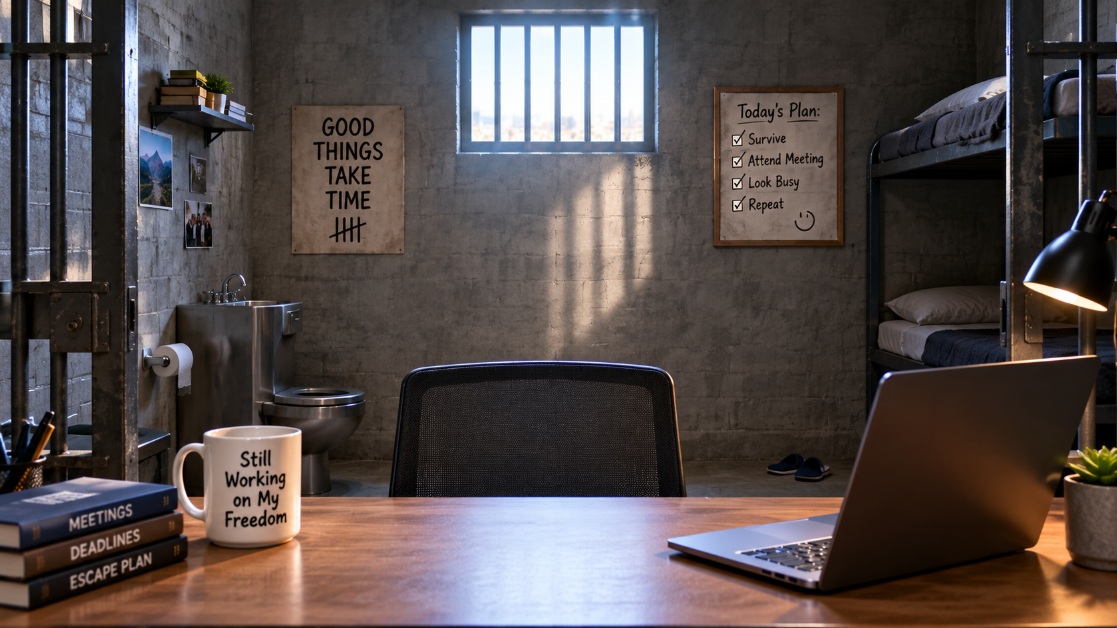
Prison cell backdrop
Bars, a bunk bed, and concrete walls behind you make a funny visual joke for anyone who's spent the whole day stuck in back-to-back, soul-draining meetings without a break.
-
Fake glitch or error screen
A convincing "connection unstable" graphic with pixelated static makes coworkers do a double take, wondering if your feed actually froze before they realize you planned the whole bit.
-
Llama in a cubicle
A llama sits calmly at a desk surrounded by monitors and sticky notes, an image that makes no logical sense and gets funnier the longer anyone looks directly at it.
-
Fake private jet interior
Cream leather seats, warm cabin lighting, and a window showing clouds outside make it look like you're casually joining the call from thirty thousand feet instead of your bedroom.

-
"Please stand by" technical difficulties screen
The classic broadcast test pattern with rainbow bars and static works great as a dramatic entrance, a mid-meeting joke, or a way to "buy time" before you unmute.
Funny Christmas Zoom backgrounds
Christmas calls are perfect for ridiculous virtual backgrounds. You can go festive, chaotic, or deliberately over-the-top.
-
Ugly Christmas sweater pattern
Wrap your call in pure visual overload with an obnoxious knit design of clashing neon wool, pixelated reindeer, and zigzags that makes your entire webcam look like itchy vintage partywear.

-
Santa's naughty list with your name on it
Scroll unfurled, weathered parchment with your name stamped in bold red letters right at the top. Settles any debate over your team's behavior this holiday season instantly.
-
Elf on the Shelf chaos
Behind your head, a living room ruled by pint-sized felt troublemakers who've unrolled miles of toilet paper, toppled the cereal boxes, and added mustaches to framed family portraits.
-
Christmas tree on fire
Channel peak holiday panic with a decorated evergreen completely engulfed in flames, offering an unapologetic and hilarious metaphor for end-of-year deadlines, packed schedules, and lingering fourth-quarter inbox emergencies.

-
The Grinch's cave
Abandon all forced cheer for the gloomy interior of Mount Crumpit, with its jagged cavern walls, scraps of stolen tinsel, and piles of junk mail, and a warm sense of quiet, antisocial winter comfort.
-
Gingerbread house interior
Sit inside a fully edible house framed by frosted cookie planks, with dripping royal icing seams, and giant gumdrop sconces that transform your average video frame into a delicious sugar-coated shelter.
-
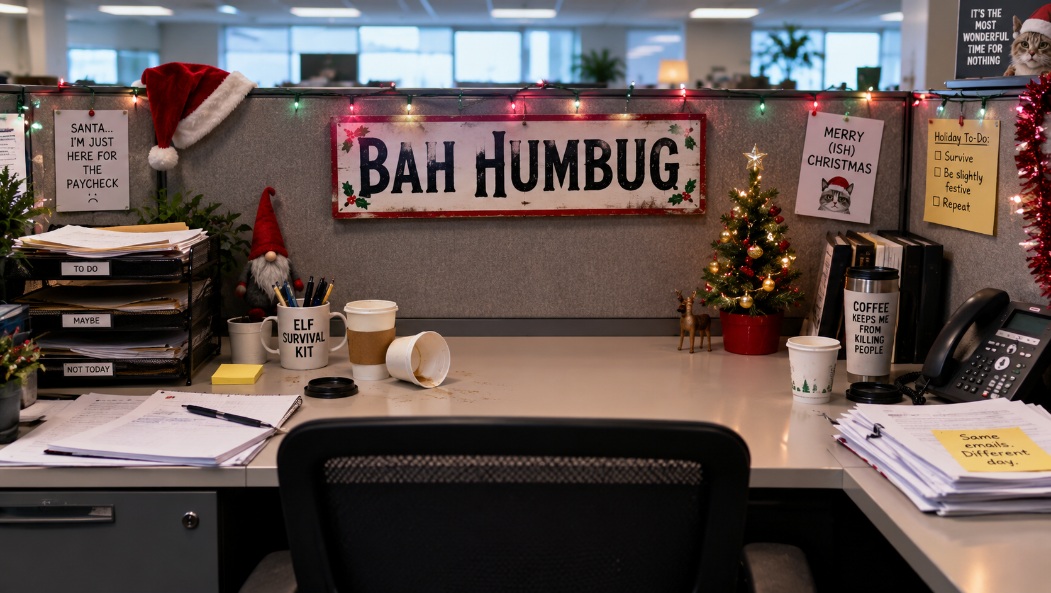
Ironic "Bah Humbug" cubicle
Design a boring office cubicle decorated with sarcastic "Bah Humbug" signs, empty coffee cups, and minimal Christmas decorations. It perfectly captures the humor of pretending to celebrate during another work meeting.
-
Overloaded holiday light display
Drown your co-workers in a blinding stupor with an aggressive suburban lawn display of thousands of blinking bulbs, glowing neon Santas, and tangled extension cords that light up your video box with sheer chaotic power.
-
Snow falling over a messy living room
Show a warm everyday state of disarray of unfolded laundry and stray gift wrap, completely deadpanned by a steady, impossible indoor blizzard softly blanketing your furniture with a powdery white winter frost.
-
Santa's sleigh crashing through the ceiling
Surround your head with broken drywall, torn wooden rafters, red sleigh runners, and hanging parcels above, giving the impression that a rushed rooftop landing went terribly wrong.

-
Dancing reindeer
Add theatrical flair with a synchronized chorus line of reindeer executing high-kicks against a snowy alpine forest backdrop, instantly turning any dull team sync into a lively Broadway holiday routine.
-
Fireplace with a cat knocking off ornaments
Show a cozy fireplace decorated for Christmas while a mischievous cat knocks ornaments from the nearby tree. The familiar pet behavior adds relatable humor to your festive Zoom background.
Funny Zoom backgrounds for friends & family calls
With friends and family, you can get much more creative. These backgrounds are designed for casual conversations where the goal is mostly to have fun.
-
Beach party with inflatable flamingos
Transport your screen to a sun-drenched resort pool packed with dozens of oversized, neon-pink flamingo floaties, sunny cocktail umbrellas, and blinding turquoise water for an instant vacation vibe.

-
Astronaut floating in the living room
Imagine a NASA astronaut in full suit drifting in zero-gravity, casually waving at the camera as personal belongings float weightlessly across your everyday domestic space; drop him right beside your couch.
-
Dinosaur-filled backyard
Transform your average suburban patio view into a prehistoric safari complete with a pair of curious velociraptors peeking over the fence and a massive T-Rex stomping past the barbecue grill.

-
Underwater aquarium with sharks
Sit directly inside an oceanarium glass tunnel where great white sharks, graceful stingrays, and schools of tropical fish circle overhead, giving your video feed a dramatic, deep-sea panoramic view.
-
Fast food drive-thru window
Set up your camera to look like an illuminated fast-food ordering booth with sliding glass windows, illuminated combo menus, and intercom speakers, and you'll look like you're about to take everyone's late-night burger orders.

Create your own funny backgrounds for Zoom with Vmake Labs
Stock funny backgrounds only stretch so far before your whole team has seen the same llama in a cubicle. Once you've cycled through the ideas above, the next move is building one that's actually yours.
That's where Vmake Labs AI image generator comes in. Describe your idea, upload a reference photo, or combine both, and Vmake Labs generates a custom background built around your exact joke, your office, or your face. No design software, no stock photo hunting, just a finished image ready to drop straight into your next Zoom call in a couple of minutes.

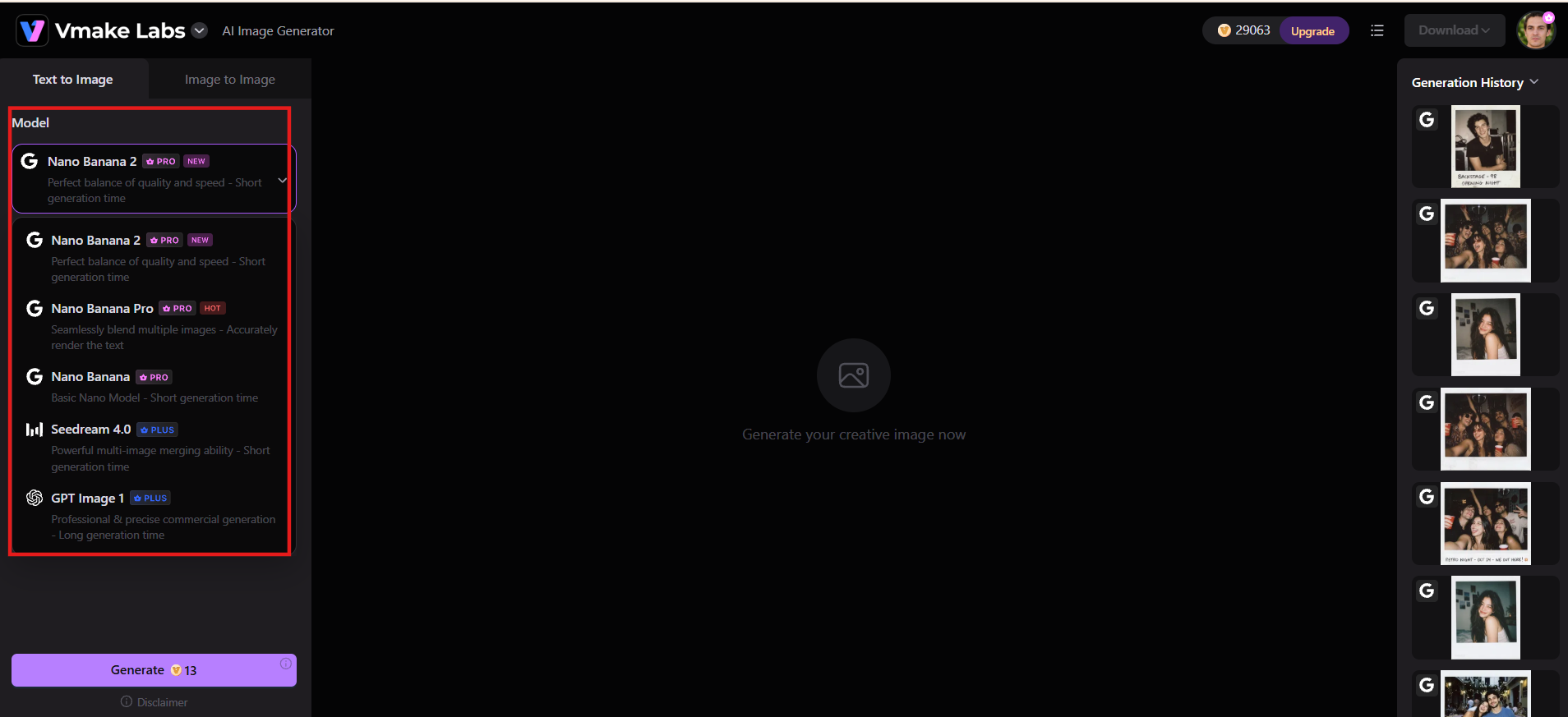
Step 1: Select AI model
Launch the Vmake Labs AI image generator and select the AI model that powers your image, including choices like Nano Banana, Seedream, or GPT Image, depending on the look you want to create.
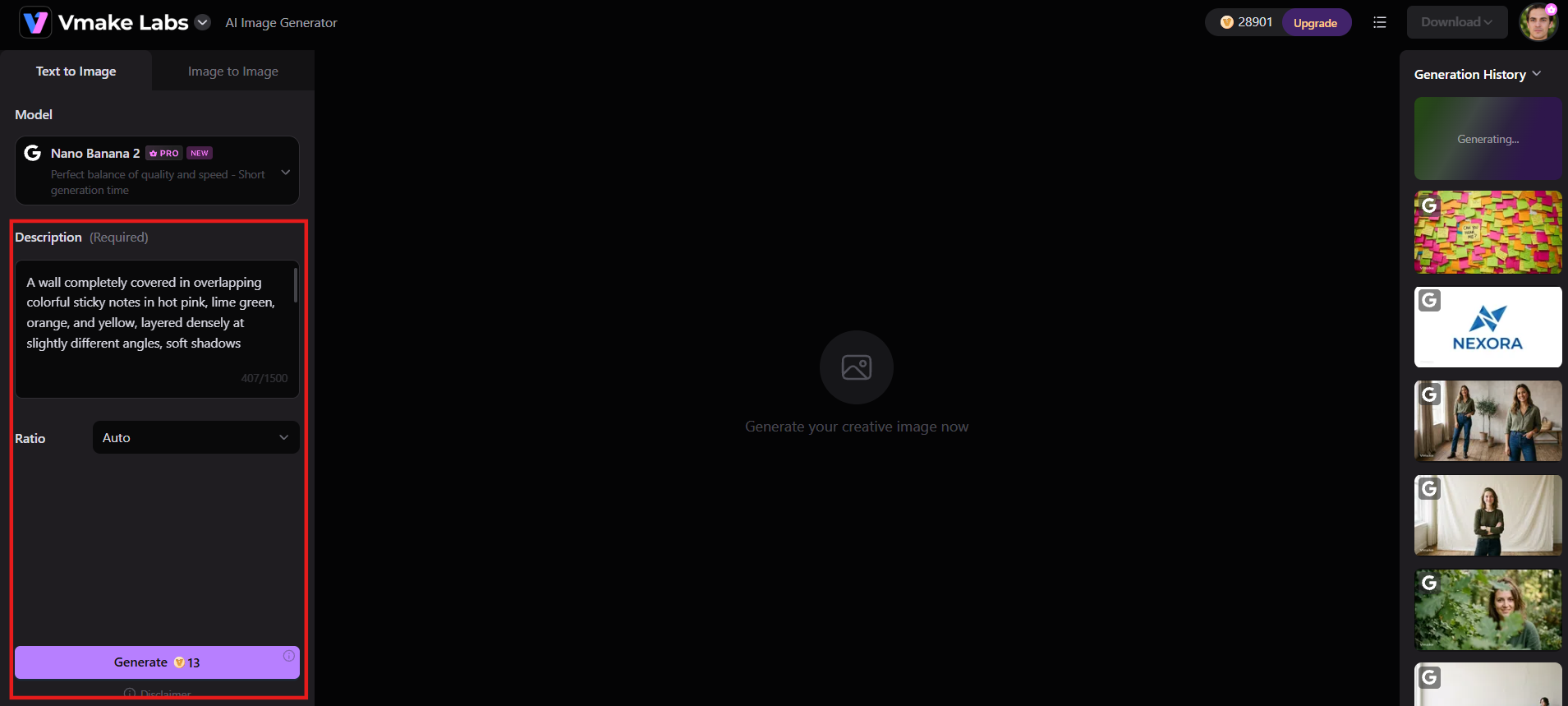
Step 2: Describe an idea or upload a reference
Type a detailed text prompt outlining your funny concept, such as "a medieval knight sitting in an office cubicle typing on a laptop," or upload an existing photo to transform into a new artistic style.
Step 3: Generate and download
Click Generate, and Vmake Labs creates your image in seconds. Download the finished file to your device, then upload it straight into Zoom as your virtual background.
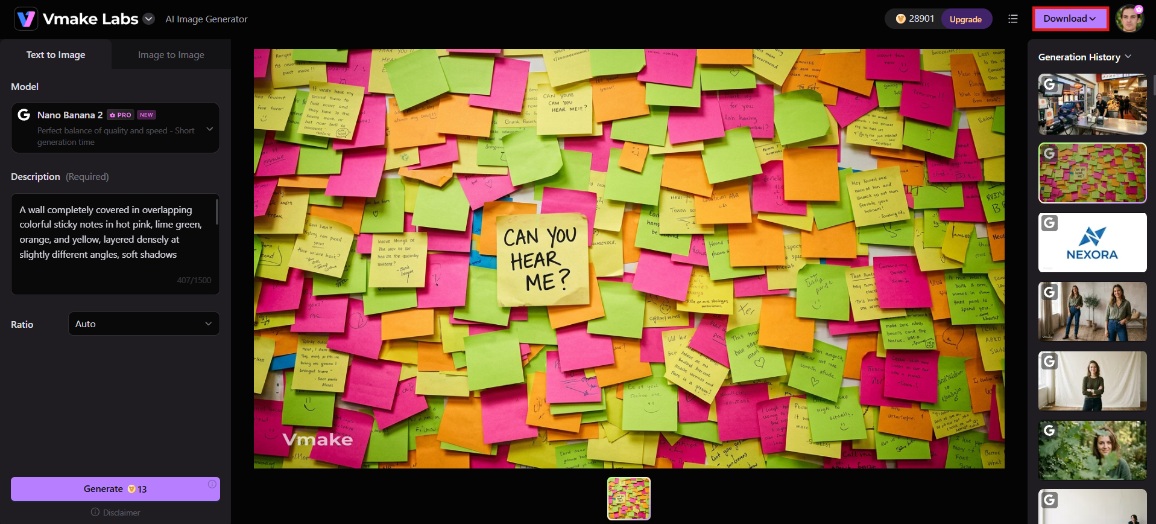
Key features of Vmake Labs
-
Multiple AI models to choose from
Vmake Labs gives you a choice between leading AI models, including Nano Banana, Seedream, and GPT Image, so you can build funny Zoom backgrounds in whatever style, tone, and level of detail actually fits your idea.
-
Text-to-image generation
Describe your funny background idea in plain words, whether that's a llama in a messy cubicle or Santa crashing through a ceiling, and Vmake Labs turns that description into a finished, ready-to-use image in seconds.
-
Image-to-image style transfer
Already have a photo you love? Upload it and reshape it into a completely different funny style, giving you a personalized Zoom background that still looks recognizably like you, just reimagined.
-
Custom aspect ratios
Set the exact aspect ratio your funny Zoom background needs before you generate it, so the final image fills your call perfectly without awkward cropping, stretching, or blank space around the edges.
How to set up a funny Zoom background
Setting up your chosen image takes less than a minute inside the desktop client:
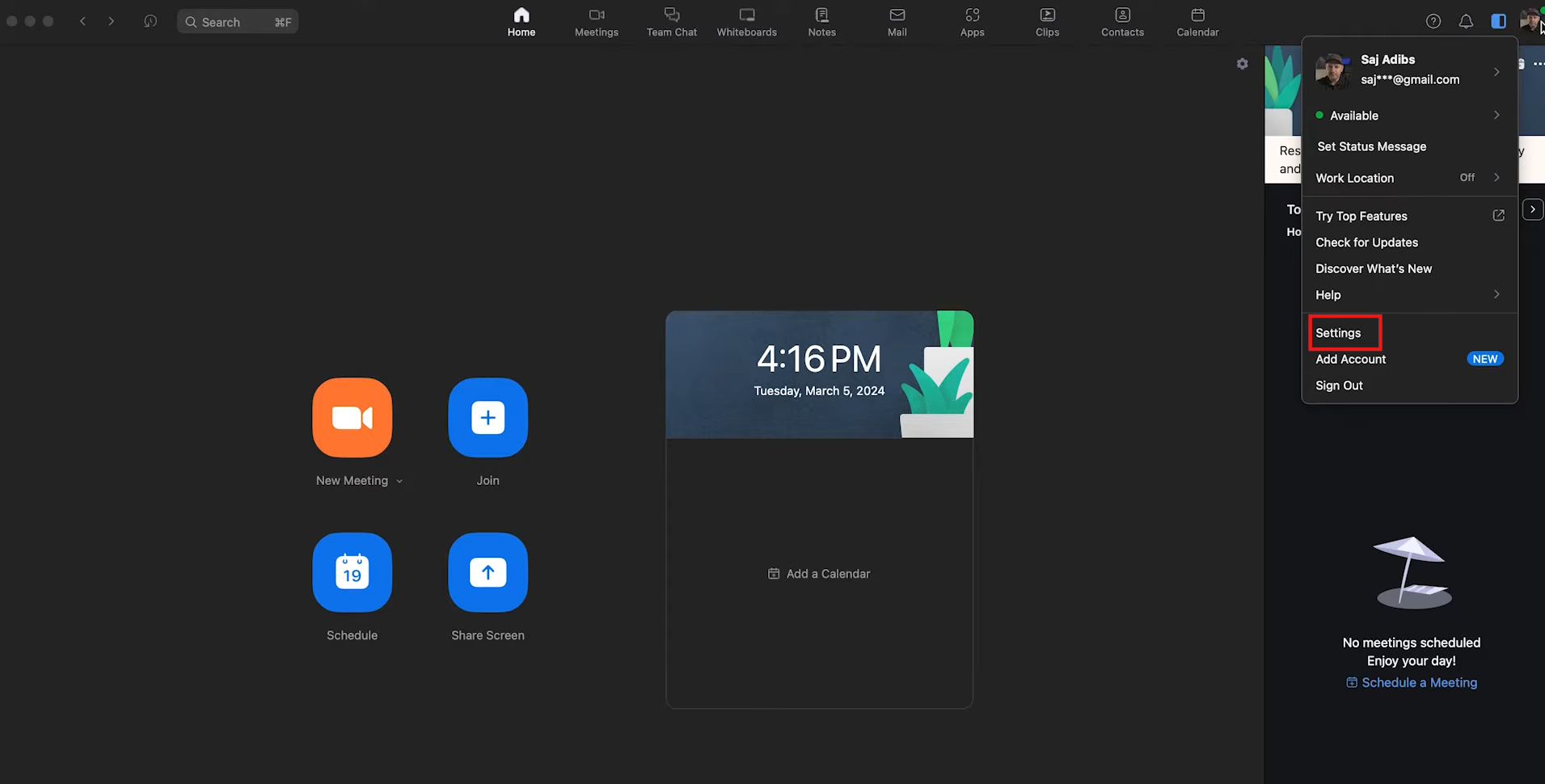
Step 1: Open Zoom settings
Launch the Zoom desktop app, click your profile icon in the top-right corner, then select Settings.
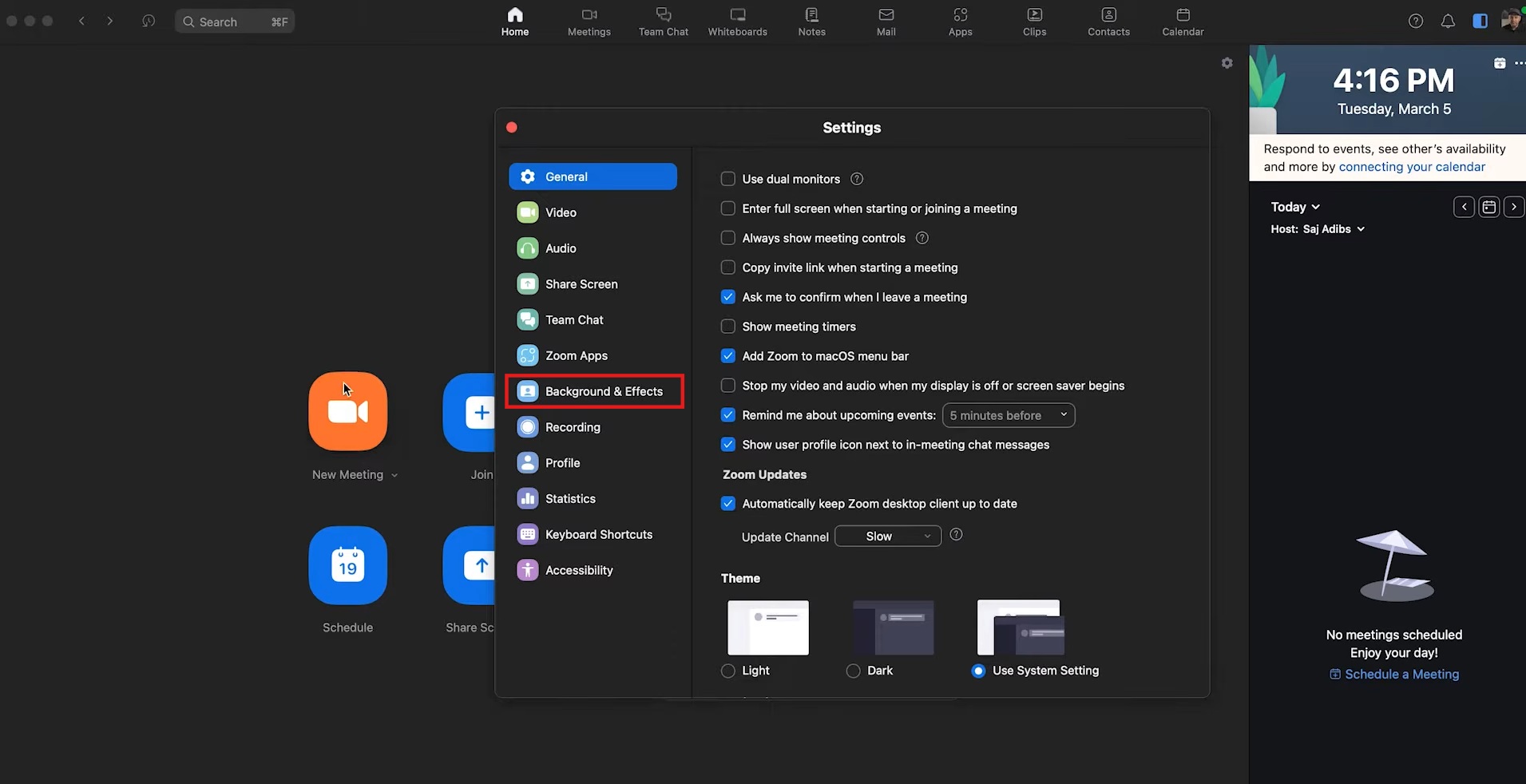
Step 2: Go to Background & Effects
In the settings menu, click Background & Effects on the left sidebar.
Step 3: Choose or upload your image
Select one of Zoom's built-in backgrounds, or click the "+" icon to upload your own funny background image (JPG or PNG works best).
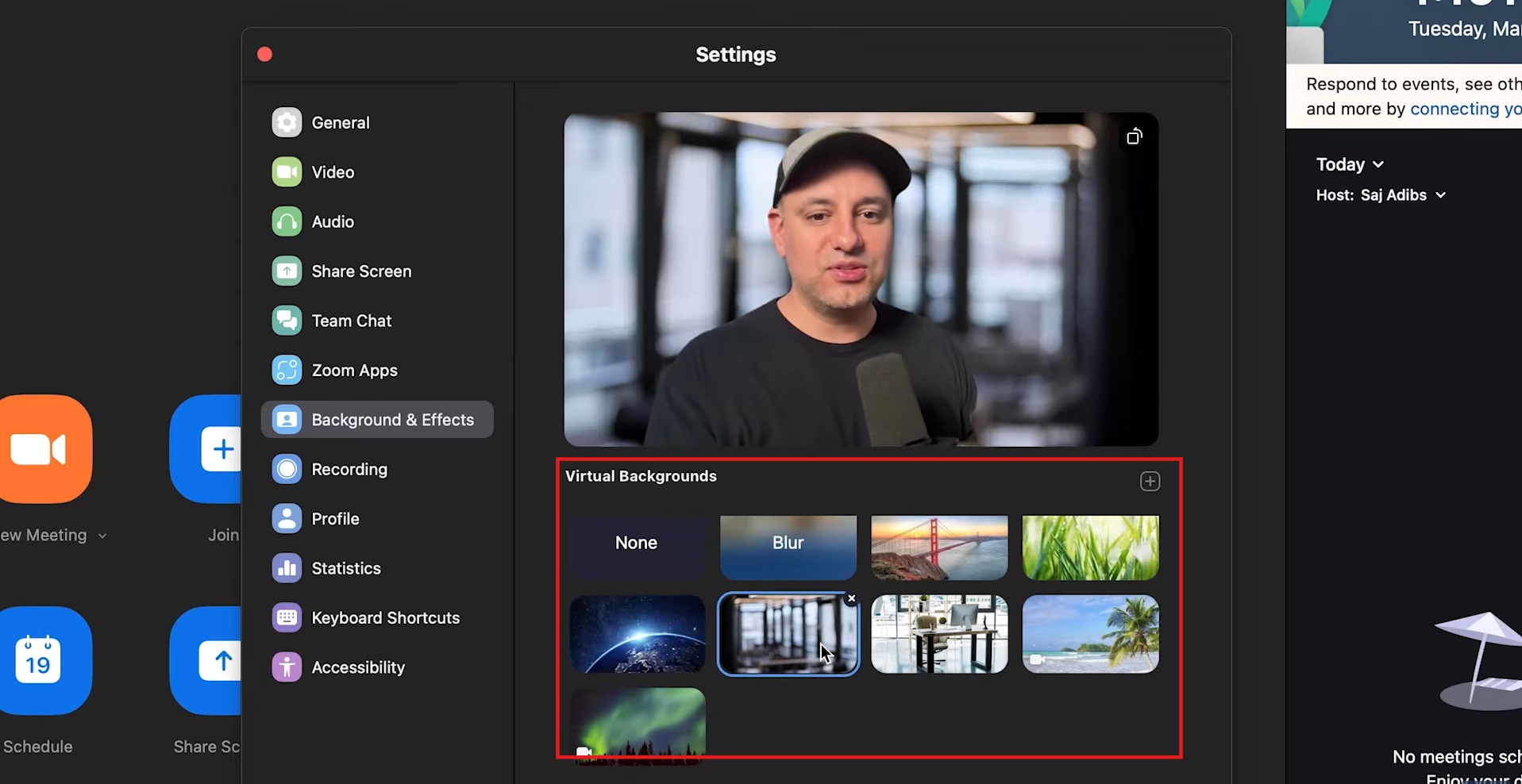
Step 4: Select Virtual Background
Click your uploaded image to apply it as your virtual background. Make sure "Virtual Background" is selected, not "Green Screen," unless you're using a physical green screen.
Step 5: Adjust for a clean look
Sit in a well-lit area and avoid busy patterns in your real background, so Zoom can separate you from it cleanly. If edges look choppy, enable "I have a green screen" only if you actually have one.
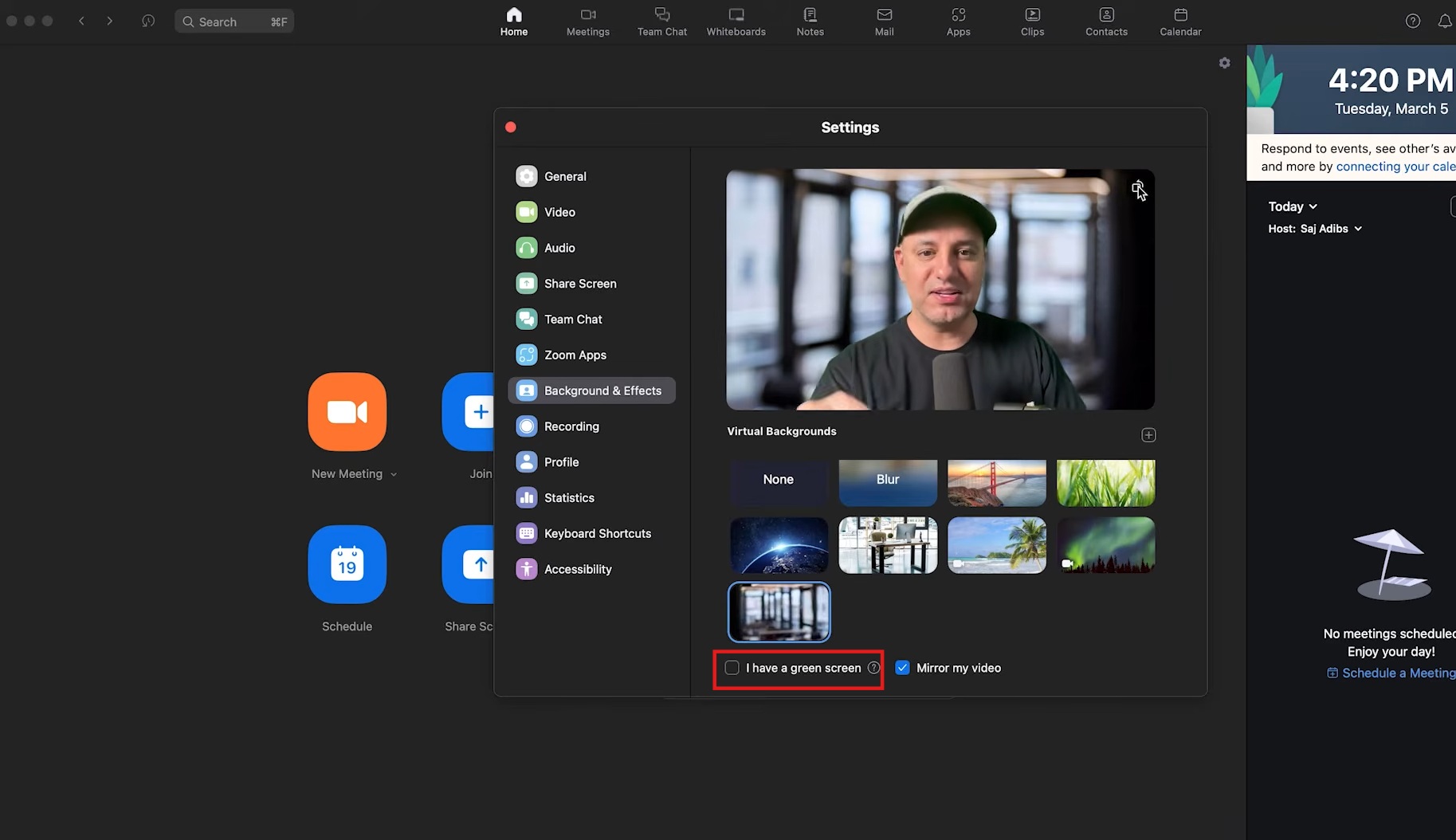
Step 6: Preview before your call
Check the preview window to confirm your funny background looks sharp and positioned correctly before joining a meeting.
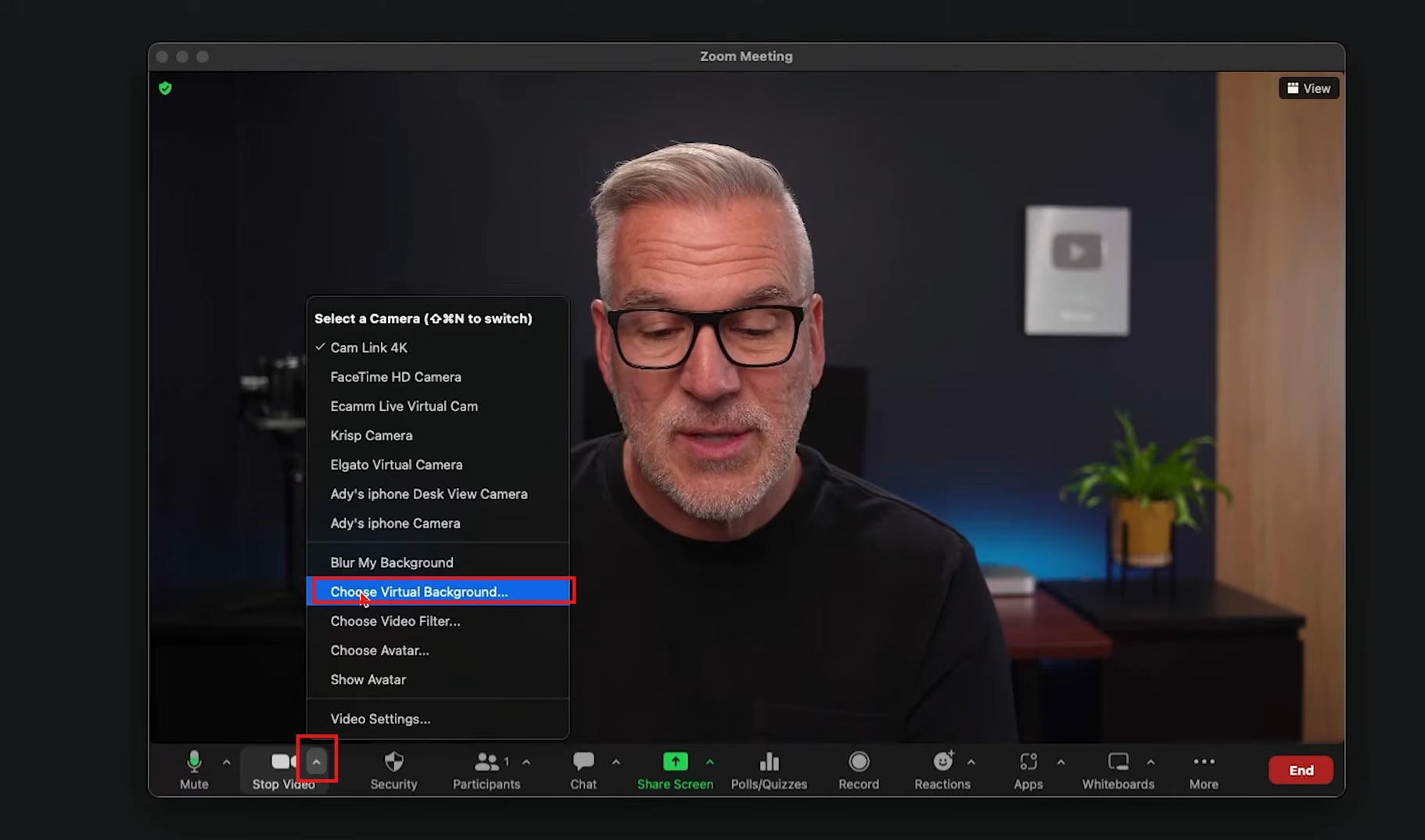
Step 7: Apply during a live meeting (Optional)
Already on a call? Click the ^ arrow next to the Stop Video icon, select Choose Virtual Background, and pick your image on the fly.
How to choose the best funny Zoom background
A funny background should make the call more entertaining, not harder for people to see or hear you. Keep these in mind before you pick one.
-
Match the background to your audience
Work meetings, friends, family calls, and client meetings each call for a different level of humor, so what lands well in a casual chat might feel out of place during a client pitch.
-
Keep the joke easy to understand
Choose recognizable scenes and visual jokes people can process in a glance, since anything that needs a long explanation loses its punch the moment you have to walk someone through it.
-
Avoid overly busy backgrounds
Too many objects competing for attention make your video look cluttered and pull focus away from your face, which defeats the point of being on a video call in the first place.
-
Choose a high-quality image
Use a sharp, properly sized image so the background doesn't look pixelated or stretched, since a blurry or low-resolution photo undercuts even the funniest concept the moment people notice it.
-
Consider your clothing
Avoid clothing that blends into the background or interferes with Zoom's virtual-background effect, since solid colors close to your background's palette can make parts of you disappear mid-call.
Conclusion
Funny Zoom backgrounds turn a routine call into something people actually remember, whether that's a llama in a cubicle during a Monday standup or Santa crashing through the ceiling at your holiday party. Pick a few from the 25+ ideas above, match the humor to your audience, and keep the joke easy to read at a glance. When stock options start feeling repetitive, build your own with Vmake Labs. Describe your idea, pick a model, and generate a background that's actually yours in a couple of minutes.
FAQs
Can I use any image as a Zoom background?
Yes. Zoom accepts standard JPG and PNG files as virtual backgrounds. For the cleanest result, pick a well-lit, high-resolution image without heavy clutter, since low-quality photos tend to look pixelated once applied.
What size should a funny Zoom background be?
Use a 1920x1080 resolution, matching a 16:9 aspect ratio. That size fits most laptop and monitor screens directly, so your background displays correctly without stretching, cropping, or leaving blank space around the edges.
Can I create my own funny Zoom background?
Yes. Tools like Vmake Labs let you describe an idea or upload a reference photo, then generate a custom image in a few steps. No design software or editing skills required.
Do I need a green screen for a funny Zoom background?
No. Zoom's virtual background feature uses software to detect and replace whatever's behind you. A physical green screen just sharpens the edges, especially in low light or a cluttered room.
Can I use these backgrounds in other video conferencing tools?
Yes. Platforms like Google Meet and Microsoft Teams support custom virtual backgrounds using the same image files, so anything you build for Zoom works across most other tools too. Just check the specific background upload requirements for whichever platform you're using, since file size and format limits can vary.

You May Be Interested

[2026] How to Blur Background in Zoom: Desktop & Mobile
How Does a Green Screen Work? AI Background Removal Guide

Add a Background to a Band Video with AI: Easy Guide 2026
How to Give a Video a Transparent Background in Premiere