How to Give a Video a Transparent Background in Premiere Pro
Learn how to give a video a transparent background in Premiere, remove backgrounds, preserve alpha channels, and create videos faster with creator-friendly tools from Vmake Labs for every project now.

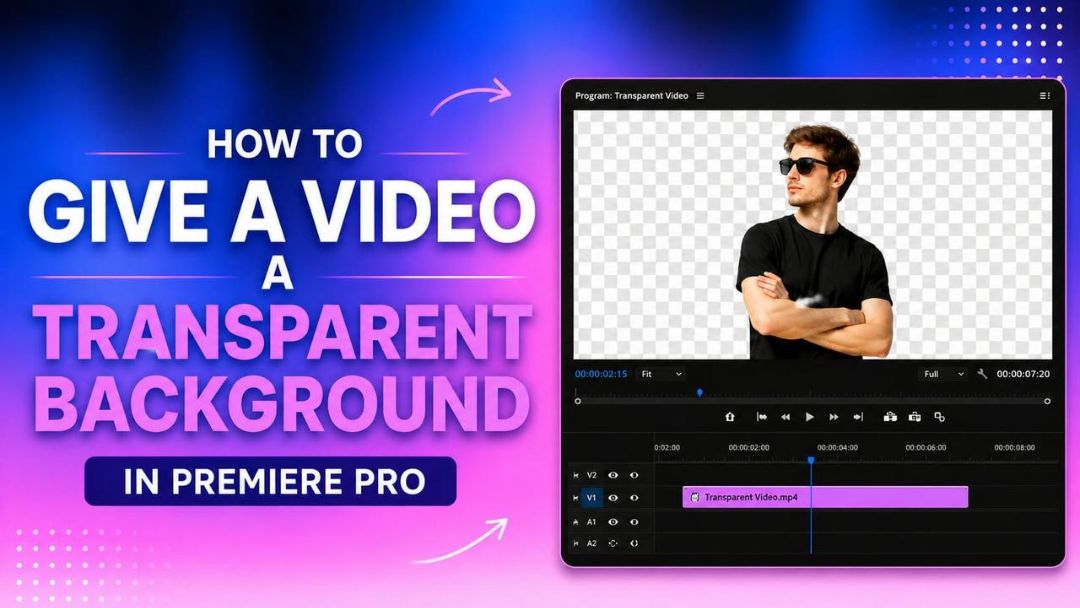
A transparent background movie offers more options for brand, layers, social material, and motion graphics. Adobe Premiere Pro includes professional tools to help you do this, and AI solutions can make it easier. This tutorial covers export settings, common issues, practical approaches, and innovative ideas for today's makers and marketers.
What does a transparent background video mean in Premiere Pro?
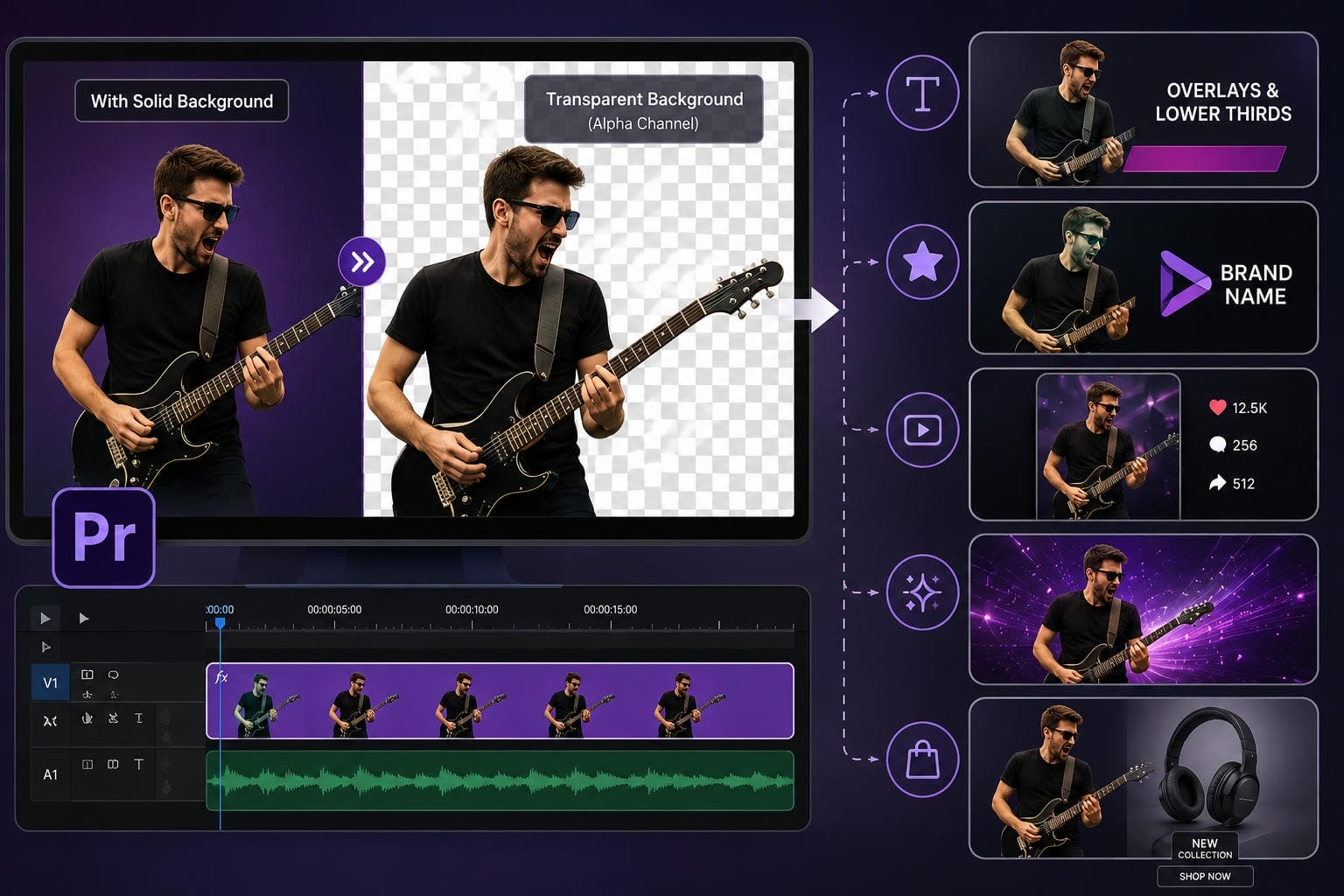
A video with a transparent background has an alpha channel to preserve the background behind the subject as transparent, rather than a solid colour. It's easy to overlay video on top of graphics, animations, and other footage. Modern video production makes extensive use of transparent assets for logos, lower thirds, overlays, and promotional content.
Why creators use transparent background videos
Transparent assets are just as helpful to short-form content, helping to add stickers, text animations, and effects to Reels, Shorts and TikTok videos. Motion designers can combine transitions and visual effects with live footage with ease thanks to alpha channels. Brands can reuse the same product animations on websites, presentations and promotions to maintain a consistent visual identity and to lower production costs.
How to give a video a transparent background in Premiere Pro
Creating a transparent background in Premiere Pro involves removing the background, checking transparency, and exporting with an alpha-enabled format. Following the right workflow helps you create assets for overlays, branding, motion graphics, and social media content.
Step-by-Step guide to removing a video background in Premiere Pro
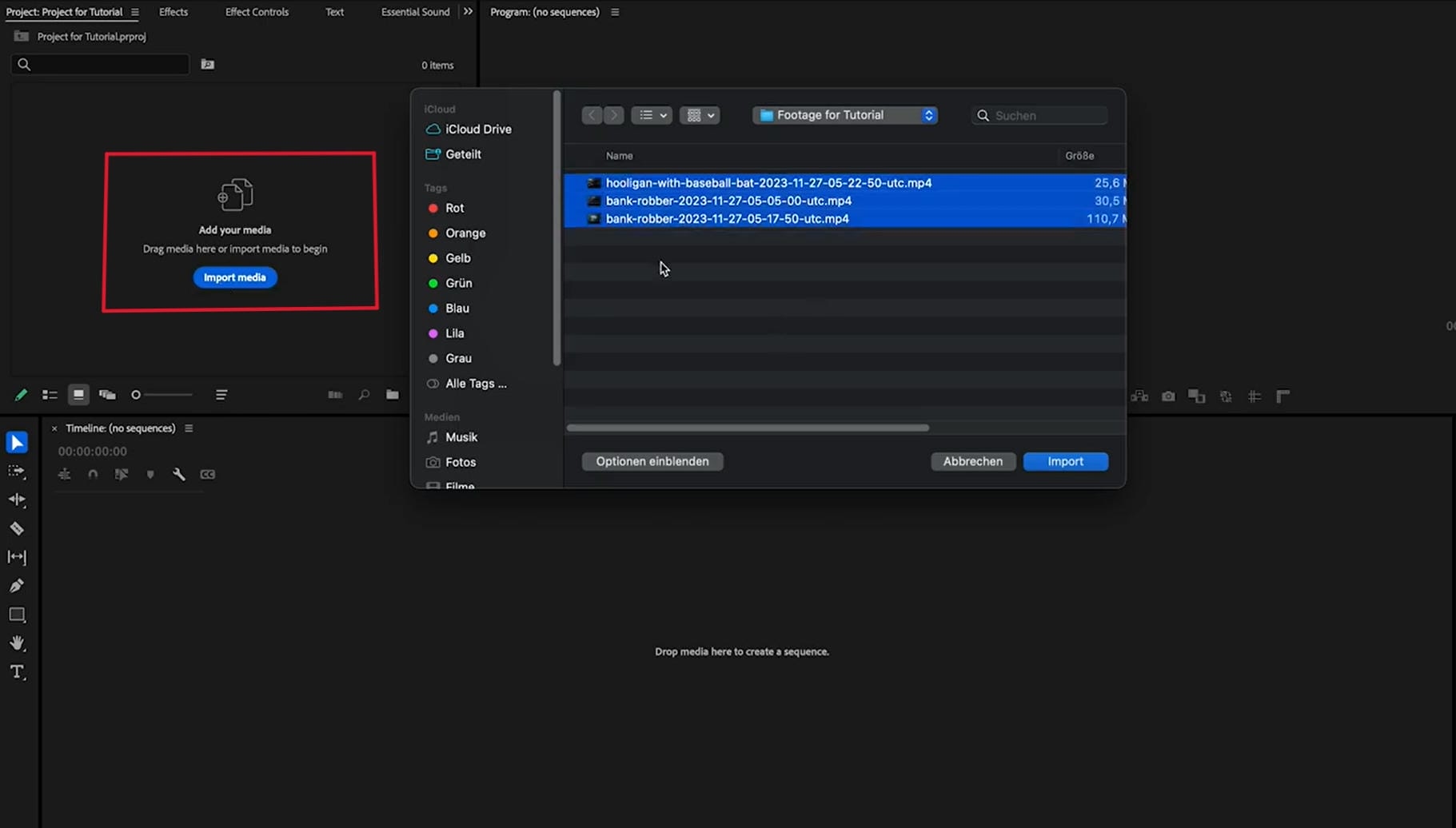
Step 1: Import your video into Premiere Pro
Import your footage and place it on the timeline. Make sure the subject is clearly visible and separated from the background for better results.
Step 2: Remove the background
Use tools such as Ultra Key, masking, or rotoscoping to isolate the subject. Fine-tune the settings to create clean edges around people, objects, or instruments.
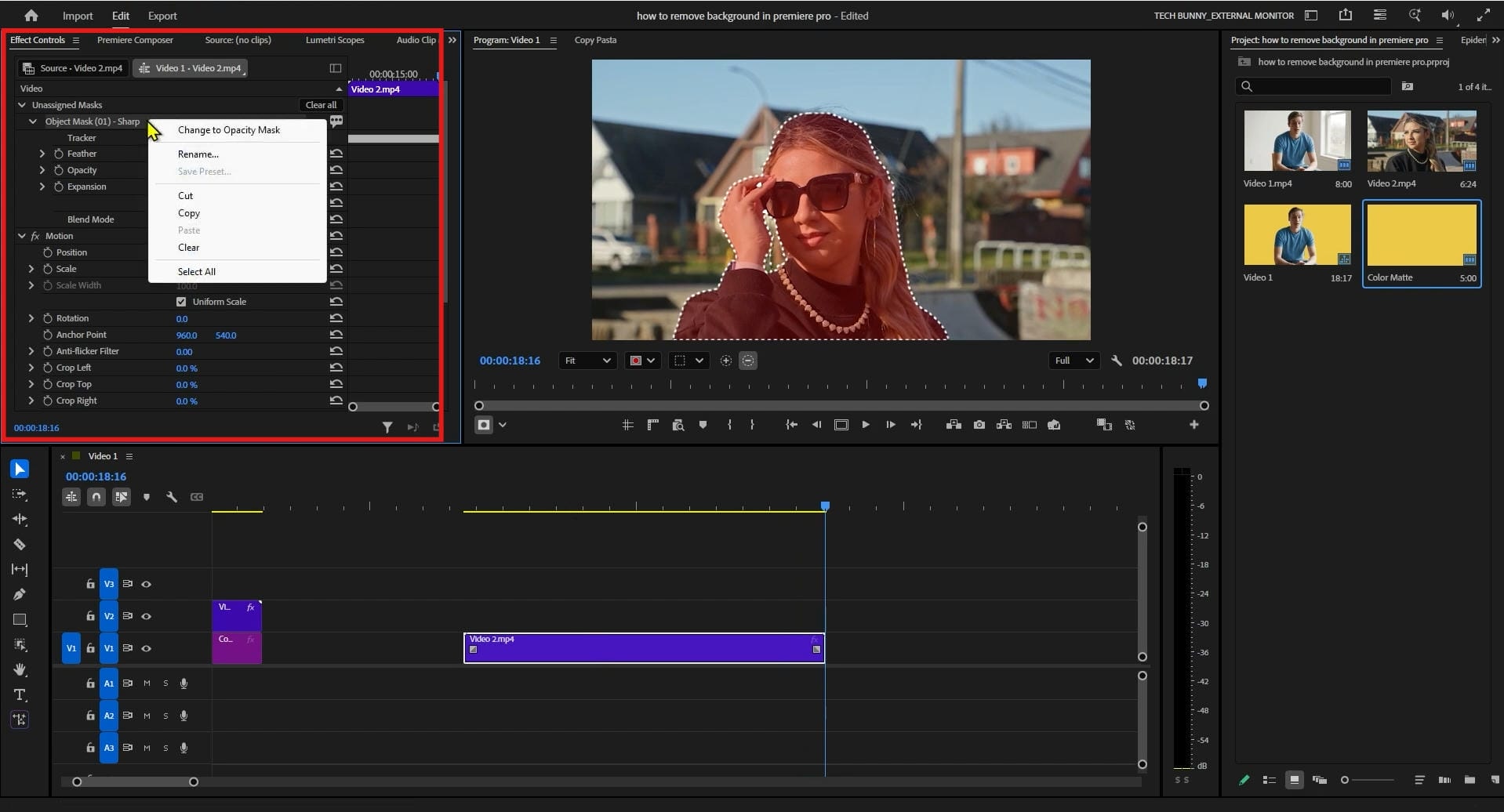
Step 3: Export and test the final video
Export your video using settings that support transparency and save the final file. Preview it in Premiere Pro to ensure the transparent background appears correctly and no visual issues remain.
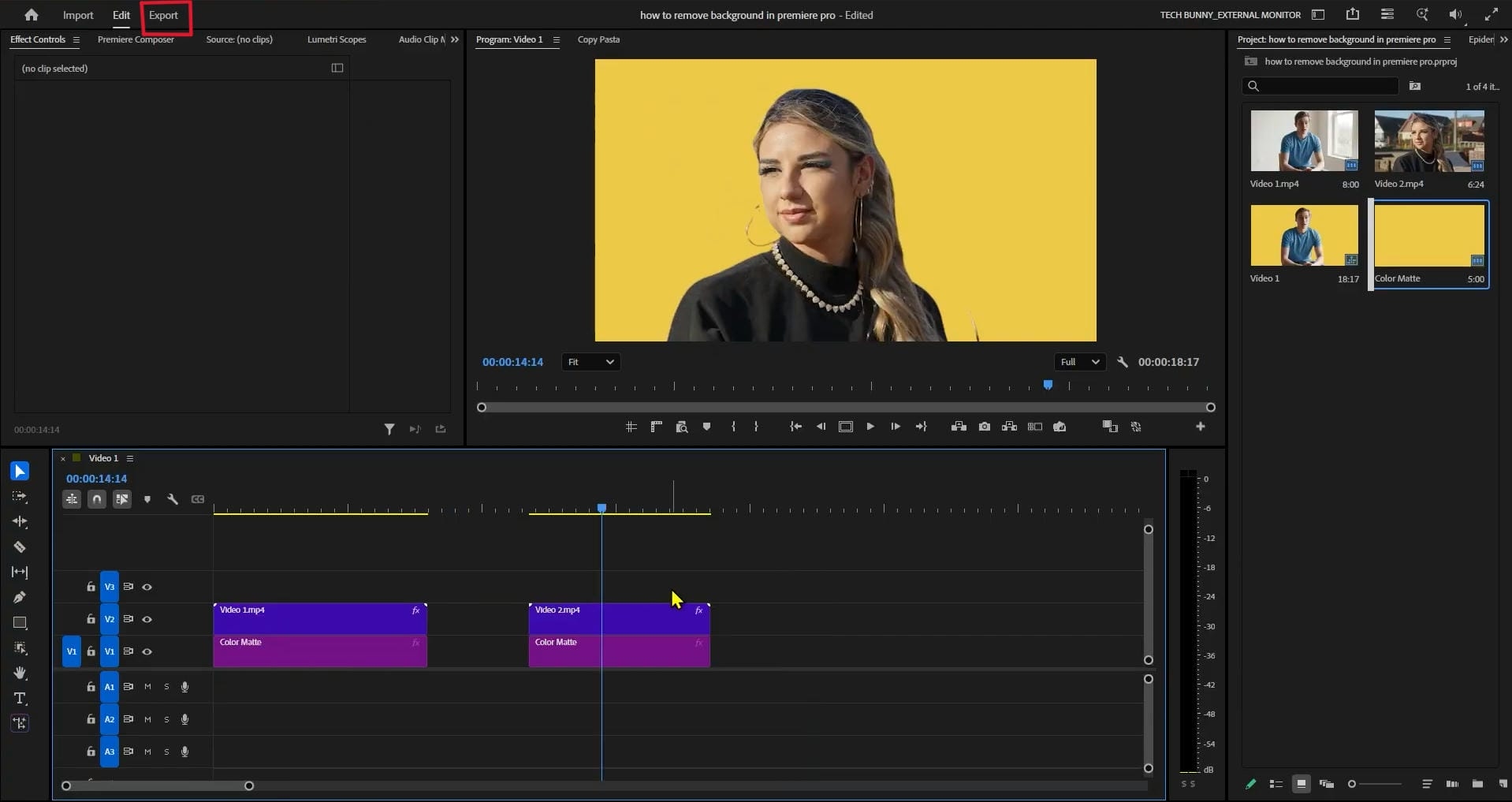
Best export settings for transparent videos in Premiere Pro
Choosing the right export settings is important because not every format preserves transparency. Using alpha-compatible codecs helps avoid black backgrounds and ensures better compatibility across editing platforms.
|
Export format |
Transparency supported |
Recommended codec |
Best for |
Notes |
|---|---|---|---|---|
|
QuickTime (.mov) |
Yes |
Apple ProRes 4444 |
Professional editing, motion graphics |
The most common choice for preserving alpha channels |
|
QuickTime (.mov) |
Yes |
GoPro CineForm RGB 12-bit with Alpha |
Cross-platform editing |
Good alternative when ProRes isn't available |
|
PNG Sequence |
Yes |
PNG |
VFX, animation, frame-by-frame editing |
Produces individual transparent image frames |
|
TIFF Sequence |
Yes |
TIFF |
High-quality compositing |
Large file sizes but excellent quality |
|
AVI |
Limited |
Animation codec (where supported) |
Legacy workflows |
Compatibility varies by software and platform |
|
H.264 (.mp4) |
No |
H.264 |
Web delivery |
Does not preserve transparency |
Common transparent background issues and how to fix them
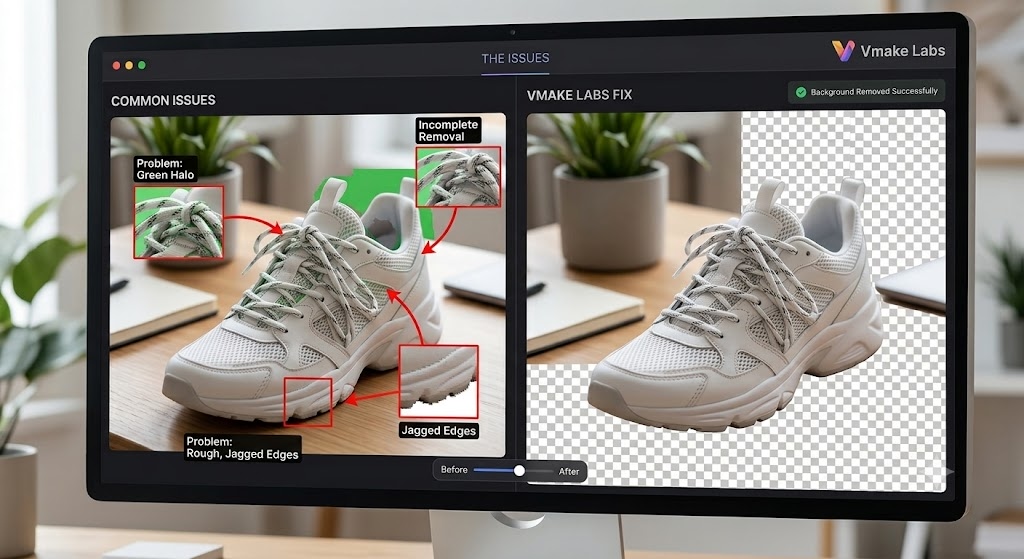
Creating transparent videos can sometimes cause some strange issues when exporting or playing the video. Fortunately, most problems may be handled by choosing the proper settings and formats.
-
Black background after export: Generally, a black background means the codec you selected does not support transparency. Usually re-exporting with ProRes 4444 or CineForm with Alpha will solve the problem.
-
Unsupported formats: Not every video format preserves transparent backgrounds. MOV files with compatible codecs work well, while standard MP4 exports do not retain alpha information.
-
Missing alpha channels: Missing transparency usually occurs when RGB + Alpha is not enabled during export. Checking your codec settings helps prevent this problem.
-
Playback issues across platforms: Some media players cannot display transparent videos correctly, even when alpha channels are present. Files that work in Premiere Pro may still appear with black backgrounds elsewhere.
-
Simple troubleshooting tips: Most transparency issues can be solved with proper export settings. Verify transparency using Premiere Pro's checkerboard view and use ProRes 4444 or CineForm with Alpha instead of H.264. Test exported files across applications for better compatibility.
Even with the correct export settings, generating translucent videos in Premiere Pro can still take numerous additional steps. For creators who seek a faster, simpler workflow, AI-powered solutions provide a simpler approach to eliminate backgrounds and make transparent objects without sophisticated editing knowledge.
Create transparent videos faster with Vmake Labs
Vmake Labs streamlines transparent video creation by automating background removal through AI-powered processing. Instead of manually creating masks or refining keyframes, creators can generate reusable transparent assets in minutes. This approach is especially useful for marketing videos, social content, and product promotions.
Key features
-
AI video background remover: AI automatically finds and removes subjects from their backgrounds, eliminating the need for manual removal and allowing artists to easily make polished, professional films.
-
Transparent video creation: Create transparent videos for overlays, animations, and branding materials, retaining key characteristics so assets can be reused across numerous campaigns.
-
Fast AI processing: AI-powered processes drastically cut down editing time, enabling creators to prep and distribute material in a far shorter time frame than previously possible without losing quality.
-
Quality of subject detection: Advanced algorithms accurately capture hair, edges in clothing, and movement, leading to cleaner and more natural-looking transparent assets.
-
One-Click backdrop replacement: Instantly replace backgrounds and try several styles or themes, allowing artists of any expertise level to produce professional-looking videos.
How to create a transparent video with Vmake Labs
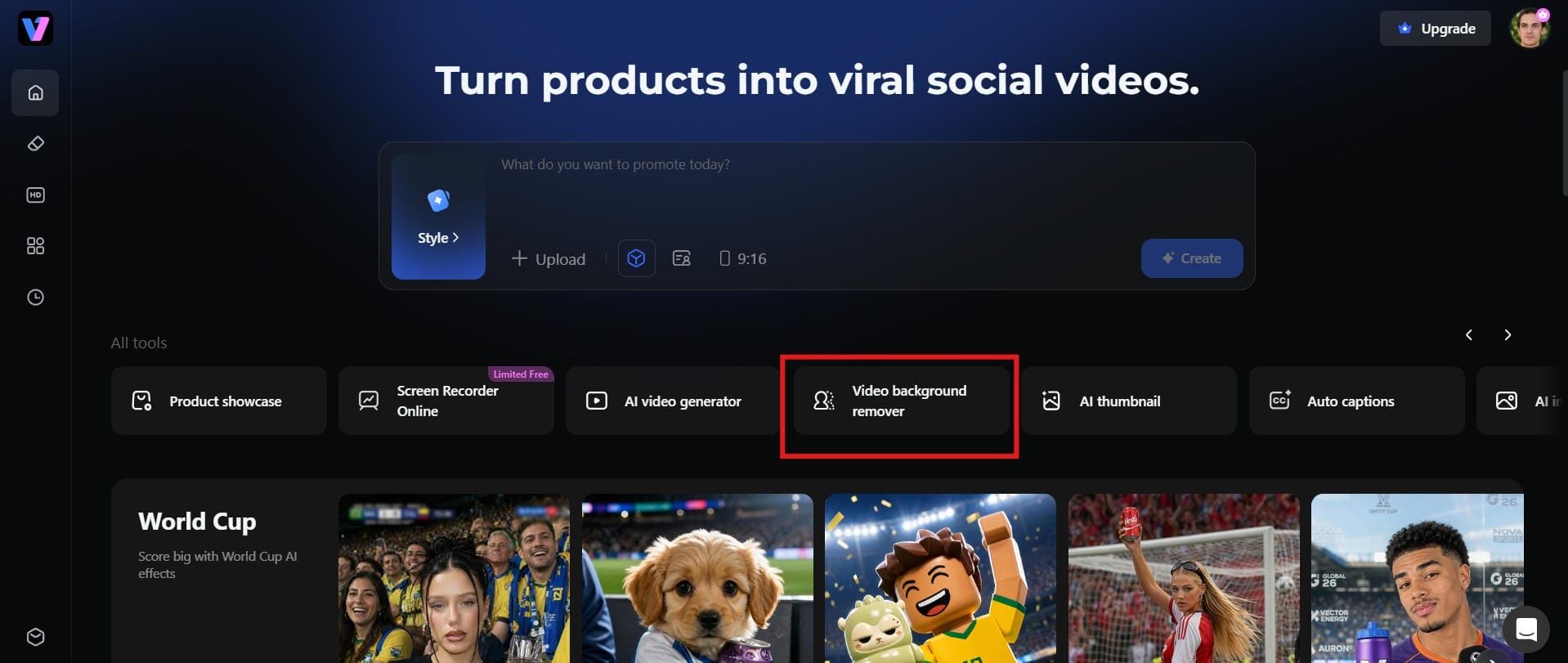
Step 1: Open the Vmake Labs Background Remover
Open the Vmake Labs background remover and click start creating to begin. Create a new project and prepare your workspace for editing.
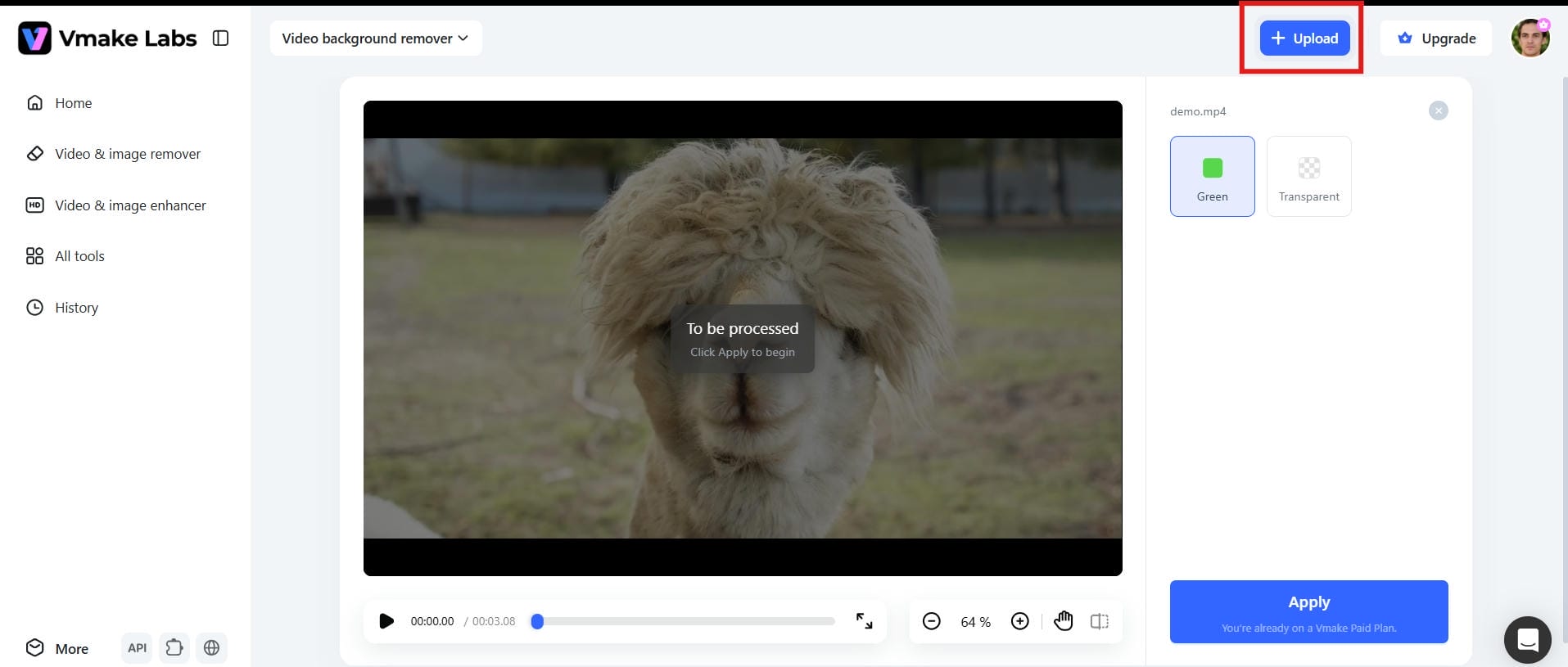
Step 2: Upload your video
Upload the video you want to edit and let the AI analyse the content. The system automatically detects the main subject and prepares it for background subtraction.
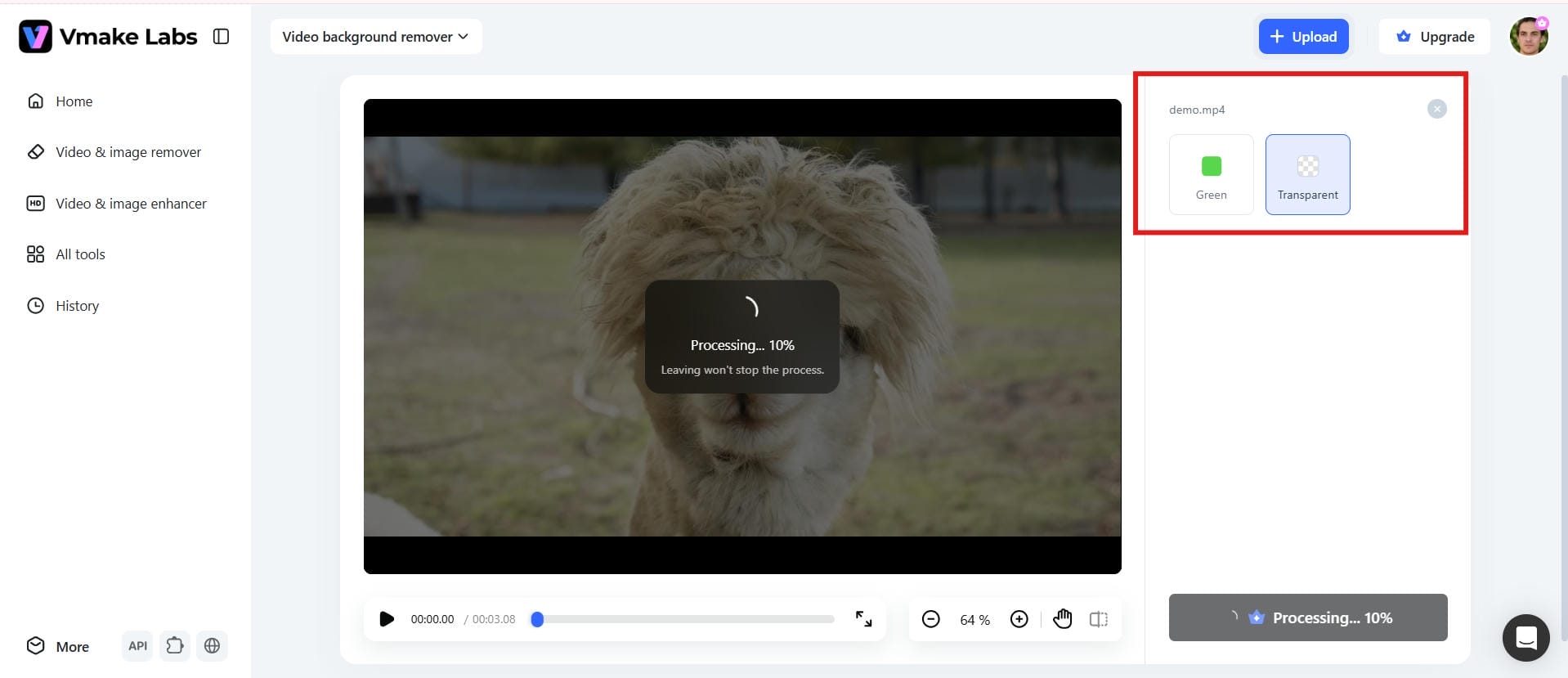
Step 3: Create a transparent video
Select the transparent background option and begin processing your video. The AI removes unwanted elements while preserving important subject details. This workflow is particularly useful for branding campaigns and ugc video projects.
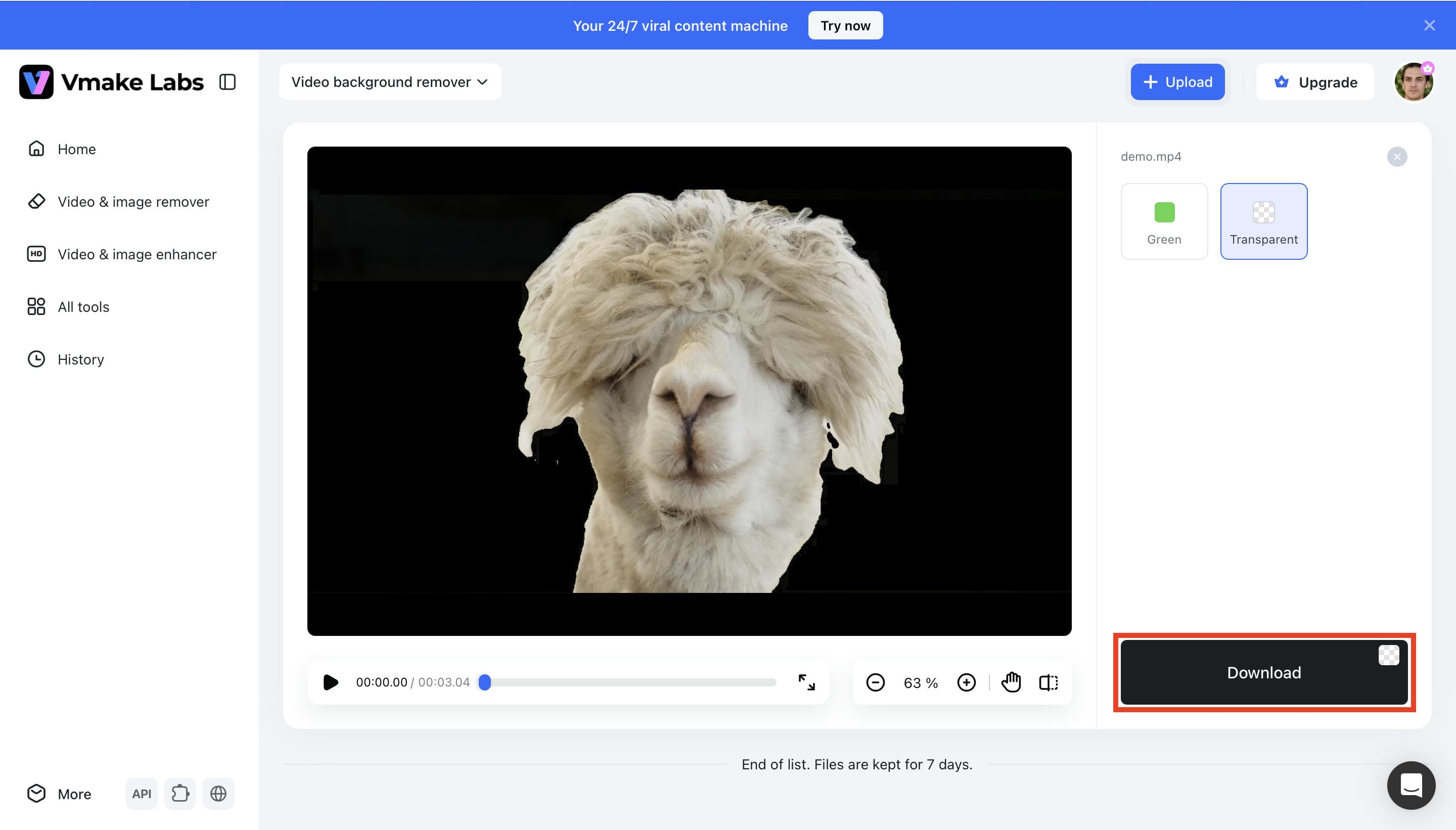
Step 4: Download your transparent video
Download the completed file and verify that transparency has been preserved. The asset can immediately be used in motion graphics, social media content, or branded campaigns.
Premiere vs Vmake Labs: Which is better for transparent videos?
Premiere Pro and Vmake Labs take different approaches to transparent video creation. Premiere emphasizes manual control and advanced editing capabilities, while Vmake Labs focuses on speed and AI-driven automation. Both produce excellent results but serve different creative needs.
|
Feature |
Premiere |
Vmake Labs |
|---|---|---|
|
Background removal |
Manual keying and masking tools |
AI-powered background removal |
|
Ease of use |
Intermediate to advanced |
Beginner-friendly |
|
Editing workflow |
Full video editing with timeline controls |
One-click transparent video creation |
|
Export process |
Manual alpha channel export settings |
Simplified AI export workflow |
|
Processing speed |
Depends on editing complexity |
Fast AI processing |
|
Best for |
Professional editing, motion graphics, and advanced projects |
Quick transparent videos, social media content, and marketing assets |
When Premiere is the better choice
Premiere is ideal for creators who need complete control over editing, masking, and export settings. Advanced motion graphics, layered effects, and professional productions benefit from its flexibility. Many editors also pair transparent workflows with a video enhancer to maintain image quality.
When Vmake Labs is the better choice
Vmake Labs is a strong option for creators who want fast and simple transparent video creation. The AI-powered workflow takes care of masking and complex export settings for you. This is especially useful for ugc video campaigns, short-form content and marketing assets. Achieve professional results without needing to know anything about editing.
How to choose the right tool for your workflow
The option you make should be driven by your goals, technical experience, and production schedule. Premiere is the best for advanced editing and motion graphics. Vmake Labs is the best for something faster and for everyday stuff. Many creators also pair transparent videos with a video transcript generator to streamline post-production and improve content accessibility across multiple platforms.
Conclusion
Transparent background films allow artists more creative options when building branded material, motion graphics, overlays, and social media assets. Premiere Pro gives pro-grade control with powerful keying tools, alpha channels and trusted output formats such as ProRes 4444. Meanwhile, AI-powered platforms are making background removal faster and easier for everyday jobs. Knowing what formats are supported, typical export pitfalls, and the proper methodology will enable producers to more efficiently produce polished, reusable materials. Regardless of your priorities on accuracy or fast delivery, clear videos are an integral aspect of current content production and digital marketing plans.
FAQs
How do I give a video a transparent background in Premiere Pro?
Import your footage into Premiere Pro and remove the background using keying tools or masks. After checking the transparency grid, export the file with an alpha-supported codec like ProRes 4444. Some creators also use Vmake Labs to prepare clean subject footage before bringing it into Premiere for additional editing.
Which export format supports transparent backgrounds in Premiere?
QuickTime MOV files with Apple ProRes 4444 or GoPro CineForm RGB 12-bit with Alpha are the most dependable choices. PNG and TIFF sequences also preserve transparency for animation projects. Standard MP4 exports, however, do not retain alpha channels.
How do I check whether my Premiere video contains an alpha channel?
You can enable Premiere Pro's checkerboard view to verify transparent areas in your timeline. Another simple method is opening the exported file in software that supports alpha channels. If no solid background appears behind the subject, the transparency has been preserved correctly.
Why does my transparent video show a black background after exporting?
A black background usually means the selected format or codec does not support transparency. Re-exporting with alpha-enabled settings often fixes the issue. It is also worth checking whether the playback software can display transparent videos properly.
Can Vmake help remove video backgrounds without using Premiere Pro?
Yes. Vmake Labs automatically identifies the subjects and eliminates the background, so no manual masking or keyframes are needed. It's a good option if you're a creator who needs to make social media clips, product videos, or quick promotional content.
What is the easiest way to give a video a transparent background for social media content?
AI-powered solutions are generally the fastest way to create short-form content because they remove technical steps and speed up production. Vmake Labs lets creators build transparent elements that can be used in Reels, Shorts, and other marketing materials.

You May Be Interested
How to Add Subtitles in Premiere Pro: A Complete Guide
[2026] How to Make Background Transparent (Free & Easy)

[2026] How to Blur Background in Zoom: Desktop & Mobile
[2026 Updated] Ultimate Guide to OBS Background Removal