What Is Digital Artwork? Meaning, Types, and How to Make It
Discover everything you need to know about digital artwork—what it is, how to create and digitize it, the best digital artwork apps to use, and practical tips to sell digital artwork online.

Digital art has transformed the way artists create, edit, and share their work. Whether you are drawing on a tablet, turning traditional paintings into digital files, or using AI to create unique visuals, digital art has endless creative possibilities. This guide covers everything from creation and digitization to selling your artwork successfully.
What is digital artwork?
Digital artwork refers to any visual artistic piece created, altered, or displayed via digital technology. Digital artists, instead of using traditional physical media like oil paint, acrylics, graphite, or clay, use computers, graphics tablets, smartphones, and software algorithms to render graphics, illustrations, and 3D models.
Traditional art is unique physical objects. Digital art is easily editable, infinitely reproducible, and often created with layers, brushes echoing real media, or generative AI. You can undo mistakes, experiment freely, and distribute the same high-quality file worldwide. But many artists are using both: working in traditional ways then digitizing, or beginning digitally and then printing physical editions.
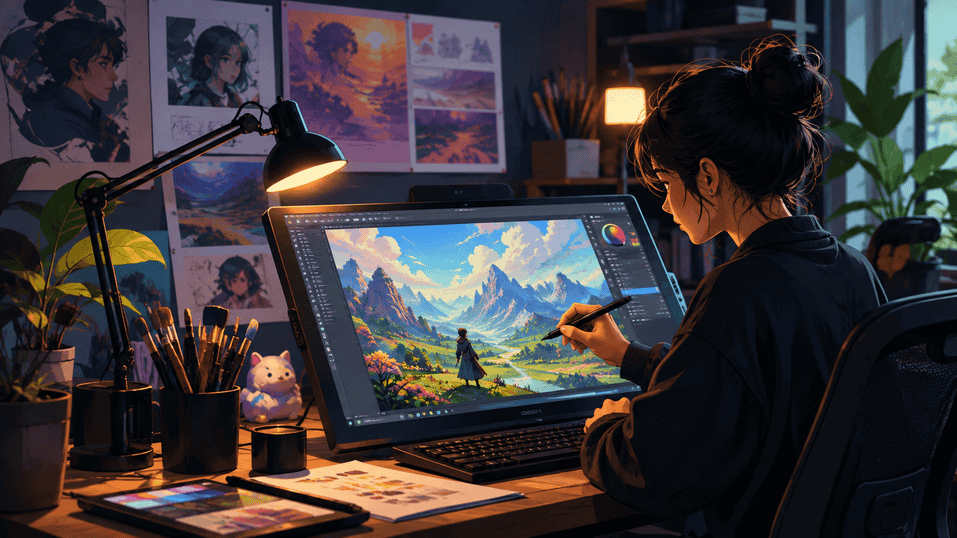
Common file formats
Different formats serve different purposes:
-
PNG: supports transparency and lossless compression, ideal for web graphics, logos, and artwork with sharp edges or text.
-
JPG (JPEG): a compressed format best for photographs and finished artwork meant for web use, where smaller file size matters more than perfect quality.
-
SVG: a vector format that scales to any size without losing quality, commonly used for logos, icons, and vector illustrations.
-
PSD: Adobe Photoshop's native format, which preserves layers, masks, and editable elements for ongoing work.
-
AI: Adobe Illustrator's native vector format, used for scalable illustrations, branding, and print-ready artwork.
Types of digital artwork
-
Digital painting: Mimics textures of traditional painting (oil, watercolor, pastel, acrylic) with pressure-sensitive styluses and digital brush engines.]
-
Vector illustrations: They use mathematical formulas instead of pixels to plot geometric points, lines, and curves. This results in clean, scalable artwork for logos and character design.
-
Pixel art: A retro digital art form that builds images pixel by pixel at low resolutions. Commonly used in indie video games and nostalgic graphics.
-
3D artwork: Created and rendered in 3D using programs like Blender or Maya, common applications in cinematic VFX, game development, and product design.
-
AI-generated artwork: Generated using generative machine learning algorithms and text-to-image prompts to rapidly convert concepts into high-fidelity visual assets.
-
Photo manipulation: Combines, edits, and transforms existing photographic assets using blending modes, masking, and retouching to create surreal compositions.
-
Mixed media: combines hand-drawn art with digital enhancements, 3D overlays, or vector accents to create dynamic, layered textures.
How to digitize artwork: A step-by-step guide
Turning your traditional artwork into a digital file isn't hard, but doing it right makes a big difference in quality. Here's how to do it step by step.
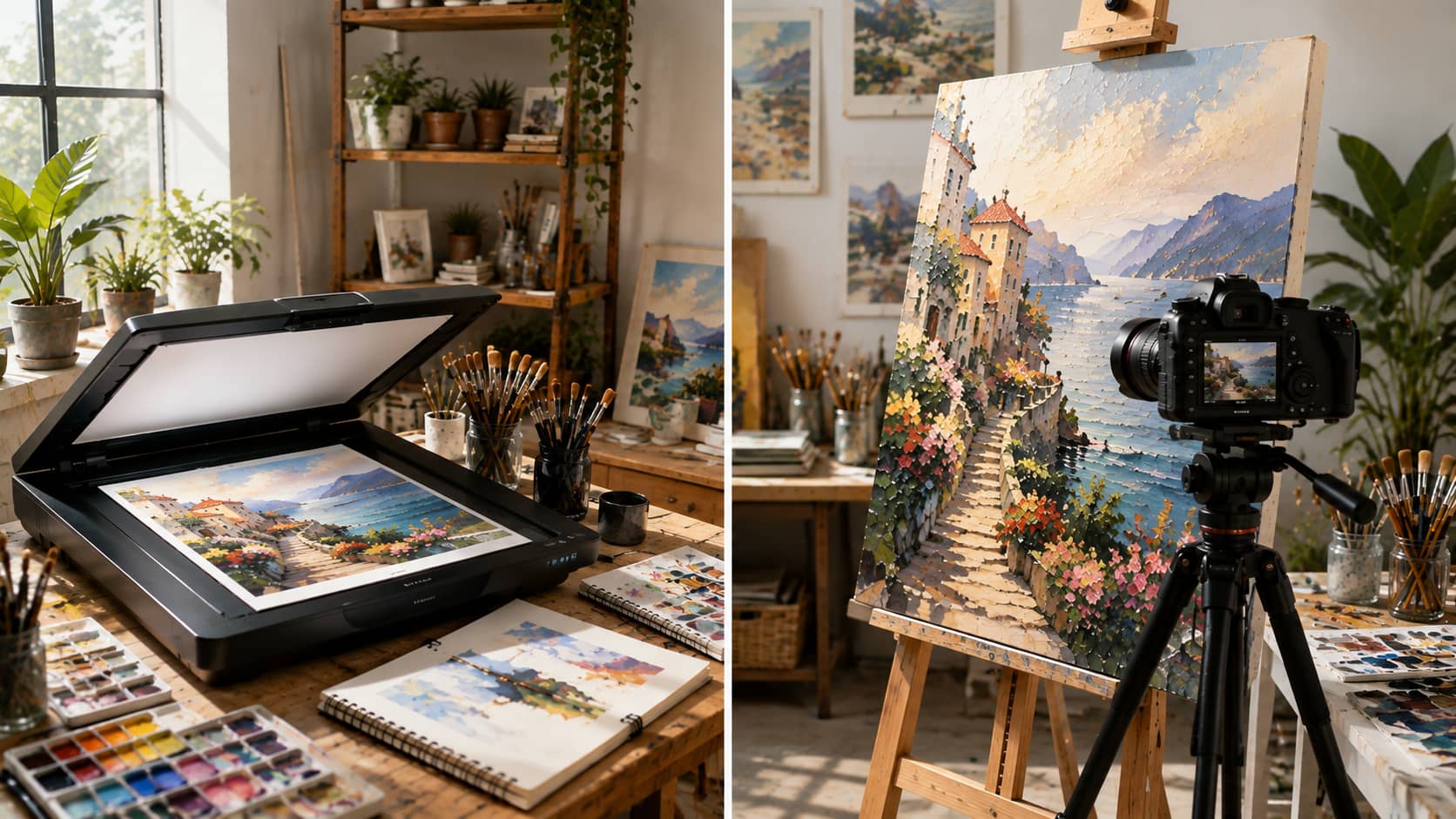
Step 1: Choose your method: scan or photograph
Start by deciding how you'll capture your artwork. A flatbed scanner is the best choice for small, flat pieces because it delivers sharp details and accurate colors. If your artwork is larger than the scanner bed or has noticeable texture, use a high-resolution camera or smartphone instead.
Step 2: Set up good lighting
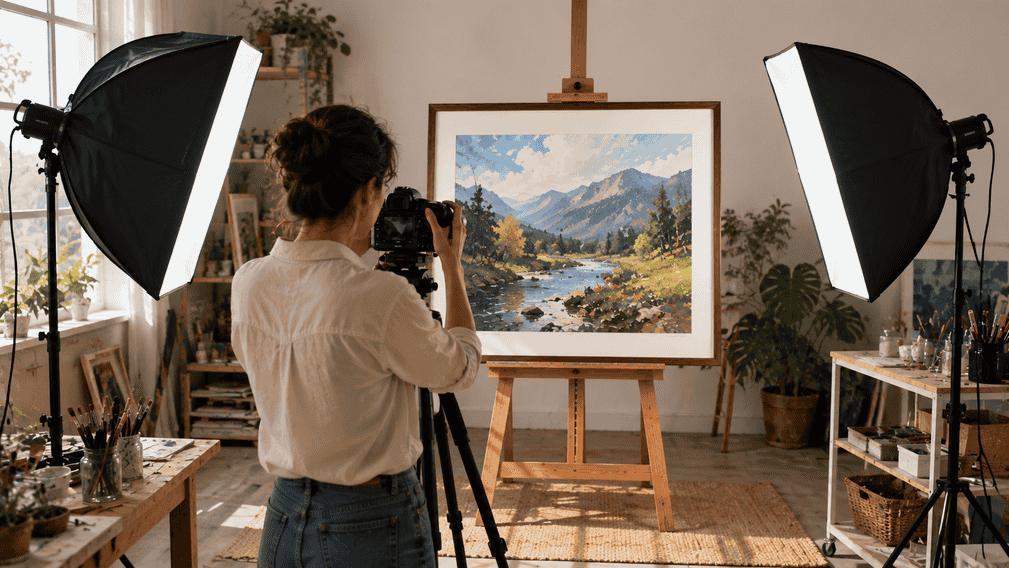
When photographing artwork, use soft, even lighting. Natural daylight or two identical light sources positioned at roughly 45-degree angles on either side of the artwork help minimize glare and shadows. Avoid direct sunlight, which can create uneven exposure.
Step 3: Shoot or scan at a high resolution
For scans, choose 300 DPI for online use and 600 DPI or higher if you plan to make prints or enlarge the artwork. When photographing, use the highest resolution available, keep the camera perfectly parallel to the artwork, and disable filters or portrait modes that may alter colors.
Step 4: Crop and straighten the artwork
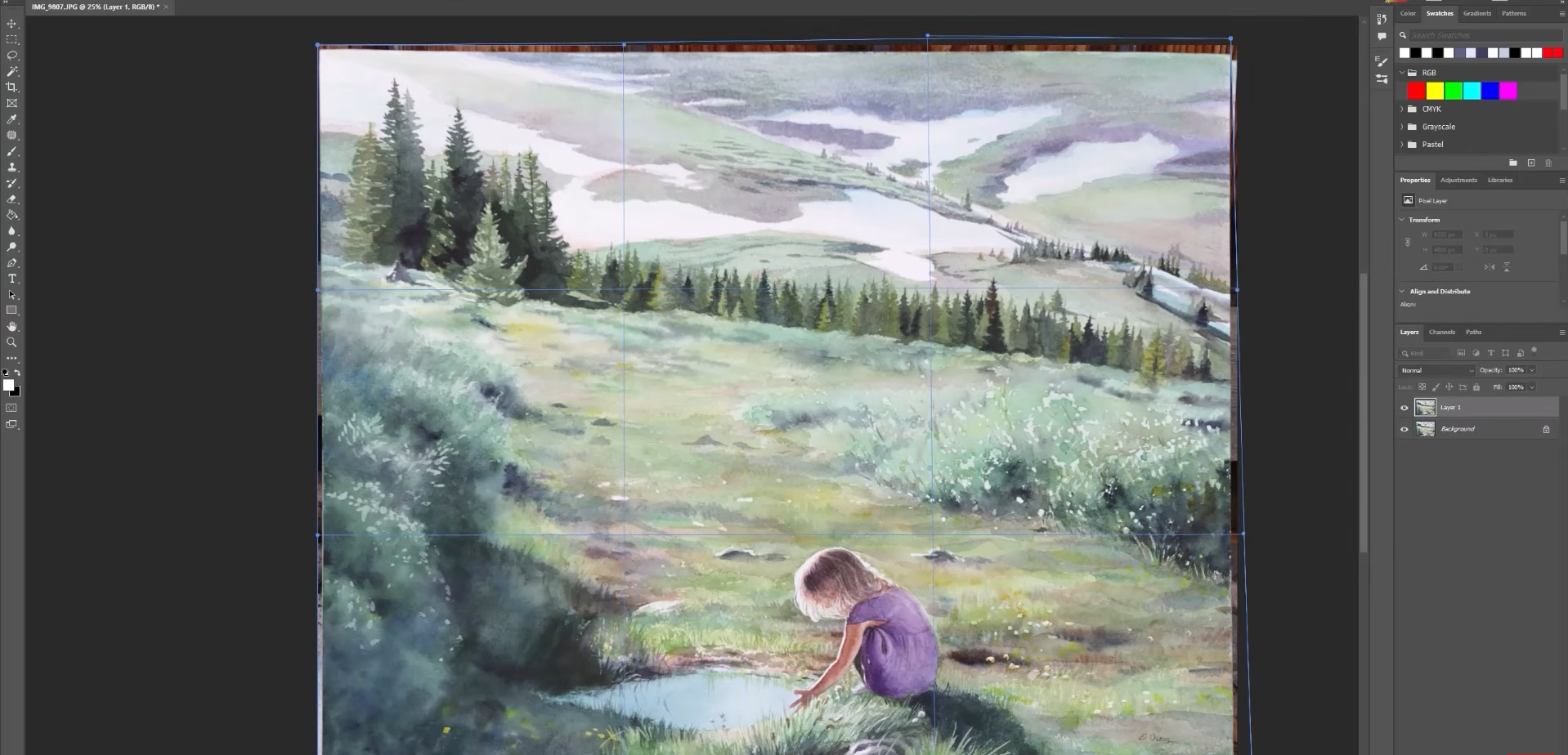
Import the image into your preferred editing software or digital artwork app. Crop out any background, borders, or unwanted objects, then straighten the image and correct any perspective distortion, so the artwork appears perfectly aligned.
Step 5: Adjust colors and contrast
Compare the digital image with the original artwork under similar lighting conditions. Fine-tune the brightness, contrast, white balance, and saturation until the digital version closely matches the original without oversaturating or losing fine details.
Step 6: Clean up and save your files
Use healing or spot-removal tools to remove dust, smudges, scan lines, or other imperfections. Save a high-resolution master copy in TIFF or PNG format for archiving and future edits, then export a compressed JPEG or PNG version that's optimized for websites, social media, or online portfolios.
4 best digital artwork apps to create your own
-
Vmake Labs
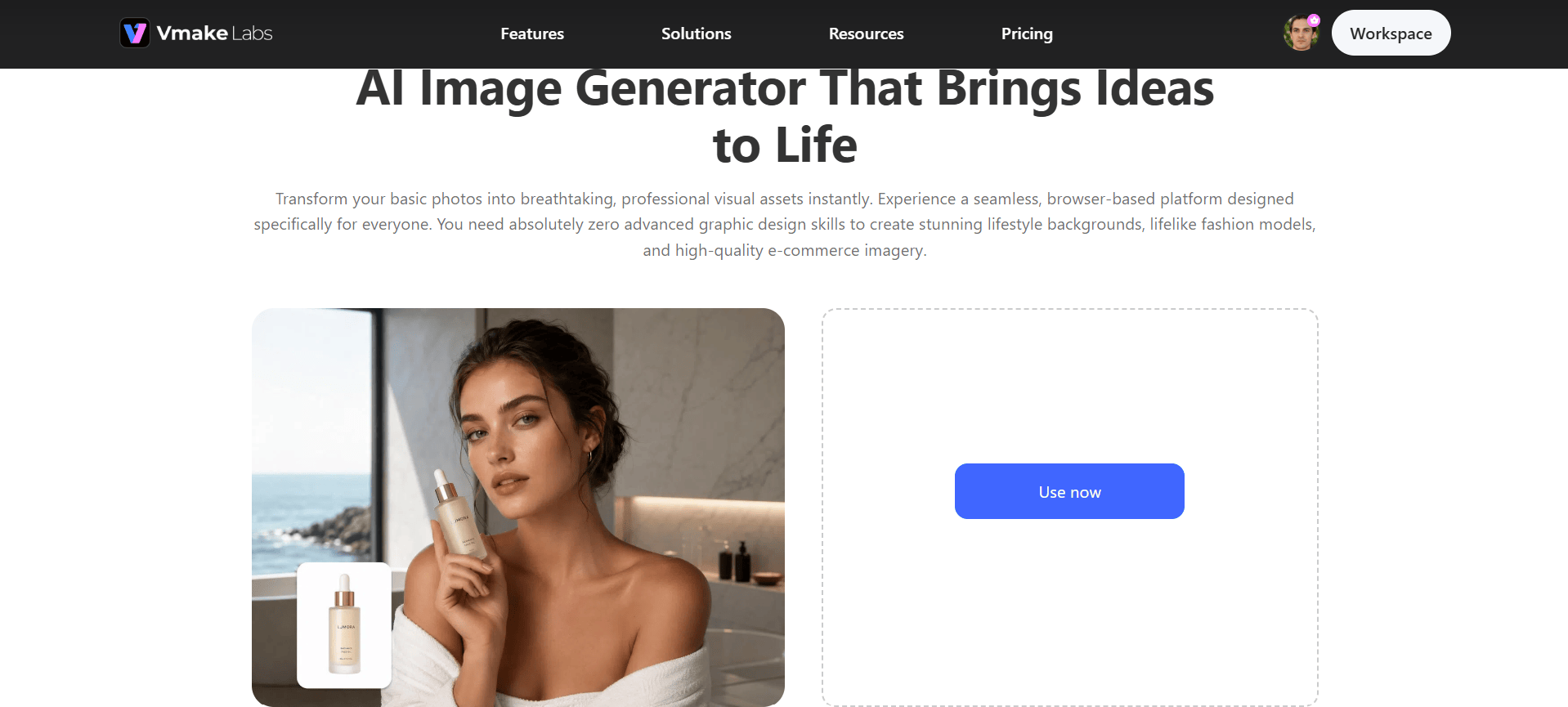
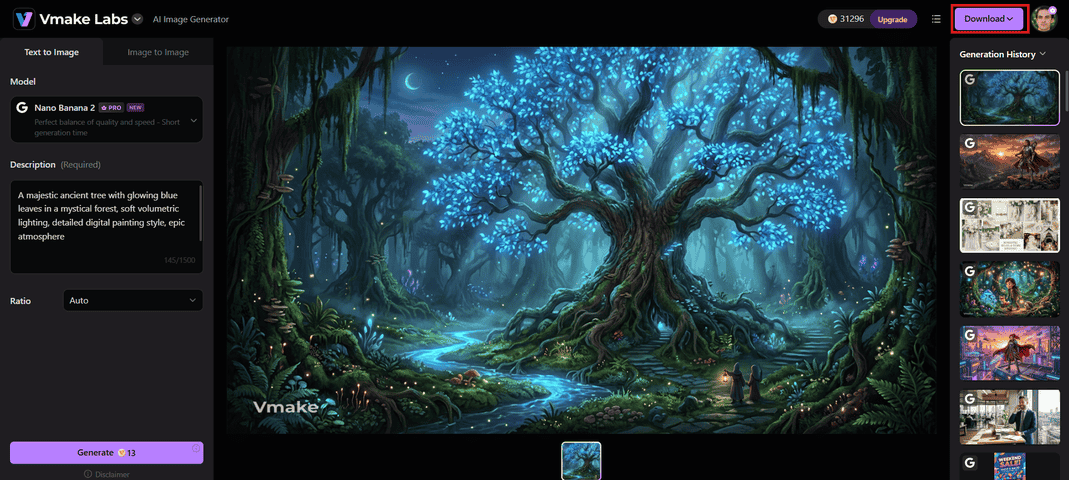
As a creative studio, Vmake Labs offers a powerful AI image generator that turns simple text prompts or reference photos into polished digital artwork in seconds. Designed for speed and accessibility, it lets creators, marketers, and beginners produce concept art, marketing visuals, and style experiments without any traditional drawing skills. Multiple advanced models deliver high-quality results ready for social media, ads, or portfolios.
Best for: Rapid ideation, concept art, marketing visuals, style experiments, and beginners who want results without traditional drawing skills.
Key features
-
Advanced text-to-image and image-to-image generation with multiple high-quality models (including Nano Banana Pro, Seedream, GPT Image, and others).
-
Style transfer, multi-image fusion, and variation generation for quick creative exploration.
-
High-resolution exports suitable for social media, marketing, and portfolio use.
-
Browser-based access with additional tools for enhancement, background removal, and creative workflows.
Steps to make digital art with AI
Step 1: Select your AI model
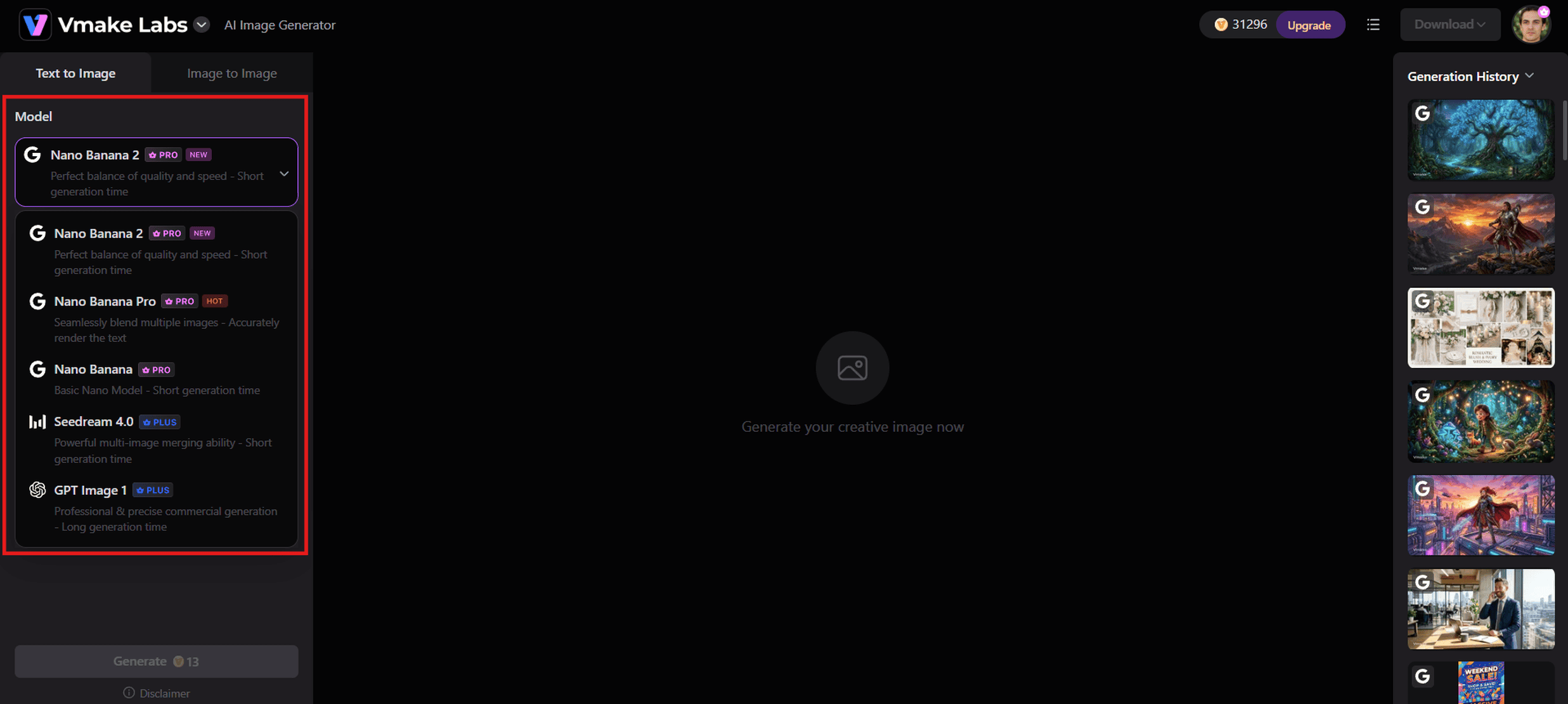
Open the Vmake Labs AI Image Generator and choose the model that best fits your needs (such as Nano Banana Pro for sharp detail and accuracy, Seedream, or GPT Image). Different models excel at different styles and levels of realism.
Step 2: Enter your prompt and settings
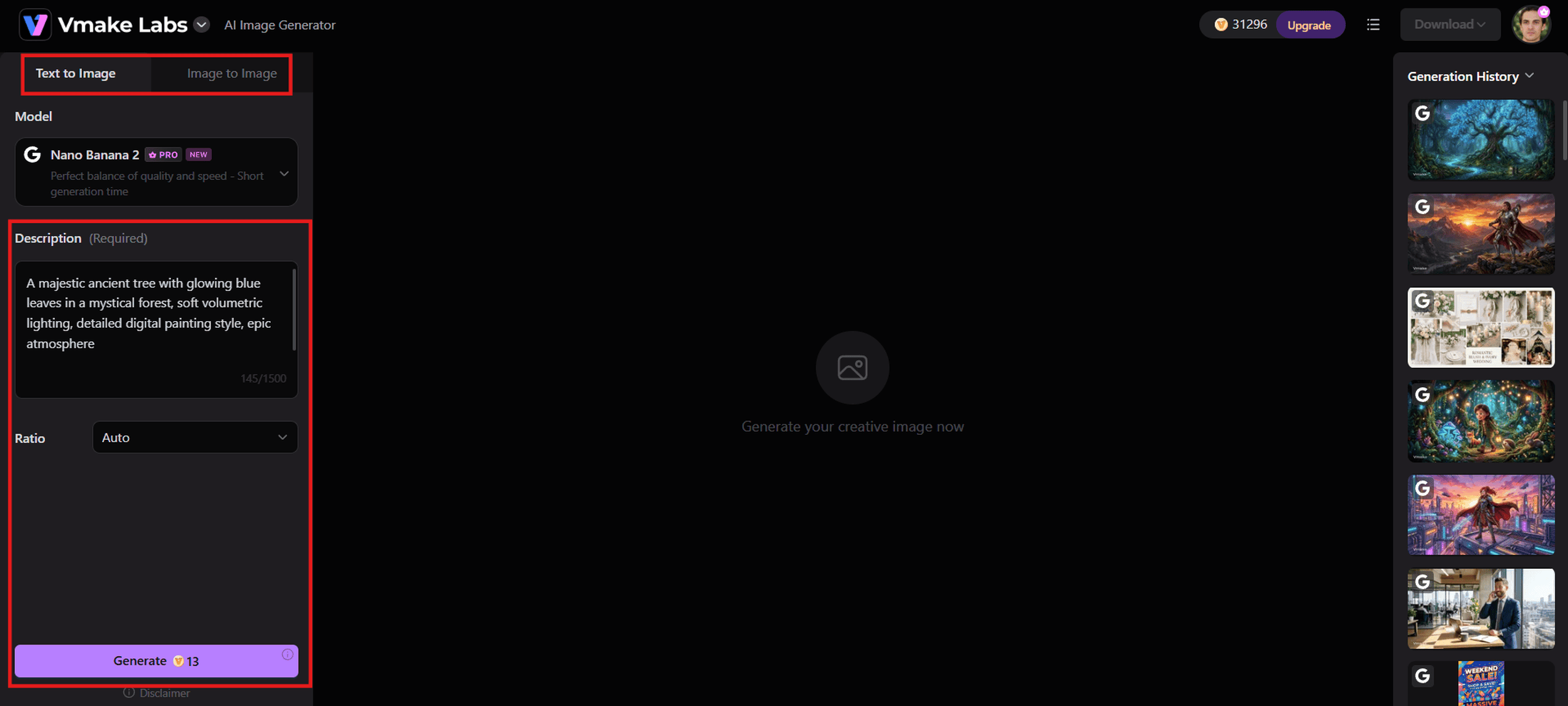
Write a clear, detailed text prompt describing the subject, style, lighting, composition, and mood. Optionally upload a reference image for image-to-image generation or style guidance. Select the aspect ratio and quality settings.
Step 3: Generate and download
Click Generate. Review the results, refine the prompt or create variations if needed, then download your high-quality digital artwork ready for use in portfolios, social media, or marketing.
Pros |
Cons |
|---|---|
|
|
-
Procreate
Procreate is a powerful, intuitive digital painting and illustration app built exclusively for iPad. Loved by professional artists and hobbyists alike, it delivers a natural drawing experience with the Apple Pencil, offering hundreds of brushes, advanced layer controls, and tools for everything from quick sketches to finished illustrations and simple animations, all for a one-time purchase.
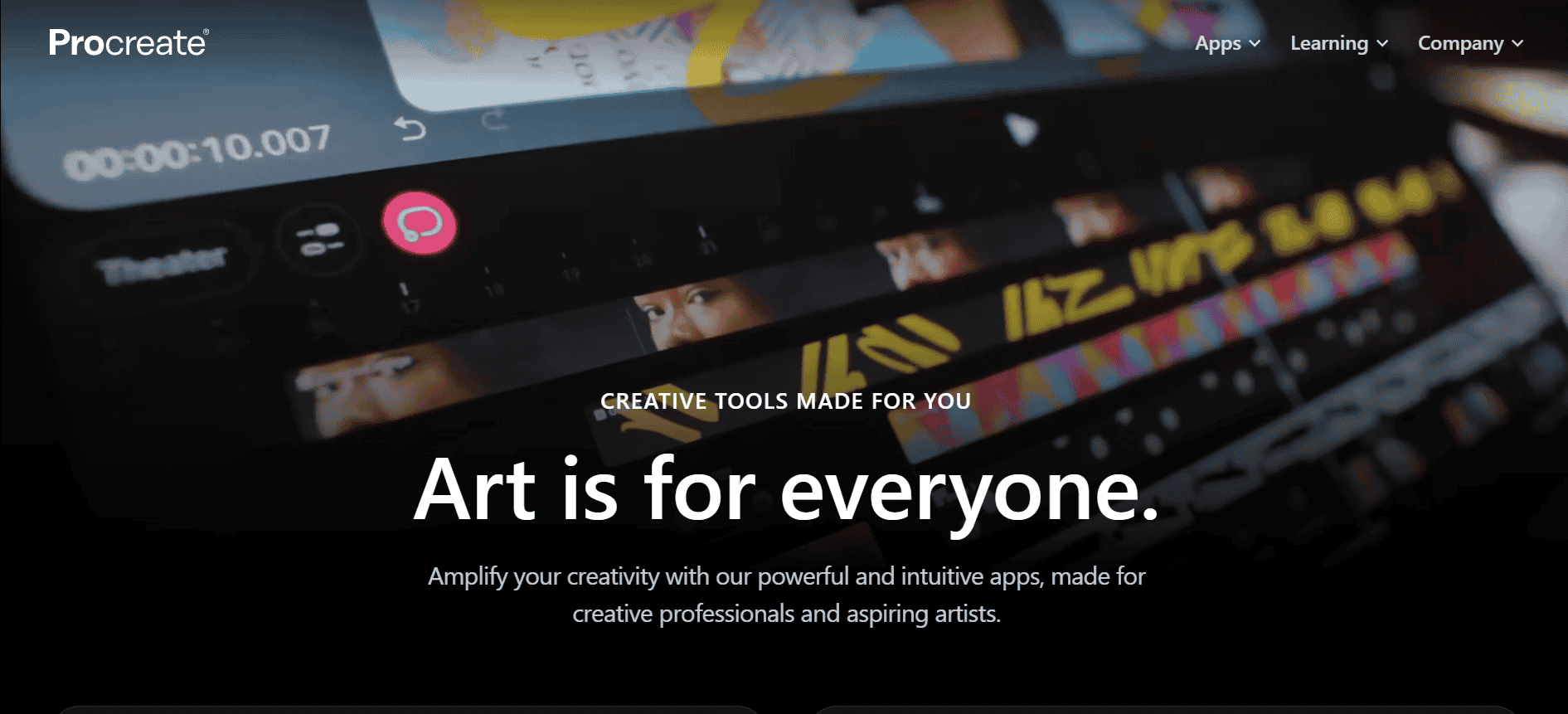
Best for: Sketching, digital painting, character art, and portable creation.
Key features
-
200+ high-quality brushes with a fully customizable Brush Studio.
-
Excellent Apple Pencil support (pressure, tilt, and gesture controls).
-
Animation Assist for frame-by-frame animation plus automatic time-lapse recording.
-
3D painting on imported models and a robust, flexible layer system.
Pros |
Cons |
|---|---|
|
|
-
Krita
Krita is a free, open-source digital painting program designed specifically for illustrators, concept artists, and comic creators. It offers professional-grade brushes, powerful layer tools, and animation features across Windows, macOS, and Linux, making it one of the best no-cost alternatives to paid painting software.
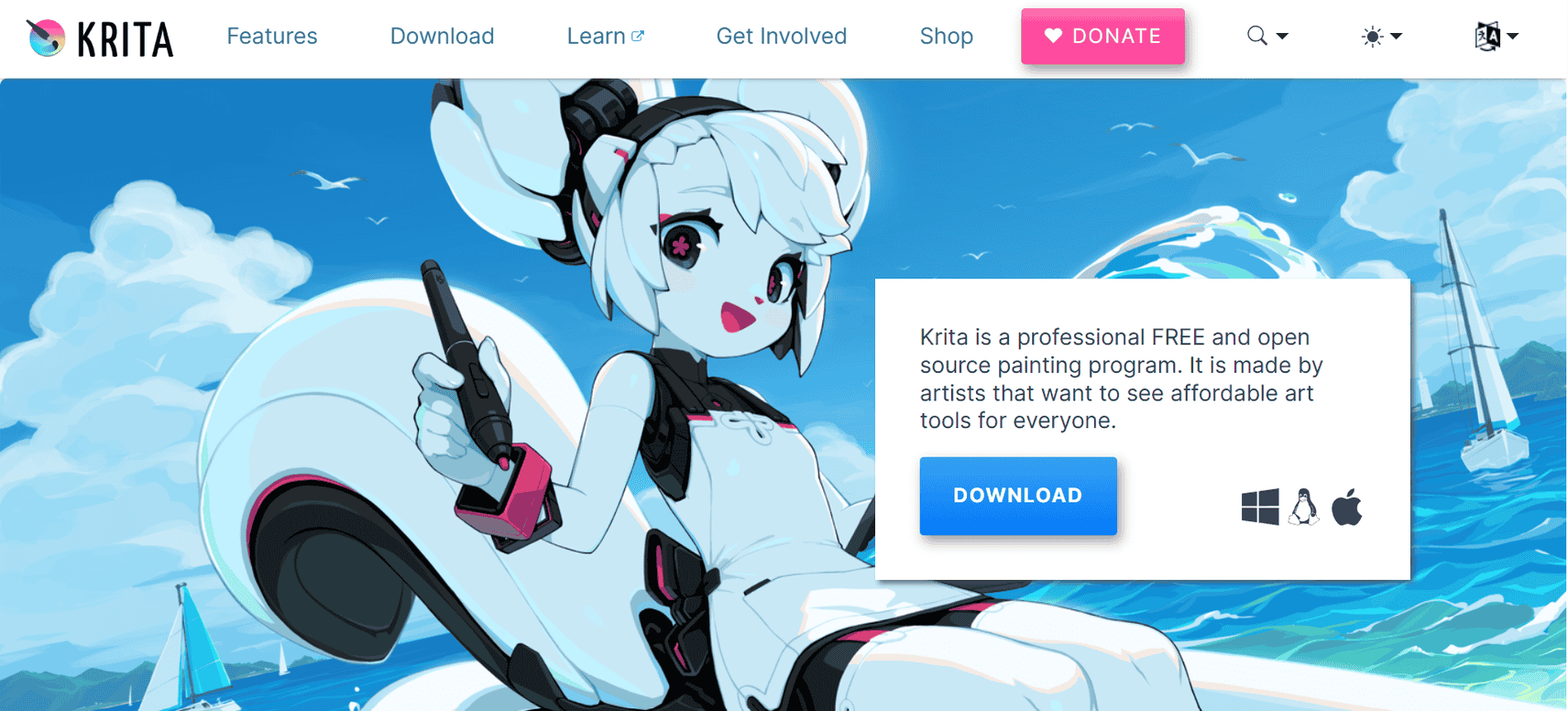
Best for: Digital painting, illustration, concept art, and beginners on a budget.
Key features
-
Advanced multi-engine brush system with deep customization and stroke stabilizers.
-
Full layer support including masks, group layers, and extensive blend modes.
-
Built-in 2D animation tools with timeline, onion skinning, and audio support.
-
Excellent tablet compatibility with pressure, tilt, and rotation sensitivity.
Pros |
Cons |
|---|---|
|
|
-
Adobe Photoshop
Adobe Photoshop is the industry-standard software for digital art, photo editing, and graphic design. It combines powerful painting tools, advanced layer controls, and generative AI features in one comprehensive application, making it the go-to choice for professionals who need maximum flexibility across illustration, compositing, and design work.
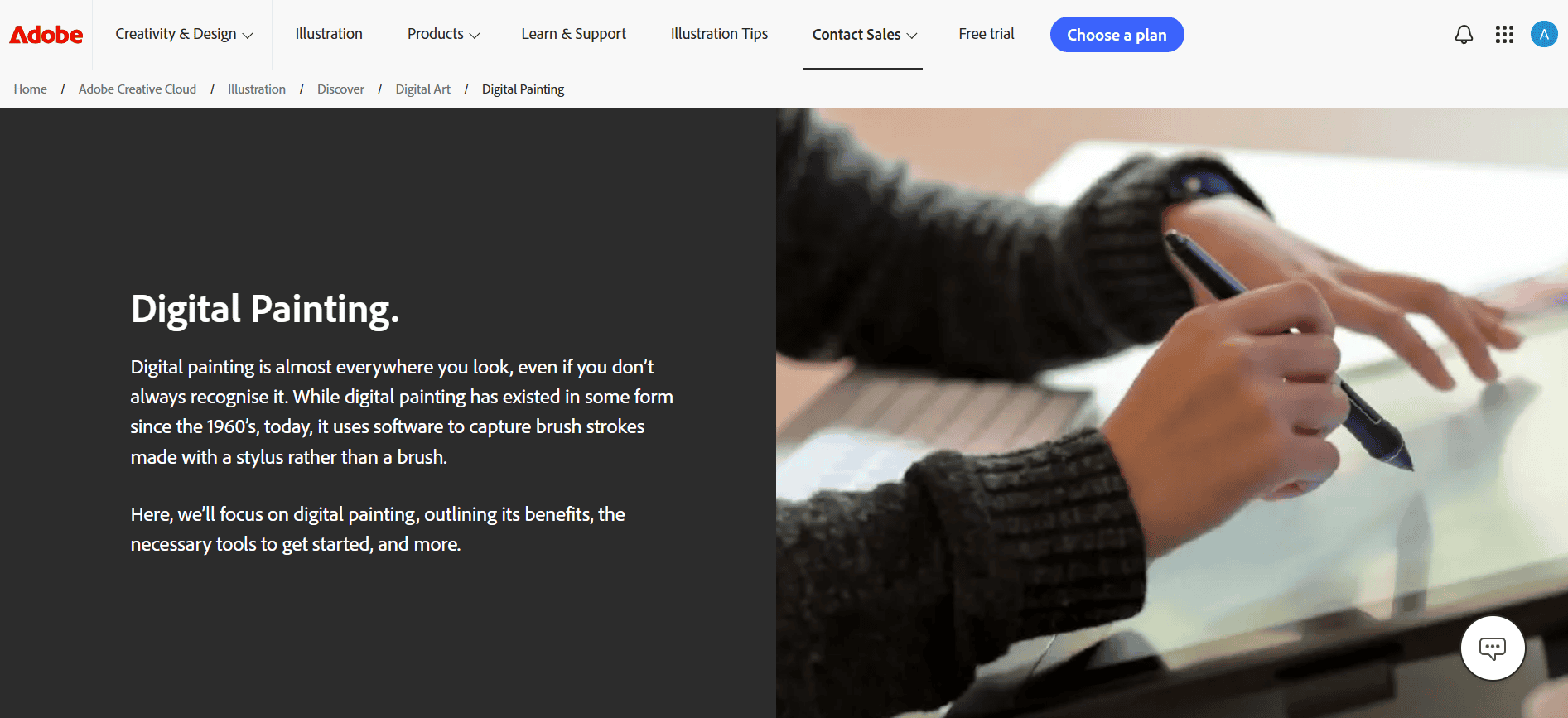
Best for: Professionals and anyone working across illustration, photo editing, and design in one tool.
Key features
-
Advanced layer system with masks, adjustment layers, and smart objects.
-
Extensive brush library with custom brush support and stroke smoothing.
-
Generative AI tools including Generative Fill, Expand, and image generation.
-
Seamless integration with Adobe Creative Cloud and wide file format support.
Pros |
Cons |
|---|---|
|
|
Bonus tips: How to sell digital artwork online
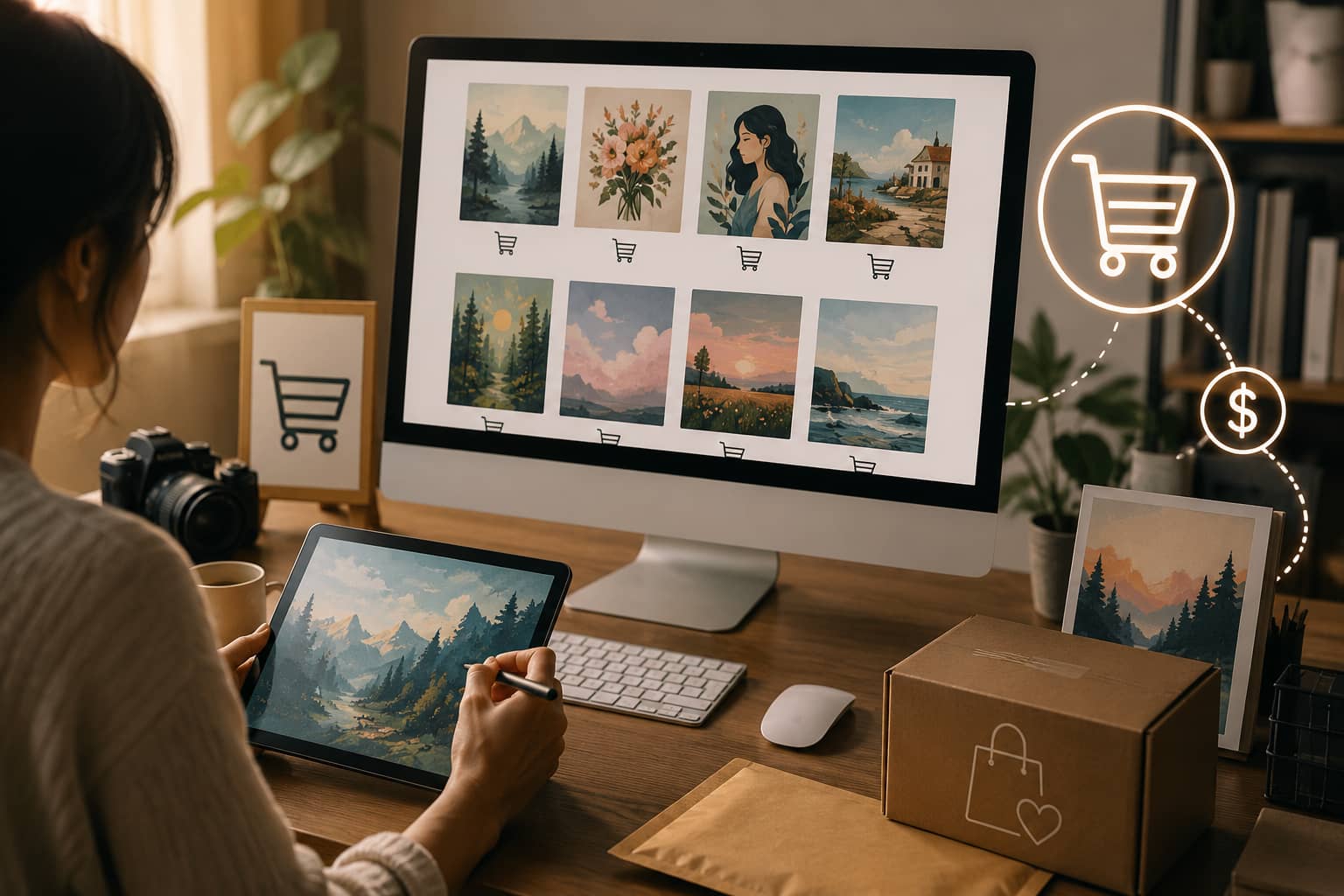
Selling digital artwork has never been easier thanks to online marketplaces, personal websites, and social media. With the right strategy, you can reach a global audience, build a loyal customer base, and generate income from your creative work through downloads, licensing, or physical products.
-
Create a portfolio
Build a clean, professional portfolio that showcases your best work. Use platforms like Behance, ArtStation, or your own website. Include high-quality images, short descriptions, process shots, and clear information about licensing options. A strong portfolio helps potential buyers and clients quickly understand your style and quality.
-
Choose marketplaces
List your work on established platforms where buyers already search for digital art. Popular options include Etsy (great for printables and wall art), Creative Market (ideal for illustrations, patterns, and design assets), Gumroad, and stock sites such as Adobe Stock or Shutterstock. Each platform has different fees, audiences, and rules, so start with one or two that match your style.
-
Sell through your own website
Selling directly from your own site gives you higher profit margins and full control over branding, pricing, and customer relationships. Use easy platforms like Shopify, Sellfy, or Carrd combined with payment tools. This approach works best once you have some traffic from social media or email lists.
-
License your artwork
Offer different licensing options so buyers can use your work legally. Common choices include personal-use licenses, commercial licenses, and exclusive rights. Clearly state what is allowed (for example, use in products, advertising, or resale) and price accordingly. Licensing can create ongoing or higher-value income from a single piece.
-
Print-on-demand
Print-on-demand services allow you to sell your digital artwork on products like posters, canvas prints, mugs, T-shirts, phone cases, and notebooks without holding inventory. The provider handles printing, shipping, and fulfillment whenever a customer places an order.
-
Marketing through social media
Consistently share your artwork, process videos, time-lapses, and behind-the-scenes content on platforms like Instagram, TikTok, Pinterest, and X. Use relevant hashtags, engage with your audience, and post regularly. Social media is often the main driver of traffic to your portfolio, marketplace listings, or personal store.
Tips to improve your digital artwork
Improving your digital artwork takes consistent practice, creative experimentation, and mastering essential techniques. These practical tips will help you produce more polished and professional results.
-
Practice fundamentals: Focus on core skills like form, perspective, anatomy, and composition. Strong fundamentals make every piece more solid and believable, no matter which tools or styles you use later.
-
Learn color theory: Study how colors interact, create harmony, and affect mood. Understanding value, temperature, and contrast helps you make stronger choices and avoid flat or muddy results in your work.
-
Use references: Always work from real photos, life studies, or trusted sources. References improve accuracy, lighting, and detail while helping you avoid common mistakes that come from drawing only from memory.
-
Master layers: Learn to organize your work with layers, masks, and groups. This non-destructive approach gives you freedom to experiment, make changes easily, and keep files clean and editable.
-
Create custom brushes: Build or adjust brushes that match your preferred style and workflow. Personalized brushes speed up painting and help your digital marks feel more natural and unique to you.
-
Develop a unique style: Experiment regularly, notice what feels natural, and refine the elements that stand out. A recognizable personal style makes your work memorable and helps you attract the right audience.
Conclusion
Digital artwork bridges traditional artistic techniques with cutting-edge technology, giving creators unlimited potential to capture, digitize, and monetize their visual ideas. By mastering essential digitization methods, choosing the right creation software, and leveraging diverse online sales channels, you can turn your creative passion into a thriving business. Ready to elevate your visual workflow? Try Vmake Labs for free to generate professional digital artwork in seconds, and start experimenting with both traditional digitization and modern AI tools today!
FAQs
How do I digitize my traditional artwork?
Scan or photograph your piece under even lighting at a high resolution, then crop, straighten, and color-correct it in editing software before saving both a high-resolution master file and a compressed web-ready version.
Where can I sell my digital artwork?
You can sell digital artwork on platforms like Etsy, Gumroad, Creative Market, ArtStation Marketplace, and your own website. You can also earn income through print-on-demand services, licensing agreements, and social media-driven sales.
How much should I charge for digital artwork?
Pricing depends on complexity, uniqueness, licensing rights, and your audience. Research similar artists, factor in your time and skill level, and consider offering tiered options for personal versus commercial use.
What type of digital art sells best?
Printable wall art, illustrations, patterns, stickers, and concept art often perform well. Success depends more on quality, consistent style, strong marketing, and matching current buyer demand than on any single category.
Do I need drawing skills to create digital artwork?
No. While traditional drawing skills help with digital painting and illustration, AI-powered tools like Vmake Labs let anyone generate professional artwork from a text prompt, no drawing experience required.

You May Be Interested
The Future of AI in Advertising: Reshaping Digital Marketing
Perchance AI Image Generator Review: Is It Worth Using?

(2026) How to Remove Nano Banana 2 (Gemini) Watermark with Vmake

Guide to the Best UGC Video Platforms for Digital Marketers
What is the meaning of pixelation: A Complete Overview

Photobomb Meaning: What It Is and How to Remove Photobombers