Canva Thumbnail Maker Review 2026: Tested, pros, cons & best alternative
Read our Canva thumbnail maker review to compare AI features, pricing, templates, pros and cons, then discover how Vmake Labs helps you create unique YouTube thumbnails faster. Try it for free now

Creating an engaging YouTube thumbnail is one of the easiest ways to attract viewers before they even press play. In this review, we explored Canva Thumbnail Maker by testing its templates, AI-powered features, editing experience, pricing, and overall usability to see how well it supports creators producing eye-catching thumbnails.
What is Canva Thumbnail Maker?
Canva Thumbnail Maker is an online design platform where you are able to create stunning YouTube thumbnails without any advanced graphic design knowledge. Its drag-and-drop workspace, customizable templates, and AI-assisted tools make it simple to produce professional-looking thumbnails for different kinds of video content, streamlining the design process.
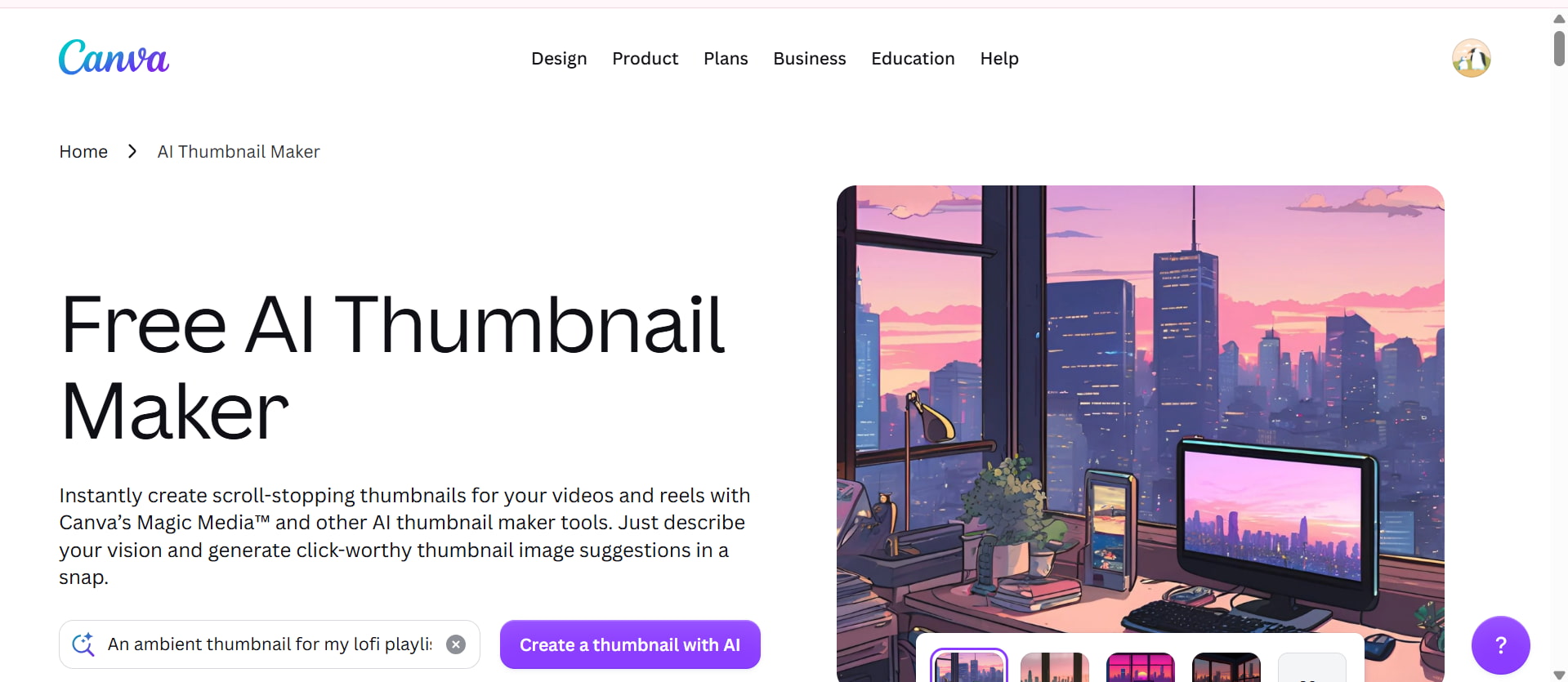
It is an awesome platform for YouTubers, marketers, educators, entrepreneurs, and anyone who creates digital content. Beginners can easily personalize existing templates, while even more advanced users can adjust layouts, fonts, colors, and branding for added creativity. Or, if you'd rather create original designs from prompts than edit templates, then another good way to do this is an AI thumbnail maker.
Canva AI thumbnail maker features
-
Magic Design: Magic Design uses AI to suggest thumbnail layouts for your content. Upload an image or enter a short description, and Canva will automatically suggest editable designs that fit your topic.
-
AI image generation: Canva's AI image generator makes graphics and illustrations based on text prompts. It helps users create personalized visuals, but the variety of styles and freedom of creativity is not as wide as the specialized AI image generation platforms.
-
Background remover: Available mainly with Canva Pro, the Background Remover quickly separates subjects from their backgrounds. It simplifies creating clean, professional-looking YouTube thumbnails without manual editing.
-
AI text suggestions: Canva includes AI writing assistance that generates titles, short descriptions, and text ideas for thumbnails. This feature can help creators overcome writer's block and test different headline variations.
-
Brand Kit (Pro): Brand Kit lets businesses save logos, brand colors, fonts, and design assets in one place. Teams can maintain consistent branding across YouTube thumbnails and other marketing materials.
-
Resize options: With Magic Resize, users can adapt one design for multiple platforms, including YouTube, Instagram, Facebook, and LinkedIn. This saves time when repurposing content for different social channels.
How to make YouTube thumbnails in Canva
Creating a YouTube thumbnail with Canva is straightforward, even if you've never designed graphics before. You can start with a template, customize it with Canva's editing tools and AI features, and export the finished design in just a few steps for your next YouTube upload.
Step 1: Select a YouTube thumbnail template
Click Create a design and choose the YouTube Thumbnail format. Canva provides thousands of templates across gaming, education, lifestyle, business, technology, and entertainment categories. Select one that best matches your video's theme.
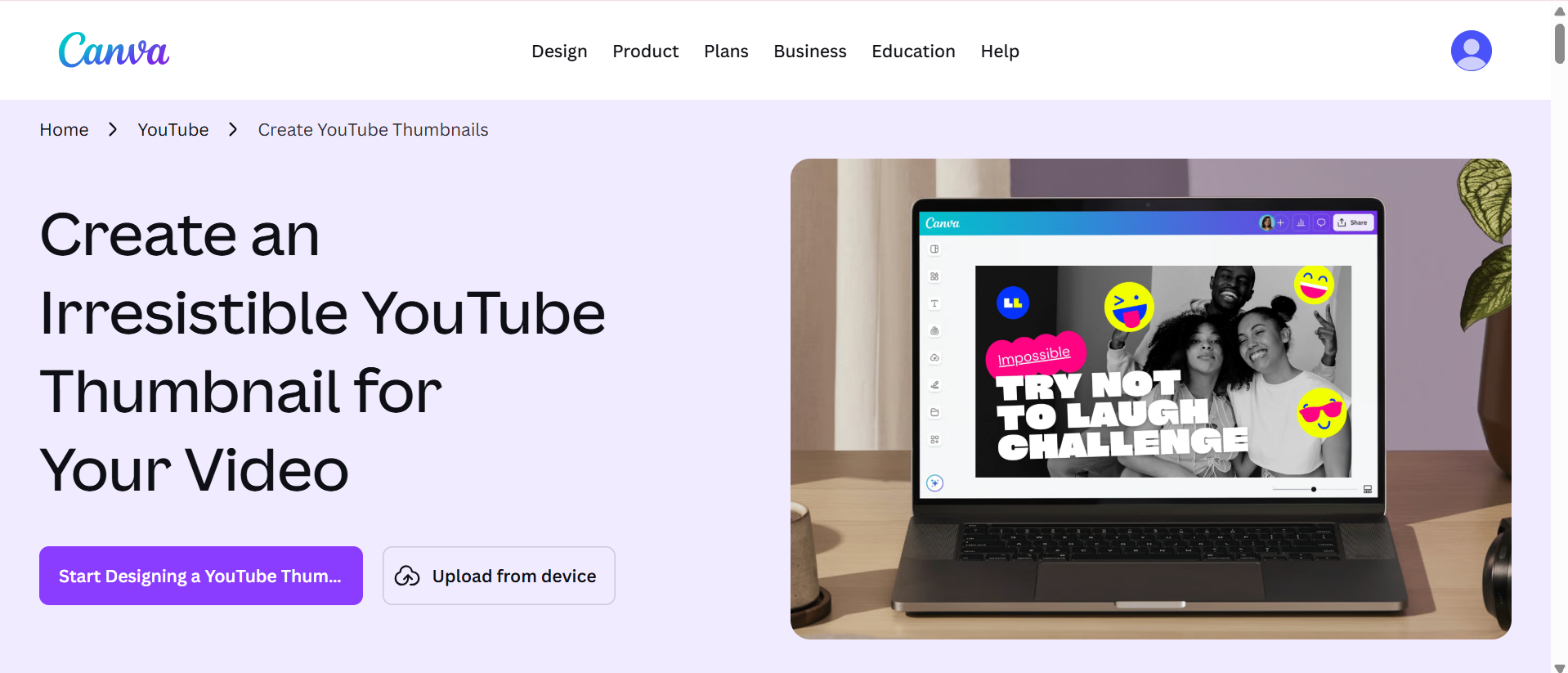
Step 2: Customize your design with text, images, and AI tools
Instead of simply replacing text, Canva allows you to personalize every element of your thumbnail. Add your own images, edit colors, experiment with fonts, insert icons, or use Canva's AI features to generate supporting visuals and improve the overall appearance of your design.
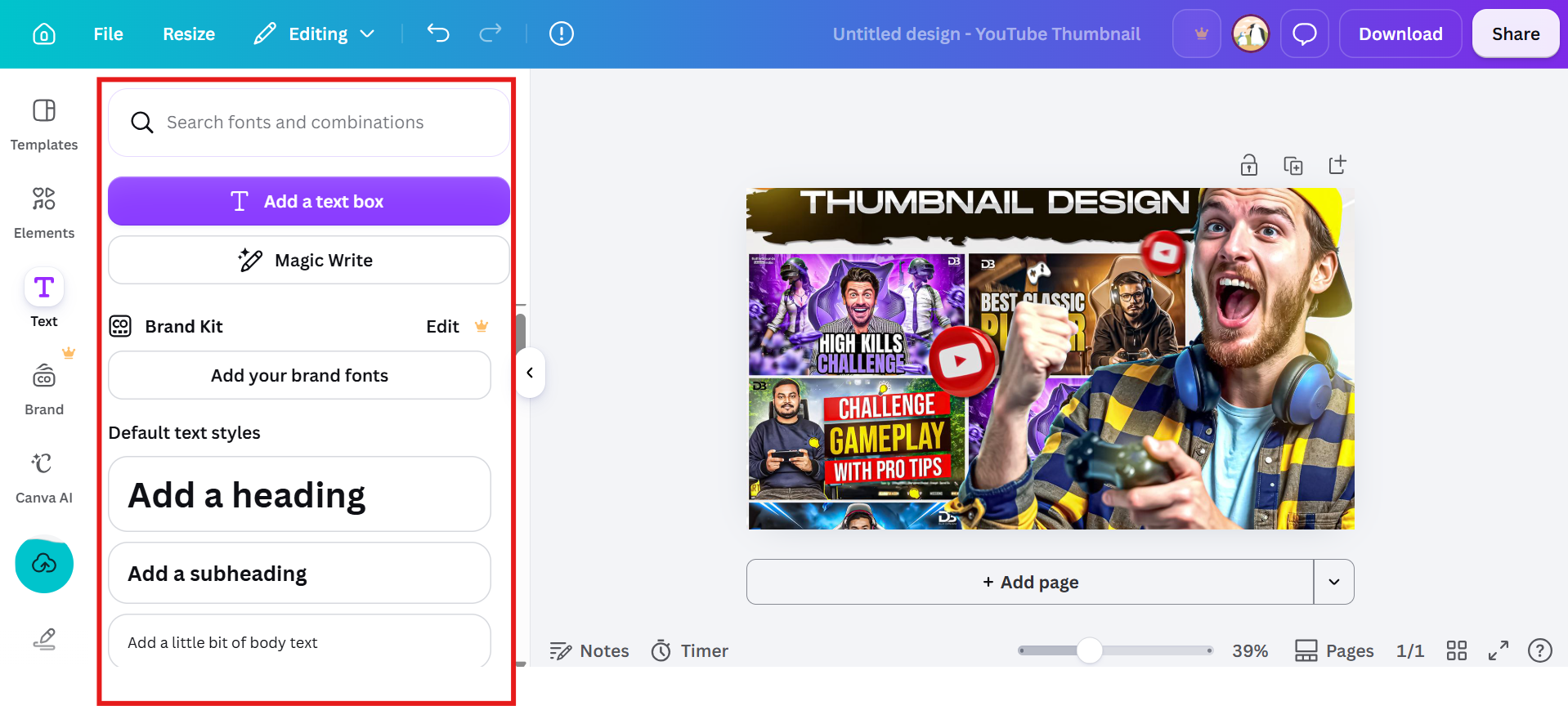
Step 3: Download your thumbnail
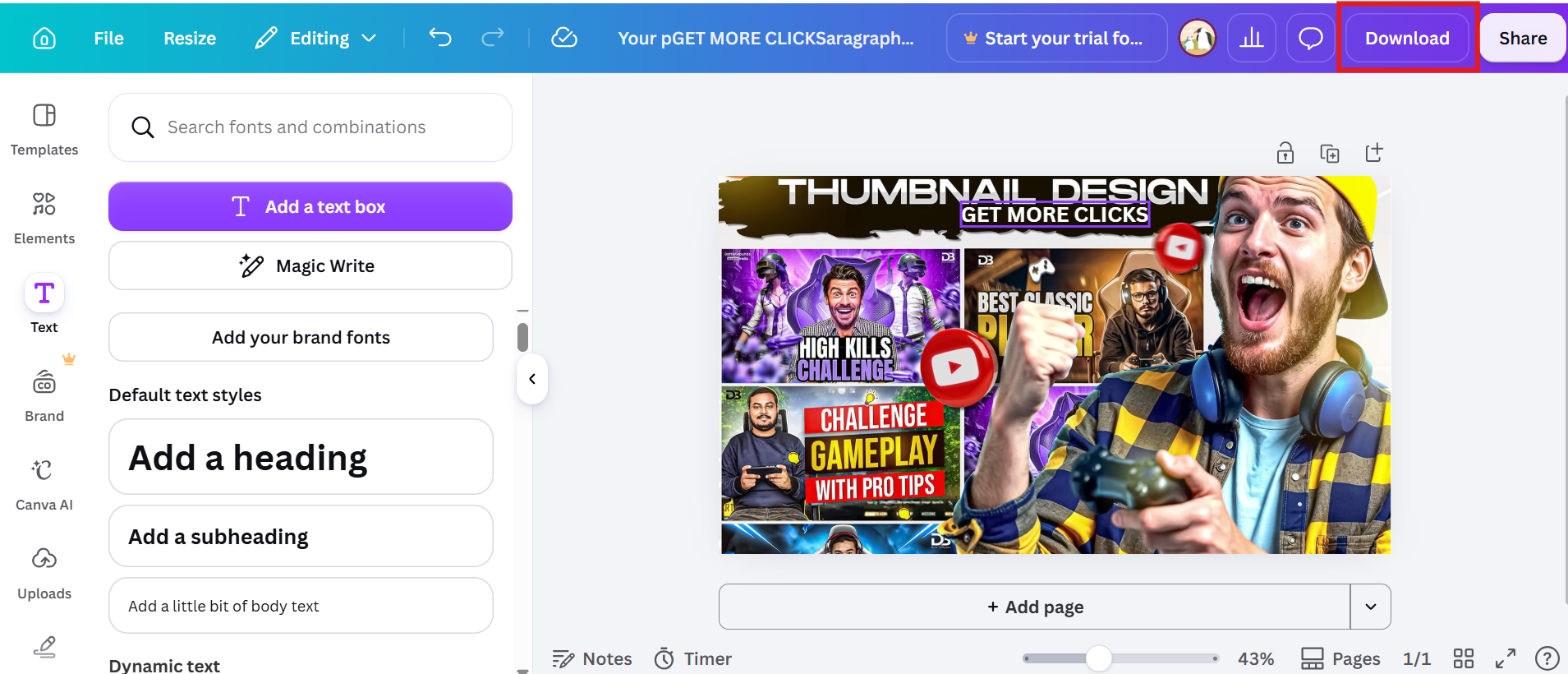
Once you're happy with your design, click the download button and choose your preferred file format, such as JPG. Save the thumbnail in high quality and upload it directly to YouTube to give your video a professional first impression.
Canva Thumbnail Maker Review: Tested, Pros, Cons & Pricing
After testing Canva Thumbnail Maker across multiple thumbnail designs, we evaluated its AI capabilities, ease of use, template quality, export options, and overall value. Here's how it performed during our hands-on review.
Test Results
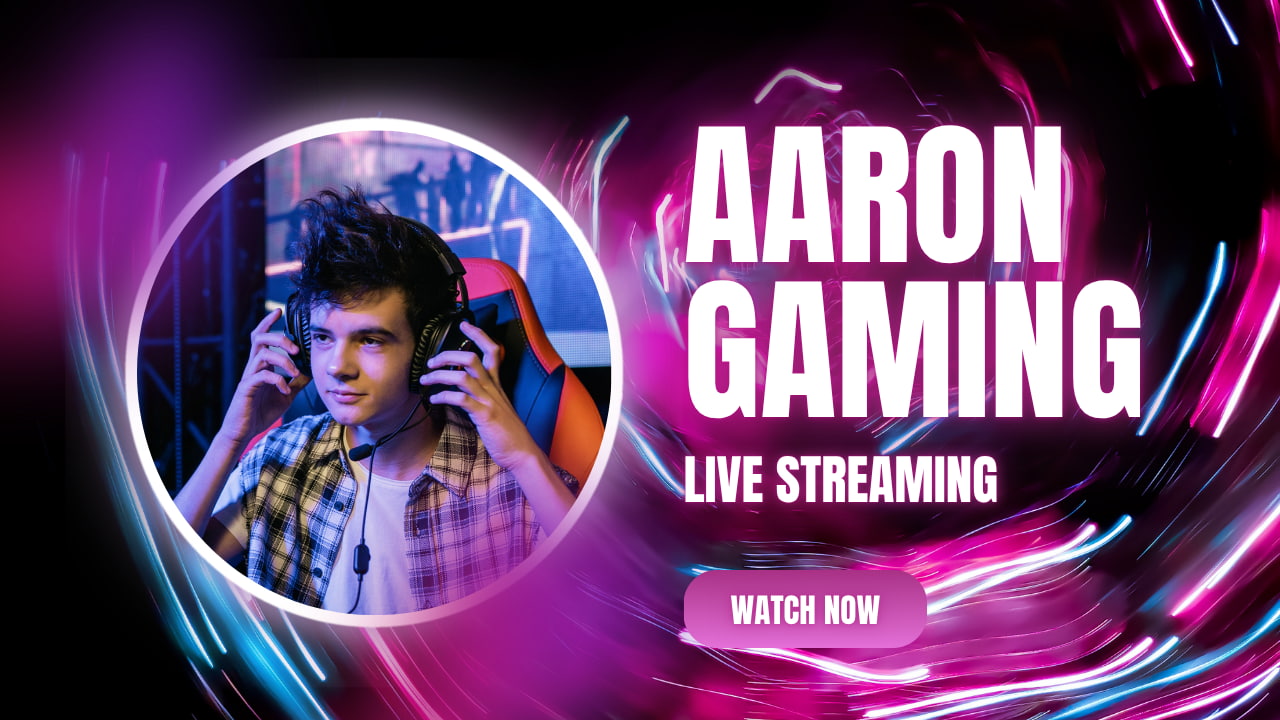
To evaluate Canva Thumbnail Maker in real-world use, we created thumbnails for different content categories using its templates and editing tools. We assessed the overall design quality, ease of customization, and visual appeal to see how effectively Canva helps creators produce professional-looking YouTube thumbnails.
-
Gaming thumbnail
-
Business thumbnail

Pros and Cons
|
Pros |
Cons |
|---|---|
|
|
|
|
|
|
|
|
|
|
|
|
Pricing
|
Plan |
Pricing |
Best for |
|---|---|---|
|
$0/month |
Beginners testing Canva's thumbnail maker |
|
$18/month |
Most creators and YouTubers |
|
$25/month |
Teams, brands, and marketing departments |
|
Contact sales |
Large organizations requiring advanced security and admin controls |
Real user experiences
Reddit discussions
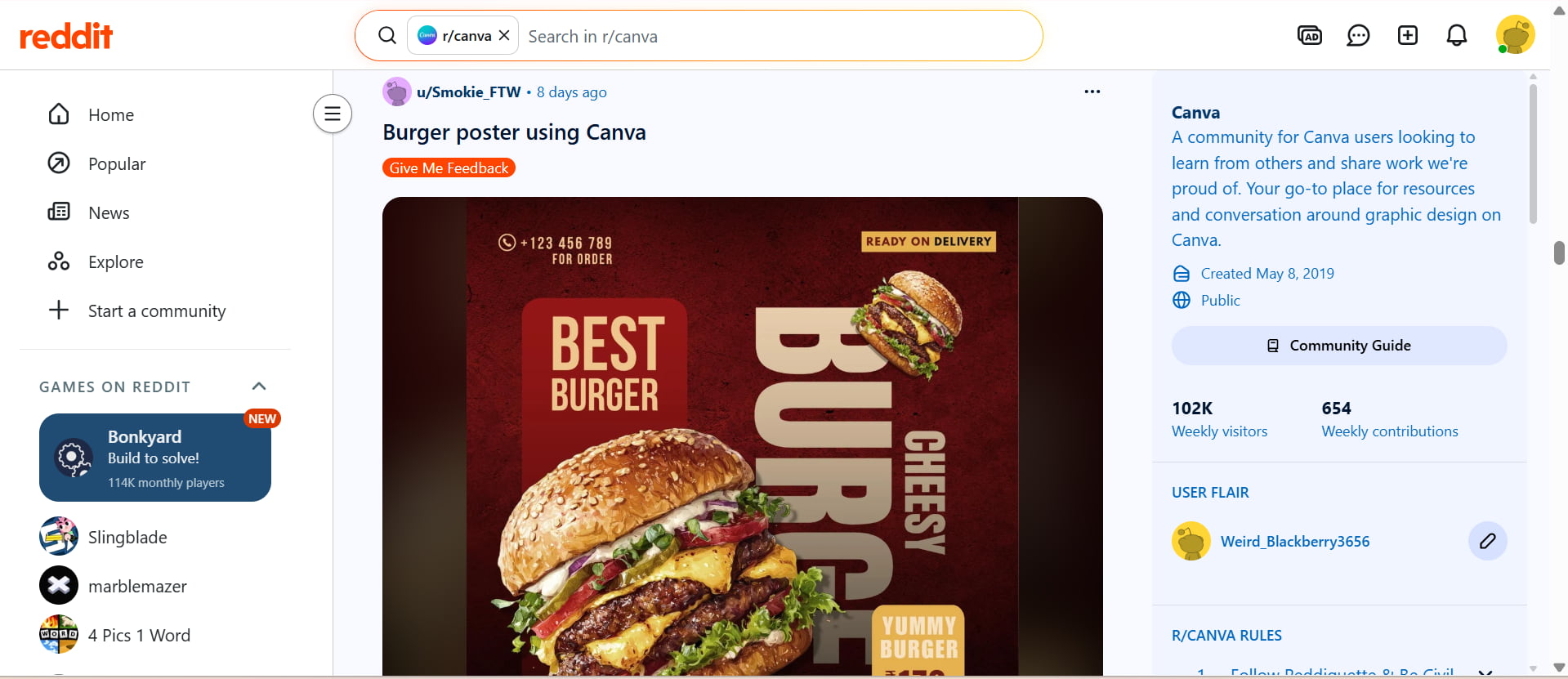
Many Reddit users describe Canva as one of the easiest tools for creating YouTube thumbnails, particularly for beginners who want quick results. The template selection and intuitive editor receive consistent praise, although experienced creators often recommend customizing templates to avoid producing designs that look too similar to others.
Quora opinions
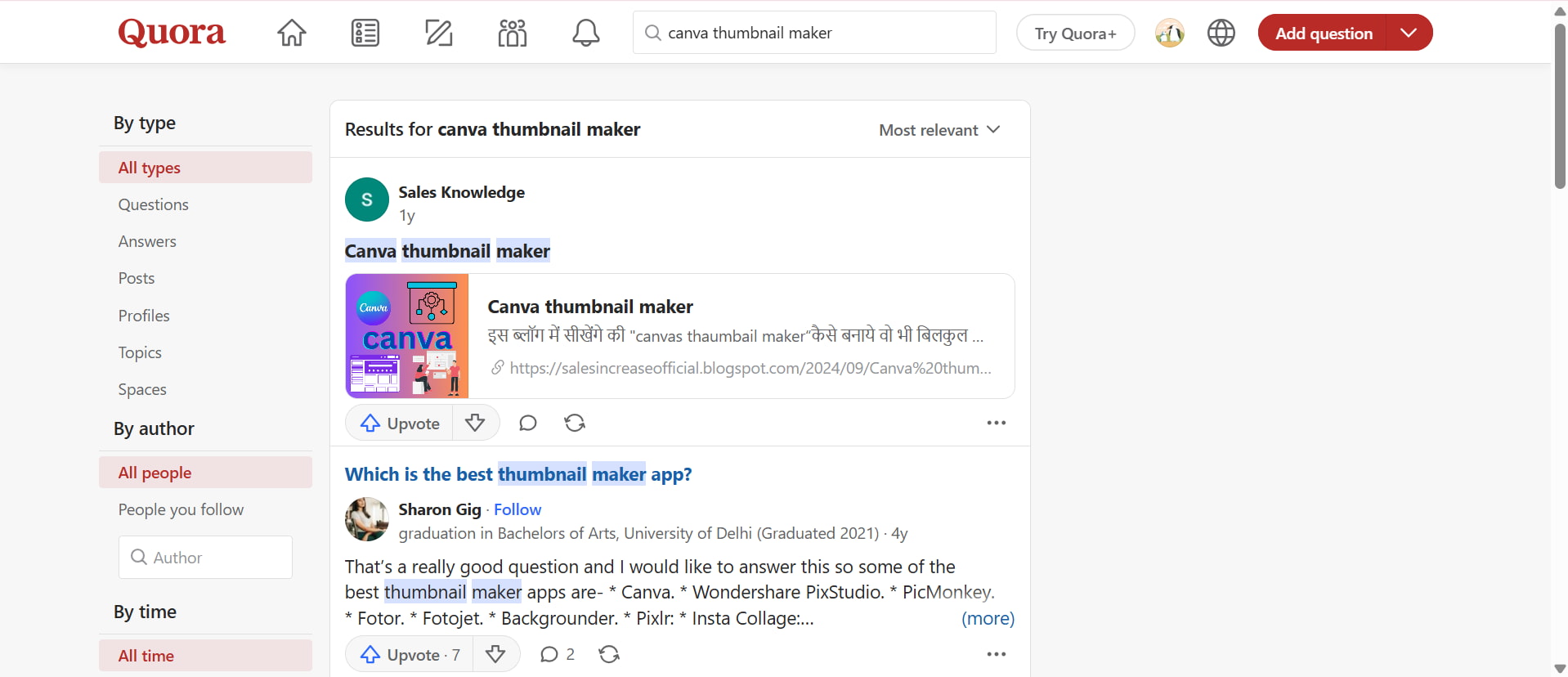
Quora discussions frequently compare Canva with Photoshop for thumbnail creation. Most users recommend Canva when speed and simplicity are the priority, while Photoshop is preferred by designers who require advanced editing capabilities and complete creative freedom. At the same time, experienced designers note that Photoshop offers greater creative control for advanced editing and complex designs.
Canva is optimised for template-based design, and having gone through its editing workflow, it's easy to see why. However, if you're a creator who wants to create entirely original visuals with AI, then you might want to explore Vmake Labs, which focuses on AI-powered generation of thumbnails rather than manually customizing templates. In the next section, we'll explore how Vmake Labs simplifies AI thumbnail creation and how it differs from Canva.
Create AI thumbnails with Vmake Labs
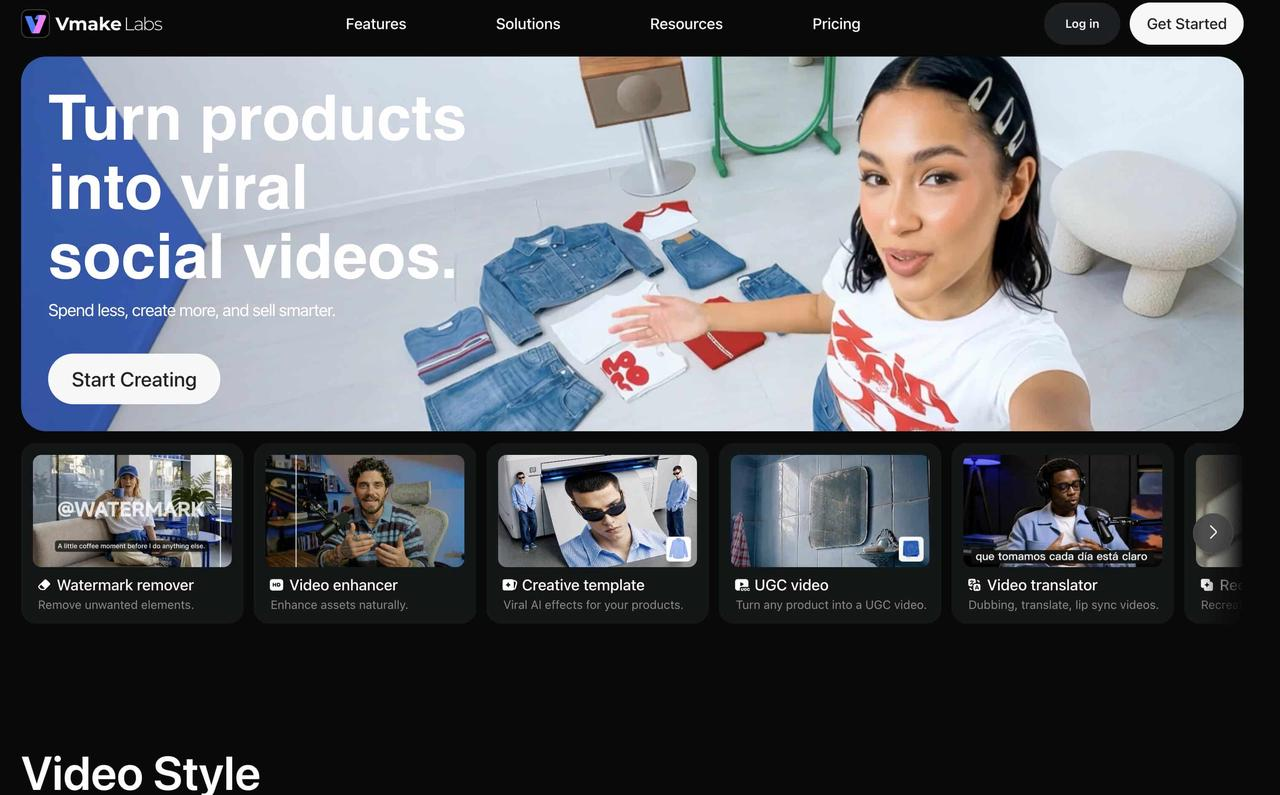
Vmake Labs AI Thumbnail Maker helps creators generate eye-catching thumbnail visuals with minimal effort. Upload your own image or video, or use the integrated AI image generator to create visuals from text prompts. Once you have your visuals, you can make basic edits and adjustments to prepare the final thumbnail. Vmake Labs offers a simple, browser-based workflow that makes thumbnail creation accessible to beginners.
Key features of Vmake Labs AI thumbnail maker
-
AI-generated thumbnail visuals: Create engaging thumbnail visuals from your prompts, tailored to your video's topic, style, and audience without relying on a large library of ready-made templates.
-
Upload an image or video: Already have content ready? Upload your image or video, and Vmake Labs helps transform it into a professional-looking thumbnail without requiring advanced editing skills.
-
Optimized thumbnail ratios: Select the appropriate aspect ratio for YouTube or other social media platforms. The built-in presets ensure your thumbnails display correctly across different channels without manual resizing.
-
Editable text and design elements: Customize titles, fonts, colors, and other design elements to match your brand or video style. This makes it easy to create thumbnails that remain visually consistent across your channel.
-
AI-powered thumbnail generation: Instead of relying solely on templates, Vmake Labs uses AI to generate quality thumbnail ideas in seconds. And that helps creators make visuals that are unique and that will stand out in a crowded feed of YouTube videos.
-
Browser-based workflow: Everything runs directly in your browser. There's no software to install, making it convenient whether you're working from a desktop or laptop.
How to generate AI thumbnails with Vmake Labs
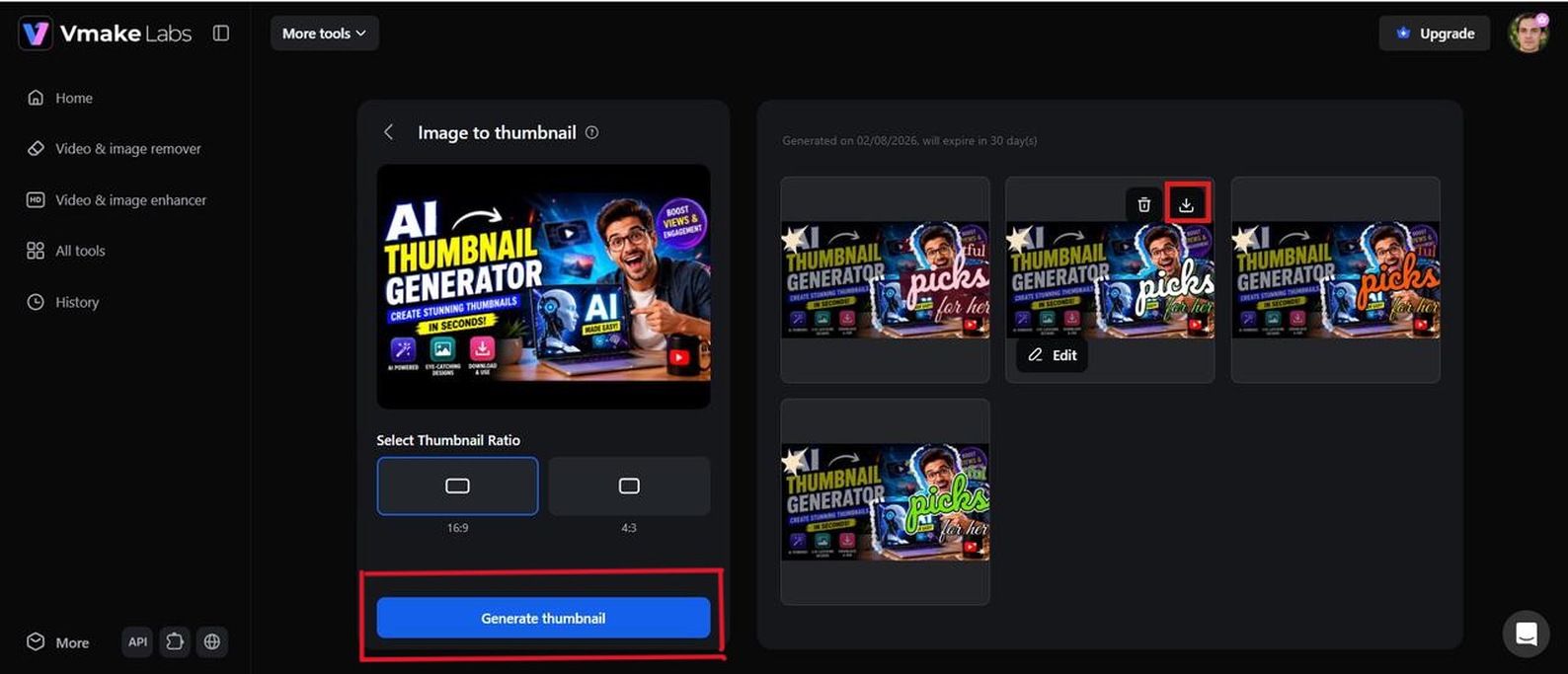
Step 1: Upload an image or video
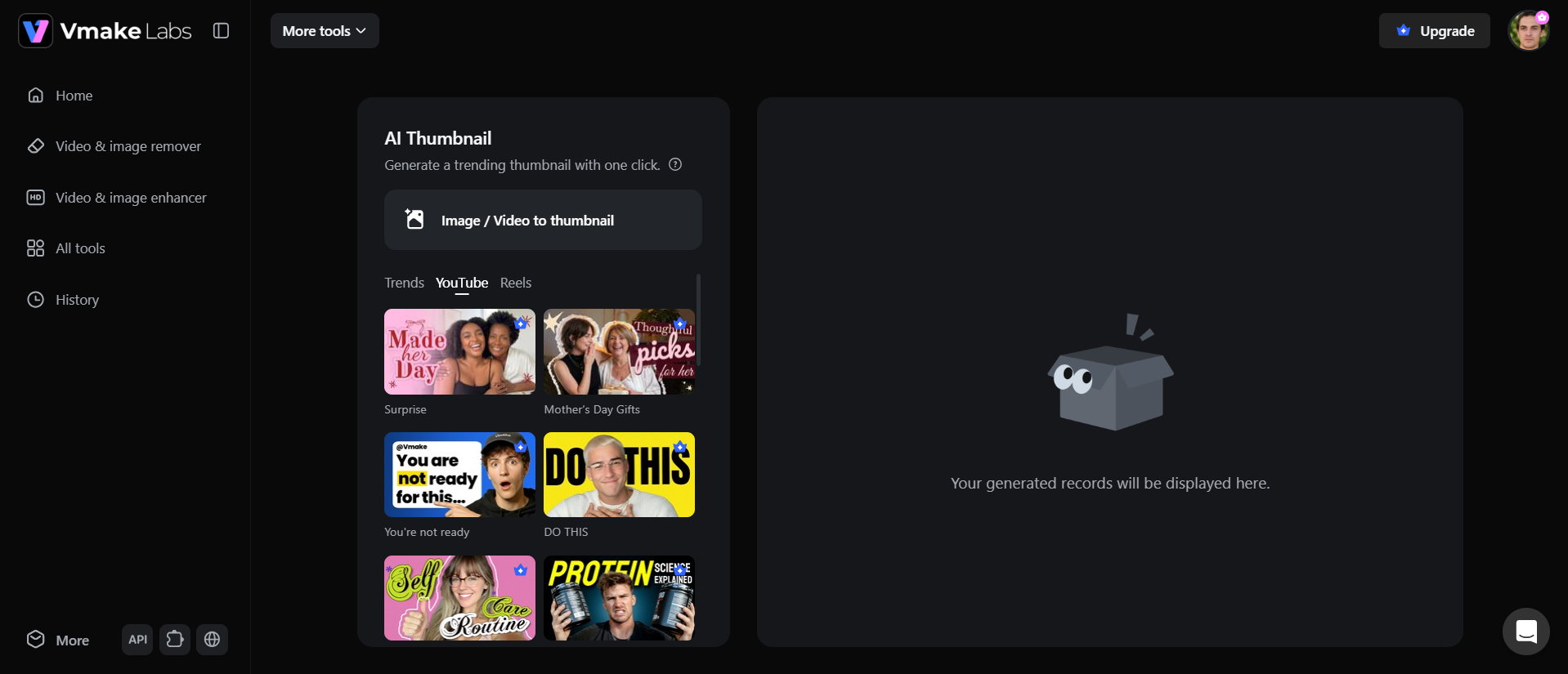
Visit the Vmake Labs AI Thumbnail Maker and upload your existing image or video as the starting point. You can use your own content or begin with AI-generated visuals, depending on your thumbnail creation workflow.
Step 2: Select the thumbnail ratio and enter your text
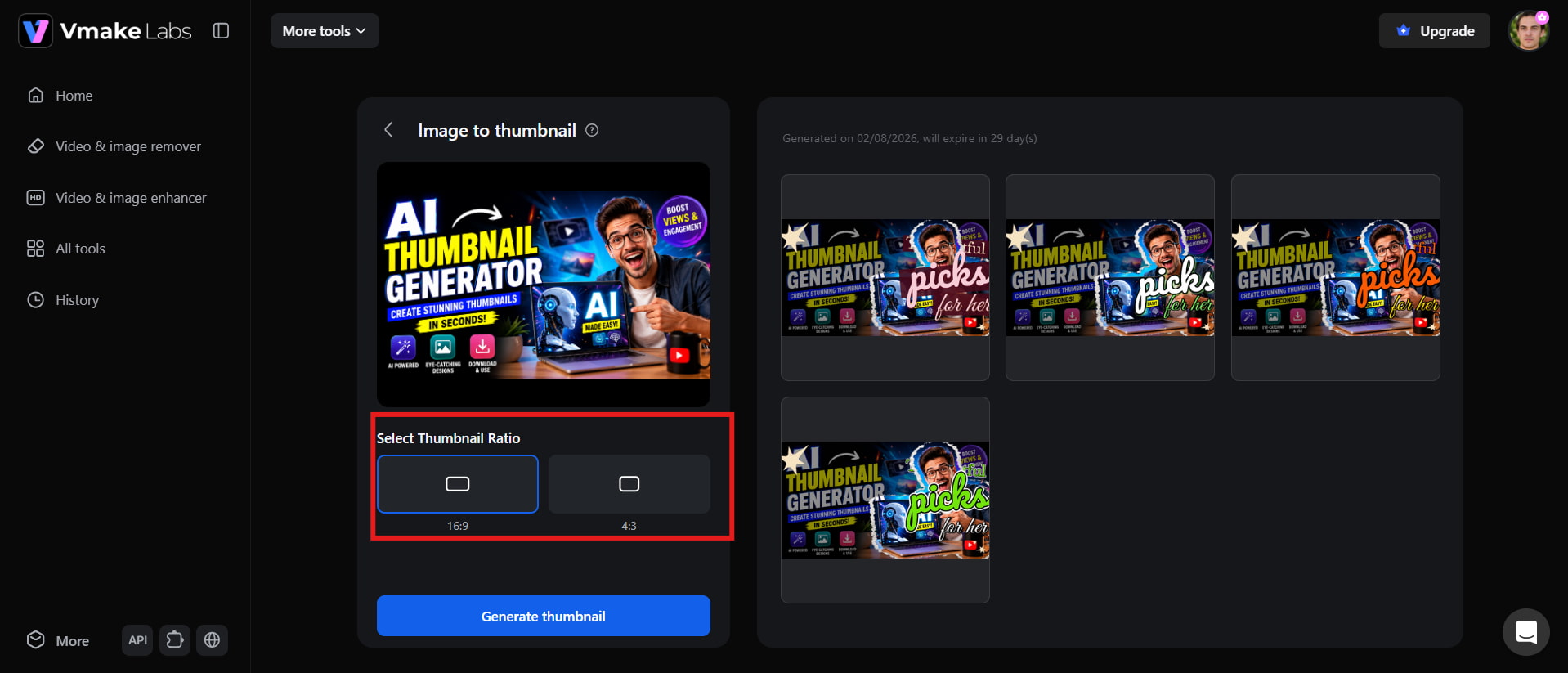
Choose the YouTube thumbnail ratio, then add your title or other text. Adjust fonts, positioning, and styling to match your channel branding while keeping the design clean and readable.
Step 3: Generate and preview for download
Click Generate to create your AI thumbnail. Preview the result, make any final adjustments if needed, and download your finished thumbnail for immediate use on YouTube.
Vmake Labs vs Canva thumbnail maker
Although both platforms simplify thumbnail creation, they approach the process differently. Canva emphasizes template customization through its drag-and-drop editor, whereas Vmake Labs prioritizes AI-assisted thumbnail generation. Comparing their features side by side makes it easier to identify which solution aligns with your creative workflow.
|
Feature |
Vmake Labs |
Canva Thumbnail Maker |
|---|---|---|
|
Best For |
AI-generated YouTube thumbnails |
Template-based thumbnail design |
|
AI Image Generation |
Yes |
yes |
|
Ready-made Templates |
Limited |
Yes |
|
Text-to-Image |
Yes |
Limited |
|
Multiple AI Styles |
Extensive |
Basic AI styles |
|
Editing Tools |
Basic image generation workflow |
Advanced drag-and-drop editor |
|
Prompt-Based Creation |
Excellent |
limited |
|
Free Version |
Yes |
Yes |
|
Overall Verdict |
Best for unique AI-generated thumbnails |
Best for editing templates and branding |
Choose Canva if:
-
You enjoy customizing templates manually.
-
You frequently collaborate with team members.
-
You need Brand Kit support for consistent branding.
-
You already use Canva for presentations, social media graphics, and marketing materials.
-
You prefer a familiar drag-and-drop editor with thousands of ready-made layouts.
Choose Vmake Labs if:
-
You want a powerful YouTube thumbnail maker that generates unique AI-powered thumbnails in just a few clicks.
-
You prefer creating visuals from prompts instead of editing templates.
-
You need original artwork that helps your videos stand out.
-
You want a faster thumbnail creation workflow.
-
You create content regularly and need consistent, high-quality results.
-
You value a browser-based experience without installing design software.
Conclusion
Canva Thumbnail Maker remains a reliable option for users who enjoy customizing templates and want an easy-to-use design experience. Its AI tools and extensive template library help speed up thumbnail creation without requiring professional skills. On the other hand, Vmake Labs is better suited for creators seeking original AI-generated thumbnails with less manual editing. The best choice ultimately depends on your workflow. Canva excels at template-based customization, while Vmake Labs focuses on fast, AI-driven thumbnail generation. Choose Canva for template-based design and collaboration, or Vmake Labs for unique AI-generated visuals that help your YouTube content stand out.
FAQs
-
Is Canva thumbnail maker free to use?
Yes, Canva offers a free plan that includes access to many YouTube thumbnail templates, basic editing tools, and design elements. However, premium templates, Brand Kit, Background Remover, and some AI features require a Canva Pro subscription.
-
Is Canva AI thumbnail maker good for YouTube creators?
Yes, Canva is a great option for YouTube creators who want to design professional thumbnails quickly. Its ready-made templates, drag-and-drop editor, and AI-assisted tools help simplify the design process, especially for beginners and small content creators.
-
How do I make YouTube thumbnails in Canva that get more clicks?
Choose a template that matches your content, use bold and readable text, include high-quality images, and maintain strong color contrast. Keeping your thumbnail simple, visually appealing, and consistent with your channel branding can help improve click-through rates.
-
Can Vmake Labs generate YouTube thumbnails using AI?
Yes, Vmake Labs can generate YouTube thumbnails using AI. You can upload an image or video or start with AI-powered generation, then customize the text and layout to create unique, high-quality thumbnails suitable for different content categories.
-
Which is better: Canva thumbnail maker or Vmake Labs?
The better choice depends on your workflow. Canva is ideal for users who enjoy editing ready-made templates and collaborating on designs, while Vmake Labs is better suited for creators who want to generate original AI-powered thumbnails quickly with minimal manual editing.
-
Can I edit AI-generated thumbnails after creating them in Vmake Labs?
You can preview the generated thumbnail and make adjustments to your input or prompt if you want to refine the result. Once you are satisfied with the generated thumbnail, you can download the final image.

You May Be Interested

Canva AI Image Generator Review: Is It Worth It in 2026?

Canva AI Video Generator Review: A Complete Hands-On Test
Canva Audio to Text Converter: Complete Guide & AI Alternative
Canva Image Enhancer Review: A Complete Hands-On Test
Canva Video Enhancer Review [2026]: Pros, Cons, and Pricing