
AI Clipart Generator: Top 6 Tools to Generate Unique Clipart Images
Create personalized AI clipart instantly. From cute stickers to colorful illustrations, turn your ideas into ready-to-use graphics. Discover how Vmake Labs can add life to your imagination.

Clipart has evolved beyond pre-made libraries and boring graphics. An AI clipart generator can help create custom illustrations in styles that match your project. From classroom worksheets and stickers to social media graphics and branding, learn how to generate different clipart designs using the top-notch tools below.
What is Clipart AI
AI clipart is a term for illustrations, decorative graphics, icons, characters, and visual elements created or transformed with artificial intelligence. AI-generated clipart is not limited to a set of predefined images like traditional clipart. It can be generated from a text description or a reference image. You are not limited to whatever designs are available in an existing library.
Generative AI can create an illustration from a prompt, such as "a cheerful orange cat holding a pencil, flat vector-style illustration, clean outlines, isolated on a transparent background". You could also describe the color palette, mood, composition, level of detail, and style that you want to achieve so that the result is better suited for your project.
6 AI clipart generators to create custom AI clipart
There are several free AI clipart generators that can create unique clipart designs. The tools below vary in generation approach, editing power, style, and workflow, so your best choice depends on whether you need quick illustrations, reference-based transformations, coordinated clipart sets, or broader creative control.
-
Vmake Labs
Vmake Labs AI Image Generator can help create custom clipart from text prompts or transform an existing image into a new visual style. Its image generator supports text-to-image and image-to-image workflows that can create client-style visuals and is useful when you want to start from an idea or use an existing visual as a reference. This could be useful for creating custom assets for presentations, social media posts, educational content, product designs, and marketing content. Create an illustration from scratch, or upload a reference and let the AI reinterpret it as a cartoon, digital illustration, watercolor graphic, or any other visual style.
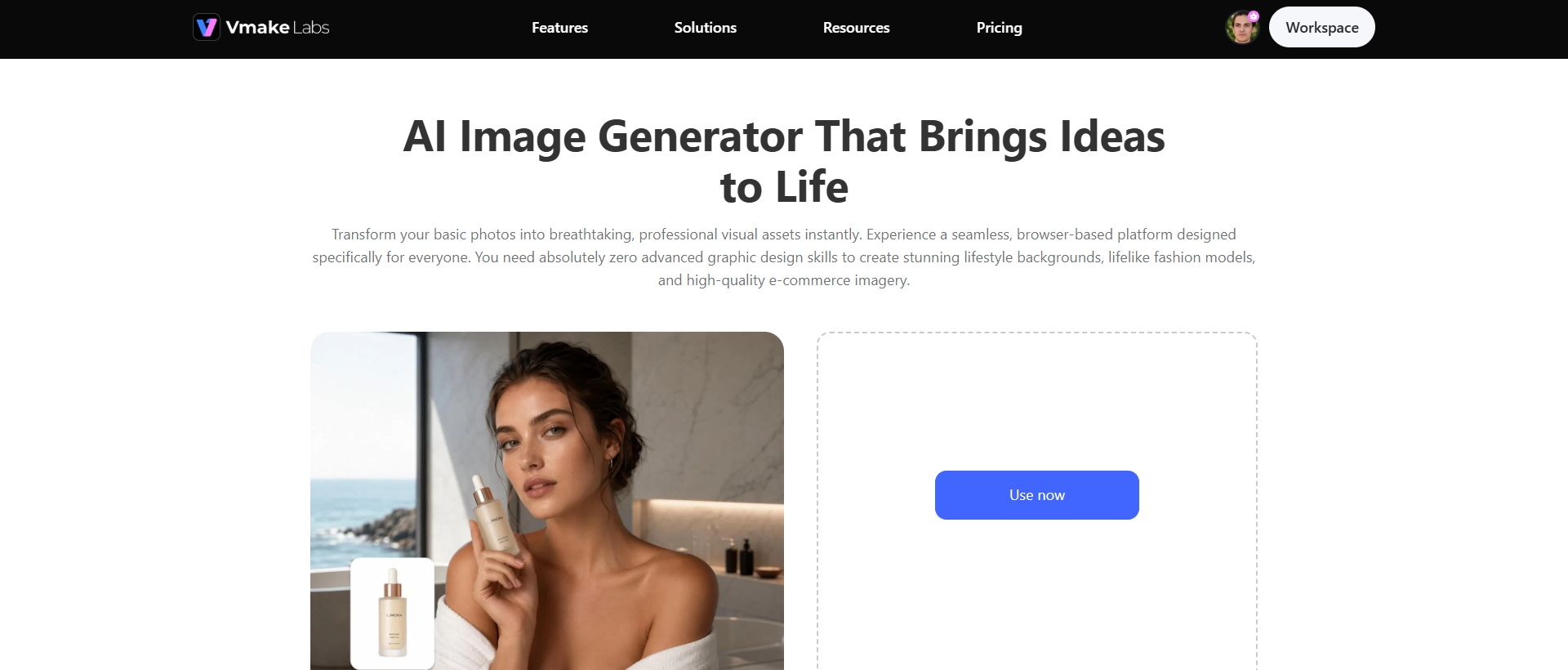
Step-by-step guide
Step 1: Choose Text to Image or Image to Image
Start by selecting a generation method that fits your project. Select Text to Image if you know the type of clipart you want and have a prompt that describes it. Select Image to Image if you have a photo, sketch, or visual reference that you would like to convert to clipart.
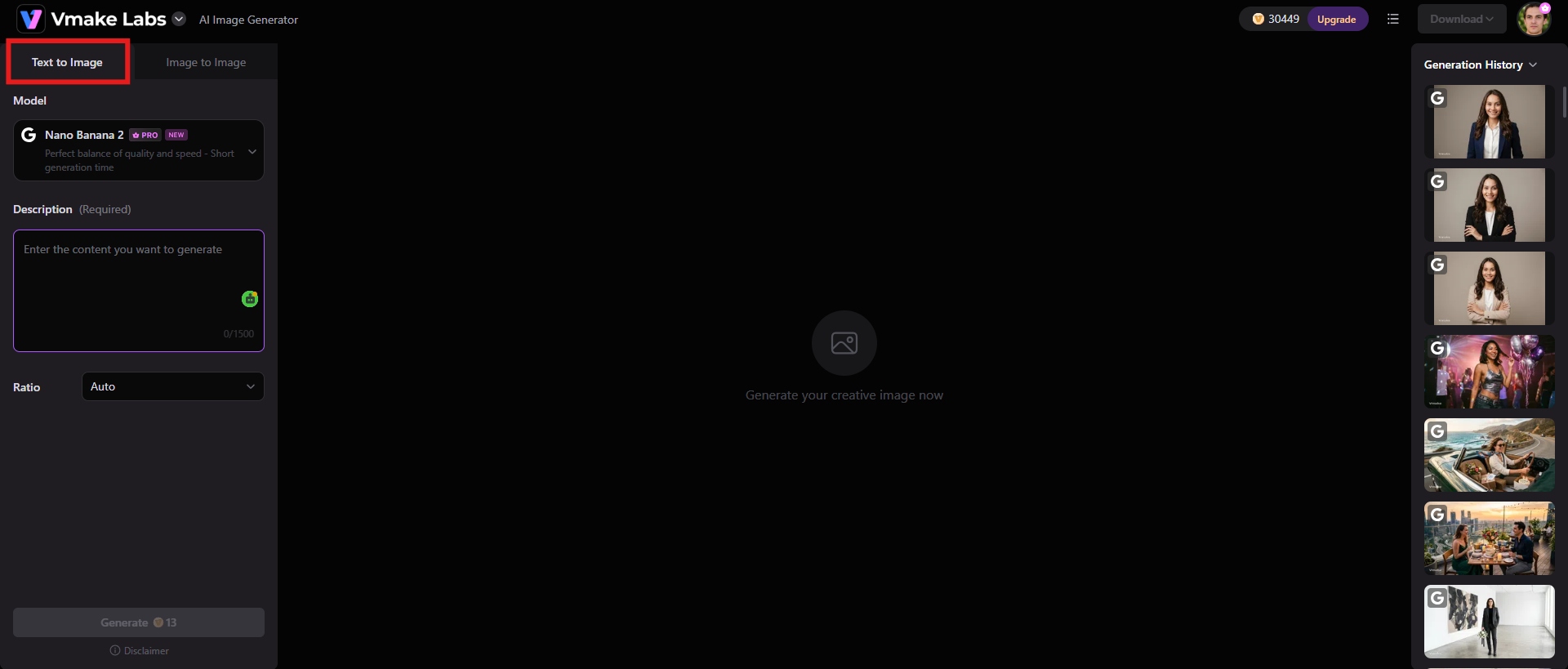
Step 2: Enter your prompt and generate
For text-to-image generation, provide the subject, illustration style, colors, background, and composition. Select the aspect ratio that fits your project and click "Generate" to begin the process.
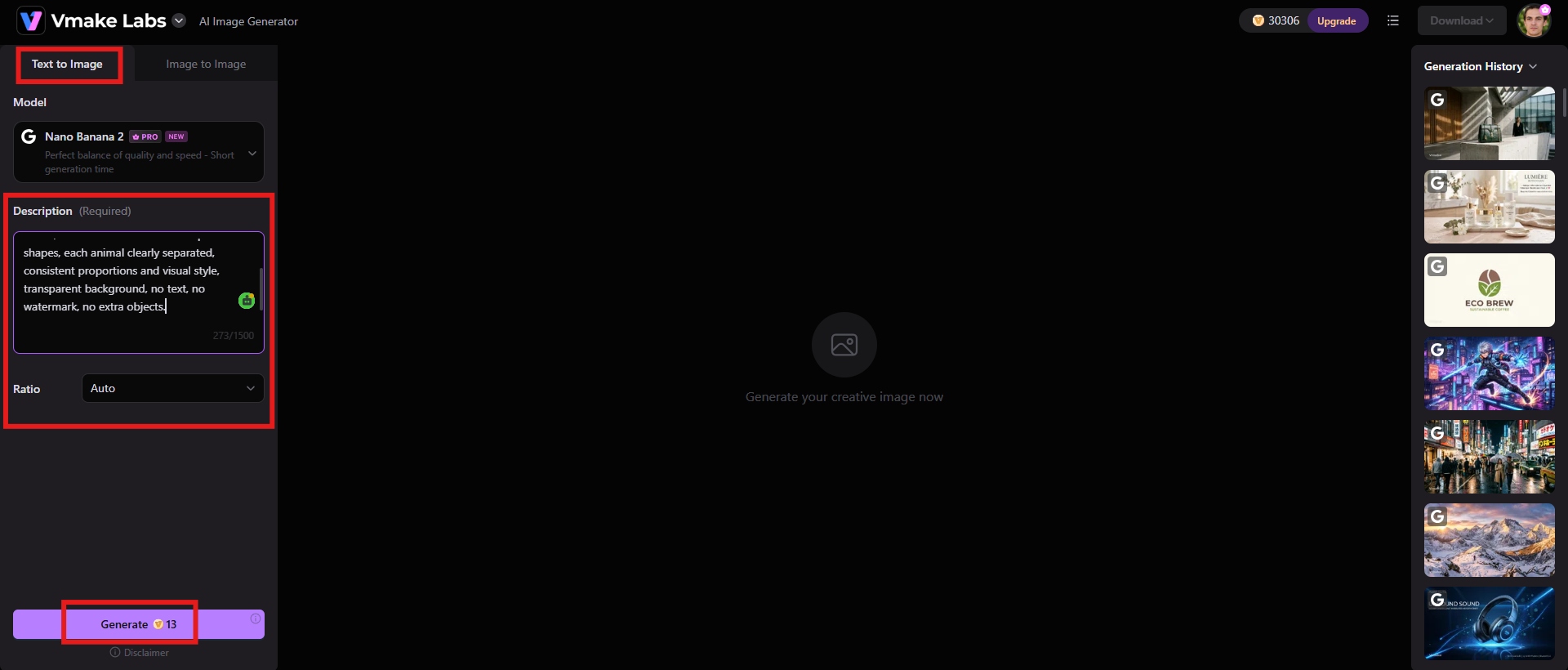
Step 3: Refine and download
Check the result for things like unwanted objects, inconsistent outlines, awkward proportions, or background elements. If necessary, change the prompt or reference and regenerate. If it's what you need, download it for your project. Once downloaded, you can further use Vmake Labs AI Image Enhancer to polish the output.
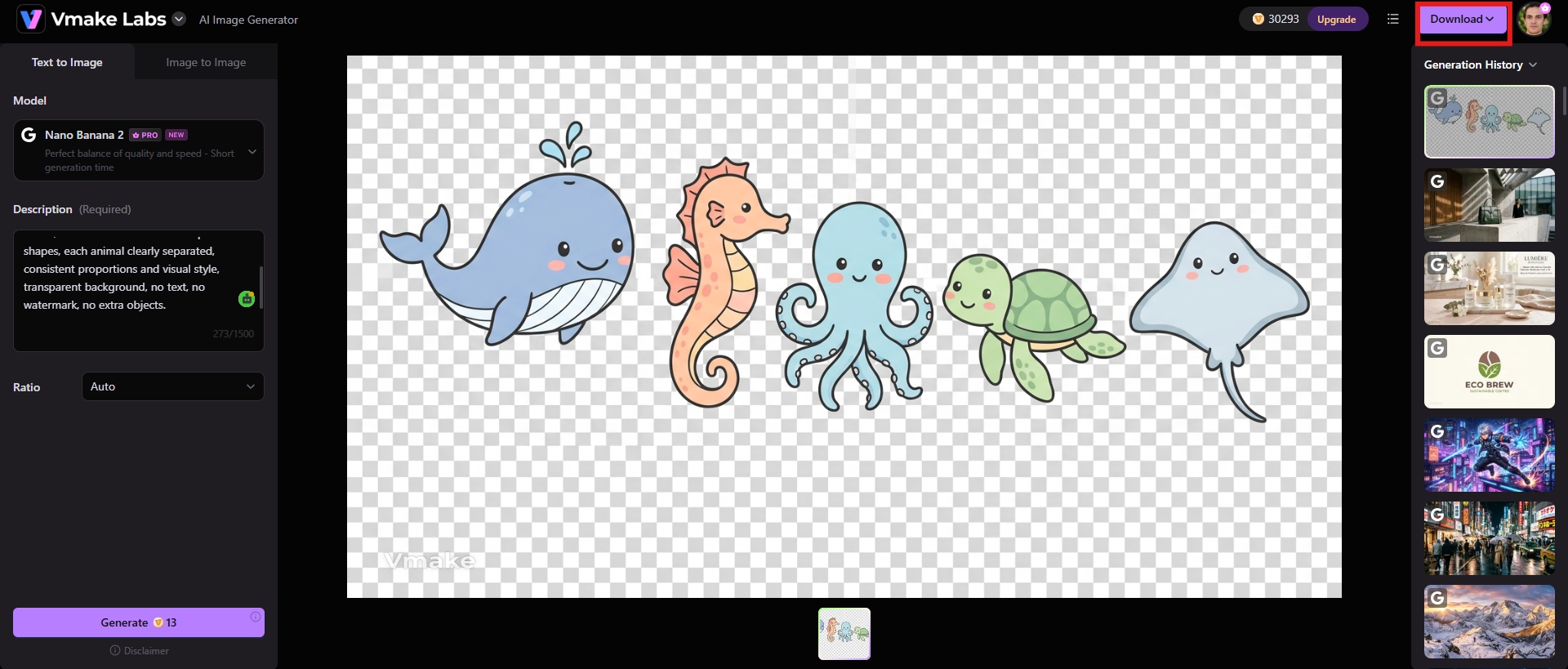
Key features of Vmake Labs AI Image Generator
-
Text-to-image generation
Describe a clipart image you would like in natural language and get original illustrations. This is useful if you want to create characters, objects, icons, decorative elements, or themed graphics, and don't have an existing image to begin with.
-
Image-to-image generation
Upload a reference image and let AI reimagine its visuals. This comes in handy if you want to turn a photo, sketch, or existing graphic into something more illustrative or stylized.
-
Multiple AI image models
Model selection lets you choose between different image generation techniques, meaning you can play with the quality of the output and visual interpretation rather than being stuck with one generation engine.
-
Flexible aspect ratios
Select the output ratio that works best for the intended design. The clipart may be used in a square graphic, portrait composition, landscape design, e-commerce-use images, or other format.
-
ImagineArt
ImagineArt AI Image Generator is a multi-model AI image generation platform that generates everything from realistic images to stylized illustrations. It supports text-to-image generation, reference images, and different styles of art, thus making it a flexible choice for custom clipart.
For clipart, you can just describe the subject and pick a visual direction like watercolor, comic, 3D, or some other illustration style. Its reference-image features are also useful for keeping a certain pose, color palette, character look, or visual structure.
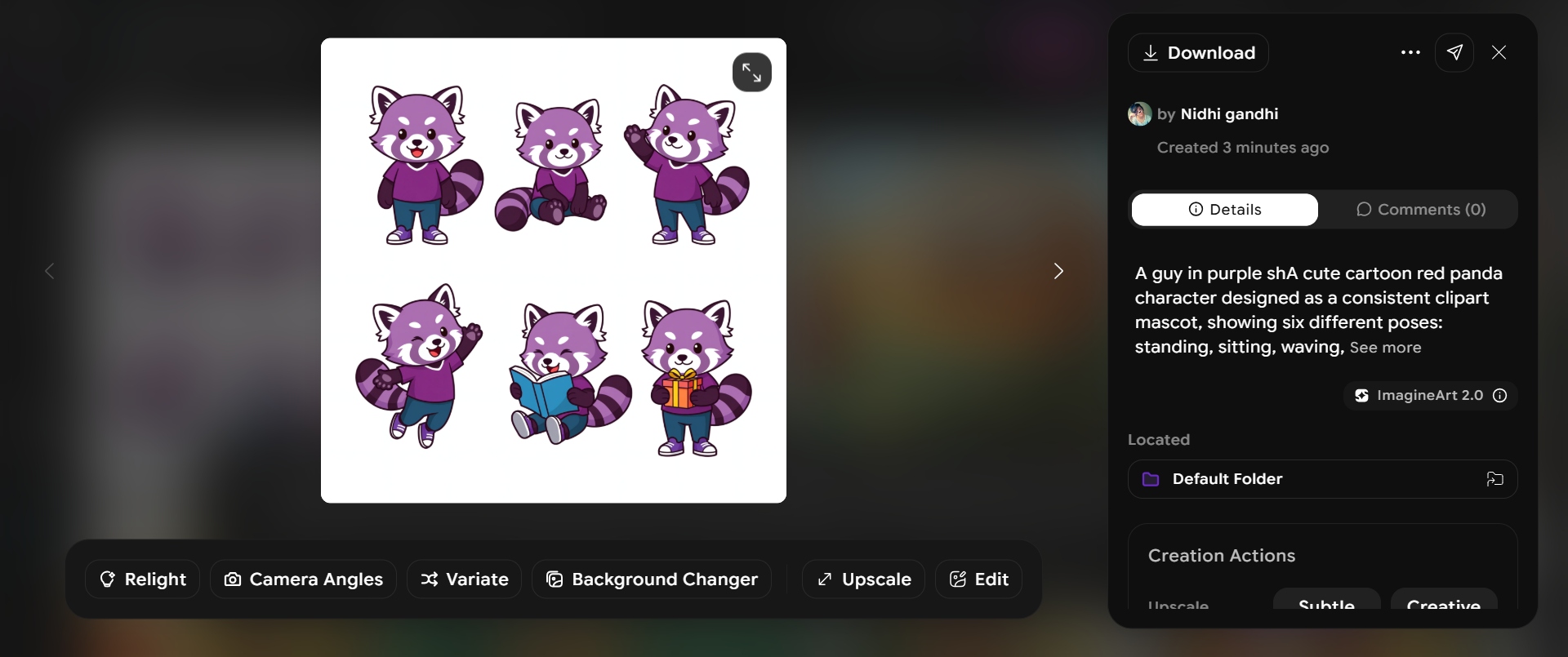
Best use: It is a perfect option when you want to experiment with different AI models, styles, references, and compositions to create highly customized illustrations.
|
Pros |
Cons |
|---|---|
|
|
-
Media.io
Media.io AI Image Generator is a web-based AI creation platform with text-to-image and image-to-image tools. It can produce illustrations in anime, watercolor, 3D, fantasy, and other visual styles. You can use it to create custom clipart from prompts. It has a workflow for background removal, object removal, image enhancement, AI replacement, and image-to-image editing. You can also change parameters such as resolution and aspect ratio before generation.
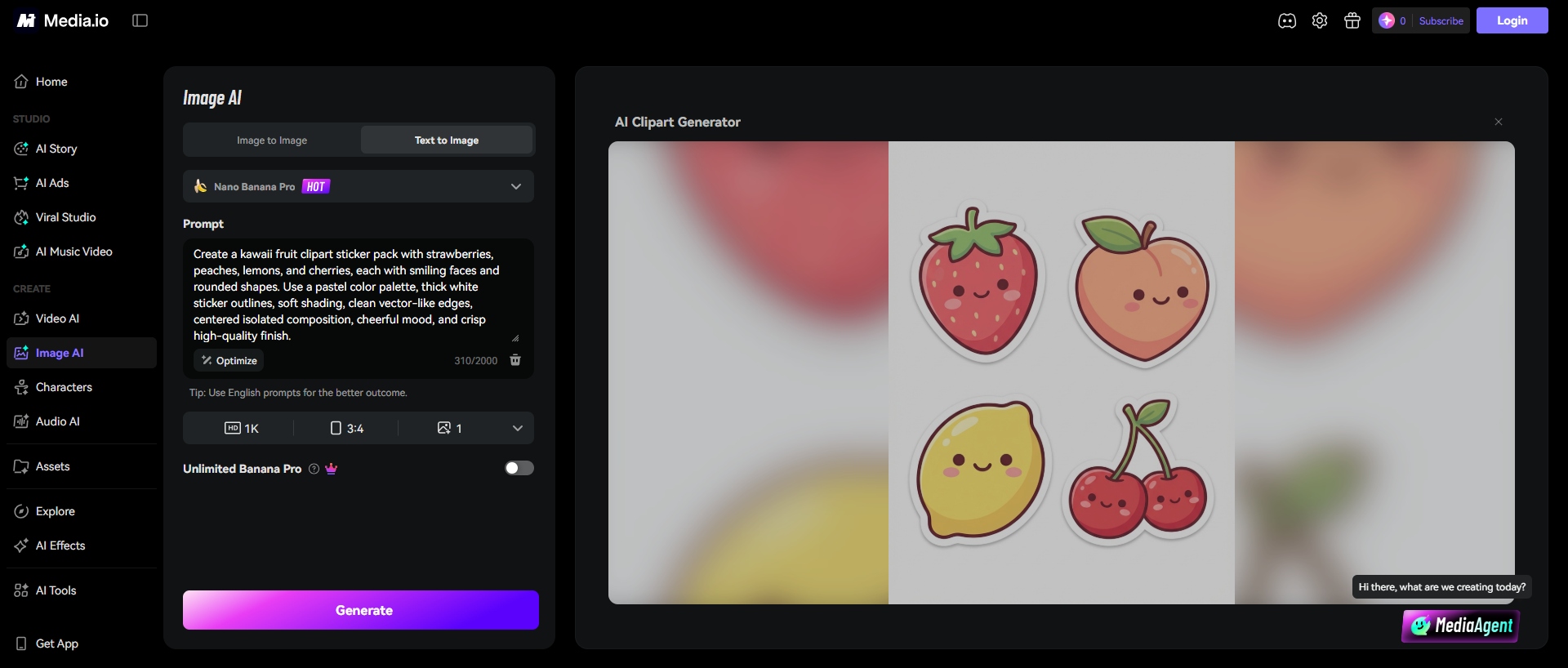
Best for: Quickly creating AI illustrations, then editing them online, removing backgrounds, or enhancing via image-to-image.
|
Pros |
Cons |
|---|---|
|
|
-
LightX
LightX AI Image Generator is an AI image creation and editing platform that works with text prompts, image references, and sketches. It has styles like realistic, 3D, fantasy, anime, and pixel art, so it can be tailored to fit many different types of AI clipart. You can upload an image and use the image-to-image tool to control how similar the output image is to the original one.
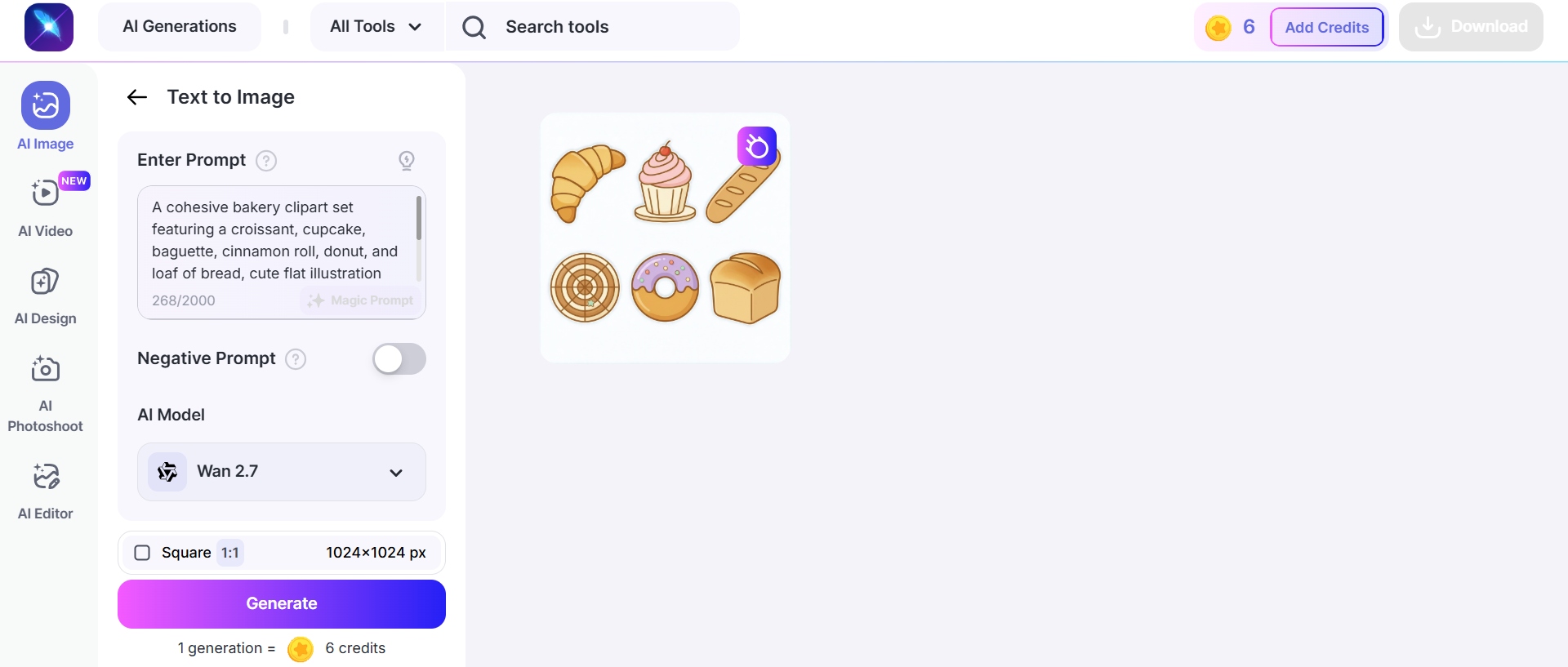
Best for: Practical for transforming photos, sketches, or existing graphics into cartoon-like or illustrated assets.
|
Pros |
Cons |
|---|---|
|
|
-
VEED
VEED AI Image Generator can generate unique illustrations and graphics from text prompts. You select an aspect ratio and visual style, create variations, and then keep editing the image you get inside VEED. You can build a cartoon character or decorative graphic and insert it into a social video, presentation, thumbnail, or marketing asset without switching apps.
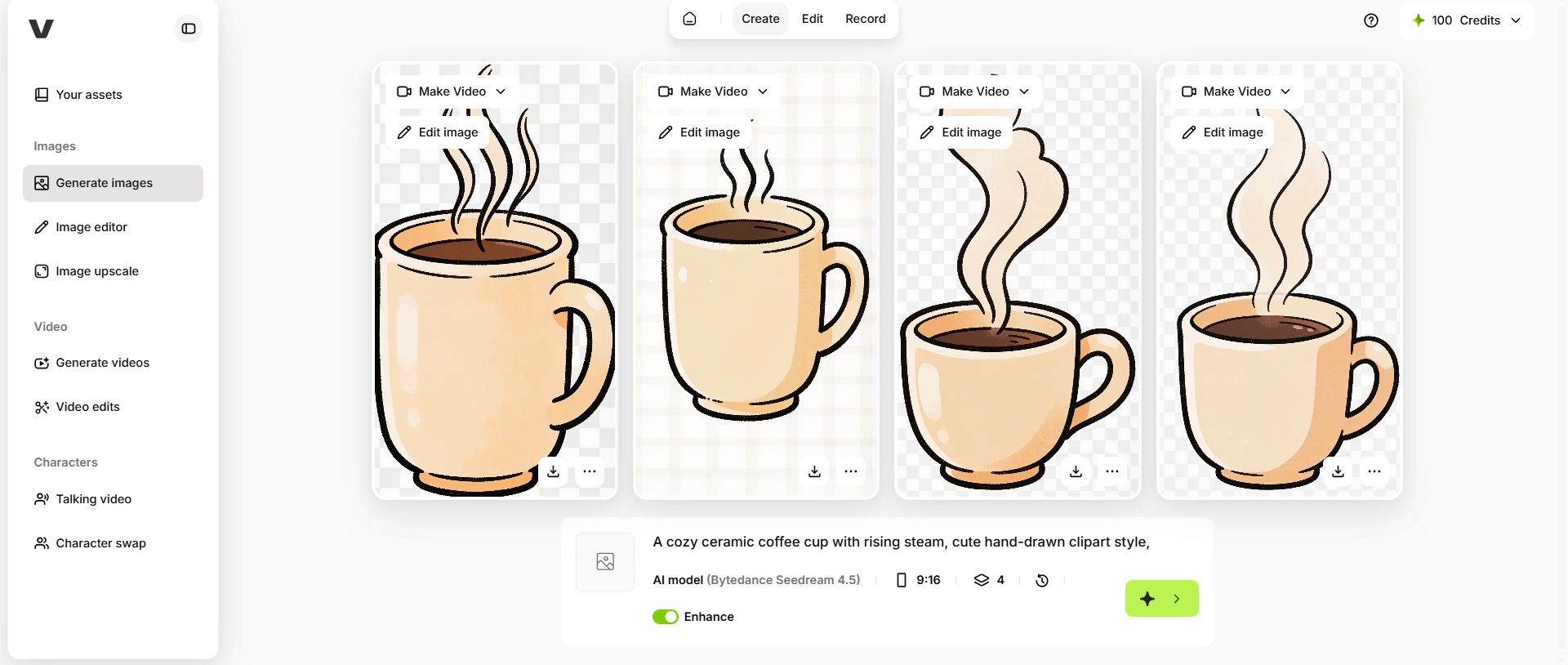
Best for: Making clipart for social media, videos, thumbnails, presentations, and other content that will be edited in the same workspace.
|
Pros |
Cons |
|---|---|
|
|
-
Clip.art
Clip.art AI Clip Art Generator is a little more specific than the other tools on this list. It’s a clipart/theme-pack shop and AI clipart generator, not a general-purpose AI image editor. It can generate single transparent PNG clipart from text prompts and can create curated theme packs with a consistent visual style. This makes Clip.art particularly interesting for users who want to get multiple related illustrations instead of a single standalone image.
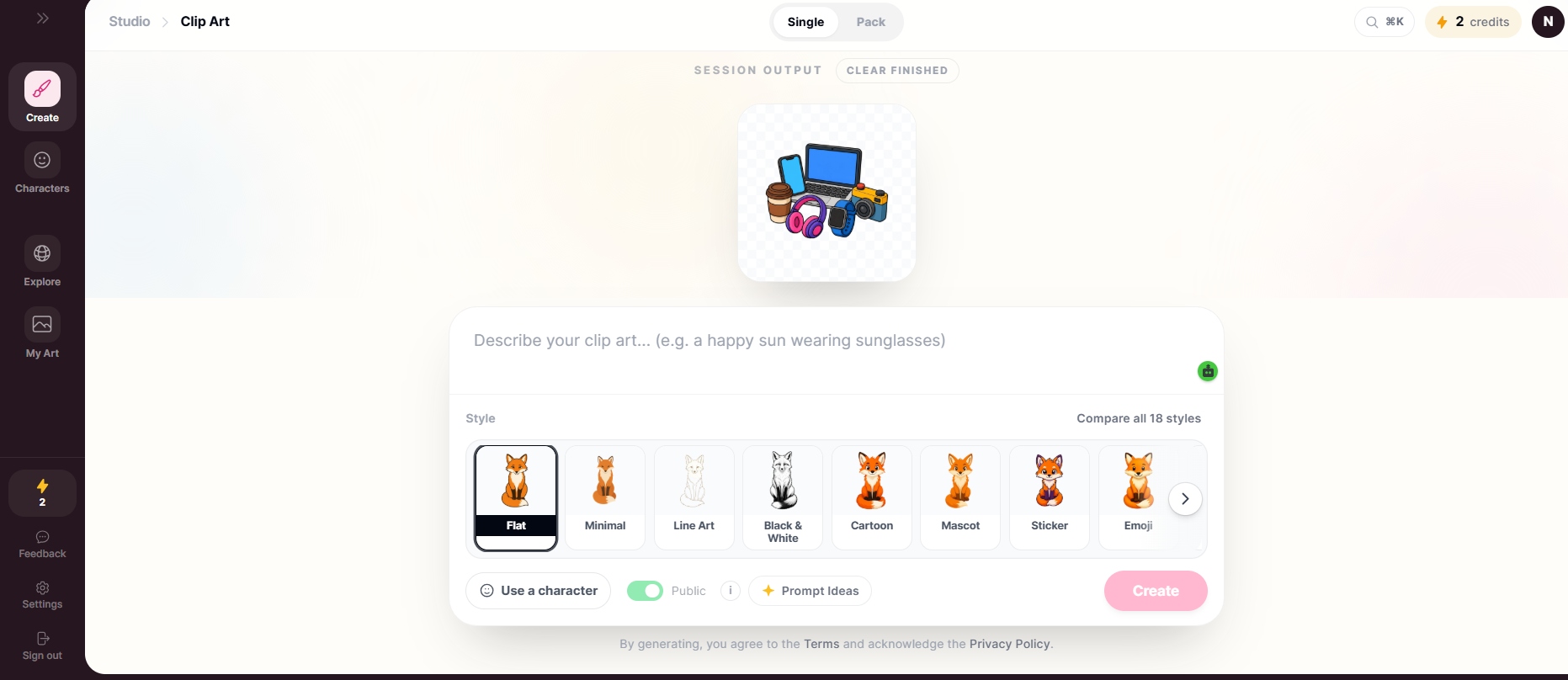
Best use: Creating individual transparent clipart or buying/generating matching sets of clipart for classrooms, crafts, educational projects, shops, and themed designs.
|
Pros |
Cons |
|---|---|
|
|
Tips to make AI-generated clipart look realistic
It’s not enough to just describe the object to make good AI clipart. The prompt should describe what the final illustration should look like, how it should be arranged, and what should be left out. Some clear guidance can mean the difference between clean and usable graphics, and one that requires heavy editing.
-
Keep prompts specific and descriptive.
Clearly show the main subject, its looks, pose, expression, colors and crucial details. For example, if you want to make AI robot clipart, then instead of "a robot clipart," try a search like "a modern-gen robot with its with a friendly expression, clean cartoon illustration, smooth outlines."
-
Mention the desired illustration style.
Indicate the preferred style of illustration, be it a flat vector-style artwork, watercolor, doodle, sticker art, 3D cartoon, pixel art, line art, or another look if you'd like. Style instructions help keep the generator from outputting a result that resembles a generic photograph.
-
Specify a clean or transparent background when needed.
If you are going to use the clipart on worksheets, posters, packaging, websites or social graphics, ask for an isolated subject, clean background or transparent PNG if the tool offers it. This decreases the amount of background removal later.
-
Ask for consistent colors and visual elements.
When creating a set of related AI-generated clipart pieces, use the same color palette, outline weight, light direction, and illustration style for all of your prompts. A set of icons or characters always feels like a designed set when they follow consistent instructions.
-
Avoid unnecessary objects in the prompt.
Extra details can bring unwanted elements to the image. If you need a single object, please specify it as "single subject", "isolated" or "no additional objects". The more specific the prompt, the less opportunity the generator has to add distracting details.
Conclusion
The best AI clipart generator depends on the type of artwork you want to make. If your clipart is for a video or social media project, VEED is a good choice while Clip.art is better for a clipart workflow with themed packs that go together. Each tool has something to offer when it comes to clipart generation. The best way is to experiment, don't just stick to one prompt. Try to change the illustration style, color palette, background instructions, level of detail and composition until you find a visual language that works for your project. Vmake Labs AI Image Generator is a fast way to translate an idea or reference into custom artwork, so play around with different prompts and styles to generate clipart that suits your specific needs.
FAQs
Can I turn a photo into AI clipart?
Yes. Some AI image generators can also do image-to-image, so you can upload a photo and have it converted to an illustration or cartoon. Examples include image-based generation or transformation workflows such as Vmake Labs, LightX, Media.io, ImagineArt, and VEED.
What AI tools can create custom clipart?
Vmake Labs, ImagineArt, Media.io, LightX and VEED are some of the AI image generators that can make custom clipart. Clip.art is a more niche option as its platform is specifically for AI clipart generation and coordinated clipart packs. What works best will depend on whether you want a single illustration, something that is transformed based on a reference, or a whole set of themed artwork.
How can I create cartoon clipart with AI?
Begin with a clear prompt that states the subject and asks for a cartoon illustration. Details of the outline, colors, proportions, background, and composition. For example, you could prompt "a happy panda with a red balloon, cute cartoon clipart, bold clean outlines, simple shapes, soft colors, isolated on a transparent background." Making some variations and polishing the prompt can help you get a cleaner final result.
Can I create AI clipart in a specific art style?
Yes. Most modern AI image generators allow you to describe or pick a visual style. You can request styles like watercolor, line art, doodle, sticker, 3D, pixel art, anime, flat illustration, or storybook art. Tools like ImagineArt and LightX provide style options to simplify the process, and Clip.art offers a range of clipart-specific styles.
How can I generate matching sets of AI clipart icons?
Use the same base prompt structure for each icon and maintain consistency in the visual instructions. Specify the same style of illustration, line thickness, color palette, background treatment, proportions and level of detail. If the platform allows for reference images or coordinated generation, use the same reference or visual direction across the set.

You May Be Interested
Adobe Firefly AI Video Generator Review & Best Alternative
AI Animal Generator: Make Realistic Animal Images with AI
How to Create Professional YouTube Thumbnails with AI: A Creator’s 2026 Strategy

11 Best Image to Video AI Generators Compared in 2026
7 Best Free AI Image Generators 2026 Alternatives to Grok Imagine
