How to Turn Photos Into Polaroids Online
Turn photos into Polaroids with a nostalgic instant-film look, vintage colors, classic frames, and creative customization. Create and download your images easily with Vmake Labs in minutes.

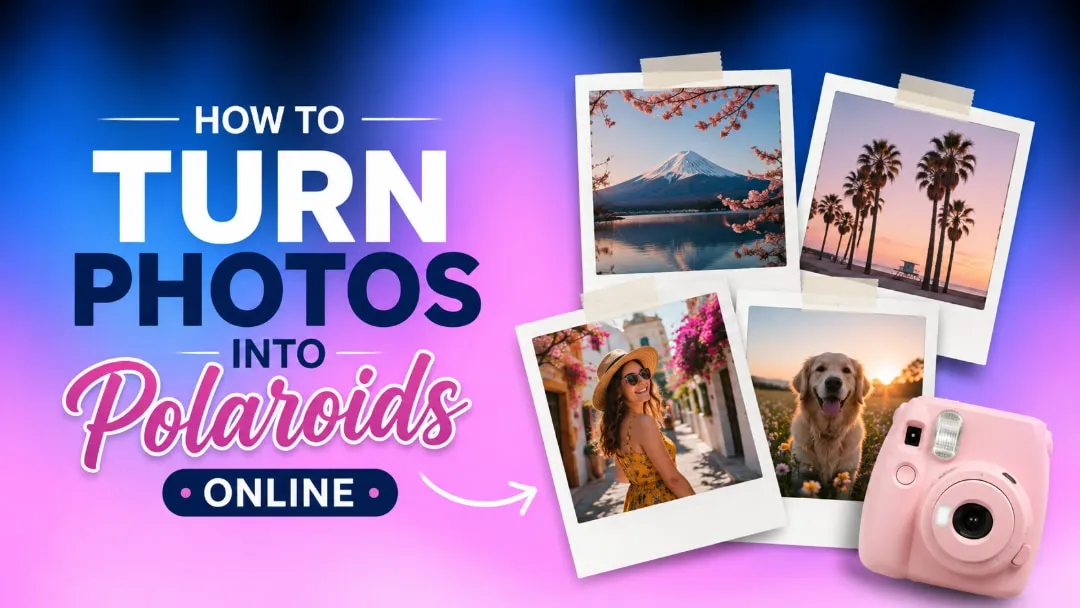
Turning a photo into a Polaroid-style keepsake is easier than ever. With online tools, you can recreate the classic white frame, warm colors, film-like texture, and handwritten details in just a few minutes. This guide explains simple ways to turn your photos into Polaroid-style images online.
What is a Polaroid-style photo?
A Polaroid-style photo recreates the recognizable appearance of an instant-film photograph. While the exact design can vary, most Polaroid-inspired images combine a white frame, a slightly retro color treatment, and space for personal details. The goal is not simply to place a white border around an image. Small visual details, such as muted colors, soft contrast, film grain, and handwritten captions, help create the nostalgic character associated with instant photos.
White instant-film frame
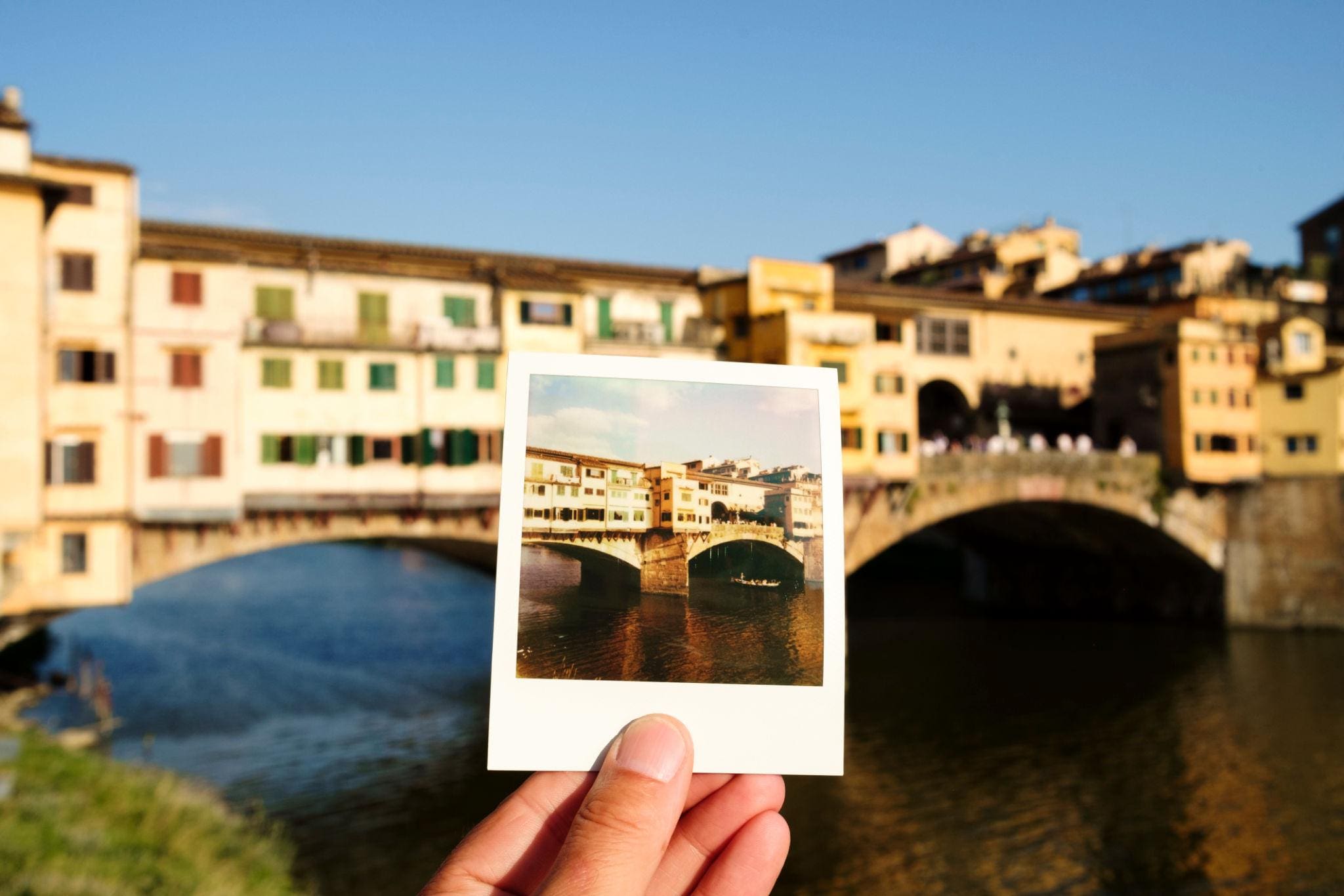
One of the clearest ways to spot a Polaroid-style photograph is the white frame. Typically, a classic design will have a clean white border around the photo with a wider portion below the photo. This bottom section gives the shot its distinctive instant-film look and leaves an opportunity for a date, location or short message. A slightly bigger frame than the image itself might make the finished design feel more authentic.
Vintage photo aesthetic
A Polaroid-style photo often has a soft, nostalgic appearance that feels different from a modern digital image. Warm or slightly faded colors, subtle film grain, and gentle contrast can recreate the character of instant film. A little visual imperfection can make the image feel more natural and reminiscent of an old printed photograph.
Personal captions and details
The addition of personal elements can make a Polaroid-style snapshot feel like a captured memory, and not just an edited picture. Add a date, place or small handwritten remark to the lower frame to make it more personal. You can also include little ornamental elements in the design, but they should not take attention away from the primary photo.
How to create a Polaroid effect from any photo
You do not need professional editing software to create a Polaroid effect. Most online workflows follow a similar process, although the exact controls vary depending on the tool you use.
-
Choose a suitable source photo: You need a clear and well-lit photo that has the subject matter easily recognizable and in a Polaroid-style layout.
-
Adjust the image composition: Crop or reposition the photo to create a balanced composition, keeping the main subject properly placed within the instant-film frame.
-
Add the characteristic Polaroid frame: Add a traditional white border around the image, with a little extra room at the bottom for that traditional Polaroid style.
-
Apply vintage-inspired colors or effects: Use warm, faded tones, soft contrast, and subtle film grain to give the photo a nostalgic, authentic instant-film feel.
-
Add a caption if desired: Personalize the image with a short date, location, memory, or handwritten-style note in the lower frame area.
-
Export the finished image: Save the final Polaroid-style photo in a suitable format and resolution for sharing online or printing as a physical keepsake.
Traditional editing methods allow you to construct a basic Polaroid frame, but with AI capabilities, there is more freedom in terms of personalizing the overall design. You may play with different vintage styles, colors, textures, and layouts without having to do it all by hand. This makes it easier to turn a normal photo into a personalized Polaroid-like image.
How Vmake Labs turns photos into Polaroid-style images
With Vmake Labs, you can quickly turn any existing photo into a Polaroid-style graphic without having to start from the beginning. Start with a clean photo you can personalize with retro hues, a quick film frame, and other creative accents. If your original image requires enhancing first, an image enhancer can help sharpen essential features, while photo restoration might be effective for older or damaged photos. This provides you with a cleaner starting point to work with for a more finished Polaroid-style image.
3 steps to creating Polaroid-Style photos
Step 1: Upload your photo or describe your desired Polaroid look
Upload a clear photo or provide a text prompt describing the Polaroid look you desire. You have the option to add elements such as a traditional white instant film frame, warm vintage tones, slight film grain, gentle contrast and a handwritten caption space.
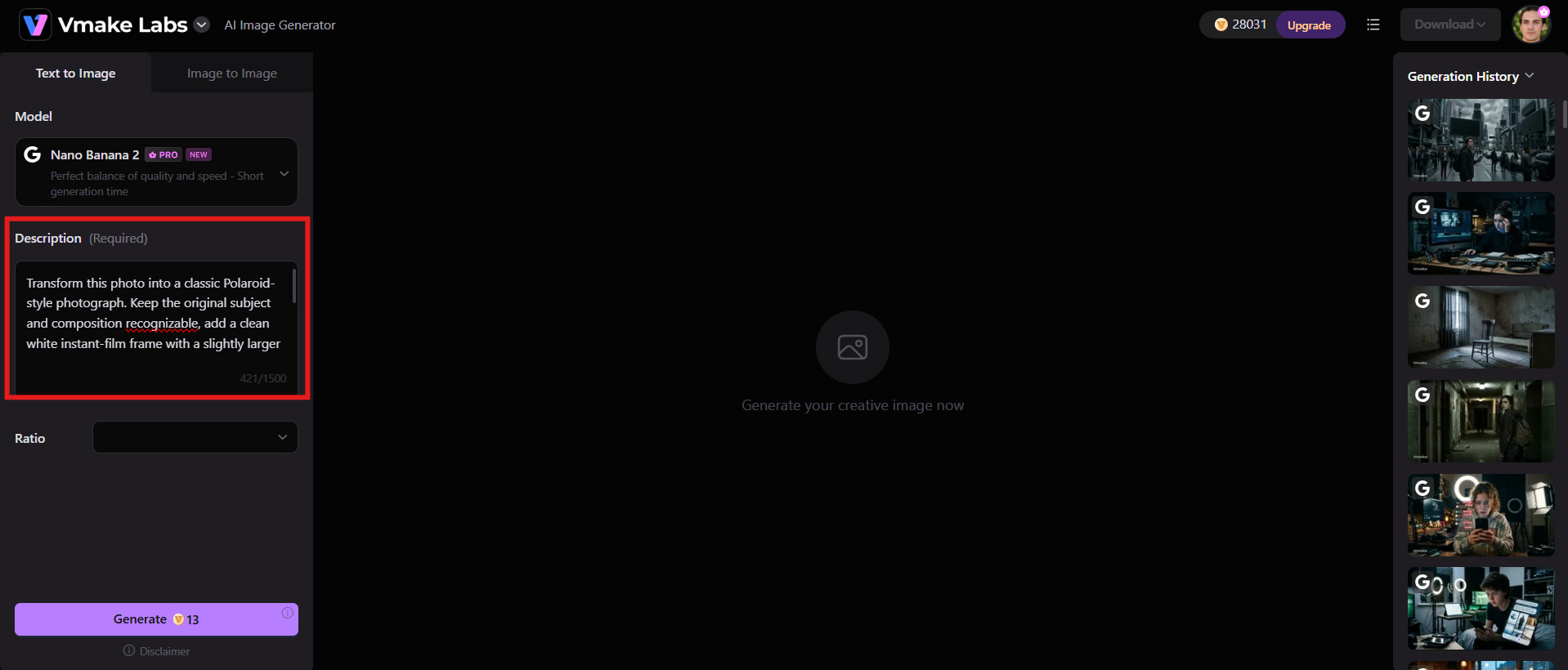
Step 2: Generate your Polaroid-style photo
Generate the image using your photo or prompt, keeping the original subject while adding the Polaroid aesthetic. Be specific about the frame, colors, mood, composition, and vintage details for a more natural result.
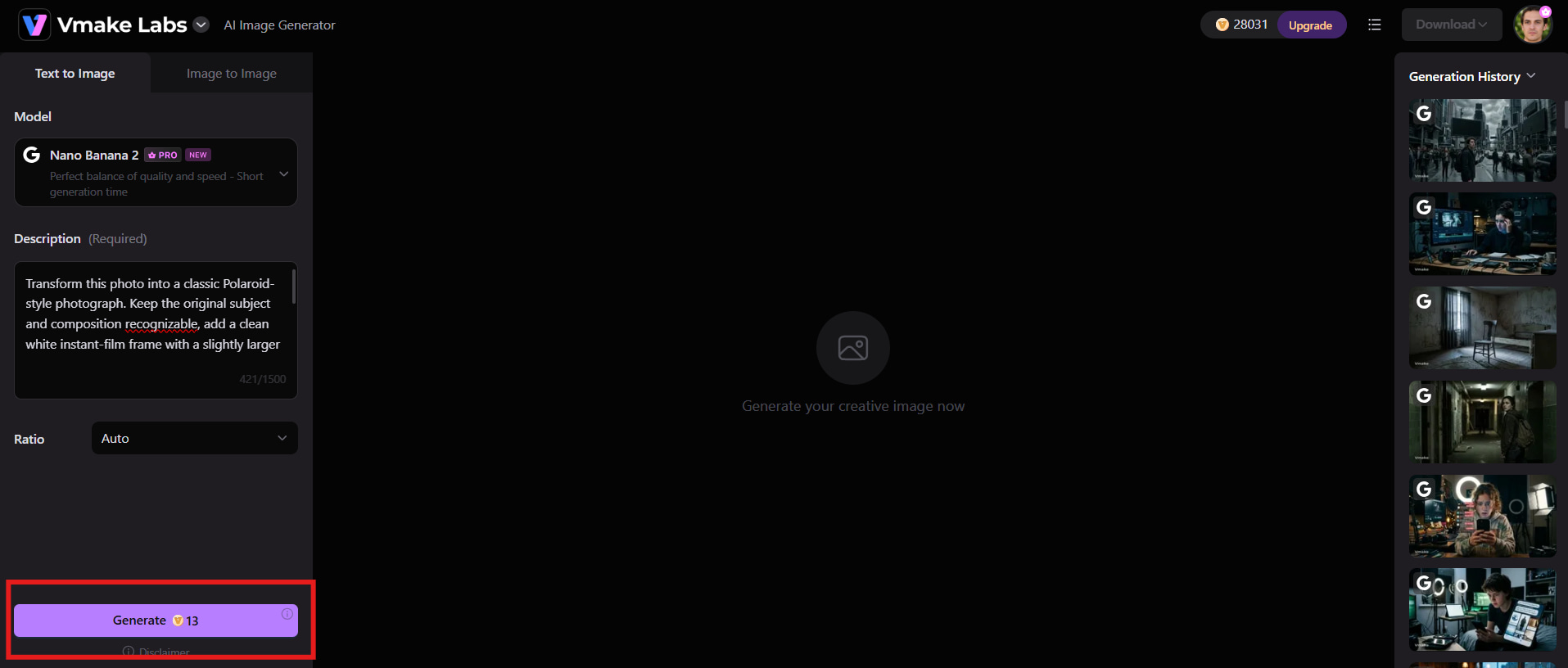
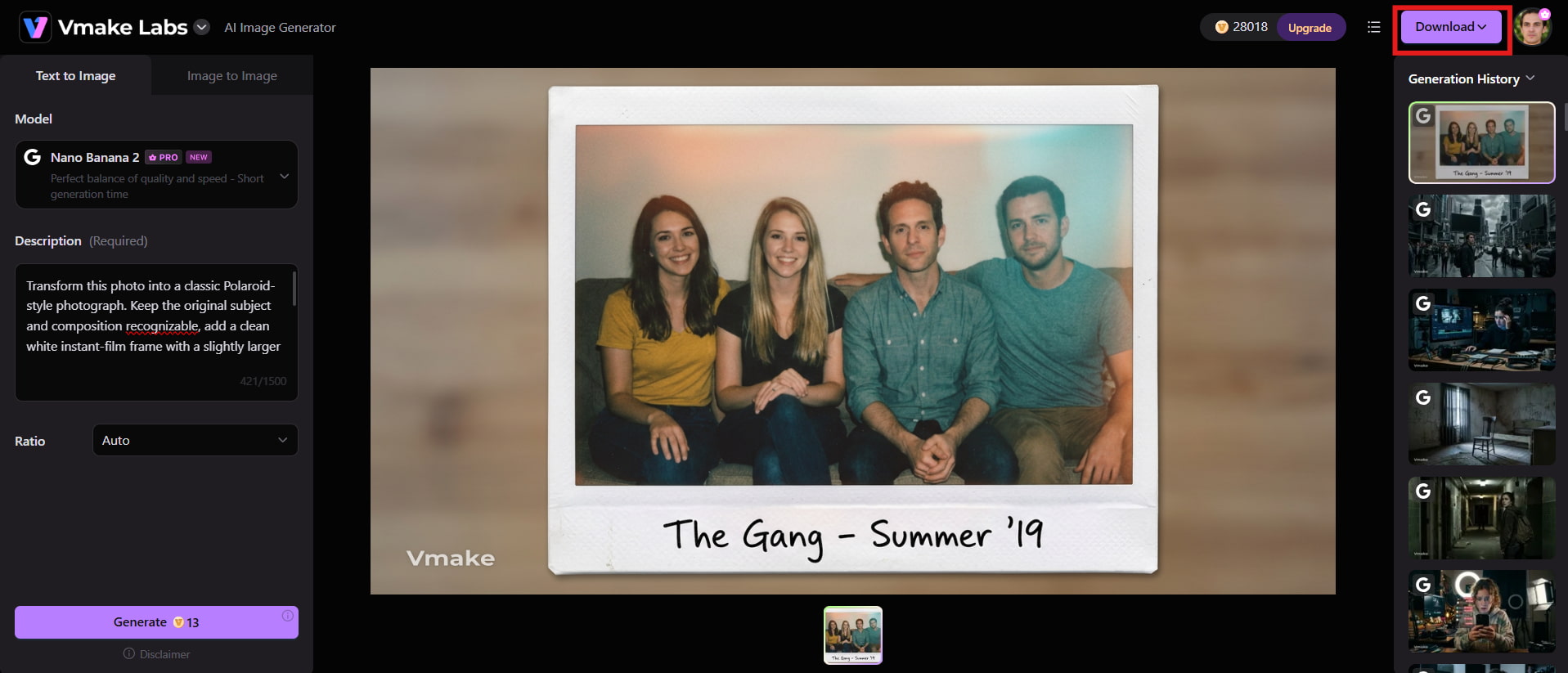
Step 3: Refine and download your image
Review the generated image and evaluate the frame, subject arrangement, colors, and overall old-style. Modify your prompt as needed and keep generating till you achieve the desired outcome, then get the finished image.
Key Features
-
AI image generation: Turn your ideas into Polaroid-style photographs with personalized visual features and retro design using AI.
-
Image-to-Image editing: Transform an existing photo into a Polaroid-inspired design while retaining the key elements of the original image.
-
Reference image support: Use a reference image to guide the visual style, composition or general aesthetic of the created Polaroid design.
-
Prompt-Based customization: Describe details such as vintage colors, film grain, white frames, captions, or scrapbook layouts to personalize the result.
-
Aspect-Ratio options: Choose an aspect ratio that suits your intended use, whether you want to share the image digitally or prepare it for printing.
-
Generate and download: Generate your Polaroid-style image, review and refine the result, then download the finished image for use or sharing.
How to make photos into Polaroids online with other tools
AI generation is not the only way to create a Polaroid effect. Online editors, ready-made design templates, photo printing services, and physical Polaroid cameras can help you achieve the look, depending on how much customization and control you want.
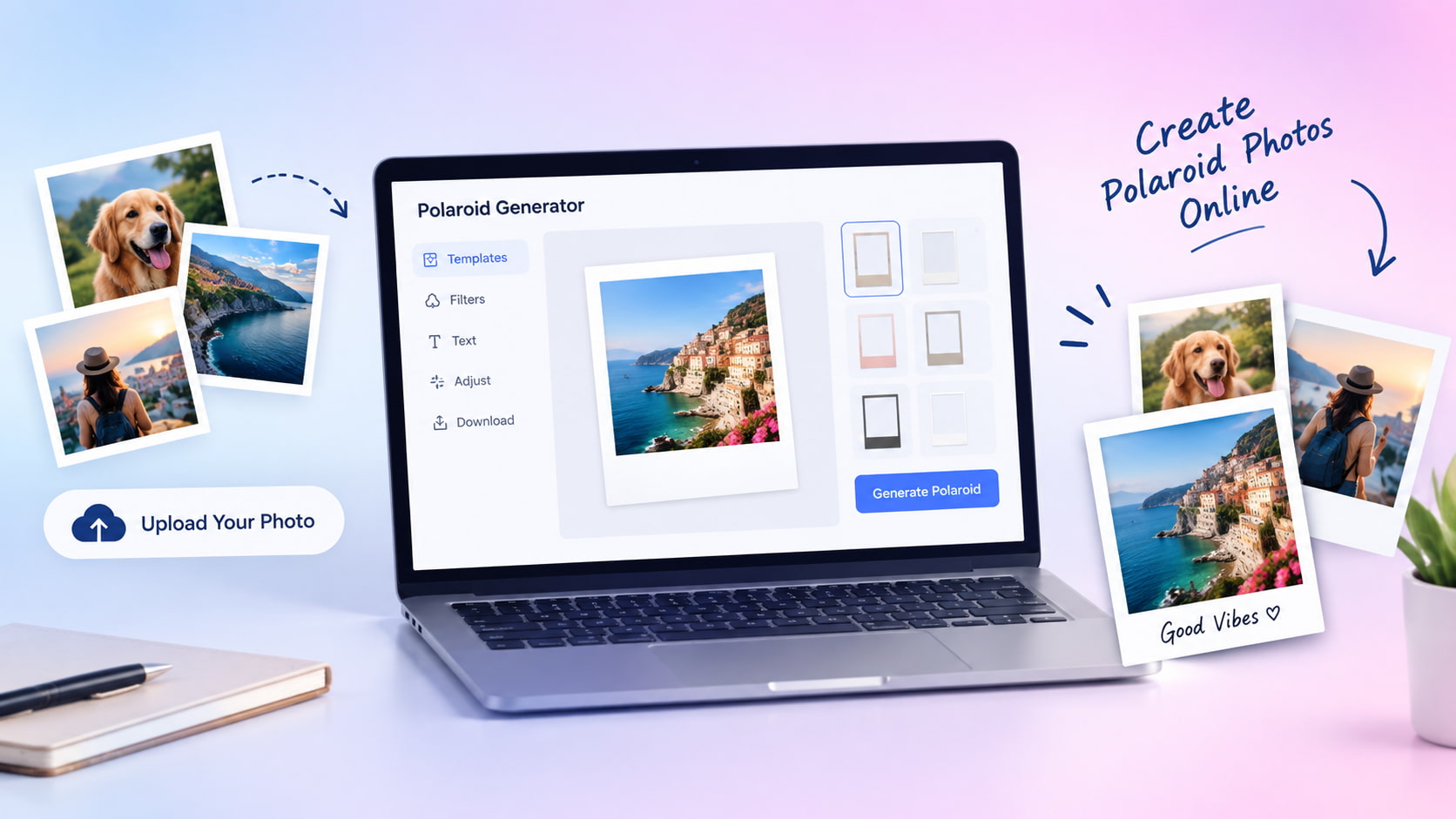
Online Polaroid generators
Online Polaroid generators are useful when you want a quick transformation. They generally provide ready-made frames or instant-film layouts that can be applied to an uploaded photo. This approach works well when your priority is speed rather than extensive customization. You can usually add a photo, choose a frame, and download the finished design.
Design templates
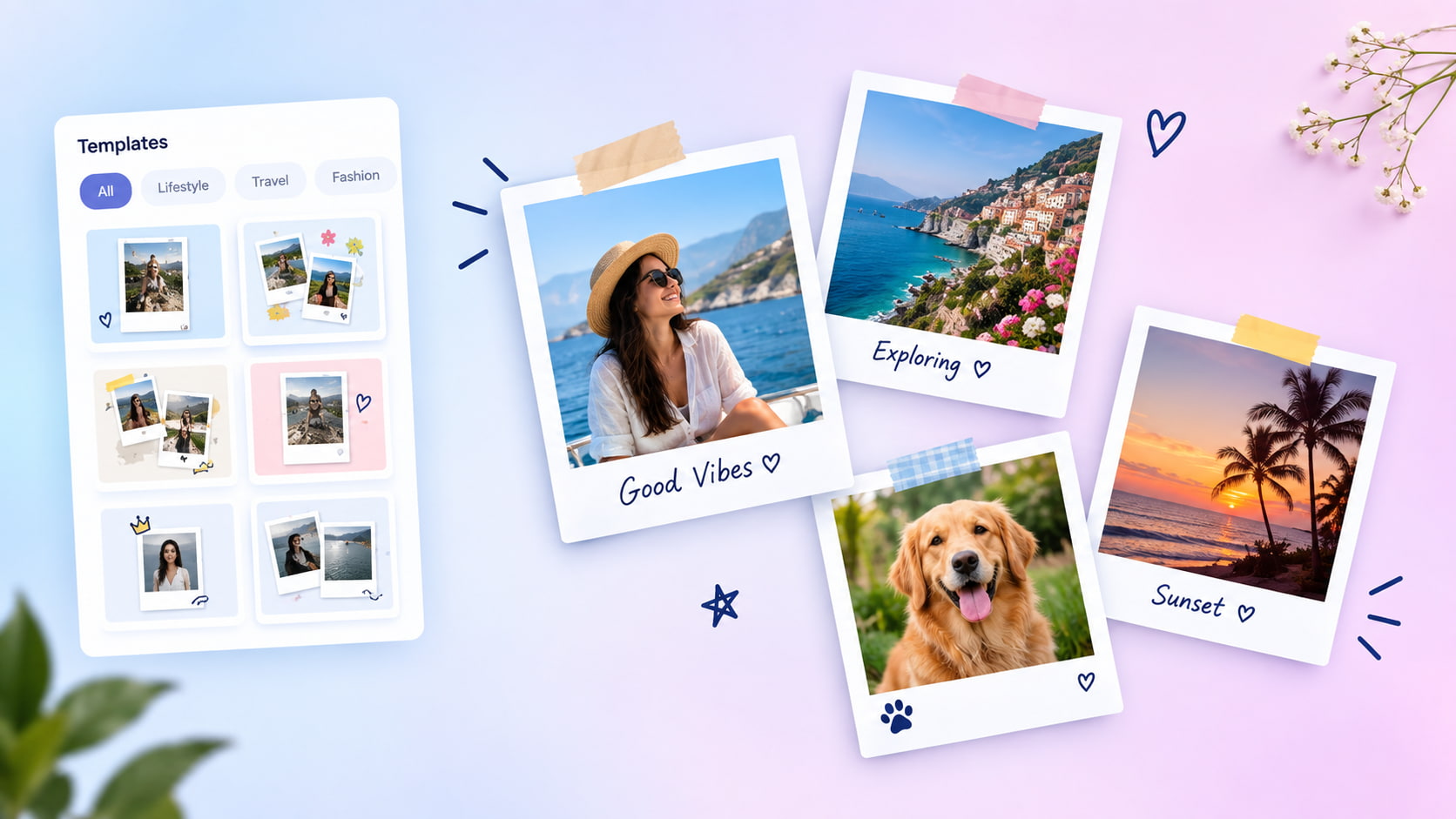
The template-based design tools provide you with more flexibility over visual arrangement. You can frame a photo with a white frame, add a caption, add ornamental elements, stickers, and other graphic embellishments. Templates are particularly handy if you want to make a group of Polaroid-style photos that all look similar, instead of just one picture.
Retro photo printing services
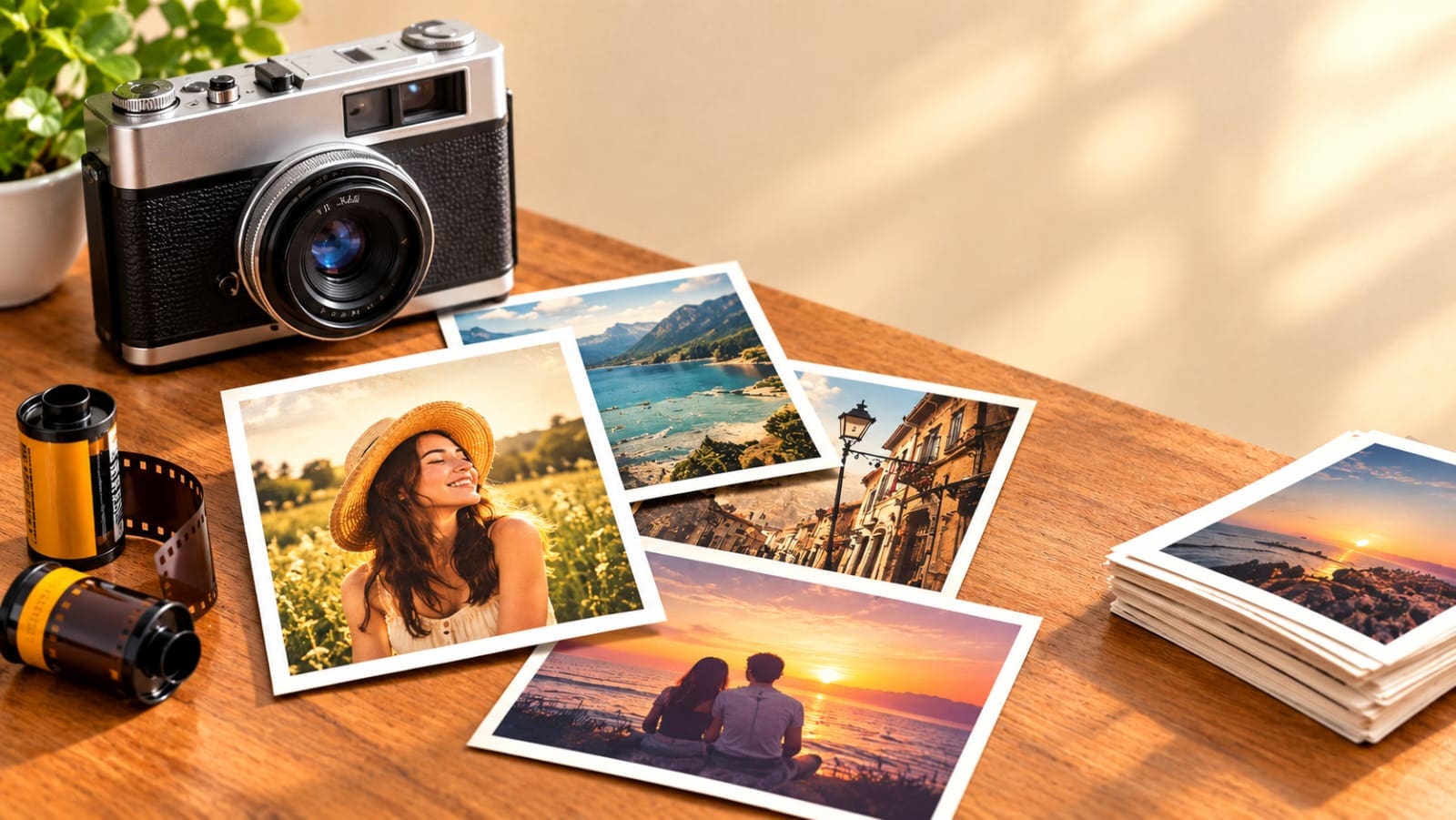
If you want something physical, you can create the digital Polaroid design first and then send it to a photo printing service. Some printing services offer retro-style formats that mimic the dimensions and appearance of instant photographs. This can be a good option for scrapbooks, gifts, wall displays, or memory albums.
Physical Polaroid workflows
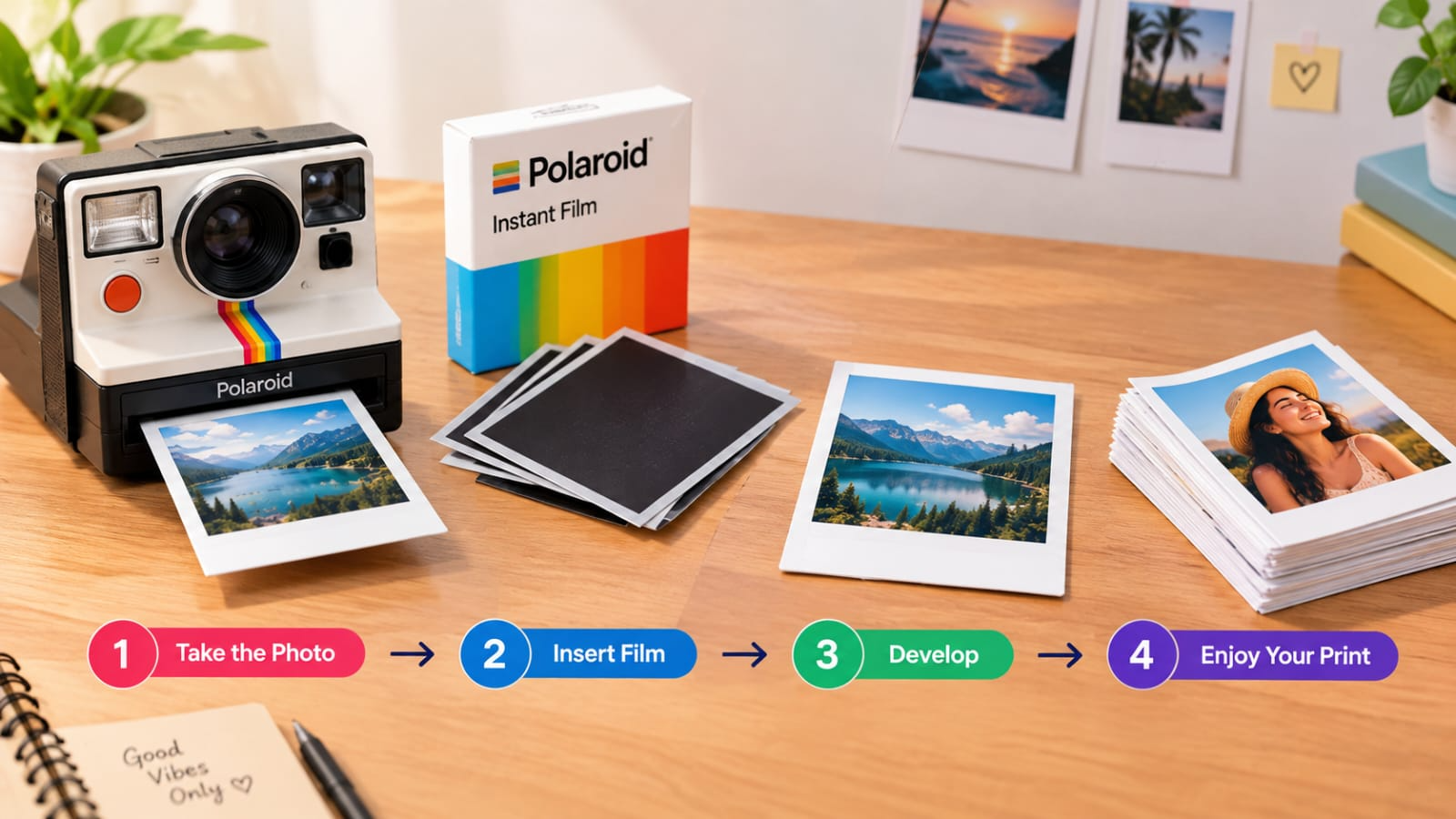
You could also utilize dedicated instant photography hardware. A true Polaroid camera takes a picture and develops it with instant film. It makes a tangible snapshot instead of a digital effect. This is different from making a photo like a Polaroid online. Online technologies create digital versions, whereas instant cameras produce a real physical print.
Tips for making more authentic Polaroid-Style photos
A few simple tweaks can make digital Polaroid-style images look a little more natural and vintage. Start with a sharp, well-lit shot and a subject that's comfortably framed. Skip the excessive effects. Go for traditional Polaroid dimensions, mild vintage tones, and gentle flaws. Negative space, handwritten-style captions, and the correct aspect ratio can also help to further enhance that authentic instant-film effect.
-
Start with a sharp, well-lit image. Clear source photos give you more detail to work with.
-
Choose a clear subject. Images with good separation between the subject and background often look cleaner inside an instant-film frame.
-
Keep classic border proportions. A larger lower border is one of the easiest ways to create the recognizable Polaroid appearance.
-
Use subtle vintage tones. Avoid making the image extremely orange, faded, or grainy unless that is intentionally part of the style.
-
Leave enough negative space. Give the subject room within the frame instead of filling every part of the image.
-
Add short handwritten-style captions. A small date, location, or memory can make the image feel more authentic.
-
Avoid over-editing. The charm of Polaroid photography comes partly from its imperfections, so the result does not need to look perfectly polished.
-
Choose the right aspect ratio. Decide whether the image is intended for social media, digital sharing, or printing before generating or exporting it.
Conclusion
Transforming pictures into a Polaroid-style snapshot is an easy method to give everyday shots a vintage, instant-film appearance. Warm colors, some roughness, and personal captions in the correct frame can give you a more authentic picture with no extra equipment. Online tools also make it easy to experiment with styles, composition, and effects. If you're making social media postings, digital memories, or printable keepsakes, begin with a clear photo and keep the modification subtle. A couple of carefully chosen tweaks can change everyday photos into Polaroid-style shots that have a personal, timeless, and attractive look.
FAQs
-
Can I turn a regular selfie into a Polaroid-style photo?
Yes, you can easily transform a regular selfie into a Polaroid-style photo using online editing or AI tools. Add a classic white frame, warm vintage tones, subtle grain, and a short caption to recreate the instant-film look. Vmake Labs can also help transform an existing selfie into a customized Polaroid-style image using image-to-image generation.
-
What size should a digital Polaroid photo be?
There is no fixed size for a digital Polaroid-style photo, as the ideal dimensions depend on where you plan to use it. Choose an aspect ratio that suits social media, websites, or printing. Vmake Labs offers different aspect-ratio options, making it easier to create an image suited to your intended use.
-
Can I add text to a Polaroid-style image?
Yes, adding text can make a Polaroid-style image feel more personal and authentic. You can include a date, location, name, or short handwritten-style message in the lower white section. With Vmake Labs, you can describe the desired caption or visual details in your prompt when creating the image.
-
Can I use old or low-quality photos for the Polaroid effect?
Yes, old photos can still work well for a Polaroid effect, especially when you want to create a nostalgic look. However, very blurry or pixelated images may produce less detailed results. Enhancing the original photo before applying the Polaroid effect can help create a cleaner final image.
-
How can I make a Polaroid photo look vintage?
Use warm or slightly faded colors, reduced contrast, and subtle film grain to create a vintage appearance. You can also add gentle texture and a classic white frame for a more authentic instant-film feel. Avoid using excessive effects, as a subtle treatment usually looks more natural.
-
Can I print a digital Polaroid-style photo after creating it?
Yes, you can make it online and then print a digital Polaroid-style picture. Before printing, verify the picture resolution, size, and border proportions, so you end up with a sharp and well-proportioned print at the end. Or you may print one yourself at home or get one professionally printed to make a real keepsake.

You May Be Interested

Airbrush Photo Restoration Review: Is It the Best Way to Fix Old Photos?
Clean Up Pixelated Photo with AI: Enhance Photos Easily

How to Face Swap in Photoshop vs. AI Face Swap Tools
How to Fix Blurry Photos in 2026: Best Tools to Sharpen Blurry Images