
AI Polaroid Trend: How to Create the Viral Polaroid AI Photos
Explore the AI Polaroid trend and turn your photos into nostalgic instant-film snapshots with creative prompts and ideas. Vmake Labs helps you create and refine new AI looks easily now.

The AI Polaroid trend turns ordinary photos into snapshots that look as though they came straight from an instant camera. With the right reference photo and prompt, you can recreate the white frame, direct flash, candid pose, soft grain, and slightly imperfect film look that makes these edits feel like real memories.
What is the AI Polaroid trend?
The AI Polaroid trend turns ordinary photos into nostalgic instant-film snapshots with the help of AI. Rather than simply adding a Polaroid frame to an existing picture, AI can recreate the image with the look and feel of an instant-camera photograph. The trend has become popular across social platforms because it gives modern photos the character of printed memories, from couple and friendship photos to childhood recreations, travel snapshots, and celebrity-inspired edits.
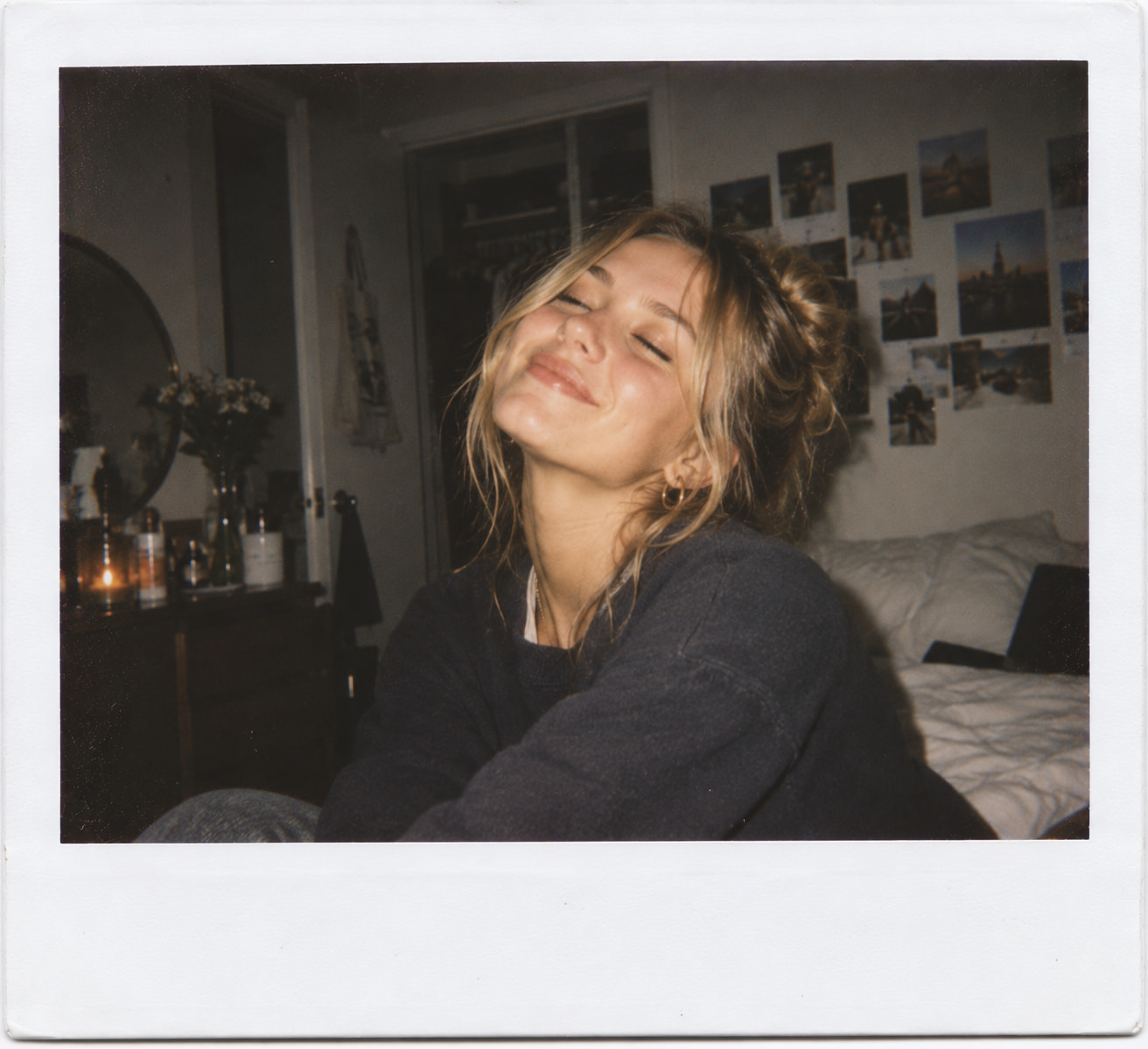
The style commonly features:
-
White instant-photo border: The image is framed like a physical instant print, often with the familiar wider white space at the bottom.
-
Direct flash photography: A noticeable flash creates a bright, upfront look on the subject, often paired with a darker or less evenly lit background.
-
Subtle film grain: Fine grain adds the texture associated with analog photography without making the image look heavily filtered.
-
Soft imperfections: Slightly uneven exposure, gentle softness, and other small imperfections help avoid the overly polished appearance of a modern digital photo.
-
Candid composition: Subjects may be captured laughing, looking away, leaning toward each other, or simply standing naturally rather than holding a formal pose.
-
Natural expressions: Relaxed smiles and spontaneous expressions make the image feel more like a genuine moment than a staged portrait.
-
Everyday settings: Bedrooms, living rooms, parties, cafés, streets, and other familiar places work well because they reinforce the feeling of an unplanned snapshot.
-
Vintage or analog styling: Muted tones and a less-perfect photographic finish give the generated image a sense of age while keeping the subject recognizable.
The main difference from a traditional Polaroid filter is that AI can recreate the scene rather than simply change its appearance. By using a reference photo and a detailed prompt, an AI image generator can adjust elements such as the pose, lighting, setting, composition, and mood to produce a new Polaroid-style image.
How does the AI Polaroid trend work?
The AI Polaroid trend uses a reference photo and an AI prompt to recreate an image with an instant-film look. The reference helps preserve important details, while the prompt controls the new photo's style, composition, lighting, setting, and mood.
Three elements play the biggest role in the process:
-
Reference image: Gives the AI information about the person's appearance, clothing, pose, and other key details.
-
AI prompt: Describes the desired Polaroid aesthetic, such as direct flash, candid framing, film grain, muted colors, and a specific setting or mood.
-
Image model: Processes the reference and prompt to generate the new image. Different models can produce different interpretations of the same instructions.
The process can be refined after each generation. If the pose, framing, background, or overall aesthetic is not quite right, adjust the prompt or reference image and generate another version. Unlike a conventional Polaroid filter, which mainly adds a frame or changes the appearance of an existing photo, AI can recreate the scene itself based on your instructions, giving you more control over the final photograph.
Best AI Polaroid trend prompts to try
A strong AI Polaroid trend prompt does more than ask for a Polaroid effect. Give the image generator clear directions about the photograph's camera style, composition, lighting, texture, setting, and mood. These details help shape the result while leaving room to customize it for your own photo.
When writing your prompt, consider:
-
Camera style: Describe the instant-camera or photographic look you want, such as direct flash or a close-up shot.
-
Composition: Explain how the subject should appear, whether it is a portrait, group shot, close-up, or wider candid scene.
-
Lighting: Specify the lighting that fits the moment, such as direct flash, warm indoor light, or a darker setting.
-
Film texture: Add subtle grain, soft focus, muted colors, or slight imperfections for an analog feel.
-
Setting: Describe the location, such as a bedroom, café, street, beach, or party.
-
Mood: Set the feeling of the image, whether nostalgic, playful, intimate, relaxed, or spontaneous.
Use these details together rather than treating them as separate rules. For example, a couple's prompt could combine a relaxed pose, warm indoor lighting, subtle grain, and an intimate mood to create a more convincing instant-film moment.
Classic Polaroid portrait
Turn the reference photo into a candid instant film portrait with direct flash, natural skin texture, subtle film grain, slightly muted colors, soft imperfections, and a classic white instant photo border. Keep the subject recognizable and pose them relaxed and spontaneous.
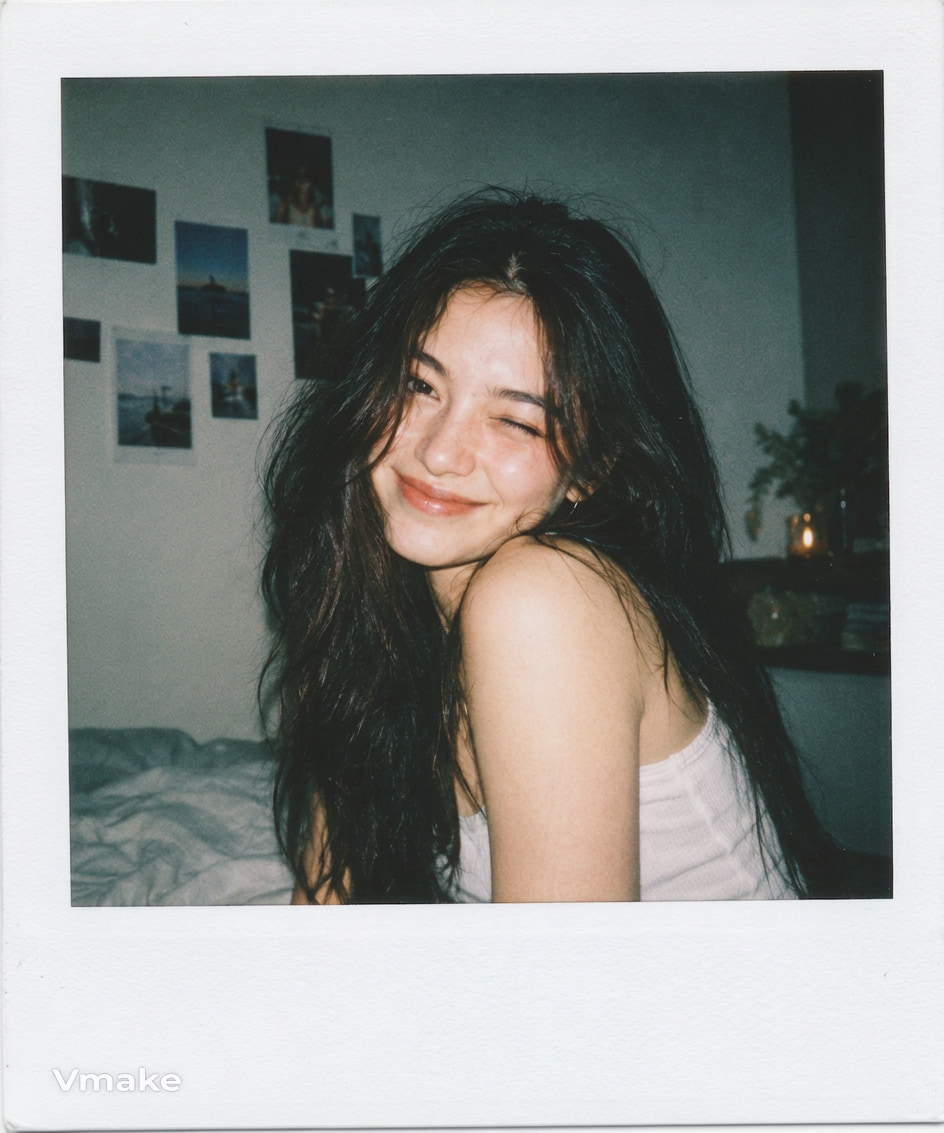
Couple Polaroid
Turn the reference photo into a warm, candid Polaroid of a couple spending time together. Use direct flash, natural expressions, relaxed body language, subtle analog grain, muted colors, and a classic white instant-photo border. Make the moment feel personal and unposed.
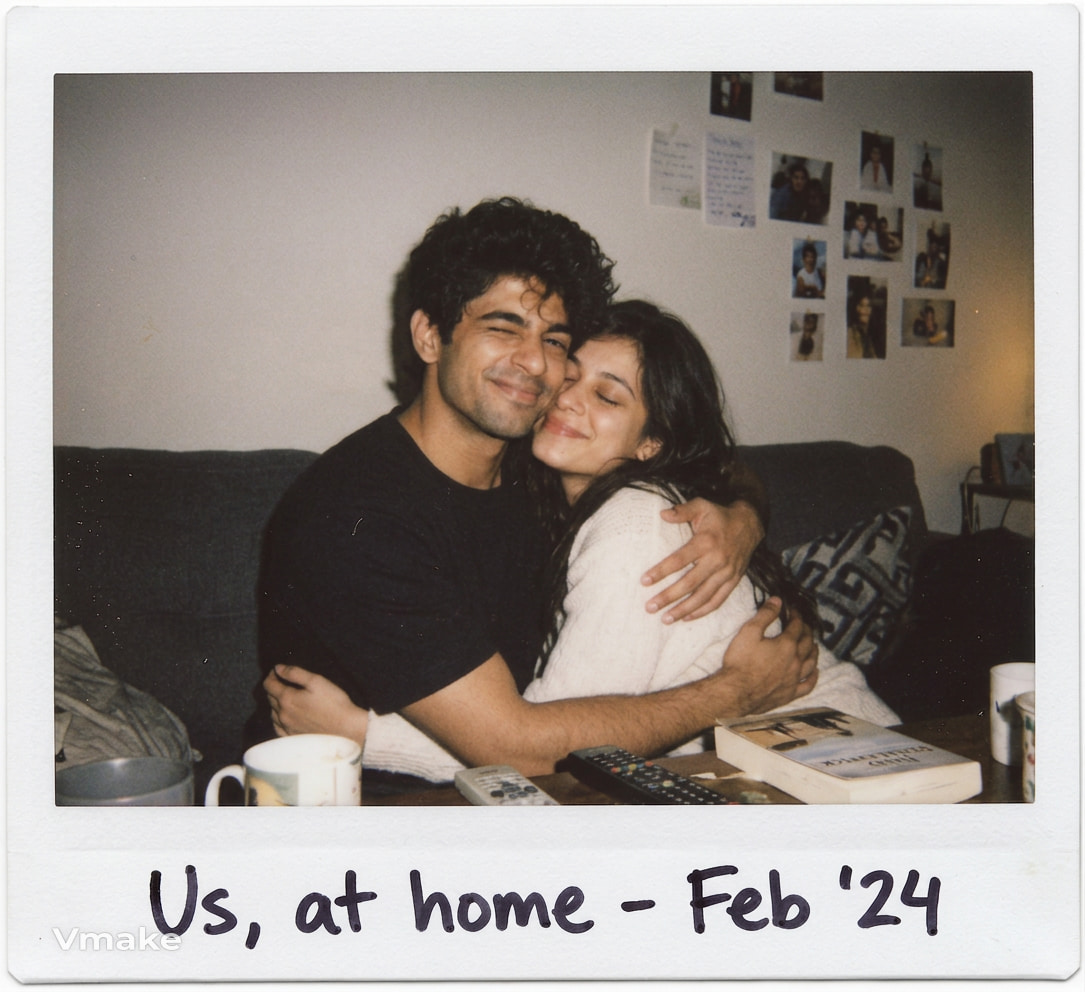
Friends or group Polaroid
Reimagine the people in the reference image as a candid group photo taken at a relaxed house party. Use direct flash, natural expressions, relaxed poses, subtle film grain, slightly imperfect exposure, and a realistic white instant film border.
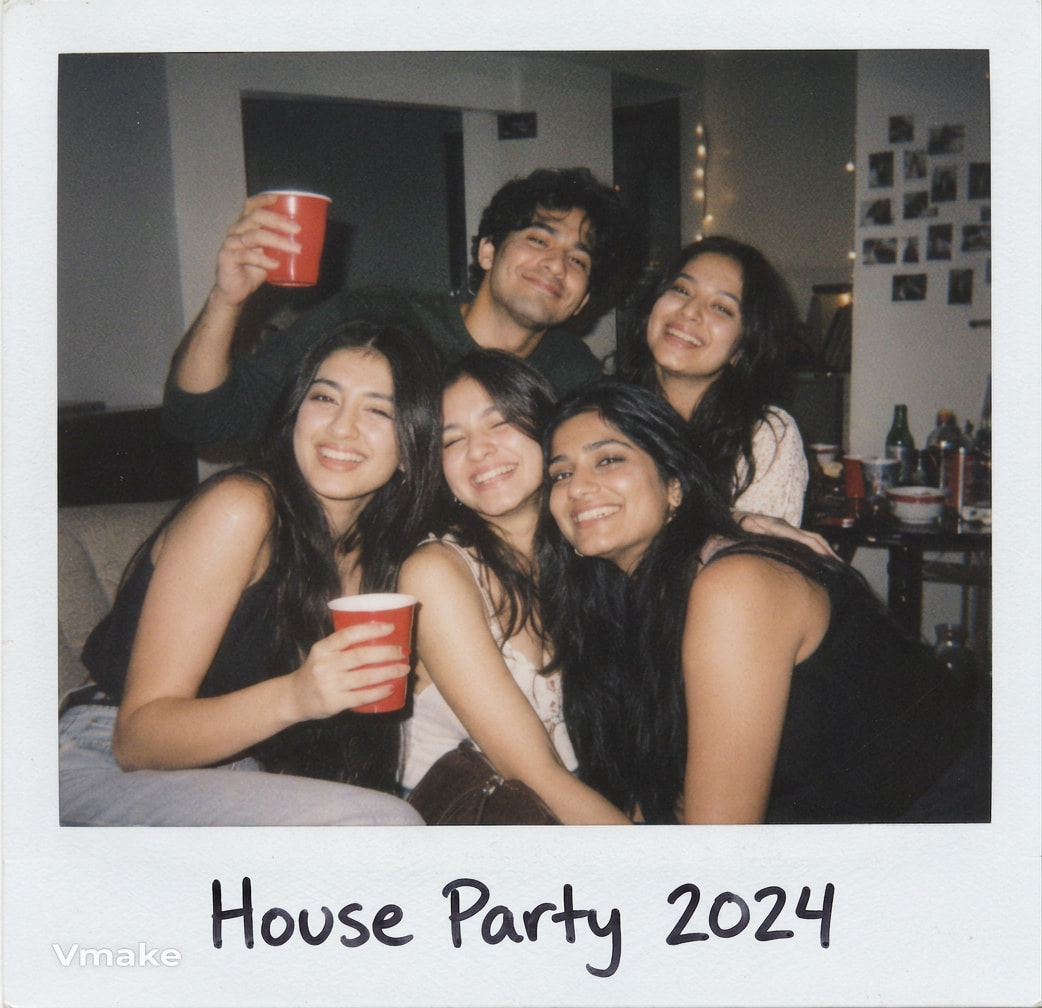
Childhood memory recreation
Reimagine the reference photo as a nostalgic childhood instant-camera snapshot. Preserve the subject's recognizable features while using soft focus, gentle film grain, slightly faded colors, direct flash, natural imperfections, and a classic white Polaroid border. Make it feel like a genuine family photograph.
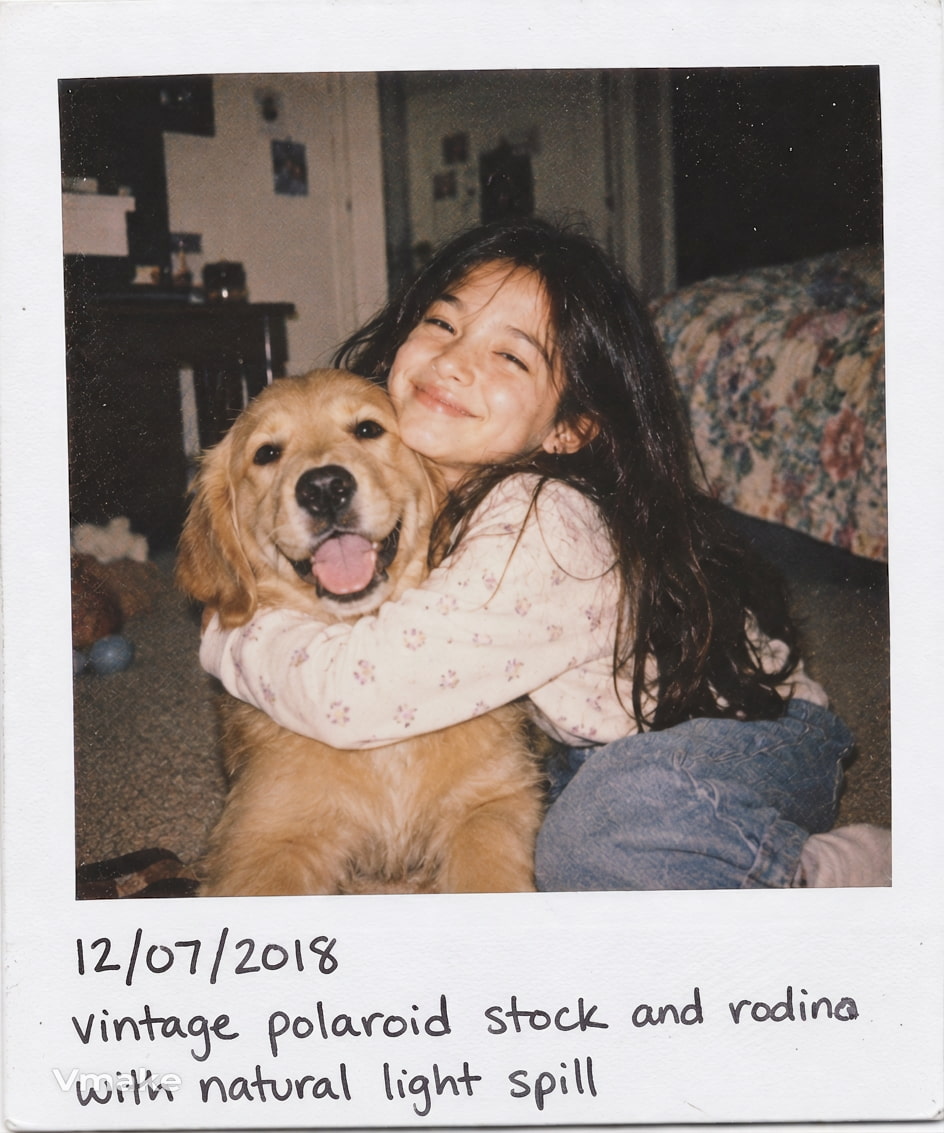
Travel Polaroid
Create a candid travel Polaroid from the reference image that was taken on a memorable journey. Dress casually. Use a believable travel environment. Shoot with direct flash. Add soft analog grain. Add slightly imperfect exposure. Add muted film colors. Add a realistic white instant-photo border. Leave the subject recognizable Leave the moment natural.
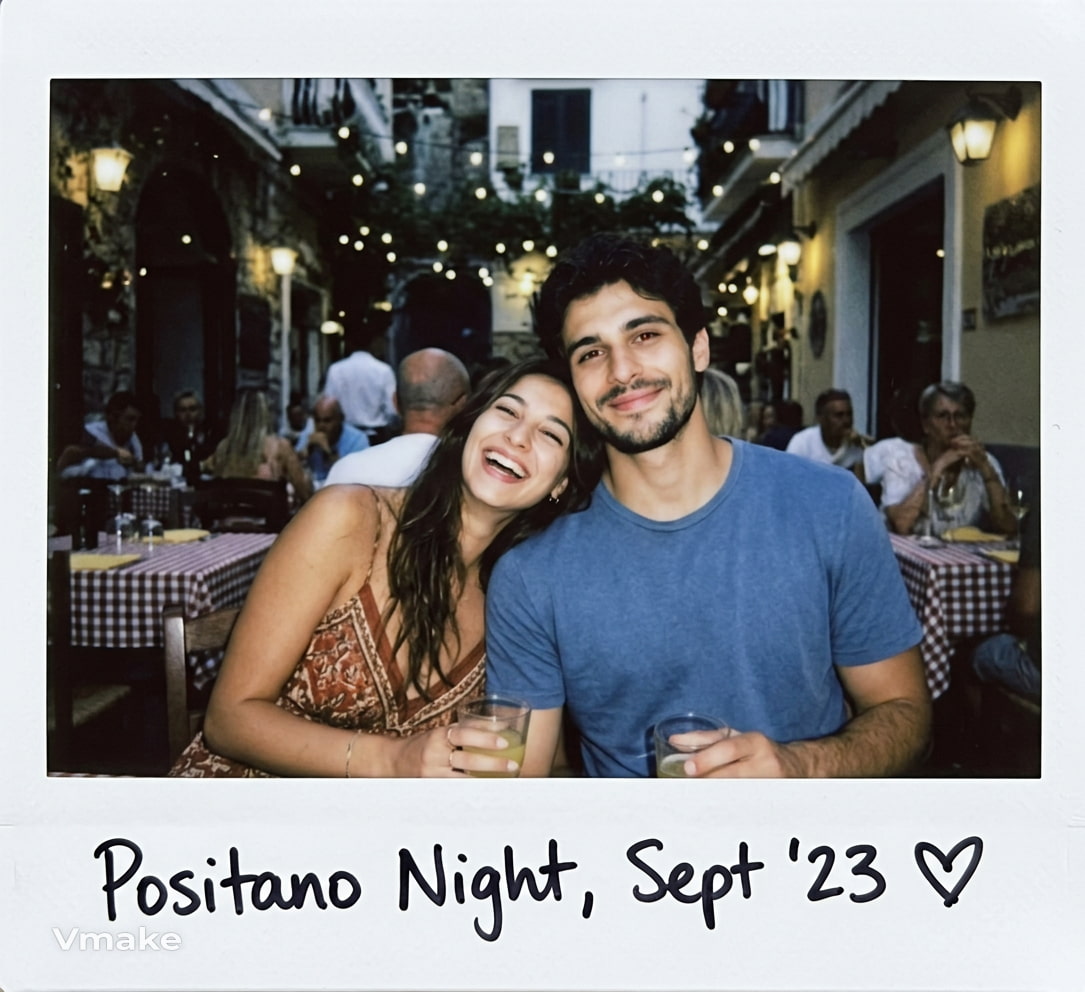
Retro party snapshot
Recreate this as an instant camera shot of a late night retro party scene. Use hard direct flash, darker background, candid expressions, subtle motion, soft film grain, imperfect exposure, muted colors. Add a realistic white instant-photo border and keep the people recognizable.
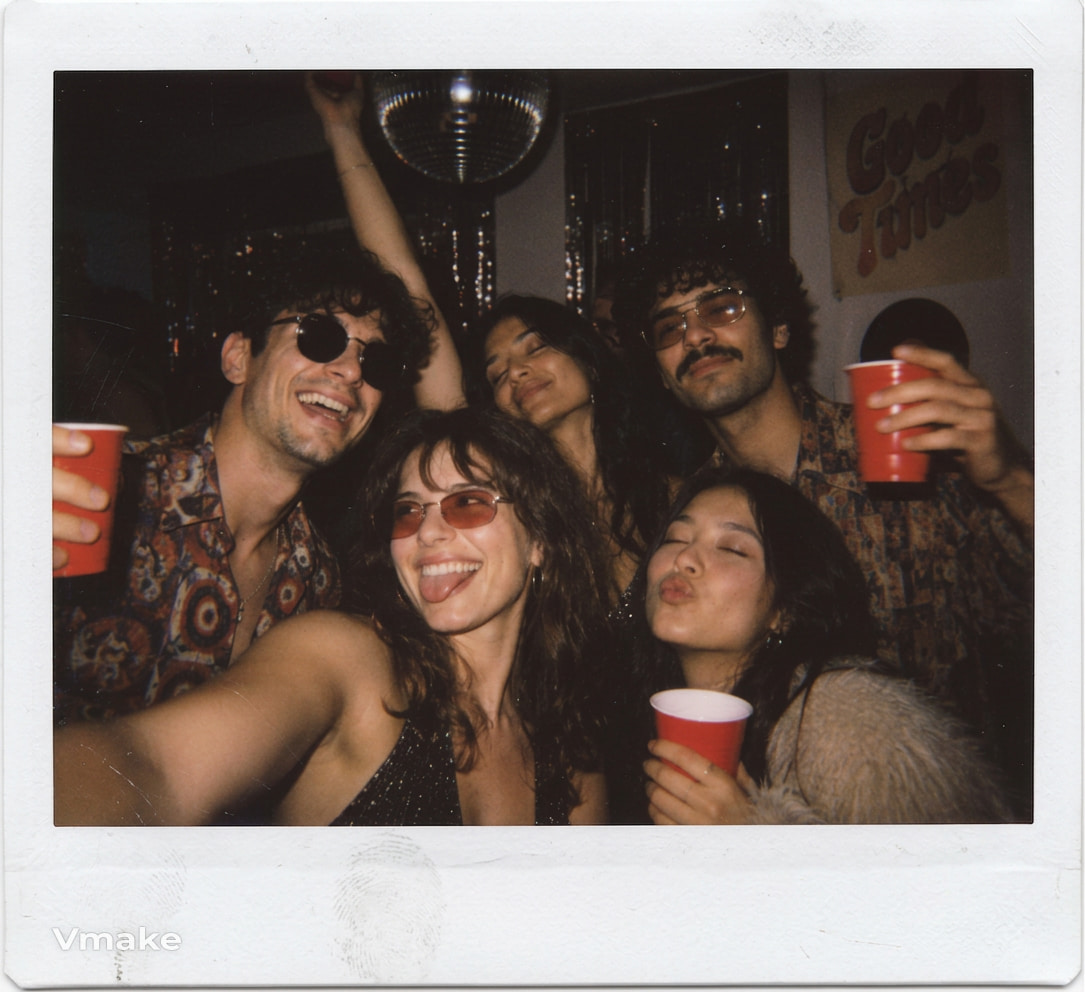
Celebrity-inspired Polaroid
Shoot a backstage-style Polaroid of the reference image in the style of vintage celebrity photography. Direct flash. Relaxed posing. Imperfect framing. Subtle analog grain. Muted colors. Natural skin texture. Make the subject recognizable but add a classic white border of an instant photo.
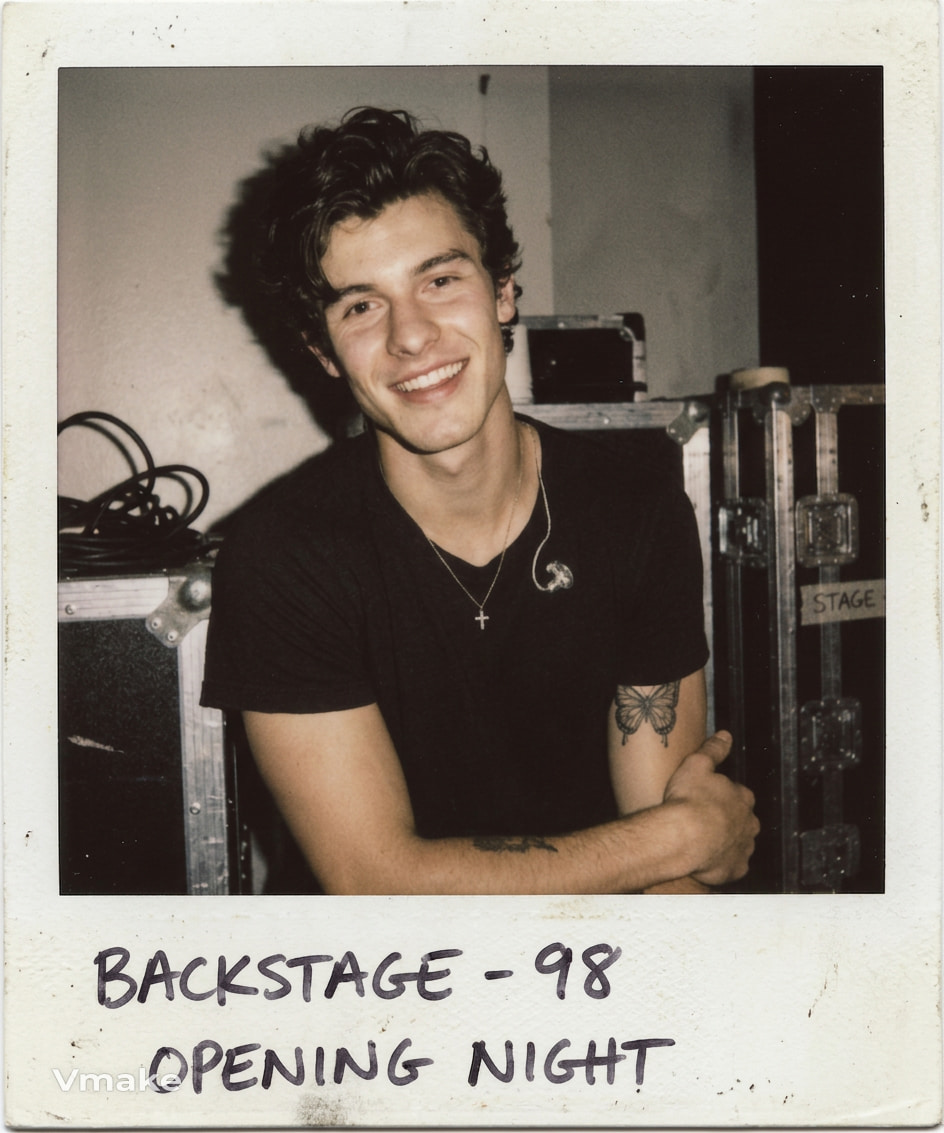
You can customize each prompt to be your own by changing the pose, setting, clothing, lighting, camera angle, and mood. For example, turn the couple prompt into a beach photo, take the friends scene from a party to a road trip or give a portrait a late-night feel. Small, specific changes can produce very different versions without making the prompt too complicated.
Create AI Polaroid trend images with Vmake Labs
Vmake Labs gives you a flexible way to explore the AI Polaroid trend using your own photos or a new idea. Its Image Generator supports both text-to-image and image-to-image generation, so you can either create an instant-film concept from a description or use an existing photo as a reference. With multiple image models available, you can also experiment with different interpretations of the same Polaroid concept.
Steps to create Polaroid-style images with Vmake Labs
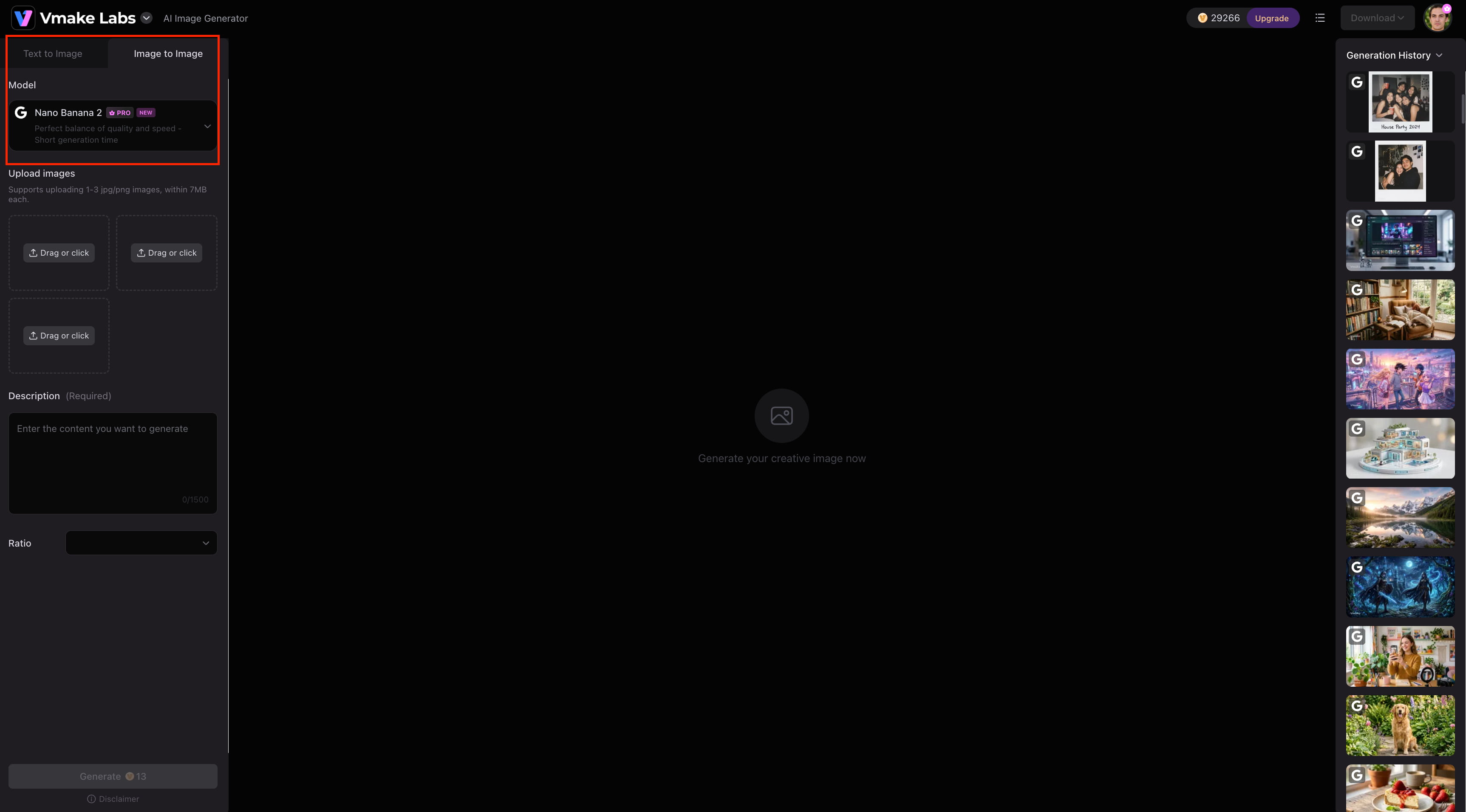
Step 1: Choose image generation mode and model
Open the Vmake Labs AI Image Generator and choose Text to Image or Image to Image based on how you want to create the image. Then choose an available image model.
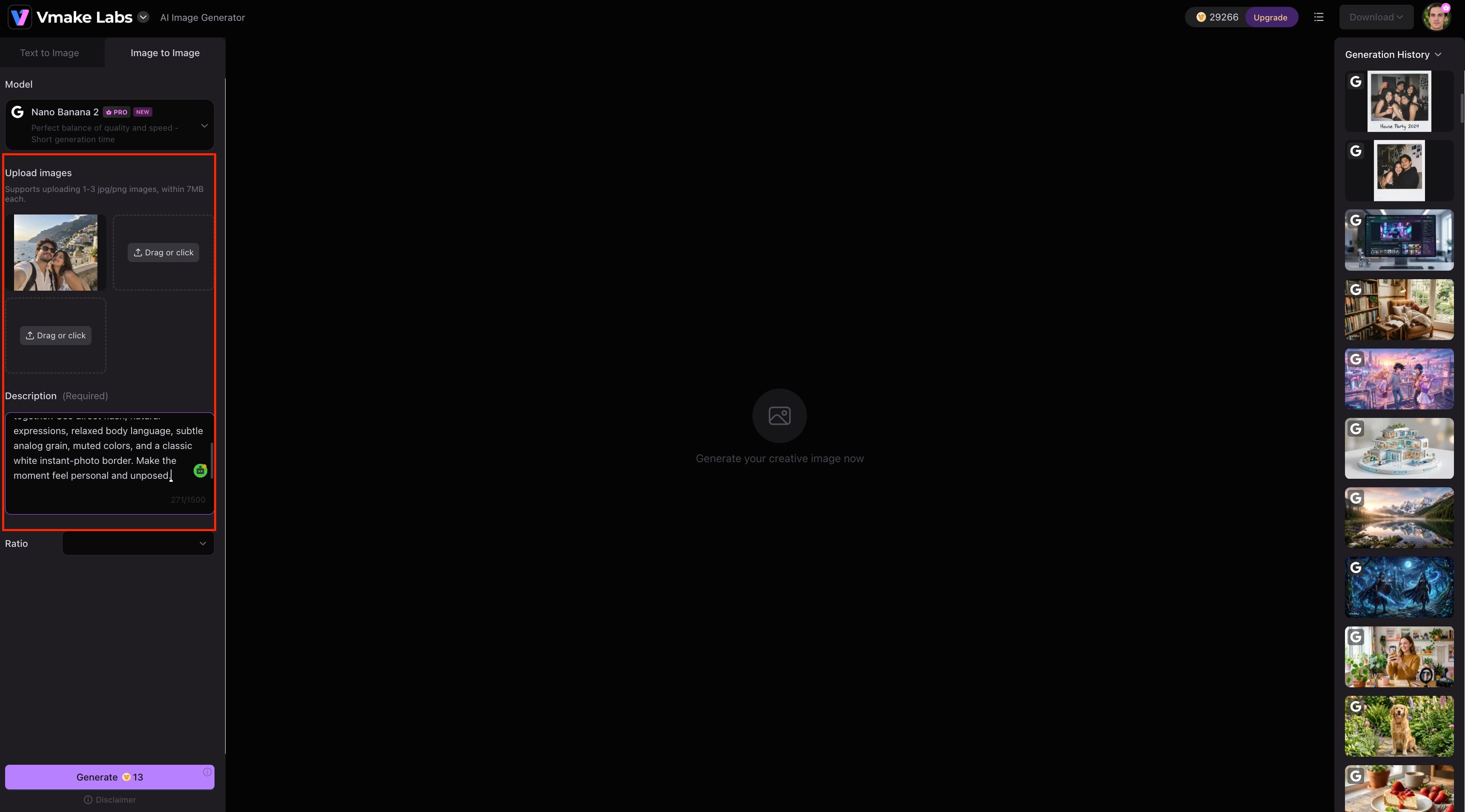
Step 2: Upload your reference image and enter your prompt
For Image to Image, upload the photo you want to transform. Vmake Labs supports one to three reference images in this mode. Enter an AI Polaroid trend prompt that describes the instant-film style, composition, lighting, setting, and mood.
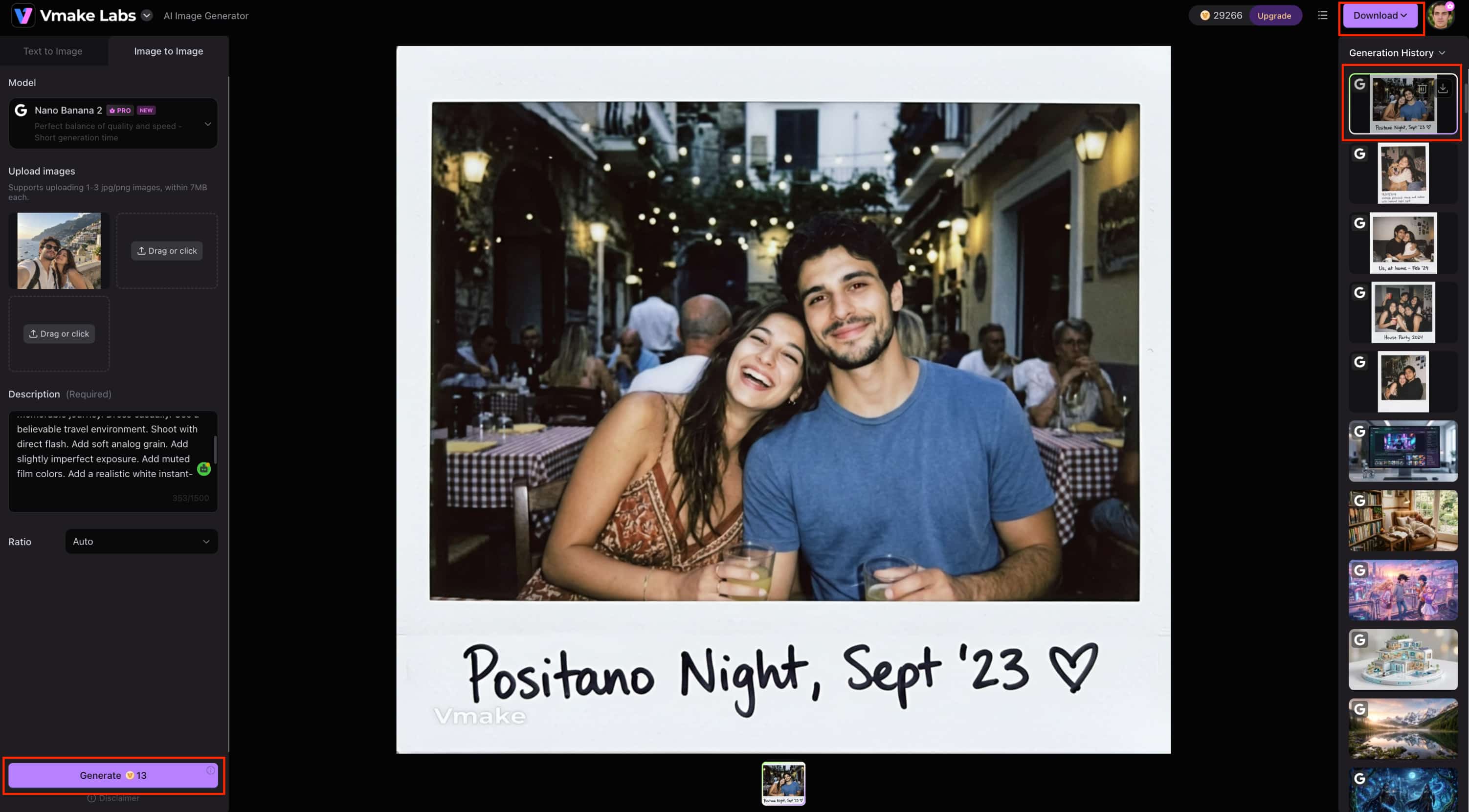
Step 3: Generate and refine your image
Generate the image and check the result. If you want to change the pose, setting, framing, or overall Polaroid look, edit the prompt or use a different reference image and generate it again.
Key features
-
Image-to-image generation: Use one to three reference images to guide the generated result. This works well when you want to keep the subject recognizable while changing the setting, pose, composition, or overall Polaroid aesthetic.
-
Text-to-image generation: Create a Polaroid-style concept from a text description without needing an existing photo. You can describe the subject, setting, lighting, mood, and instant-film look in the prompt.
-
Multiple AI image models: Try different available image models to explore variations in how your prompt and reference images are interpreted. This can be useful when one model produces a result that better matches the look you want.
-
Flexible creative control: Adjust your prompts and reference images to experiment with different poses, backgrounds, camera angles, lighting, and moods. You can generate multiple versions and choose the one that best fits your idea.
Tips for getting better AI Polaroid trend results
Small changes to your reference photo and prompt can make a noticeable difference in the final image. Keep these tips in mind when creating your own versions:
-
Use a clear reference photo: Choose an image where the subject's face, clothing, and overall appearance are easy to see. Clear references give the model more useful visual information to work with.
-
Describe the photo, not just the effect: Instead of writing only "make this a Polaroid," mention details such as direct flash, candid framing, film grain, muted colors, and a white instant-photo border.
-
Be specific about the setting: Name the environment you want, such as a bedroom, café, beach, or party. A clear setting helps give the image a more defined composition.
-
Keep the pose natural: Phrases such as "relaxed pose", "looking away from the camera," or "laughing together" can help create a less staged snapshot.
-
Avoid overloading the prompt: Include the details that matter most to the scene. Too many unrelated instructions can make the result less consistent.
-
Try small changes between generations: If the first result is close but not quite right, change one or two details at a time instead of rewriting the entire prompt. This makes it easier to see what improves the image.
-
Check the reference and final image together: Make sure important details remain recognizable while the new lighting, setting, and instant-film styling match what you asked for.
-
Improve soft results: If the generated Polaroid looks slightly soft, use an image enhancer to improve its clarity while keeping the overall look intact.
For older or damaged reference photos, you can also use photo restoration to improve the source image before creating the Polaroid-style version.
Conclusion
The AI Polaroid trend is a simple way to bring back the nostalgic feeling of instant film shots to today's photos. With the right reference image, a clear prompt and a few rounds of iteration, you can generate portraits, couple pictures, travel memories and other creative variations. Vmake Labs provides more flexibility in this process as it supports both text-to-image and image-to-image generation using multiple AI models. Start with a simple idea of what you want the look and scene to be, and then work on the details until it feels right. A little experimentation can yield Polaroid-like images that feel personal rather than overly processed.
FAQs
What is the AI Polaroid trend?
The AI Polaroid trend takes regular photos and transforms them with AI into nostalgic instant-film images complete with features like direct flash, candid poses, subtle grain and classic white border. AI is not like a simple filter, it can recreate the scene from your reference image and prompt. This is supported by Vmake Labs using image-to-image and text-to-image generation.
How do I do the Polaroid AI trend?
Input a clear photo into an AI image generator and state the Polaroid style you want in your prompt. Include details such as lighting, pose, setting, film texture, and mood, then generate and refine the result if needed. Vmake Labs lets you take a reference image, and change your prompt to make different versions.
What is the best AI Polaroid trend prompt?
A good AI Polaroid trend prompt describes more than just the Polaroid effect, including the composition, lighting, setting, film texture, and mood. For example, you can ask for a candid instant-film snapshot with direct flash, subtle grain, muted colors, and a white border. You can customize these details in Vmake Labs to create a result that matches your idea.
Can I use my own photos for the AI Polaroid trend?
Yes, you can use your own photos as references to create personalized Polaroid-style images. A clear photo with recognizable facial features, clothing, and overall appearance can give the AI more useful information when recreating the scene. Vmake Labs supports image-to-image generation with one to three reference images.
Can I create the AI Polaroid trend with Vmake Labs?
Yes, Vmake Labs can generate AI Polaroid-style images with text-to-image or image-to-image generation. You can upload one to three reference images, describe the instant film style you want and play with the image models at your disposal. Then you can adjust the prompt or reference image for different results.

You May Be Interested
Best Trending UGC Video Examples Across TikTok, Instagram, and YouTube

This is Who Baby Trend: Create Viral Meme Videos Instantly
Best Photo Eraser Tools in 2026: Remove Objects, Text & People from Photos
