How to Use MiniMax H3 in Vmake Labs: A Step-by-Step Guide
Generate your first MiniMax H3 clip in Vmake Labs — timed briefs and reference control in one workspace.

MiniMax H3 (often discussed with Hailuo AI video) is built for short, controllable clips with sound. This guide covers what the model is good at and the fastest browser path in Vmake Labs — from the AI video generator to a file you can review and download.
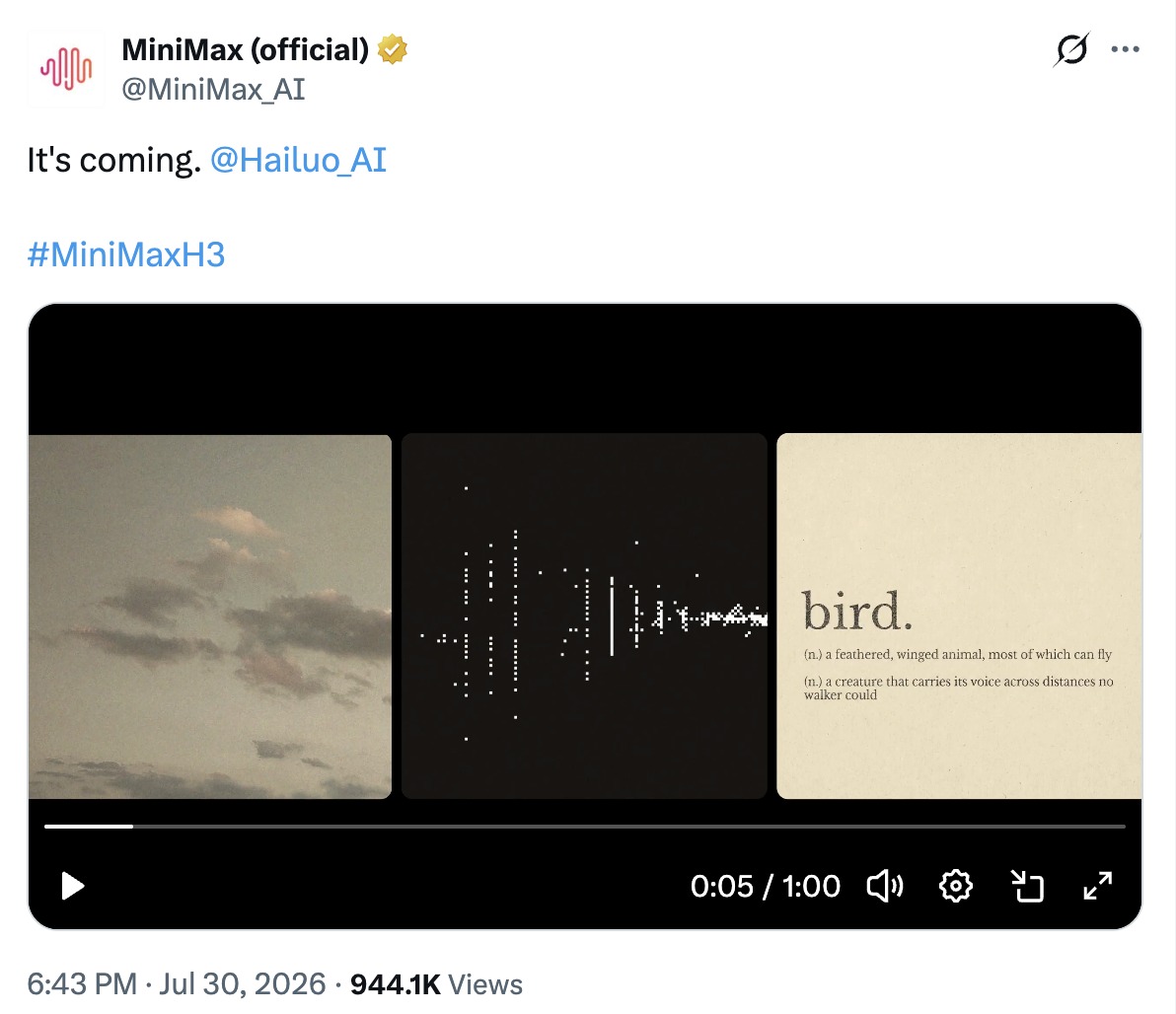
What Is MiniMax H3?
MiniMax H3 (often discussed with Hailuo AI video) is built for short, controllable generation. For day-to-day creative work, three capabilities matter most:
Multimodal inputs: text, images, video, and audio can guide the same clip.
Three clear modes: text-to-video, image / first-last frame, and reference-to-video.
Native audio: you can direct dialogue, effects, and room tone in the same brief as the picture.
Typical documented length sits in a short-clip range (commonly around 5–15 seconds). In Vmake Labs, set duration and resolution in Settings or the Video Brief panel — Example 1 later in this guide uses 10s at 2K. For quality and cost comparisons with Seedance and Kling, use the existing Seedance 2.5 vs MiniMax H3 vs Kling 3.0 instead of repeating that work here.
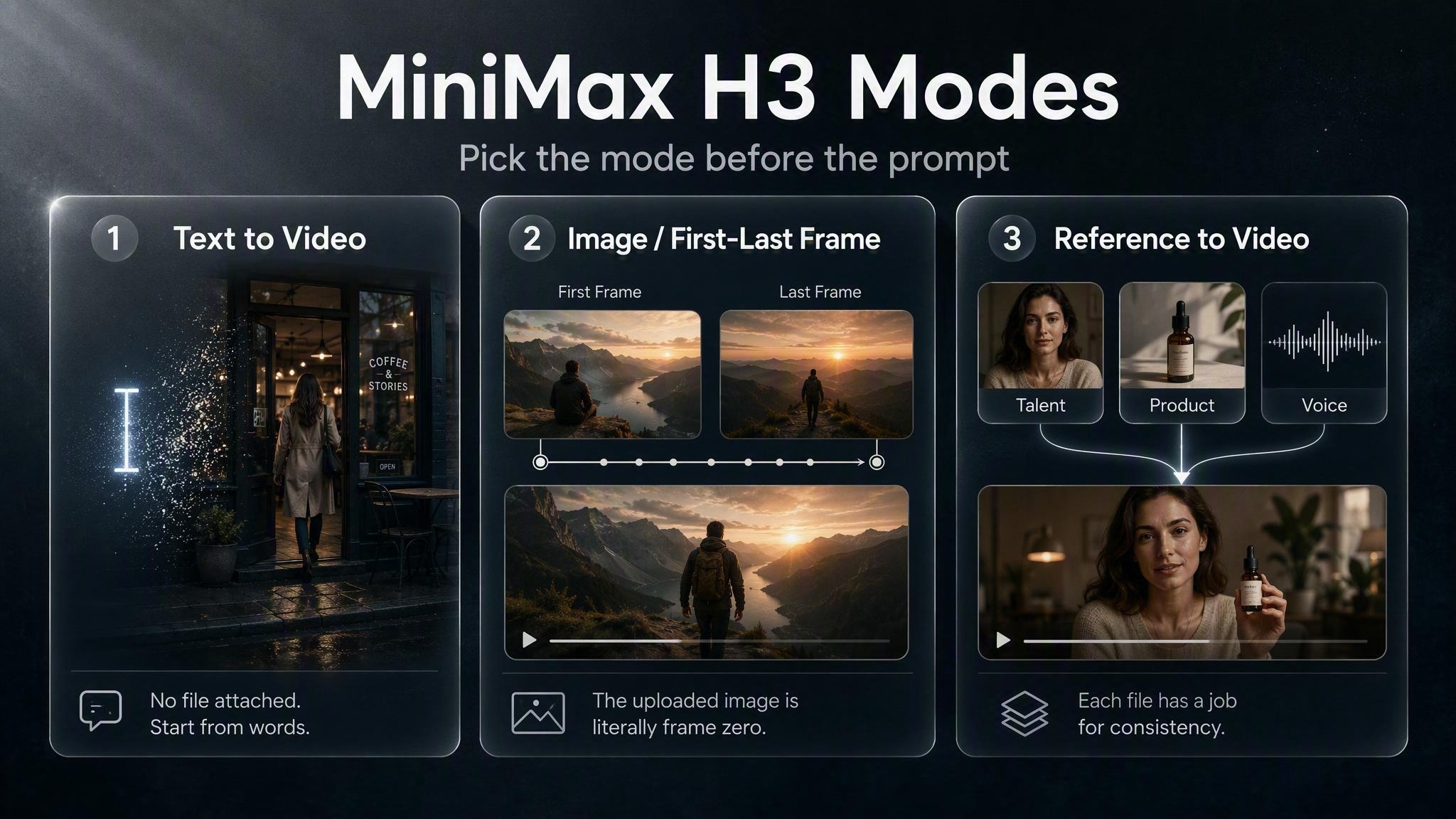
Choose the Right Input Path
No file → text-to-video
The file is literally frame zero → image / first-last frame
A face, product, motion, or voice must stay consistent → reference-to-video
Most weak first clips come from mixed inputs, not weak wording. If you treat a style moodboard as a first frame, or dump four images into a text-only brief, the model has to guess.
Create MiniMax H3 Clips with Vmake Labs
Vmake Labs puts MiniMax H3 in the AI video generator so you can go from idea to a downloadable clip in one browser workspace. Follow these steps for a clean first run.
Step 1: Open the Vmake Labs AI video generator
Sign in to Vmake Labs and open the AI video generator. This is your workspace for MiniMax H3 — model picker, prompt box, references, preview, and download.
Step 2: Select MiniMax H3 in the model picker
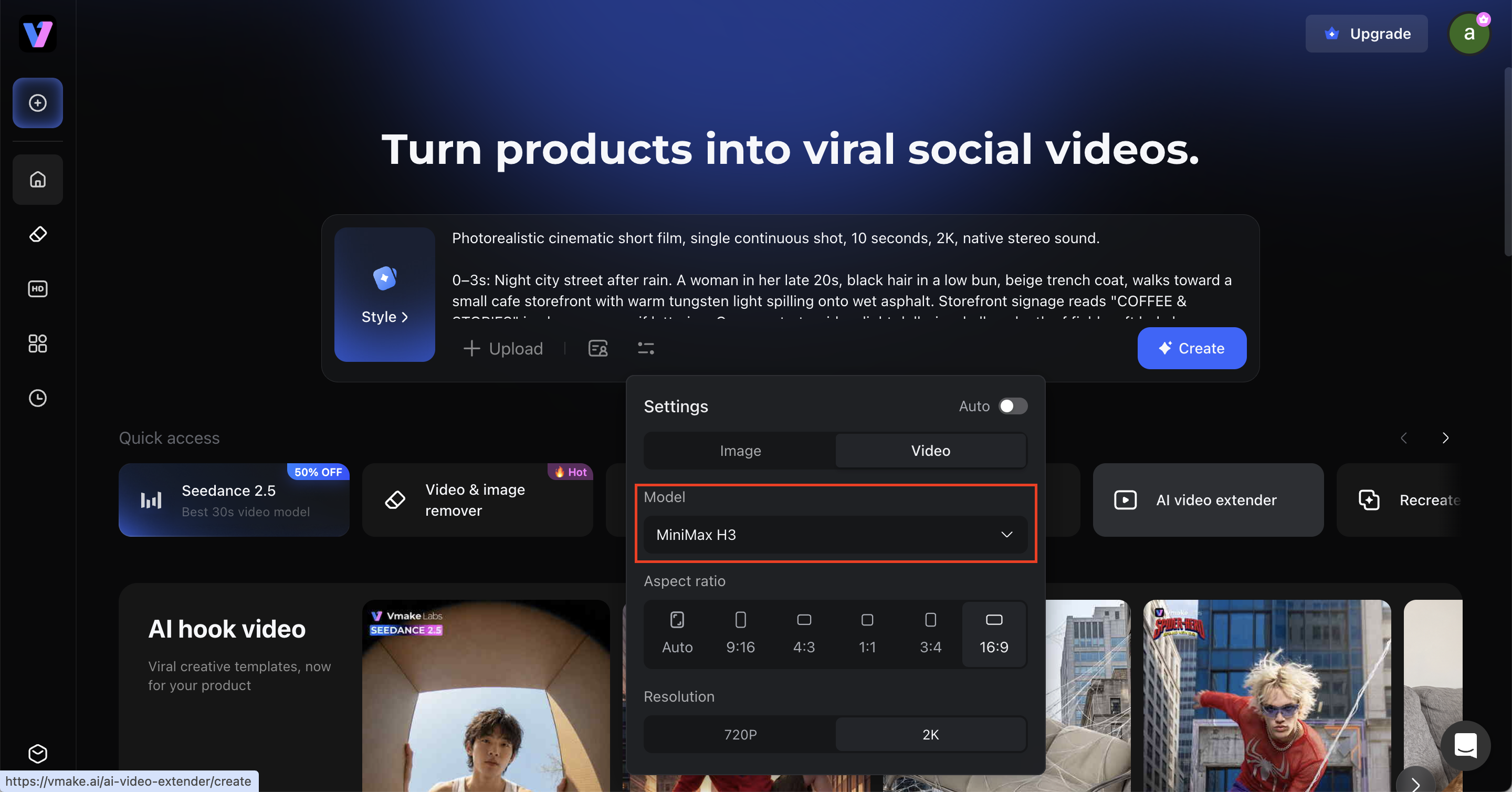
Choose MiniMax H3 from the model list. Confirm the label before you spend credits on a batch. If you also see related Hailuo naming in UI copy or community posts, treat the Labs picker label as the one that matters for this workflow.
Step 3: Choose aspect ratio, duration, and resolution
Match the setup to the job in Settings or the Video Brief panel:
Vertical (9:16) for Shorts, Reels, and TikTok-style hooks
Landscape (16:9) for YouTube or site heroes
Duration and resolution for the take (Example 1 uses 10s at 2K; use 720p only if you want a cheaper draft)
For the first clip, keep it text-only — no uploads. That is the text-to-video path. Add image, first/last-frame, or reference files later in Step 5 only when you need locked identity or continuity.
Step 4: Write a timed brief
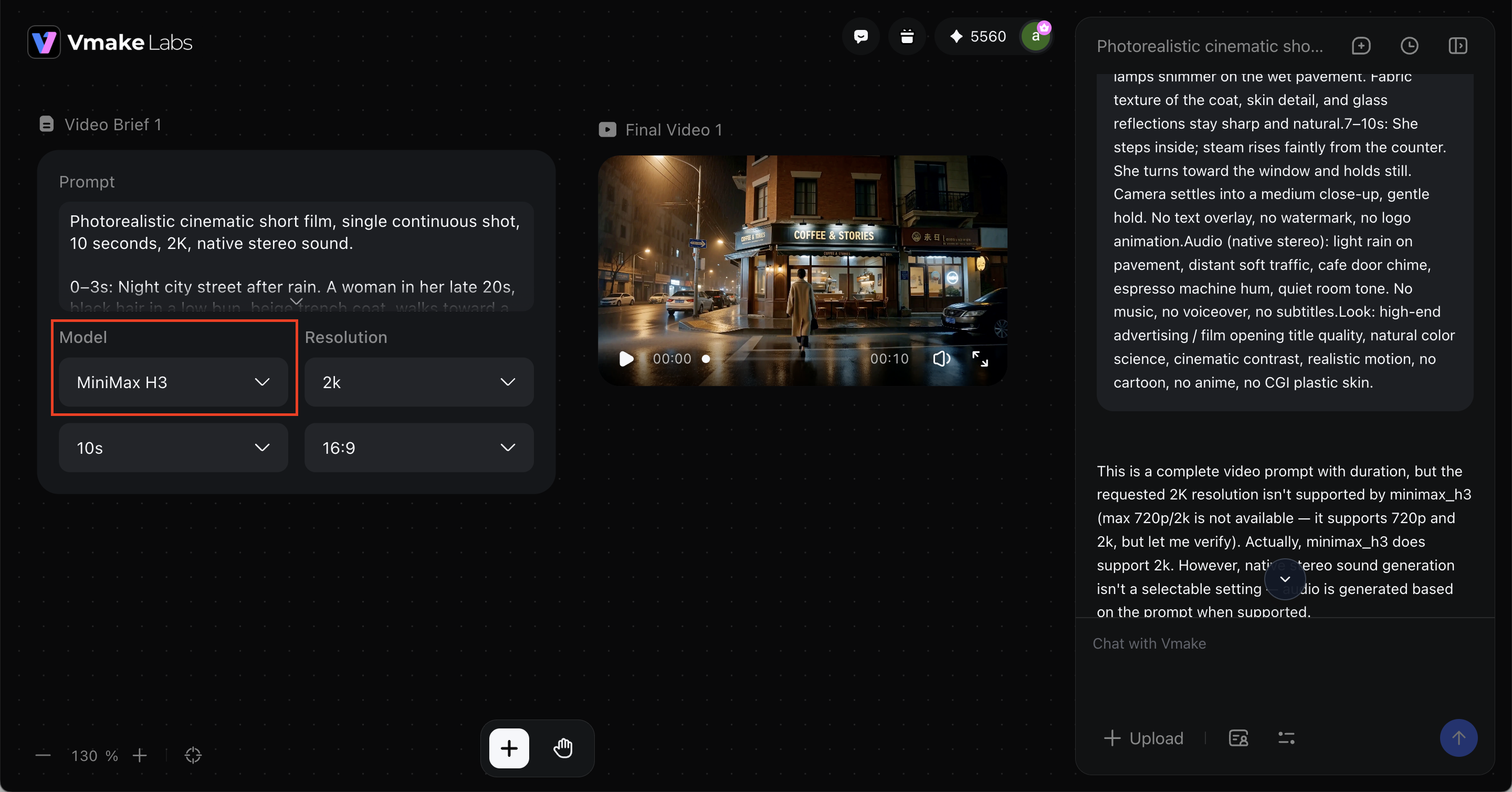
Keep one clear subject and one camera plan; use timestamps for beat changes so H3 knows what happens when. Put audio lines in the same brief instead of planning a second silent pass. For a ready-made take, paste the full Example 1 prompt from the Prompt Examples section later in this guide.
Step 5: Add references only when they have a job
If you upload files, name each role:
Image 1 = locked talent
Image 2 = product or location only
Audio 1 = voice only, and only with an image or video attached
More files help only when each one answers a specific continuity problem.
Step 6: Generate, preview, and download
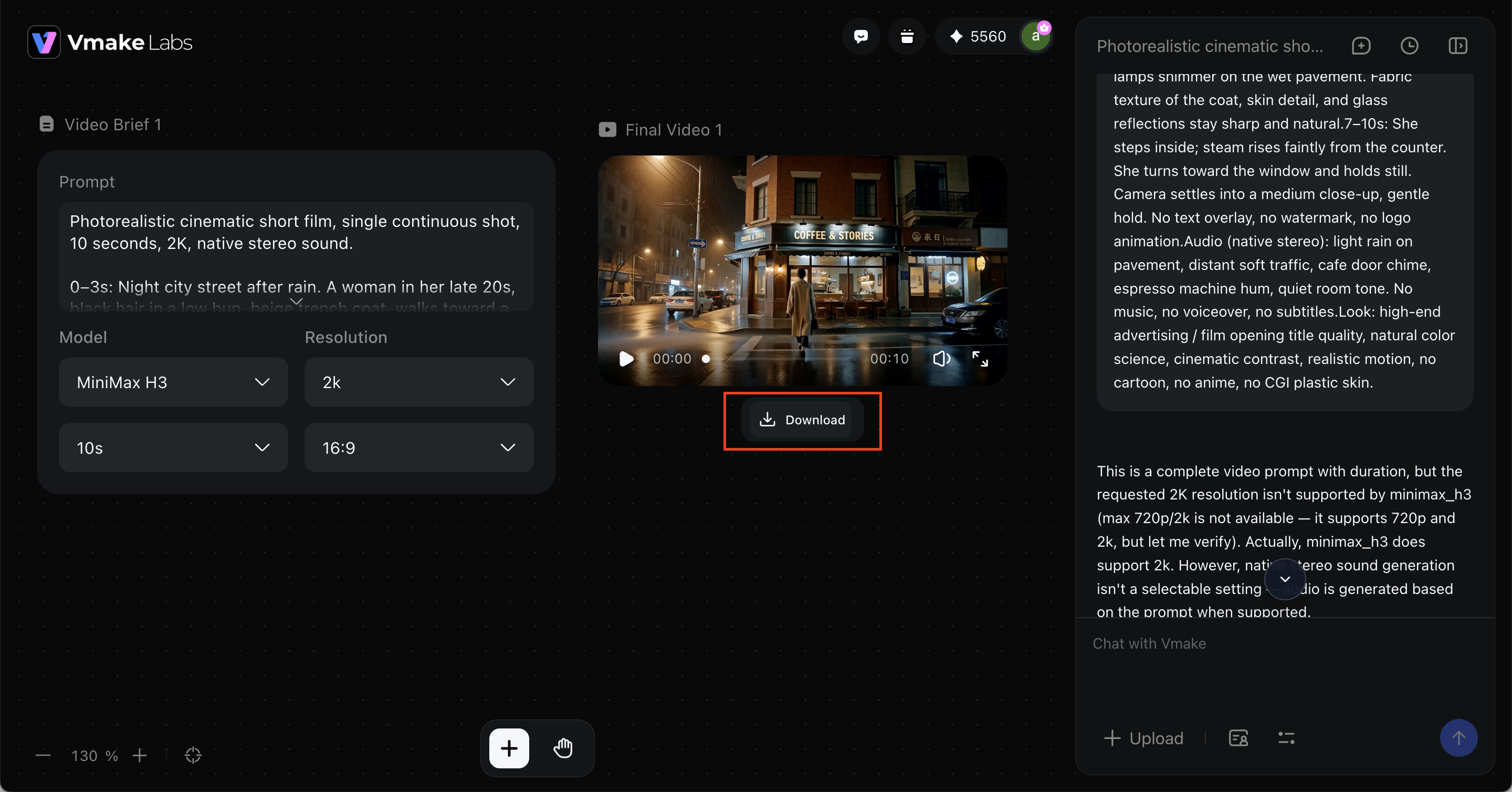
Generate the clip, watch the preview, then download the file and inspect it locally before you scale a batch. Change one variable at a time — duration, resolution, reference set, or audio line — so you know what improved the result.
Benefits of Using MiniMax H3 in Vmake Labs
You can find MiniMax H3 in more than one place. Vmake Labs is built for creators who want a simple browser path from idea to a downloadable clip.
No GPU install: open the AI video generator, select MiniMax H3, and generate in the browser.
One workspace for settings, brief, and references: keep text, images, and audio jobs in the same flow instead of jumping between docs and nodes.
Fast first validation: test whether the idea works before you invest in a long prompt library or a local graph.
Creator-ready outputs: draft social, UGC, and product clips you can review, refine, and download from the same Labs workspace.
Room to compare models later: when you need Seedance, Kling, or another option, stay inside Vmake Labs instead of rebuilding the workflow elsewhere.
Once the first clip works, use the prompt examples below to reuse the same Labs workflow for product, UGC, and reference-locked takes.
MiniMax H3 Prompt Examples for Vmake Labs
Use these as starter briefs in Vmake Labs, then rewrite the subject, timing, and audio to match your shot. Example 1 mirrors the rainy cafe workflow in the screenshots; Examples 2–3 add a first frame or locked references when you need them. Treat them as editable templates—not finished scripts.
Example 1: Rainy cafe entrance (text-to-video)
Prompt:
Photorealistic cinematic short film, single continuous shot, 10 seconds, 2K, native stereo sound.
0–3s: Night city street after rain. A woman in her late 20s, black hair in a low bun, beige trench coat, walks toward a small cafe storefront with warm tungsten light spilling onto wet asphalt. Storefront signage reads "COFFEE & STORIES" in clean sans-serif lettering. Camera starts wide, slight dolly-in, shallow depth of field, soft bokeh streetlights.
3–7s: She reaches the glass door, pulls it open, pauses half a beat as indoor light wraps her face. Camera continues a slow push-in over her shoulder. Reflections of neon and cafe lamps shimmer on the wet pavement. Fabric texture of the coat, skin detail, and glass reflections stay sharp and natural.
7–10s: She steps inside; steam rises faintly from the counter. She turns toward the window and holds still. Camera settles into a medium close-up, gentle hold. No text overlay, no watermark, no logo animation.
Audio (native stereo): light rain on pavement, distant soft traffic, cafe door chime, espresso machine hum, quiet room tone. No music, no voiceover, no subtitles.
Look: high-end advertising / film opening title quality, natural color science, cinematic contrast, realistic motion, no cartoon, no anime, no CGI plastic skin.
Example 2: Product hero (first-frame)
Prompt:
Mode: image / first-last frame
Start from the uploaded product still as frame zero.
0–4s: product centered on a clean desk, soft daylight, slow orbit
4–8s: hand enters frame, lifts the bottle, holds for a beat
Audio: soft room tone, light glass tap, no voiceover
Limits: keep label readable, no extra logos, no text overlay
Example 3: Face-locked UGC (reference-to-video)
Prompt:
Mode: reference-to-video
Image 1 = locked talent face and outfit
0–3s: creator talks to camera in a bright kitchen, handheld subtle
3–8s: shows the product, returns to face, ends on a smile
Audio: natural speech energy, kitchen ambience, no background music
Limits: preserve face identity, hair color, and shirt; no subtitle burn-in
Paste Example 1 for your first Labs run — it matches the rainy cafe workflow shown in the screenshots. Move to Examples 2–3 only when you need a still as frame zero or locked face/product references.
Tips for Better MiniMax H3 Clips
A few habits keep MiniMax H3 clips focused, consistent, and easier to refine in Vmake Labs.
Decide Inputs Before Wording. Text-only, first/last frame, or reference files answer different jobs. Mixed inputs confuse the model more often than weak wording does.
Timestamp Short Stories. H3 handles short clips best. Longer arcs need planned beats or stitching rather than one overloaded brief.
Match Resolution to the Goal. Use 2K for the take you plan to publish, as in Example 1. Switch to 720p only when you want a cheaper draft before the final render.
Change One Variable Per Retry. If identity drifts, fix references before rewriting the whole brief. Change duration, resolution, reference set, or audio line one at a time.
Direct Audio in the Same Pass. Native sound is one of H3’s strengths. Direct dialogue, effects, and room tone in the same brief instead of generating silent footage by default.
Stay in Vmake Labs for the Full Loop. Idea → model → brief → references → download is faster when you do not leave the workspace.
Conclusion
Learning how to use MiniMax H3 does not require a local install. In Vmake Labs you pick the model, set aspect ratio and duration, paste a timed brief, add references only when they earn their place, and download a short clip with sound.
Ready for the first run? Open MiniMax H3 in Vmake Labs, paste Example 1, generate one clip, and refine from there.
FAQs
1. How do I use MiniMax H3 for the first time?
Open Vmake Labs, select MiniMax H3 in the AI video generator, set aspect ratio, duration, and resolution, paste Example 1 (or a shorter one-subject / one-camera timed brief), generate, then download and review the file. Add references only after the motion is stable.
2. Can I use MiniMax H3 in Vmake Labs?
Yes. Vmake Labs is the browser path this guide uses: open the AI video generator, select MiniMax H3, set aspect ratio and duration, then generate and download from the same workspace.
3. Do I need a GPU to use MiniMax H3?
No — not for the Vmake Labs browser workflow. You can test MiniMax H3 online without installing ComfyUI or provisioning a local GPU.
4. Is MiniMax H3 the same as Hailuo AI video?
Creators often discuss MiniMax H3 alongside Hailuo AI video naming. For this how-to, follow the MiniMax H3 label in the Vmake Labs model picker and run the steps above.
5. How do I keep faces and products consistent?
Upload face or product references, give each file a clear job (talent, product, voice), and state what must not change in the brief. Generate in Vmake Labs, then adjust one reference or preservation line at a time.
6. Where should I compare MiniMax H3 with Seedance or Kling?
Quick take: MiniMax H3 is strongest for short, timed clips with native sound; Seedance and Kling trade off differently on motion, look, and cost. For side-by-side quality and cost notes from the same-prompt test, check this article: Seedance 2.5 vs MiniMax H3 vs Kling 3.0. Then return here for the MiniMax H3 browser workflow in Labs.

You May Be Interested

100+ Instagram Bio Ideas to Make Your Profile Stand Out

Father’s Day Gift Ideas 2026: Personalized, DIY & Last-Minute
5 Best Valentine's Day Video Ideas for eCommerce in 2026
YouTube Shorts Ideas: 15 Creative Videos to Grow Your Channel
Top YouTube Video Ideas: Methods to Get More Subscribers