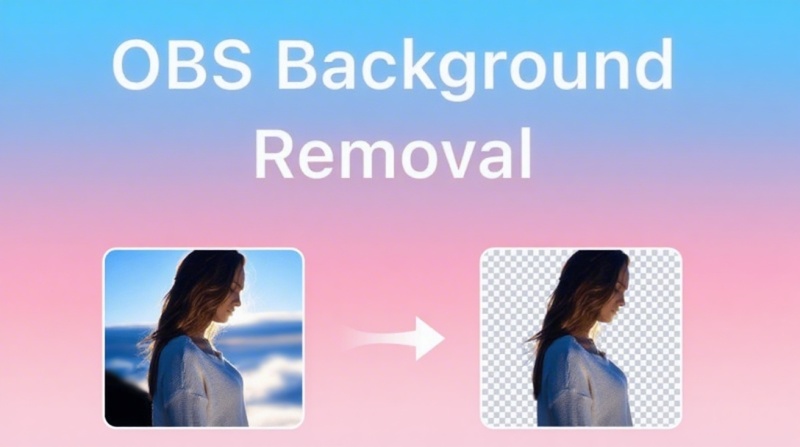
How to Use Green Screens on CapCut: A Complete Beginner's Guide
Learn how to use green screens on CapCut to remove and replace backgrounds with ease. Follow this step-by-step guide and discover how Vmake Labs makes green screen video editing even faster.

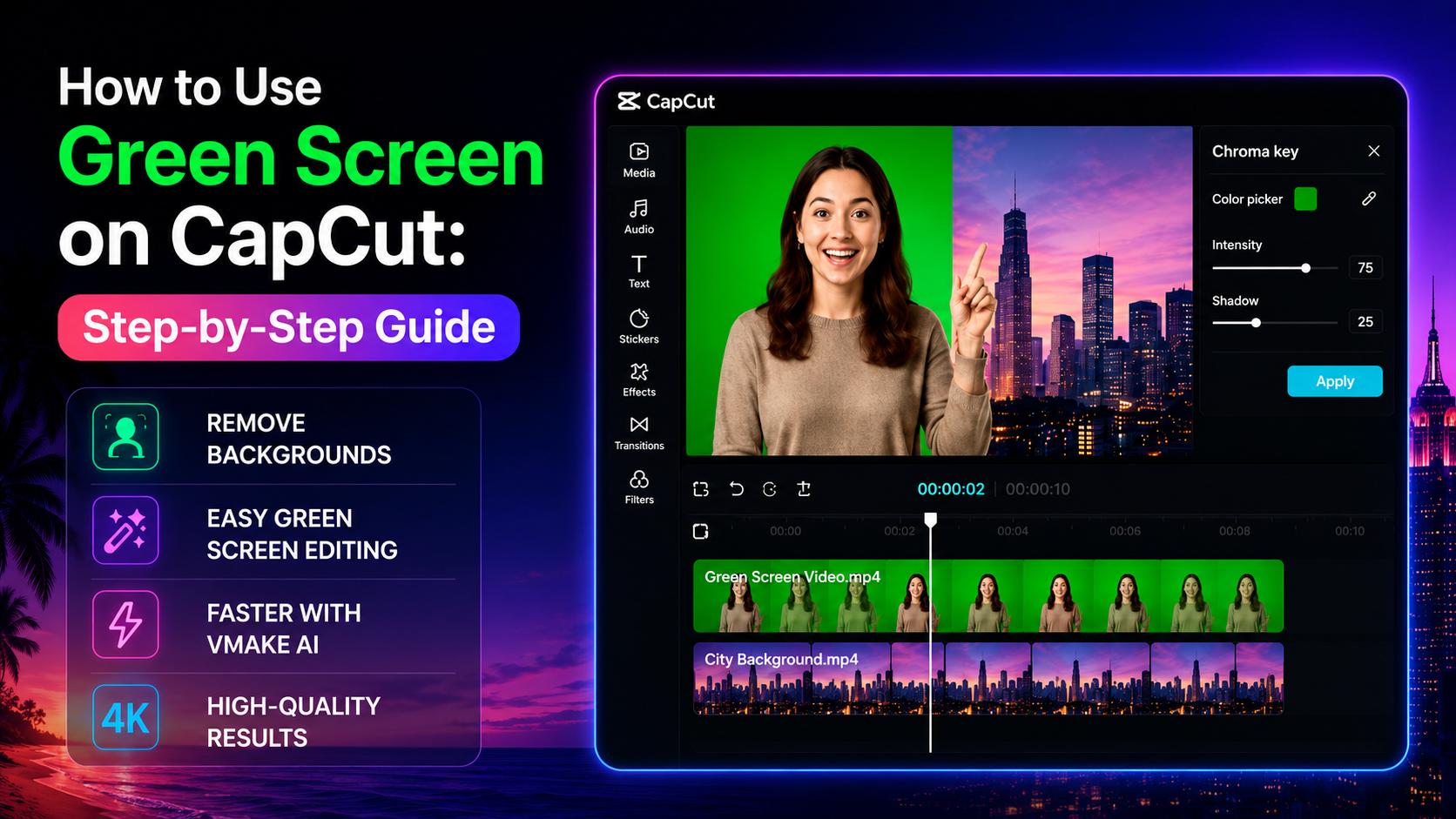
Green screen editing makes it easy to replace backgrounds and create professional-looking videos without expensive equipment. This guide explains how to use green screens on CapCut, remove green backgrounds, solve common editing issues, and explore Vmake Labs as a faster AI-powered alternative for video creators.
What Is Green Screen Editing in CapCut?
CapCut includes a built-in Chroma Key tool that removes green backgrounds from videos. Once the green area is removed, you can replace it with another image or video to create a completely different scene without changing your filming location.
How Chroma Key Works
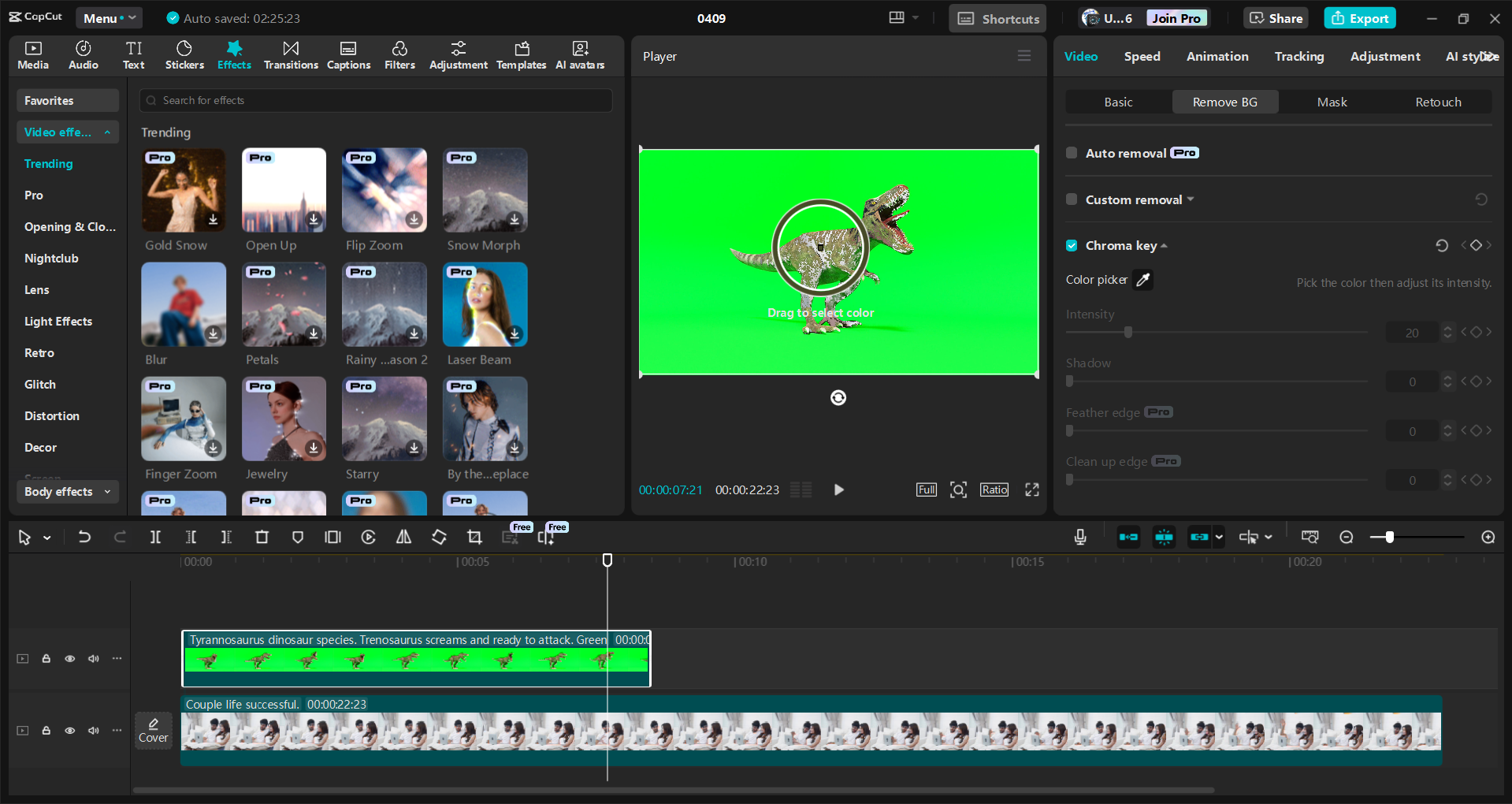
CapCut's Chroma Key feature identifies the green background in your video and removes it while keeping the subject intact. Once you make the backdrop translucent, you may replace it with any picture or video to create a whole new scenario. Clean film, uniform lighting, and a wrinkle-free green screen create a difference you can see, allowing the backdrop to mix more organically.
What You'll Need
Before you start, it's worth getting a few things ready. Record your subject in front of a well-lit green screen and have the image or video you want to use as the new background in your hand. Good lighting makes a noticeable difference because it helps CapCut separate the subject from the green background more accurately. Once that's done, open CapCut on your mobile device or PC, import your files, and you're ready to begin editing.
How to Use Green Screen on CapCut
CapCut makes it easy to replace green screen backgrounds using its built-in Chroma Key feature. Once you've imported your clips, you can remove the green background, adjust the effect, and export a polished video in just a few steps.
Step 1: Open "AI Video" from the CapCut Application
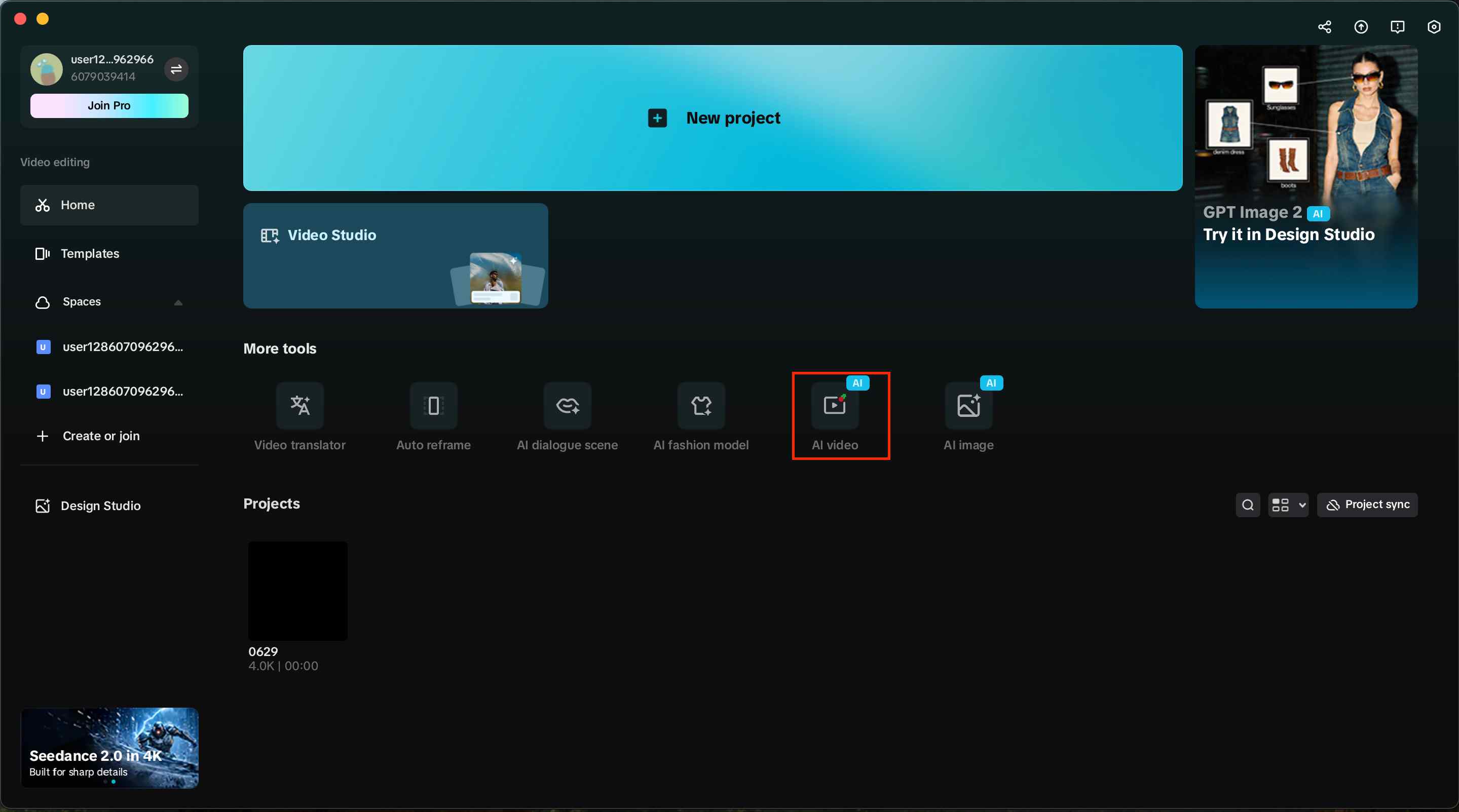
Launch CapCut and sign in to your account if prompted. From the home screen, click "AI Video" or create a new project to open the editing workspace where you'll begin your green screen project.
Step 2: Import Your Background and Green Screen Clips
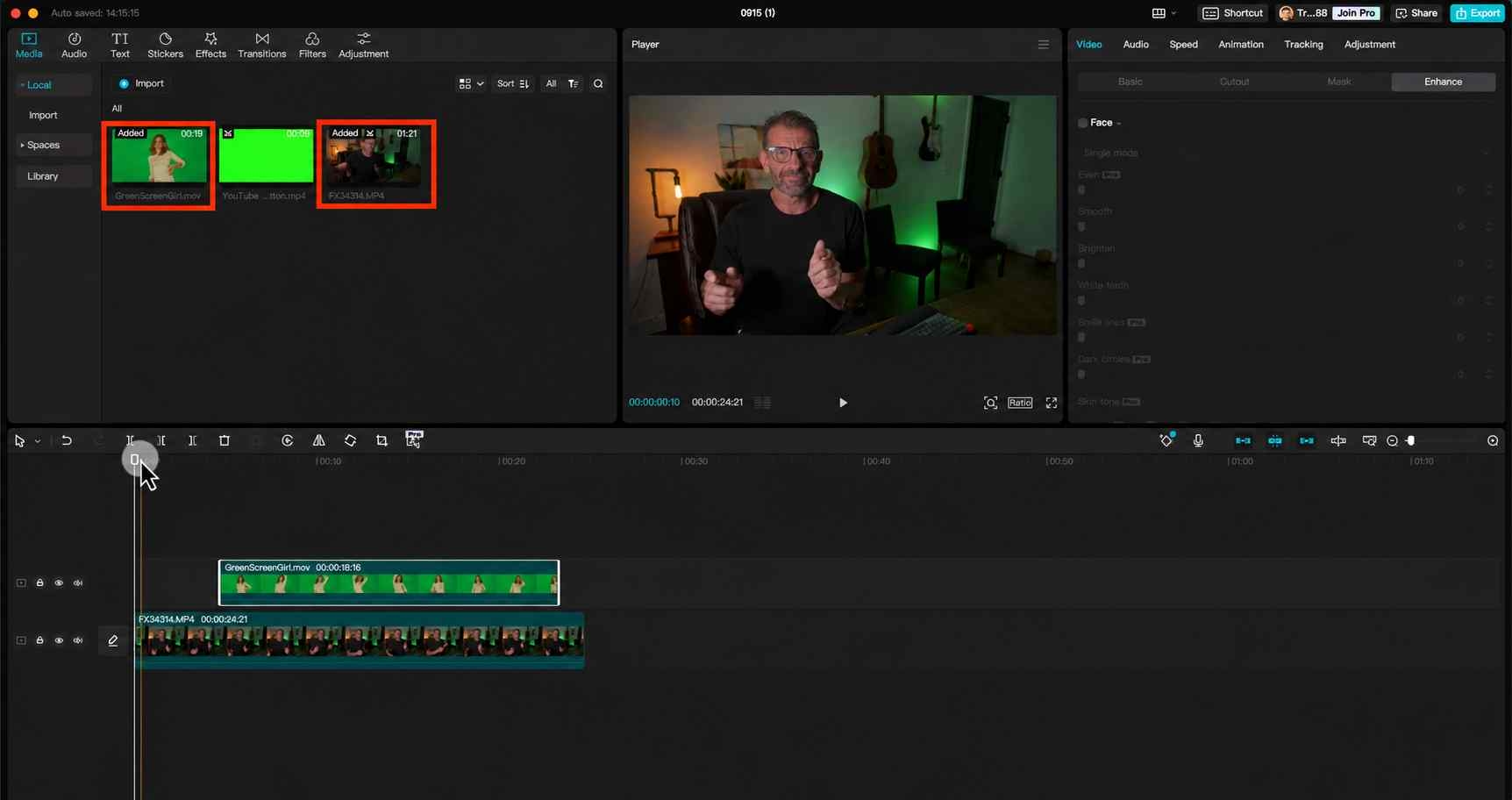
Import both your green screen footage and the background image or video into the project. Place the background clip on the main timeline, then drag the green screen clip onto the track above it. This allows the background to appear behind your subject once the green screen is removed.
Step 3: Apply the Chroma Key Effect
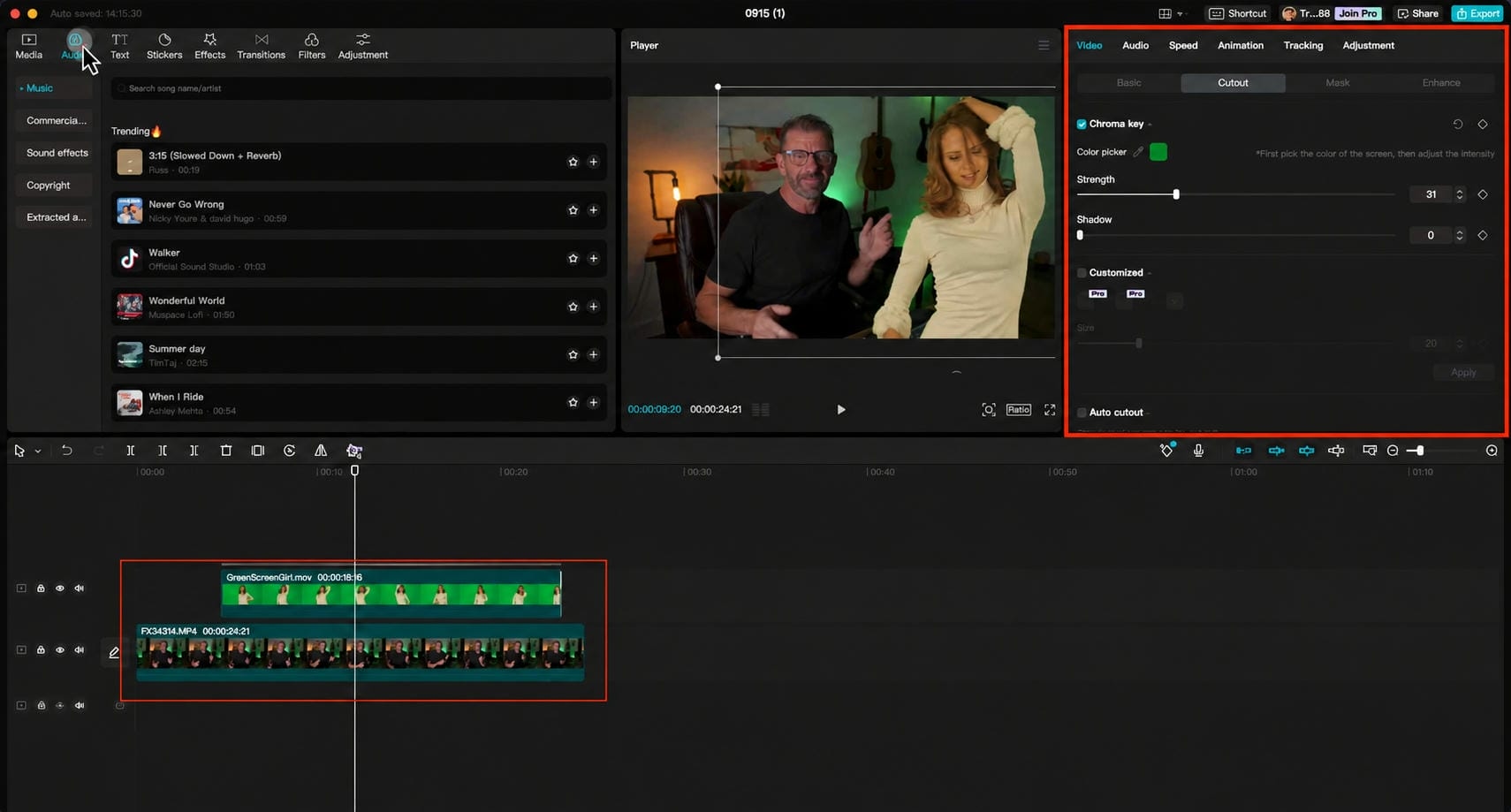
Select the green screen clip and open Cutout menu to enable Chroma Key. Use the Color Picker to sample the green background, then adjust the Strength and Shadow controls until the background is removed cleanly and the edges around the subject look natural.
Step 4: Preview and Export Your Video
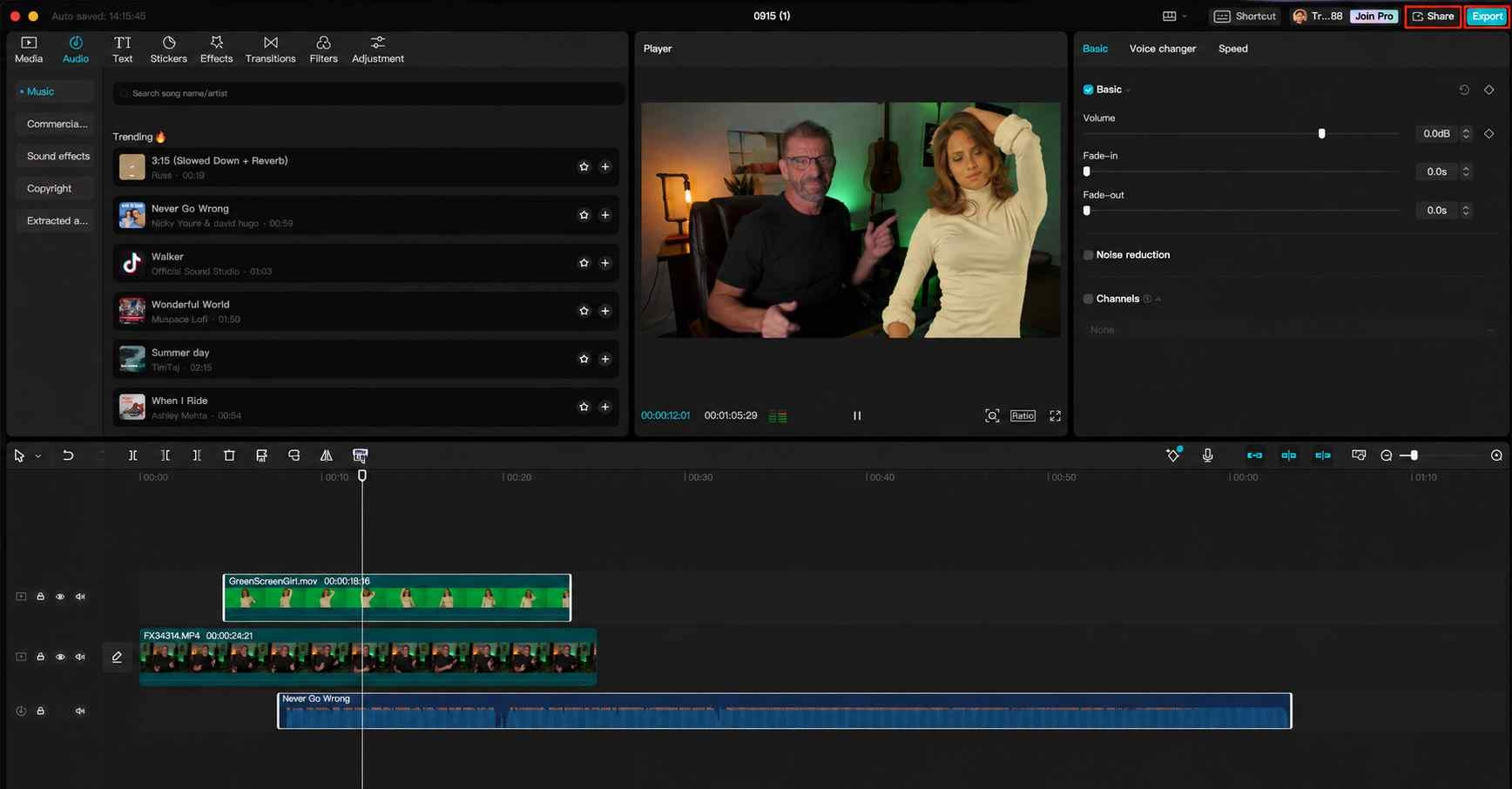
Preview the video to make sure the new background blends smoothly and there are no visible green edges around the subject. Once you're satisfied with the result, click Export, choose the resolution and format that best suits your project, and save the finished video to your device.
Common Green Screen Problems and Fixes
Even with CapCut's Chroma Key tool, you may run into a few common editing issues. Most problems are caused by lighting, recording quality, or the way the green screen was set up. Fortunately, a few simple adjustments can help you achieve much cleaner and more natural-looking results.
-
Green Edges Around the Subject: Green outlines usually show up when the green background isn't removed completely, or the Chroma Key settings need a little more fine-tuning. They can also appear if green light reflects onto the subject. Adjusting the intensity and shadow controls, along with using even lighting, often helps produce much cleaner edges.
-
Uneven Background Removal: If some parts of the background remain visible, the green screen may have inconsistent lighting or wrinkles. Use a smooth backdrop with an even shade of green and adjust the Chroma Key settings until the entire background is removed cleanly.
-
Poor Lighting and Shadows: Uneven lighting can create dark shadows and bright spots that make background removal less accurate. Light both the subject and the green screen evenly to help CapCut detect the background more precisely and produce cleaner edges.
-
Low-Quality Green Screen Footage: Blurry or low-resolution videos can make it difficult for CapCut to separate the subject from the background. Record at the highest quality your camera supports to preserve more detail and achieve smoother, more professional-looking background replacement.
Afterthought
CapCut's Chroma Key feature is a practical option for creating green screen videos and gives users manual control over background removal. However, projects with complex backgrounds, frequent edits, or large volumes of content may require additional time to fine-tune settings and clean up edges. In these situations, AI-powered background removal tools can help simplify the editing process by automating subject detection and background replacement. If you're looking for a faster workflow with less manual adjustment, Vmake Labs offers an AI-powered alternative designed for efficient video background editing.
Create Green Screen-Style Videos Faster with Vmake Labs
Traditional green screen editing in CapCut can produce great results, but it usually takes time to adjust the Chroma Key settings and clean up the background. If you'd rather keep the editing process simple, Vmake Labs uses AI to remove and replace video backgrounds automatically, making it easier to create clean, professional-looking videos with less manual work.
Why Choose Vmake Labs?
Instead of spending time adjusting Chroma Key settings, Vmake Labs lets AI handle background removal for you:
-
One-Click AI Background Removal: Vmake Labs automatically detects the subject and removes the background with a single click. This reduces manual editing and helps speed up the entire video creation process.
-
Green or Transparent Background Export: Export your videos with either a green or transparent background, giving you greater flexibility for additional editing and different creative workflows.
-
No Manual Chroma Key Editing: AI automatically separates the subject from the background, eliminating the need to adjust Chroma Key settings manually.
-
Fast AI Processing: Upload your video, apply background removal, and let AI process it quickly. This helps you create polished videos in less time.
-
Supports Popular Video Formats: Vmake Labs supports widely used video formats, making it simple to upload, edit, and export videos for different platforms and projects.
How to Replace Backgrounds with Vmake Labs
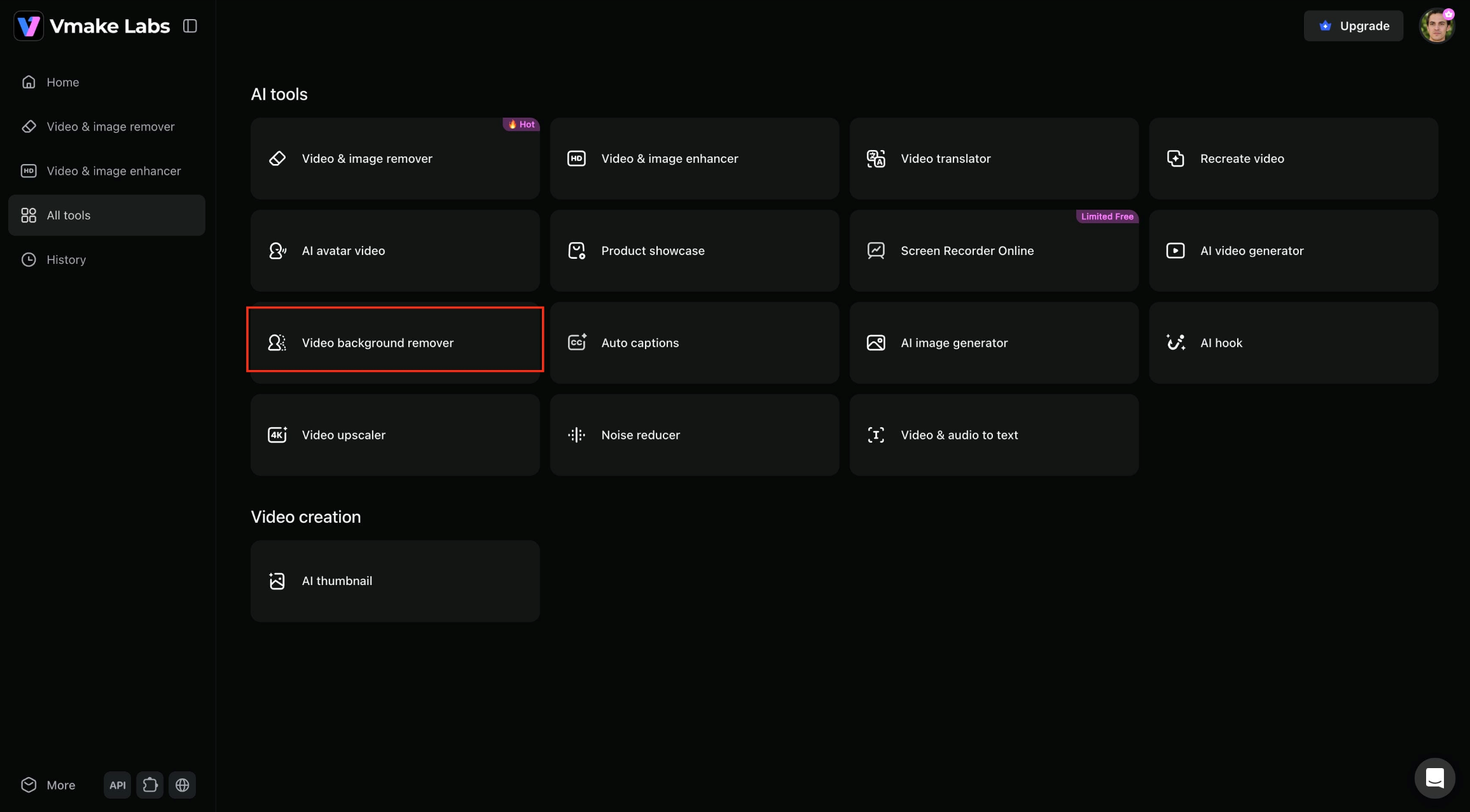
Step 1: Open Video Background Remover.
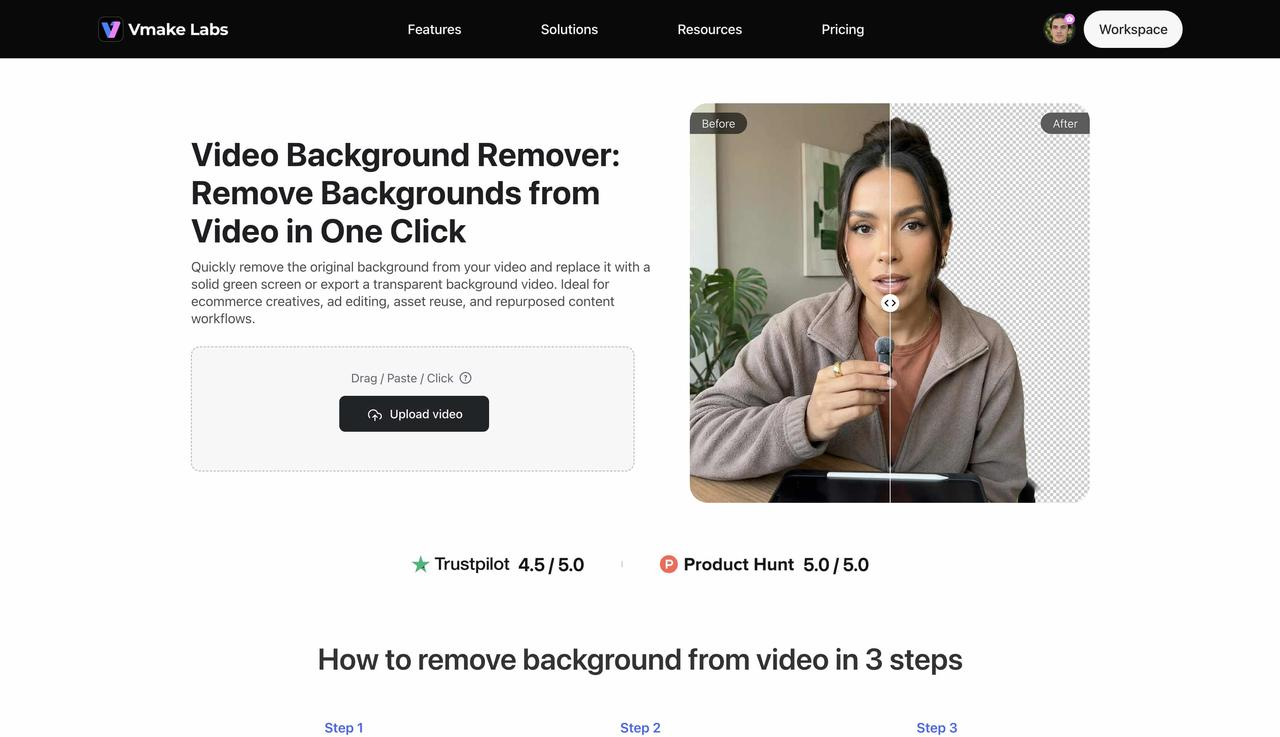
Open Vmake Labs, go to All Tools, and select Video Background Remover. This tool automatically removes video backgrounds using AI, so you don't need to perform manual Chroma Key editing.
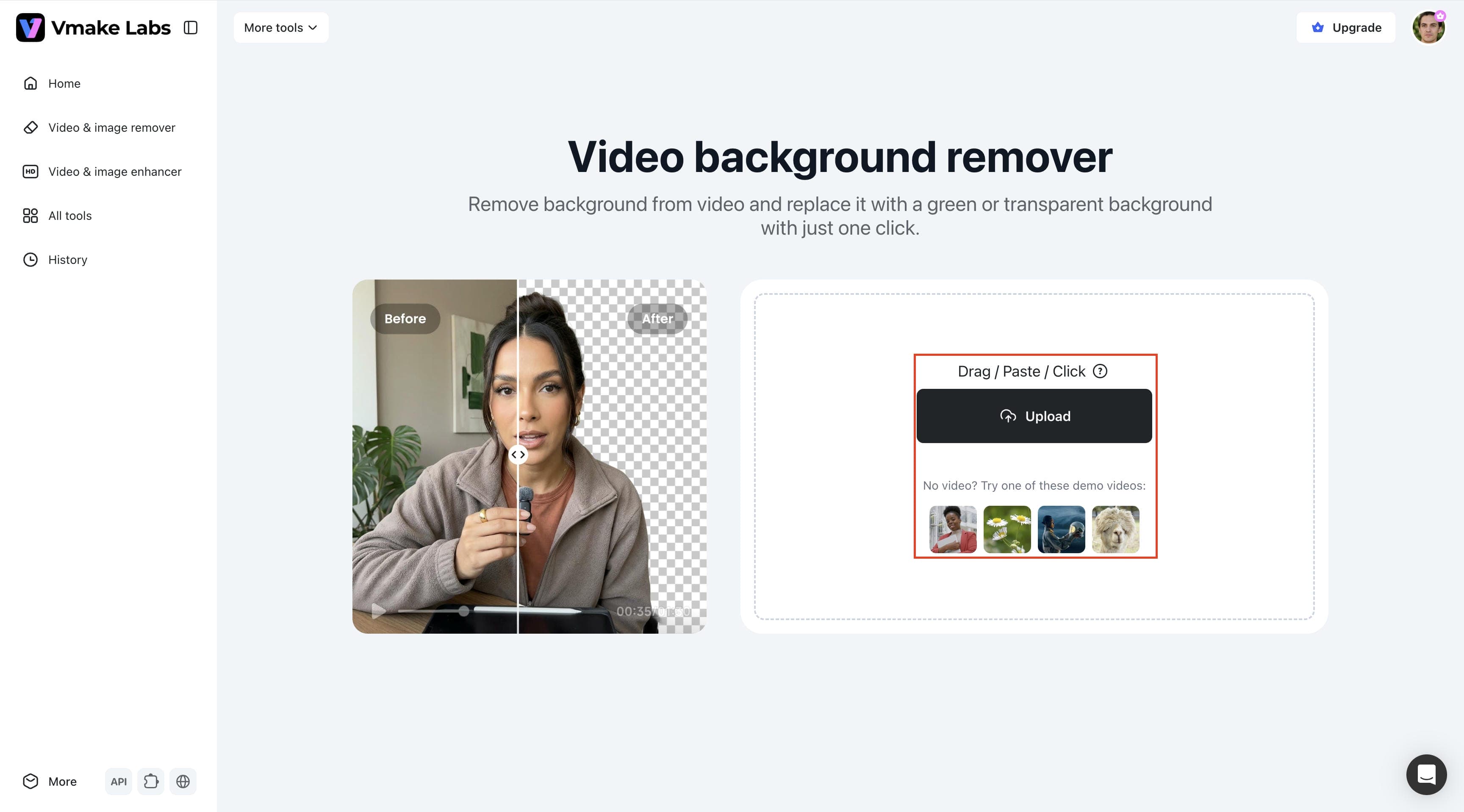
Step 2: Upload your video.
Click the Upload button and select the video you want to edit. Once the upload is complete, Vmake Labs prepares your video for AI-powered background processing.
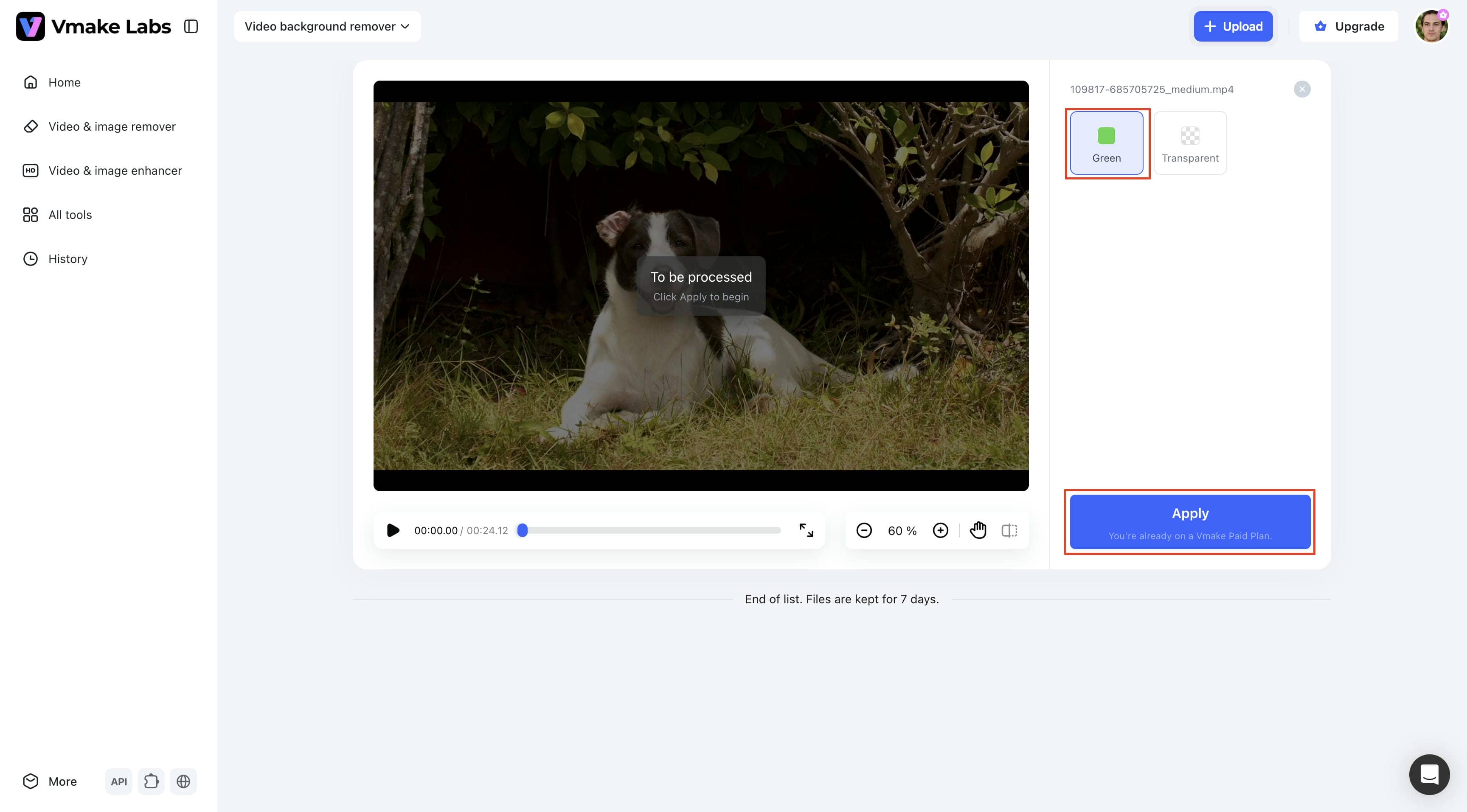
Step 3: Select Green and click Apply.
Choose the Green background option, then click Apply to start AI processing. Vmake Labs automatically detects the subject and replaces the original background with a clean green screen.
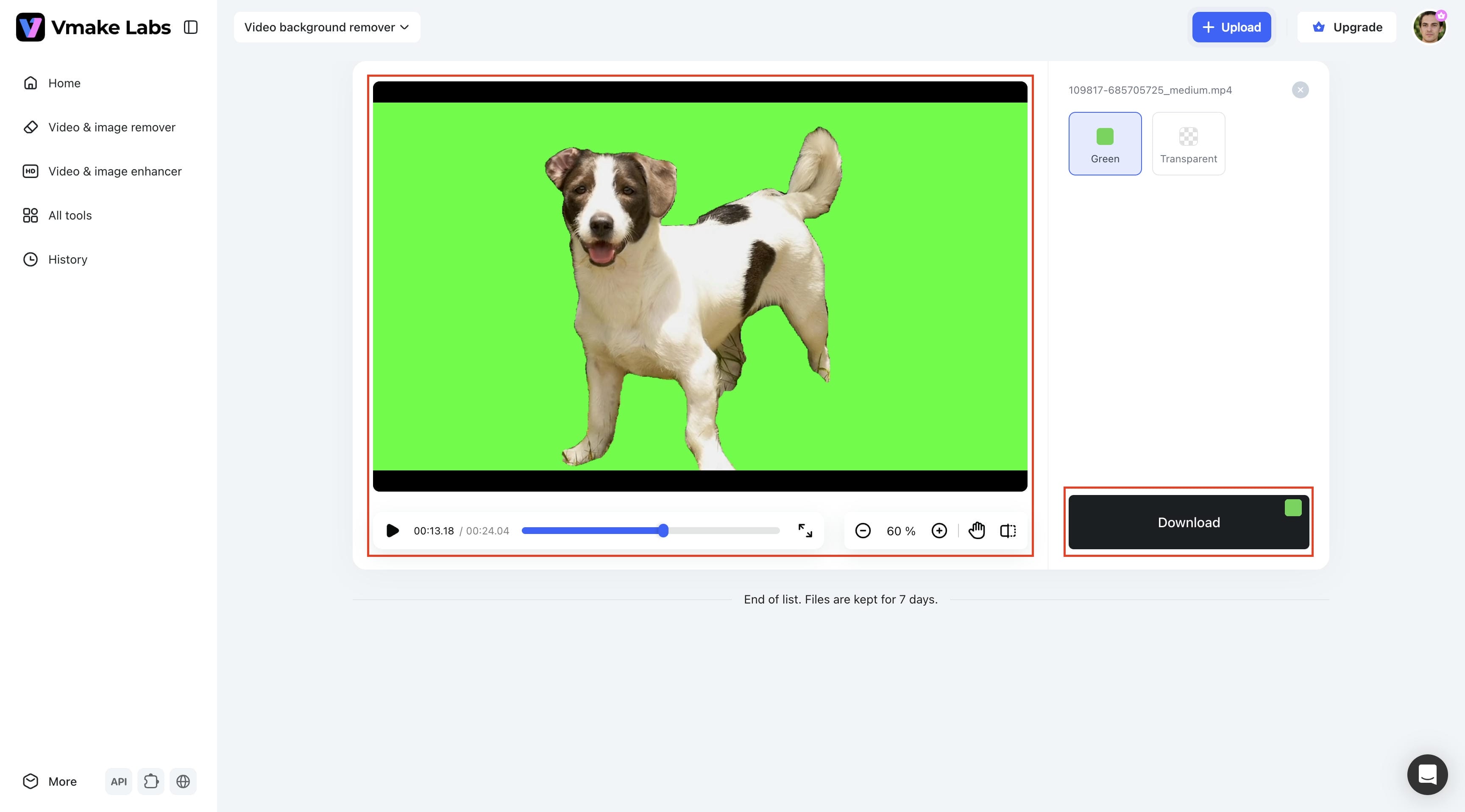
Step 4: Preview and download your video.
Preview the processed video to make sure the background looks clean and the subject is separated accurately. When you're satisfied with the result, click Download to save the edited video to your device.
CapCut vs. Vmake Labs: Which Is Better for Green Screen Videos?
Both CapCut and Vmake Labs can help you create green screen videos, but they follow different editing approaches. CapCut gives you manual control through its Chroma Key tool, while Vmake Labs uses AI to automate background removal for a faster and simpler workflow.
|
Feature |
CapCut |
Vmake Labs |
|---|---|---|
|
Primary Focus |
Manual video editing |
AI-powered video background removal |
|
Green Screen |
Chroma Key editing |
AI background removal and generation |
|
Manual Adjustments |
Manual Chroma Key settings |
Fully automated AI processing |
|
Edge Refinement |
Manual strength and shadow adjustments |
AI-powered edge refinement for cleaner results |
|
Background Replacement |
Replace backgrounds using Chroma Key |
One-click background replacement with green or transparent output |
|
Video Enhancement |
Basic editing tools |
AI enhancement and video upscaling |
|
Processing Speed |
Manual editing before export |
Fast AI-powered background processing |
|
Export Options |
Standard video export |
Green or transparent background export |
|
Ease of Use |
Beginner-friendly |
Beginner-friendly with AI automation |
|
Best For |
Editing green screen videos manually |
Fast AI-powered background removal and green screen video creation |
CapCut is a good choice for users who want a complete video editor with manual control over green screen editing and background replacement. It is well suited for creators who prefer to fine-tune effects and make adjustments within the editing timeline. Vmake Labs is better suited for users who want to automate background removal with AI and reduce manual editing. It works well for creators, marketers, and businesses looking for a faster workflow when producing videos. The best choice depends on your editing preferences, workflow, and project requirements.
Conclusion
Learning how to use green screen on CapCut opens up more creative possibilities without requiring advanced editing skills. CapCut's Chroma Key feature gives you the flexibility to replace backgrounds, but achieving clean results often depends on good lighting and careful adjustments. If you want a quicker approach, Vmake Labs uses AI to remove and replace video backgrounds automatically, reducing the need for manual editing. Whether you're creating videos for social media, tutorials, or marketing, both tools can help you produce professional-looking content. The best choice ultimately depends on your workflow, editing preferences, and the results you want to achieve.
FAQs
Can you use the green screen on the CapCut mobile app?
CapCut's mobile app includes a built-in Chroma Key feature that lets you remove green backgrounds and replace them with images or videos. The editing process is very similar to the desktop version, although some tools and controls are arranged differently. With good lighting and a properly recorded green screen, you can create clean, natural-looking background replacements directly from your mobile device.
Can you replace a video background without a green screen?
AI-powered background removal can separate the subject from the background without requiring a physical green screen. This makes the editing process faster and more convenient, especially for beginners or creators filming in different locations. Vmake Labs uses AI to remove and replace video backgrounds automatically, eliminating the need for manual Chroma Key editing.
What color works best for green screen editing?
Green is the most commonly used color because it contrasts well with most skin tones and everyday clothing, making it easier for editing software to isolate the subject. Blue screens are also effective when the subject is wearing green or using green props. Choosing the right color depends on your scene and the type of video you're creating.
Why do green edges appear around my subject?
Green edges usually show up when the green screen isn't lit evenly, shadows fall across the backdrop, or green light reflects onto the subject. They can also appear if the Chroma Key settings need a little more adjustment. Using a smooth, evenly lit green screen and fine-tuning the Chroma Key controls can greatly improve the result. Recording your footage in higher quality also helps create cleaner edges and a more natural-looking background replacement.
Is Vmake Labs a good alternative to CapCut for green screen videos?
If you want to reduce manual editing, Vmake Labs is a practical alternative to traditional Chroma Key workflows. It uses AI to remove video backgrounds automatically and supports both green and transparent background exports. This makes it a good choice for creators looking for a faster and more streamlined editing experience.

You May Be Interested
How to do Green Screen on TikTok: Complete Guide & AI Alternative
How to Remove Green Screen from Video: Best Methods and Tools in 2026

How to Edit Videos with Green Screen Backgrounds Easily

Top Sites to Download Green Screen Videos and Images