Batch Video Enhancement: Top Tools and Tips for Batch Processing
 Ken DawsonNovember 27, 2025
Editing videos individually can be time taking and exhausting. Thanks to AI, this has become easier but processing bulk files even with AI can be difficult and become frustrating. The solution to this is batch-processing.
Several AI tools offer batch video processing to enhance several videos at once. Want to know more about it? This article mentions the benefits of batch-processing, some free tools and insights on how to get best-quality output using an AI batch-processor.
What is Batch Video Enhancement?
Batch video enhancement refers to simultaneous upscaling of videos using AI tools. These tools process multiple videos at once on the same settings and provide a consistent output. Instead of handling files individually, batch processing applies the same set of edits on all the files to add details, improve color grading, and upscale the resolution.
Benefits of Batch Video Enhancing
1. Time Saving and Efficiency
Batch video enhancement allows the processing of multiple videos at once thus saving significant time. Since all the similar editing tasks can be done together, it saves time taken in setting up everything from the scratch every time you need to edit something. As there is no back-and-forth switching between the tasks, editors can complete their work more efficiently and avoid last-minute rush.
2. Cost-Effectiveness
Batch processing automates all the repetitive tasks like color grading, contrast adjustment, resolution enhancement. By enhancing a batch at once, it maximizes the use of resources and reduces the labor hours. This eventually makes video creation affordable by reducing the average cost per video. It can help small businesses and individual creators to create professional-quality videos on a low budget.
3. Consistent Quality
Bulk video processing ensures consistency across all the videos that are processed at the same time. Since it processes all the clips of a batch under the same settings, a uniform lighting, color level, and resolution are maintained. It minimizes the chances of human errors, ensuring there are no variations to provide stable high-quality visuals to the viewers.
4. Scalable and Streamlined Workflow
The process of upscaling multiple videos at once allows content creators and video makers to manage a bulk volume in less time. By combining all the similar tasks together, users are able to optimize their workflow and maximize the output without having to exert much effort. The system increases efficiency and enables scalability so that productions are able to keep up with the increasing demands while delivering a standard quality.
Top 3 Tools for AI-Powered Batch Video Enhancement
1. Vmake
Vmake AI is a versatile AI video enhancer tool that allows video enhancement, watermark removal, upscaling, and even batch processing. Its batch video upscaler uses smart algorithms to analyze a video and improves resolution. The upscaler also enhances sharpness and other details automatically, reducing manual effort, and maintaining consistent quality. It can upscale three videos at once.
How to Do Batch Video Processing in Vmake?
Here’s how you can use Vmake batch processor:
- Go to Vmake and click on upload. For multiple files, drag and drop them in Vmake enhancer one by one.
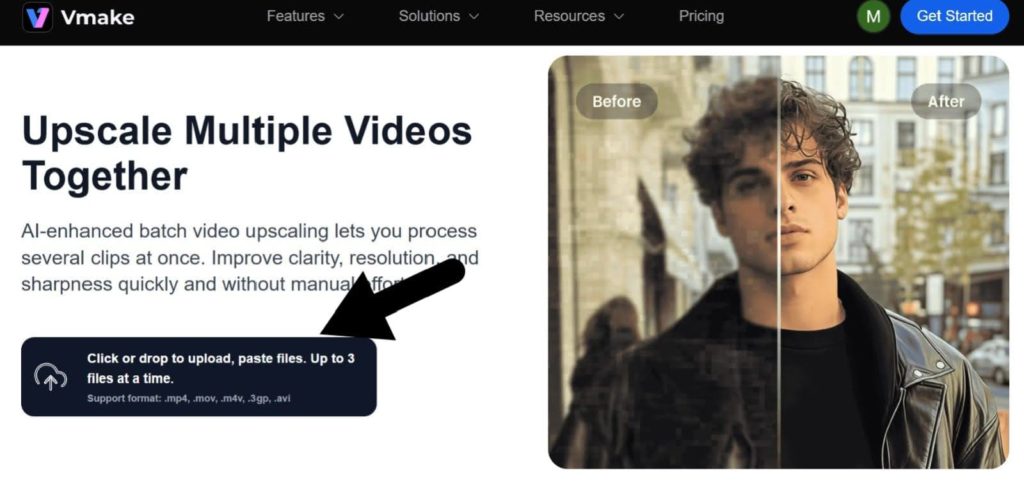
- Select the files one-by-one. All the files should be under 200MB and have compatible formats including MP4, 3GP, MOV, M4V, or AVI. Let the files load.
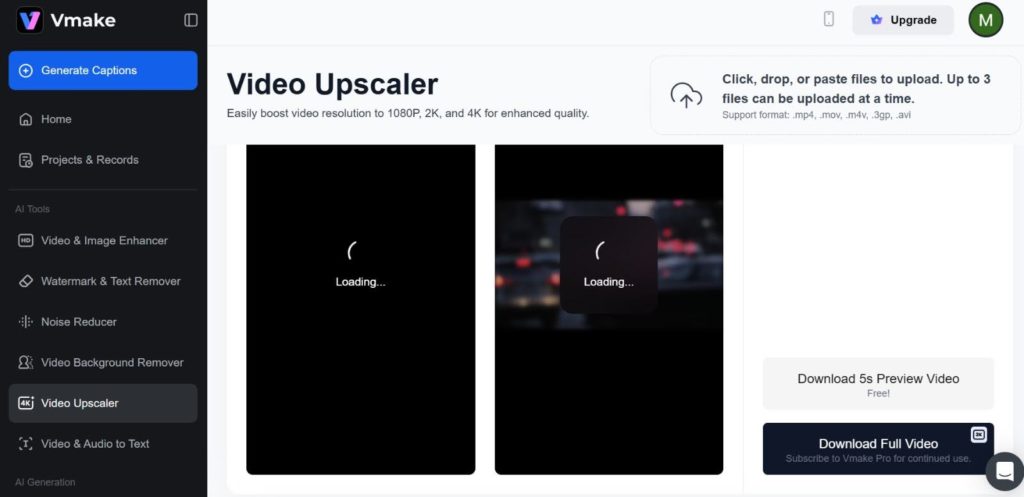
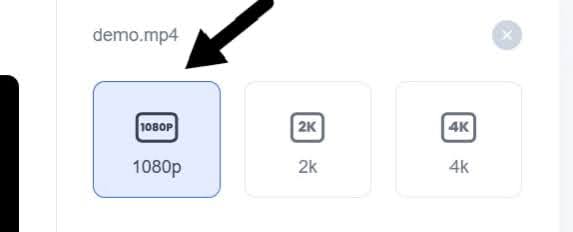
- Choose the resolution from options 1080k, 2k, and 4k.
- Click on download to save the final output.
2. TensorPix
TensorPix is a high-speed video enhancer that automates video upscaling of multiple videos together using parallel processing technology. It supports all the popular video formats including WMV, M4V, FLV, and many others. Moreover, there is no limitation on the number of videos that you can process at once. This makes it perfect for both small businesses and large video production companies.
How to Do Batch Video Processing in TensorPix?
Follow these steps to improve video quality of a batch with TensorPix:
- Go to TensorPix AI video upscaler and click “Try now/upload.”

- Choose all the videos you want to upscale.

- You will be provided with different preset options.. Choose the one that fits your needs the best.

- Tap on the “Enhance” option and download the videos once they are processed.
3. Topaz Labs
TopazLabs is a famous video quality enhancer known for its efficiency and high-quality output. The tool provides video upscaling up to 16k. It comes with different AI models each with a different capability. You can use the Video AI app or Topaz Video Enhancer web-tool to process videos in a batch. It provides ultra smooth results with sharp details.
How to Do Batch Video Processing in Topaz Labs?
For batch processing in Topaz Labs:
- Import all the video files in Topaz that need to be upscaled.
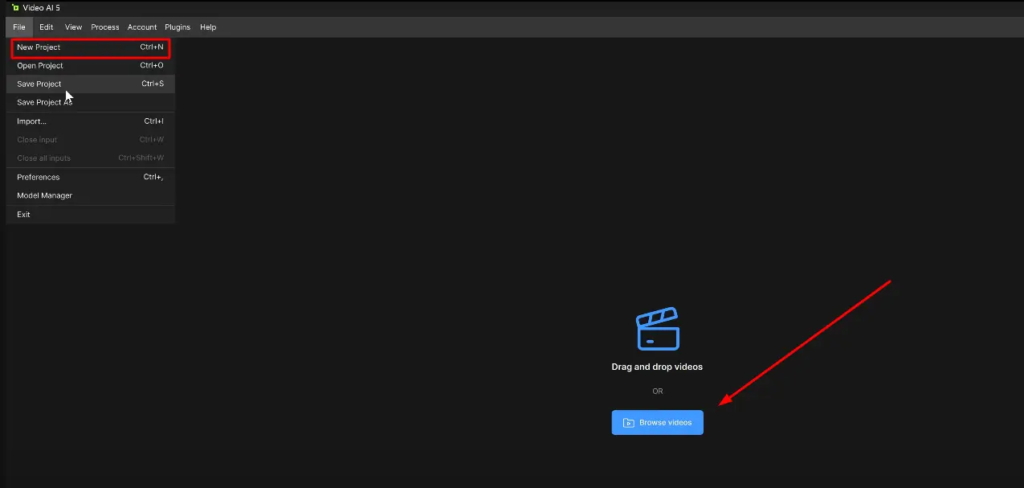
- Go to the “Sources” panel and click “CTRL+A” to select all the videos. For a specific number, left click and then hold the CTRL key.
- Set the resolution, filters, and other desired settings.
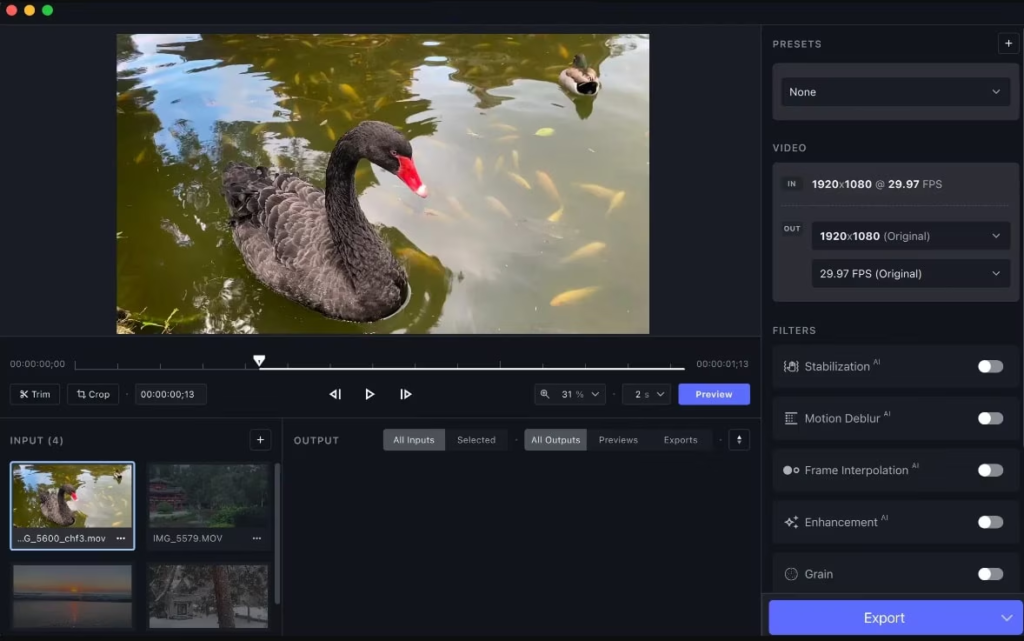
- Click “Quick Export” to queue the videos for upscaling.
After this, the videos will start processing automatically in sets. Once they are all processed, you can download and save the final output in your device.
Best Practices for Batch Processing Large Video Libraries
1. Choose the Right AI-Tool
Choosing the right AI tool is important to ensure optimal quality results. A tool that offers efficient processing not only gives you the desired output but also makes your time and money worth it.
To choose the right tool tailored for your needs, specify the number of videos you want to work on for each batch. Know the resolution you want and other editing features you need for your videos.
2. Organizing Video Assets
Organizing files with similar requirements separately in dedicated folders will help prevent confusion. You can organize the files by names, data type, and date of final review to easily find them when needed.
An efficient batch selection process guarantees a smooth workflow and less room for error in the course of processing.
3. Run a Small Trial Batch First
Before uploading the entire list of video files for batch processing, run a trial with a small batch first. Optimize the settings and resolution the same way you would for the original videos and test the tool.
This allows you to verify whether the tool you chose is the right one. You will also be able to confirm the quality of output, processing time, and available export formats. Knowing everything beforehand can prevent big mishaps.
4. Test and Iterate
Batch video processing typically involves iterative tuning to attain the best outcome. After processing a small test batch, it becomes imperative to check the output carefully and correct parameters such as resolution, frame rate, or processing options.
Iteration identifies and resolves issues early on, avoiding costly large-scale mistakes that waste time and computational resources. Periodic testing provides opportunities for fine-tuning quality against efficiency.
Common Mistakes to Avoid When Batch Video Processing
1. Input File Inconsistency
If the input files of a batch have inconsistent frame rate, different formats and resolutions, and variable codec, it is possible that the results will also be inconsistent. This also increases the chances of errors during processing and you might not get the expected output even after the long wait.
2. Quality Check Before Automation
Depending entirely on automated batch processing without preliminary manual quality inspections can lead to defective final videos. Visual checks and quality inspections prior to executing automation pick up problems such as encoding artifacts, color offsets, or audio issues that algorithms would not detect. Early checks enable optimization of processing parameters for optimal outcomes.
3. No Backup of Originals
Failing to save the backup of original files before batch-processing can lead to irreversible loss of data. There is a possibility for your batch-processed files to come out corrupted leading to damage to the source files. The inability to recover the original file will cause all your efforts and resources to go in vain.
Conclusion
Batch-processing proves to be quite useful for video production companies, especially those that deal with bulk production. It can help achieve consistent results and save time taken to enhance videos one-by-one.
With so many tools available in the market, the best way to choose the most suitable one is to shortlist your requirements, required resolution, and the number of videos you need to process simultaneously. In addition, to get the best out of free AI batch-processing tools, provide high-quality inputs with similar format, codec, and concepts.
Frequently Asked Questions (FAQs)
- Is individual video enhancement better than batch-processing?
Individual AI video enhancement and batch-processing provide the same quality output. Batch-processing takes the lead as it saves time, reduces production cost, and streamlines the workflow.
- Do I need to buy an app for batch-processing?
No, there are free online tools like Vmake available that allow batch-processing. These tools allow enhancement of videos from any device for free, as long as you have active internet connection.
- How to maintain quality in batch-processing?
To maintain the output quality in batch-processing ensure to provide input videos with a consistent frame rate, format, and resolution. In addition, check all the source videos beforehand to eliminate any artifacts or color offset that AI does not detect.

You May Be Interested

Seedance 2.0: What's New & How to Use It

123APPS Watermark Remover Review (2026): Pros, Cons, and Pricing

5 Best Valentine's Day Video Ideas for eCommerce in 2026

How to Create a YouTube Thumbnail? Create YouTube Thumbnails Using AI