How to Make Professional Instagram Edits That Stop the Scroll
 Vmake Labs TeamMay 27, 2026
Low-resolution video ruins your engagement metrics immediately. When you rely on standard mobile workflows, you accept compressed files and massive time sinks just to post basic instagram edits. Professional creators bypass this entirely. Let's dive into this guide and jump on the wagon of popular Instagram edits.
The New Standard for Reels & Native Instagram "Edits"
The attention economy is brutal right now. If your pacing lags for even a second, people swipe away. Meta built their own standalone app to help creators match this demand. Still, relying solely on native software comes with serious performance tradeoffs you need to understand.
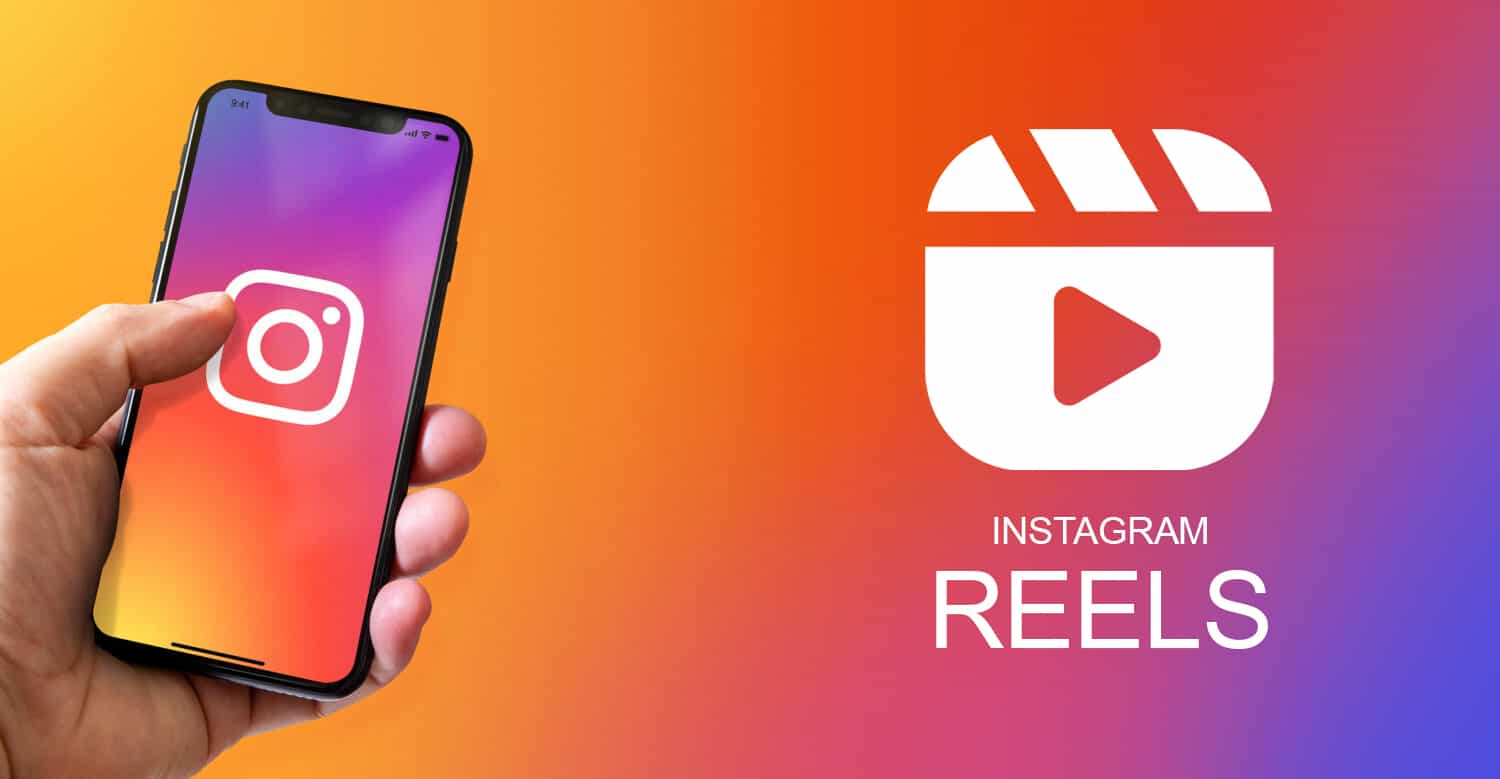
The Shift to High-Retention Video
Static photos are dead on arrival. The algorithm only cares about watch time and completion rates. You can't just toss a raw clip up and pray.
You have to manufacture retention. That means aggressive pacing and constant visual movement. Honestly, it's exhausting. If you don't know how to make edits that hook the eye instantly, your instagram reels just get buried.
What is the Instagram "Edits" App?
Meta recently dropped the instagram edits app to fight back against external tools like CapCut. It gives you a dedicated workspace right on your phone. You get a multi-track timeline, layer controls, and direct audio syncing.
It definitely beats the clunky built-in reel builder inside standard Instagram. But it's still just a mobile app running on phone hardware.
Pros and Cons of Keeping It Native
Staying inside Meta's walls has obvious perks. Direct exports mean you bypass that awful compression step when pulling from a third-party camera roll. You also get safe access to trending audio. But the cons are heavy. Your phone will overheat.
Rendering big 4K files on mobile CPUs causes extreme thermal throttling. Your screen dims. The app freezes mid-project. To be fair, this happens with almost all mobile editors. You're also stuck doing tedious manual keyframing on a tiny glass screen, which rarely looks professional.
Technical Comparison: Evaluating Your Editing Arsenal
Picking the right software dictates your output volume. Mobile apps work fine for quick updates on the fly. When you need to scale high-retention commercial video, cloud platforms step in to carry the heavy processing load your phone can't handle.
|
Feature |
Instagram's "Edits" App |
Traditional Mobile Apps |
Vmake AI Platform |
|---|---|---|---|
|
Primary Use Case |
Native IG syncing & manual cuts |
Basic trimming & filters |
High-volume AI generation & upscaling |
|
Resolution Limits |
Up to 4K (hardware dependent) |
Often capped at 1080p |
Cloud-based True 4K+ upscaling |
|
Generative AI |
Basic AI text/animation |
Minimal to None |
AI Avatars, UGC Generation, Backgrounds |
|
Workflow Speed |
Manual tracking & keyframing |
Manual trimming |
Automated & template-driven |
|
Platform Integration |
iOS / Android mobile only |
Mobile / Desktop |
Browser-based (Zero hardware strain) |
The Workflow Dilemma: Why Traditional Apps Fall Short
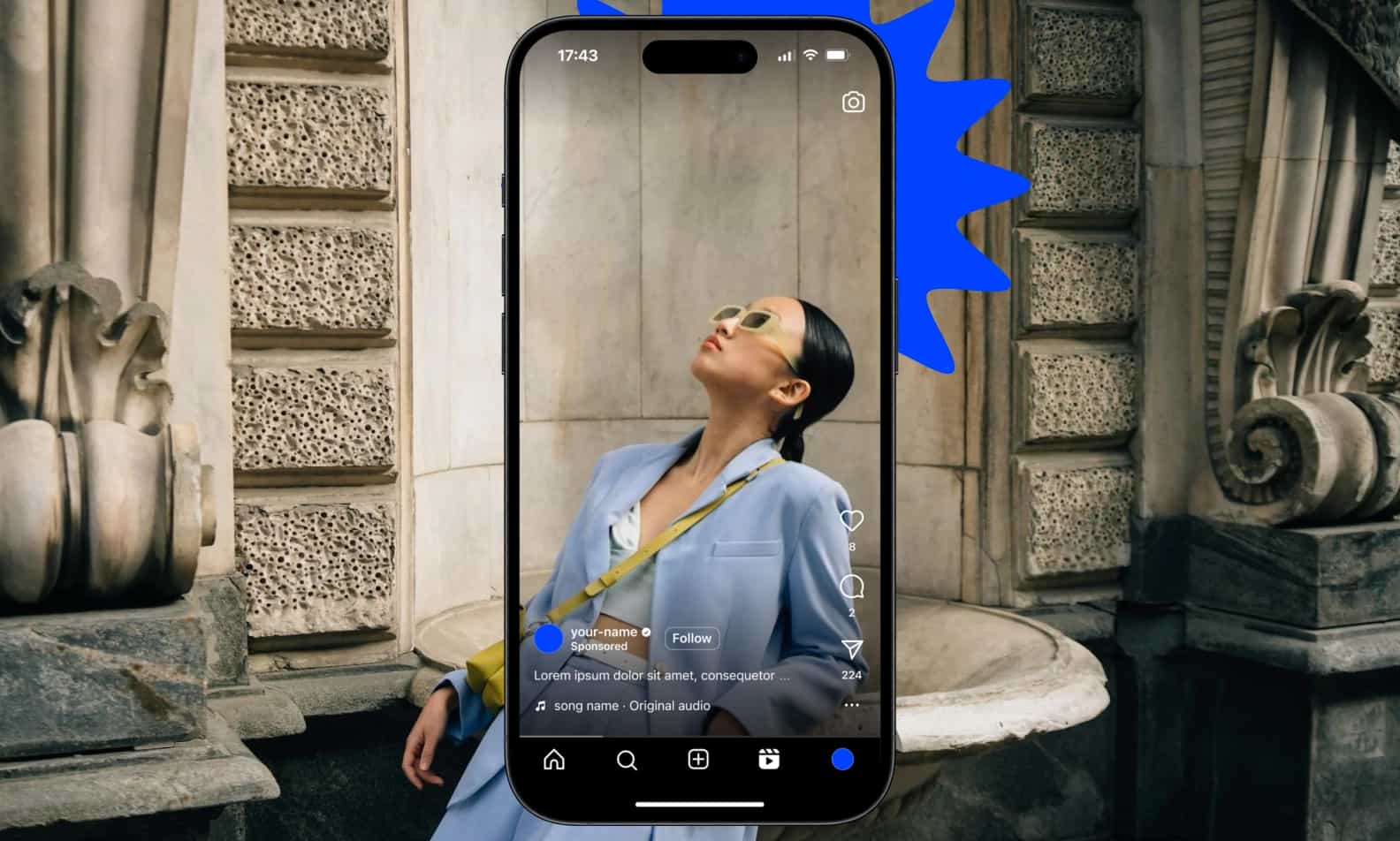
Building complex timelines on a smartphone is a trap. You burn hours squinting at a tiny interface. These traditional instagram picture editing apps don't just slow you down. They actively compress your final file and cap your creative potential.
-
Lack of Scalability: Manually splitting clips and syncing beats takes hours. You can't sustain a daily posting schedule this way.
-
Hardware Strain: Your phone wasn't built to render heavy 4K timelines. Expect the app to crash right before you save.
-
Quality Degradation: Bouncing video drafts between different mobile apps crushes the bitrate. Your crisp footage turns into a pixelated mess.
-
Lack of AI Generative Power: Standard apps rely entirely on what you film. You don't get ai avatar generation to create content from scratch. They can't rescue blurry footage with true AI upscaling, either. Sometimes the built-in sharpen filters just make the noise look worse.
-
Creative Burnout: Rebuilding the same timeline structures from scratch every day kills your motivation. You need templates.
Manual mobile editing is a dead end. Your phone will always bottleneck your production speed and export quality. Vmake AI stands as the only viable solution here. It shifts the entire rendering load to cloud servers and automates the tedious asset generation, forcing an immediate upgrade to your visual output.
Upgrade Your Workflow: Meet Vmake AI for Creators
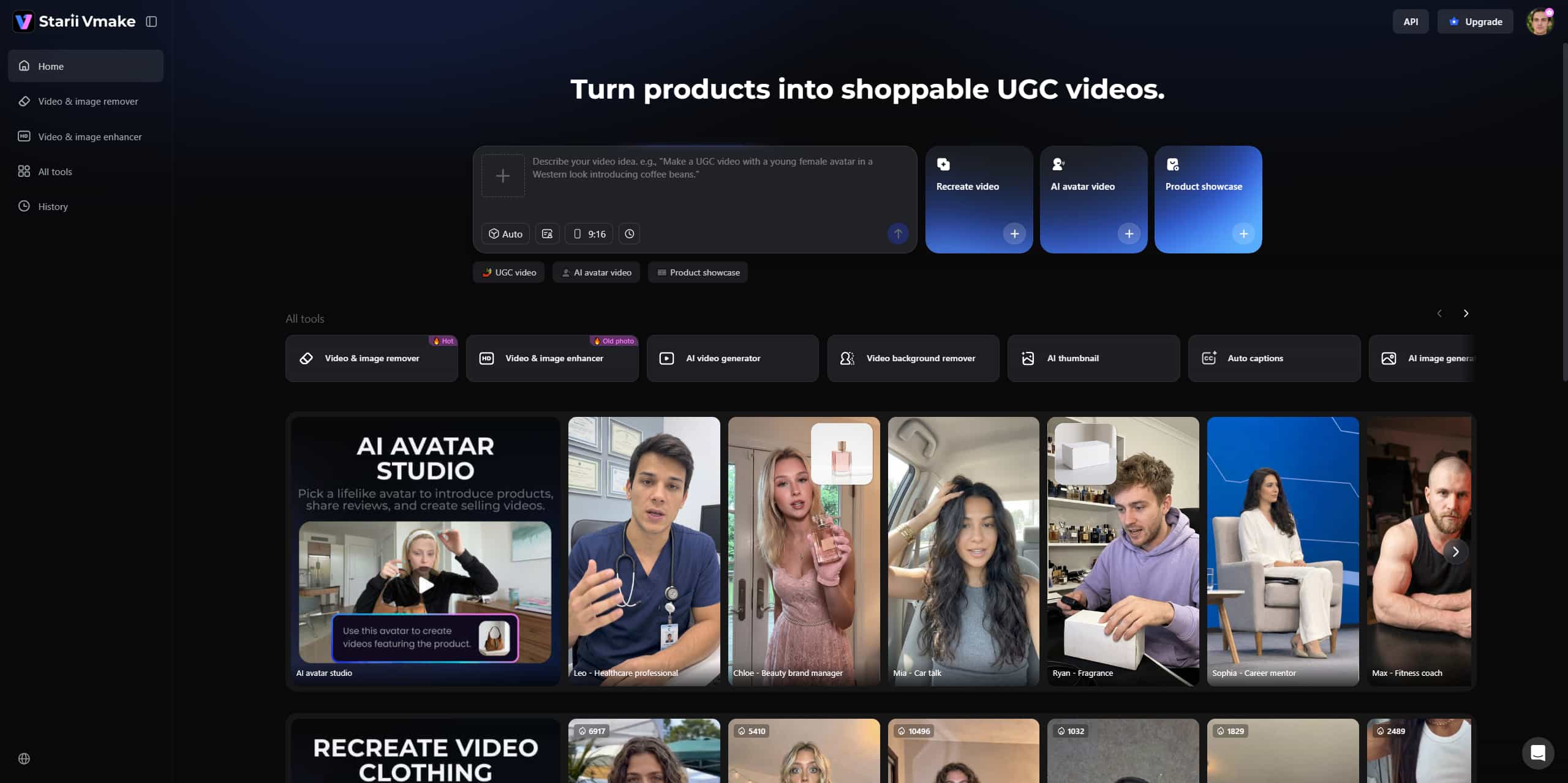
Vmake AI replaces basic mobile filters with heavy-duty neural networks that run straight from your browser. You get access to studio-grade upscaling and generative assets without draining your laptop battery.
Key AI capabilities
-
AI Avatar & UGC Video Generators: Shooting live talent gets expensive fast. Vmake generates hyper-realistic ugc video clips from text prompts. It isn't perfect for complex physical actions, but for standard talking-head hooks, it saves you hours of setup.
-
AI 4K+ Upscaling: Standard tools just stretch 1080p footage. That creates blurry edges. Vmake mathematically redraws the missing pixel data to give you crisp 4K.
-
Detail Reconstruction: Heavily compressed social drafts lose texture. The algorithm rebuilds those lost background details by tracking motion vectors across the frames.
-
Batch Processing: Processing files individually ruins your week. Use a smart batch video upscaling tool to queue up a whole month of content at once.
Quick Tutorial: Elevating Media Quality via Vmake AI
This framework takes your raw ideas and outputs high-fidelity assets ready for the algorithm. Follow these exact steps.
Step 1: Ideation & Asset Collection
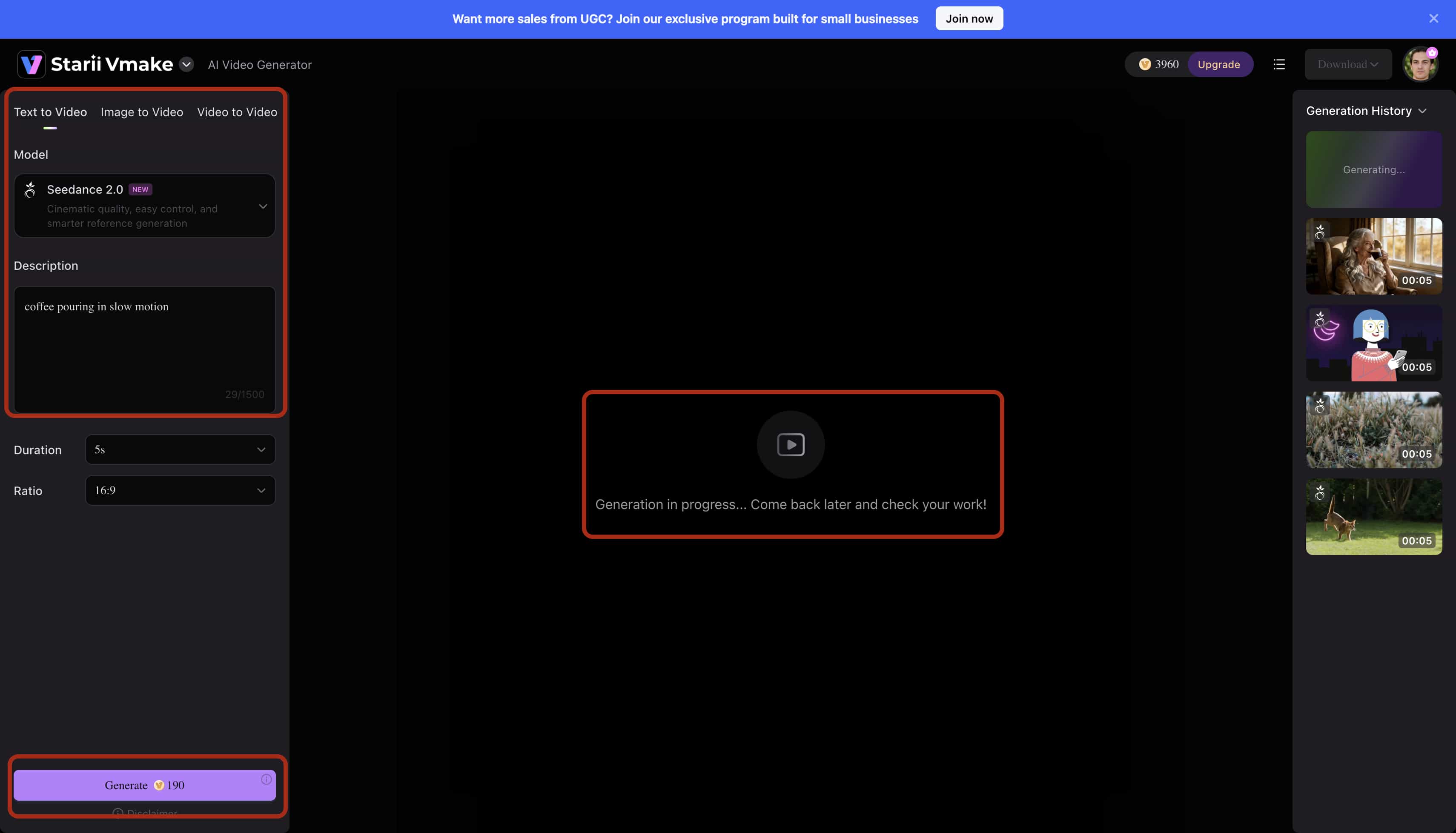
Open your browser and navigate to the Vmake AI dashboard. Don't have footage? Click on the text-to-video prompter. Type in exactly what you need—like "coffee pouring in slow motion"—and hit 'Generate.' Download the resulting clip. If you already have your raw files, just drag and drop them straight into the 'Upload' window. The cloud handles the massive file ingest instantly.
Step 2: Structuring the Timeline
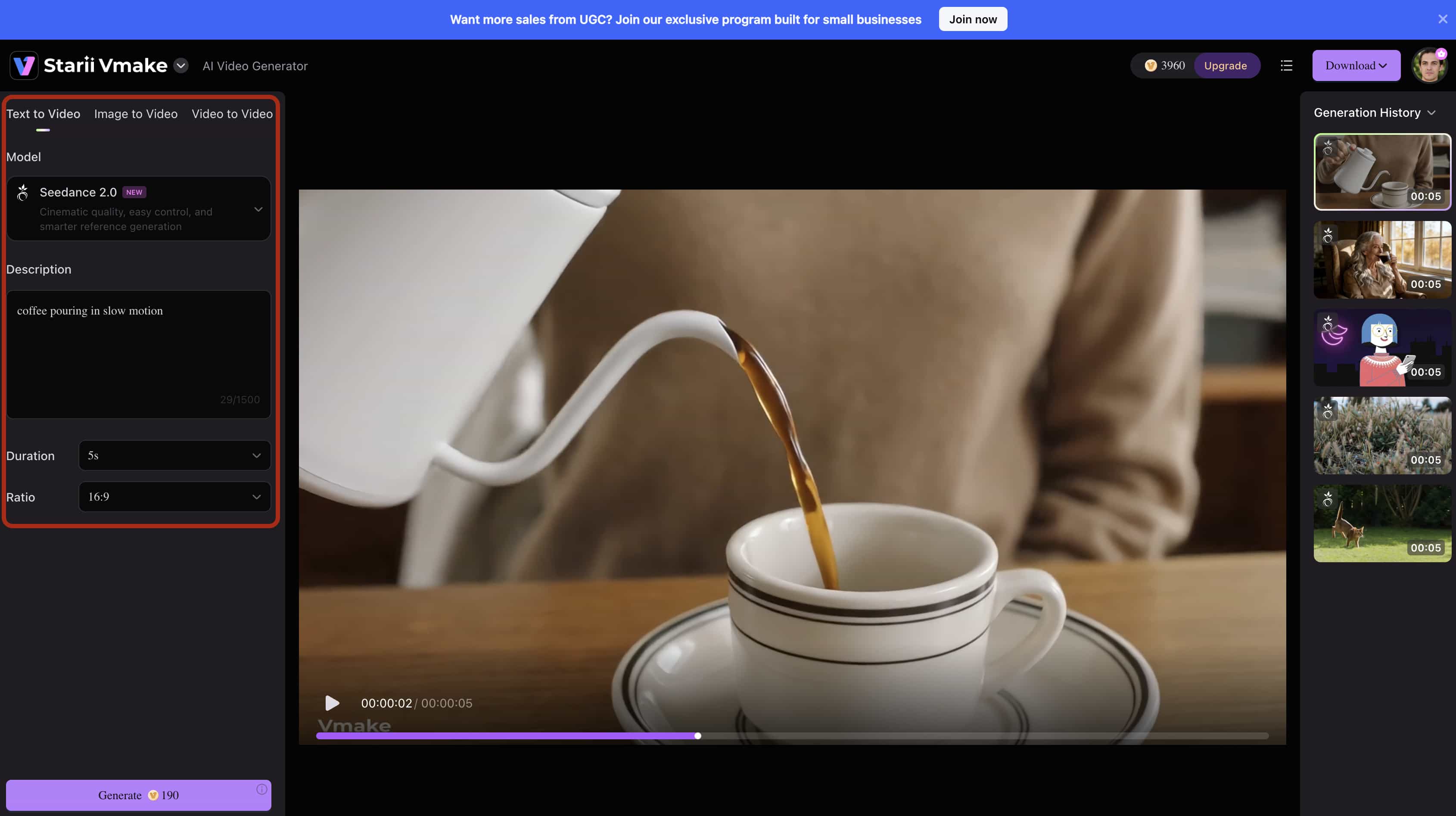
Import these media assets into your primary timeline editor. Adjust the clip handles to aggressively trim out any dead frames, audio gaps, or visual hesitations. Static air directly damages viewer retention. While AI accelerates the initial asset creation, this particular sequencing stage still demands your manual focus. You must actively control the cut rhythm to guarantee the pacing holds modern audience attention.
Step 3: Previewing AI Enhancements
This is where the magic happens. Preview the AI generated video for optimum output by running it from start. The neural network redraws the missing pixel data. Sometimes it struggles to pull detail out of pitch-black shadows. The main subject always gets razor-sharp, though.
Step 4: Exporting & Publishing
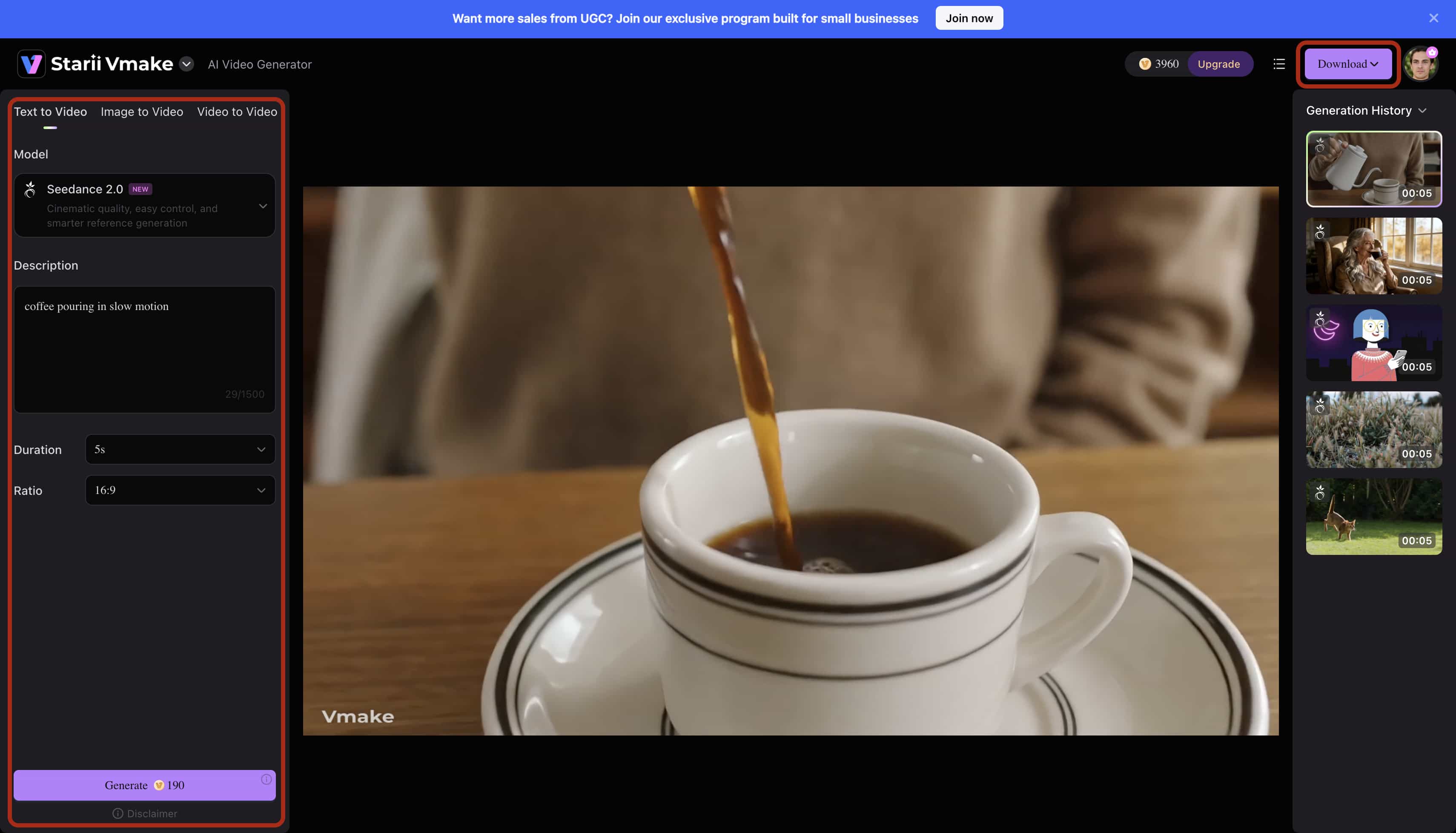
Click the 'Download' button to pull the final, uncompressed MP4 onto your local drive. Airdrop or transfer that file to your phone. Open Instagram, hit the bottom '+' icon, tap 'Reel', and select your video. Skip the native IG filters—they just compress your hard work. Hit publish. High bitrate files signal quality to the algorithm immediately.
Expert Strategies for High-Performing Reels
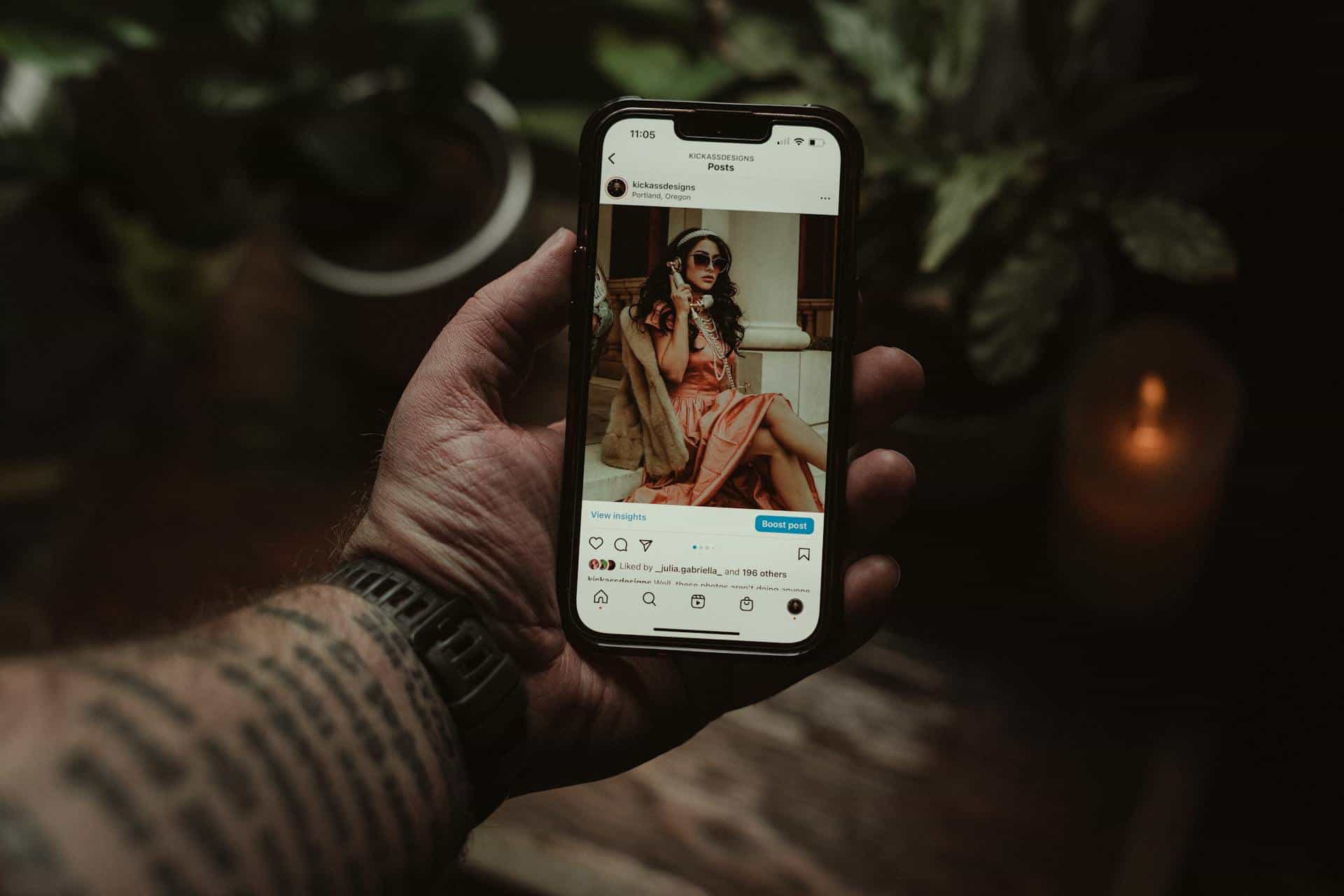
Perfect resolution means nothing if your content is boring. You have to manipulate viewer psychology. These tactics force people to stop scrolling and actually engage with your instagram video edits.
-
Master the 3-Second Hook: You have three seconds. Break their scroll reflex with a harsh cut, weird zoom, or high-contrast text. If it looks like an ad, they swipe.
-
Pro-Level Authenticity: Over-produced corporate videos flop on Reels. Balance that 4K clarity with native text fonts. Keep the camera a bit shaky. People trust raw aesthetics.
-
Engagement Loops: Force viewers to watch twice. Put a ton of text on screen so they have to loop the video to read it all. Ask a weird question early on and put the answer deep in the caption. We'll see how long the algorithm keeps rewarding this specific trick.
Conclusion
Manual editing on a tiny screen actively holds you back. Sticking to native mobile apps guarantees more thermal throttling, random crashes, and soft, heavily compressed uploads. You just can't scale a serious content strategy when every single clip takes two hours to process.
You need to learn how to make instagram edits without burning out. Vmake AI completely automates the heavy lifting. Offload all that massive processing power to the cloud.
Upgrading your infrastructure means your final output finally matches the quality of your raw ideas. Stop watching a freezing progress bar on your phone. Start focusing on your creative strategy and let the algorithms handle the pixels. We'll see how Meta updates their native tools next year, but for now, cloud processing is the only logical path forward.
FAQs
Is the new Instagram Edits app free to use?
Yes, it's totally free. Meta wants you staying in their ecosystem, so they aren't charging for the iOS or Android downloads right now. You get the core features without hitting a paywall. The catch is you're paying with your data, but that's standard for social apps.
Does the Instagram Edits app add a watermark?
Nope. Most free tools slap a massive logo right across your face, which basically ruins your aesthetic. Edits actually lets you export clean 4K files, though your phone might get burning hot during the render if it's an older model.
How does Meta's Edits app compare to CapCut?
They feel identical in a lot of ways. You still get the standard multi-track timeline and layer controls you're used to seeing in CapCut. The obvious perk is direct exporting straight into the IG feed. But don't expect miracles. Neither app gives you high-end generative tools or AI avatars. For heavy upscaling tasks, you still have to step outside the mobile ecosystem and use a dedicated platform like Vmake AI. It's just the reality of mobile hardware right now.
How do I make professional Instagram video edits quickly?
Stop chopping clips by hand. That's the trap most creators fall into. The fastest people use AI to handle the tedious stuff. Vmake AI can generate UGC assets and fix blurry footage before you even open a timeline. You turn hours of frustration into a five-minute task. Still, AI generation isn't flawless. Sometimes you get weird background artifacts you have to fix later, so we'll see if the algorithms figure that out next year.
Does the Instagram algorithm favor content made with specific editing apps?
The algorithm doesn't care what software you use. It just hates low retention and rival watermarks. If you leave a TikTok logo bouncing around your frame, IG buries your post. (If you need to erase reel watermark from instagram, use a dedicated AI tool first). Just export a clean, high-resolution file. Quality keeps eyes on the screen.
Can I re-edit a Reel that I have already posted to Instagram using the Edits app?
You can't. This is the part that drives everyone crazy. Once a video hits your feed, it's locked. You can't tweak the audio or fix a bad cut natively. Your only choice is downloading the published post and starting over, which absolutely ruins the video compression. You'll lose so much detail doing that. Keep your high-res master files in a cloud workspace like Vmake AI instead. Then you won't panic when you spot a typo after posting.