How to Use Seedance 2.5: Text-to-Video, Image-to-Video, and 30-Second Workflows
Learn a practical Seedance 2.5 workflow for text-to-video, image-to-video, and 30-second clips—from prompt structure to references and final checks in Vmake Labs.


Seedance 2.5 works best when the prompt describes a small production plan: subject, action, setting, camera, lighting, pacing, and audio. The official Dreamina page describes multimodal references and 30-second generation, but exact controls depend on the access platform.
How to Use Seedance 2.5: Before You Start
- Choose one goal: product ad, social hook, cinematic shot, explainer, or story beat.
- Prepare a clean reference image or short reference video if consistency matters.
- Decide the aspect ratio before writing the final prompt.
- Keep the first test narrow. Longer duration does not fix an unclear action.
Quick tip: Validate the first 5–10 seconds before building a longer sequence. If the subject, camera direction, and ending frame are stable, reuse the prompt in the 30-second workflow.
Seedance 2.5 Video Generator Workflows
Seedance 2.5 text-to-video workflow
- Open the generator. Go to Vmake Labs Seedance video generator and click "Use now".
- Set the frame. Choose the aspect ratio and available duration.
- Write the subject and action. State who or what is on screen and what changes over time.
- Add camera and lighting. Use terms such as slow push-in, locked-off close-up, handheld follow shot, soft window light, or studio light.
- Define the ending. Tell the model what the final beat should show.
Reusable text-to-video prompt
A close-up product film of a matte black travel mug on a warm wooden desk. The mug rotates slowly while morning sunlight moves across the surface. Start with a locked-off macro shot, then make a gentle 30-degree camera arc. Keep the logo area blank and the mug shape consistent. Calm premium lifestyle mood, natural reflections, realistic materials, clean composition, no readable text. End on a steady hero frame with space on the right for a headline.
Seedance 2.5 image-to-video workflow
Use image-to-video when the starting image already contains the look you want. The image establishes the subject, composition, and visual identity; the prompt focuses on motion and camera behavior.
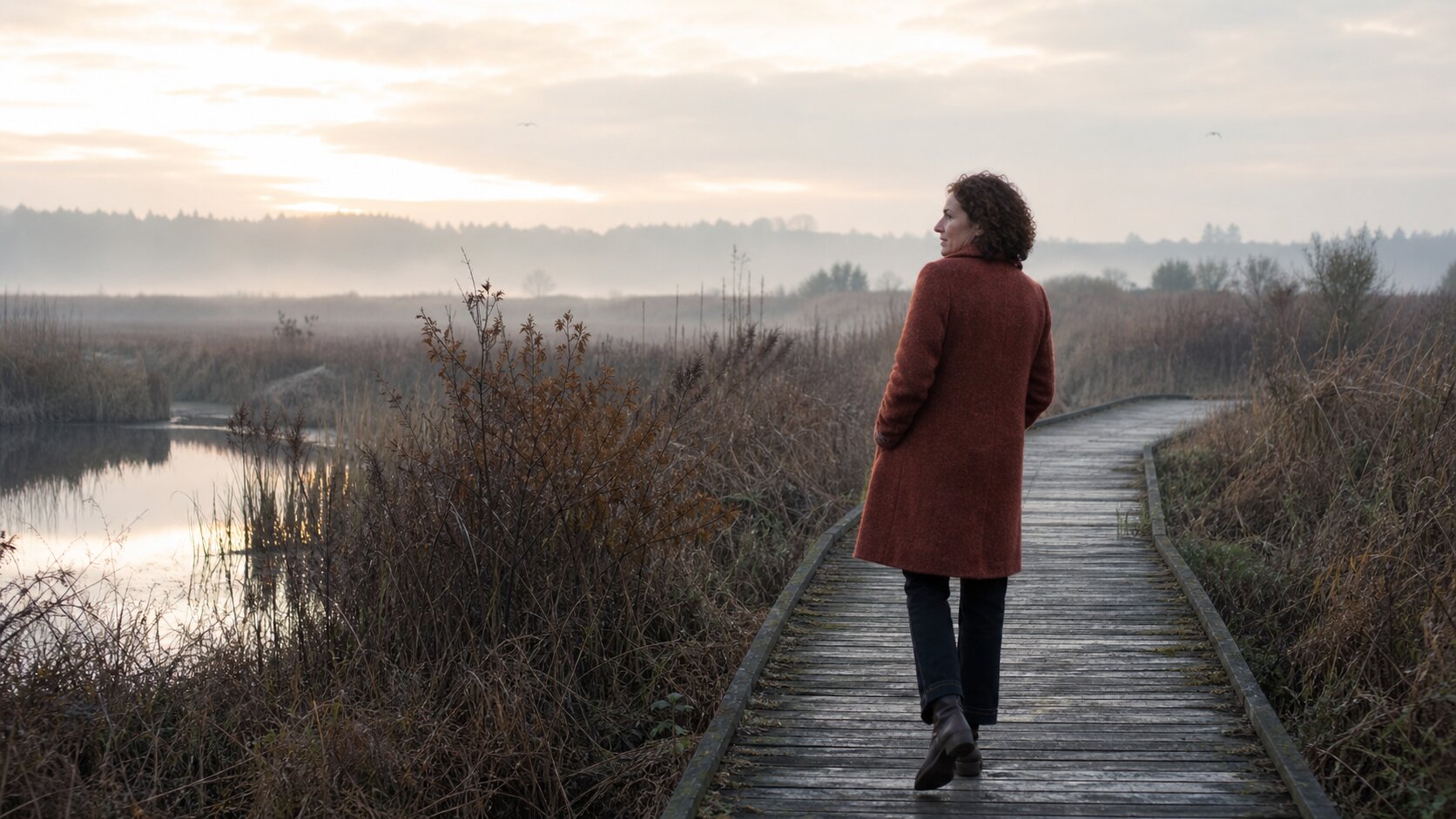
- Upload one strong reference image with Vmake Labs Seedance video generator .
- Describe the motion, including direction and speed.
- State what must remain unchanged: face, product shape, outfit, colors, or framing.
- Avoid introducing several new objects at once.
- Compare the first output against the reference before adding another reference.
Reusable image-to-video prompt
Animate the supplied wetland boardwalk reference image. Preserve the woman’s rust-colored coat, hair silhouette, boardwalk geometry, marsh grasses, calm water, and misty dawn light. Begin with a locked wide shot, then make a slow forward follow as she walks away along the boardwalk. Keep the subject centered-right and the horizon stable. Natural documentary motion, no new people, no extra objects, no changing season or clothing.
Planning a 30-second Seedance 2.5 video
Time | Beat | Prompting job |
|---|---|---|
0–4s | Hook | Show the subject or problem immediately. |
4–12s | Build | Add the main action and one visual change. |
12–22s | Payoff | Show the transformation, benefit, or emotional turn. |
22–30s | End frame | Hold a usable hero frame or clear story ending. |
Think in beats even when generating one continuous clip. If continuity matters more than speed, create shorter shots and assemble them in an editor. Use the official Seedance 2.5 product page as the source of truth for documented capabilities, and do not assume every Vmake Labs or third-party workflow exposes identical controls.
Seedance 2.5 Prompt Tips and Best Practices
Seedance 2.5 prompt checklist
- Subject: what is visible?
- Action: what changes?
- Environment: where does it happen?
- Camera: how does the viewer see it?
- Lighting and mood: what tone is required?
- Continuity: what must not change?
- Ending: what final frame is useful?
Common Seedance 2.5 failure modes
If the output feels busy, remove adjectives before adding more. If a product changes shape, use a stronger reference and reduce the number of actions. If the ending is unusable, describe a final hold explicitly. If exact text matters, add it later in an editor rather than relying on a video model to render copy.
Seedance 2.5 prompt formula
A useful prompt does not need to be long. It needs to give the model a clear sequence and identify the details that must remain stable.
Use this structure:
Subject + action + environment + camera + lighting and mood + continuity constraints + ending
For example:
A young chef places a glass dessert on a dark stone counter in a modern bakery. The camera starts in a medium shot, slowly pushes in, and ends in a close-up of the dessert. Warm window light, realistic reflections, calm premium food-commercial mood. Keep the glass shape, dessert layers, and hand position consistent. No extra utensils or readable text. Hold the final close-up for three seconds.
The first sentence establishes what the viewer sees. The camera sentence controls how the shot changes. The continuity sentence prevents the model from improvising on the most important details. The final sentence gives the clip a usable ending.
Seedance 2.5 Workflow Examples
Social hook
For a short social video, put the visual surprise early:
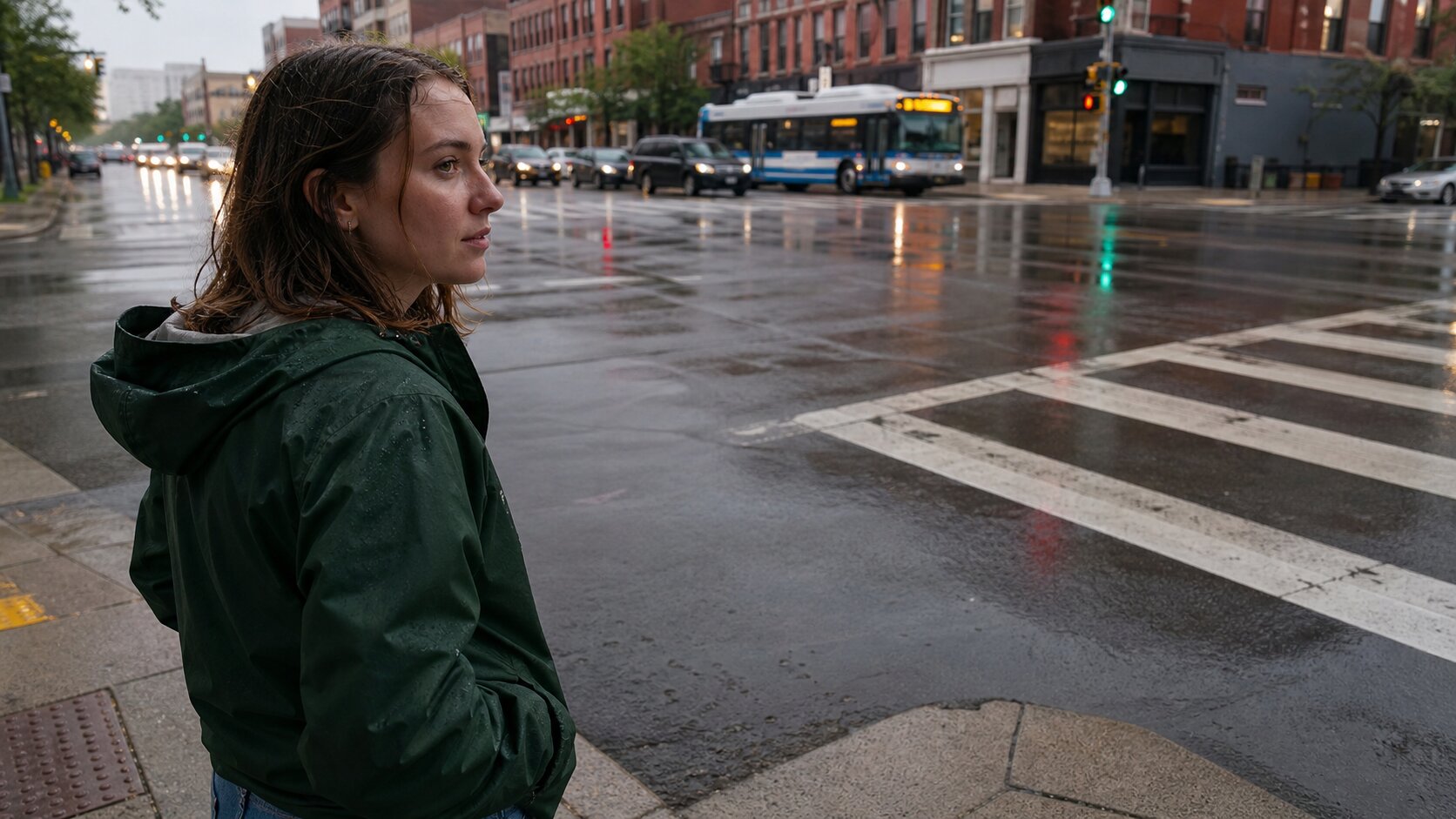
A woman in a dark green rain jacket waits at a downtown crosswalk during a steady rain. Start with a medium over-the-shoulder profile as wet streets reflect buses, traffic lights, and brick buildings. She looks across the intersection as the signal changes, then takes one step forward. Natural overcast evening light, realistic wet fabric and reflections, handheld documentary feel. Keep her face, jacket, and city layout consistent. End on a clean frame with space above for overlay text.
Product advertisement
For an ecommerce or brand asset, protect the product identity:
A white skincare bottle sits on a pale stone pedestal surrounded by soft green leaves. A narrow beam of sunlight moves across the bottle while the camera makes a slow clockwise half-orbit. Preserve the bottle silhouette, cap, label placement, and material finish. Minimal luxury beauty lighting, clean background, no extra bottles, no new words, no distorted label. End with the bottle centered and fully visible.
Story scene
For a story beat, describe the character’s intention instead of listing unrelated actions:
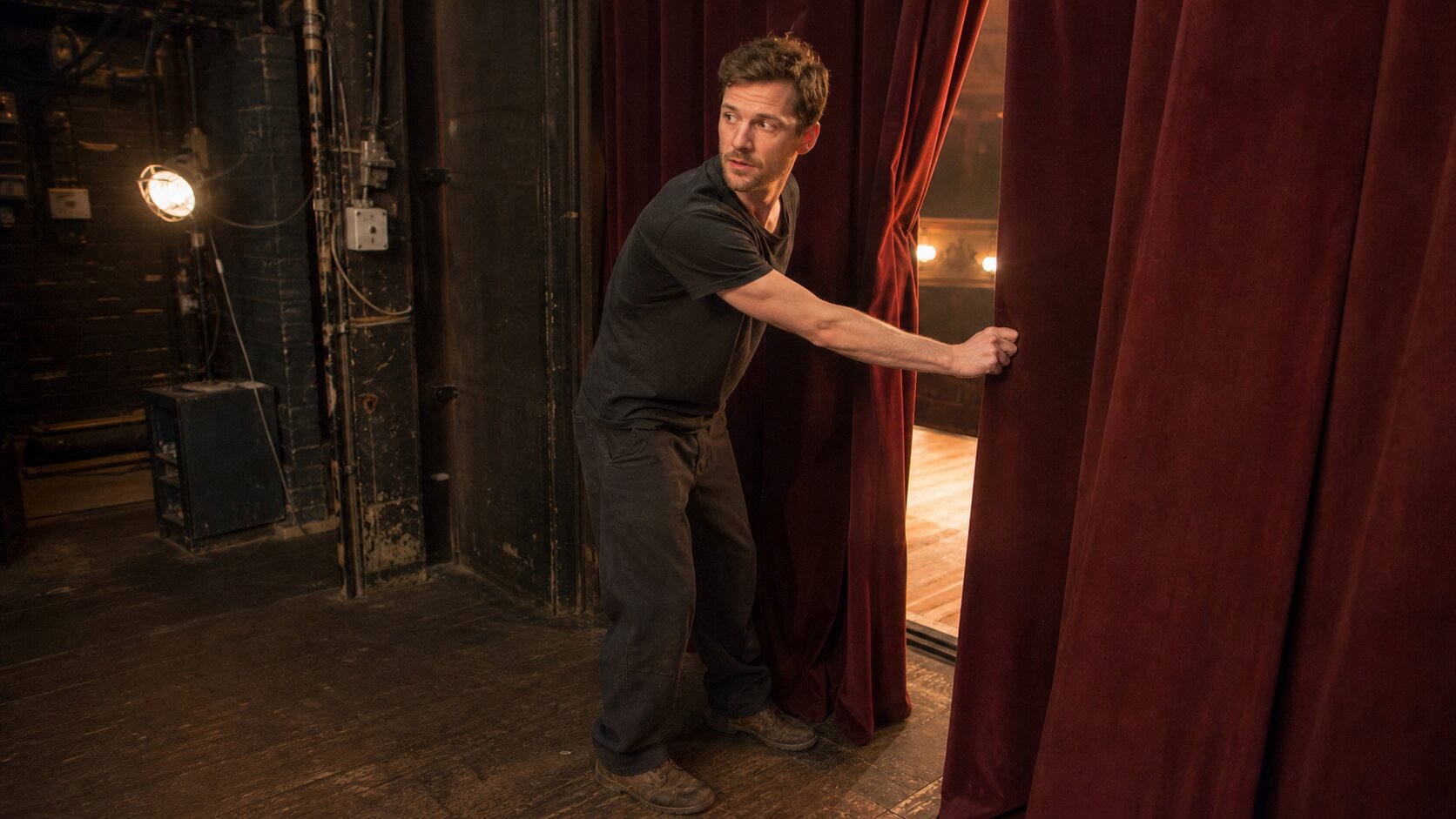
A performer in a black T-shirt stands backstage beside a heavy red curtain. He slowly pulls the curtain open, revealing a warmly lit wooden stage beyond. Start with a medium profile shot in the dark backstage area, then move with his arm toward the opening. Warm stage spill light, realistic fabric and set textures, restrained acting. Keep his face, clothing, curtain, and stage layout consistent. End on the reveal.
Seedance 2.5 Video Generator Troubleshooting
How to iterate Seedance 2.5 prompts without losing control
Use a three-pass loop:
- Baseline pass: use one subject, one action, and one camera move. Save the output and record the settings.
- Correction pass: change only the most visible failure. If the camera is wrong, fix the camera language; do not also change the lighting, subject, and ending.
- Production pass: add a reference image, secondary action, or brand-safe composition only after the baseline is stable.
This makes it easier to understand what improved the result. It also gives you a useful record for a tutorial: prompt version, reference files, model, duration, aspect ratio, generation count, and the reason for each revision.
Troubleshooting guide
Failure | Likely cause | Better revision |
|---|---|---|
The video contains too many actions | The prompt describes a full script instead of one shot | Keep one dominant action and one camera move |
The subject changes shape | The subject is described too generally or has no reference | Add a clear reference and state what must remain unchanged |
The camera cuts unexpectedly | The prompt mixes several shot types | Use one camera movement and specify “continuous shot” |
The ending feels unfinished | No final state was defined | Add “finish on a steady hero frame” or a clear story beat |
Text is misspelled | Text generation is being used for exact copy | Add text later in an editor |
The clip feels visually flat | Lighting and contrast are unspecified | Add a simple lighting direction and mood |
The output is too busy | Too many props, adjectives, or style references | Remove secondary details and test again |
When to use references
Use a reference when the viewer must recognize the same product, person, costume, room, or color palette across the clip. Do not add references just to make a prompt look advanced. One strong image can be easier to control than several inconsistent images. If you use multiple references, label the role of each one in the prompt: subject reference, environment reference, style reference, or motion reference.
The official Dreamina page describes text, scripts, photos, videos, music, and style references. The available input types and limits in Vmake Labs should still be checked in the actual generator before promising a specific workflow to readers.
FAQ
1. What is the best way to write a Seedance 2.5 prompt?
State the subject, main action, setting, camera, lighting, pacing, ending, and details that must remain consistent.
2. Should I use text-to-video or image-to-video?
Use text-to-video for new scenes or concepts. Use image-to-video when the subject, composition, or visual identity needs to stay consistent.
3. Can Seedance 2.5 generate a full 30-second video in one prompt?
The official product page describes 30-second generation. Plan the clip as beats and confirm the duration options in Vmake Labs.
4. How can I fix unstable results?
Change one variable at a time, reduce the number of actions, and add one strong reference image when consistency is the main problem.

You May Be Interested

Seedance 2.0: What's New & How to Use It
123APPS Watermark Remover Review (2026): Pros, Cons, and Pricing
5 Best Valentine's Day Video Ideas for eCommerce in 2026
How to Create a YouTube Thumbnail? Create YouTube Thumbnails Using AI