Media.io Review: Features, Pricing & Free Alternative
 Ken DawsonMay 13, 2026
You've probably been there: found the perfect clip, only to realize it's stamped with a logo you don't want. Cropping it out doesn't work. Blurring it looks worse. And suddenly, a simple edit turns into a frustrating fix.
That's why tools like Media.io get so much attention. They promise a quick way to clean up your footage without installing anything or learning complicated software. Sounds ideal? Well, before you rely on it, it's worth looking a little closer at the detailed Media.io review: what it actually does, where it holds up, and where it starts to fall short.
What is Media.io video watermark remover
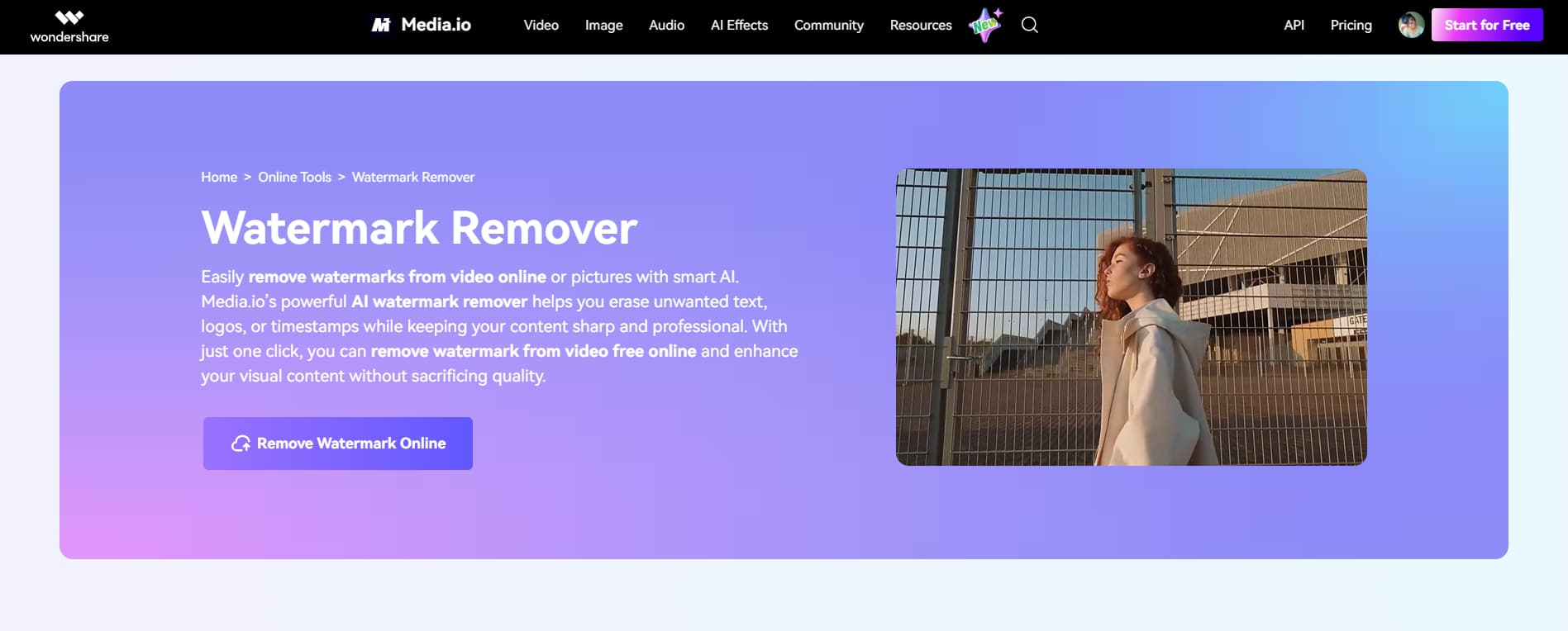
Media.io is basically an online tool that features a dedicated watermark remover feature to erase watermarks using AI. You upload a video, mark the annoying bit, and it attempts to rebuild what's underneath. Simple idea. And honestly, it works better than the old "blur it and hope nobody notices" trick.
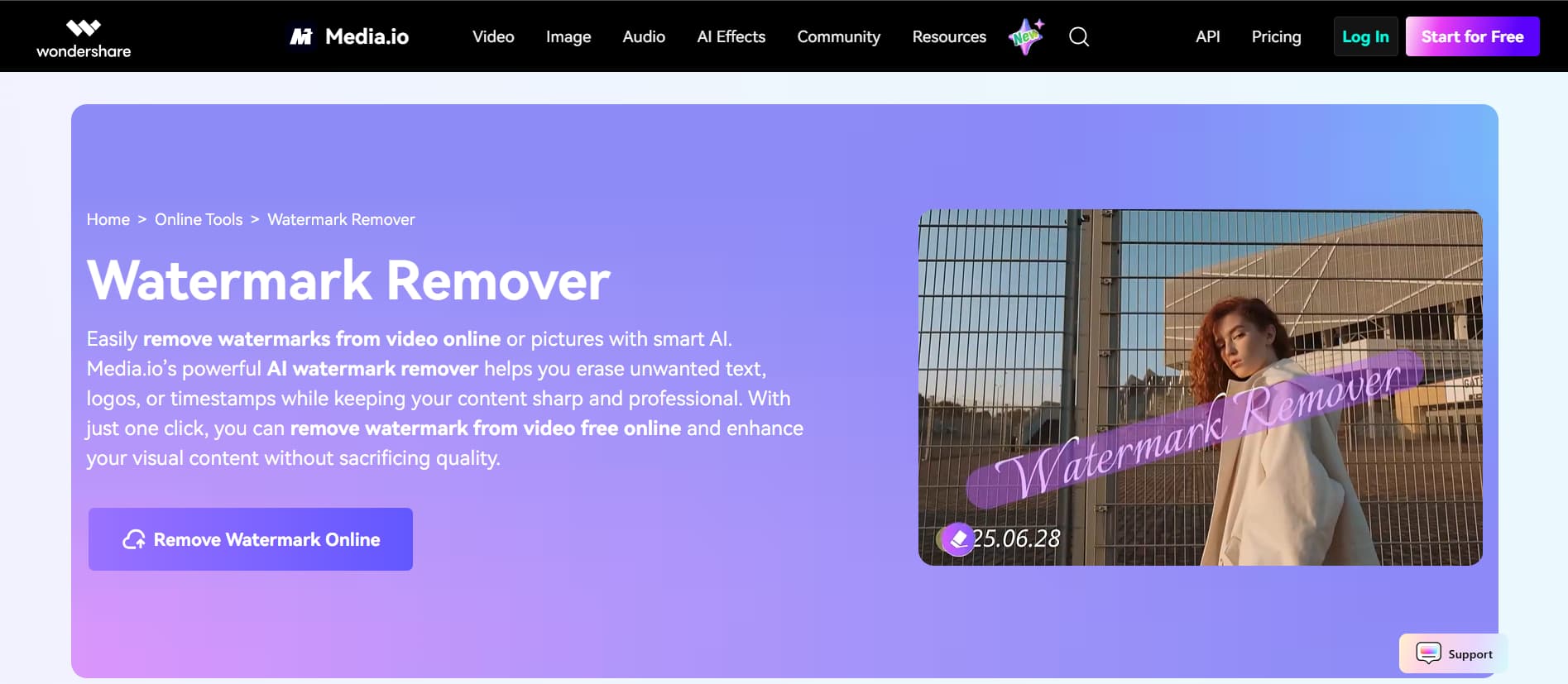
You don't install anything. That's a plus. Everything runs in your browser, which is convenient if your laptop already struggles with heavy editing software. It handles common formats like MP4, MOV, AVI. Nothing surprising there. Where it really gets used? Social media clips. Stuff pulled from TikTok, YouTube, or Instagram. Those platforms love their watermarks. Overall, it is one of the popular options to remove watermarks.
How Media.io watermark remover works
Step 1: Upload video
You can drag and drop the file straight onto the page, or just use the "Click to Upload" option and pick it manually from your device. It supports common formats like MP4, MOV, M4V, and 3GP, so chances are your file will work without any fuss. That said, bigger files can take a while to upload. If your internet isn't great, this step alone might test your patience.
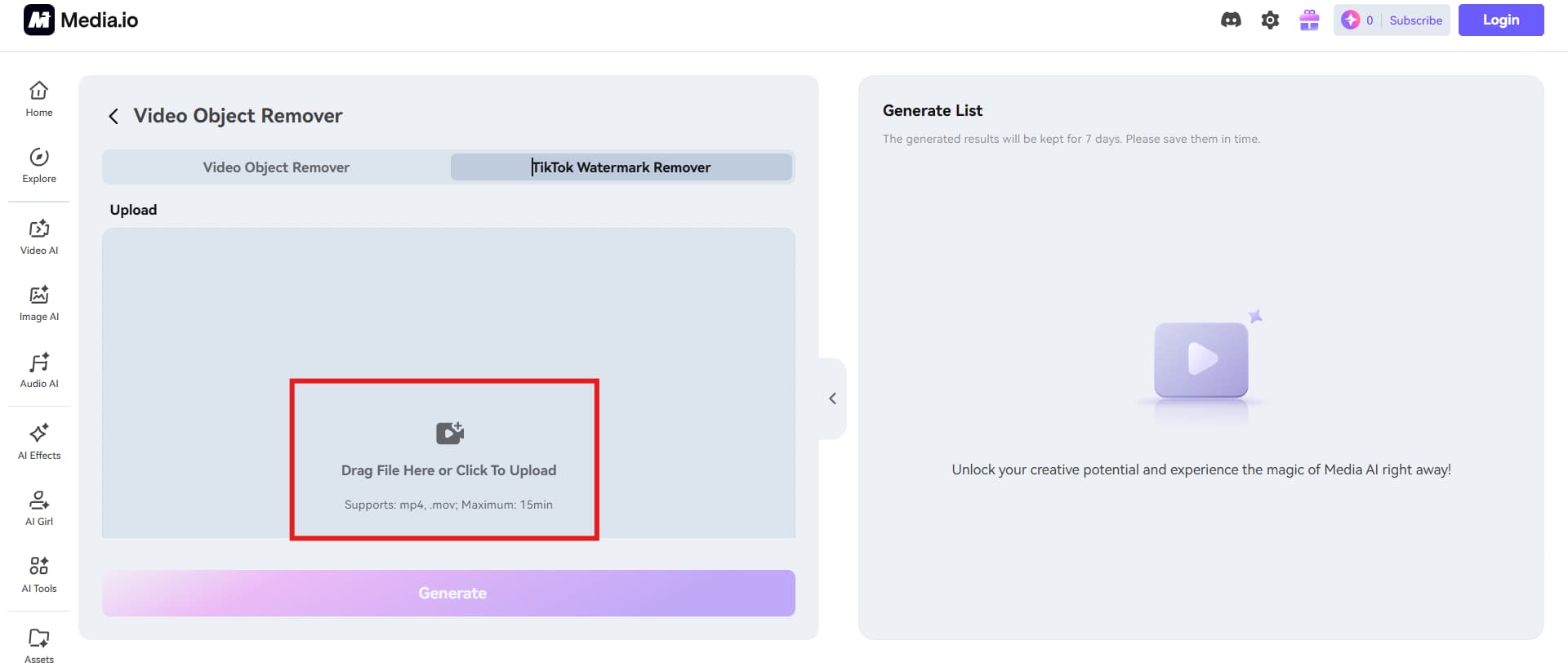
Step 2: Remove your watermark
Once the video loads, you'll see a brush tool. Use it to highlight the watermark, logo, or anything you want gone. You can adjust the brush size and even select multiple areas if there's more than one watermark. Click "Generate," and the tool processes everything. Most of the time, it does a decent job. But if the watermark sits on a busy or detailed background, you might notice some odd patches after removal.
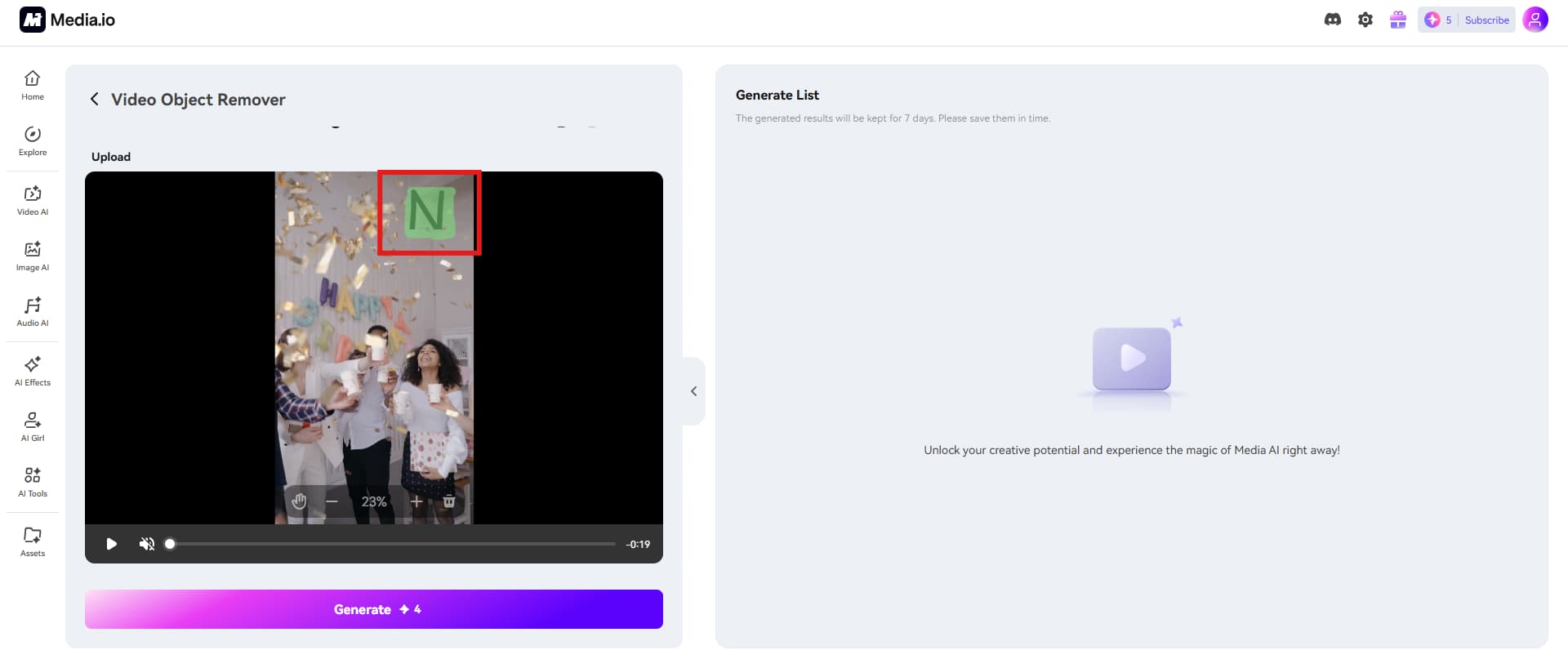
Step 3: Export clean video
After processing, you can download the cleaned video by clicking "Download." The default export format is MP4, which works for most use cases.
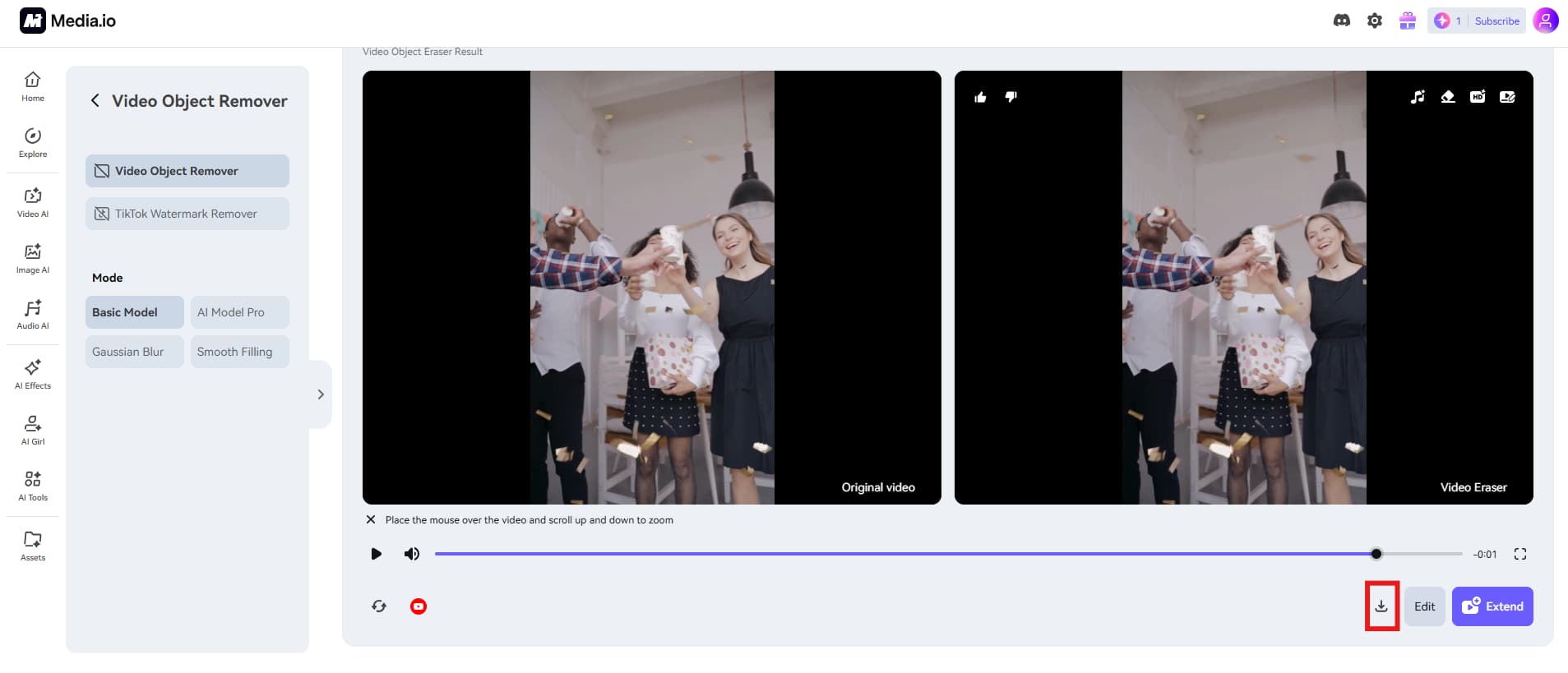
Key features of Media.io watermark remover
1. AI watermark removal
At the core of Media.io is AI inpainting. Instead of covering up the watermark, it rebuilds what should be there. That difference matters. You keep the full frame, and the final video looks clean and natural. Nothing feels cut off or blurred. It's a subtle difference, but it changes how the final video looks.
2. Remove multiple & moving watermarks
Media.io removes logo from videos, whether static or moving. You can select multiple regions and remove them in a single process. Moving elements are tracked across frames, so the result stays consistent throughout the video. That saves time. A lot of it.
3. High-quality output (HD Export)
You want your video to look good after editing. That's the whole point. Media.io gives you HD export options, so the final file keeps its clarity instead of turning into a compressed mess. Details stay intact, colors don't wash out, and the video feels usable right away—no second guessing before you upload it somewhere.
4. Wide format support
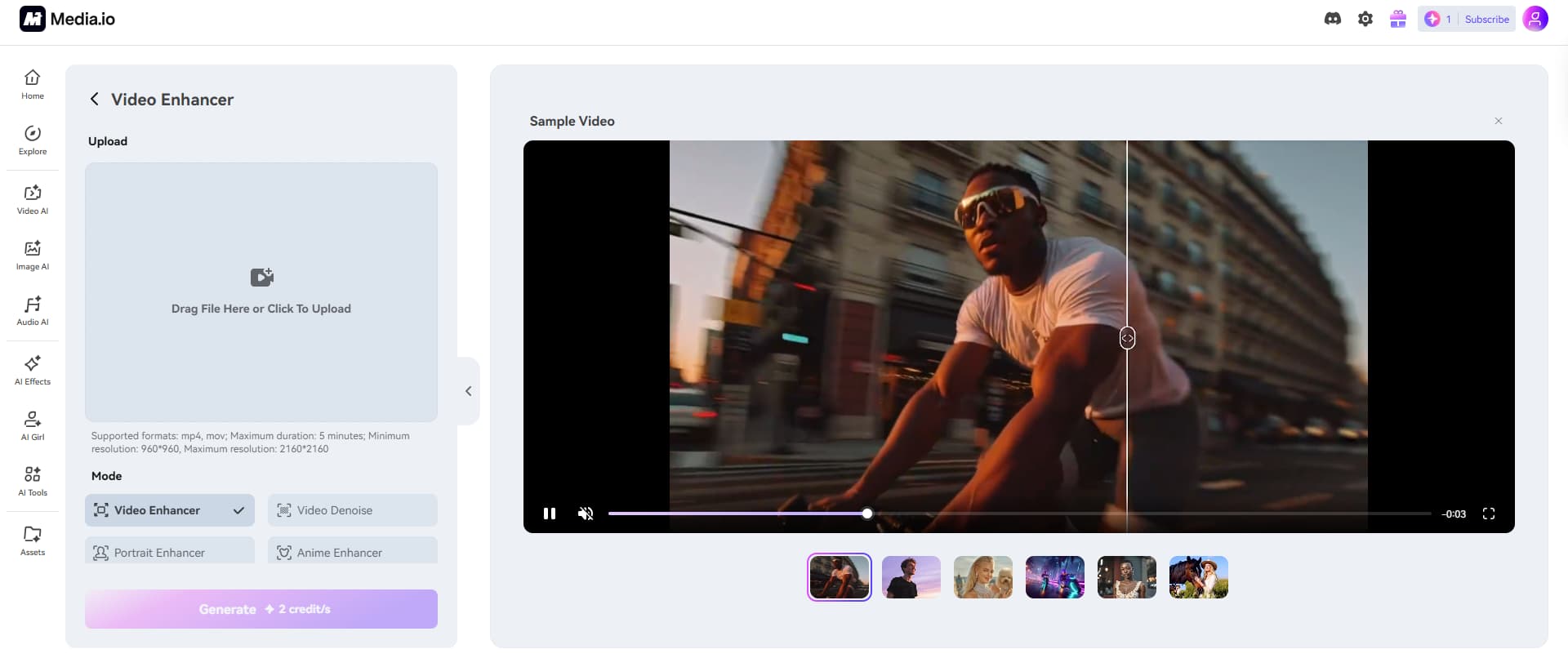
You won't have to think much about file types here. Media.io works with MP4, MOV, MKV, AVI, FLV—basically the formats you're already using. You upload the file and move on. No conversions, no extra steps, no switching between tools just to get started. That kind of flexibility saves time, even if you don't notice it at first. It just removes friction.
5. Cross-platform & online access
Everything runs in your browser. No installs. No setup. You can open it on your phone, switch to a laptop, and pick things up again without much thought. That flexibility is convenient, especially when you're not working from one fixed setup.
Media.io pricing: How much does it cost
|
Free |
Standard |
Premium |
|---|---|---|
|
$0 |
$6.99 ( $9.99 for monthly plans) |
$12.99 ($17.99 for monthly plans) |
|
|
|
Free plan
It's free. That's the main selling point. You get basic access, about 1GB of storage, and exports capped at 720p. Your videos will still have a watermark, which, let's be honest, kind of defeats the purpose if you're planning to share them publicly. You can try a few AI tools too, but it feels more like a sample platter than something you'd actually depend on.
Paid Plans (Standard & Premium)
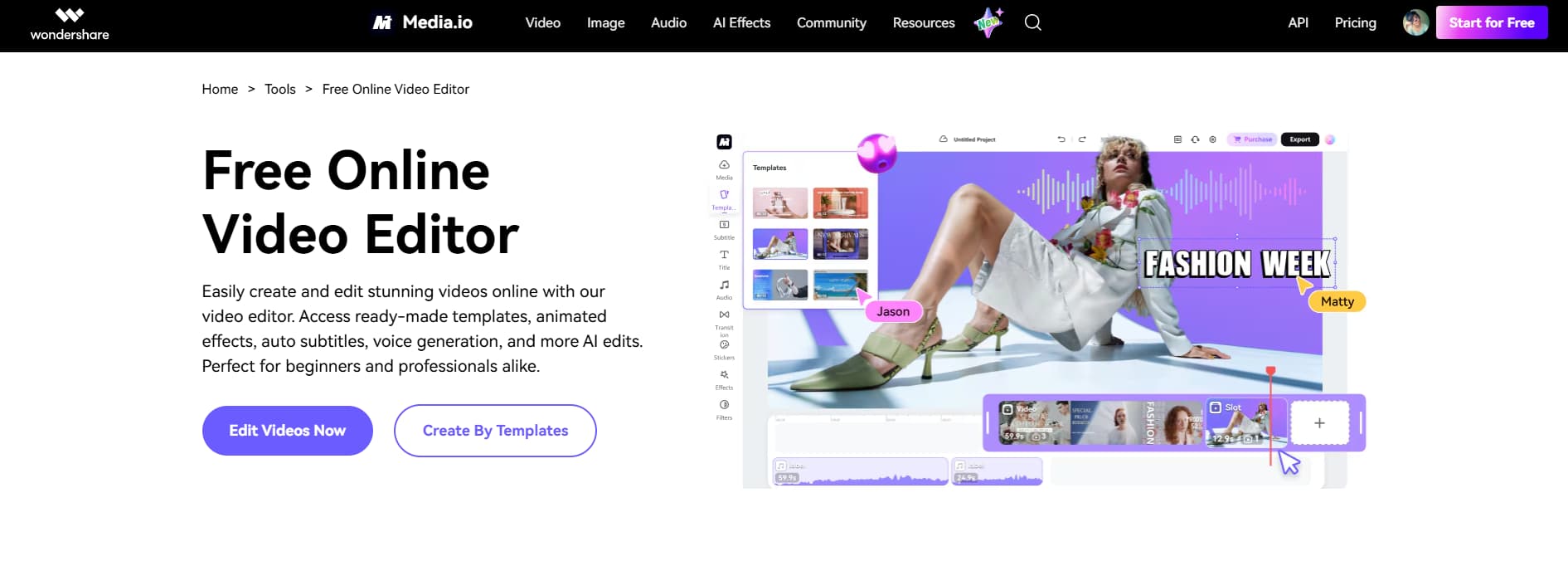
Media.io offers two paid plans, namely Standard and Premium. The standard plan is ideal for video editing starters, while the premium option is ideal for advanced editing.
-
Standard Plan
This is the tier most people end up considering. It's around $6.99 per month if you pay yearly, or closer to $9.99 if you go month-to-month. You get 20GB of storage, no watermark on exports, and full HD output, which immediately makes your videos look more usable. There are extras too, like subtitles (up to 60 minutes a month), templates, effects, and compression tools.
-
Premium Plan
It's about $12.99 per month on an annual plan, or roughly $17.99 if you pay monthly. You get 50GB of storage, more subtitle time (up to 120 minutes), and access to a broader set of AI tools, such as voice cloning, audio cleanup, and image enhancement, making it the whole bundle. But here's the catch. If you're just here to remove watermarks, this plan can feel like you're paying for features you won't touch.
Media.io pros and cons: A quick recap
|
Pros |
Cons |
|---|---|
|
Easy to use |
Free version has limitations |
|
Clean AI watermark removal |
Results vary by video |
|
No installation required |
Credit-based pricing |
|
Supports multiple formats |
Requires internet |
As per the Media.io review, the tool mainly stands out for its simplicity and speed. You open it, fix the issue, download, and move on. No long setup. No learning curve staring back at you. That's exactly why people stick with it. Then the pricing kicks in. At first, it feels reasonable. A few dollars a month doesn't sound like much. But once you start using it regularly for multiple videos, longer clips, and higher quality exports, you'll notice the cost stacking up faster than expected. Wondering if there's something simpler? That's where Vmake enters the picture. It offers a similar idea, but with a different approach to access and usage.
Vmake: A perfect alternative to Media.io watermark remover
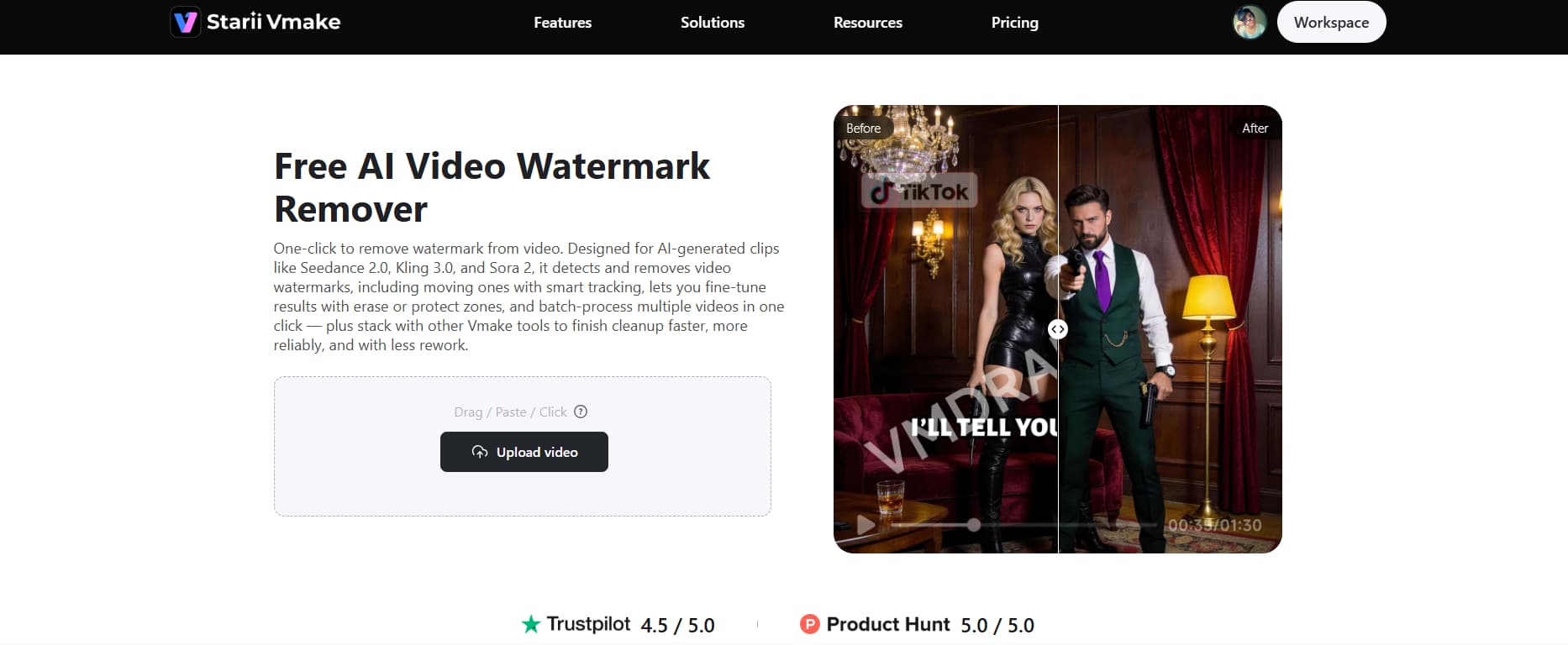
Vmake video watermark remover leans heavily on AI to detect and remove watermarks automatically. You upload your video, and the tool starts figuring things out on its own, which honestly saves time. It runs entirely online, so you don't install anything or worry about system performance. The tool also supports batch processing, which is useful if you're handling multiple clips instead of one-off videos.
Step-by-step guide to using Vmake watermark remover
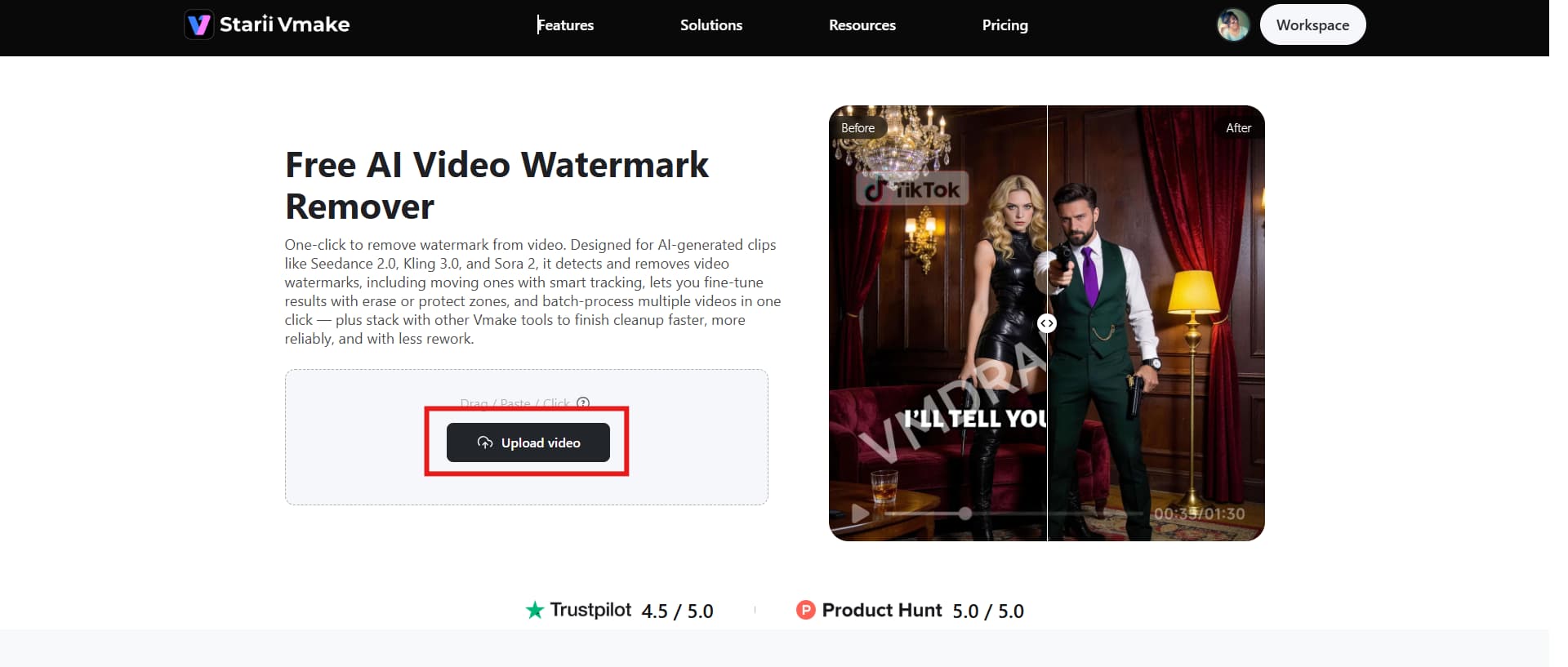
Step 1: Upload your video
You start by uploading your video directly into Vmake. Drag it in or click "Upload video" and pick your file—either way works. There's no setup phase, which is honestly a relief.
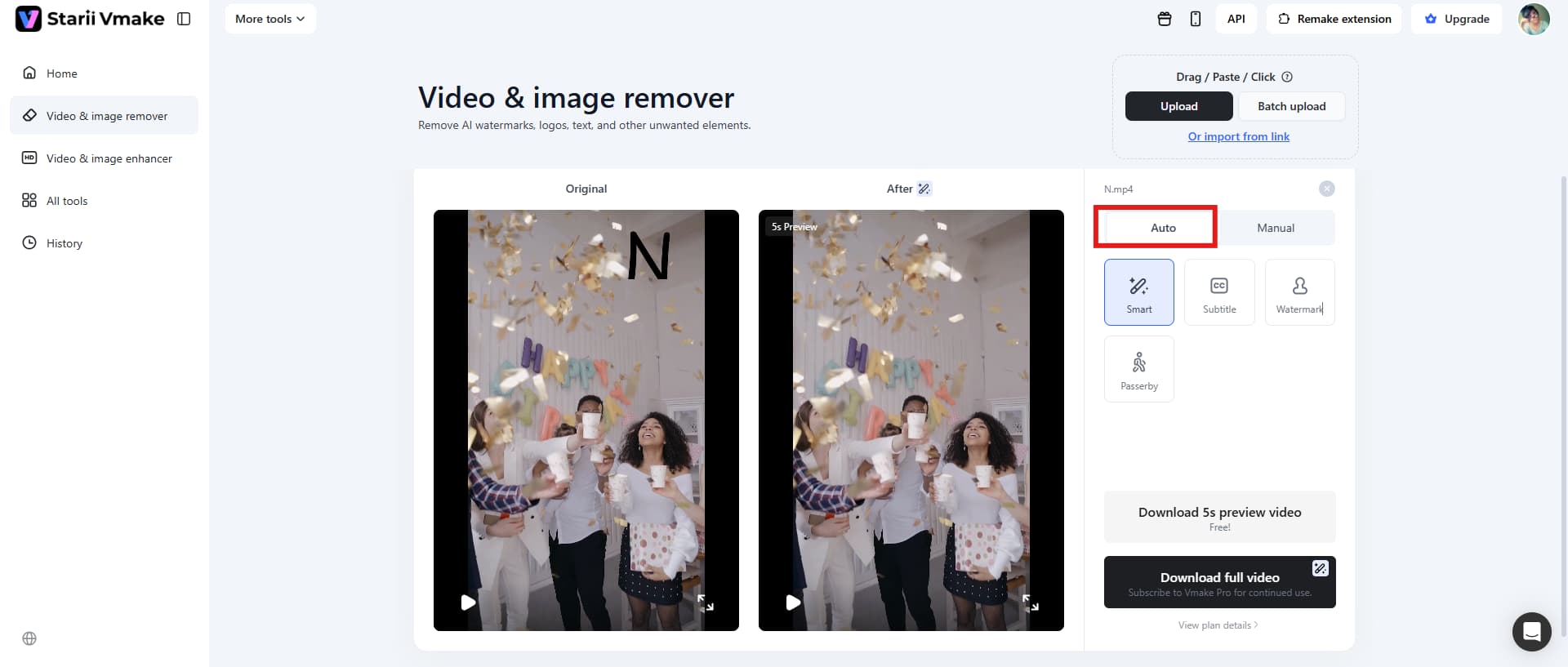
Step 2: Remove the watermark
Once your video is in, the AI steps in and takes over most of the work. You don't usually have to trace the watermark manually. The system detects it, removes it, and shows you a preview as it processes.
Step 3: Download the final video
After processing, you get a preview of the cleaned video. Watch it. Don't skip this part. If everything looks right, hit the Download button on the side and save your file. The video is ready to use immediately.

Key features
-
Automatic AI watermark removal
You don't spend time marking areas unless you want to. The tool cleans video with AI, which cuts down the effort significantly.
-
Batch processing support
You can upload up to 30 videos at once. That's huge if you're working on removing logos from multiple videos instead of just one.
-
Handles moving & complex watermarks
The tool tracks watermarks across frames, even when they move or shift position. That's important, because static removal is easy—motion is where things usually break.
Conclusion
That's all about the Media.io review. The tool keeps watermark removal simple, fast, and accessible, making it a reliable choice for quick edits. It focuses on doing one job well, which is exactly what many users need. At the same time, Vmake offers a comparable experience with its own approach to flexibility and accessibility. Both tools serve the same purpose, and the better choice depends on how you prefer to work and what kind of editing flow fits your routine.
FAQs
Is Media.io free or paid?
Both. That's the short answer. You can start with a free plan, and yeah, it works, but only up to a point. You'll run into watermarks on exports, a 720p cap, and a few usage limits. To get clean exports and HD quality, you'll need to pay. That's where subscriptions or credits come in.
Is Media.io secure to use?
Mostly, yes. It runs in your browser, so you're not downloading anything sketchy or installing random software. That already cuts out a lot of common risks. The whole process stays online, which feels convenient, until you remember what that actually means.
Can Media.io remove watermarks without blur?
Yes. Instead of blurring the watermark or cropping it out, it rebuilds the background using AI. So the final video doesn't look like it's been edited half-heartedly. It feels cleaner, more natural, like the watermark was never there to begin with.
Does Media.io reduce video quality?
Usually, no. If you're exporting in HD or higher, the video keeps its clarity pretty well. Colors stay intact, details don't fall apart, and the edit doesn't scream "processed." The free plan tells a different story, though. You're limited to 720p, which can feel like a step down, especially if your original footage was sharp.
What is the best free alternative to Media.io?
Vmake is one of the better options out there. It leans more on automation, so you don't always have to manually select the watermark. You upload the video, and the tool starts figuring things out on its own. It also handles batch processing, which is useful if you've got multiple clips waiting.

You May Be Interested
Top 7 Watermark Remover Apps That Actually Work in 2026

Batch Watermark Removal with Vmake AI
How to Remove Seedance 2.0 Watermark from Videos

Best Veed Alternatives for Captioning Videos Automatically (2025)
AniEraser Watermark Remover by Media.io: 2026 Hands-On Review