How to Enhance Image Resolution Without Losing Quality (2026 Guide)
 Vmake Labs TeamMay 26, 2026
A blurry or low-resolution image can ruin a product listing, social media post, profile picture, presentation, printed design, etc. The good news is that modern AI image resolution enhancer tools make it easier to increase resolution without making photos look blurry or pixelated.
In this guide, you’ll learn how image resolution enhancement works, the best ways to enhance image resolution, and how to get sharper results online.
Why Increasing Image Resolution Is Difficult
Increasing image resolution may sound simple, but it is more complicated than resizing a picture. A digital image is built from pixels, and increasing resolution requires creating new pixels where none existed.
Resizing vs Enhancing Resolution
Resizing means changing the dimensions of an image. For example, you may increase a 600 x 400 pixel image to 1200 x 800 pixels. Basic resizing only stretches the existing pixels. It makes the image bigger, but it does not necessarily make it sharper.
Enhancing resolution is different. An AI image resolution enhancer tries to improve the actual visual quality. It will analyze the existing image, identify patterns, reduce blur, denoise, sharpen edges, and create a cleaner, higher-resolution version.
In simple words, resizing changes size. Resolution enhancement improves clarity.
Why Enlarged Images Become Pixelated
Pixelation occurs when an image with a low pixel density is enlarged. When a small number of pixels is spread across a larger area, the blocks become visible. This is common when you enlarge old photos, web images, screenshots, or low-quality product photos.
Pixelation is also caused by compression. For example, JPEG images often lose fine details when saved repeatedly. The result includes blurry edges, rough color patches, and visible artifacts.
What Actually Improves Image Resolution
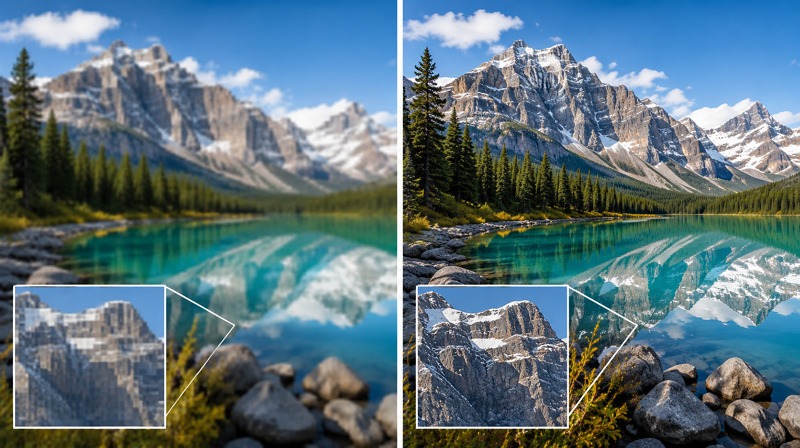
Improving image quality requires more than just enlarging the canvas. Modern AI tools can easily turn a soft, low-quality image into a much sharper HD version. Here is how:
AI Reconstruction Technology
AI reconstruction is one of the main reasons image enhancement has improved so much. Instead of simply duplicating pixels, it uses deep learning technology and neural networks to analyze images, fill in missing details, denoise, or upscale fragmented data.
Thus, an AI image enhancer can turn a low-resolution, noisy image, such as a portrait, medical scan, or product photo, into an accurate, high-quality masterpiece.
Detail Recovery and Texture Generation
Detail recovery is what makes an enhanced image look more natural. A basic sharpness filter creates harsh edges, halos, or an over-edited look. AI enhancement is used to reconstruct, upscale, and synthesize missing or low-resolution surfaces.
Whether you’re enhancing a portrait or an AI-generated image, modern tools help achieve product-ready results. The goal is not to make an image sharper, but keep it believable.
Upscaling vs Resolution Enhancement
Upscaling means increasing the pixels and dimensions of an image to fit a larger display. However, resolution enhancement includes upscaling, as well as cleaning and sharpening existing visuals to make them clearer.
Many people use these terms interchangeably, but there is a difference. If you enhance the resolution of an image, the tool improves sharpness, texture, and clarity while increasing the image’s size.
Best Ways to Enhance Image Resolution in 2026
There are several ways to enhance the resolution of an image. The best method depends on your goal and other requirements. Here are the most practical options to consider:
Method 1: Use AI Image Enhancers (Fastest Method)
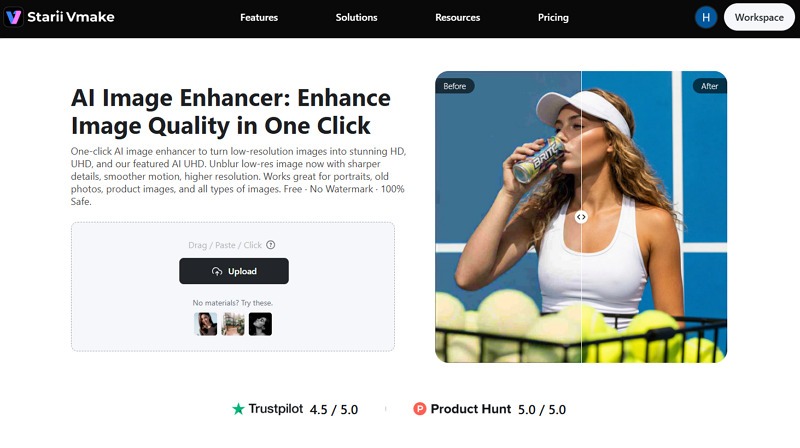
The fastest way to enhance resolution of image files is to use an online AI image enhancer. Among various options, Vmake AI Image Enhancer is the top choice.
Besides increasing resolution to HD and UHD, it addresses common image problems such as blur, noise, compression artifacts, and weak details. With support for major image formats, it automatically detects the image type and applies an optimal AI model to deliver clean results. You can also enhance multiple images at once, saving time and effort.
Best for: Creators, marketers, e-commerce sellers, and one-click enhancement.
Method 2: Enhance Resolution with Professional Editing Software
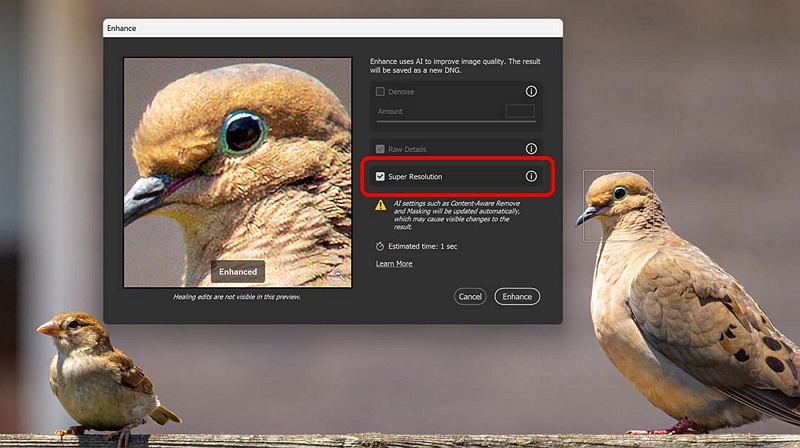
For those who need greater creative control over image enhancement, professional editing software like Adobe Photoshop is an excellent solution. It lets you manually fine-tune your images with sharpening, masks, and layers.
Besides, it offers neural filters to generate context-aware pixels. You can also use Generative Upscale for 2x upscaling and face recovery, Super Resolution for Camera RAW AI enhancement, and Preserve Details 2.0 for standard upscaling and pixelation removal.
Best for: Designers, photographers, and high-control editing
Method 3: Mobile Apps for Quick Resolution Enhancement
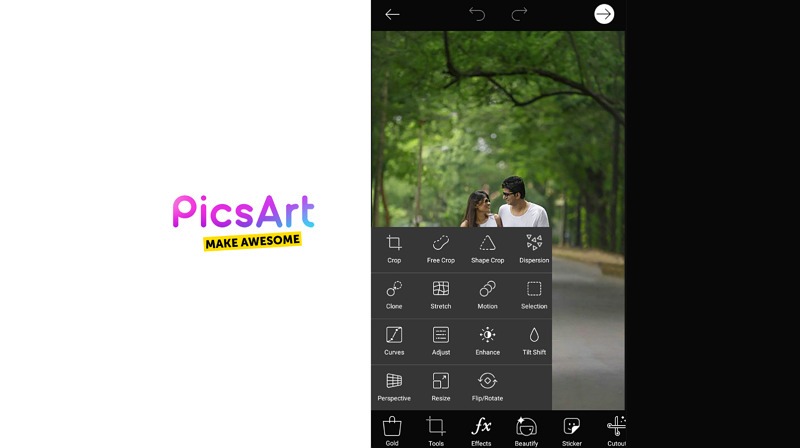
Mobile applications are useful for those who want to enhance image resolution on the go. Picsart is a popular app for Android and iOS users that combines AI-powered enhancements with user-friendly controls to fine-tune contrast, sharpness, etc.
Although free use is for basic editing and adjustments, upscaling is available up to 4x without losing quality. You can use AI Enhance to sharpen edges, restore details, and reduce blur with a single click.
Best for: Social media photos and quick edits on phones
Step-by-Step: Enhance Image Resolution Online with Vmake AI Image Enhancer
If you prefer using a web-based tool, Vmake AI Image Enhancer is the right choice. Let’s comply with the given steps on how to enhance resolution of image online:
Enhance image resolution for free now!
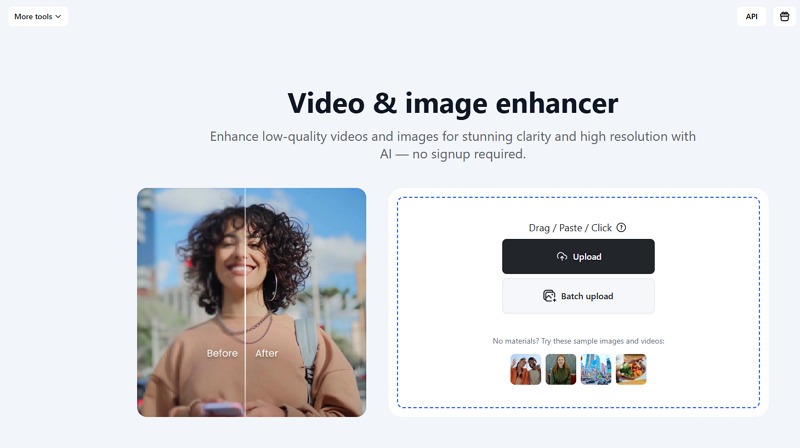
Step 1. Upload Image
First of all, open this enhancement tool in your browser and click “Upload” to import the required image.
Step 2. Select Resolution
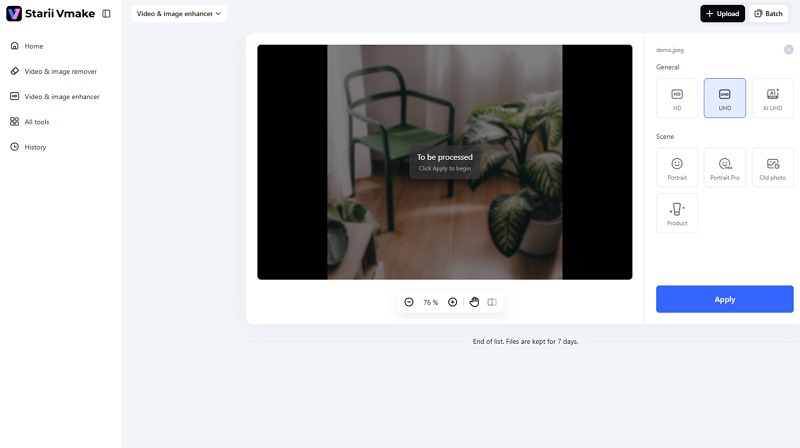
The AI will automatically enhance the image based on your image type, e.g., portrait, product, or old photo. Pick the resolution as “HD,” “UHD,” or “AI UHD,” and tap “Apply.”
Step 3. Download Output
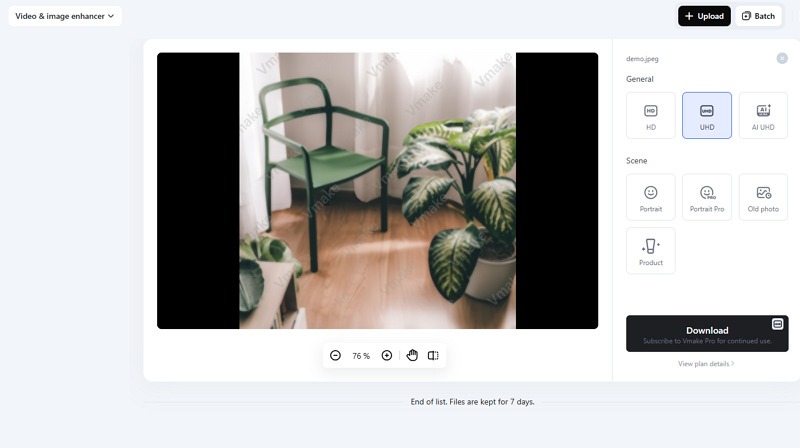
Once the AI finishes processing, preview the output. If it’s okay, hit the “Download” tab, and you are all done!
Enhance Image Resolution Online Free: What to Expect
Although free image resolution enhancer tools can be very helpful, it’s important to understand what users can and cannot do with them. Plus, when you should consider paying for professional tools. Let’s explore:
Advantages of Free Online Tools
The biggest advantage is accessibility. You do not need to install software, learn complex editing skills, or use a powerful computer. With quick processing, you can also save time and get polished images without any manual work. Free tools are also helpful for testing. You can check if it is worth paying.
Limitations of Free Tools
Free tools often have limits. Some may restrict file size, usage, resolution, daily download count, batch processing, or advanced enhancement modes. Others may add watermarks, compress downloads, or restrict access to premium-quality exports.
When to Consider Paid Tools
Paid tools are worth considering when you need the best image results or advanced features for professional purposes. Paid plans offer higher export quality without watermarks, faster processing, larger file support, batch enhancement, and more advanced AI models. If you enhance images regularly for commercial workflows, a paid tool can save time and improve consistency.
Common Mistakes When Enhancing Image Resolution
Image enhancement works best when used carefully. Here are a few common mistakes to avoid:
Over-Upscaling Beyond Useful Limits
Over-upscaling a very small image results in an artificial look. Details become strange, faces look overly smooth, and edges appear unnatural. A clean 2x enhancement is often more useful than an unrealistic 8x enlargement.
Starting With Extremely Low-Quality Images
To get the best results with an image resolution enhancer, use an original or better quality image. The better the input, the better the output. AI enhancement is powerful, but it can’t restore a severely damaged photo.
Ignoring Output Format and Compression
Output format matters. You need to export the enhanced image in a format that aligns with your goal. If you enhance an image and then save it in a highly compressed format, you may lose some of the quality you just restored.
FAQ
Can you really enhance image resolution?
Yes, you can enhance image resolution with AI tools like Vmake AI Image Enhancer. It can improve the overall quality and increase the resolution. However, results depend on the quality of the original file.
How do I enhance image resolution online for free?
You can use a free image resolution enhancer like Vmake. Upload your image, select the resolution, let the AI process it, and download the enhanced version.
What is the difference between resizing and increasing resolution?
Resizing changes an image’s dimensions, making it larger or smaller. However, increasing resolution improves clarity by increasing the number of pixels.
Will enhancing image resolution reduce quality?
Enhancing image resolution does not reduce quality if you use the right tool and export settings. However, poor enhancement settings, over-upscaling, or heavy compression can make an image look unnatural.
Final Thoughts
Learning how to enhance resolution of image is useful for almost anyone who works with digital visuals. And the right method can make a low-quality image look much sharper and more professional.
For most users, the easiest way to enhance image resolution is an AI-based online tool. Let’s try Vmake AI Image Enhancer and enjoy fast enhancement without any editing skills.

You May Be Interested
Seedance 2.0 vs Sora 2: Which AI Video Generator Wins in 2026?
How to Create a YouTube Thumbnail? Create YouTube Thumbnails Using AI
1440p vs 1080p: The Ultimate Display Resolution Comparison
1440p vs 4k Comparison: Which Resolution is Better?
720p vs 1080p: Which HD resolution is actually better?
Best AI Image Enhancer in 2026: Top Tools to Upscale and Fix Blurry Images
Best AI Image Upscaler Tools in 2026: Upscale Images to 4K, 8K & Beyond