720p vs 1080p: A Detailed Comparison of High-Definition Resolutions
 Ken DawsonMay 23, 2026
A very important decision for any viewer is whether to go for 720p or 1080p. These high definition standards influence how we watch movies and play games. 720p is a good start, but 1080p is the "full HD" that most people seek. Which one to choose? It depends on your internet speed and screen size. This post will explain the main differences between 720p vs 1080p, to help you decide. We consider pixel density, data consumption, and visual quality. You'll also discover how Vmake may help you enhance and upscale your videos to HD. This AI application enhances low-quality footage, bringing all the details into focus. Master this tool, and you'll be assured of the best possible visual experience.
What are the video resolutions 720p and 1080p?
High definition video is a big jump from prior formats. It provides viewers with significantly higher clarity, color, and detail. Today, the most popular varieties are 720p and 1080p. These formats paved the way for today's digital streaming and games. They give a widescreen view that fits most new smartphones. Knowing how they work will allow you to choose the appropriate quality.
Understanding 720p resolution
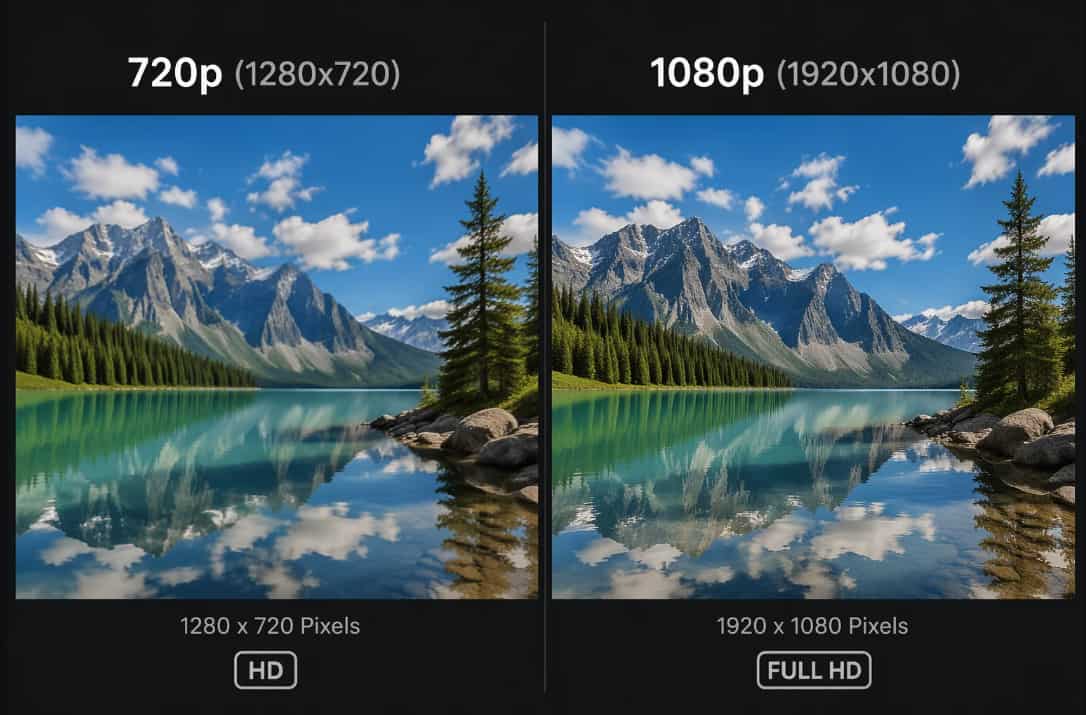
720p is the "sweet spot" for high-definition video, offering the best quality and speed. This is sometimes referred to as 'HD Ready' and has a 1280 x 720 pixel grid for a crisp, razor-sharp picture, a huge leap up from old-school standard definition. That's a win for mobile streaming and video chats, as it looks good on smaller displays and doesn't gobble up your data or strain your internet connection. It's basically the HD you know, but the one you can rely on for daily use. It's light enough to play in any smooth place and powerful enough to see the detail.
Pros:
-
Reduced data consumption: This resolution uses far less bandwidth than higher quality formats. It's a great choice for streaming when you have a slow or limited internet connection.
-
Lower processing requirements: Your device doesn't have to work as hard to play these files. This way, your laptop or phone stays cool, and the battery lasts much longer.
-
Smaller storage footprint: This format uses relatively little space on your hard drive for video files. You may save many more hours of content without running out of space for your files.
-
High compatibility with older hardware: Most older monitors and tablets work with this standard without any problem. It ensures your videos play properly on nearly any device you own.
Cons:
-
Potential for blurry images: A lower pixel count may cause some scenes to look soft or fuzzy. This is really obvious if you watch the video on a big TV.
-
Limited professional detail: High-end movies often lose subtle textures and sharp edges. It just doesn't have the sharp look that most modern productions need to deliver a top-tier experience.
Understanding 1080p resolution
For a quality viewing experience, it's necessary to understand 1080p resolution. This format is sometimes referred to as "full HD" and employs 1920 pixels across and 1080 pixels down. That gives you over two million pixels on your screen, which is more than double the detail of 720p. The pixels are so tiny and numerous that visuals look crisp & realistic. It has become the gold standard for monitors, gaming, and streaming services like Netflix. You will notice a much sharper text and graphics on every frame. This resolution offers a great compromise between impressive, high-quality video and manageable file sizes.
Pros:
-
Superior clarity and sharpness: This format offers nearly 2 million pixels, resulting in an extremely sharp image. You will see fine details and precise edges that simply are not possible with lower resolutions.
-
Modern industry standard: The vast majority of movies, TV, and games are made for this resolution. It makes sure you see the content just as the creators intended.
-
High visual integrity on large displays: The image remains clear even on a huge TV screen. This keeps the video from seeming blocky and fuzzy like lower-quality video.
-
Professional and immersive aesthetic: The great level of detail makes the experience feel much more authentic. It creates a slick look that pulls you into the action of any film.
Cons:
-
High bandwidth demand: Full HD streaming requires a fast, reliable internet connection. If you lag in speed, you might experience buffering or abrupt pauses in your movie.
-
Significant storage usage: These files are far larger and will fill up your hard drive very soon. You would need more capacity to save your favorite movies than you would in smaller formats.
The deep dive: 720p vs 1080p comparison
1080p vs 720p is about striking the right mix between top-tier clarity and slick, efficient performance. Here are the main aspects of difference to bear in mind to help you decide which one best fits your project:
|
Feature |
720p (HD Ready) |
1080p (Full HD) |
|---|---|---|
|
Pixel grid |
1280 x 720 |
1920 x 1080 |
|
Total pixels |
921,600 pixels |
2,073,600 pixels |
|
Image sharpness |
Standard clarity |
Double the detail |
|
Data usage |
~1.2 GB per hour |
~2.5 GB per hour |
|
Ideal screen size |
Up to 32 inches |
32 to 50 inches |
|
Best used for |
Mobile streaming |
Gaming & Movies |
The technical difference:
-
Pixel count: The 720p format is a grid of 1280 by 720 pixels, or around one million pixels. For instance, 1080p practically doubles that to almost two million pixels, giving you a significantly higher density that translates to a much sharper, more detailed image.
-
Aspect ratio: Both standards utilize the contemporary movie 16:9 widescreen format. The design is the same, but 1080p holds up far better on bigger displays. 720p can start to get a little soft, whereas 1080p keeps edges crisp and clear.
-
Refresh rate: Both will provide smooth motion at 60 frames per second, but the workload differs. While 720p is a piece of cake for basic laptops, 1080p is the pro's choice for smooth visuals, but it takes a little more from your graphics technology.
-
Data usage: 720p is the king of bad signals and limited data plans, and it's light on bandwidth. Whereas, 1080p eats a lot more data. But, it gives you a sturdy, high-end look.
Visual comparison:
-
Image sharpness: 1080p is quite sharp, thus tiny text and fine lines are easily readable. 720p tends to look "soft" or a little out of focus by comparison.
-
Colour & contrast: 1080p has more pixels, so colors blend more naturally and shadows are darker. At 720p you could observe "banding" or blocky structures in really dark or bright areas.
Ideal use cases:
-
720p resolution: Good for reading emails or watching clips on a small phone screen. It's also a clever way to get sharp video calls when your wifi isn't strong.
-
1080p resolution: Ideal for an immersive movie night or competitive gaming on a desktop display. This is the industry standard for any job that requires you to see fine textures clearly.
Viewing distance factors:
-
720p: Move back till the lower detail of the screen is hidden. If you come too close, the image will begin to look distorted and grainy.
-
1080p: With this resolution, you can sit closer to the screen for a "front row" sense. Even from a couple of feet distant, you will see fine details and clear lines.
New Black Tech: Enhancing lower quality with Vmake
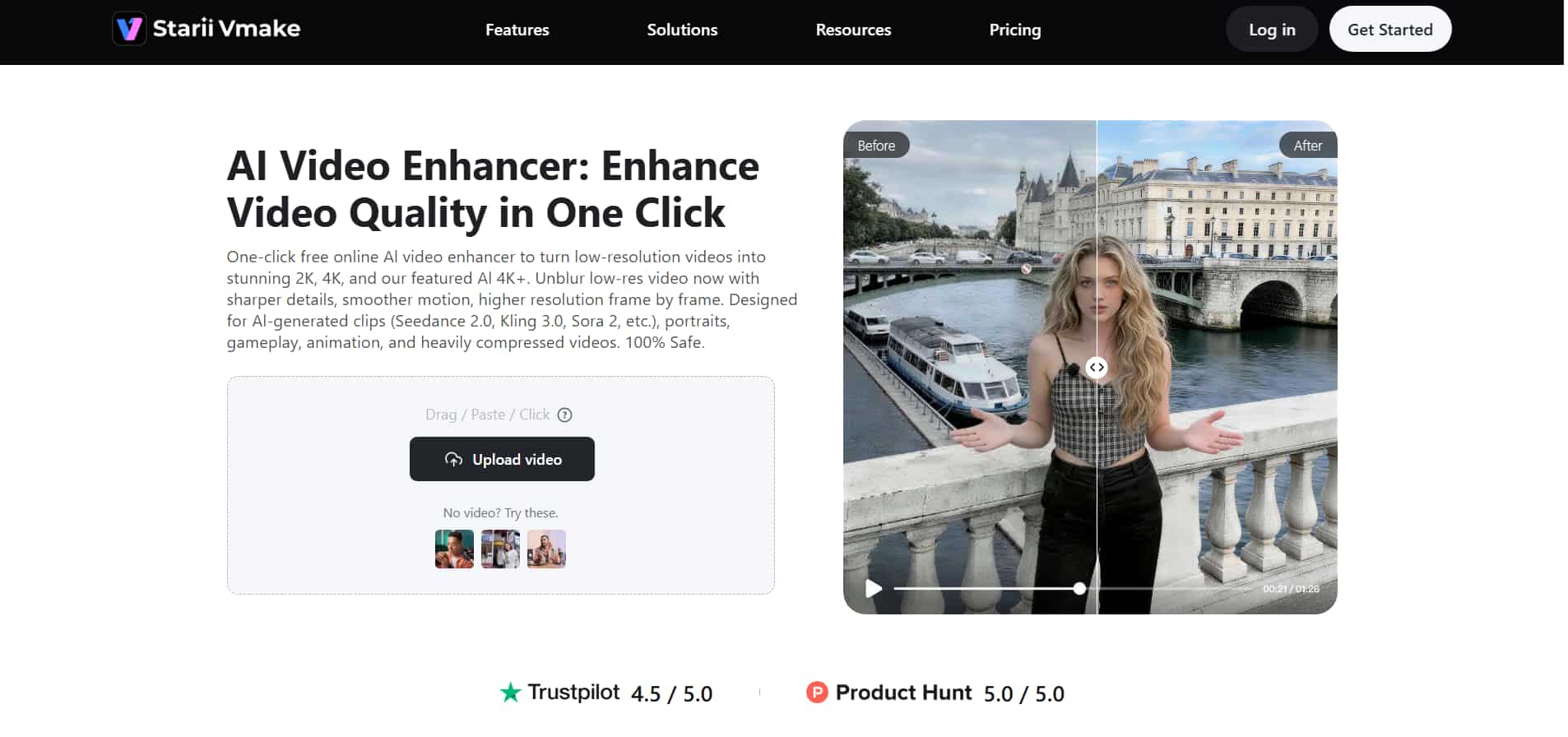
The Vmake video enhancer is a powerful tool if you have older 720p footage that looks grainy on newer TVs. This AI engine is designed to upscale low-res video to professional levels, such as 2K, 4K, and AI 4K+. It uses advanced machine learning algorithms to analyze each frame, removing digital noise, compensating for motion blur, and sharpening fine details such as skin textures and edges.
The process is entirely online, so you can improve your video quality with just a few clicks, without downloading any bulky software. There's also automatic color correction and brightness tweaking that can bring fresh life to dark or dreary clips. If you are a content provider hoping to make social media reels look good, or someone trying to restore ancient family memories, Vmake offers a quick and effective way to achieve an HD look.
Fix low-quality videos with Vmake today.
Steps to enhance video with Vmake:
Step 1: Import your content
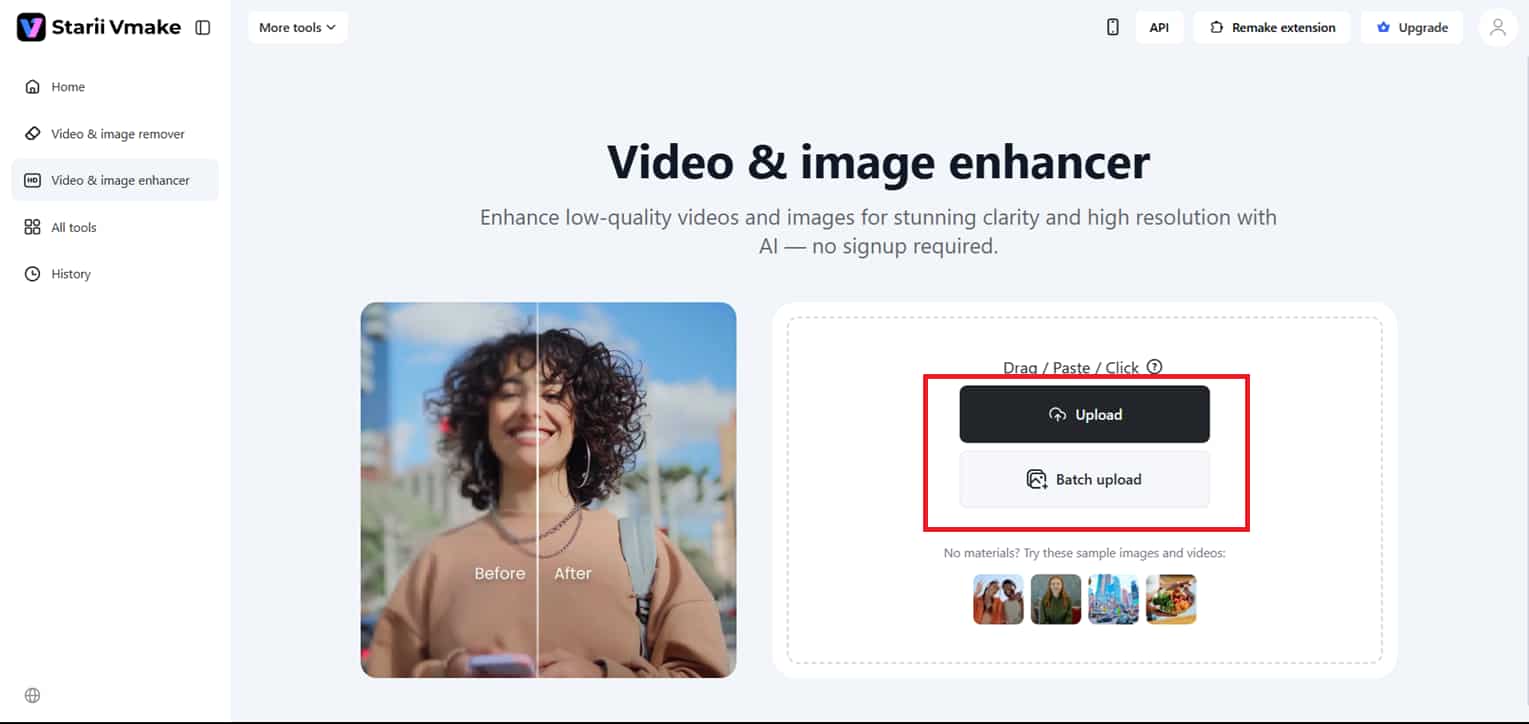
Getting started is a breeze; simply drag and drop your file into the workspace or choose it from your device storage. It also allows batch uploading of multiple videos for enhancement. Vmake supports all main formats, including MP4, MOV, M4V, 3GP, AVI, so you can start the conversion process right away.
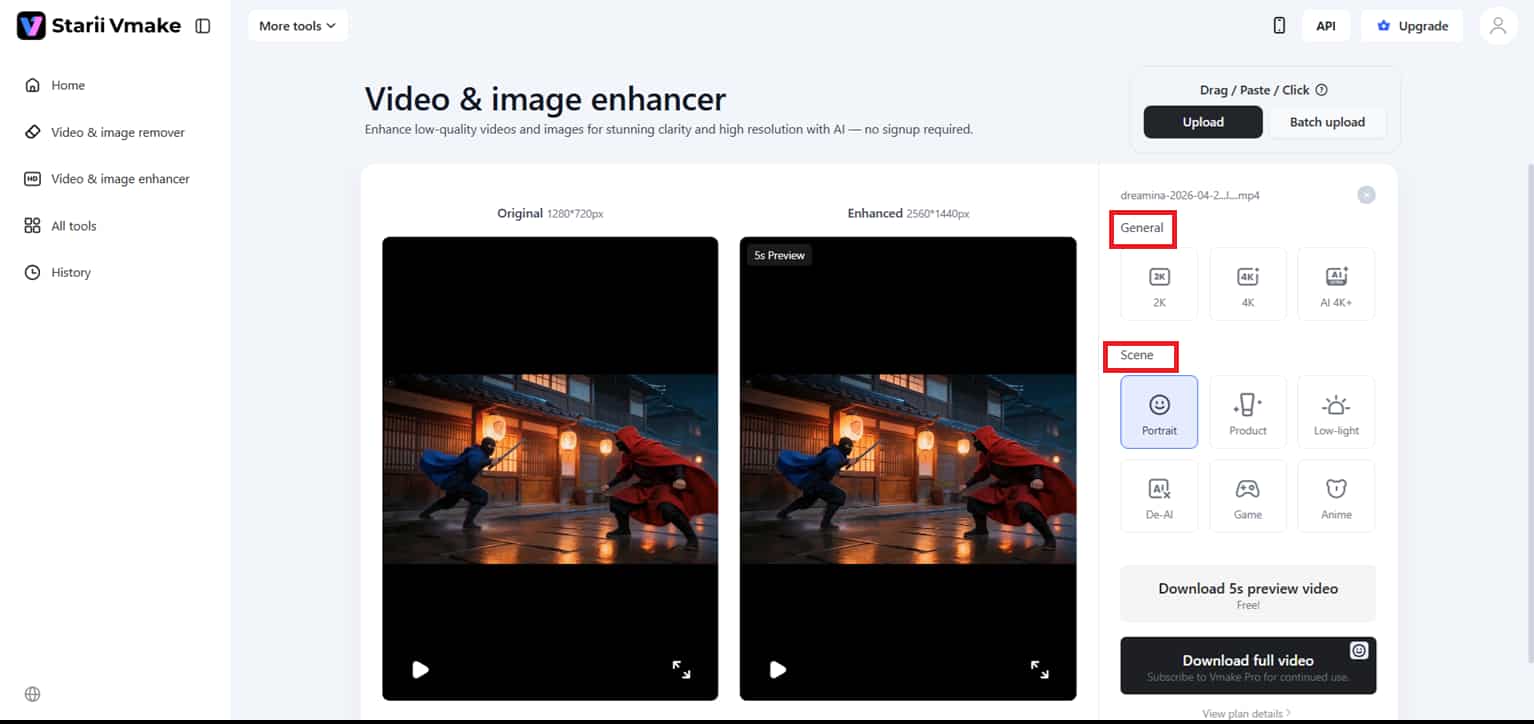
Step 2: Apply AI-driven improvements
Once you upload your file, the smart technology analyses your footage automatically to find the best improvement model. You may increase the resolution to 2K, 4K, or even AI 4K+. It has particular presets for Portraits, Products, Gaming, Anime, and Low-Light conditions to provide a customized finish.
Step 3: Preview and export
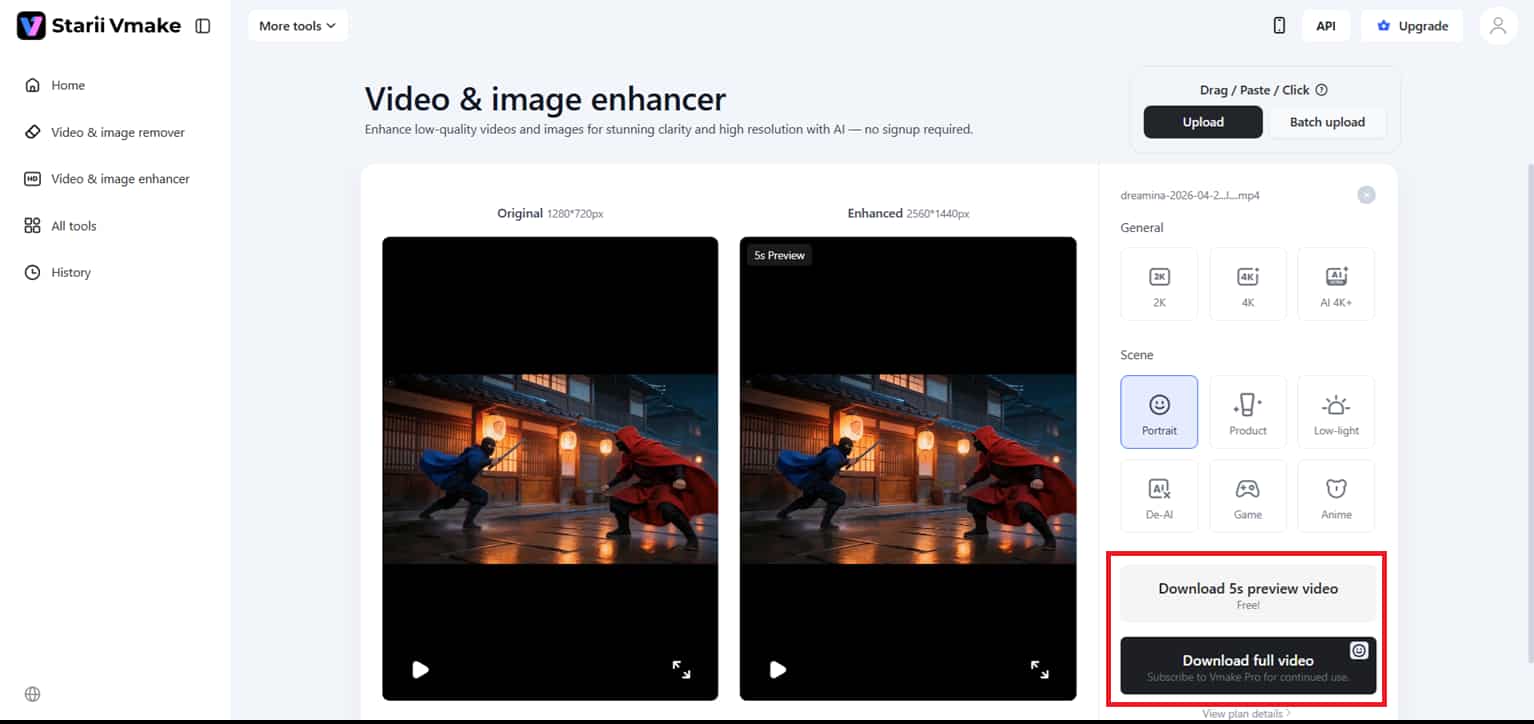
Watch the HD version of your video, sharpened so you can see if every detail meets your standards. Once you are happy with crystal-clear results, you can either ''Download 5s preview video'' or ''Download full video''.
Key features:
-
Generative AI 4K+ upscaling: The AI 4K+ mode uses generative scene reconstruction to recover missing textures and fine details, going beyond the typical filters. This makes your video look genuinely sharp, without the fake "crunchy" borders that are common with simple upscalers.
-
Batch uploading: Vmake's batch uploading feature is a huge time-saver. As it allows you to enhance numerous videos at once with just one click. It's a great method to keep all of your clips looking uniform and professional without having to edit them individually.
-
Intelligent artifact cleanup: The utility automatically reduces digital noise, motion blur, and "mosaic" blockiness. This is especially helpful for clearing up videos that have been excessively compressed by social media platforms or older recording hardware.
-
Scene-specific optimization models: Vmake provides unique AI models optimized for particular types of material. It contains; Portrait Restoration for accurate skin tones, Product Mode for sharp text/graphics, and dedicated settings for gaming, anime and low light video.
-
Semantic motion repair: The program can repair blurry regions caused by rapid motion using superior scene knowledge. It holds crucial subjects, like faces and hands, steady and whole, even in rapid succession.
-
Texture and detail recovery: The platform recovers material textures, such as fabric, leather, and metal, as well as small text and logos. This makes it an excellent option for e-commerce films and professional advertisements where clarity is of utmost importance.
Conclusion
The 1080p vs 720p resolution dispute is a game-changer for anyone who values how their work looks. 720p is good and steady, and good if you want to save bandwidth or watch on a small phone screen, but 1080p is really the gold standard for that clean and professional image we all want on larger screens. Ultimately, when it comes to comparing 720p vs 1080p resolution, it's all about detail. More pixels basically means a more realistic, more lifelike experience.
You no longer need to steal for low-quality, blurry, or outdated film, as Vmake has emerged as a real lifesaver. It uses clever AI to restore lost detail, rather than just stretching the pixels. This is indeed the quickest way to turn ordinary clips into hi-def masterpieces, in just a few clicks.
Want to see your material in a new light? Try the Vmake AI Video Enhancer today and give your projects the high-end polish they deserve!
FAQ's
Is 720p vs 1080p noticeable on small mobile screens?
On a small screen, frankly, it's a bit of a toss-up, but 1080p makes text and fine detail shine much more. If your mobile videos still look a bit "muddy". Enhancing them through Vmake is a total game-changer for bringing back that high-end look. But, for most of us browsing on the move, 720p is generally more than enough.
Can 1080p content be viewed on a native 720p resolution screen?
Yes! Your screen just reduces the video down to fit, which can actually make the picture look a little tighter and cleaner. If the footage still looks a bit dull, Vmake can work its magic to sharpen the source file. It makes it look as colorful as possible on your present display. It won't change your hardware, but it makes sure the content pops up.
How does data usage vary between 1080p vs 720p?
1080p is the "data-hungry" sibling. It often requires almost twice as much data as 720p, which can be a lot on a limited data plan. So many individuals play it safe and stick to 720p for everyday streaming to conserve data for later.
Why is 1080p the standard for competitive gaming?
In gaming, every pixel counts when you're attempting to detect an opponent across the map, and 1080p hits that 'sweet spot' of clarity and speed. Vmake is a godsend for streamers, as it helps them polish their recorded videos so that amazing plays look professional and crisp when posted. It makes your highlights appear like a million bucks, without slowing down your real game.
Is 720p still relevant for streaming in 2026?
It is especially true when you need it for video calls or live streams, and Wi-Fi is getting a bit wobbly. A lot of creators actually choose to shoot in 720p just to keep things easy and then let Vmake do the heavy lifting of upscaling to 4K for the final post. That's a clever way to stay available to everyone while still delivering a top-tier visual experience.

You May Be Interested
How to Improve Video Quality to 720p: Best Methods in 2026
What is 720p Resolution: A Must-Read Guide in 2026
How to Convert 480p Video to 1080p (Best Upscaling Methods)