1440p vs 1080p: What Are The Differences And Which Is Best For You?
 Vmake Labs TeamMay 25, 2026
The choice between 1440p and 1080p often leaves monitor buyers feeling stuck. While 1080p was the standard for over ten years, 1440p is quickly taking over as the new baseline for both gamers and professionals. Understanding this shift helps you manage your hardware needs and make the right choice.
What Are 1080p and 1440p Resolutions?
Think of any digital screen as a massive, invisible grid. It operates like a blank piece of graph paper. Resolution simply tells you how many microscopic dots—pixels—populate that grid. More dots yield a tighter grid. A tighter grid yields a sharper, more accurate image.
What is 1080p
1080p, which the industry labels Full HD (FHD), maps out exactly 1920 pixels horizontally and 1080 pixels vertically. This grid has dominated the global market for years. Budget laptops ship with it. Entry-level office monitors rely on it exclusively. Because 1080p screens have fewer total pixels to illuminate, your computer's internal processor barely breaks a sweat pushing the image data through the motherboard. It runs cool. It runs cheaply.
What is 1440p
Then you hit 1440p. Tech manufacturers usually stamp "2K" or "QHD" (Quad HD) on the retail box, but the math means the exact same thing: 2560 pixels mapped across and 1440 down. This specific resolution sits directly in the hardware sweet spot. It provides a massive visual upgrade over standard HD but entirely bypasses the thermal throttling and GPU melting associated with enterprise-grade 4K displays.
1080p vs 1440p comparison: The Key Differences
Hardware specifications rarely tell the whole story. They do, however, lay the necessary groundwork for understanding real-world visual performance. Below is exactly how the raw telemetry stacks up before we analyze the physical constraints.
|
Feature |
1080p (Full HD) |
1440p (QHD / 2K) |
|---|---|---|
|
Resolution |
1920 x 1080 |
2560 x 1440 |
|
Total Pixels |
~2.07 Million |
~3.68 Million |
|
Aspect Ratio |
16:09 |
16:09 |
|
Ideal Screen Size |
21 to 24 inches |
27 to 32 inches |
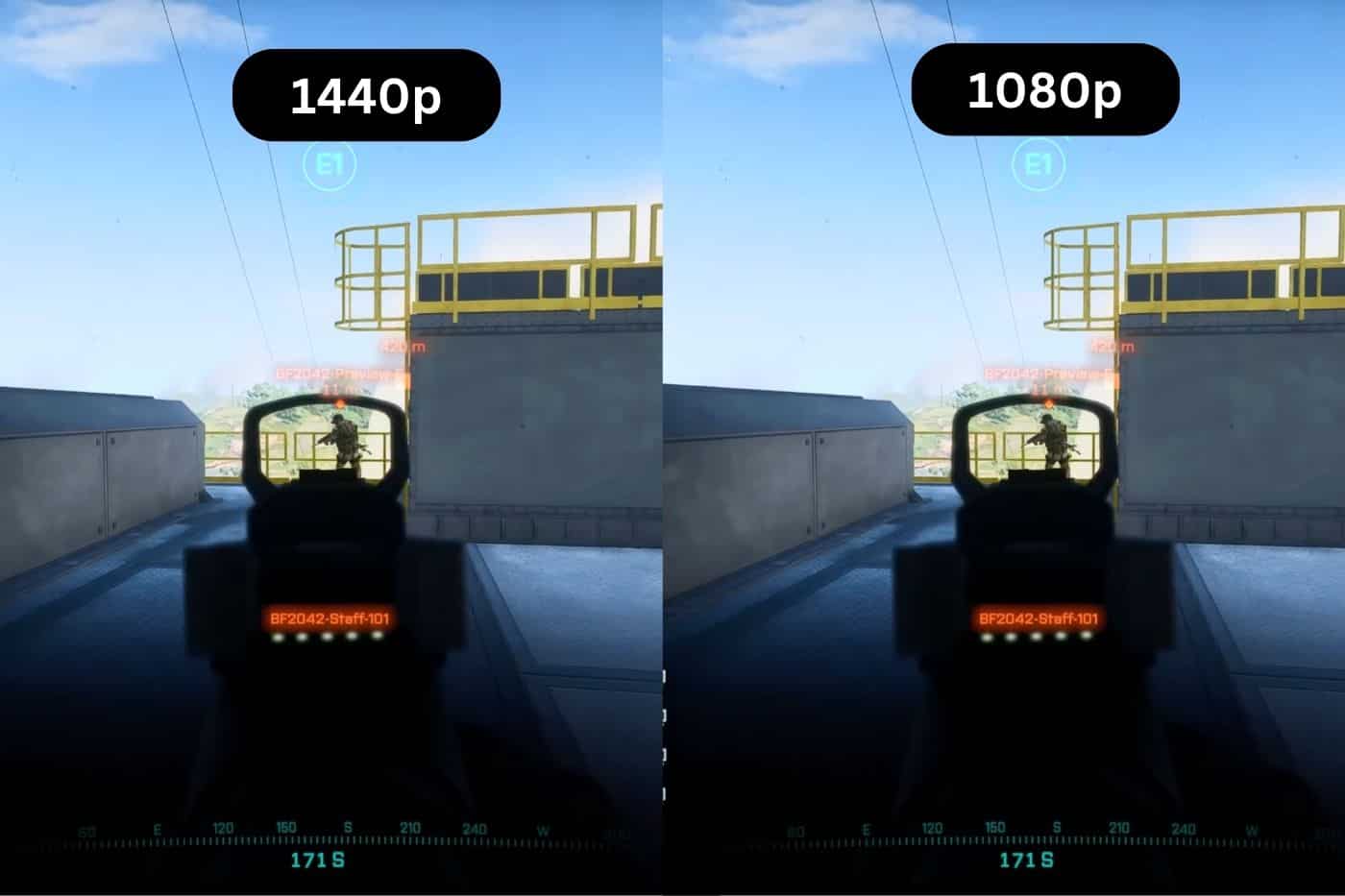
1080p vs 1440p pixel density
Most consumers operate under a massive misconception. They assume buying a physically larger monitor automatically guarantees better graphics. The reality? Buying a massive screen without adjusting the resolution will completely ruin your picture quality.
If you take a standard 1080p image and stretch it forcefully across a 27-inch panel, you start seeing the physical, microscopic gaps between the pixels. The image degrades into blocky squares. Typography looks fuzzy and unreadable. Hardware engineers call this the "screen door effect."
This structural failure happens because of pixel density, measured strictly in Pixels Per Inch (PPI). Do the math. 1440p packs roughly 78% more pixels into the frame than standard HD. When you cram almost 3.7 million pixels onto a 27-inch desk monitor, the physical density stays incredibly tight. The human eye simply cannot isolate the individual pixel squares from a standard 30-inch sitting distance.
The result? Razor-sharp font rendering. Crystal-clear interface boundaries. Zero blurry edges on your digital assets. Honestly, if your desk setup requires a monitor larger than 24 inches, 1440p ceases to be a luxury upgrade. It becomes a strict technical requirement for maintaining visual clarity.
Hardware and Performance Demands
Pixels demand power. You cannot cheat the physics of rendering. Driving a 1080p display is a trivial task for modern silicon. You are asking the graphics processor to calculate, shade, and output roughly 2 million pixels every single frame. Even cheap, integrated graphics chips soldered onto budget notebook motherboards can manage that throughput without dropping a single frame.
Jump your setup to 1440p, and you suddenly demand the system render 3.7 million pixels instantly. You double the bandwidth load on your memory controller. You absolutely need a dedicated Graphics Processing Unit (GPU) for this to function correctly. Plug a high-refresh 1440p screen into an underpowered, aging laptop, and you will hit a severe system bottleneck immediately. Browser windows drag across the screen. High-bitrate video playback stalls. Creative software timelines stutter and freeze. You must match your screen resolution to your machine's processing architecture.
Bridging the Gap: Upgrading 1080p Footage to 1440p
So you upgrade your workstation. You buy the premium 1440p monitor. Great. But a secondary problem immediately surfaces. What happens when you open your archive of older marketing campaigns, or footage shot on legacy smartphone lenses? That media remains hard-locked at 1080p.
When your new 2K screen attempts to display that smaller video, the operating system forcibly stretches the image data to fit the larger physical grid. Everything looks soft, muddy, and wildly unprofessional. Reshooting an entire corporate campaign is rarely an option. Algorithmic software bridges this exact gap.
If you manage massive content libraries and need to rescue legacy media without destroying your production budget, utilizing a dedicated video enhancer handles the heavy computational lifting.
Old-school, timeline-based editing software uses a primitive method called bilinear interpolation to upscale video. It basically guesses the colors of new pixels by copying the ones next to them. That leaves footage looking like a washed-out watercolor painting. Vmake bypasses this entirely. It deploys generative AI to analyze the frame and actually rebuild the missing spatial texture data from scratch.
Pros:
-
Eliminates the steep technical learning curve. You do not need to navigate complex node structures or color grading panels.
-
Authentically recovers lost structural details instead of just digitally zooming the file.
-
Pushes all rendering to cloud-based servers, protecting your local hardware from overheating.
Cons:
-
Requires a persistent, stable internet connection to communicate with the processing servers.
Key Features:
-
General: Delivers 2K, 4K, and AI 4K+ resolution enhancement flawlessly.
-
Scene-Specific Models: Deploys targeted algorithms like Portrait, Lowlight, Product, and De-AI to manage very specific lighting conditions or facial geometry glitches.
-
Batch Processing: Unlocks the ability to push up to 30 files into the system simultaneously. This provides a massive throughput advantage over traditional rendering queues.
How to Enhance Video Quality Using Vmake
Upgrading your legacy video files requires seconds of input, not hours of timeline tweaking.
-
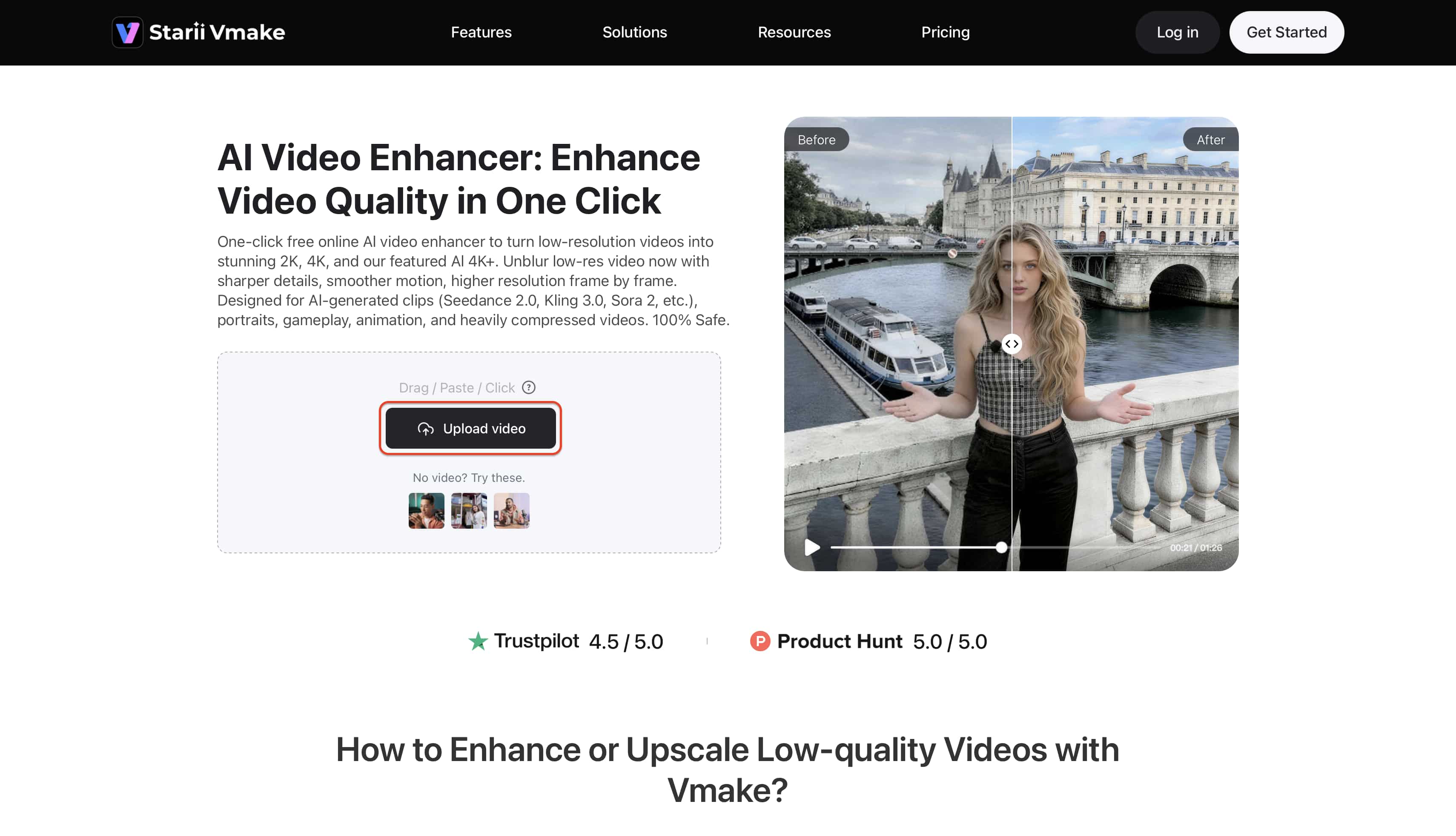
Upload the Asset: Navigate directly to the Vmake workspace. Drag your native 1080p file straight onto the dashboard. Alternatively, paste a URL if the video currently lives on an external host.
-
Configure the Output: Select your exact target resolution, prioritizing the 2K/1440p tier. If your specific clip features severe shadow clipping or relies heavily on close-up human faces, toggle the corresponding scene model (Lowlight or Portrait). This isolates the AI's processing focus.

-
Generate and Export: Trigger the process. The cloud infrastructure handles the intensive frame-by-frame rendering. Preview the newly sharpened clip in the browser, verify the clarity, and download it to your local storage array.

What is the difference between 1080p and 1440p for Your Specific Needs?
Raw spec sheets look great on paper, but how does pixel density actually alter your daily workflow? The optimal choice relies entirely on the specific software you launch when you sit at your desk. Let's break down the exact operational use cases.
For E-commerce & SMBs
Online consumer behavior relies heavily on visual trust. Shoppers cannot physically inspect the weave of a jacket or the brushed aluminum of a gadget. If your storefront product videos max out at 1080p, aggressive web compression destroys those critical micro-details. They vanish into a blur.
Higher resolutions fundamentally build immediate buyer confidence. Crisp, mathematically accurate 1440p footage displays every stitch, every polished finish, and every texture flawlessly. It strips away buyer hesitation at the checkout terminal. Implementing automated batch video upscaling pipelines for your entire product catalog is the most cost-effective method available to make your brand project absolute authority.

For UGC Creators
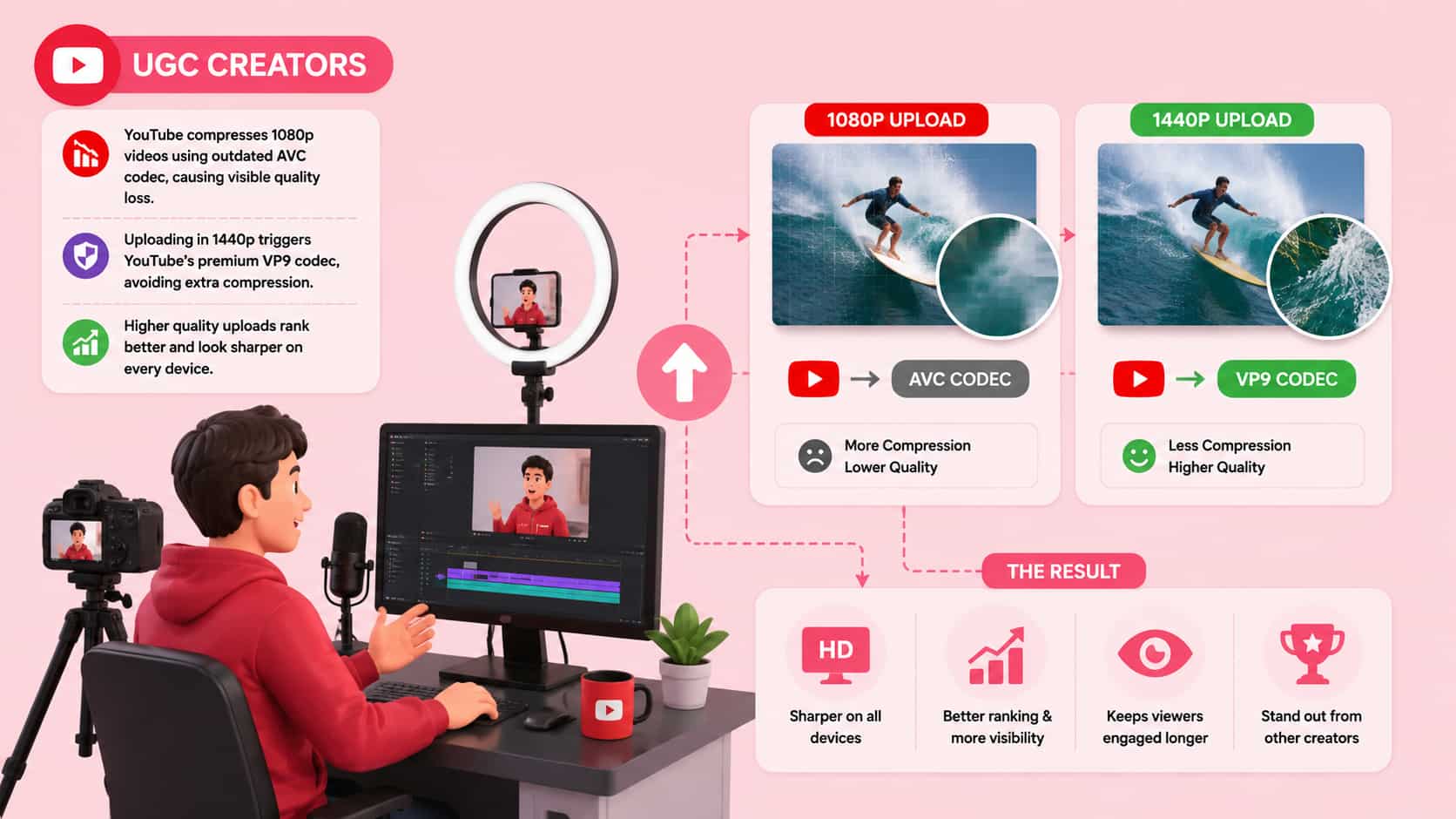
Social video algorithms hide a very dark secret. Platforms like YouTube penalize standard files. If you upload a native 1080p video, YouTube immediately crushes it using an outdated, heavily lossy AVC codec to preserve their server bandwidth. Any fast panning motion in your footage instantly shatters into blocky pixel soup.
But if you upload your timeline in 1440p? You force Google's servers to trigger the premium VP9 codec. This completely bypasses the brutal compression layer. Taking the time to properly enhance video for YouTube workflows ensures your final export looks infinitely superior to competing channels, even if your audience watches on a six-inch mobile screen.
For Gamers (Competitive vs. AAA)
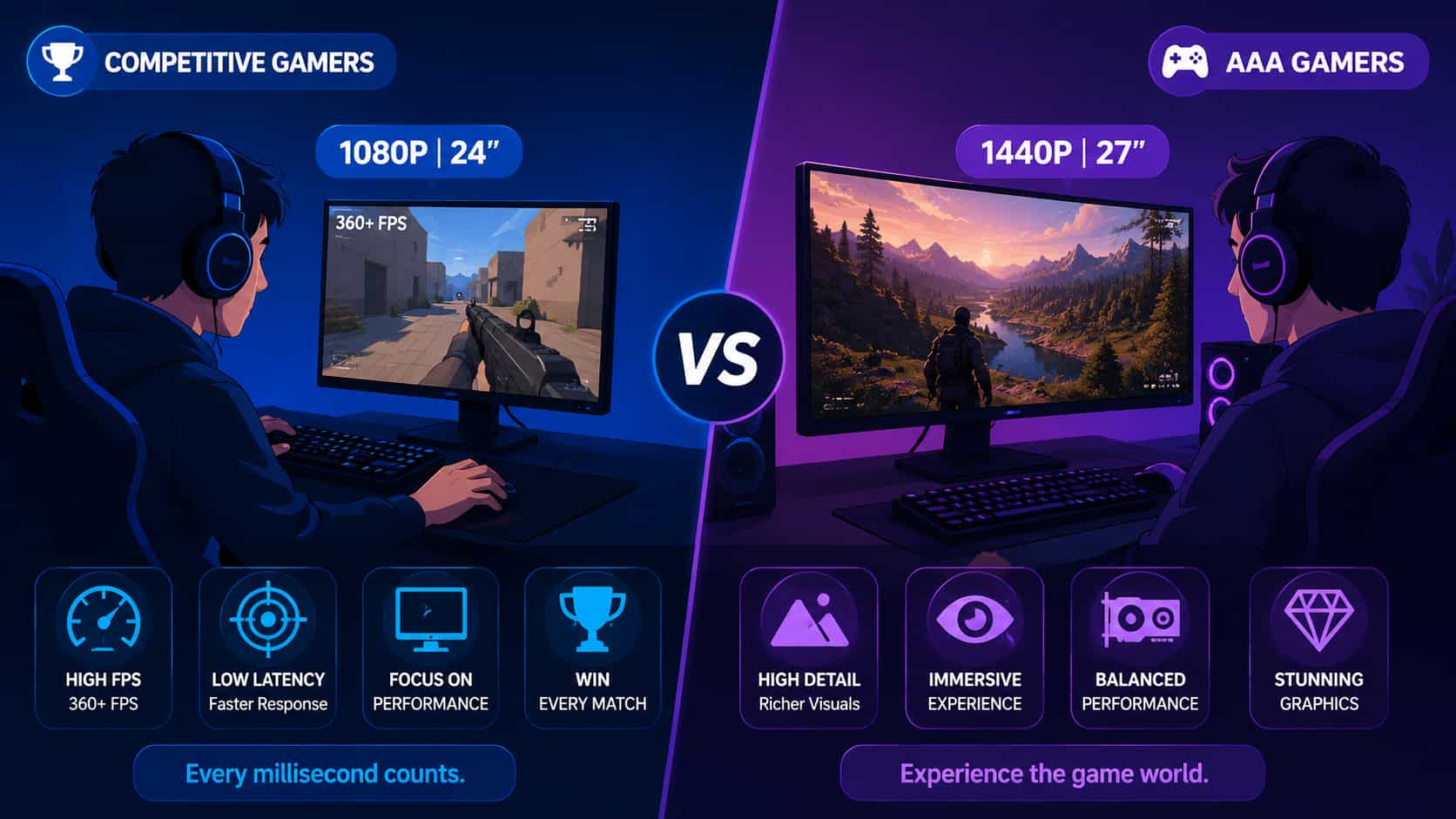
The gaming hardware sector remains completely fractured on this issue. Hardcore esports players—the professionals running Counter-Strike or Valorant tournaments—almost exclusively run smaller 24-inch 1080p TN panels. Why? Frame pacing. Pushing a fraction of the pixels allows their graphics cards to spit out 360+ frames per second continuously. It reduces system latency to zero. Pure, uninterrupted speed.
Conversely, players running massive, visually dense titles like Cyberpunk 2077 demand high-fidelity immersion. For these consumers, 1440p dominates. It renders spectacular environmental mapping and razor-sharp distant horizons without requiring a massive, multi-thousand-dollar desktop rig to maintain a stable 60 frames per second.
For Video Editors & Graphic Designers
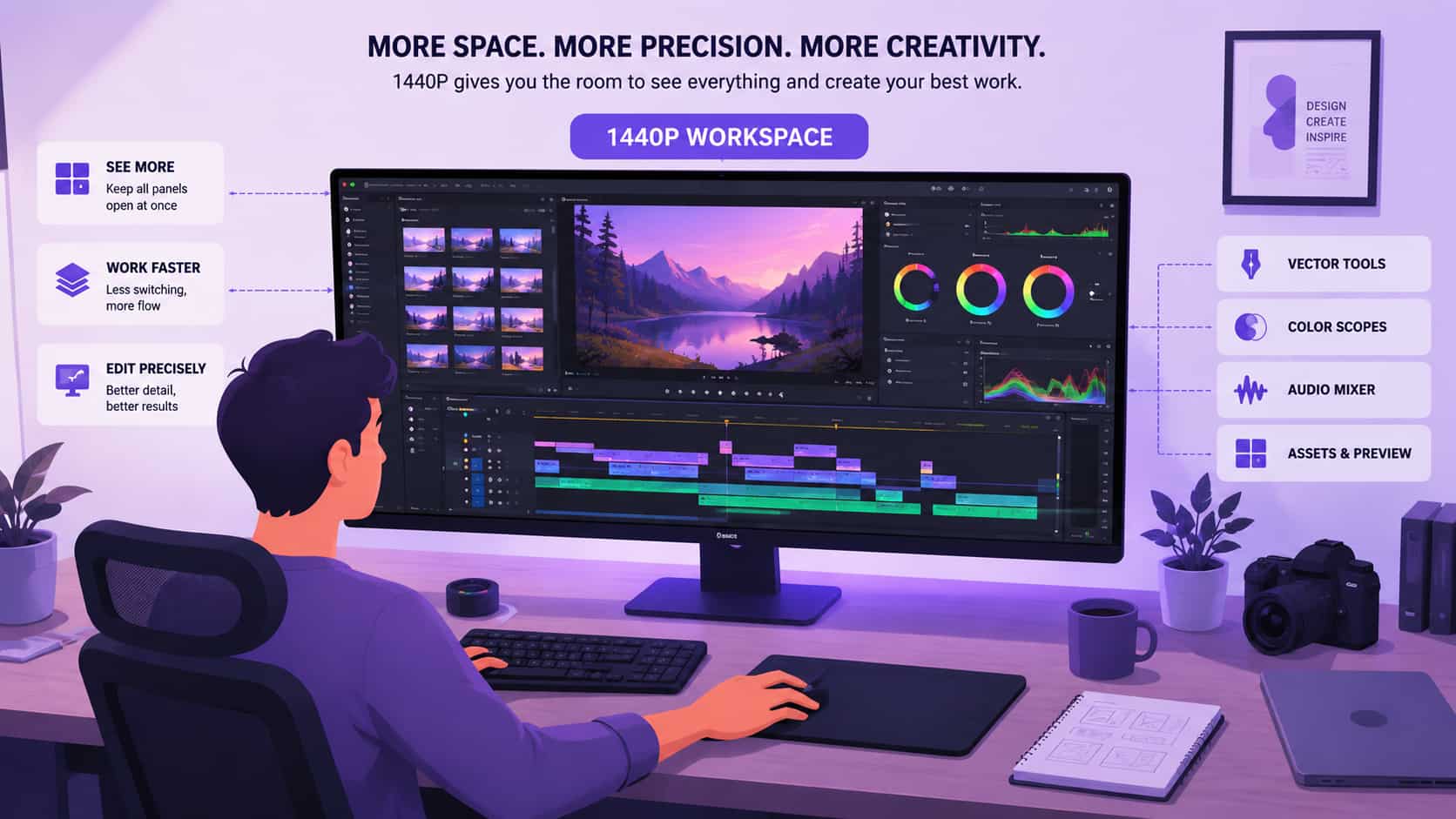
Attempting to manage a complex timeline on a standard 1080p screen feels suffocating. Your tools fight for space. You constantly collapse panels just to preview your video canvas.
Upgrading your hardware to 1440p injects crucial breathing room into your workflow. You suddenly see your entire Adobe workspace. You can keep your vector tools, your Lumetri color scopes, and your audio mixing channels pinned open simultaneously without scrolling. Expanding your pixel grid fundamentally changes the speed at which you can clear client projects.
For Remote Workers & Multi-taskers
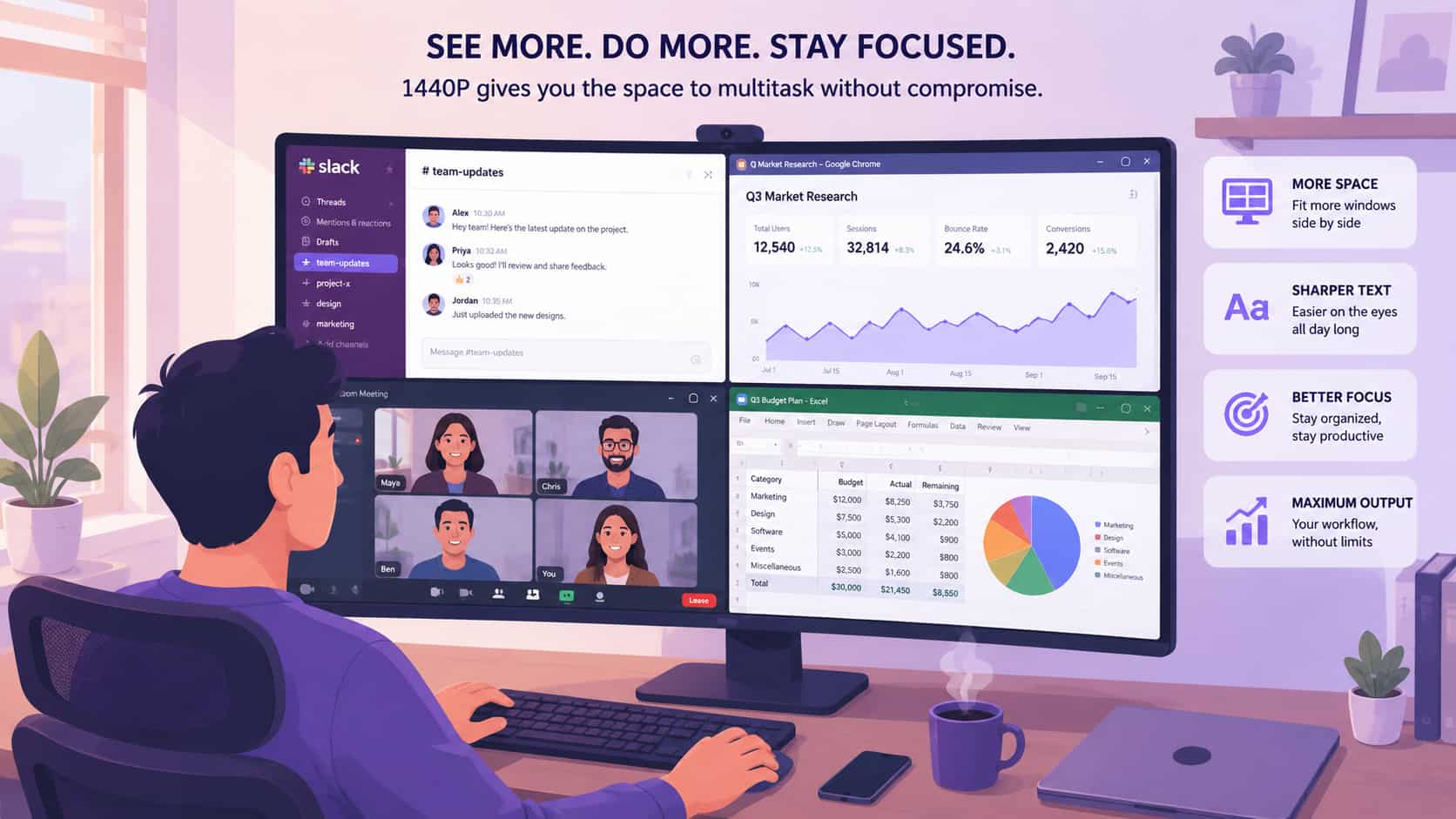
Staring at dense spreadsheet data on a low-end monitor for nine hours guarantees severe optical fatigue. Standard 1080p screens render typography with soft, slightly jagged edges. Subpixel antialiasing fails at lower densities.
1440p eliminates that eye strain instantly. The tighter pixel cluster renders text so sharply it mimics printed paper. Furthermore, the expanded desktop geometry lets you snap four entirely separate windows into the screen corners. Slack, Chrome, a live Zoom feed, and Excel. All open. All visible. Most importantly, the text within every single window remains perfectly readable. Discovering reliable methods to upscale older video assets or upgrading your physical displays to 2K fundamentally alters your ergonomic comfort.
Conclusion
The jump from legacy HD to 1440p totally shifts how a user interacts with digital media. Standard 1080p absolutely still serves a purpose for ultra-lightweight laptops and latency-obsessed esports competitors. But 1440p firmly holds the crown for modern, 27-inch desktop environments. It delivers the expansive workspace professionals require and the crisp density the human eye prefers. Do not worry about your older files looking soft on premium screens. Generative AI tools easily repair that divide today, letting you reconstruct legacy files in minutes without touching a complex editing suite.
FAQs
Is 1440p really much better than 1080p?
Yes. You gain approximately 78% more structural pixels. That mathematical advantage translates directly to razor-sharp typography, significantly more usable desktop real estate, and visual clarity that holds up perfectly on larger monitors.
Do pro gamers use 1080p or 1440p?
Tournament-tier professionals almost universally use 1080p. They ignore environmental graphics entirely. Their only concern revolves around maximizing frame rates and minimizing input lag. 1080p reduces GPU load, allowing systems to prioritize pure speed.
Is 1440p worth the extra money?
If your desk setup utilizes a monitor sized 27 inches or above, absolutely. Stretching a 1080p signal across a panel that large forces the pixels apart, causing severe visual degradation. 1440p keeps the structural grid tight and professional.
Can 1080p videos be upscaled to 1440p or 4K quality?
Yes. You never have to abandon older media files. Modern algorithmic tools can easily upscale 1080p footage to much higher resolutions. They actively analyze and rebuild the missing texture data rather than simply executing a digital zoom.
How does 1080p vs 1440p affect laptop battery life?
A 1440p display drains a mobile battery noticeably faster. The laptop's internal rendering pipeline must work constantly to illuminate and shade an additional 1.6 million pixels every single second, heavily impacting your total unplugged runtime.

You May Be Interested

Nano Banana vs Veo 3: A Detailed Head-to-Head Comparison
Native 4K vs Upscaled 4K: Which One to Choose?
[Updated!] How to Upscale Anime Video to 4K Online
Native 4K vs Upscaled 4K: Which One to Choose?

(2026) How to Create 4K Cinematic AI Videos: Seedance 2.0
Upscale Videos to HD: Free Online Methods and Optimization Tips