
How to Generate Video With Grok xAI 2026: Deep Dive & Top Alternative
Want to learn how to generate video with Grok xAI 2026? This complete guide walks you through the step-by-step setup, highlights critical limitations every creator should know, and introduces Vmake AI as the powerful multi-model alternative for you.

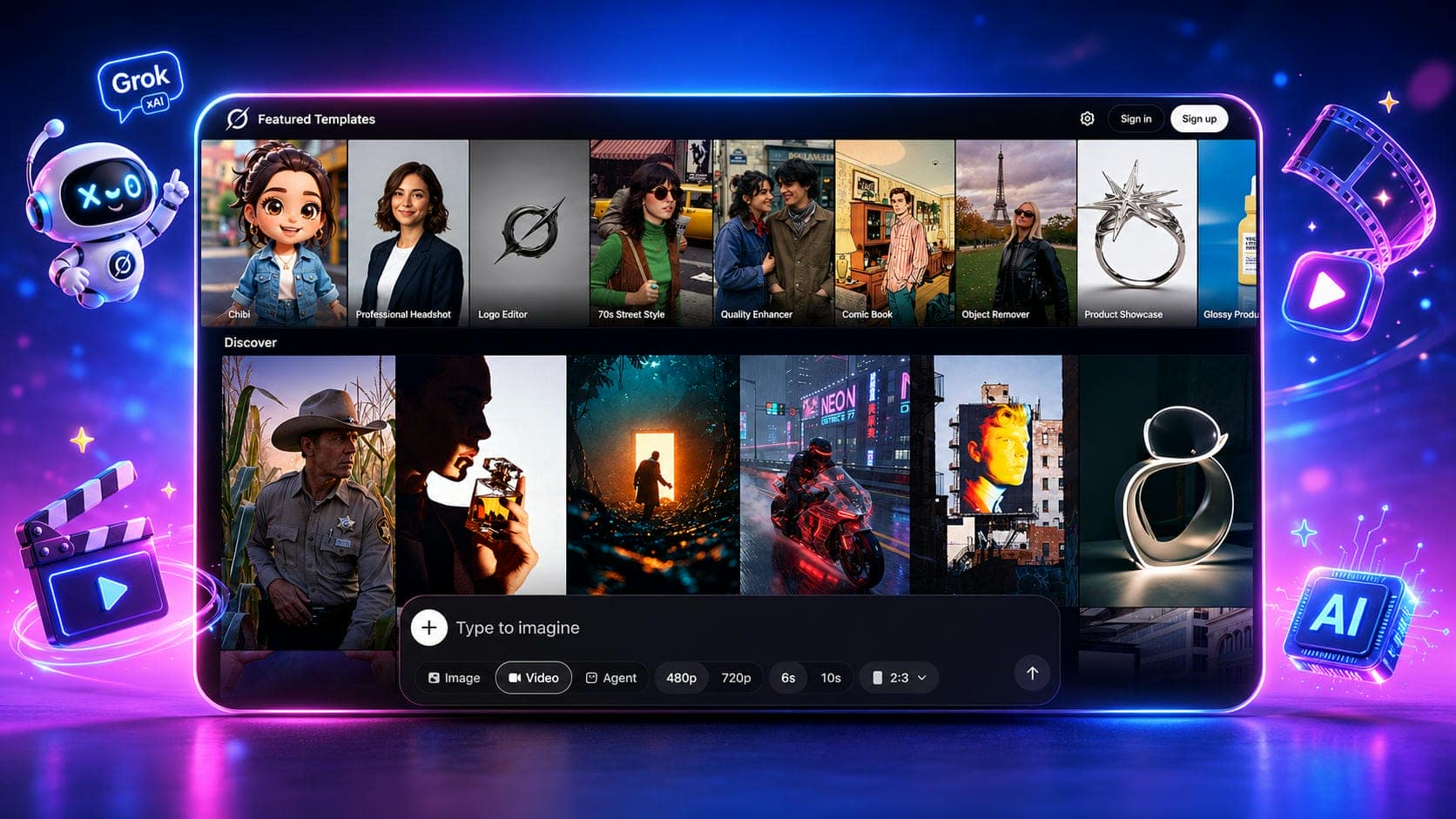
Artificial intelligence is rapidly changing content creation. If you want to know how to generate video with Grok xAI 2026, you are in the right place. This guide walks you through the entire process and reveals powerful alternative tools for ultimate creative control.
What is Grok xAI
Grok xAI is an advanced AI assistant developed by xAI, initially known for conversational intelligence and text-to-image generation within the X platform. Expanded into a powerful multimodal production tool with the launch of the Grok Imagine Video 1.5 model. Integrated directly into the X app for SuperGrok users and made available to developers through the xAI API.
In 2026, xAI officially stepped into the arena of motion graphics with its breakthrough Grok Imagine Video 1.5 update. While early versions of the platform focused entirely on text and static images, learning how to create a video with Grok xAI now unlocks advanced cinematic generation tools that can completely transform your production workflow.
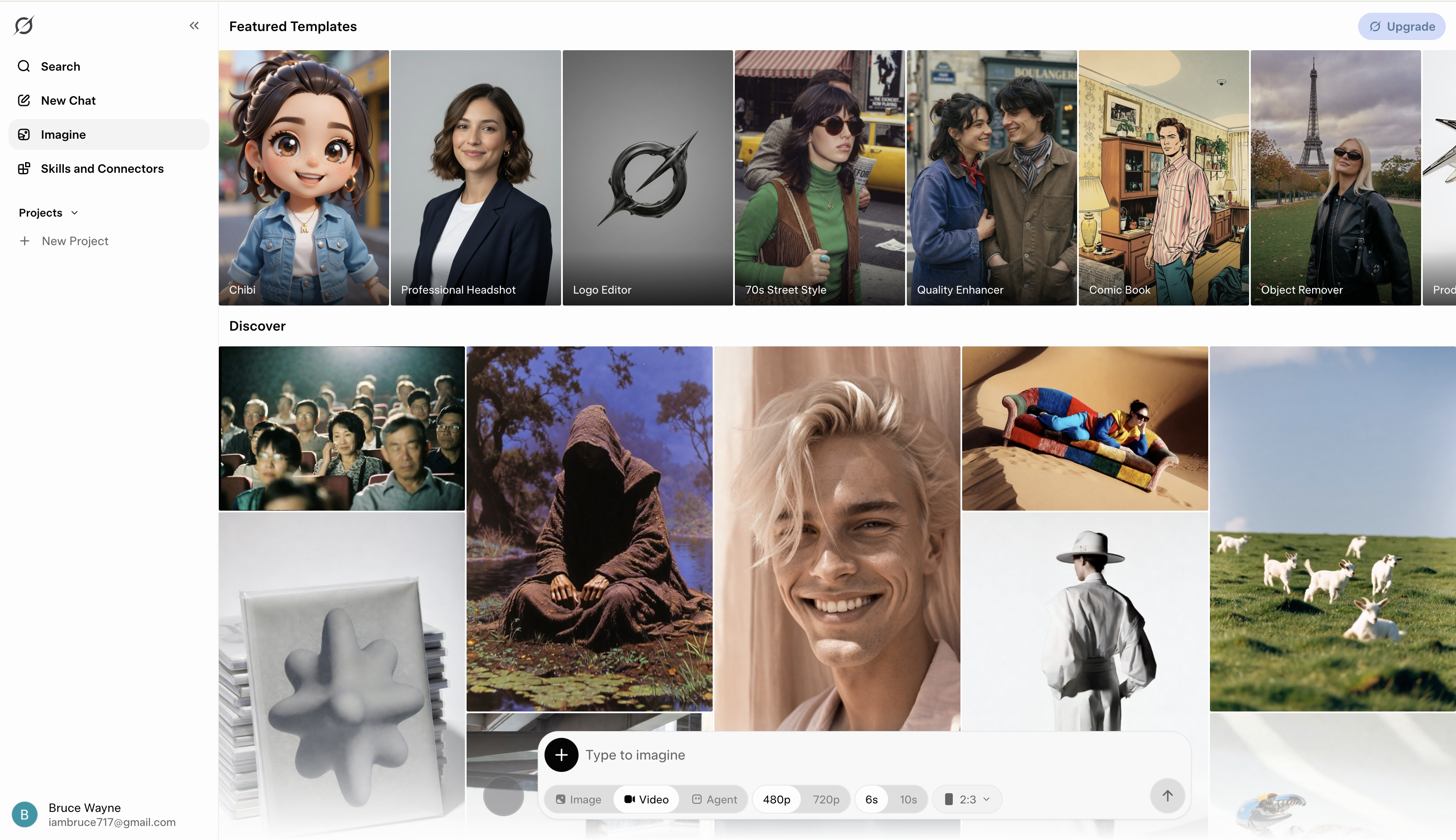
Key features of Grok xAI
-
Native synchronized audio: Generates background music, sound effects, and lip-synced dialogue natively in a single pass. This eliminates the need for a separate audio editor, allowing creators to produce social-ready content immediately.
-
Dual generation modes: Supports both text-to-video and reference-guided image-to-video creation smoothly. This flexibility allows you to animate still shots while locking in lighting, composition, and specific character details.
-
Cinematic camera control: Accurately executes natural language camera directions directly from your written prompt. You can request specific movements such as a "slow push-in" or a "handheld tracking shot" to create dynamic scenes.
-
Seamless video extension: Chains sequences by generating new footage directly from a previous clip's final frame. This end-frame technique helps bypass the standard duration limits set by the platform.
-
Format control: Outputs highly coherent clips up to 15 seconds at a standard cinematic 24 fps. Users can select multiple aspect ratios, including vertical, horizontal, and square formats natively.
How to create a video with Grok xAI
Navigating the X platform to produce motion graphics is straightforward for users with the appropriate premium subscription tier. Learning exactly how to create a video with Grok xAI 2026 simply requires following a few direct operational steps inside the application interface.
-
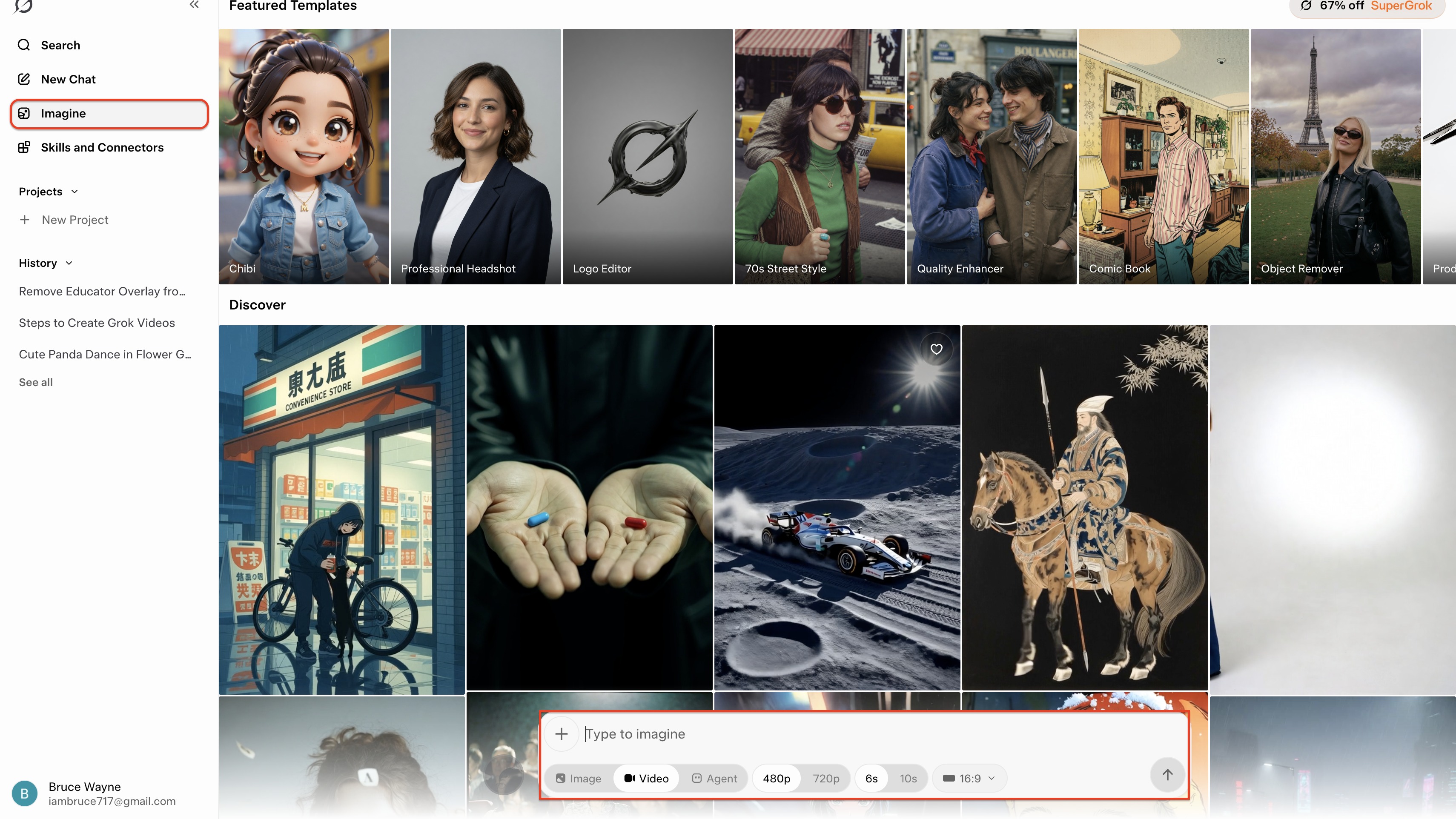
Step 1: Write Your Prompt or Upload an Image
Open ImagineArt and click on the "Imagine" tab located in the left-hand sidebar menu. This will open the main discovery page and workspace, bringing up the generation prompt box at the bottom of your screen, where you can begin creating.
-
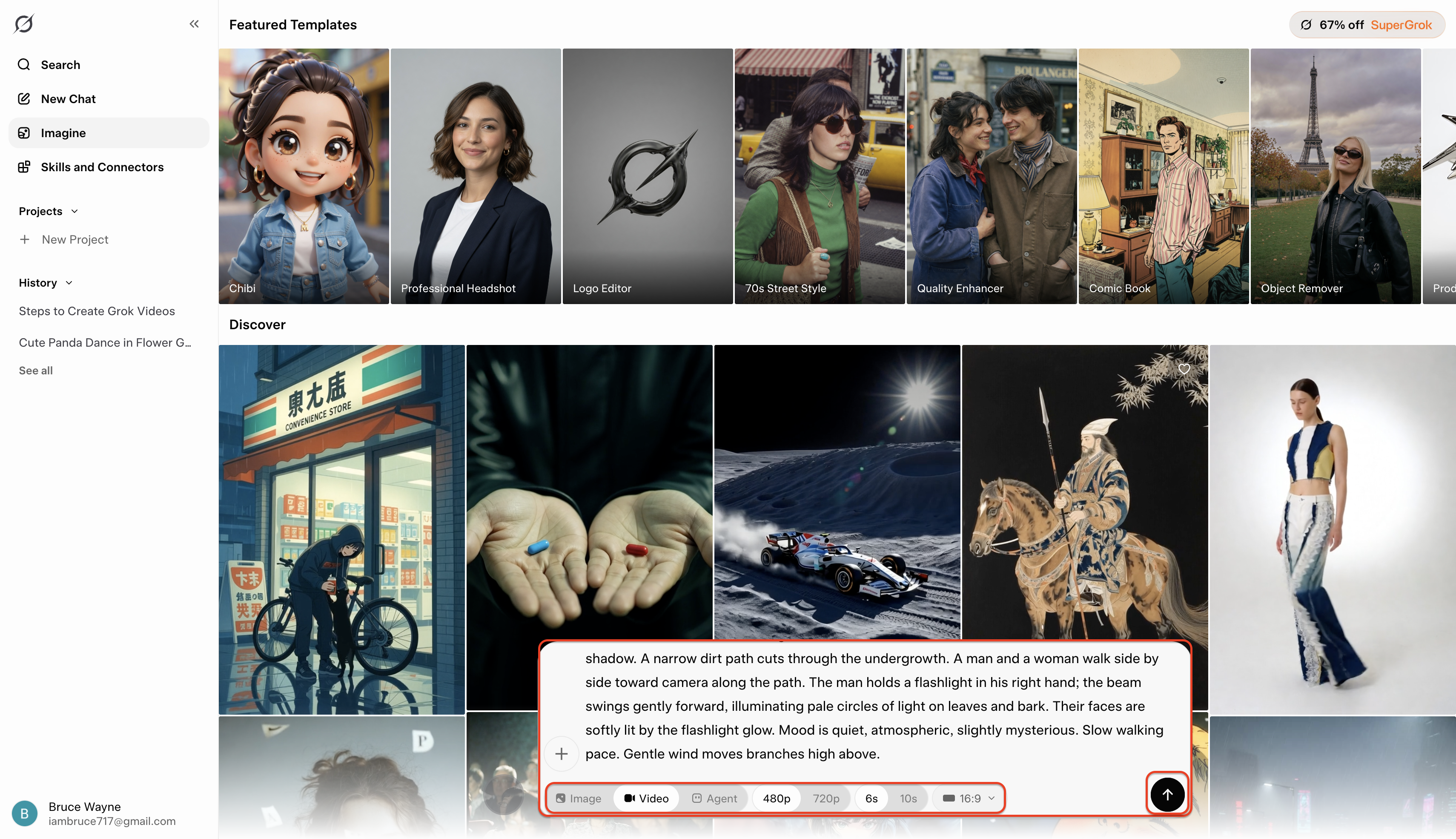
Step 2: Customize Your Video Settings
This is where your vision takes shape. Enter a highly detailed text prompt describing the exact scene you want to see. Directly below the text box, you will find options to fine-tune your generation parameters. Select your desired output format, resolution, video duration, and aspect ratio to ensure the final clip perfectly fits your needs.
-
Step 3: Generate and Download
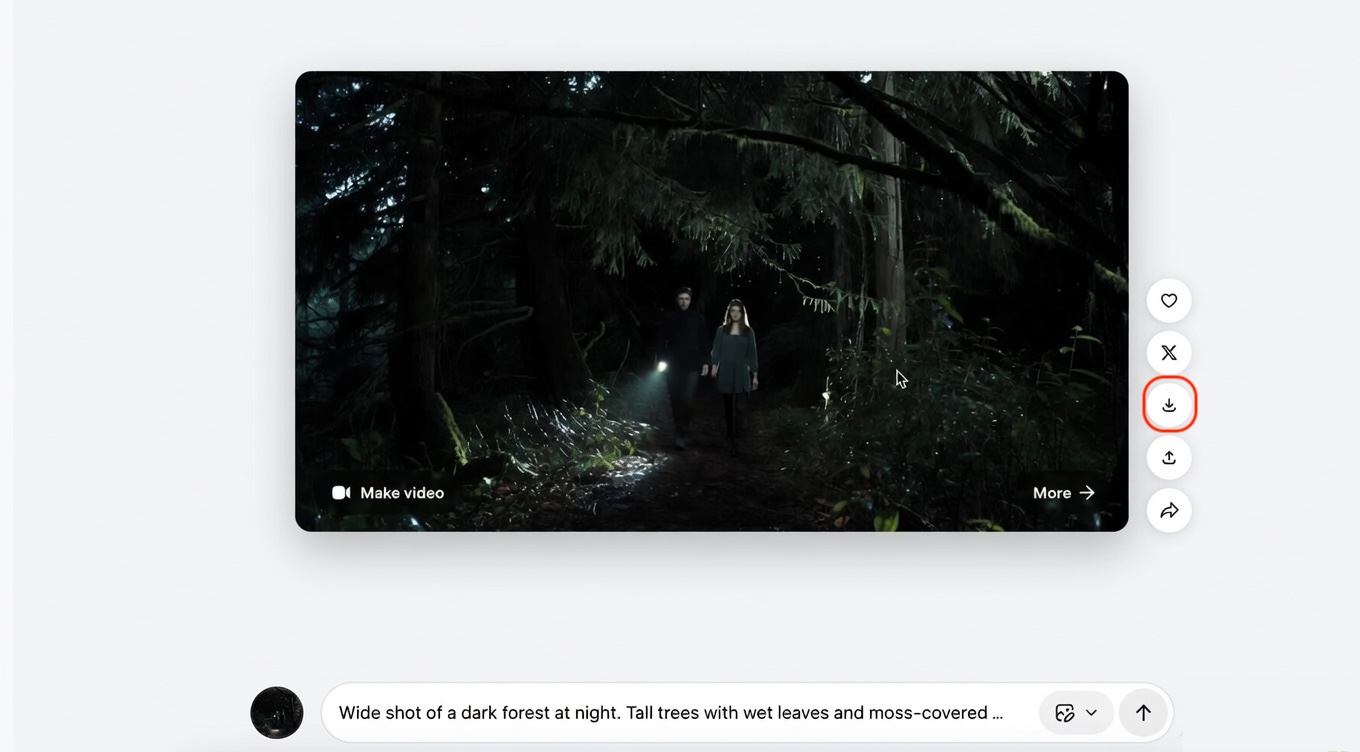
Once you have dialed in your prompt and settings, hit generate! After the AI finishes processing, your newly created video will appear on the screen. Preview the result, and if you are happy with it, simply click the download icon on the right-hand menu to save the high-quality clip directly to your device.
Who should use Grok xAI for video creation?

-
Social media content creators: It is best for X Premium power users who want to create quick, engaging motion clips directly inside the app.
-
Casual hobbyists and experimenters: Animating personal still images comes with a near-zero learning curve, making it highly accessible for beginners.
-
Rapid prototyping teams: Video editors and marketers can leverage the tool to produce quick, rough cinematic drafts.
-
Audio-first clip builders: It is uniquely suited for creators who prioritize having synchronized background music and ambient sound effects from the start.
-
Viral marketing and meme creators:Translating viral text prompts into dynamic, highly shareable video formats takes only seconds.
Robust alternative to Grok: Vmake AI video generator
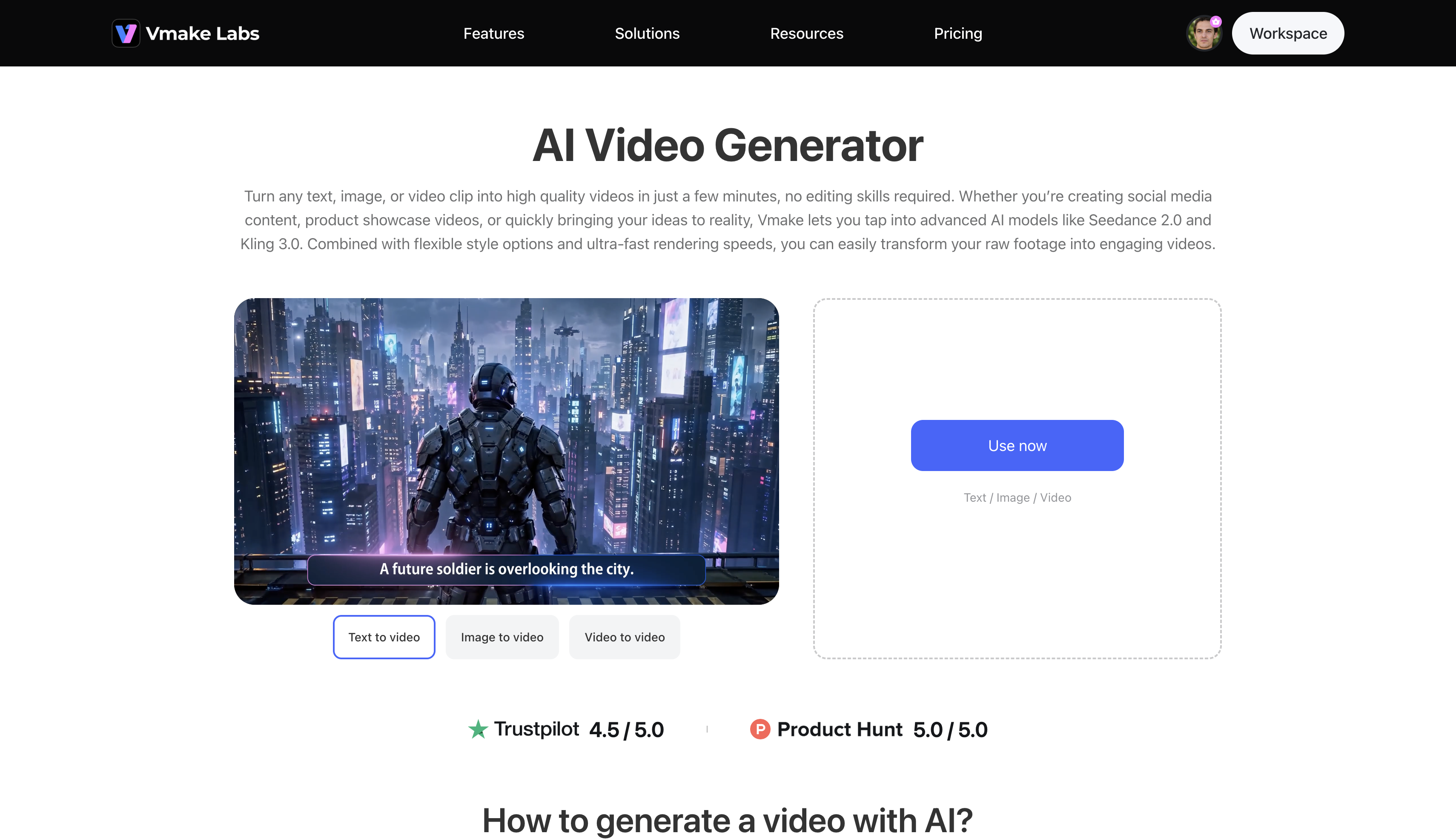
For creators looking to push beyond restrictive platform limits, Vmake AI stands out as a superior choice. This sophisticated multi-model engine empowers users to render stunning visuals in 2K and 4K without the heavy throttling found on social-centric applications. By utilizing an advanced AI video generator, users tap into top-tier models like Seedance 2.0, Kling 3.0, and Veo 3.1 to achieve broadcast-quality results.
Key video generation features
-
Text to Video: Transforms descriptive scripts directly into high-quality footage ranging from 2 to 15 seconds. The multi-model architecture accurately interprets complex prompts to deliver highly detailed and realistic scenes.
-
Image to Video: Animates static elements seamlessly by allowing users to upload a clear reference image. You can utilize first and last frame controls or apply built-in special effects to guide the precise animation.
-
Video to Video: Re-styles existing footage by uploading a reference clip and applying entirely new aesthetic parameters. This feature is incredible for transforming raw footage into stylized animations or fantastical cinematic sequences.
-
High-res exports: Delivers crisp, professional outputs in stunning 2K and 4K resolutions effortlessly. This bypasses the common 720p barrier found on many entry-level platforms, ensuring the content meets rigorous broadcast standards.
Step-by-step guide to generate engaging videos
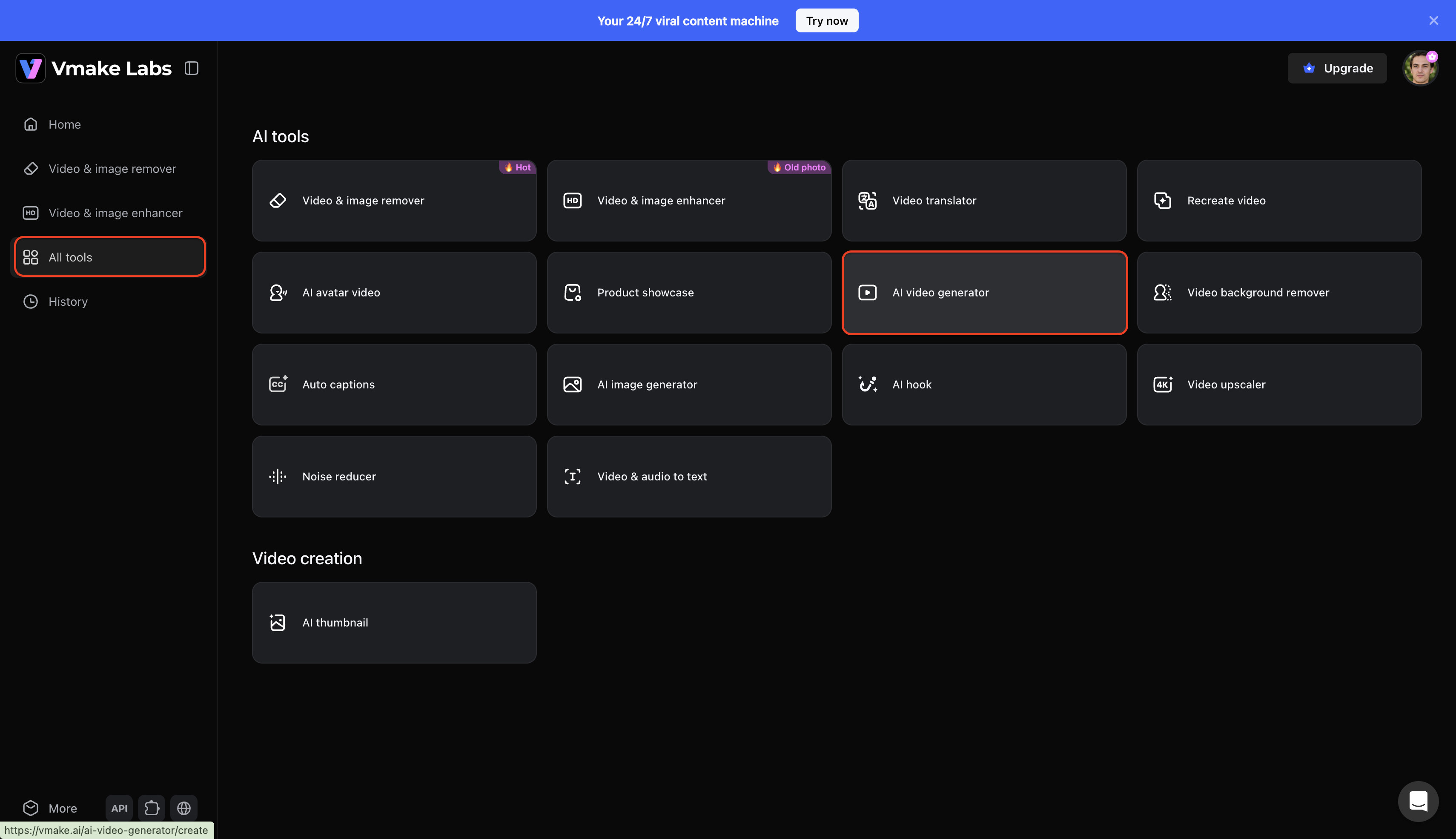
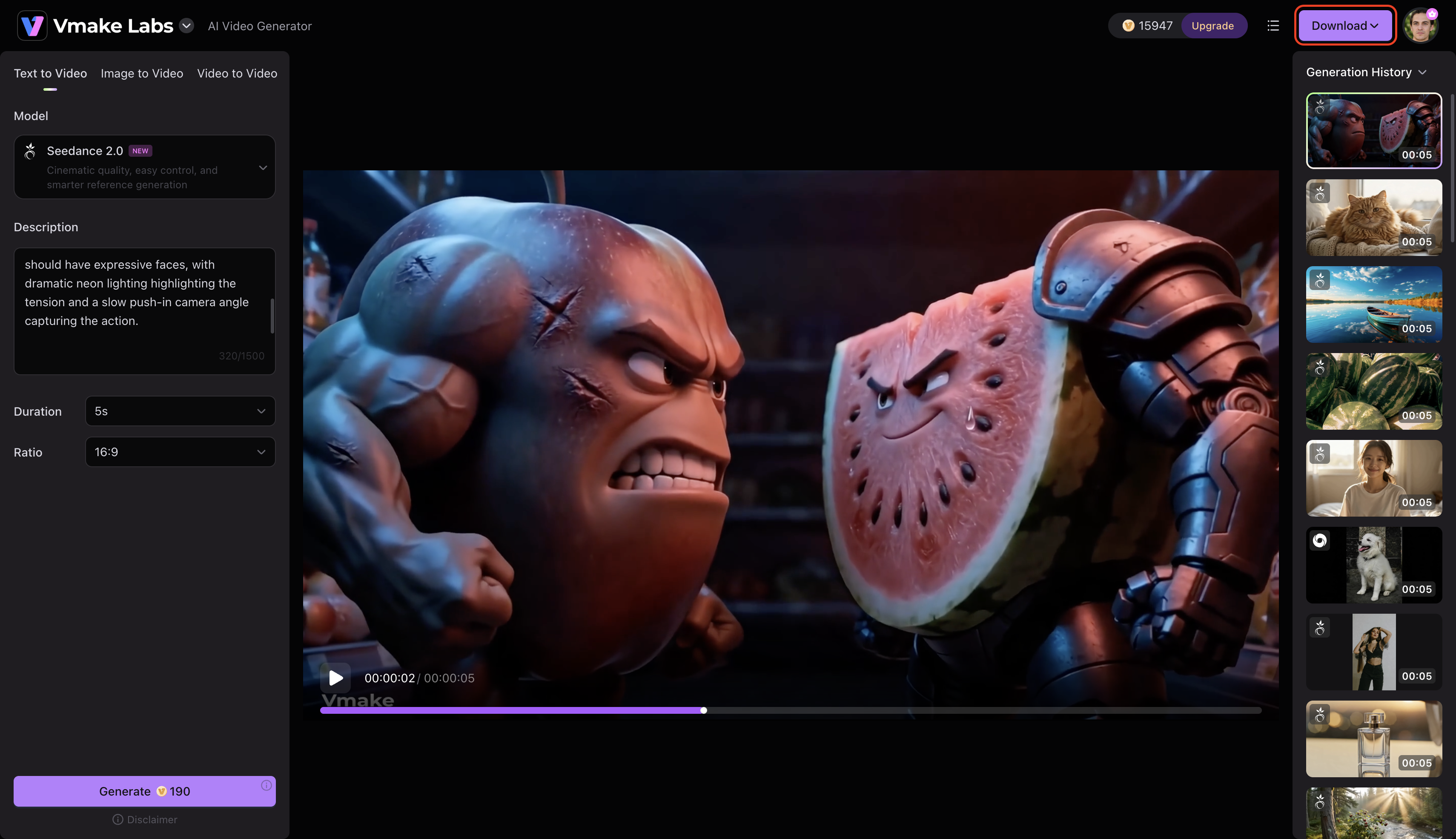
Step 1: Access the AI video generator feature
Start by logging into the Vmake account and navigating to the main dashboard. Next, open the "All tools" menu and select the "AI video generator" option to launch the creative workspace.
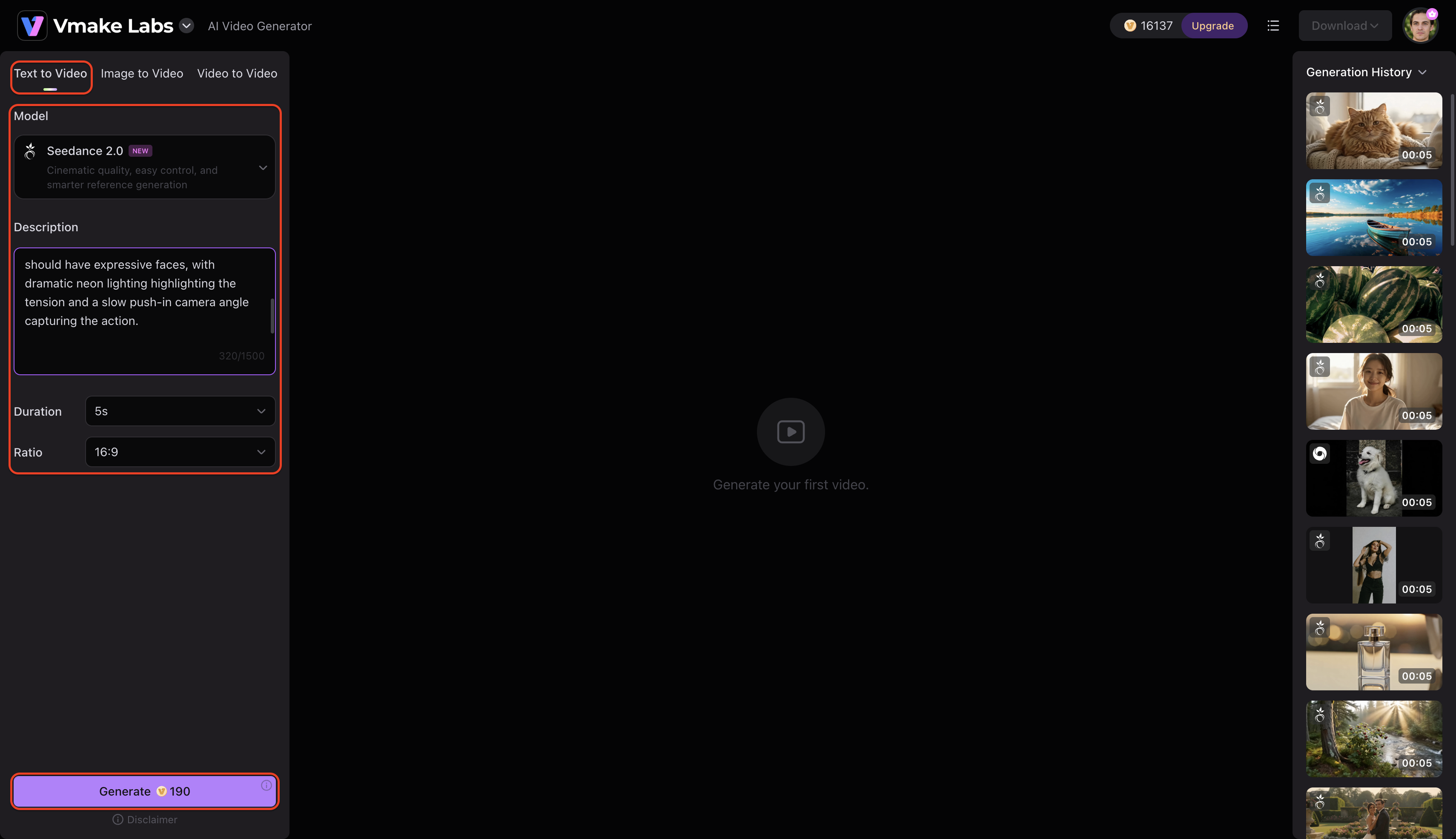
Step 2: Input the video creation details
A new interface will open to accept specific production parameters. The platform supports text-to-video, image-to-video, and video-to-video pathways. Simply choose a preferred AI model (such as Seedance, Veo, or Kling), provide a detailed prompt or reference asset, set the desired duration and aspect ratio, and then click on "Generate".
Step 3: Export the AI-generated video
The engine will process the request and display the finalized footage directly on the screen upon completion. Review the visual fidelity, then click on the "Download" option to export the high-resolution file for immediate sharing or professional publishing.
Comparison: Grok xAI vs. Vmake AI
Deciding between platforms often comes down to specific project requirements and scaling needs. If you frequently produce commercial content, utilizing a dedicated product video generator provides essential features that built-in social tools lack. Below is a clear comparison to help evaluate which platform aligns best with your upcoming creative goals.
|
Feature |
Grok xAI |
Vmake AI |
|---|---|---|
|
Models available |
Grok Imagine Video 1.5 |
Seedance 2.0, Sora 2, Kling 3.0, Veo 3.1, Vidu Q2, Wan 2.2 |
|
Resolution |
Up to 720p (Standard tier) |
Up to 2K and 4K |
|
Control options |
Text prompt, single image reference |
Text, image, multi-image, first/last frame, video-to-video |
|
Duration |
Up to 15 seconds |
2 to 15 seconds |
|
Primary use case |
X platform engagement, quick audio clips |
E-commerce promotion, feature film generation, and advanced shorts |
|
Platform accessibility |
X app (SuperGrok tier), API |
Dedicated web-based platform |
Conclusion
Artificial intelligence continues to redefine how we approach visual storytelling. Understanding how to generate video with Grok xAI 2026 provides an excellent pathway for quick, audio-synced social media content natively within the X platform.
However, for professionals requiring 4K clarity, advanced model diversity, and reliable, throttling-free production, dedicated generation suites remain far more suitable for high-end creative campaigns. By balancing the immediacy of social-integrated tools with the power of robust, multi-model engines, creators can successfully master modern workflows to ensure every project delivers stunning, high-definition results.
FAQs
How to create a video with Grok xAI easily?
Accessing the platform requires an active SuperGrok subscription. From the main chat interface, submitting a detailed text prompt detailing the scene, camera movement, and audio preferences prompts the engine to render the clip directly in the thread.
What is the maximum video duration I can generate?
Currently, the engine limits the output of generated clips to a maximum duration of 15 seconds. This restriction prioritizes quick, highly shareable social media formats while managing server loads effectively.
Can I use images to guide the AI video creation?
Yes, the system supports image-to-video generation natively. Uploading a static reference image alongside a text prompt helps lock in specific compositions, lighting setups, and character designs before animating them.
How to create videos with Grok xAI for e-commerce?
E-commerce marketers typically type descriptive prompts highlighting a product's specific utility and branding. For professional campaigns needing higher resolutions, employing a specialized e-commerce creative suite offers superior tools to refine these rough outputs for commercial use.
Is there a better alternative to Grok for high-resolution video?
Platforms offering superior high-resolution output capabilities allow creators to export files in 2K and 4K. These alternatives far exceed the standard 720p constraints found on social-centric integrated models, delivering broadcast-quality results.

You May Be Interested
AI TikTok Video Generator | Create High-Quality AI Videos
Best AI Video Generator: Top Tools Tested (2026)

11 Best Image to Video AI Generators Compared in 2026

Funny Video Memes: Best Clips, Short Reels & Meme Compilations

Best AI Animation Generators for Creating Images and Videos
Kapwing AI Video Generator Review: Features, Pricing & Results