How to Create a Video in Midjourney: Step-by-Step Guide
Learn how to create a video in Midjourney, animate images with AI, explore motion settings, key features, and pricing, then compare it with Vmake AI for more advanced video creation workflows.
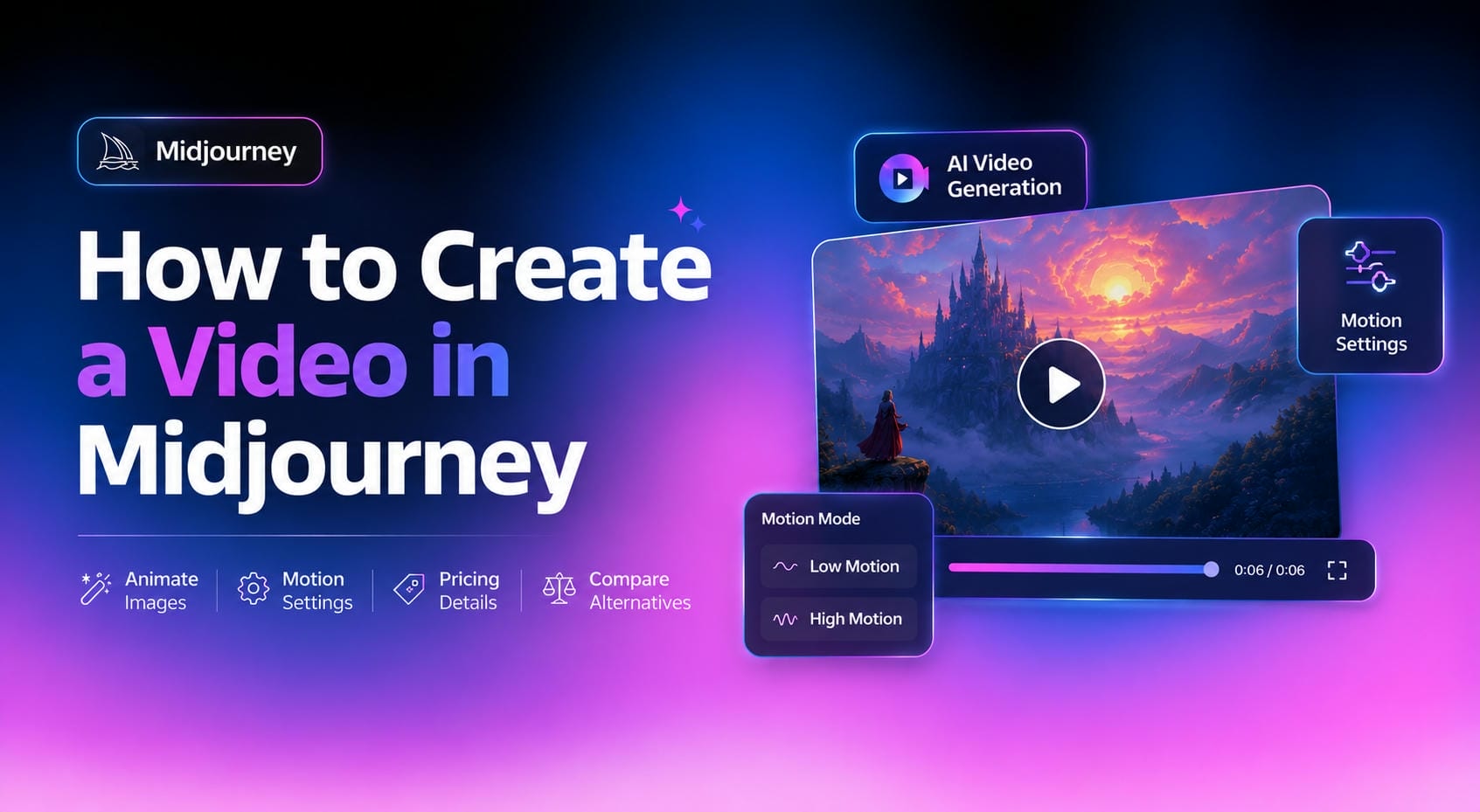
Midjourney now allows you to transform any still image into a short AI-generated video, no editing tools needed. This article covers how the feature works, how to make your first film, the cost, and how it compares with Vmake AI if you want a more versatile video workflow.
What Is Midjourney Video Generation?
Midjourney is a video option that lets you take a still image and turn it into a short animated video, using their AI motion generation. Instead of constructing a film from scratch, the algorithm examines an image and estimates how certain aspects could organically shift in the scenario. This produces a short video that maintains the original visual design but adds movement and cinematic elements.
How the process works
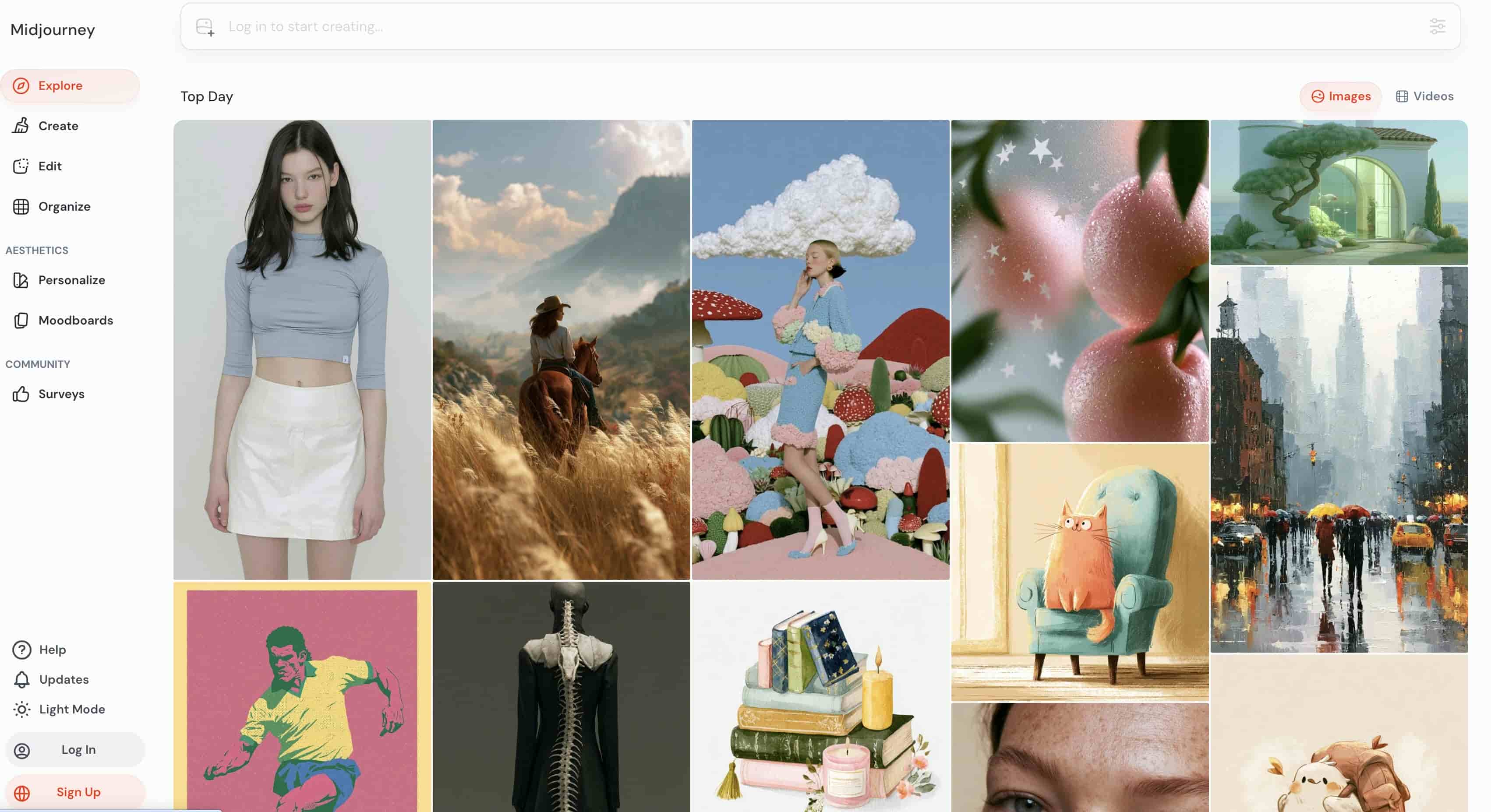
Midjourney has a straightforward, beginner-friendly video process. The procedure begins with an image, either one generated inside Midjourney or an uploaded file. Once the image is picked, users can decide how much movement to include before producing the final animation. In the background, the AI evaluates elements like composition, depth, lighting, and subject location to figure out how to move motion throughout the scene.
Motion options available
To give creators more control over the final result, Midjourney provides two motion settings that influence how much movement appears in the generated video. While both options animate the image, they create noticeably different visual experiences depending on the style of content being produced.
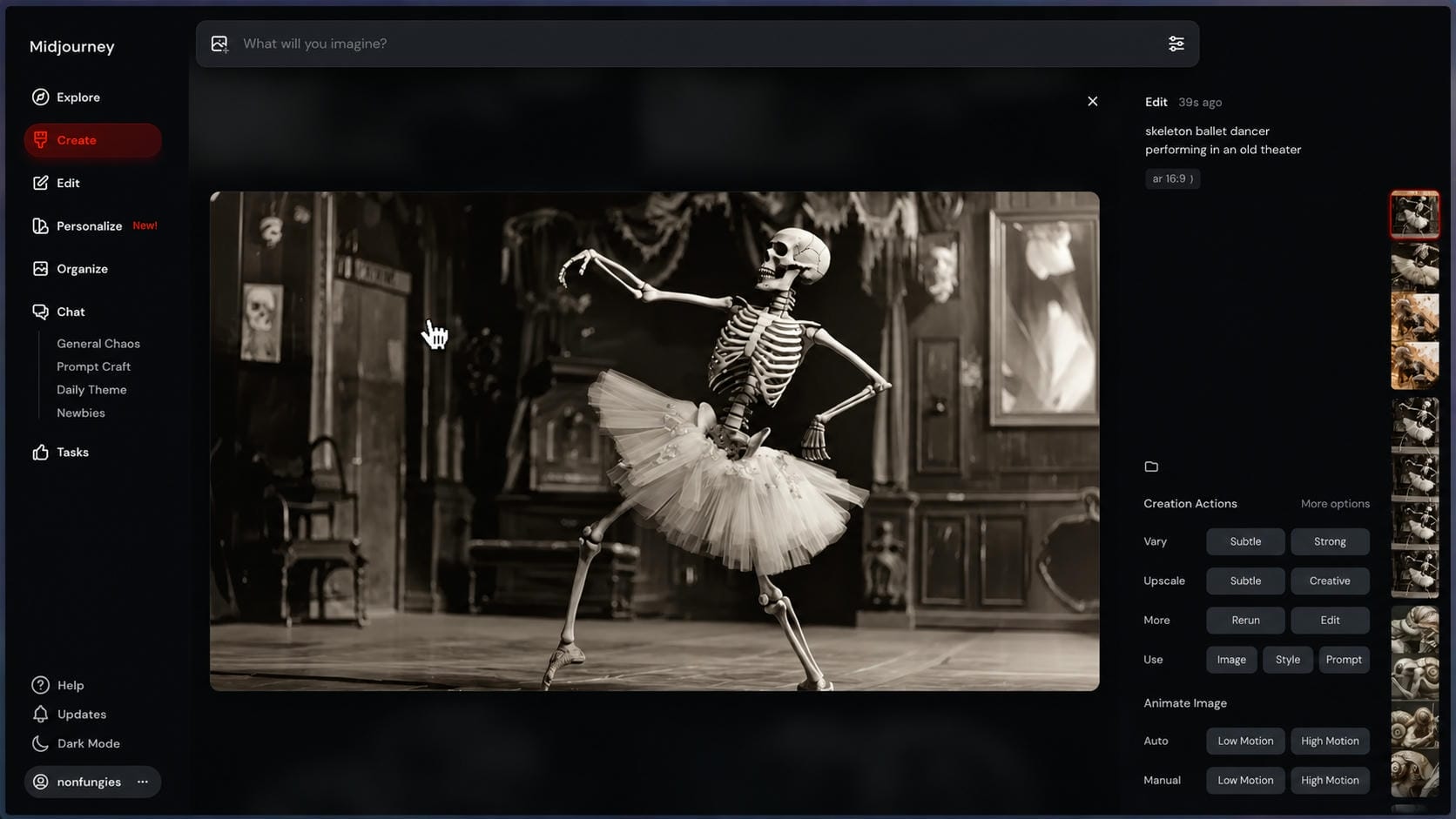
Low Motion
Low Motion focuses on subtle animation and controlled movement. Rather than a drastic change of scene, it changes the image with slight camera changes and modest movements in the environment, keeping the same composition as the original.
High Motion
High Motion adds extra motion to the whole scene for a more energetic, dynamic finish. High Motion videos are more dramatic and immersive than those made with Low Motion since the animation is more pronounced.
How to create a video on Midjourney
It is simple and easy to create a video in Midjourney. Select an image, apply a motion effect, and make an animated clip in a few easy steps.
Step 1: Create or Upload an Image
To begin, you can create an image in Midjourney or upload a file from your device. The animation is based on a chosen image; thus, using a good-quality photo, with a clear subject and a strong composition, will assist in getting better results.
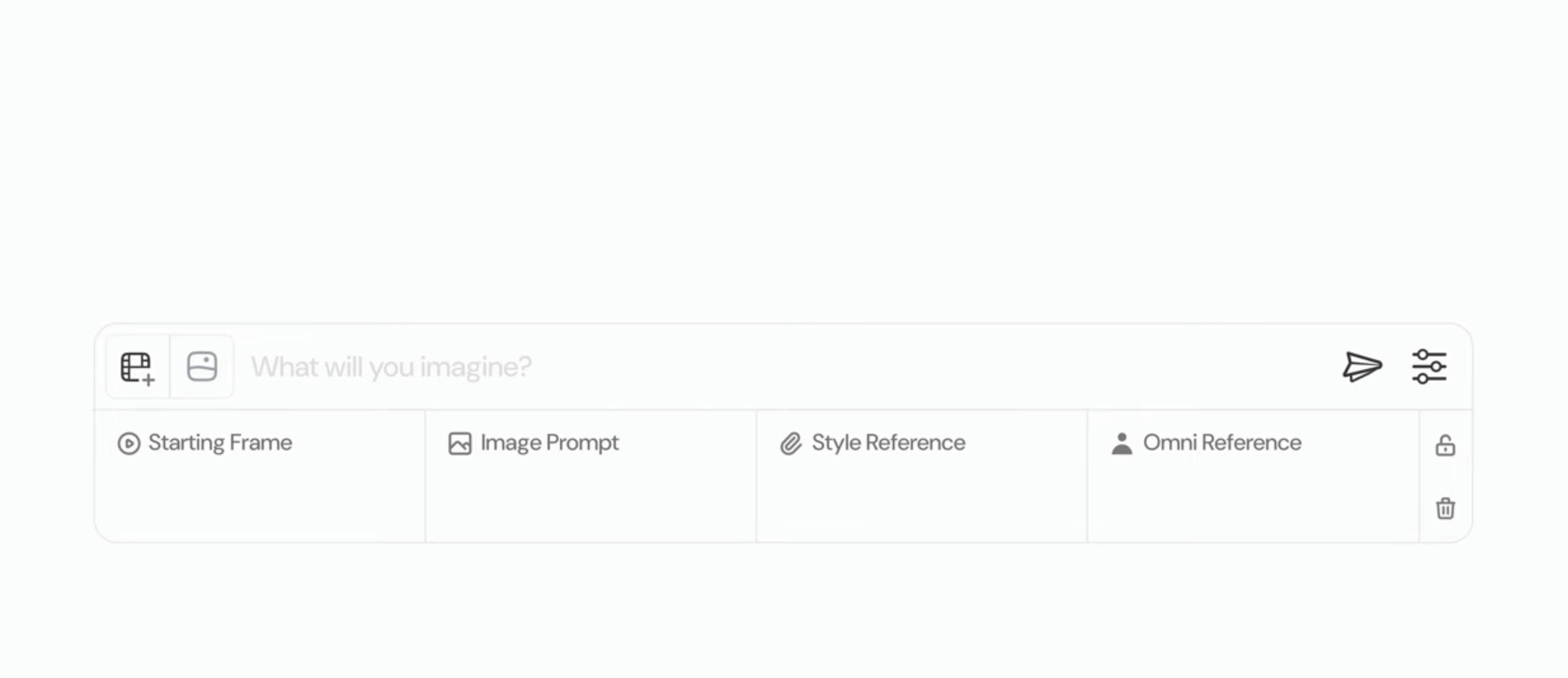
Step 2: Select the Video option and choose a motion setting
After picking your image, click on the Video option and then choose motion mode. Midjourney provides Low Motion for delicate, dramatic movement and High Motion for more dynamic and powerful animations. Which is right depends on the style and vibe you wish to create.
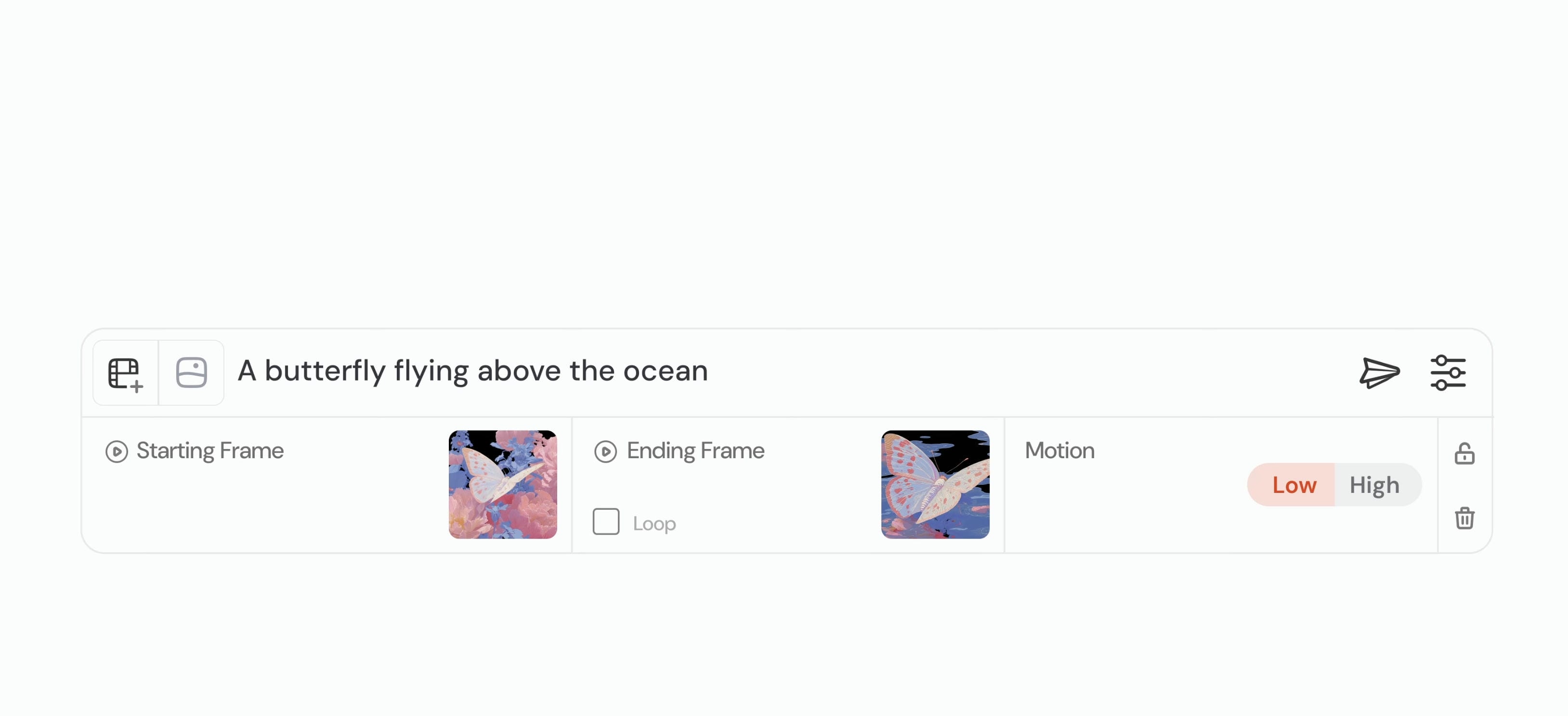
Step 3: Generate and download the video
Once you've selected a motion setting, start the generation process. Midjourney will evaluate the image and generate an animated clip based on the chosen motion profile. Once the movie is ready, evaluate the outcome and download it to use in social media posts, creative projects, or visual presentations.
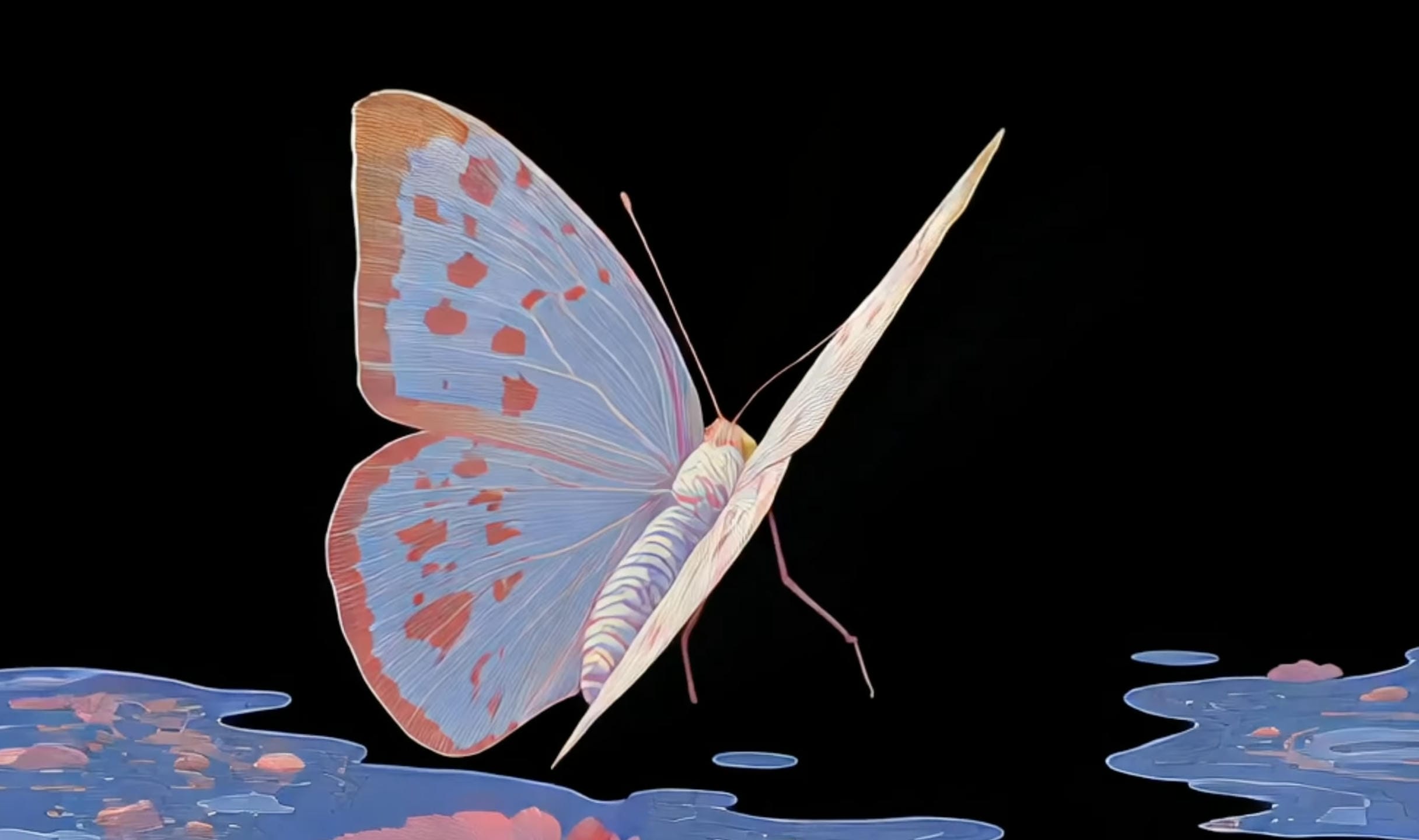
Tips for better Midjourney AI videos
Most of the animation is done automatically with Midjourney, but the quality of your source image and motion settings can significantly influence the final result. A few Midjourney-specific practices can help create smoother, more visually appealing videos.
-
Use clean compositions with a clear focal subject: Midjourney images often contain highly detailed elements. Keeping the main subject clearly defined helps the animation remain focused and prevents distracting motion.
-
Leave room for motion in your image: When generating images in Midjourney, avoid placing important subjects too close to the frame edges. Extra space around the subject gives the animation more room for camera movement, zoom effects, and scene transitions.
-
Optimize your Midjourney image before animating: Upscaling your preferred image variation and selecting the version with the cleanest details can improve animation quality. Images with fewer visual artifacts typically produce smoother motion.
-
Include depth and perspective in your prompts: Midjourney scenes with foreground, midground, and background elements often translate into more dynamic animations because the AI can create a stronger sense of movement and depth.
-
Choose Low Motion for cinematic scenes: Low Motion works well for portraits, landscapes, and atmospheric artwork where subtle movement enhances the image without overwhelming it.
-
Use High Motion for action-focused content: Fantasy scenes, adventure concepts, action sequences, and energetic compositions often benefit from High Motion, creating a stronger sense of movement and immersion.
-
Generate multiple image variations before animating: Midjourney can produce very different compositions from similar prompts. Testing several variations helps you identify the image that offers the best balance of composition, detail, and animation potential.
Starting with a well-composed Midjourney image and selecting the appropriate motion style can significantly improve the quality, realism, and visual impact of your final AI video.
Midjourney video generator: pros, cons, and pricing
Before you subscribe, it's important to understand both the strengths and limitations of Midjourney's video capabilities. While the platform can create visually impressive animations from AI-generated artwork and supports extending clips through its Extend feature, it remains primarily focused on image animation rather than full-scale video production. Depending on your goals, it may or may not be the ideal solution for your workflow.
Pros and cons
|
Pros |
Cons |
|---|---|
|
Produces visually striking animations from AI-generated artwork |
Output clips are relatively short |
|
Simple workflow with minimal setup required |
Limited control over detailed motion and scene changes |
|
Suitable for artistic, cinematic, and creative projects |
Requires a paid Midjourney subscription |
|
Supports image uploads in addition to Midjourney creations |
Lacks advanced video editing features |
|
Beginner-friendly interface and generation process |
Not specifically built for marketing and advertising workflows |
|
Motion variations help create different visual effects |
Fewer video-focused tools than dedicated AI video platforms |
|
Includes an Extend feature that allows users to continue and lengthen existing animations |
Longer videos require multiple extensions and still offer less flexibility than dedicated AI video generators |
Pricing
|
Feature |
Basic Plan |
Standard Plan |
Pro Plan |
Mega Plan |
|---|---|---|---|---|
|
Monthly Price |
$10 |
$30 |
$60 |
$120 |
|
Annual Price |
$96 ($8/mo) |
$288 ($24/mo) |
$576 ($48/mo) |
$1,152 ($96/mo) |
|
Fast GPU Time |
3.3 hr/month |
15 hr/month |
30 hr/month |
60 hr/month |
|
Relax GPU Time |
None |
Unlimited Images |
Unlimited Images & SD Video |
Unlimited Images & SD Video |
|
Video Resolution |
SD |
SD & HD |
SD & HD |
SD & HD |
|
Stealth Mode |
No |
No |
Yes |
Yes |
|
Concurrent Prompts (Images) |
3 Fast |
3 Fast or Relax |
12 Fast or 3 Relax |
12 Fast or 3 Relax |
|
Concurrent Prompts (Videos) |
1 Fast |
3 Fast |
6 Fast or 3 Relax |
12 Fast or 3 Relax |
Honestly, Midjourney is a wonderful solution for artists, designers, and visual storytellers who want to make AI artwork with the least amount of effort. Its simple workflow and great visual quality make it suitable for creative tasks. But the platform focuses mostly on image development and animation, so it doesn't have as many possibilities for text-to-video creation, video-to-video transformation, and commercial content production. If you're a user who wants more flexible processes for video generation, you might want to check into dedicated AI video platforms like Vmake AI.
A robust alternative: Try Vmake AI to expand your imagination horizon
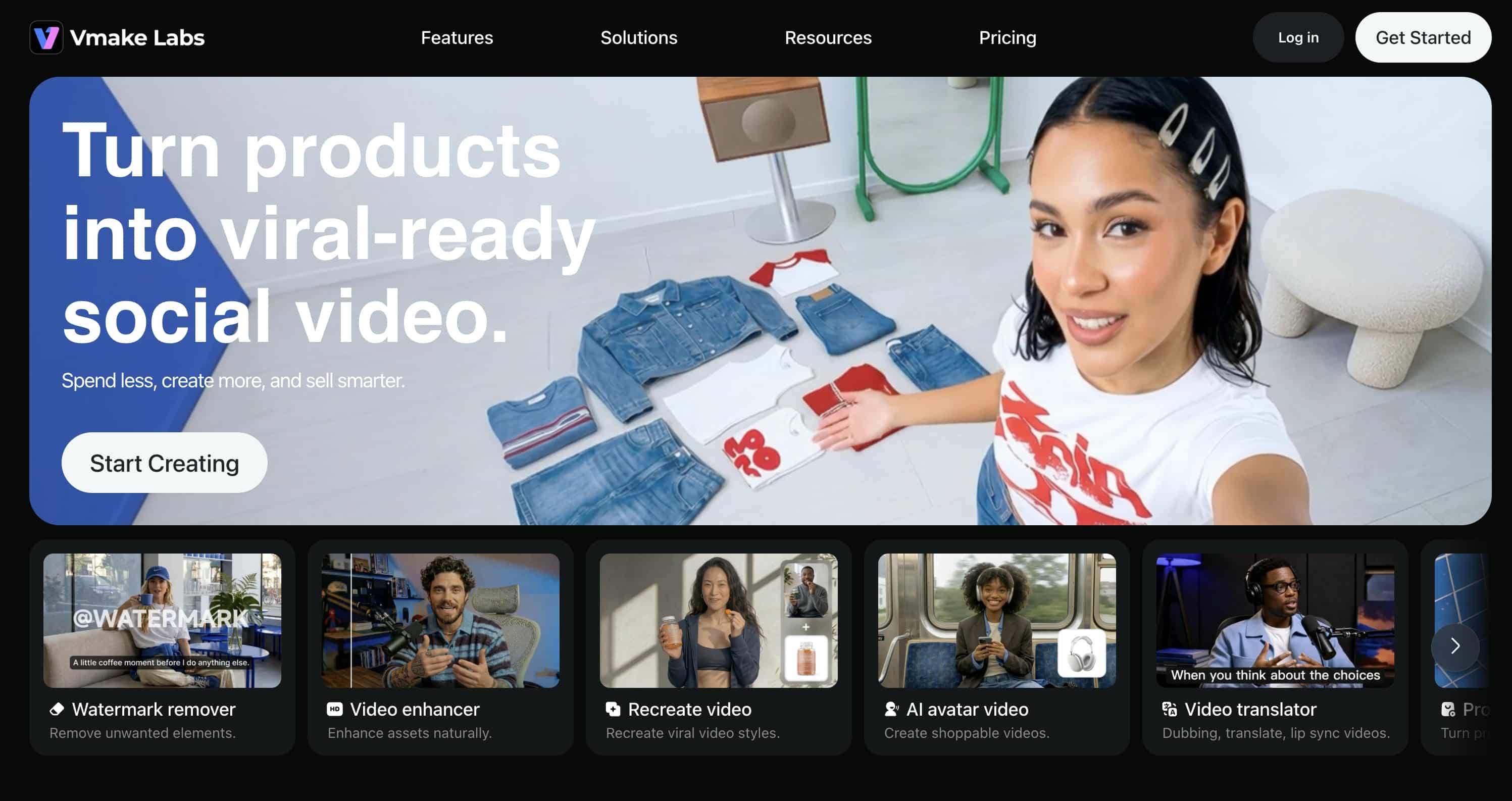
As a popular UGC platform, Vmake AI brings text-to-video, image-to-video, and video-to-video tools together into a single workspace. It uses multiple advanced video models, such as Seedance 2.0 or Veo 3.1, to handle everything from social media clips and product promotions to marketing campaigns and creative stories. Because the interface is straightforward and offers flexible ways to create, you can turn ideas into finished videos quickly.
Key Features of Vmake AI
Vmake AI offers multiple ways to create videos, making it suitable for creators, marketers, and businesses. Here are some of the platform's standout video generation features:
-
Video-to-video generation: Unlike Midjourney, which focuses primarily on animating images, Vmake AI allows users to upload existing videos and generate new versions with different visual styles. This is useful for repurposing content, experimenting with creative effects, and adapting videos for different platforms.
-
Text-to-video and image-to-video creation: Users can generate videos directly from text prompts or animate reference images. Vmake AI also supports first-and-last-frame workflows and image-based video generation, providing more flexibility for different creative projects.
-
Marketing and promotional video production: Vmake AI is well-suited for creating e-commerce promotions, product showcases, social media advertisements, and other marketing content. This makes it a practical option for businesses that need more than artistic image animation.
-
Multiple AI video models: Users can choose from leading video generation models, including Seedance 2.0, Kling 3.0, Veo 3.1, Sora 2, Wan 2.2, Vidu, and Hailuo. Access to multiple models allows creators to experiment with different visual styles and generation capabilities based on their project needs.
-
Flexible duration and resolution settings: Vmake AI supports customizable video durations and multiple resolution options, making it suitable for social media content, product videos, advertisements, and creative storytelling projects.
Bonus: Create a video with Vmake AI in 3 steps
Creating a video with Vmake AI only takes a few steps. Follow these three simple steps to generate a video using text prompts, images, or existing video footage.
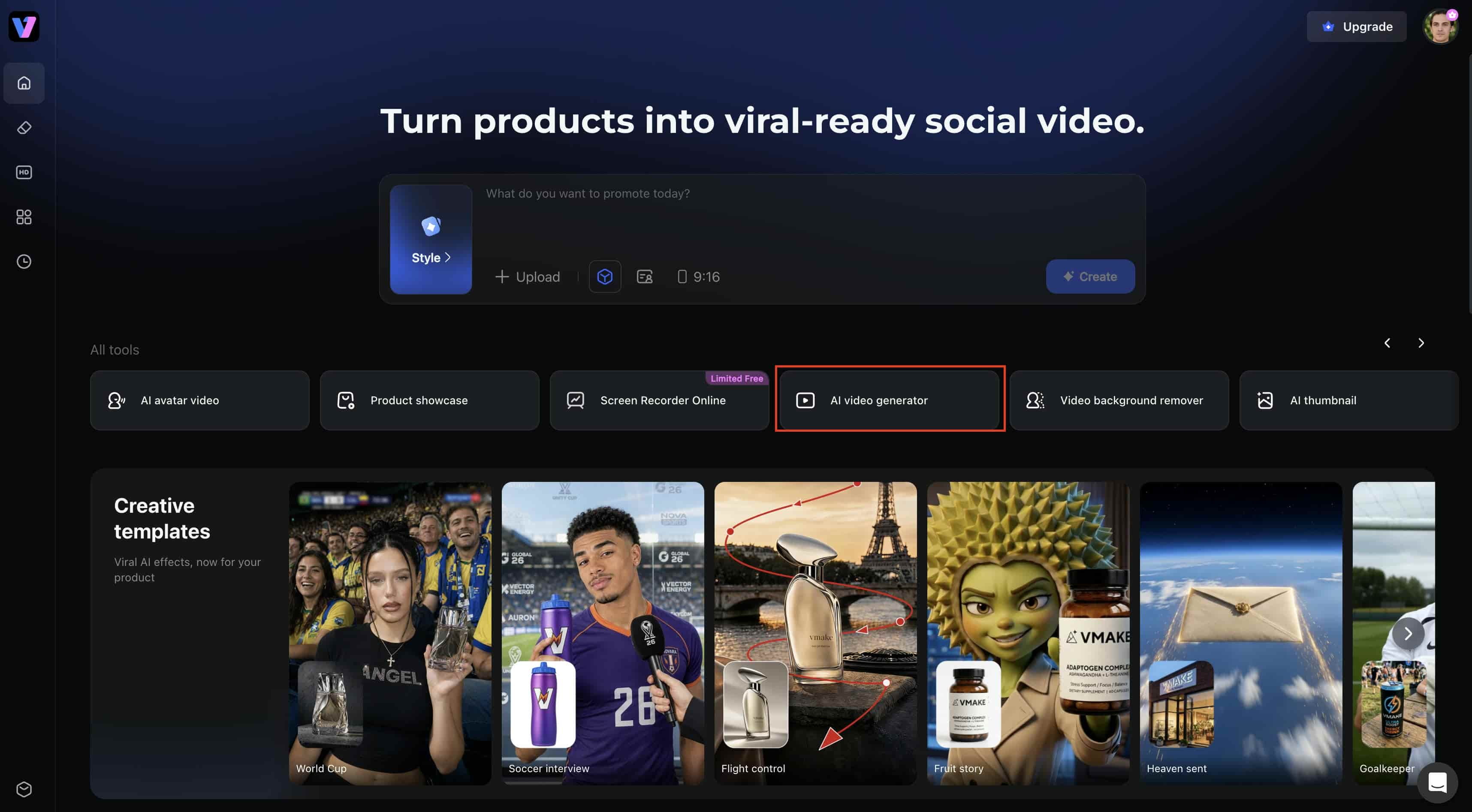
Step 1: Open Vmake AI Video Generator
Visit the Vmake platform and navigate to the AI Video Generator tool from the homepage. Clicking this option will take you to the video creation workspace, where you can start generating videos using text prompts, images, or existing videos.
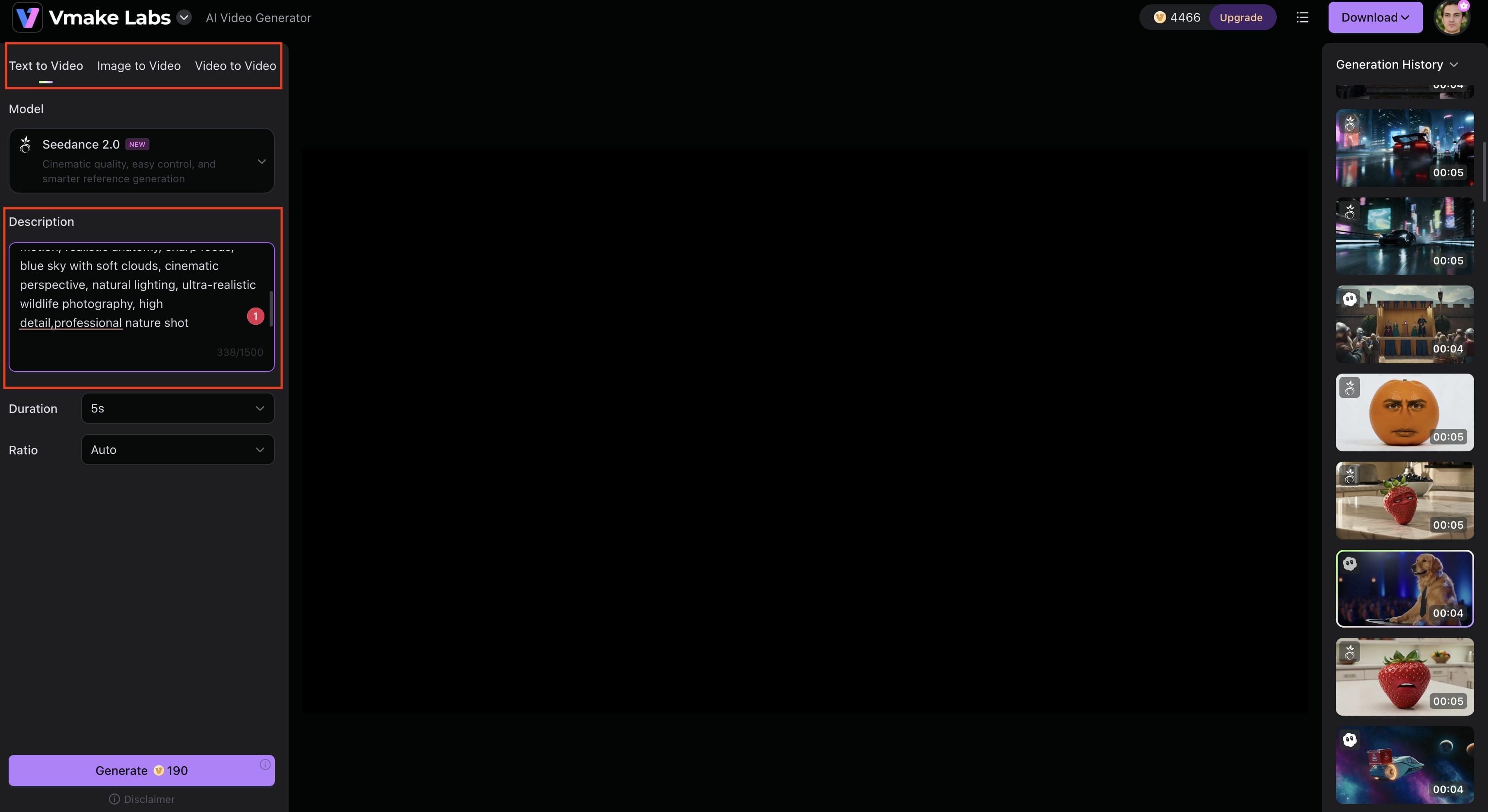
Step 2: Enter a prompt or upload media
Choose your preferred generation mode, such as Text to Video, Image to Video, or Video to Video. Then select an AI model, enter a prompt or upload your media, and adjust settings like video duration and aspect ratio. Once everything is ready, click Generate to start creating your video.
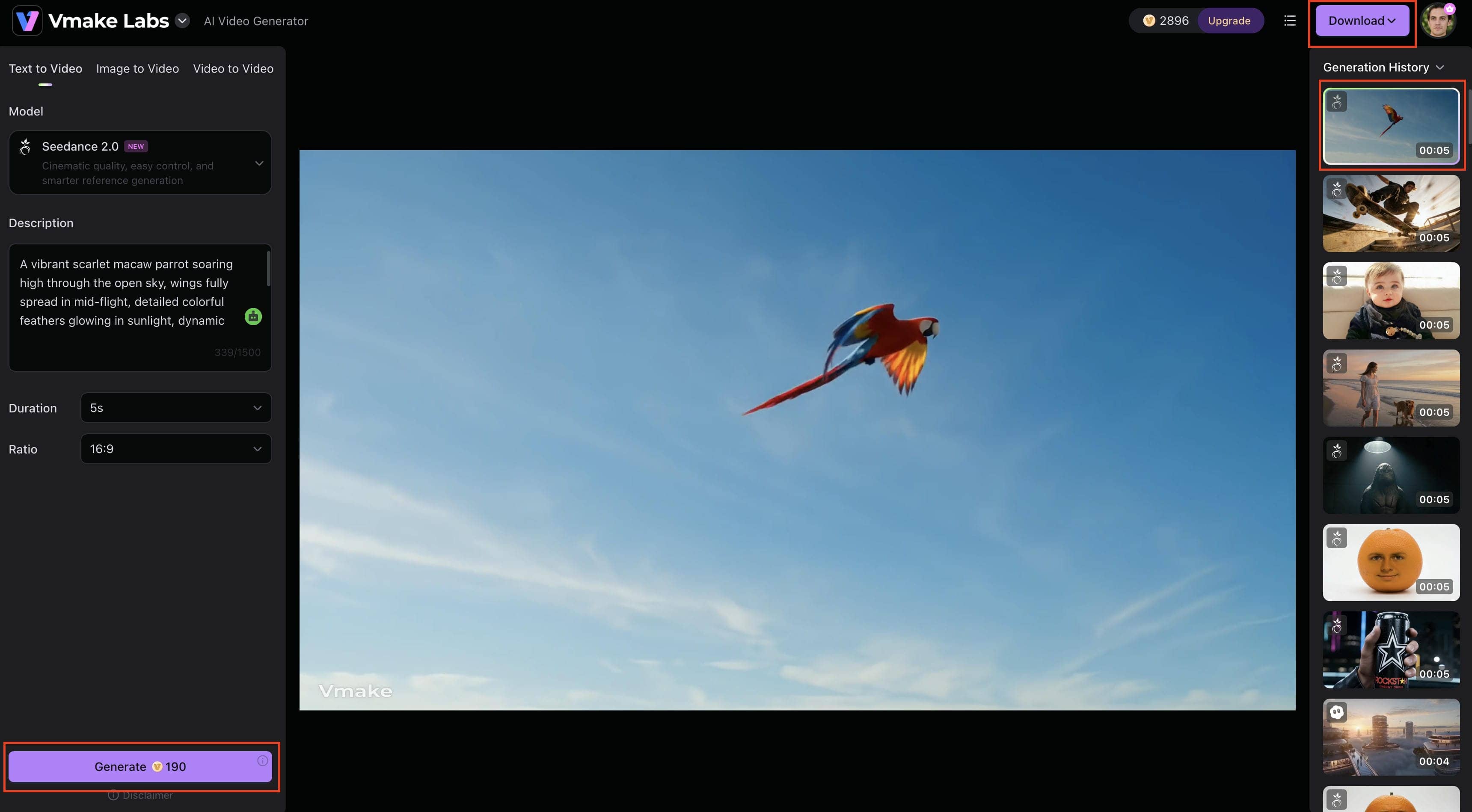
Step 3: Preview and download the video
Once the video is generated, preview the result in the workspace to check that it matches your vision. If you're satisfied with the output, click Download to save the video and use it for social media, marketing campaigns, or creative projects.
Final checklist: Midjourney vs Vmake AI
Midjourney and Vmake AI both allow users to generate AI videos, but they are meant for different objectives. Midjourney is centered on image animation and creative storytelling, whereas Vmake AI provides more complete video creation workflows targeted for creators, marketers, and corporations.
|
Feature |
Midjourney |
Vmake AI |
|---|---|---|
|
Core Focus |
AI image creation with image-to-video capabilities |
AI-powered video generation and content creation |
|
Input Options |
Primarily image-based workflows |
Text, image, and video-based workflows |
|
Content Creation |
Artistic scenes and visual storytelling |
Marketing videos, social content, product videos, and ads |
|
Video Modes |
Image animation |
Text to Video, Image to Video, Video to Video |
|
AI Models |
Midjourney native technology |
Seedance, Kling, Veo, Sora, Wan, Vidu, Hailuo |
|
Commercial Use |
Limited workflow focus |
Built for creators, marketers, and businesses |
|
Best For |
Artists and designers |
Creators, brands, and ecommerce businesses |
Midjourney is perfect for artists and visual storytellers who want to bring their amazing AI-generated artwork to life.
If you want full video production workflows, from product videos to social media campaigns and commercials, Vmake AI is more appropriate.
Conclusion
Creating a video in Midjourney is rather straightforward to learn. Users can create or upload an image, select a motion setting, and then render the animation to create an entertaining video clip out of static artwork within minutes. Midjourney is excellent for artistic image animation, but for producers who require text-to-video, video-to-video, numerous AI models, and commercial video workflows, Vmake AI could be a more comprehensive solution.
FAQs
Is the Midjourney video generator free?
No, Midjourney video generator is not free. To use Midjourney's video features, you'll need to be a paid subscriber starting with the Basic plan. The features and usage limits you get access to depend on which membership level you purchase.
Can I upload my own images to Midjourney?
Yes, Midjourney allows you to upload your own photos and produce videos from them using its video production option. This means that you may take existing art, graphics, idea designs, or photos and turn them into short animated clips. No need to start from scratch and produce a new image.
What is the difference between Low Motion and High Motion?
Low Motion is a very subtle, restricted motion that is perfect for portrait, landscape, and movie sequences where the original arrangement is vital. High Motion gives you a more robust, dynamic animation that performs better for action-packed imagery, fantasy art, and storytelling projects that would benefit from a higher degree of motion.
Can I extend Midjourney AI videos?
Yes, Midjourney allows users to extend generated videos to create longer animations. Video extensions add additional motion to the existing clip, helping creators develop scenes further while maintaining visual consistency and style throughout the animation.
What is the best alternative to the Midjourney AI video generator?
The best alternative depends on the type of content you want to create. While Midjourney focuses primarily on image animation, platforms such as Vmake AI offer text-to-video, image-to-video, and video-to-video generation within a single workflow. This makes them suitable for creators, marketers, and businesses looking for more flexible video creation options.
Is Vmake AI better for marketing videos?
Yes, Vmake AI is generally better suited for marketing-focused content. While Midjourney excels at animating artwork and creative visuals, Vmake AI is designed for creating promotional videos, product showcases, social media content, and advertising assets. Its support for multiple video generation methods and AI models makes it a practical choice for commercial video production.

You May Be Interested
Midjourney AI Image Generator Review: Is It Worth It?
10 Best Midjourney Alternatives Free & Paid AI Tools in 2026
How to Make AI Baby Videos: 3 Best Tools to Make Baby Videos

ChatGPT Video Generator Review: Features, Pricing & Best Alternative