Improve Video Quality with AI Video Quality Enhancers: Beginner’s Guide
 Ken DawsonDecember 1, 2025
Sacrificing quality is never an option when it involves content creation in this competitive age. Producing quality video requires lots of time, effort, and resources. Sometimes, with all the efforts, you do not obtain the results you anticipate.
Under such circumstances, you can turn to AI editing. These tools can help you improve the video quality while keeping everything natural. Do you want to know about AI enhancers that lets you improve the video quality free online? Here is a detailed guide on some of the best tools and how to use them.
What is AI Video Editing?
AI video editing is the use of artificial intelligence technology to make and accelerate the video editing process. Rather than cutting clips manually, adjusting the colors, or adding special effects, AI scans your footage and makes intelligent edits such as clipping scenes, leveling out lighting, adding subtitles, or improving resolution.
It recognizes the content and context to automatically make changes which improve the quality of the video while conserving creators’ time and effort. AI video editing brings high-quality videos within reach of novice and expert creators alike, allowing them to spend more time and energy on creativity and less on technical procedures.
Common Video Quality Issues
1. Pixelation
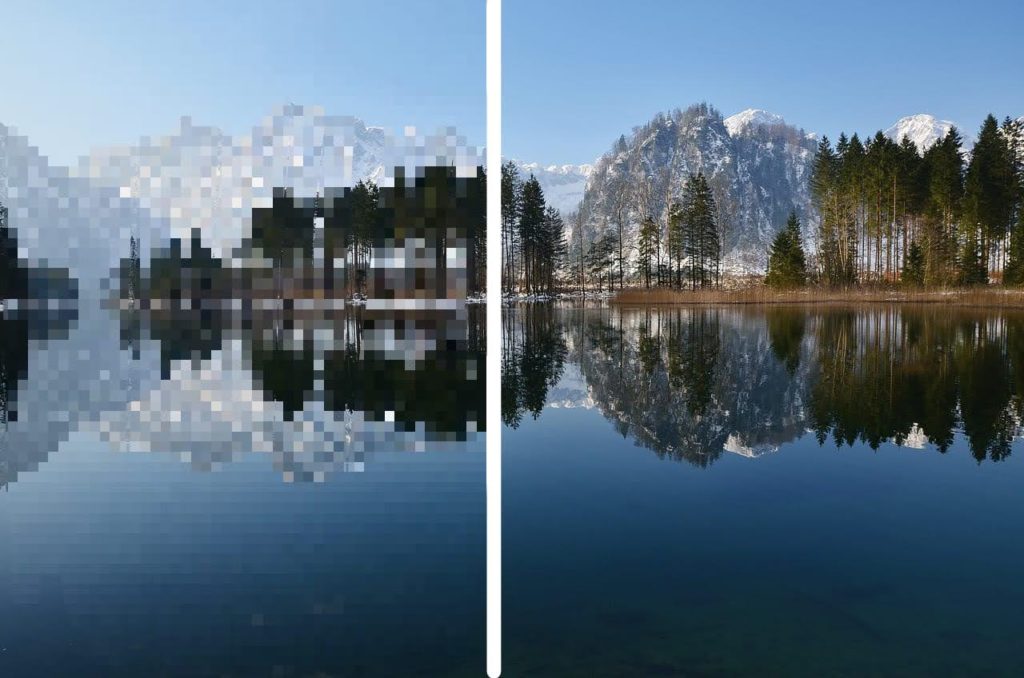
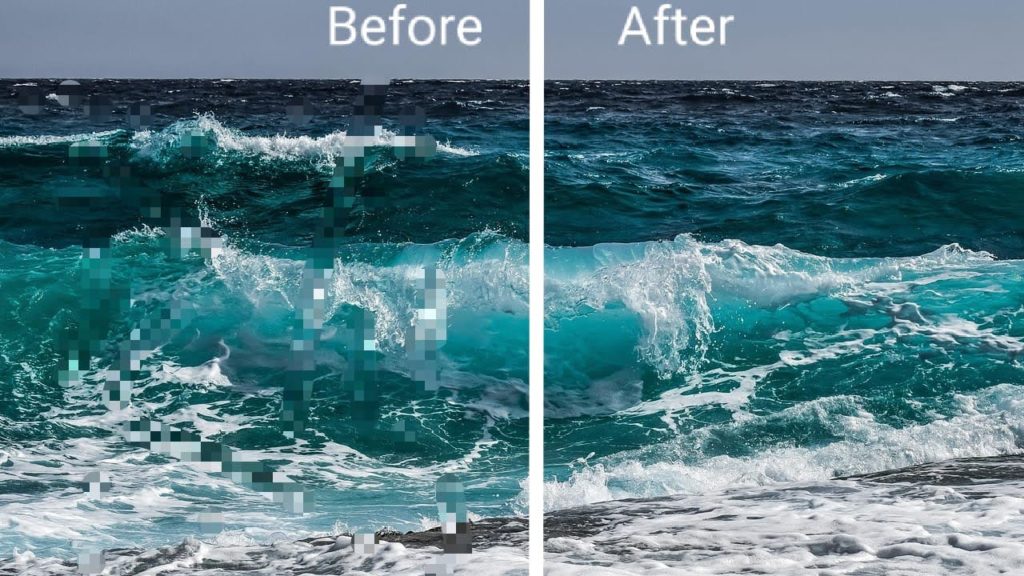
Pixelation occurs when the quality of a video is too low that leads to blurred display with blocky squares. It usually occurs when the resolution of a video is not compatible with the display size or even excessive compression. It reduces the clarity thus degrading the overall viewing quality.
2. Blurriness
Bluriness is another common video quality issue that is commonly caused by the person recording. Improper focus, dirty camera lens, or unsteady camera handling can make the video look smeared. A blurred video loses fine details and makes the viewers lose interest while trying to focus on the video contents.
3. Brightness and Color Issues
Color and brightness problems tend to occur when the video is not shot in ideal lighting or the colors and exposure are not suited by the editor. White balance that is wrongly set causes the color tones to appear unnatural and thus the video appears unreal. Overly bright colors or washed-out highlights causes visual discomfort and undermines the intended message.
4. Stabilization
Shaky or improper camera handling causes stabilization problems. It can be due to unsteady hands, sudden jerky movements, or walking while filming without a camera support. Unstable visuals makes it difficult for the audience to focus on the subject leading to frustration and ultimately reduced engagement.
5. Background Noise and Audio Sync
Background noise comprises unnecessary sounds such as wind, echoes, or far-away conversations recorded while filming. Audio sync issues arise when the sound and video tracks fail to synchronize, and lip movements fail to match words spoken. The problems divert attention and perplex viewers, shattering immersion and making content more difficult to understand.
How to Improve Video Quality Using AI Video Quality Apps?
Here is your comprehensive guide to improve video quality online with some of the most reliable video enhancers.
Improve Video Quality Using Vmake AI
Vmake AI is a highly advanced AI-based web tool that can make a low quality video into a high definition footage in a matter of seconds. Once you submit your video, it overlays crisp details, fills in the gaps, and automatically adjusts the brightness, contrast, and saturation level to give you the best output.
Here’s how to use Vmake AI:
- Go to the official website of Vmake AI video enhancer.
- Create a free account and login using the credentials you provided while signing up.
- Once you are directed to the homepage, click on “Video and Image enhancer.”
- Tap on “Upload” and select the video you want to enhance.
- Once ready, you can preview the final video.
- Choose the output format and length and then download it.
To enhance resolution only, follow the same steps as above and select “Video upscaler”. You will be provided with three options to improve the resolution up to 4k. Choose your option and prepare to download.
Improve Video Quality Using AirBrush
AirBrush is a user-friendly AI-driven tool that offers professional grade video enhancement for free. It can brighten your dark videos, automatically perform color correction, and improve the quality of blurred videos seamlessly.
Follow these steps to enhance your video quality using AirBrush:
- Go to the main AirBrush website.
- Click on “Upload” if you are using a desktop.
- For mobile, tap on “Upload from mobile” and scan the QR code provided.
- Select the video you want to upgrade and wait till the processing is complete.
- Click on “Preview” to see the final results before downloading the file.

Improve Video Quality Using TopazLabs
TopazLabs is a professional desktop tool that can be used to improve video quality free of cost. It comes with customizable AI filters to enhance the video quality and make it more appealing. The tool also provides manual control over relative sharpness, video length, and time adjustment in the enhancement process to customize the visual output according to the preference of the user.
To use TopazLabs:
- Open the official TopazLabs homage.
- Click on “Try it now for free.”
- Choose the “Video upscale” option and tap “Upload.”
- Select the video and then choose among the presets options that you prefer for your video output.
- Adjust the “Sharpness” for standard preset or select the “Restore strength” for old videos preset.
- If you want to trim the video, click on trim and adjust the length to your requirement.
- Click on “Upscale to 4k.”
Note: To use TopazLabs to upscale your video, you must first need to create an account.
Tips for Getting the Best Results with AI Video Quality Enhancers
1. Good Quality Input
The quality of the output largely depends on the source video offered. AI software works based on available frame rates, colors, and textures to enhance the quality of a video. If the input video is highly compressed, contains a large number of artifacts, or extremely low resolution, this hinders the processing capacity of AI towards images accurately.
2. Don’t Over Enhance
Some AI tools automate the enhancement process while others offer manual adjustment. If you are adjusting everything manually, try to keep everything minimal. Excessive enhancement can create unnatural artifacts, generate artificial textures, and provide you with low-quality results.
You can start by gradually increasing intensity of enhancement and preview frequently to keep the output as natural as possible.
3. File Sizes
Having too big a file size when utilizing AI video enhancers can lead to issues because most tools have limitations on uploads to about 200MB. Sending larger files might lead to errors or failed uploads.
To achieve the best outcomes, initially convert your video into an appropriate size. This ensures smooth processing and enhances speed of processing.
4. Use AI Ethically
When using AI for video enhancement, it is important to be responsible. Over-enhancement or misrepresenting the content of the video, can result in ethical problems. AI-generated upgrades could influence perceptions about reality, particularly in news reports or documentary visuals, and may mislead viewers.
Transparency in the usage of AI and refraining from manipulation that alters the original message or purpose is essential.
Conclusion
Video quality issues like pixelation, blurred videos, excessive brightness, distracting background noises, and unstable footage makes everything worthless. AI tools can help improve the video quality to a great extent thus making the hardwork and efforts of creators worth it.
Even while using these tools, it is necessary to keep everything in check. Try to provide a good quality input, and the file size that is compatible with the tool. Avoid overenhancing as it can make the footage look artificial. On top of everything, follow the ethical considerations while using AI to avoid controversies and respect other creators.
Frequently Asked Questions (FAQs)
1. Can I improve the quality of a video for free?
Yes, you can use online tools to enhance the quality of a video for free. These AI tools can adjust brightness, contrast, blurred videos, and eliminate background noise without requiring any manual intervention.
2. Do video quality enhancers actually work?
Yes, they do. These AI-driven tools analyze every element of the video and add fine details providing results similar to a professional editor. As long as you are choosing a trustworthy video quality enhancer, you will not be disappointed by the results.
3. Can a video quality enhancer fix shaky videos?
Yes, a video quality enhancer can fix shaky videos. AI video enhancement is a perfect option to fix shaky videos, improve resolution of a video, and add fine-details to a pixelated footage.

You May Be Interested

Seedance 2.0: What's New & How to Use It
123APPS Watermark Remover Review (2026): Pros, Cons, and Pricing

5 Best Valentine's Day Video Ideas for eCommerce in 2026
How to Create a YouTube Thumbnail? Create YouTube Thumbnails Using AI