How to Improve Video Quality to 720p
 Ken DawsonMarch 23, 2026
Video quality is crucial for making content engaging and shareable. While HD resolution has become the standard, upscaling a video to 720p resolution or higher can significantly enhance its clarity without increasing file size. Whether you’re a content creator, a business owner, or an enthusiast looking to optimize your personal videos, knowing how to upscale them to 720p is essential. In this guide, you’ll learn about the best methods to improve 720p video resolution.
What Is 720p Video Resolution?
720p, also known as HD (High Definition), is a video resolution with 1280 pixels horizontally and 720 pixels vertically. This resolution delivers a significantly better, clearer image quality than standard definition (SD), offering improved detail and sharper visuals.
Video resolution 720p has been the go-to resolution for online videos for many years and is widely used by streaming platforms, social media, and video-sharing sites like YouTube. However, it’s considered an entry-level option today.
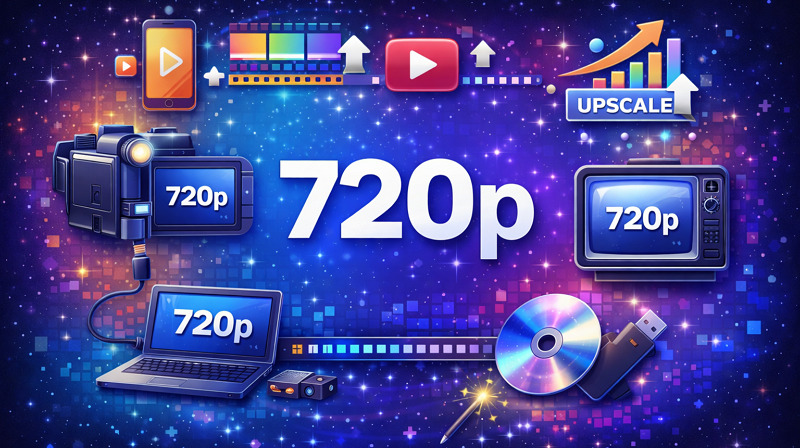 With a balance between image clarity and file size, it’s an excellent choice for content creators who want to provide their audience with an optimal viewing experience on smaller screens, mobile devices, and low-bandwidth streaming.
Common Reasons Videos Look Low Quality
Before knowing how to improve video quality to 720p, it’s essential to understand the factors that make videos appear low-quality. Here are some common reasons why videos may look blurry or pixelated:
Low Recording Resolution: Sometimes videos are shot at lower resolutions, such as 480p or 360p. These low resolutions lack the clarity and detail of 720p, making the video appear fuzzy.
Heavy Compression: Compression reduces the file size but can result in loss of quality. If the video is compressed too much, it may look pixelated or blurry, especially when enlarged to higher resolutions.
Bad Lighting: Poor lighting during filming can make videos appear grainy or dim. This is especially noticeable in low-light environments, where camera sensors struggle to capture fine details.
Old Devices: Older cameras, smartphones, or webcams often don’t record high-quality videos. Their sensors and lenses may not be up to the mark, resulting in low-quality video even after post-production editing.
Best Ways to Improve Video Quality to 720p
Upscaling videos to 720p doesn’t have to be complicated. There are various methods available to boost the clarity and sharpness of your video. Here is how to improve video quality to 720p:
Method 1: AI Video Enhancement
The most effective way to upscale video quality is to use the AI enhancement solutions. These tools incorporate advanced algorithms to automatically upscale videos to higher resolutions, including 720p.
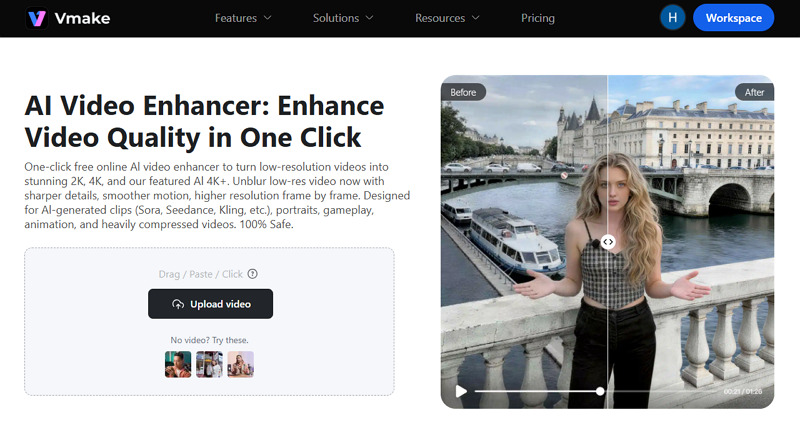
One such tool is Vmake AI Video Enhancer, which uses AI to enhance video quality by improving resolution, reducing noise, and adjusting colors. It can help upscale your 720p videos to 2K, 4K, and 4K+ resolution by analyzing the video’s existing pixels and filling in missing information. You can also apply scene-based enhancement based on your video, i.e., portrait, gaming, anime, etc. It even lets you enhance multiple videos at once, giving them a crisper, more professional look.
Hence, you can quickly transform your videos into high-definition content without needing in-depth video editing knowledge.
Method 2: Adjust Video Settings in Editing Software
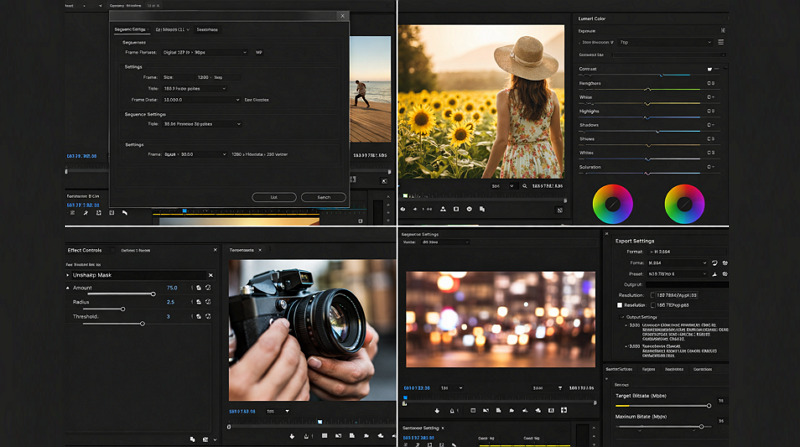
Another way to improve 720p video resolution is by using video editors like Adobe Premiere Pro. It offers various powerful tools for editing, upscaling, enhancing, and exporting videos with precision. Here are different video settings in Premiere Pro to achieve the best 720p video:
Resizing and Scaling: When working with footage shot at a lower resolution, Premiere Pro lets you scale your video to fit the desired resolution, such as 720p, 1080p, and more.
Brightness & Contrast Adjustments: By adjusting these settings, you can make your video look more vibrant, correct any exposure issues, and ensure details in both the light and dark areas are visible.
Color Grading: It offers a Lumetri Color panel for in-depth control over a video’s color balance. You can adjust exposure, saturation, and contrast. Color grading gives footage a more professional & cinematic look.
Unsharp Mask: It can enhance the details in your soft or blurry footage, making it appear crisp and clear. It’s essential to apply sharpening to avoid introducing unwanted artifacts.
Noise Reduction: You can access a range of effects to reduce grain and noise, especially in low-light or high-compression videos. By applying the Reduce Noise effect, you can clean up your video.
Export Settings: Its flexible export options let you choose the right format and resolution, helping achieve the best 720p quality.
 Step-by-Step: Improve Video Quality Using AI
If you’re looking to upscale 720p resolution using AI, the process is simpler than ever. Here is a step-by-step guide on how to do it:
Step 1. Upload Video
The first step is to open the Vmake AI Video Enhancer. Now, download the YouTube video 720p and click “Upload video” to import it. However, it also supports pasting the video link.
Step 2. Select the Resolution
Next, you can choose the desired resolution, i.e., 2K, 4K, or 4K+. It also lets you pick a video-based enhancement, such as portrait, product, or low-light. Then, press “Apply.”
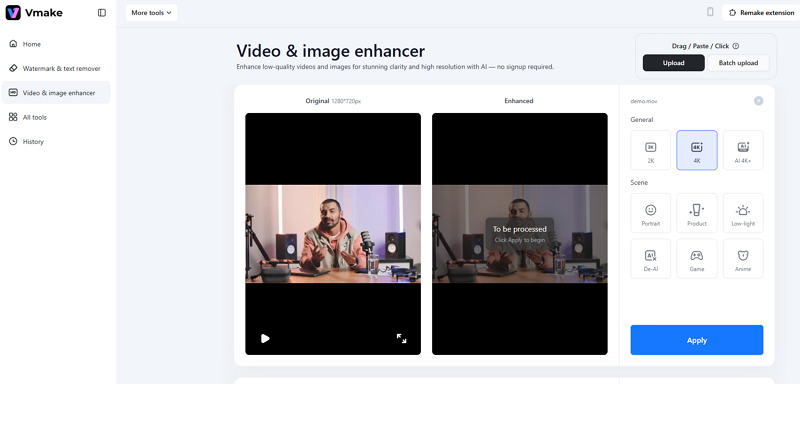
Step 3. Download Enhanced Video
Once the AI has finished processing, you can preview the before-and-after video. If it’s fine, press the “Download 5s preview video” or “Download full video.” That’s all.
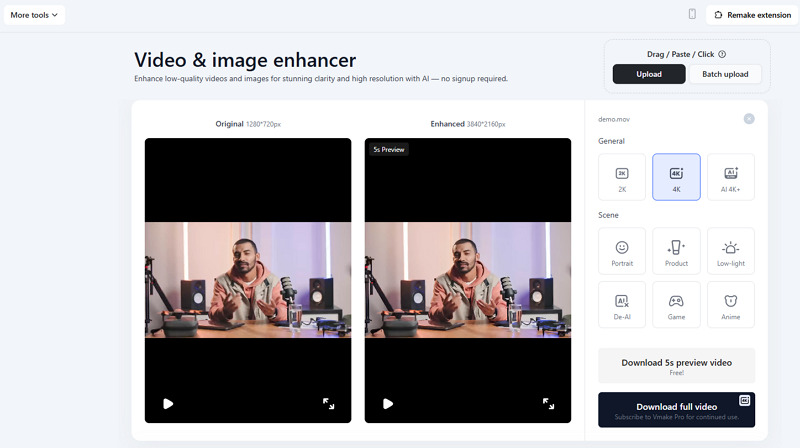 Tips to Get the Best 720p Output
If you want to get the best possible 720p video output when upscaling, it’s important to follow best practices. Below are a few:
Start with High-Quality Input: While AI enhancements work wonders, starting with the best possible footage offers better results. Use an efficient YouTube video downloader 720p to avoid downloading low-resolution videos.
Optimize the Source Footage: Before upscaling, apply a denoising or deblocking filter to clean the footage and reduce compression artifacts.
Select the Right Upscaling Tool: Not all upscaling tools are equal. AI tools like Vmake AI Video Enhancer can intelligently fill in missing frames to create sharper, clearer images.
Maintain Aspect Ratio: Stretching or altering the aspect ratio can lead to distorted or unnatural-looking videos. Make sure the upscaling tool maintains the original aspect ratio to preserve the visual integrity.
Avoid Over-Editing: While it’s exciting to apply various effects, avoid over-editing the video, as this can degrade the quality. A few enhancements will be more effective.
Use Proper Compression: When exporting your final video, use appropriate compression settings to maintain 720p resolution without introducing pixelation or blurriness.
Ensure Good Lighting: If you’re recording a video yourself, make sure the lighting is adequate. This helps reduce noise and ensures the video has clear, visible details.
FAQ
1. How to download YouTube video 720p?
To get a YouTube video download in 720p, use a high-performance YouTube video downloader that supports 720p resolution. Many online tools and browser extensions let you select the desired resolution before downloading.
2. Can I improve a video resolution from 480p to 720p?
Yes, you can improve a video resolution from 480p to 720p using AI video enhancers like Vmake AI Video Enhancer. These tools can upscale the video and enhance the overall quality.
3. What is the difference between 720p and 1080p?
720p is considered high definition, offering a resolution of 1280x720 pixels. 1080p, also known as full HD, has 1920x1080 pixels, providing a sharper, more detailed image than 720p.
Final thoughts
Improving video quality to 720p or higher has never been easier thanks to AI advancements. By following the methods outlined above, including the AI-powered tools like Vmake Video Enhancer or adjusting settings in editing software, you can transform low-quality videos into visually stunning 720p resolution content. With a bit of practice and the right tools, you can enhance your videos and provide a better viewing experience.

You May Be Interested
How to Convert 480p Video to 1080p (Best Upscaling Methods)
How to Upscale Seedance 2.0 Videos to 4K
Improve Video Quality with AI Video Quality Enhancers: Beginner’s Guide