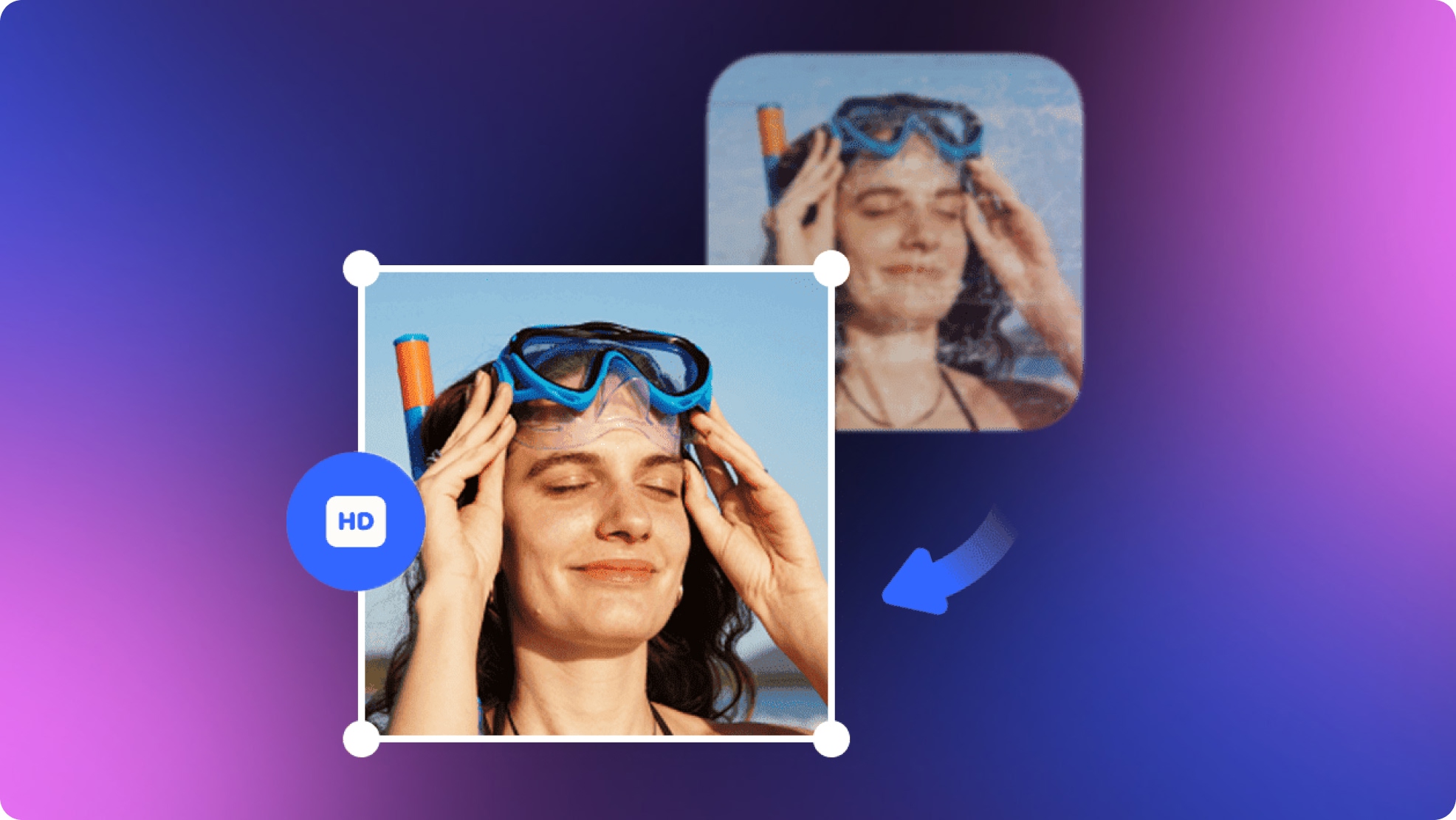
Understanding 240p Video and Learn to Enhance 240p Quality
 Vmake Labs TeamMarch 13, 2026
In the world of video content, resolution plays an important role in how clear and detailed a video appears. One resolution that often gets overlooked is 240p. Despite its low quality, understanding what 240p video is and how to enhance it can be useful. This article will break down the concept of 240p video, its common use cases, and how to enhance it in the best possible way.
What does 240p Resolution Stand for?

240p, also known as low-definition video, refers to a video resolution with a vertical dimension of 240 pixels. It offers lower visual quality than higher resolutions like 720p or 1080p.
Typically, a 240p video will have a width of 320 pixels, resulting in a 4:3 aspect ratio. However, the horizontal count typically varies depending on the aspect ratio. It can also appear in 16:9 format depending on the video player and device.
240p may appear pixelated or blurry on larger screens, but its file size makes it easier to stream over slow internet connections. It’s important to note that 240p was used in the early days of online video, especially in low-bandwidth situations like dial-up internet.
Common Use Cases for 240p Videos
Although 240p video resolution might seem outdated in today’s world of 1080p and 4K content, it still has its place in certain use cases. Some common scenarios for 240p videos include:
1. Slow Internet Connections:
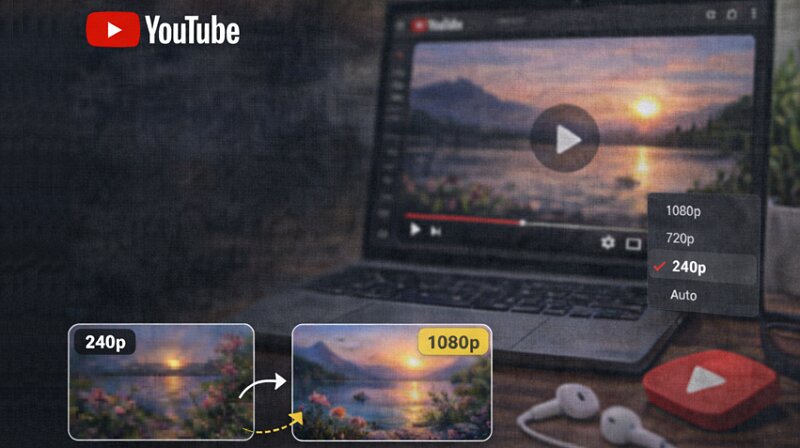
With limited internet bandwidth, this is often the only resolution available for smooth video streaming. YouTube still offers 240p as an option for users with slower internet speeds, ensuring that videos can be watched without buffering.
2. Mobile Data Saving:
For users with limited mobile data, streaming videos at 240p video resolution is a great way to reduce data usage. Many video streaming apps offer 240p as an option for users who want to preserve data.
3. Small Screen Devices:
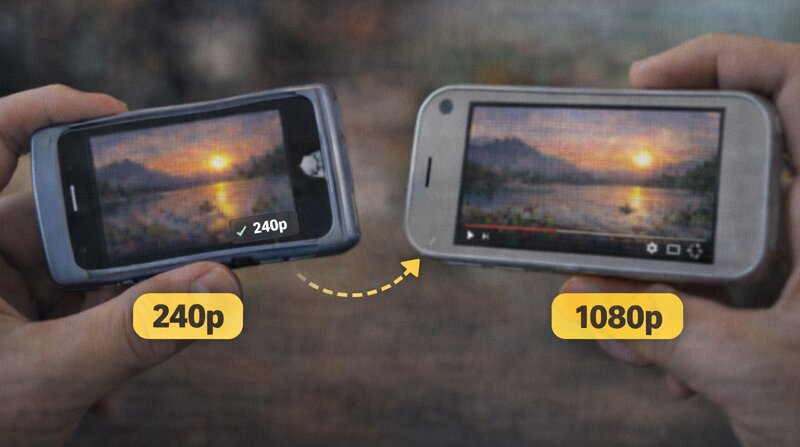 On smaller devices with limited screen sizes, 240p video resolution can provide an acceptable viewing experience without the strain of rendering higher resolutions that might cause performance issues.
4. Limited Processing Power:
Older or low-spec devices that struggle with high-definition video playback may default to 240p to ensure smoother performance and prevent lag or crashes.
5. Basic Video Editing or Previewing:
When editing videos or previewing footage, a lower resolution is sometimes used to speed up the process. The low-quality video helps editors focus on other elements, such as audio or structure, without having to load large, HD files.
240p vs Higher Resolutions
To truly understand the 240p video, let’s compare it with higher resolutions. Below is a chart comparing it with 360p, 480p, 720p, 1080p, and 4K in various aspects:
240p | 360p | 480p | 720p | 1080p | 4K | |
Resolution (pixels) | 320 x 240 | 640 x 360 | 640 x 480 or 854 x 480 | 1280 x 720 | 1920 x 1080 | 3840 x 2160 |
Aspect Ratio | 4:3 | 4:3 or 16:9 | 4:3 or 16:9 | 16:9 | 16:9 | 1:1.9 |
Bandwidth Usage | 2.7-4.5 MB per minute | 3-5 MB | 8-11 MB | 12-45 MB | 25-60 MB | 115-300 MB |
Visual Clarity | Very low, pixelated | Blurry, better than 240p | Acceptable viewing | Decent clarity | Sharp, detailed | Superior |
Use Cases | Extremely small displays, low bandwidth streaming | Low latency calls, lower HD web content | Data saving, low bandwidth streaming, old hardware | Live streaming, Standard displays, video conferencing | Gaming, streaming, online content, small screen work stations | Large screen, High end streaming, Gaming, Post production, |
Device Compatibility | Basic mobile devices, CRT TVs, Desktop mini PCs | Old smartphones, modern web browsers, | Smartphones, tablets, retro-gaming consoles | Modern smartphones, entry-level projectors, smart TVs, laptops, tablets | Laptops, HD TVs, modern displays, computers, streaming hardware | 4K native TVs, PS5, modern displays, Amazon Fire TV Cube, Chromecast |
How to Enhance Low-Res Video Quality Like 240p?
While 240p resolution serves its purpose in specific scenarios, its limitations in terms of visual quality can be quite noticeable. Let’s explore the limitations of 240p videos and how to overcome them.
Limitations of 240p Videos
240p videos are characterized by their low pixel count, which leads to several visual issues:
Pixelation: Low resolution results in large, visible pixels, making the video appear blocky and unclear, especially on larger screens.
Blurriness: Fine details are often lost in 240p videos due to the limited pixel count, making the image appear fuzzy and indistinct.
Unclear Text or Graphics: Any text, logos, or small visual elements in the video may become unreadable or distorted due to a lack of sharpness.
Not Ideal for Large Screens: As the image stretches to fit larger screens, it amplifies pixelation and blurriness.
All these limitations make 240p unsuitable for high-quality video viewing, particularly on modern devices with HD displays. Fortunately, there are ways to enhance low-resolution videos and improve their overall quality.
Enhance Your Videos with Vmake AI Video Enhancer
If you have a 240p video you want to enhance, Vmake Video Enhancer is a powerful tool that can improve its resolution and overall visual quality with no technical knowledge required.
With AI-powered algorithms, this remarkable online tool can turn low-quality videos into stunning 2K, 4K, and 4K+ resolution with improved clarity. It offers specialized AI models to enhance products, portraits, low-light scenes, gaming content, and anime. So, besides upscaling, you can also unblur the video with sharp details and smooth motion, frame by frame. With fast processing, it will deliver professional results with one click.
Features:
Clean, easy-to-use interface with no ads or viruses
Various scene-optimized AI enhancement models
Upscale and enhance multiple video files at once
Ideal for creators, marketers, streamers, and more
Delete the uploaded & enhanced files after 7 days
Steps to Enhance Videos with Vmake Video Enhancer:
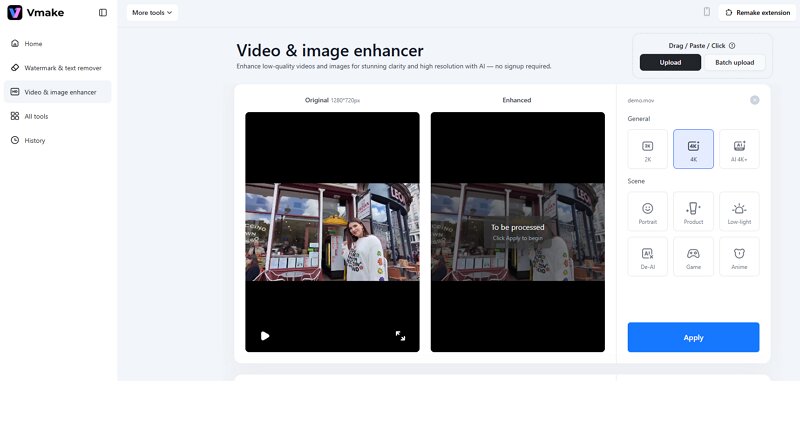
Step 1. Upload 240p Video
The first step is to access this platform in your browser. Now, click the “Upload video” button to import a video or paste the link.
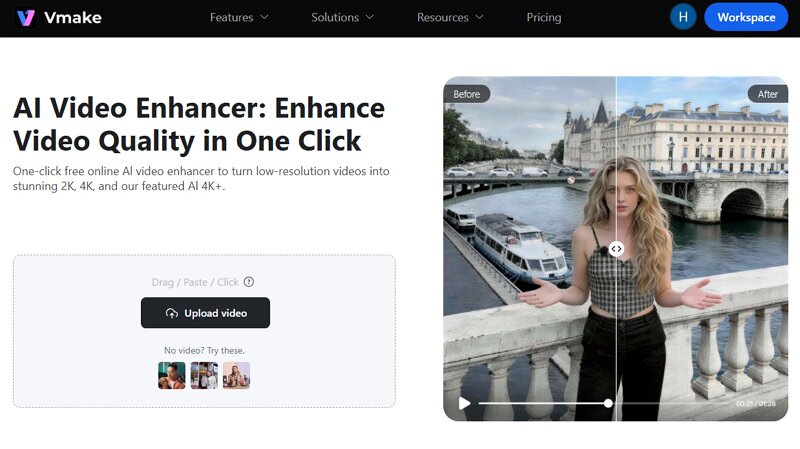
Step 2. Enhance 240p resolution
Next, select the preferred resolution as 2K, 4K, or AI 4K+. You can also choose the scene based on your video requirement. Then, press “Apply.”
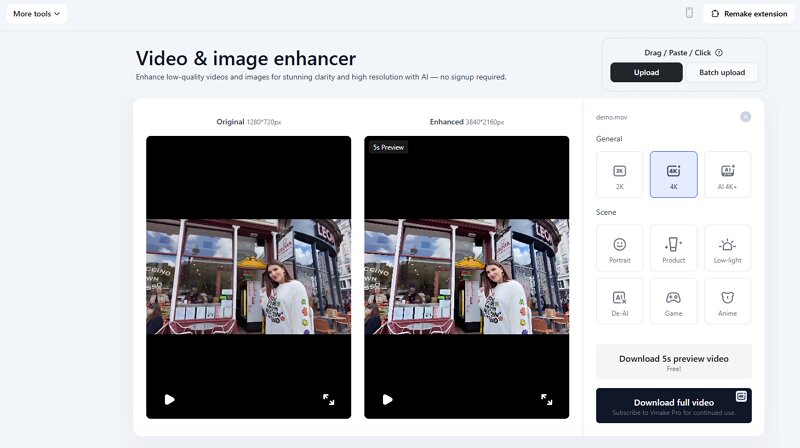
Step 3. Download the Output
Wait for AI to finish the processing. Once done, preview it. If it’s fine, hit the “Download 5s preview video” or “Download full video.” That’s all!
FAQ About 240p Videos
1. Is 240p still used today?
Yes, 240p is still used in situations with low internet speeds or limited data, as it allows videos to stream with minimal buffering. It is also used in older CRTs and early YouTube videos.
2. Can I convert 240p to 720p?
Yes, it is possible to convert 240p to 720p using video enhancement tools, but the quality won’t improve significantly. The original pixelation and blurriness may remain after upscaling.
3. How many FPS is 240p?
240p resolution does not define the frames per second (FPS). Typically, 240p videos are available at 30 FPS, although 15 FPS is also common, depending on the content.
4. Is 240p good for watching videos on YouTube?
240p is the lowest-quality resolution available on YouTube, and while it’s suitable for areas with limited bandwidth, it is not ideal for an optimal viewing experience on modern devices.
Conclusion
240p video resolution may seem outdated, but it still serves a purpose in certain situations, such as slow internet speeds, limited data, or devices with lower processing power. Since its pixelated and blurry appearance isn’t ideal for modern viewing, Vmake AI Video Enhancer comes in handy. It can enhance the clarity and sharpness of low-resolution videos like 240p. Give it a try and enhance your videos today.

You May Be Interested
Native 4K vs Upscaled 4K: Which One to Choose?
Top Paid AI Video Enhancers: Detailed Comparison for 2025