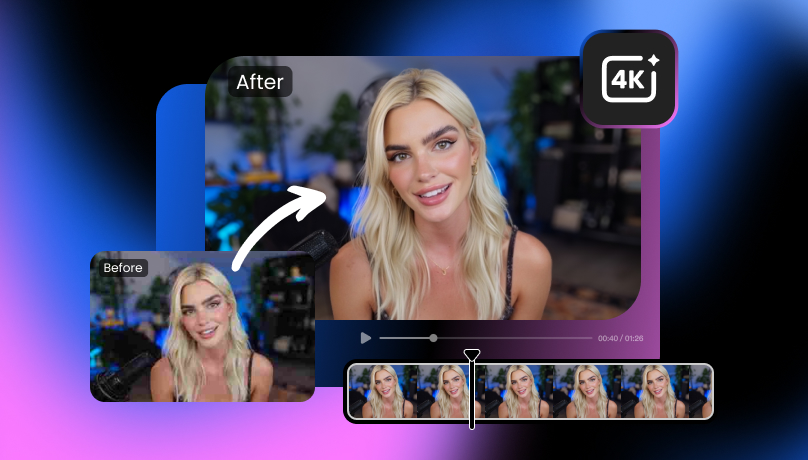
How to Convert 480p Video to 1080p Without Losing Quality
 Ken DawsonMarch 18, 2026
Video resolution plays a significant role in how clear and sharp a video looks. Whether you’re trying to restore old footage or enhance lower-quality videos for modern screens, converting from a lower video resolution 480p, to a higher one like 1080p, can make a big difference. In this guide, you will learn how to make a 480p video to 1080p, ensuring the quality improves without losing essential details.
What is 480p Video Resolution?
Video resolution is the number of pixels displayed on the screen, which directly influences how clear and detailed the image appears.
A 480p video resolution, also known as Standard Definition (SD), has a pixel count of 720x480, 854x480 (16:9), or 640x480 (4:3) pixels. This resolution is lower than that of higher-quality formats like 1080p.

On the other hand, 1080p resolution, also known as Full HD, consists of 1920x1080 pixels, providing much sharper, clearer visuals. Here is a comparison table of 480p video resolution vs 1080p:
Resolution | 480p | 1080p |
Pixel Count | 720x480 | 1920x1080p |
Aspect Ratio | 4:3 / 16:9 | 16:9 |
Image Quality | Low, blurry | High, sharper |
Common Uses | Old DVDs, streaming at low bandwidth | Blu-ray, YouTube, TV, gaming, modern streaming |
While 480p video resolution may be sufficient for older screens or slower internet connections, it can look pixelated and blurry on larger, higher-definition displays.
Best Methods to Convert 480p Video to 1080p
For those who need to upscale a 480p video to 1080p, there are different ways to do so, ranging from AI-powered tools to professional video editing software. Let’s take a closer look at the best methods available:
Method 1: Use AI Video Upscaling Tools(Vmake AI Video Enhancer)
One of the most effective ways to enhance a 480p video is by using AI-powered video upscaling tools.
One such powerful tool is the Vmake AI Video Enhancer, which uses advanced algorithms to analyze your video, fill in missing pixels, and upscale it to higher resolutions, such as 1080p, 2K, and 4K.
The result is a sharper, detailed, and smooth video without compromising sharpness or introducing noise. This method is ideal for beginners and for those who need a simple way to upscale their footage, such as portraits, gameplay, animation, and heavily compressed videos. Here is how to make a 480p video to 1080p resolution:
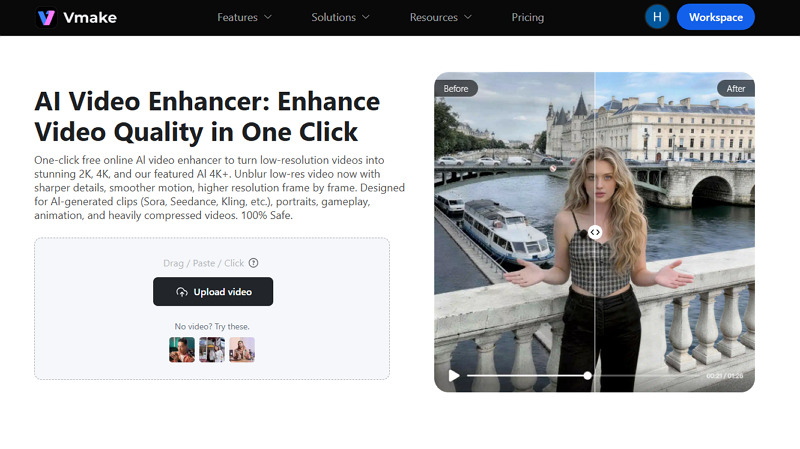
Step 1. Upload Video
The first step is to open the Vmake AI Video Enhancer in your browser. Then, drag & drop or click to import your video.
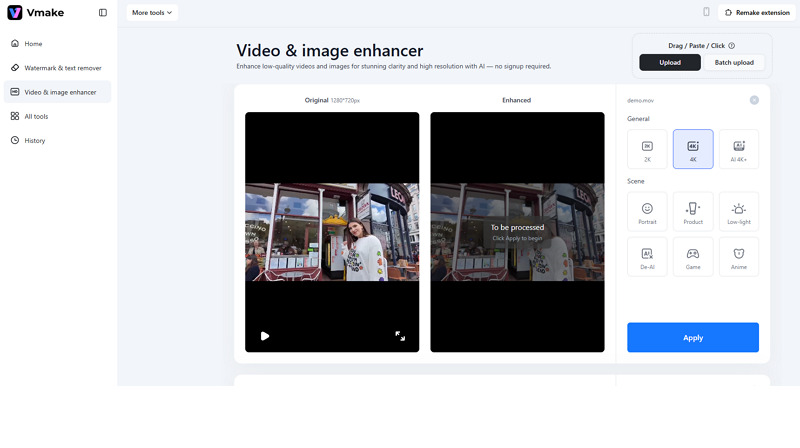
Step 2. Select Resolution
Now, choose the 2K, 4K, or AI 4K+ resolution option and press the “Apply” button. You can also select a scene, such as low-light, anime, or game.
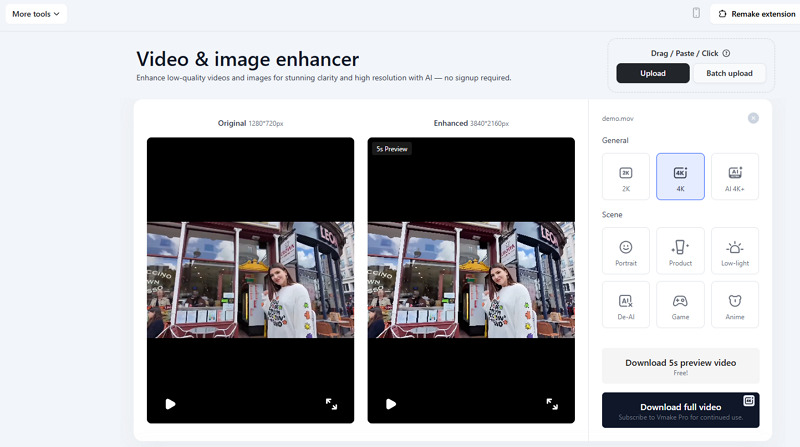
Step 3. Export Enhanced Video
Once the AI has finished processing, hit “Download 5s preview video” or “Download full video.” That’s all!
Method 2: Use Professional Video Editing Software
Are you looking for more control and flexibility when upscaling your 480p video? Professional editing software like Adobe Premiere Pro is a great option for upscaling 480p videos to 1080p. This industry-leading software provides advanced options to improve video quality, including fine-tuning sharpness, color grading, and noise reduction.
So, you can improve not only the resolution but also the overall look and feel of the footage, giving you more creative control over the final product. Let’s comply with the given steps to convert video resolution 480p to 1080p:
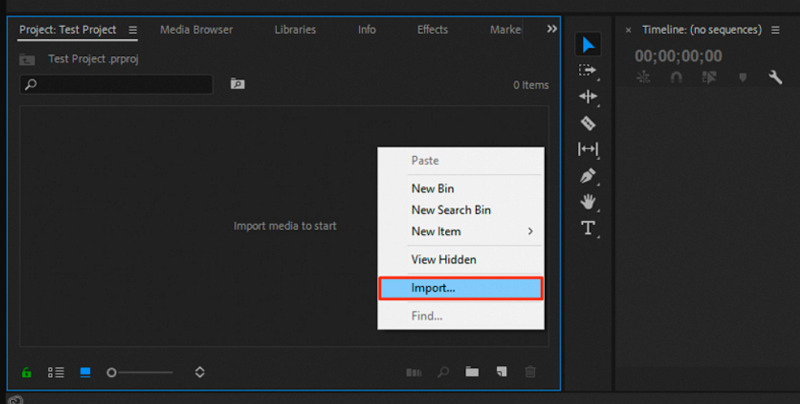
Step 1. Import 480p Video
After installing and launching Premiere Pro on your desktop, create a new project. Then, import the 480p video you wish to upscale with the “Import” function.
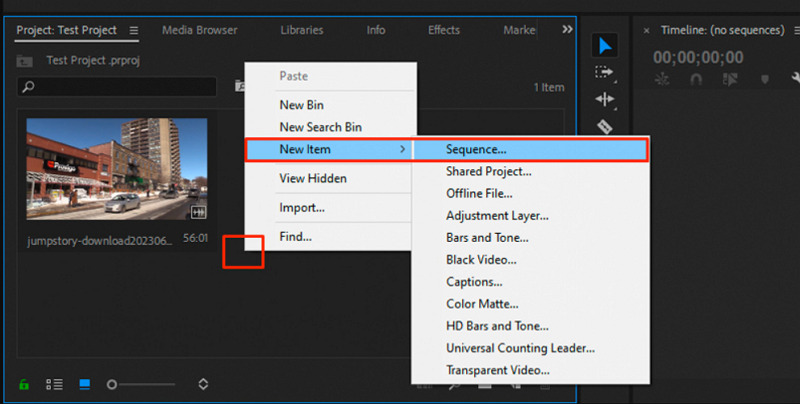
Step 2. Create a 1080p Sequence
Now, right-click an empty area in your project panel and then click “New item” > “Sequence.” You will see the new panel on your screen.
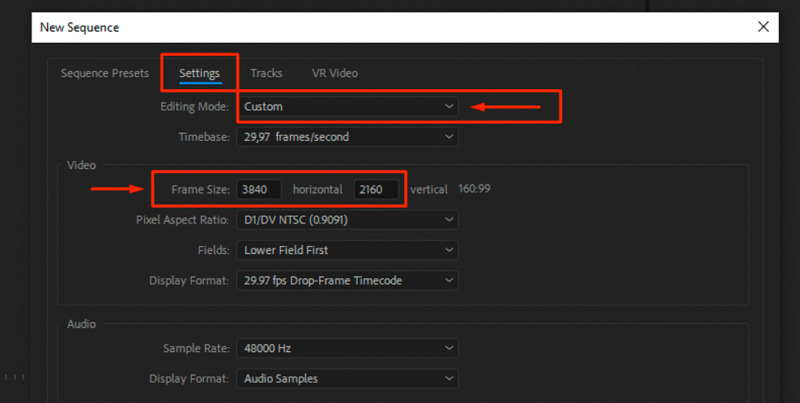
Step 3. Adjust the Settings
Next, open the “Settings” tab. Then, choose the “Custom” mode in the “Editing Mode.” Before doing this, set the “Frame Size” to 1920x1080, resulting in a 1080p resolution. Rename the sequence and hit “OK.”
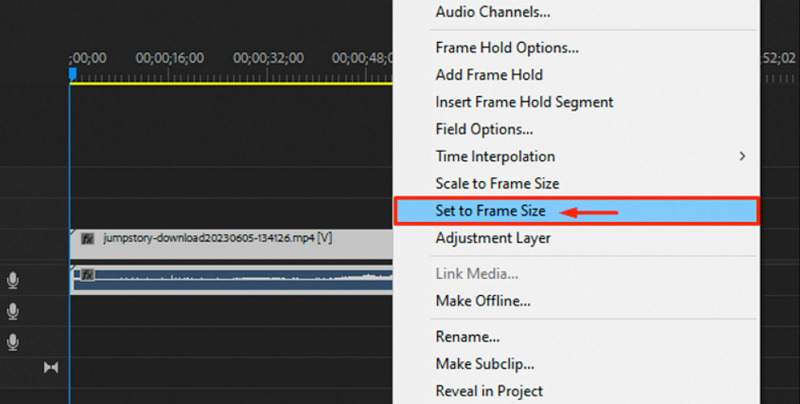
Step 4. Add Clip to the Sequence
When the sequence is created, drag & drop the footage over the 1080p sequence. It won’t fill up the preview frame at first, but it will be fixed in a few seconds. Right-click the video on your timeline and select the “Set to Frame Size” option.
Step 5. Export 1080p Video
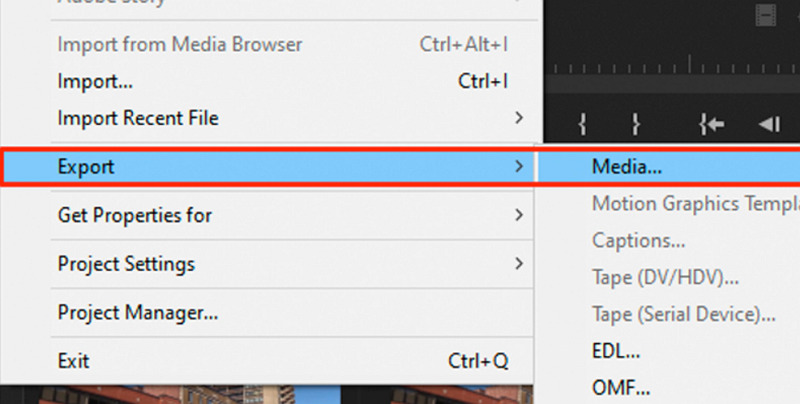
Lastly, press the “File” button in the top left corner, tap “Export” and choose the “Media” option. Pick the output format and export the video as 1080p.
This method offers a hands-on approach to video enhancement but requires a high level of expertise. It’s ideal for professionals or those who want to dive deeper into video editing. However, if you want a simple, beginner-friendly solution with fast processing times, Vmake AI Video Enhancer is the way to go. With an intuitive interface and AI processing, it offers high-quality output.
Why Convert 480p Videos to 1080p
Here are some key reasons for converting 480p video resolution to 1080p:
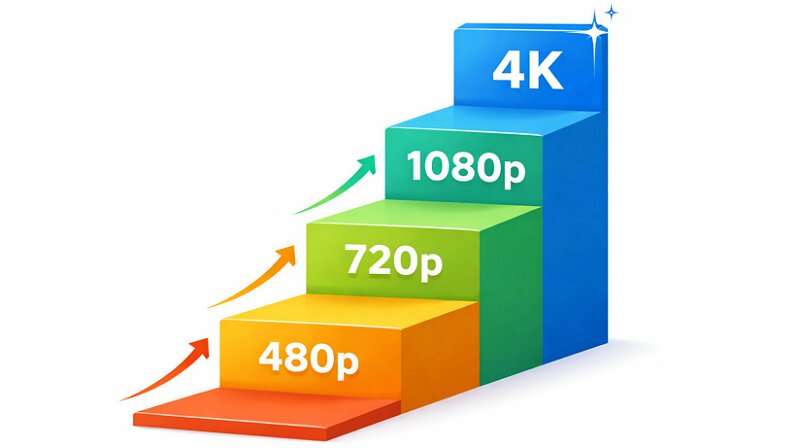
Improved Viewing Experience: Videos shot at 480p resolution often appear pixelated and blurry. Watching them in higher resolution enhances the sharpness, detail, and clarity, especially on larger screens.
Better Compatibility: Many modern devices, such as smartphones, tablets, and smart TVs, support 1080p resolution, making the video more compatible with these devices.
Restoring Old Footage: Many older videos or films were shot in 480p, and converting them to 1080p can give them a new life.
Professional Use: When creating or editing videos for business or media, a higher resolution is essential to maintain professional quality.
Tips for Getting Better Upscaling Results
While using AI upscaling tools or professional software can significantly improve video quality, here are a few tips to maximize the results:
Start with High-Quality Input: The better the original video quality, the better the final result will be. Start with the original 480p file rather than a screenshot or a compressed download.
Keep a Backup of the Original Video: Always keep a copy of the original 480p video before making any changes, in case you need to go back.
Use AI Tools for Minor Adjustments: If your video has significant noise or artifacts, use AI tools to clean it up before upscaling.
Avoid Over-Editing: While it may be tempting to tweak every detail, over-editing can result in an unnatural look. A little adjustment works best.
FAQs
1. Which resolution is better, 360p, 480p, or 720p?
720p provides better image quality than 480p, which is superior to 360p. With 720p at 1280x720 resolution, it delivers over 900,000 pixels per frame, resulting in sharper, more detailed visuals.
2. What is the best way to convert 480p to 1080p?
The best way to convert 480p to 1080p is to use AI-powered upscaling tools like Vmake AI Video Enhancer. This online tool uses smart algorithms to upscale low-resolution 480p video to 1080p.
3. Does converting 480p to 1080p improve video quality?
Yes, converting 480p to 1080p can improve video quality by enhancing sharpness and detail. However, the result depends on the upscaling method and the original video quality.
Final thoughts
Converting 480p video resolution to 1080p is an excellent way to improve the quality of older footage and make it compatible with modern devices. Whether you opt for professional video editing software for greater control or simple AI-powered tools like Vmake AI Video Enhancer, the right approach depends on your needs. Regardless of the method, enhancing 480p to 1080p can provide a sharper, more enjoyable viewing experience.

You May Be Interested
What is 240p Video & How to Enhance 240p Quality
Improve Video Quality with AI Video Quality Enhancers: Beginner’s Guide