Master Samsung Speech to Text: Guide to Voice Typing and Transcription
Discover how to use Samsung speech to text for instant dictation, and learn how to seamlessly transcribe pre-recorded audio and video files using Vmake Labs. Simplify your audio transcribing process today!

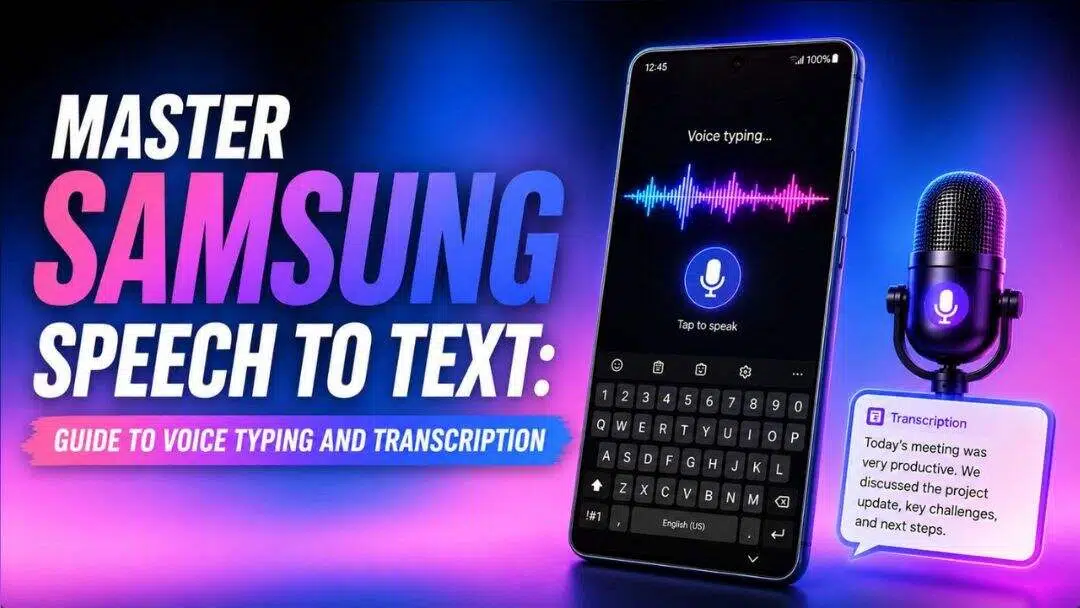
Voice dictation has shifted from a novel feature to an essential daily productivity tool. For Samsung Galaxy users, the built-in speech-to-text system provides an efficient way to draft messages, write emails, and capture quick thoughts without typing. This guide explains how to master Samsung's native voice typing tool and explores advanced alternatives for transcribing audio files.
What is Samsung speech to text?
Samsung speech to text is an integrated feature on Galaxy devices that converts spoken words into digital text in real time.
Powered primarily by the Samsung Keyboard and Samsung Voice Input engine, it allows users to dictate text across any application that accepts keyboard input. By analyzing vocal patterns, the system matches your speech with a database of phonemes to generate written words on your screen instantly.
This hands-free utility is designed to streamline multitasking, making it easy to reply to messages, draft documents, or search the web while on the go.
Key features of speech to text on Samsung
Samsung's native voice typing tools offer several key features designed to make hands-free composition fast and reliable.
-
Multi-language support: The tool supports a diverse selection of global languages and regional dialects. Users can easily download localized language packs to ensure precise voice recognition and smooth translation when dictating in their native tongue or switching between multiple active languages.
-
Auto-punctuation integration: This setting automatically detects pauses and natural speech rhythms to insert periods, commas, and question marks. It removes the chore of manually speaking every punctuation mark, letting your ideas flow uninterrupted during long dictation sessions.
-
Offline voice processing: By downloading specific language packages to your device, you can use speech-to-text services without an active internet connection. This guarantees consistent dictation performance, secures your voice data locally, and saves battery life while traveling.
How to use speech to text on Samsung (using Samsung Keyboard)?
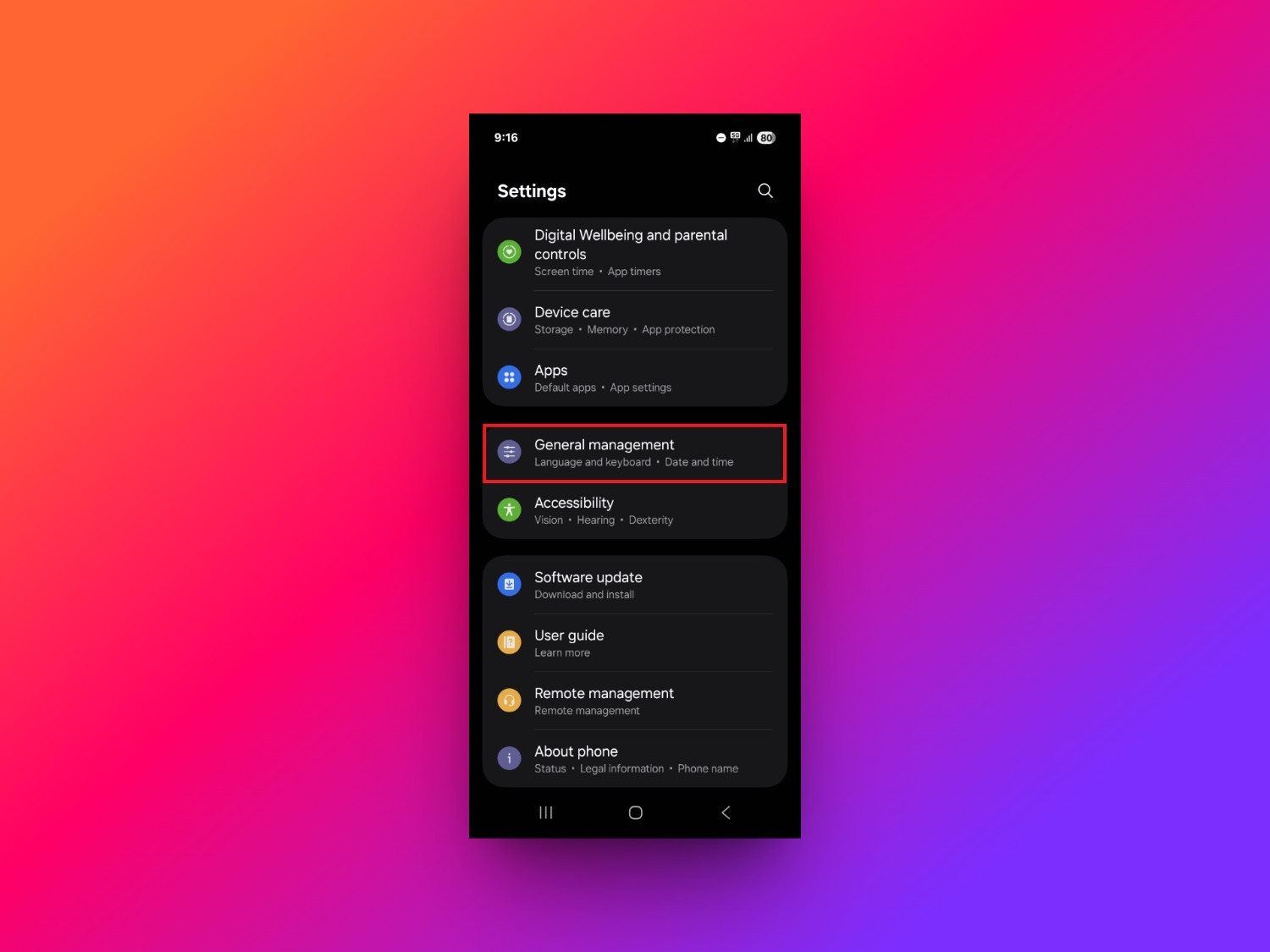
Step 1: Access "Settings > General management"
Before you start using Samsung speech-to-text on your Samsung Galaxy smartphone, you need to first activate it in the settings. To do that, unlock your Samsung Galaxy smartphone and head over to the "Settings" page. From there, access the "General management" option.
Step 2: Select the "Samsung voice input" option
Under "General management", select the "Samsung Keyboard settings" option and then scroll-down to the "Voice input" tab. Click on it and you will be able to select the "Samsung voice input" option.
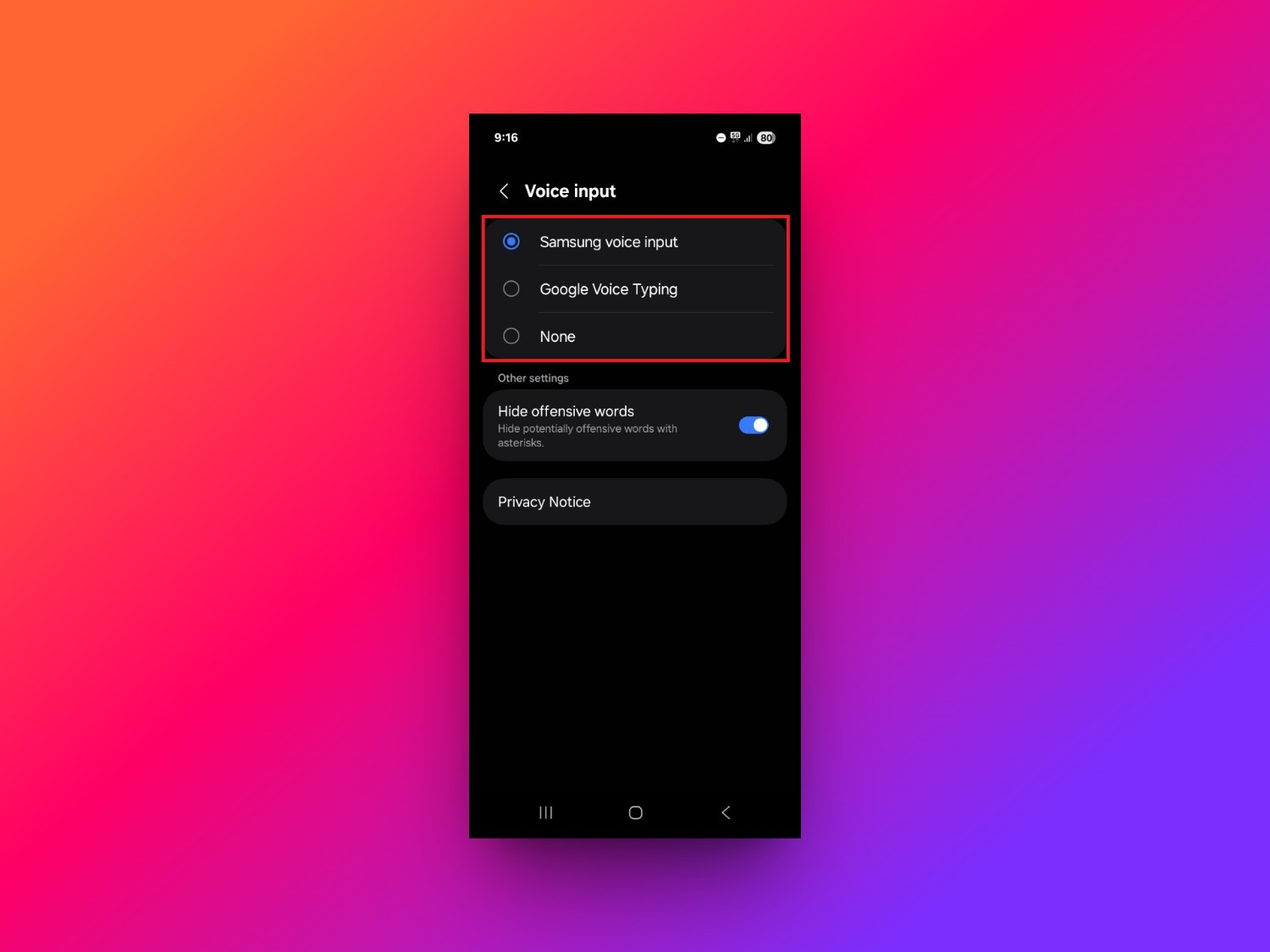
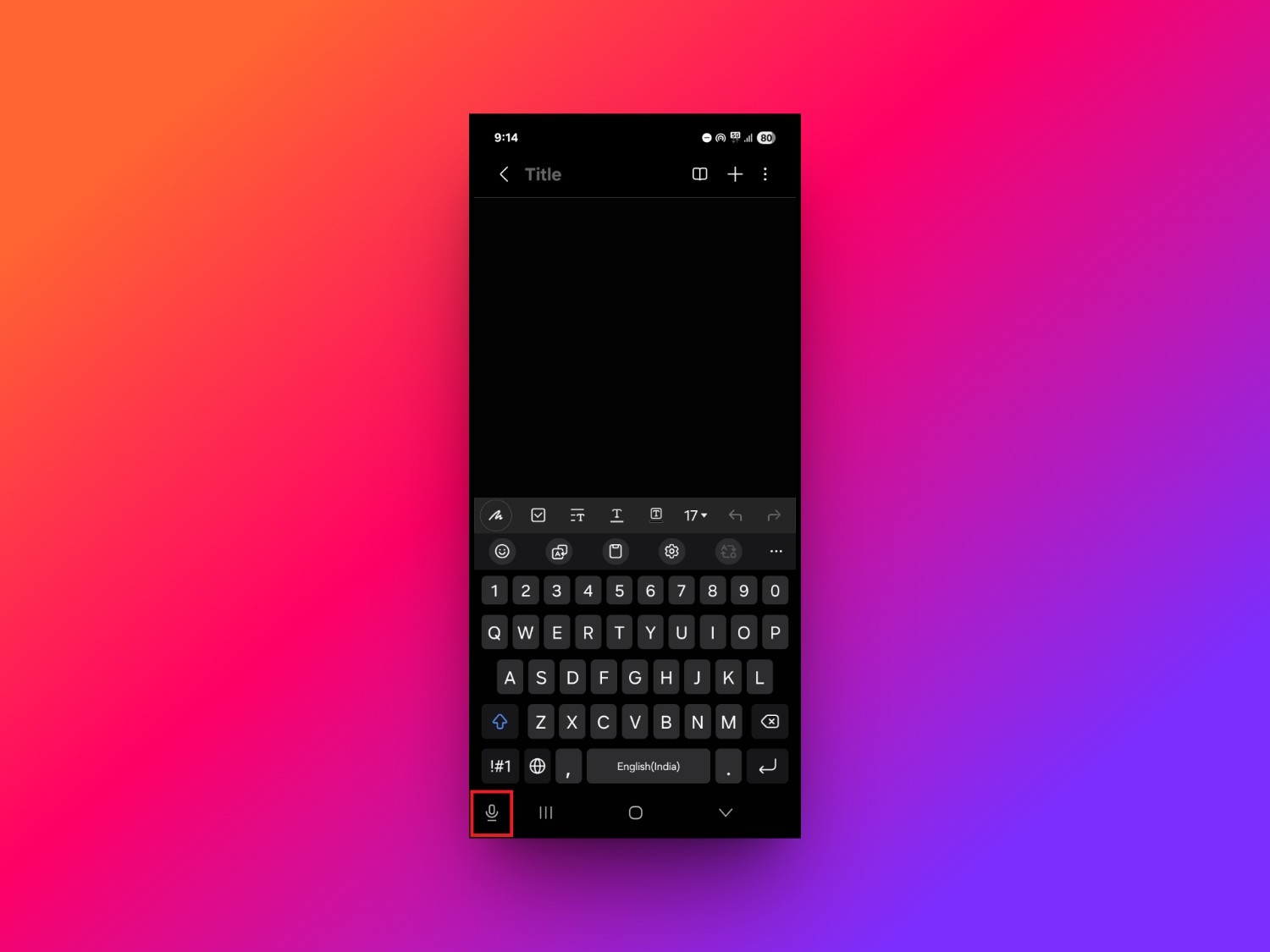
Step 3: Use Samsung speech to text via Samsung Keyboard
To try out the Samsung speech to text feature, you can launch the Samsung Notes app. The on-screen keyboard will open up for typing, where you will find the "mic" button on the bottom-left of your smartphone screen. Click on it and it will turn blue, following which you can then speak and your spoken words will be converted to text inside the notes canvas.
Samsung Galaxy speech to text: pros and cons
While Samsung's built-in tool is highly convenient for daily communication, it does have a few performance trade-offs.
Advantages |
Disadvantages |
|---|---|
|
|
Vmake Labs: an easier alternative for transcribing audio and video files
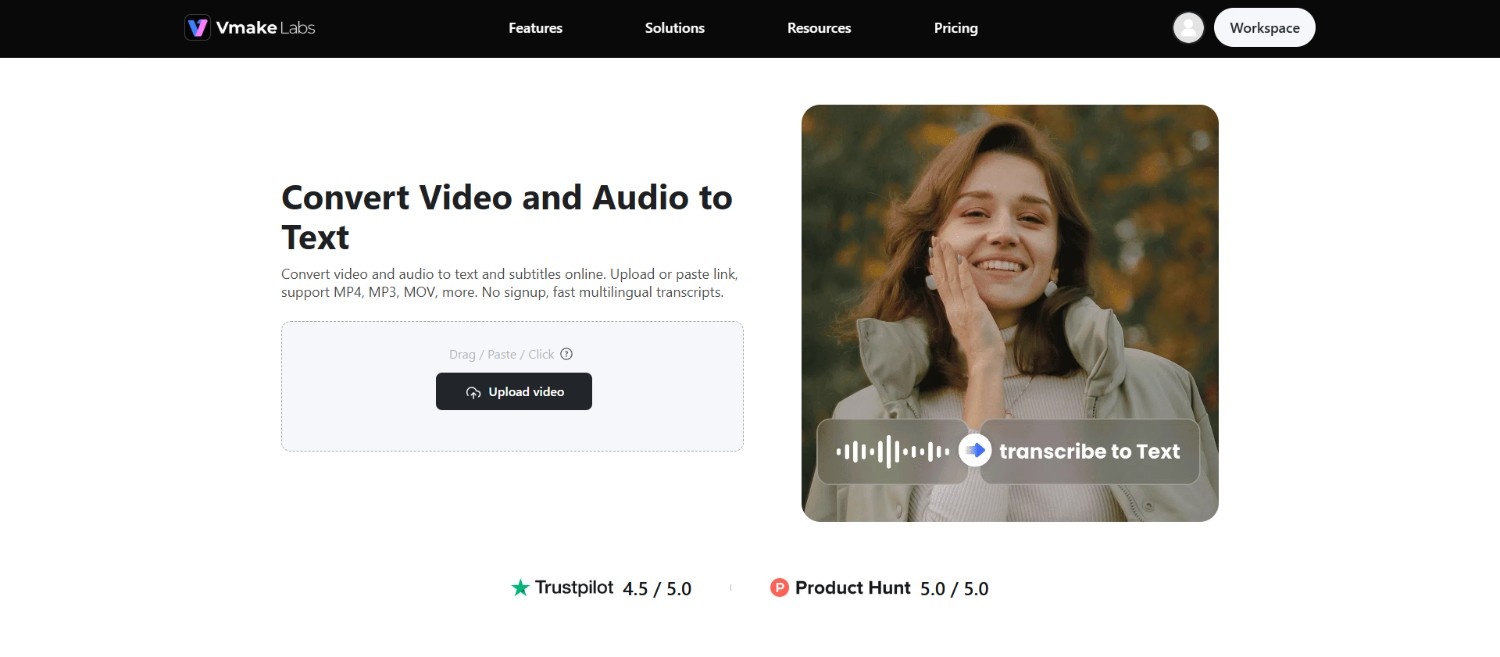
While Samsung's built-in tool is excellent for typing quick messages in real time, it fails when you need to transcribe pre-recorded media. Vmake Labs offers a highly efficient web-based alternative designed to convert audio and video files into accurate, readable text.
Ideal for lectures, interviews, meetings, or video content creation, Vmake Labs AI-powered transcription tool processes uploaded media directly through your browser. It eliminates the need to replay audio and type manually, offering a fast and highly accessible solution that works flawlessly across both mobile devices and desktop setups.
Key features of the Vmake Labs video & audio to text tool
-
Broad media format support: This online tool accepts a wide range of popular audio and video formats, including MP3, WAV, M4A, MP4, and MOV, removing file compatibility issues.
-
Advanced AI transcription accuracy: Utilizing highly trained artificial intelligence, Vmake Labs recognizes complex dialogue, multiple accents, and technical vocabulary, providing reliable transcripts that require minimal manual correction.
-
Automatic multi-language detection: The tool instantly identifies the spoken language within your media file and transcribes it accurately, supporting seamless global workflows and localization projects without manual switching.
-
Built-in text editing tools: After processing, you can edit, search, format, and export your generated transcripts directly from the platform interface, simplifying your content creation process.
Step-by-step: how to use Vmake Labs to convert audio/video to text
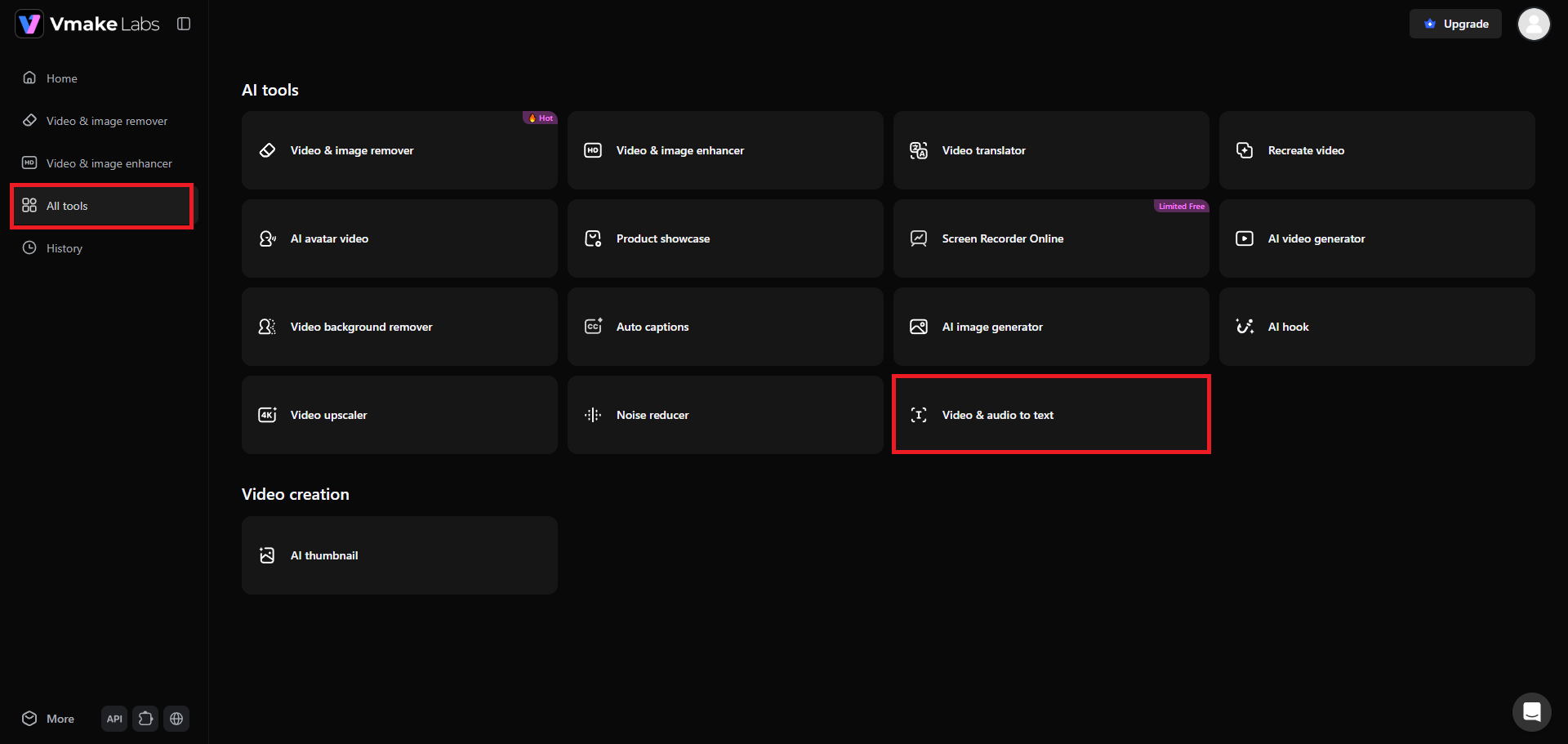
Step 1: Access the "Video & audio to text" option
Kickstart your journey by first accessing your Vmake Labs account. Once you log in to your account, from the left-hand side of your screen, select the "All tools" option. This will take you to Vmake Labs list of AI tools, and from there choose the "Video & audio to text" option.
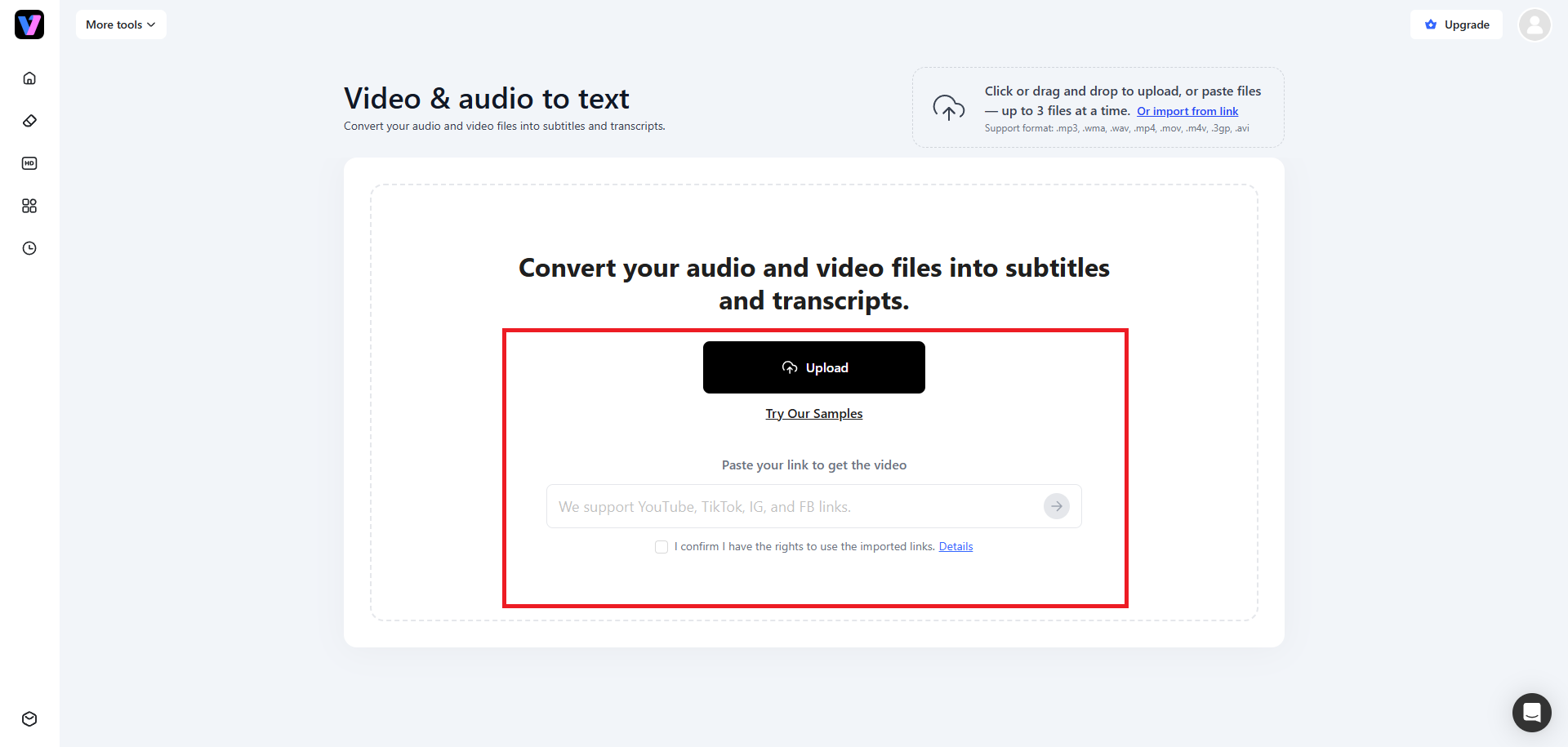
Step 2: Upload your media file or paste a web-link
In the next step, you need to upload your media file or proceed to paste a web link. The media file can be either an audio file or a video file, and you can upload up to 3 files simultaneously. The same goes for the weblink, as you can paste up to 3 weblinks.
Step 3: Perform the transcription process and export
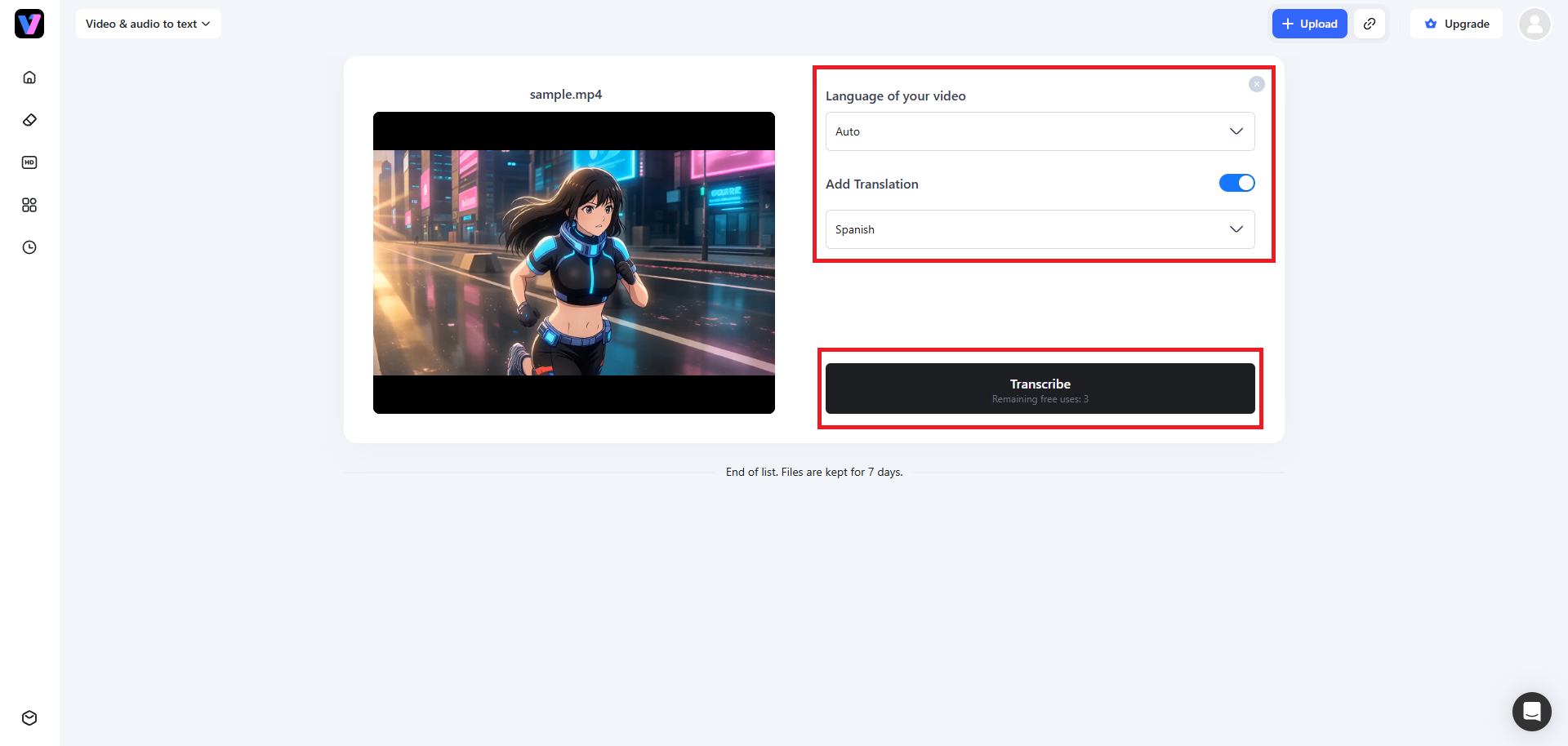
Once your media file is uploaded successfully, you need to first select your audio or video's original source language. If you do not know the language or it is hard to figure out, keep it on "Auto". After that, toggle on the "Add translation" option and you will be able to select your output language from the drop-down menu. Lastly, click on "Transcribe". Vmake Labs will start the translation process and once that is completed, you will be able to export the final file to your local device.
Samsung speech-to-text vs Vmake Labs: in-depth comparison
Understanding the differences between Samsung's native utility and Vmake Labs helps you choose the correct tool for your current workflow.
While Samsung focuses on immediate, real-time keyboard dictation for daily tasks, Vmake Labs is engineered to handle heavy-duty file transcription. The following table highlights their operational variations to help guide your choice.
|
Feature |
Samsung Speech-to-Text |
Vmake Labs |
|---|---|---|
|
Primary Use Case |
Real-time keyboard dictation |
File-based audio/video transcription |
|
Input Source |
Live spoken voice |
Pre-recorded media files (audio/video) |
|
Platform Availability |
Samsung Galaxy devices only |
Any web browser (desktop, Android, iOS) |
|
File Format Support |
None |
MP3, WAV, M4A, MP4, MOV, and more |
|
Editing Interface |
Real-time text output on active screen |
Dedicated interactive transcript editor |
|
Subtitle (SRT) Generation |
No |
Yes |
|
Timestamp Support |
No |
Yes - synced to media |
|
Translation |
No |
Yes - multilingual output |
|
Pricing |
Free (built-in) |
Free plan available; paid tiers for more |
|
Ideal For |
Quick messaging, emails, hands-free notes |
Meetings, interviews, content creation |
Tips for better voice accuracy on Samsung speech to text
Applying a few simple vocal techniques and system configurations can significantly boost the precision of Samsung's voice typing tool.
-
Enunciate clearly and avoid rapid speech
Pronounce every syllable distinctly and maintain a steady, moderate speaking pace. Speaking too quickly or slurring words together prevents the speech-recognition engine from tracking phonemes.
-
Learn essential voice punctuation commands
Dictate your punctuation marks out loud by saying commands like "comma," "period," "question mark," or "new line." This creates structured, professional text without requiring keyboard edits.
-
Enable offline speech recognition for consistent performance
Download your language packs locally in your system settings. This ensures voice processing remains functional even in areas with weak cellular signals or no internet access.
-
Ensure a quiet environment or use an external microphone
Minimize surrounding ambient noise before speaking. If you are in a noisy public space, using wired or wireless earbuds with built-in microphones improves clarity.
-
Match your voice input language before dictating
Many recognition errors happen because the selected language does not match the one you are speaking. Confirm your active language matches your spoken dialect. If you switch between languages regularly, download both packs locally to avoid mismatches.
Common issues and fixes for Samsung speech to text
If your voice dictation begins to glitch, you can quickly resolve the issue using these direct troubleshooting steps.
The table below outlines the most common Samsung speech-to-text issues along with their likely causes and recommended fixes:
|
Problem |
Possible Cause |
Solution |
|---|---|---|
|
Microphone icon missing or grayed out |
Voice input disabled in keyboard settings |
Enable voice input in Samsung Keyboard settings. If still missing, restart your phone or clear the keyboard app cache. |
|
Dictation fails to activate |
Microphone permissions disabled for Samsung Keyboard |
Go to Settings > Apps > Samsung Keyboard and set microphone permissions to "Allow only while using the app." |
|
Voice recognition is inaccurate |
Dictation language does not match spoken language |
Go to Samsung Keyboard settings, select Languages and types, and update or download the correct dialect. |
|
Dictation freezes or lags |
System memory is full or software is outdated |
Close background apps, clear the system cache partition, or update your phone software to the latest version. |
Conclusion
Samsung's native speech-to-text feature is a highly efficient utility for hands-free typing, quick messaging, and on-the-go notes directly from your device keyboard. However, its real-time processing model falls short when tasked with transcribing pre-recorded media.
For converting audio and video files into accurate, structured text, Vmake Labs stands out as the ideal browser-based solution. By combining the immediate accessibility of Samsung's keyboard dictation for daily communication with the heavy-duty power of Vmake Labs for file transcription & language translation, you can maximize your productivity, save valuable time, and streamline your entire digital workflow.
FAQs
How do I enable speech to text on my Samsung keyboard?
Open Settings, navigate to General Management, and tap Samsung Keyboard settings. Scroll down to Voice Input, choose Samsung Voice Input, and ensure the microphone icon appears on your keyboard toolbar.
Why is my Samsung voice typing not working?
This issue is usually caused by missing microphone permissions, an outdated keyboard application, temporary system memory limits, or having the wrong input language selected in your device settings.
Can I use Samsung speech to text without an internet connection?
Yes, by downloading your preferred language pack through the Samsung Keyboard settings menu, you can dictate text completely offline without relying on active cellular data or Wi-Fi connections.
How do I dictate punctuation marks on my Samsung device?
Simply say the name of the punctuation mark aloud as you speak. For example, say words like "period," "comma," "exclamation point," or "question mark" to insert them automatically.
What is the best way to transcribe a pre-recorded audio file on Samsung?
Since Samsung's keyboard typing only supports real-time dictation, the best method is to upload your pre-recorded audio or video files directly to the browser-based Vmake Labs transcription tool.

You May Be Interested
Speech to Text App: Best Picks and How to Choose One
Best Speech to Text Software: Top 5 AI Tools Evaluated
Google Docs Speech to Text: Complete Guide for Beginners
How to Transcribe Audio Recording to Text in Minutes
VEED.io Audio to Text: Everything You Need to Know in 2026
Mac Speech to Text: Complete Guide for Faster Dictation