How to Make Images Talk with Hand Expression AI: A Professional Guide
Stop wasting budget on studios. Bring a static image to life with expressive motion that keeps viewers hooked. Learn to make images talk with Vmake AI and scale your video production now!
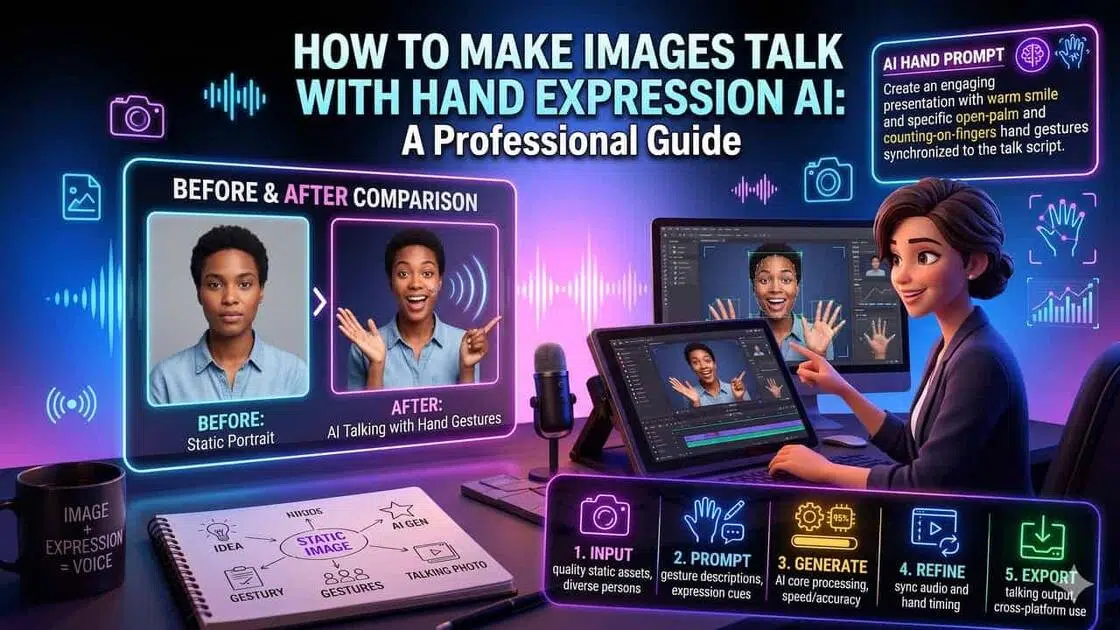
Creators need efficient ways to animate static assets without hiring professional studios. Expressive motion holds attention. Learning to make images talk with hand expression ai scales your production throughput quickly. Human communication relies heavily on body language, with physical gestures bridging the gap between artificial rendering and authentic presentation.
Why Make Images Talk with Hand Expression AI?
Viewers instantly scroll past stiff avatars because the lack of movement feels completely unnatural. By integrating natural hand movements, like pointing or open-palm gestures, you can dramatically increase viewer retention. When people search for how to make an image talk, they expect a lifelike reaction, not a digital mannequin.
AI Talking Photo vs. Traditional Video Production
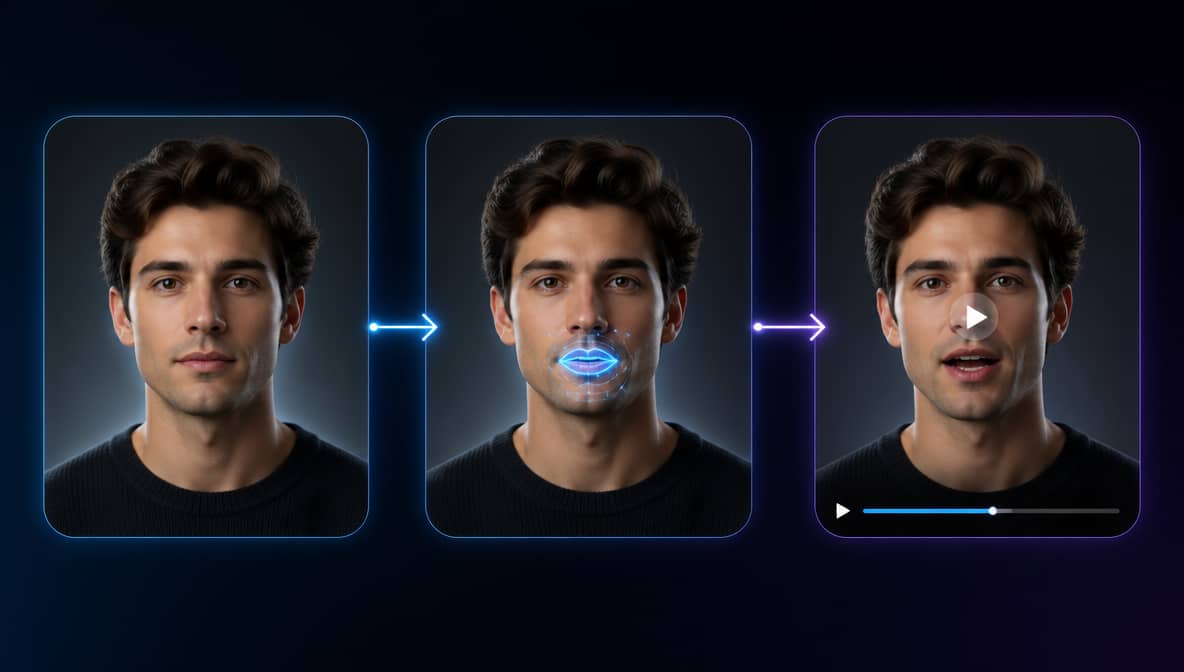
Hiring actors drains budgets rapidly. Renting studio space and manually keyframing animations consume massive resources. These outdated methods delay deployment significantly.
AI generation flips this traditional model. You gain rapid scale without sacrificing the visual nuances of human communication. Here is the comparison point by point:
|
Feature |
Traditional Production |
Hand Expression AI |
|---|---|---|
|
Direct Cost Pipeline |
High (Actors, gear rental, studio space fees) |
Low (Flat software subscription costs) |
|
Hidden Overheads |
Catering, travel, insurance, and lighting packages |
None (Purely digital workflow assets) |
|
Turnaround Time |
Days to weeks for shooting and editing |
Minutes from prompt to final render |
|
Scalability |
Rigid (Requires physical scheduling changes) |
Infinite (Generate multiple variants simultaneously) |
|
A/B Testing Speed |
Slow (Requires re-shooting failed marketing hooks) |
Fast (Change text scripts and re-render in 5 minutes) |
|
Motion Accuracy |
Perfect (Real human body mechanics) |
High (Predictive prompt-driven synthesis) |
|
Hardware Dependency |
Heavy camera rigs and localized editing computers |
Cloud-native servers bypass local hardware limits |
|
Prop Interaction |
Flawless physical manipulation |
Limited to baseline structural gestures |
How to Make a Photo Talk with AI
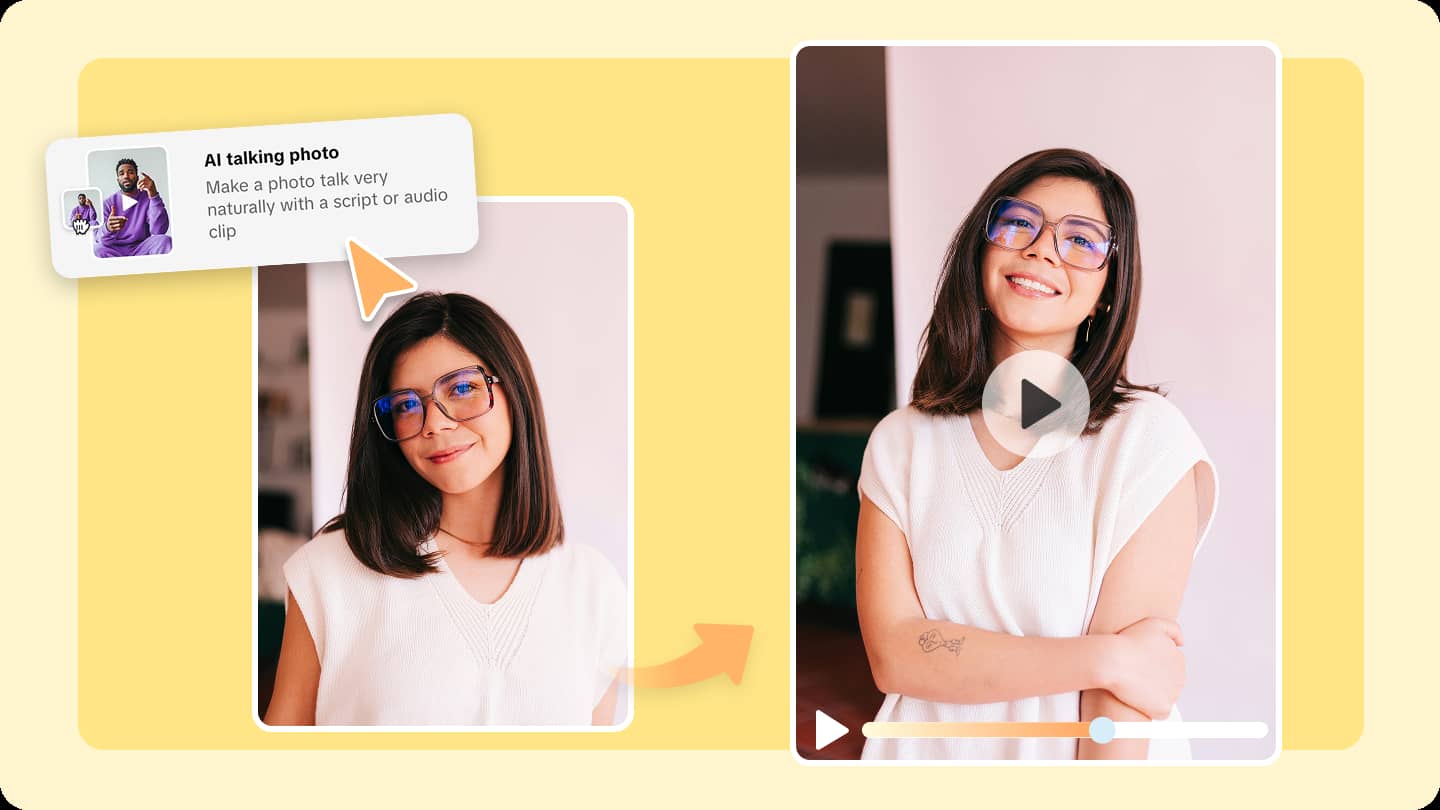
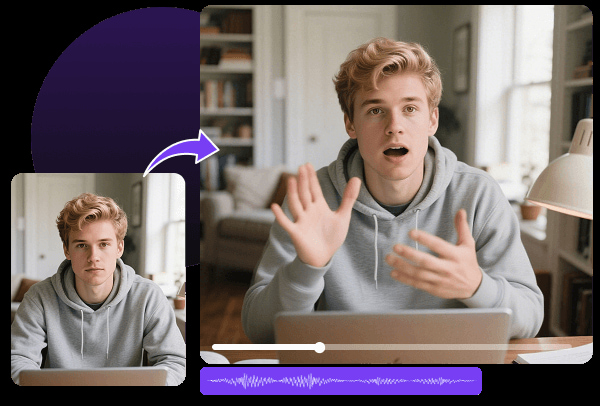
Turning a static photo into a realistic talking video involves more than simply animating facial expressions. To create natural speech, lip-syncing, and hand gestures, you need the right image, a detailed prompt, and an AI model capable of generating lifelike motion from a single photo.
Vmake AI simplifies this process by handling the entire generation workflow in the cloud. Instead of relying on expensive hardware or complex editing software, you can upload a photo, describe the movements and speaking style you want, and let the platform generate a talking video with realistic animations.
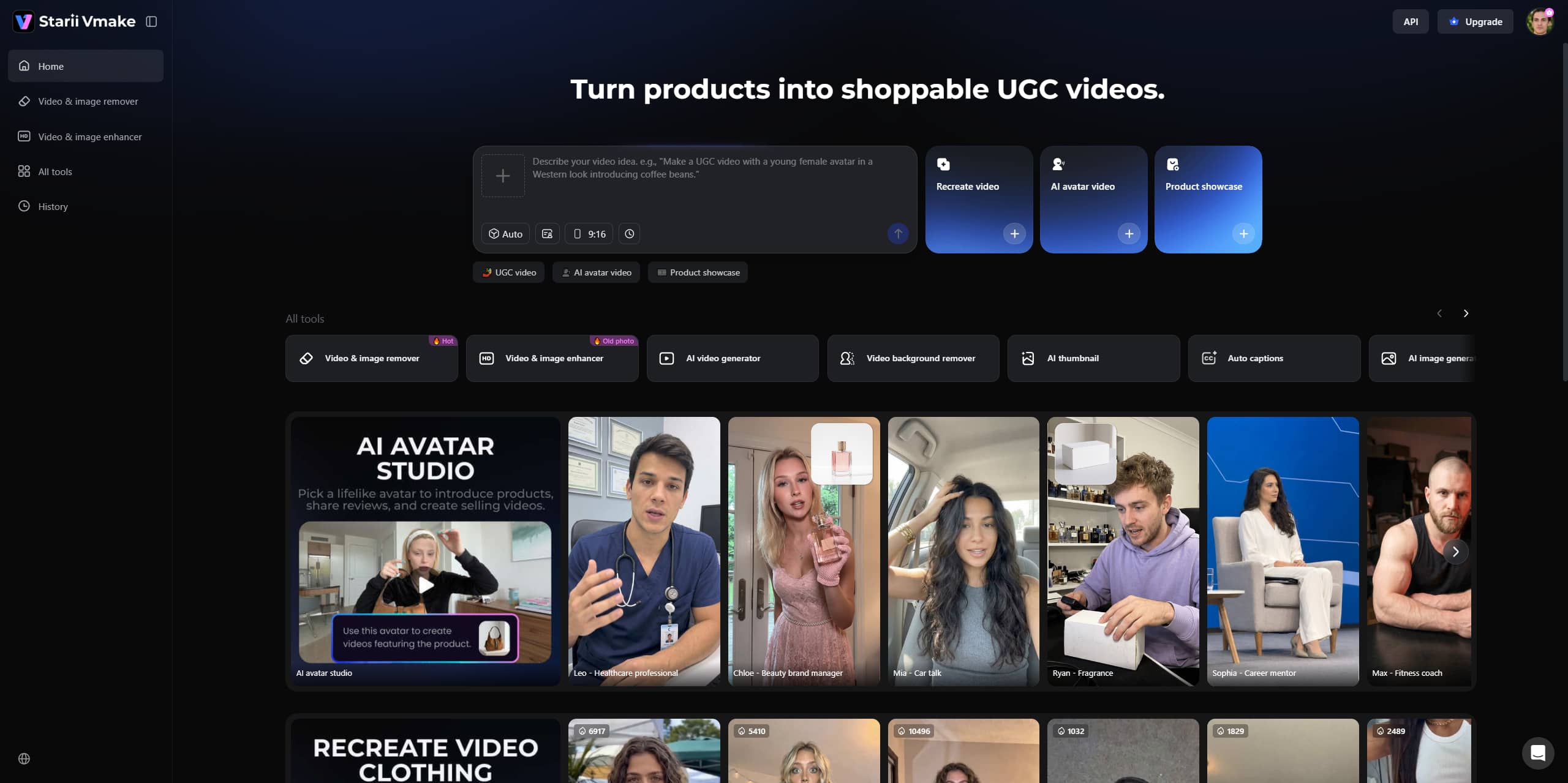
Make images talk with Vmake step-by-step
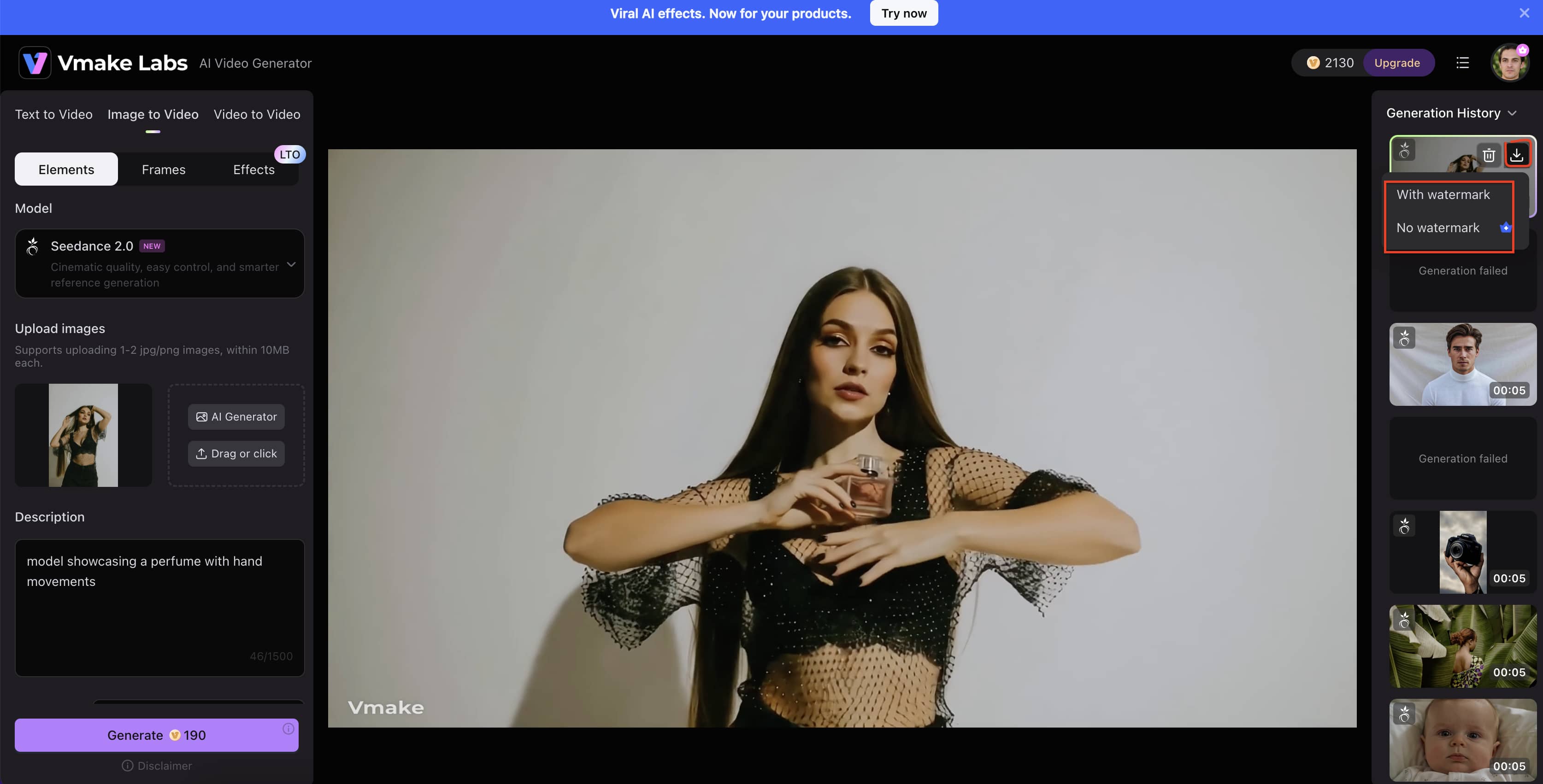
Step 1: Select Image to Video and Upload Your Image
Open Vmake AI video generator and click the Image to Video tab at the top of the left panel. Under the Elements section, choose your preferred model, then click the Drag or click upload box to add your image. You can upload one or two reference images to guide the video generation process.
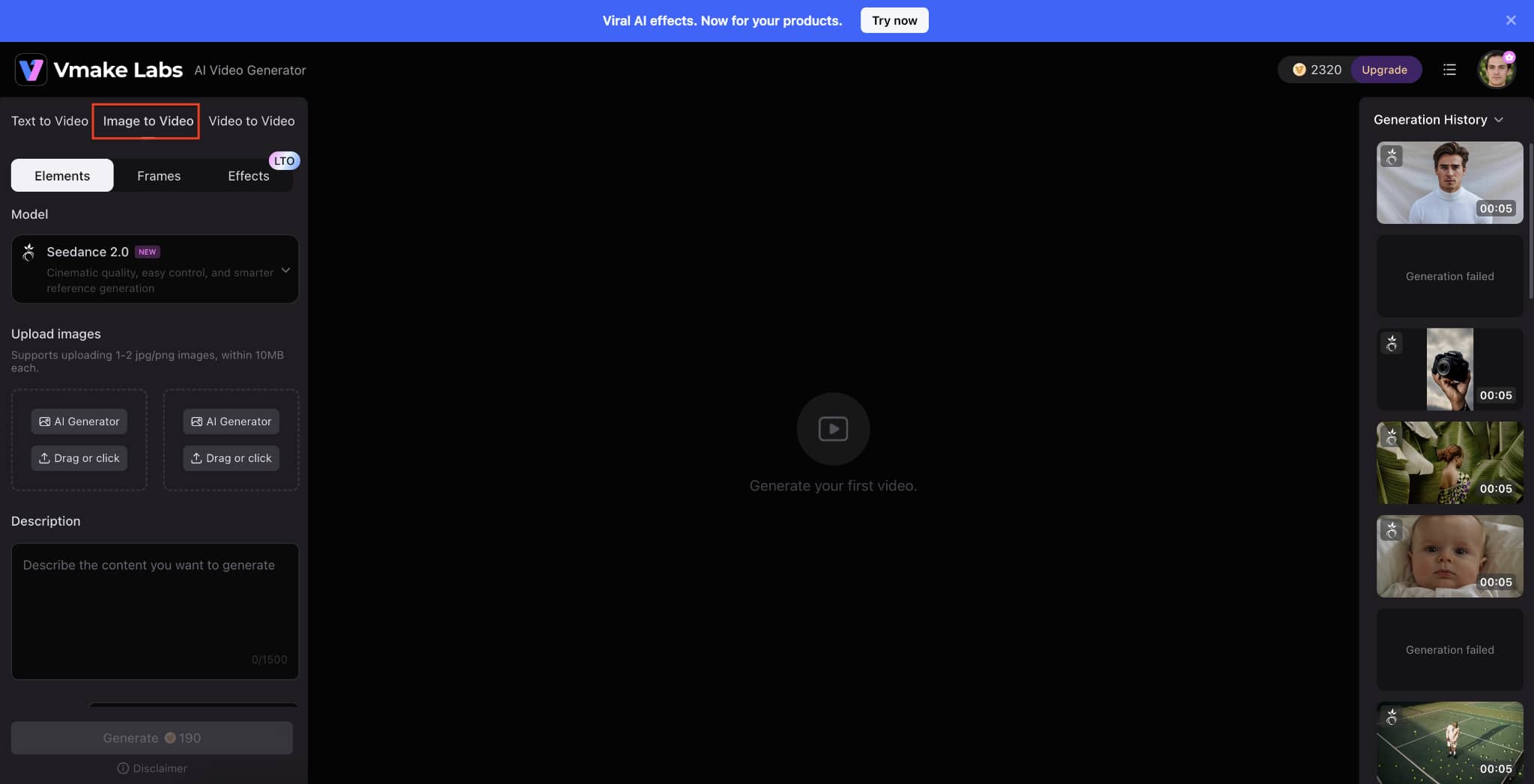
Step 2: Enter a Prompt and Generate the Video
After uploading your image, scroll to the Description field and enter a detailed prompt describing the motion, actions, or scene you want to create. For example, "model showcasing a perfume with hand movements." Once your prompt is ready, click the Generate button at the bottom-left corner to start rendering.
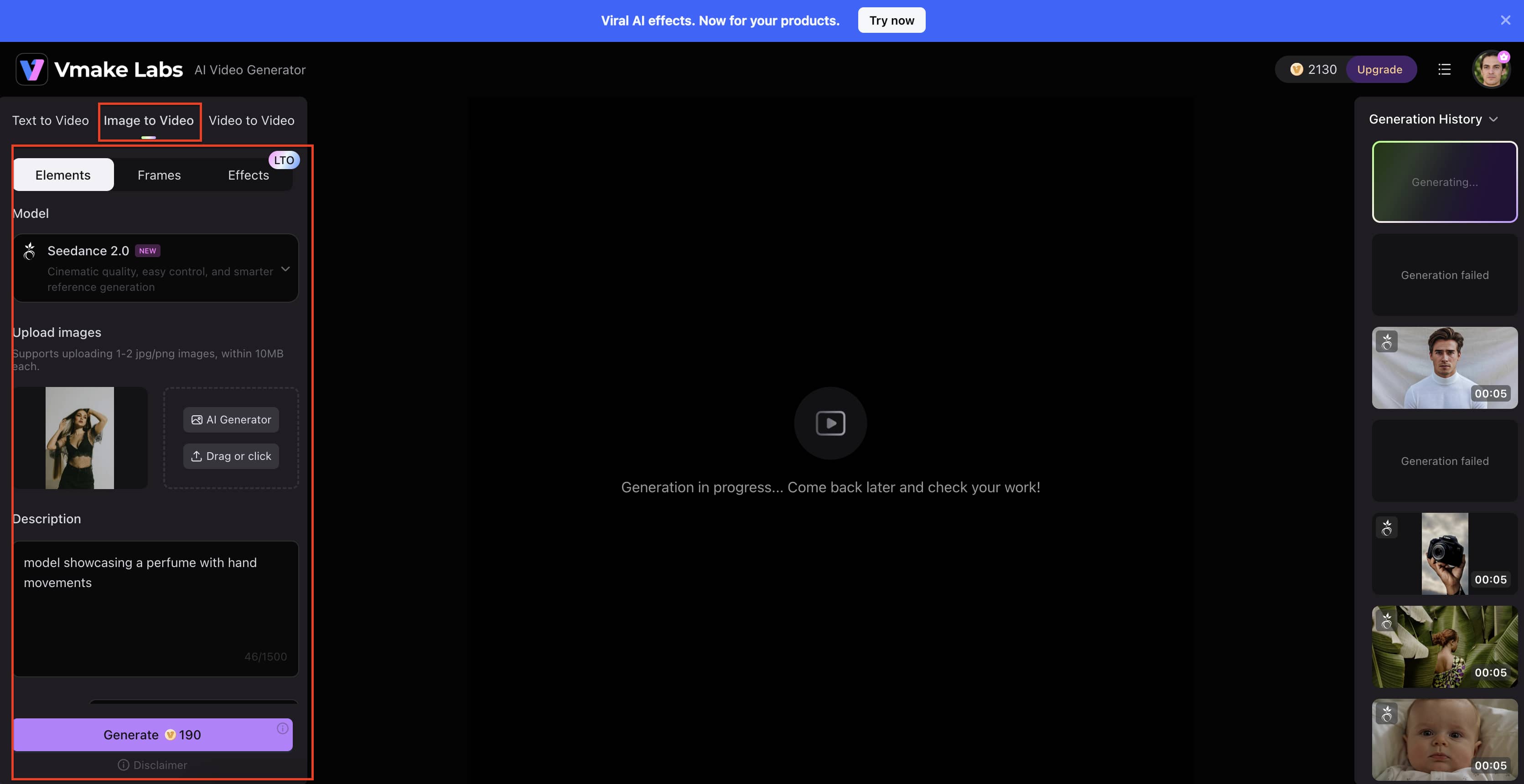
Step 3: Preview and Download the Final Video
When generation is complete, locate your finished video in the Generation History panel on the right side of the screen. Click the video thumbnail to preview the result, then select the Download icon. Choose either the watermark or no-watermark option, depending on your plan, and save the video to your device.
Tips for Getting the Best Results
Poor source files yield terrible videos. Even the best AI engine cannot fix a blurry upload. Securing a professional render demands strict attention to detail. Consider these strict guidelines for your inputs:
-
Prepare Your Source File Correctly
The system needs clean data. If you upload dark or blurry images, the AI will generate glitchy videos. High-resolution files with even lighting provide tracking algorithms with clear contrast points. Avoid deep shadows across the face or torso because they hide skeletal tracking nodes completely.
-
Avoid Tight Headshots
Frame your portrait from the waist up. The engine cannot invent arm data if limbs are cropped out of the original frame. Give the tracking boundaries space to compute movements naturally. If you crop too closely, your avatar's shoulders will warp unnaturally during fast gestures.
-
Write Literal Motion Prompts
The AI does not understand human subtext. You cannot ask it to "act natural" or "look professional." Dictate the exact mechanical movements you want to see. Think like a puppeteer writing code, not a director talking to a Hollywood actor.
-
Isolate Clean Backgrounds
Cluttered environments ruin your tracking. Use images with solid, contrasting backdrops to keep the algorithm focused entirely on the subject. If stray background elements interfere with your subject, use a tool to remove people from the frame before running the animation model. This prevents the movement pathing engine from accidentally distorting surrounding objects.
-
Match Voice Tone to Gestures
A calm voice paired with aggressive hand waving looks completely ridiculous. The audio and visual tracks must make sense together. If your script is highly energetic, prompt the system for wider gestures. When your delivery is academic, stick to smaller, centered hand movements.
-
Understand Avatar Limitations
Do not push the generative engine past its physical limits. Complex actions like crossing arms tightly, juggling, or playing an instrument will fail immediately. Stick to standard conversational body language to maintain realism. If you over-complicate the motion script, the rendering pipeline will spit out pixelated, overlapping limbs.
Best Hand Gesture Prompts for AI Talking Photos
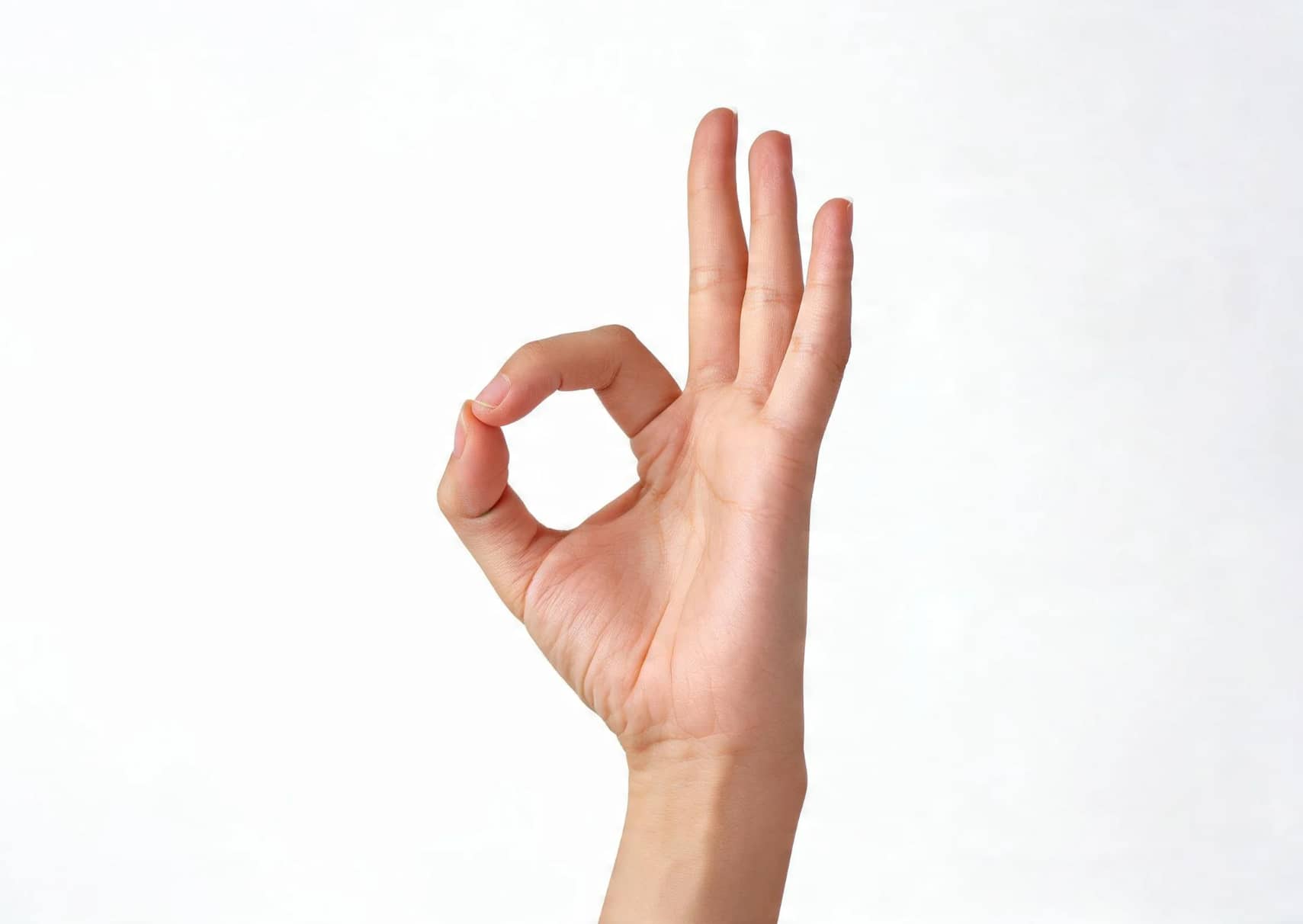
Hand gestures can make AI talking photos appear more natural, expressive, and engaging. The right gesture prompt helps the AI match body language with the intended message, creating videos that feel more authentic and professional.
-
The Keynote Explainer
This gesture style works well for tutorials, presentations, and educational content. The speaker uses confident hand movements to emphasize key points and guide the audience through information.
Prompt Example: Professional presenter explaining a topic with confident open-hand gestures, occasional hand movements toward the camera, natural body posture, clear emphasis during important points, business presentation style, and realistic facial expressions.
-
The Thoughtful Leader: Ideal for leadership content, industry insights, and motivational messages. The gestures are controlled and deliberate, conveying authority, confidence, and credibility.
Prompt Example: Executive speaker delivering strategic insights with calm hand movements, hands occasionally clasped together, subtle gestures while speaking, confident posture, thoughtful facial expressions, professional corporate setting.
-
The Friendly Welcomer: Perfect for introductions, customer greetings, onboarding videos, and social media content. The gestures should feel warm, approachable, and inviting.
Prompt Example: Friendly spokesperson smiling warmly, gentle waving motion at the beginning, open welcoming hand gestures, approachable body language, natural eye contact, cheerful and inviting presentation style.
-
The Data Pointer: Best for reports, analytics presentations, product demonstrations, and business updates. The speaker points toward visual elements as if referencing charts or statistics.
Prompt Example: Presenter discussing business metrics while pointing to imaginary charts beside them, alternating between open-hand explanations and directional gestures, professional posture, informative presentation style, and realistic movement.
-
The Casual Storyteller: Great for personal stories, lifestyle content, testimonials, and engaging social media videos. The gestures should feel relaxed and conversational rather than scripted.
Prompt Example: Casual speaker telling a personal story with natural conversational hand movements, occasional expressive gestures, relaxed posture, friendly smile, authentic body language, social media creator style, realistic motion, and facial expressions.
Best Use Cases for AI Talking Photos
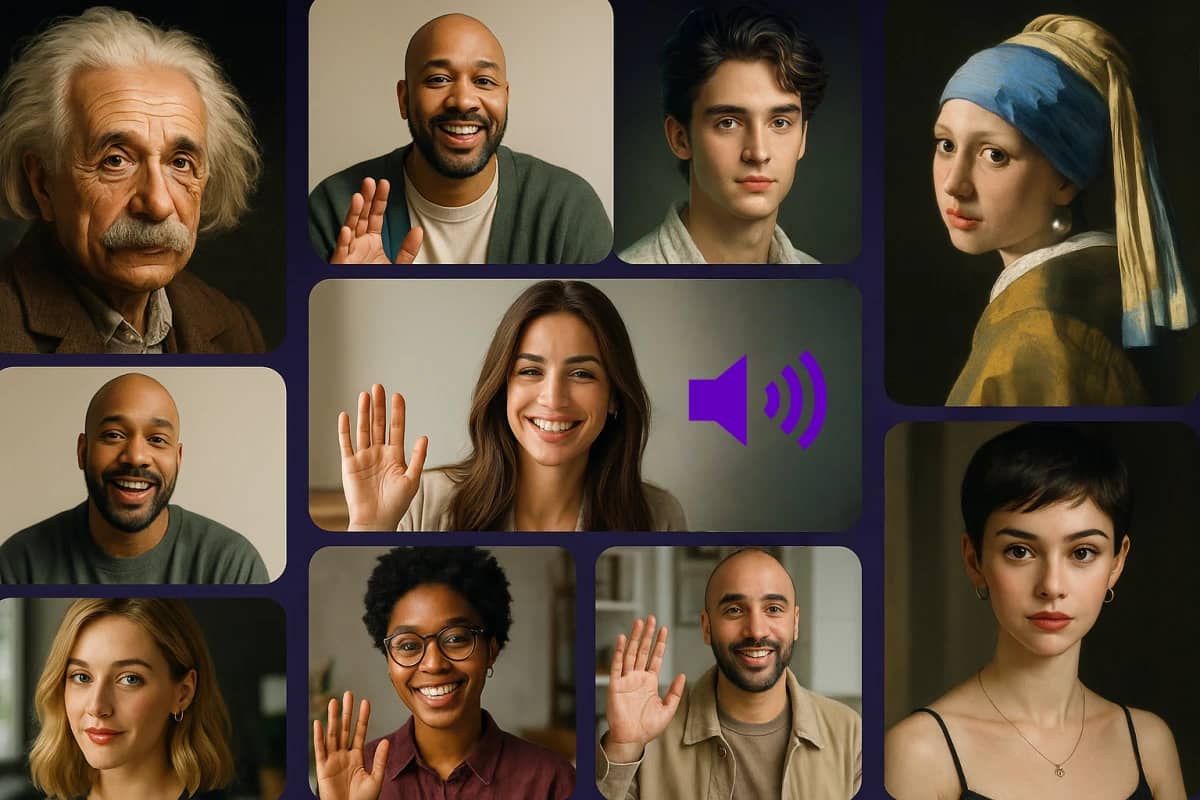
Not every video requires a full studio production. Almost all digital content benefits from a human touch. Replacing flat text with an expressive avatar changes consumption habits completely. Here are the core applications:
-
Corporate compliance modules: Internal company communications desperately need better engagement tools to keep employees awake during mandatory data security or HR compliance courses. Replacing long text slide decks with an AI avatar increases module completion rates and ensures teams actually retain critical regulatory policies.
-
High-converting social media ads: Short-form vertical video demands constant visual shifts within the first three seconds to beat aggressive platform algorithm drop-off rates. Utilizing specialized social media rendering templates allows performance marketers to rapidly generate hundreds of targeted, gesturing ad variations without paying creator retainer fees.
-
Automated sales outreach: Personalized cold outreach and automated customer support responses feel significantly warmer when a gesturing human avatar delivers the technical message. Sales development teams embed these dynamic videos directly into email sequences to boost click-through rates and humanize cold touchpoints.
-
Scalable enterprise e-learning: Updating a massive, multi-hour technical training course traditionally requires re-hiring voice actors and re-shooting weeks of studio footage. With specialized make image talk AI workflows, instructional designers simply modify the text script and re-render the finalized presentation within minutes, removing major content maintenance bottlenecks.
We cannot rely on basic text anymore. Video dominates the internet today. If you let make image talk AI models handle the heavy lifting, you scale content infinitely. Just remember that extreme emotional nuances still fall short of real human acting during highly dramatic scenes.
Conclusion
Stiff animations fail constantly. They no longer pass as acceptable commercial content today. Creators need dynamic tools immediately. Learning to make images talk with hand expression AI builds stronger audience trust. Deliberate gesture synthesis bridges the visual gap perfectly. It rivals traditional studio productions closely. Modern AI tools make expressive character animation more accessible than ever. Pair properly framed source images with specific motion prompts. Your digital assets will improve immediately. You save time, cut costs, and engage viewers properly.
FAQs
How exactly do you make images talk with hand expression ai?
You start by uploading a half-body portrait to a generative platform like Vmake AI. The system then uses your audio file and a text-based motion prompt. It accurately maps natural arm and hand movements onto the static pixels.
Can I use a standard headshot to make an image talk?
No. If the hands and arms are cropped out of the original frame, the AI cannot accurately synthesize the necessary limb movements. Always use a medium or wide shot.
Does it require a lot of processing power to animate photos?
Running these models locally requires an expensive GPU. Cloud-based platforms handle all the heavy computational rendering remotely instead. You can generate a video from a basic laptop easily.
How do I stop the background from warping when the hands move?
Background distortion happens when the AI confuses the subject with the environment. Use images with solid, contrasting backgrounds, or utilize an AI background remover before animating the portrait.
Is there a specific prompt structure to make image talk AI tools understand?
Yes. You must use literal, descriptive verbs regarding body language. Instead of typing an abstract concept, write precise physical actions. "Gestures with open palms" work perfectly.
What types of images work best?
Clear portrait photos with visible faces work best. The AI also works great with professional headshots, AI-generated portraits, digital illustrations, anime characters, and even historical photographs. For optimal results, use images where the face is front-facing or at a slight angle, with good lighting and resolution.

You May Be Interested
Viggle AI Video Generator Review & Top 2026 Alternatives
Trump AI Video Generator: 3 Best Tools to Create AI Videos
How to Remove Background from a Video: Guide to Professional Edits

Best AI Animation Generators for Creating Images and Videos
How to Touch Up Photos in 2026: Best AI Tools to Retouch Images Easily