Veed AI Video Generator: Features, Pricing, & Smart Alternative
 Ken DawsonMay 31, 2026
Veed AI video generator is a popular AI video platform with tools for text-to-video generation, AI avatars, voiceovers, and more. Wondering if this video generator is worth your time and money? This guide breaks down what the Veed AI video generator is, its main features, pricing, and limitations. Let's go.
What is Veed.io AI video generator?
Veed is basically a browser-based video editor that leans heavily into AI tools. You can edit videos, opt for subtitle generation, record screens, add voiceovers, and build short-form content without installing bulky software that eats up your storage for no reason. Open the site, upload your footage, and start editing inside your browser. Veed handles subtitles, trimming, templates, and exports in one place, which saves you from bouncing between five different apps just to finish a two-minute video.
Key features of the Veed AI video generator
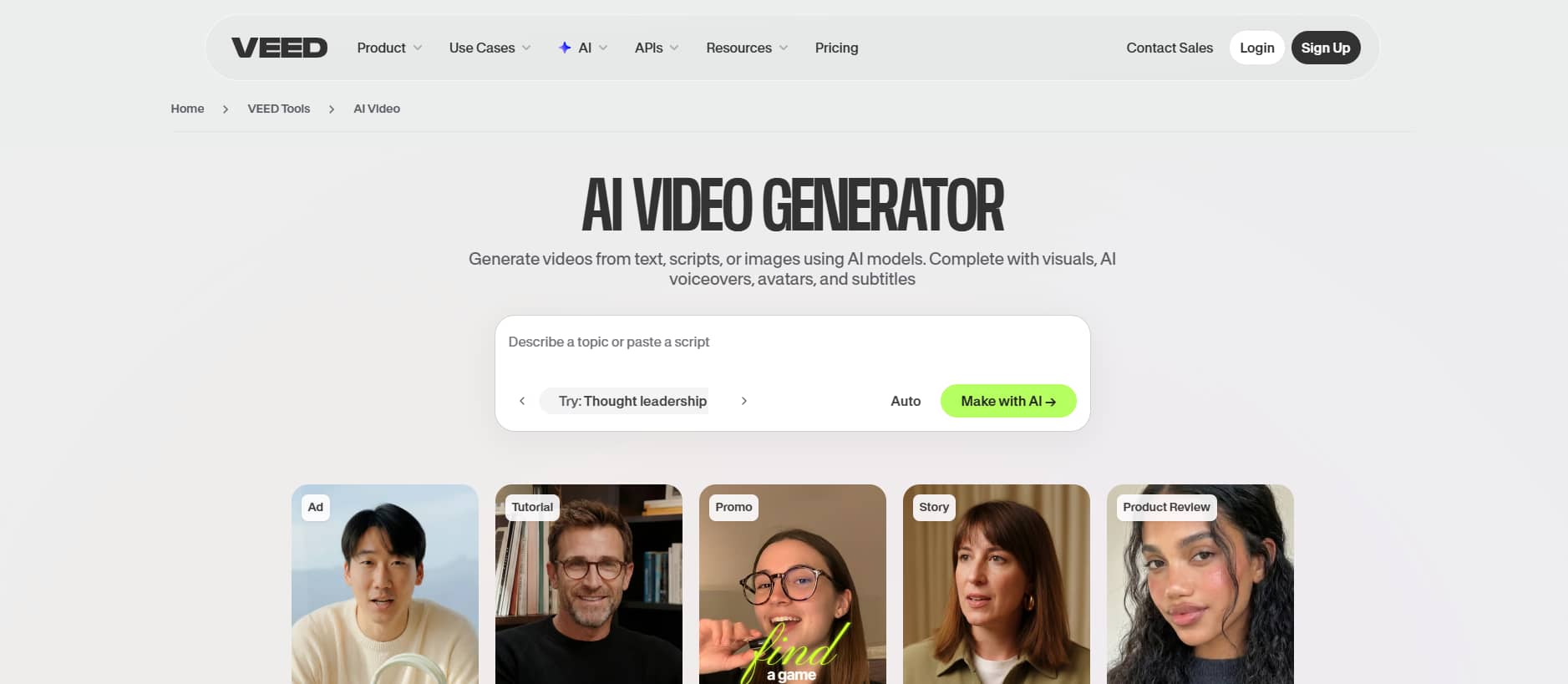
AI text-to-video generator
The AI text-to-video generator is probably the feature that pulls most people into Veed first. You paste in a script, blog post, or even a rough idea, and the Veed generates an AI video around it using stock footage, AI visuals, transitions, and text overlays. For quick marketing videos or social clips, it saves a surprising amount of time. You don't spend hours dragging footage onto a timeline manually.
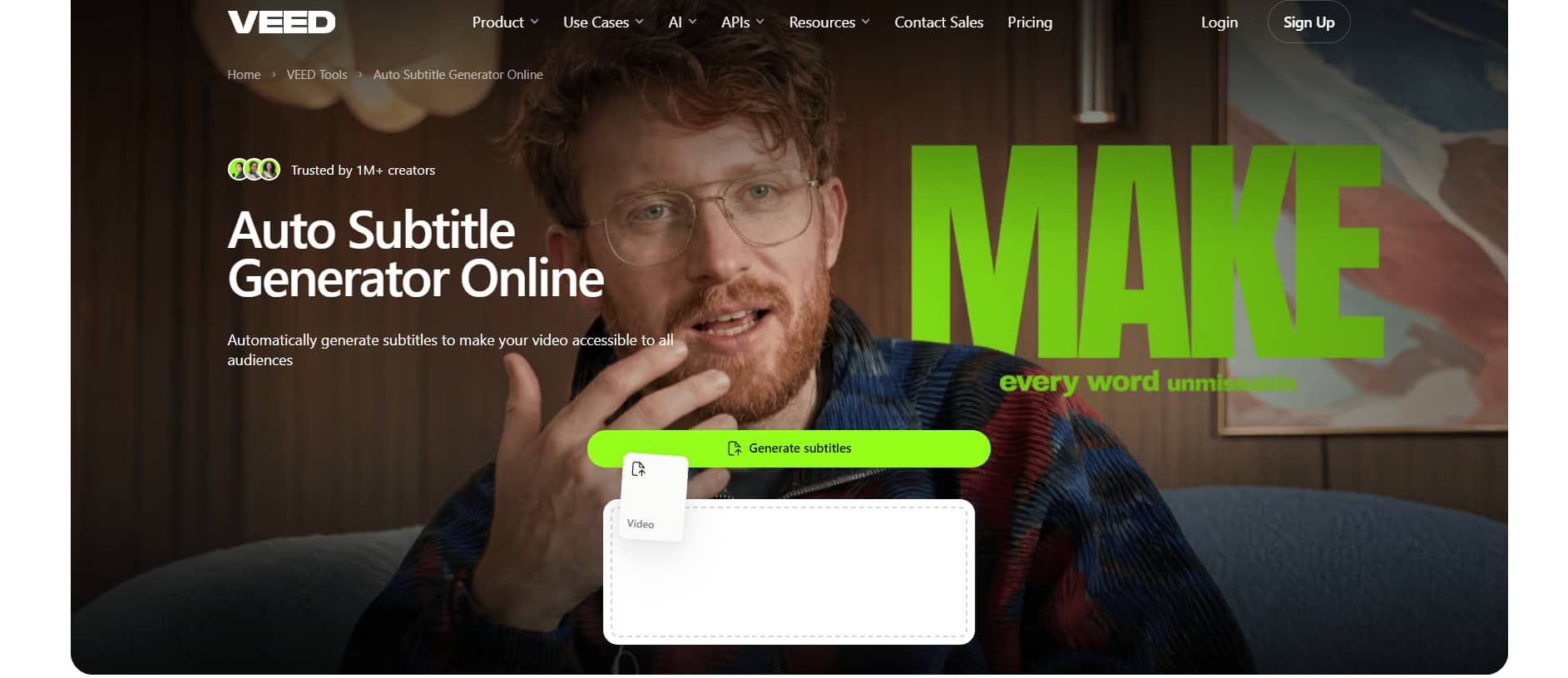
Auto subtitle generator
VEED's auto subtitle generator is one of the few AI caption tools that people actually keep using after the free trial ends. It can transcribe speech into subtitles in multiple languages and usually gets common phrases right in the first pass. Veed's subtitle generator can automatically transcribe spoken dialogue into captions across more than 125 languages and accents.
AI avatars & voiceovers
This is the section where VEED starts leaning harder into AI-generated content instead of standard editing. You can create talking AI avatars, generate voiceovers, and even clone voices for presentations or explainer videos. For faceless YouTube channels or training videos, it's genuinely useful. Recording narration over and over gets old fast.
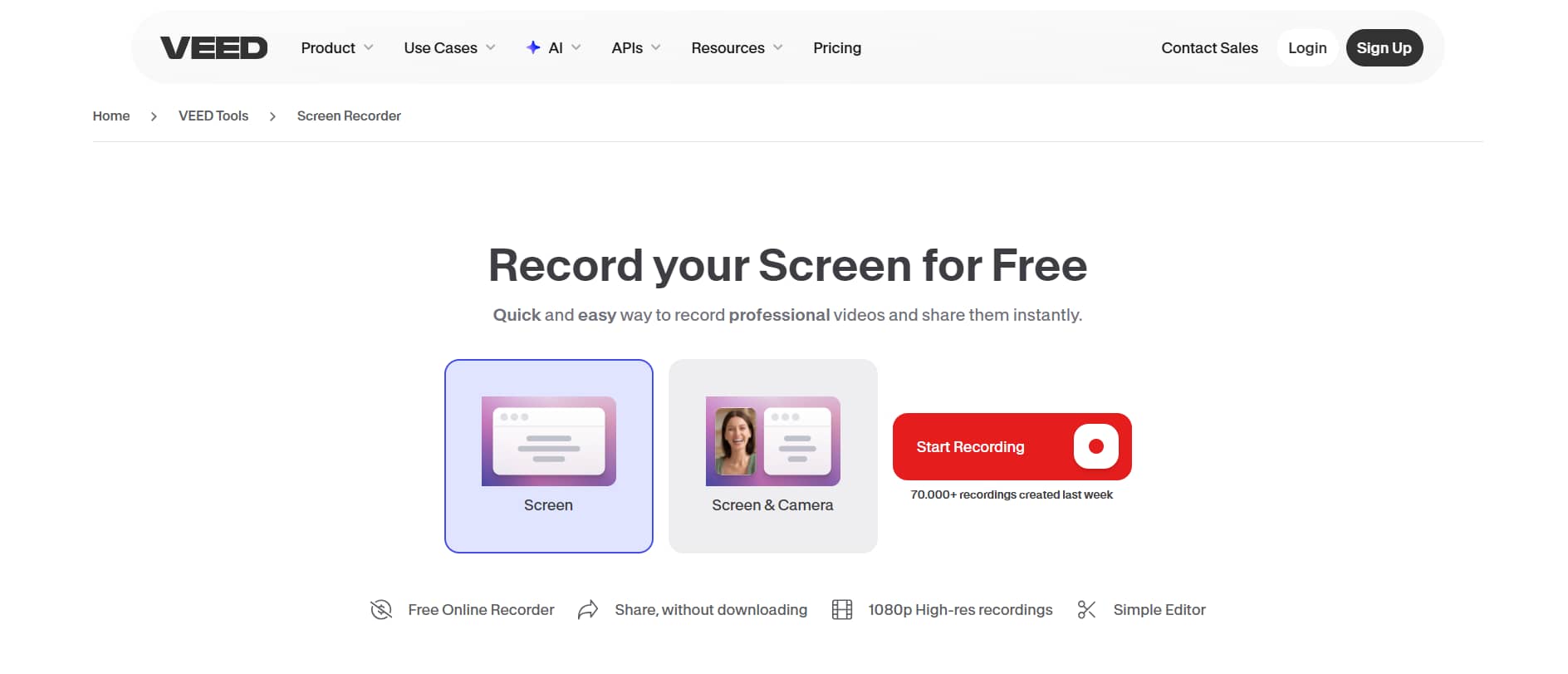
Screen recorder
The built-in screen recorder makes VEED surprisingly practical for tutorials, walkthroughs, presentations, and online training videos. You can record your screen, webcam, or both directly from the browser without downloading separate software. That's convenient, especially for quick projects or team demos. The setup is simple enough that most people figure it out in minutes. Longer recordings can occasionally lag, depending on your browser and internet stability. But a good internet connection can still solve the problem and streamline the task.
Magic cut & smart editing
VEED's smart editing tools are built for people who hate tedious cleanup work. The platform can automatically remove filler words, trim silences, cut dead space, and even turn long videos into shorter clips for TikTok, Reels, or Shorts. This is the part many editors secretly love because repetitive timeline cleanup is boring. Really boring. The automation works well on straightforward talking-head videos, podcasts, and tutorials.
Veed.io pricing plans
|
Creator |
Pro |
Studio |
Enterprise |
|---|---|---|---|
|
$12 |
$24 |
$39 |
Custom pricing |
|
|
|
|
-
Creator
The Creator plan is VEED's lowest-paid tier, and is mainly ideal for solo creators and freelancers. You get the basics — subtitle generation, standard editing tools, watermark-free exports, and a handful of AI features that are enough for simple YouTube uploads or short social clips.
-
Pro
The Pro plan is where VEED finally starts feeling less like a casual online editor and more like something you could realistically use for client work or regular publishing schedules. Export quality improves, and branding tools open up. Subtitle customization gets better, too, which matters if you're posting content daily and don't want every video looking identical.
-
Studio
The Studio plan shifts away from individual creators and focuses more on teams managing ongoing video production. Shared workspaces, project organization, team permissions, centralized assets - all of that starts mattering once multiple people touch the same content pipeline every day. For agencies or marketing departments pushing out constant social media content, having everything stored online cuts down a lot of chaos.
-
Enterprise
The Enterprise plan is really built for companies that care less about flashy AI features and more about keeping everything controlled, organized, and predictable. You're dealing with permissions, onboarding systems, account management, internal approvals, and custom workflows here.
What is the community saying about Veeed AI video generator
As for rating, it's hard to overlook others' voices. Here, we use mainstream platform feedback to present the true face of Veed.
G2
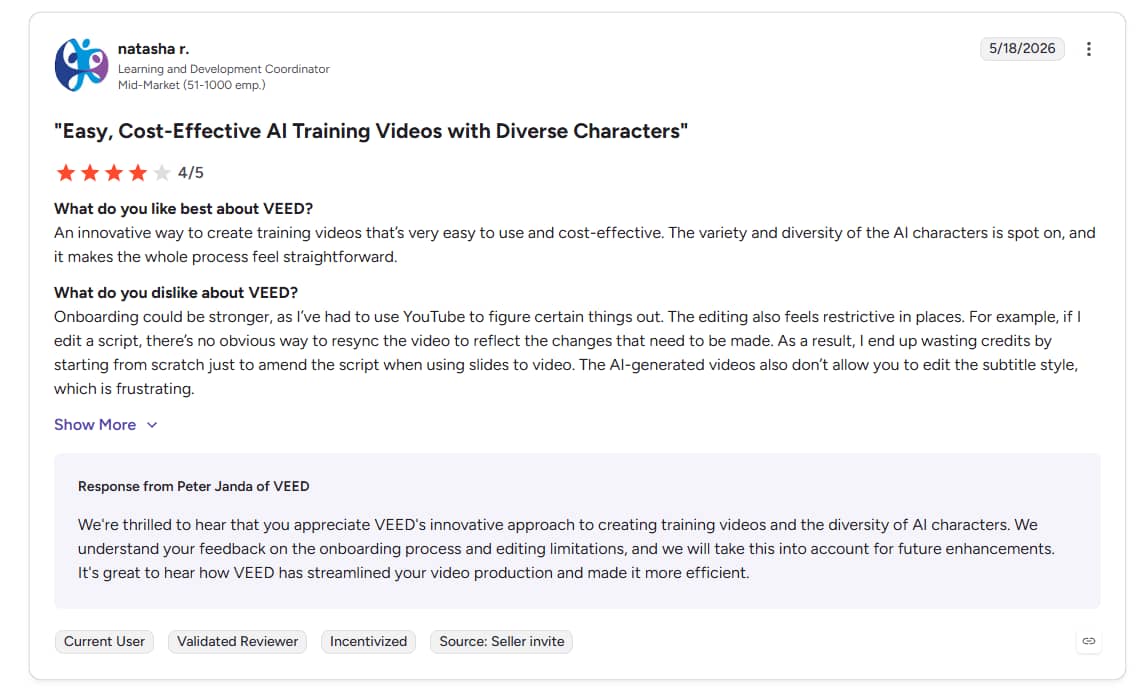
It's easy to see that many users strongly support VEED's diverse AI characters and cost-effective video generation, but they also share the frustration over rigid editing limitations, such as script desyncing and uncustomizable subtitles, that force inefficient workflows.
Capterra
On Capterra, users praise the tool as an efficient, time-saving upgrade over competitors, but note that it feels too repetitive for complex projects. Ultimately, they find the platform handy for the price, though they dislike that the most advanced creative features are locked behind expensive tiers.

Pros and cons of Veed io image to video AI generator
|
Pros |
Cons |
|---|---|
|
|
Overall, VEED makes the most sense when you care about speed, quick edits, subtitles, and getting content published without turning video production into a full-time job. For a lot of creators, that's already enough. You open the browser, make your edits, export the file, and move on.
But once you start wanting more control over visuals, AI-generated scenes, or heavier customization, the limits become easier to notice. That's usually where people start feeling the difference between an AI-assisted editor and a platform that's built more heavily around AI content generation itself. That's partly why alternatives like Vmake have started getting more attention lately, especially among creators experimenting with AI-first content production.
Vmake: An alternative for AI-first video creation
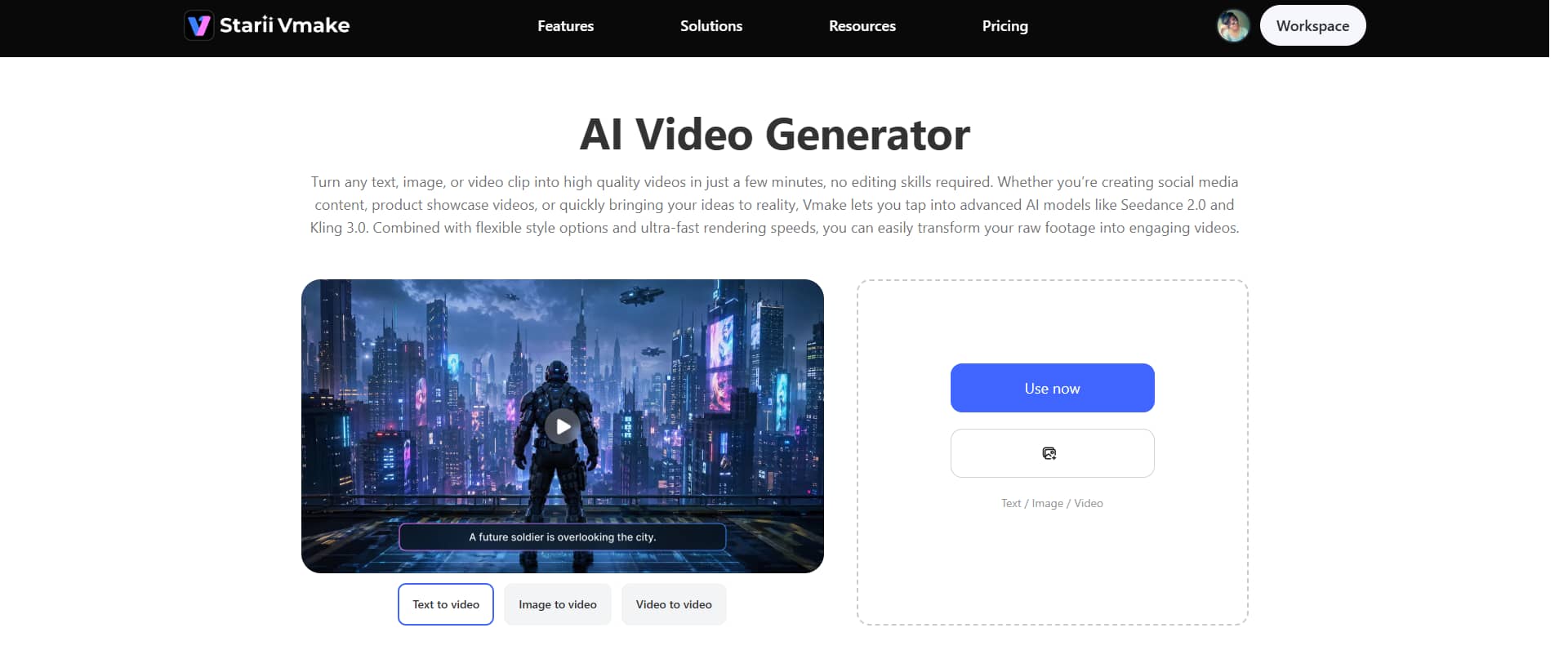
Vmake AI video generator focuses heavily on video generation, visual enhancement, and automated creative workflows. You can generate videos from text prompts, static images, and raw footage, without needing advanced editing experience first. Just upload photos or videos, type a prompt, choose a style, and the AI starts generating content based on it.
Key features
-
Multi-modal video generator
Vmake AI clip maker supports an array of video generation models, including Seedance 2.0, Kling 3.0, Google Veo 3, Sora 2, Vidu Q2, and Wan 2.2.
-
High-resolution output
Vmake puts a lot of attention on visual enhancement and output quality. Its higher-resolution export options are aimed mostly at marketing videos, social ads, and short-form content.
-
Multiple video generation methods
Vmake supports multiple video generation methods to make things easier for creators. Text prompts, static, and short video clips — it all adds into the AI generation process without forcing you to rebuild projects from scratch every time you switch formats.
Step-by-step guide
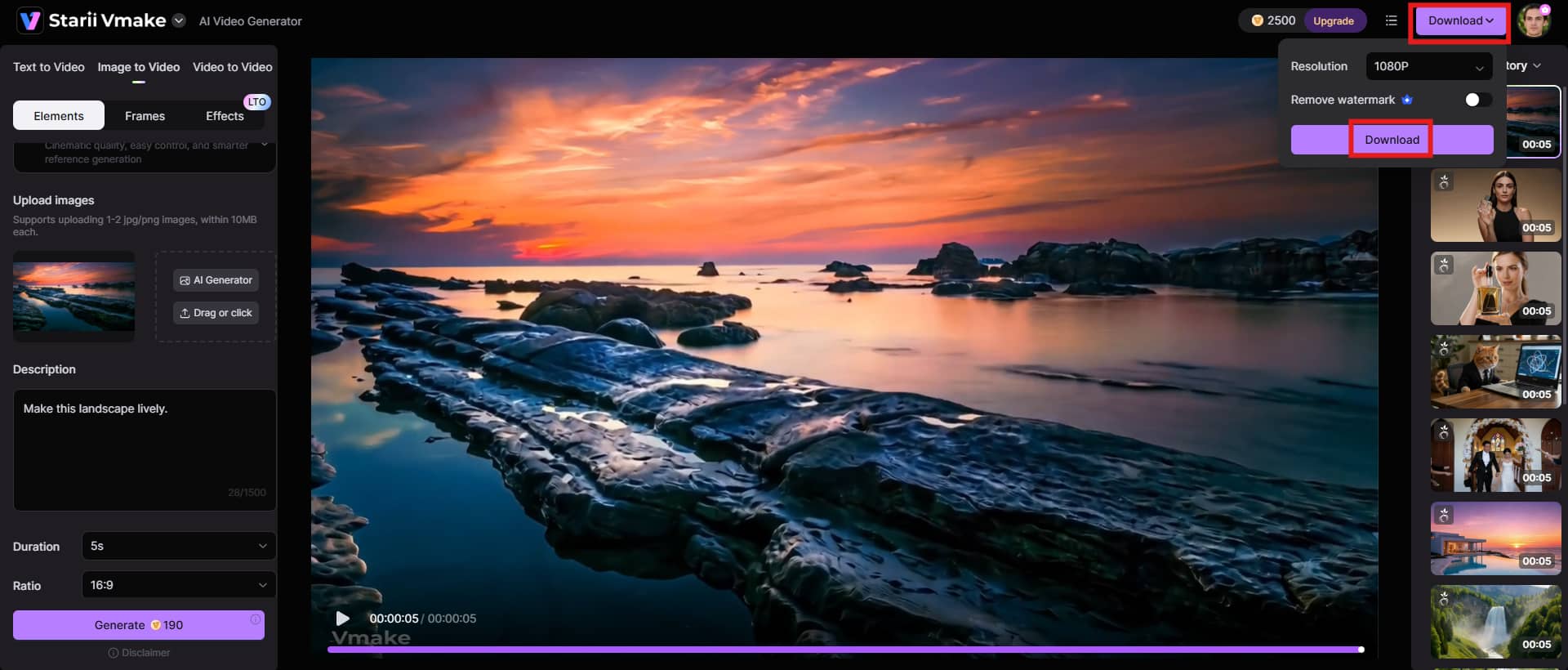
Step 1: Add your content ideas
Try AI Video Generator for free now!
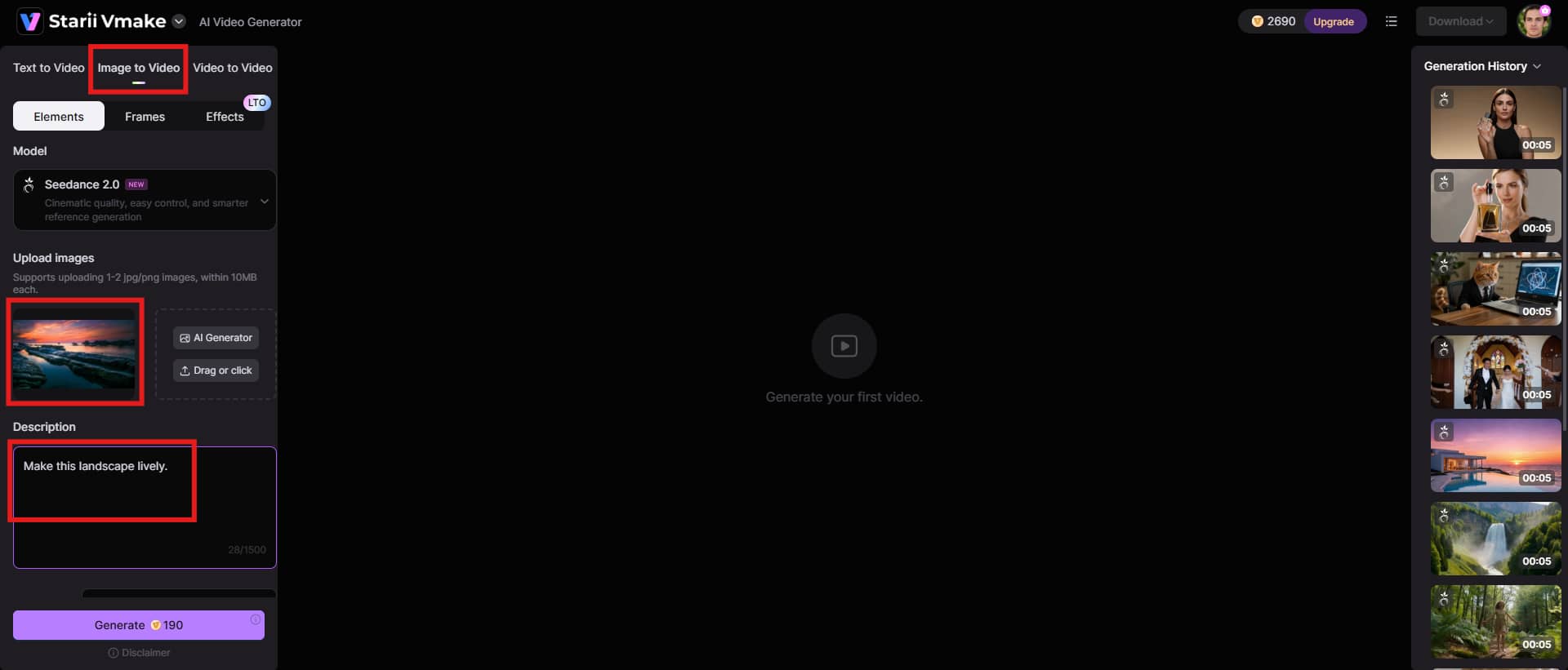
Just add a text prompt, upload an image, or mix a few reference files together, depending on what you're trying to build, and let Vmake AI handle the rest. Choose your option: text to video, image to video, or video to video, and start feeding the input accordingly.
Step 2: Select your preferences
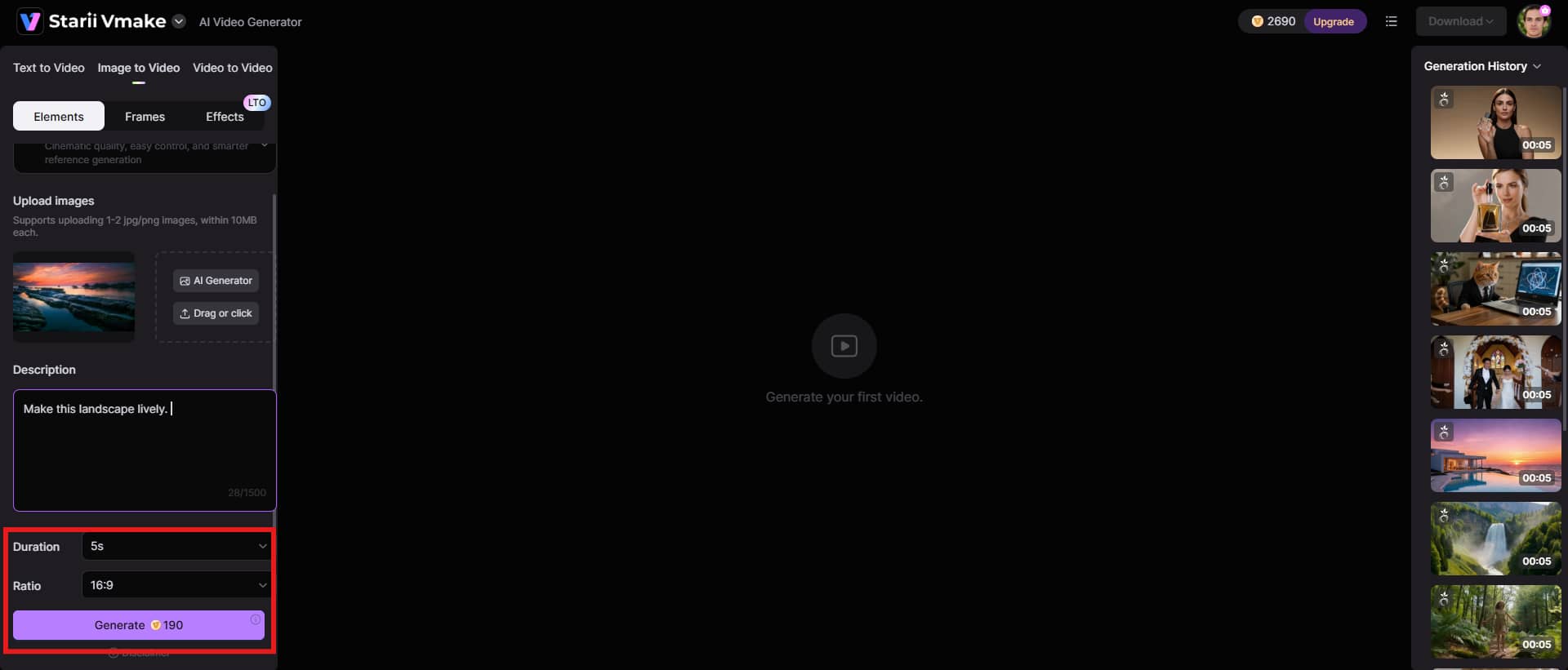
Now you shape the output a bit. Duration, aspect ratio, basic style choices — that's where you set the direction before the AI starts doing its thing. Hit the "Generate" button when you're ready.
Step 3: Preview and download
You get a full preview first — captions, pacing, visuals, transitions, all of it. Watch it properly and don't skip any part of it. If the preview looks fine, hit "Download" and save the video in your preferred format.
Veed.io vs Vmake: Feature comparison
This is where things start getting clearer, and a bit less marketing-heavy. You're basically looking at two different approaches to AI video creation. VEED sticks closer to browser-based editing with AI features layered on top. Vmake pushes harder into AI-generated content from the start.
|
Features |
Veed.io |
Vmake |
|---|---|---|
|
Text-to-video |
Yes, but more limited and template-driven |
Strong focus on prompt-based generation |
|
Editing style |
Timeline-based browser editor |
AI-first, generation-heavy workflow |
|
Subtitles |
Highly accurate and widely used |
Available |
|
Visual generation |
Relies more on stock media |
Strong AI image/video generation focus |
|
Learning curve |
Easier for beginners than editors |
Easy and hassle-free |
|
Output control |
High manual control |
More AI-driven output decisions |
Conclusion
Veed AI video generator works best when you just want to get editing done. Clean subtitles. Straightforward timeline tools. A browser workflow that gets you from rough footage to something publishable without turning it into a whole production headache. It's solid for YouTube creators, marketers, and teams that need repeatable results. However, some features feel more like add-ons than real helpers, especially when you push beyond basic edits.
Vmake, on the other hand, goes in a different direction entirely. You're dealing more with AI-generated visuals and prompt-based creation than traditional editing. It fits better if you want AI to do more of the visual building. Besides, it offers budget-friendly pricing to accommodate a wide range of customers.
FAQs
Is Veed AI video generator free to use?
Yes, VEED does have a free plan, but you hit the limit fast once you start using it for anything beyond casual edits. You can cut clips, try basic AI tools, add subtitles, and export videos, but watermarks and resolution limits show up pretty early.
What does VEED AI do?
VEED AI handles a mix of editing shortcuts and content generation tools inside your browser. You're dealing with things like auto subtitles, script-to-video generation, filler-word cleanup, basic voiceovers, and some AI-assisted scene building. It also helps when you're churning out talking-head videos or quick social posts
Does Veed support AI subtitles?
Yes, and this is one of VEED's popular features. It generates subtitles automatically in multiple languages and does a solid job when the audio is clean and well-paced. You also get decent styling controls, so your captions don't end up looking like default auto-text.
Can Veed create videos from text prompts?
It can, but it doesn't offer full creative freedom or anything close to pure AI generation tools. VEED's text-to-video feature is more structured and template-driven. You drop in a script or prompt, and it builds a video using stock clips, text overlays, and suggested scene layouts. It works fine for explainers or simple marketing content. Once your idea gets more abstract or visually specific, things start feeling boxed in.
What is the best alternative to Veed?
There's no clean “best” answer here. It depends on how you work and what you are actually looking for in a video generator. If you care more about AI-generated visuals and creating content from prompts or images, tools like Vmake feel more aligned with that kind of workflow.
Is Veed good for YouTube creators?
Yes, especially if your channel depends on consistency, subtitles, and fast turnaround times. Talking-head videos, tutorials, basic edits - Veed handles that kind of workload without making you fight the software every time. But if you're aiming for cinematic edits or very controlled visual storytelling, you'll probably find it a bit restricted.

You May Be Interested
Best Veed Alternatives for Captioning Videos Automatically (2025)
VEED Review: Does the Watermark Remover Work? (2026)
Viggle AI Video Generator Review & Top 2026 Alternatives