How to Enhance Sora AI Video Quality for Free Without Complicated Editing
 Vmake Labs TeamMay 29, 2026
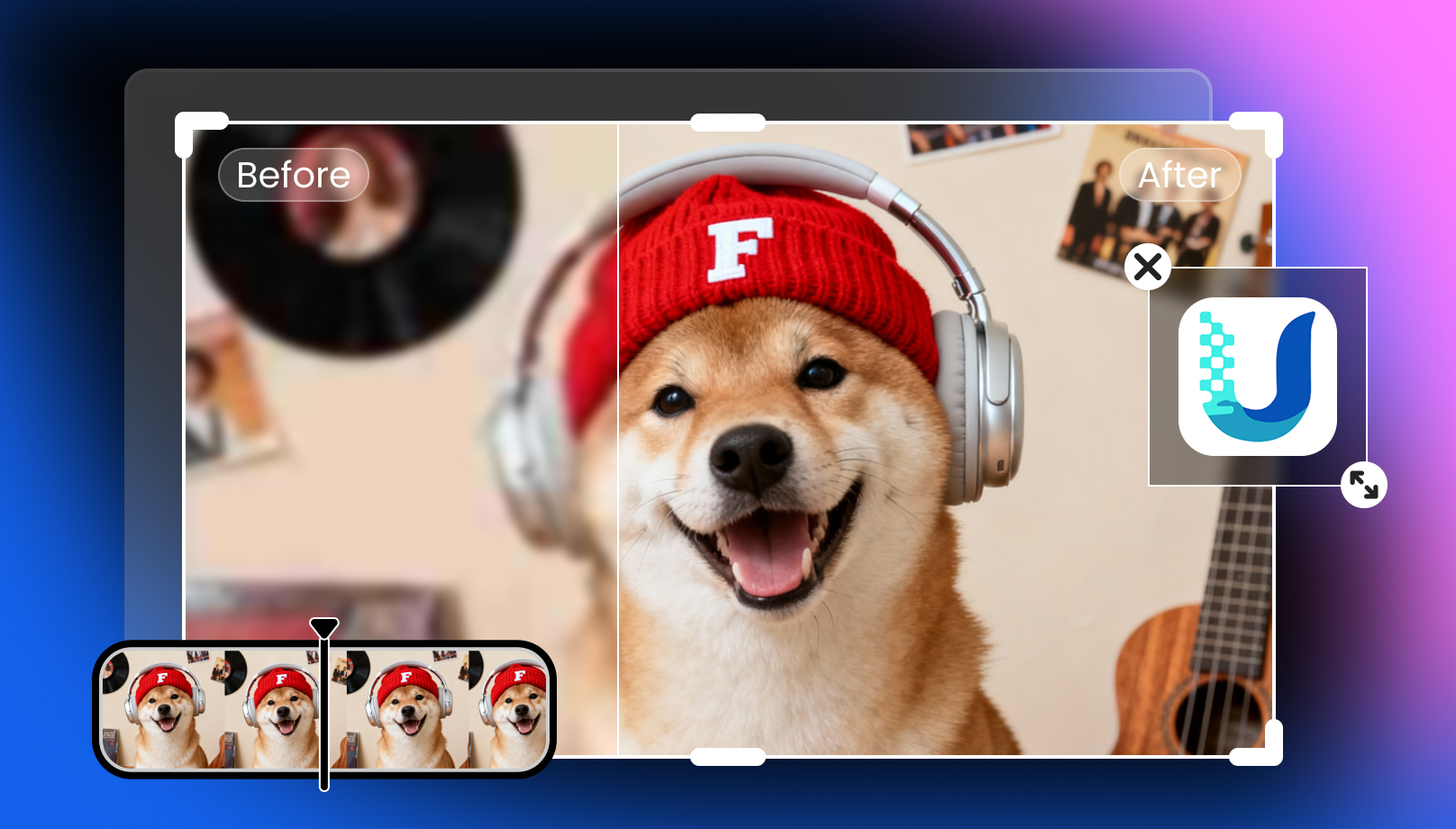
Are you looking for a way to enhance Sora AI video quality for free? We've got you. Here is the solution: Vmake AI Video Enhancer lets you instantly rescue your footage and bring out sharp details for free in just a few simple steps. Follow our lead and bring your video to life.
Why do Sora AI videos sometimes look blurry or low quality?
Sora videos can look impressive in short previews, but small issues often become noticeable after export. Fast motion, lighting effects, and close-up facial details are usually where softness starts showing up first. Uploading videos to YouTube, TikTok, or Instagram can reduce clarity even more because of extra compression, especially on larger screens.
What actually improves AI-generated video quality?
Getting AI-generated footage to look good usually takes more than a simple resolution boost. A lot of the problems show up after export anyway. Fine textures disappear. Motion starts looking uneven. Faces get oddly smooth in one frame and over-detailed in the next. That's where enhancement tools actually help.
-
Resolution upscaling: Upscaling helps footage hold together on larger screens. Without it, videos that looked decent in a preview window can suddenly appear soft or stretched once uploaded or viewed in full screen.
-
Noise reduction: AI-rendered clips often pick up strange artifacts after compression. Random grain, muddy shadows, messy edges around moving objects. Noise reduction helps clean that up without making everything look plastic.
-
AI sharpening: Generated footage tends to lose definition around hair, clothing, reflections, and smaller background details. Sharpening brings some of that structure back so scenes stop looking washed out.
-
Frame enhancement: Sometimes the issue isn't a single frame. It's the motion between frames. Flickering lights, jittery transitions, inconsistent movement. Frame enhancement tools smooth out those rough spots so clips feel less unstable.
-
Lighting and color improvement: AI videos can lean too dark, too saturated, or just visually uneven. A few lighting and color adjustments usually make scenes feel more believable, especially in cinematic shots or nighttime footage.
-
Face and texture restoration: Faces are often where AI flaws become obvious first. Skin textures blur together. Eyes lose detail. Surfaces look overly smooth.
Once all of those fixes come together, the difference is noticeable. Videos feel cleaner. Less processed. More intentional. A lot of creators use tools like Vmake AI for exactly that reason. It cuts out most of the manual cleanup while still improving the final result enough to matter after upload.
Vmake AI: A simple way to learn how to enhance Sora AI videos for free
Many traditional video editors require manual adjustments for sharpening, resolution scaling, and noise cleanup. Based on advanced technologies, Vmake AI handles sharpening, texture recovery, and video upscaling without forcing creators into complicated editing workflows. Creators can improve softer AI-generated footage in just a few clicks without needing advanced editing experience.
-
AI video upscaling: Vmake AI improves lower-resolution footage by increasing clarity and rebuilding missing visual details.
-
Automatic detail restoration: AI-generated videos sometimes lose texture quality during export. Vmake AI restores softer edges, facial details, and surface textures automatically to create HD footage.
-
Blur and noise reduction: Compression and rendering artifacts can make generated videos look grainy or inconsistent. Vmake AI reduces unwanted noise while improving overall sharpness and visual stability.
-
Simple AI clip maker workflow: Instead of manually adjusting multiple settings, users can improve videos using a simplified AI clip maker workflow designed for faster enhancement and easier exports.
-
High-quality export for social media: Vmake AI helps optimize videos for platforms like YouTube, TikTok, and Instagram by improving clarity before upload and reducing visible compression issues.
Step-by-step guide: How to enhance Sora AI video quality for free
Step 1: Upload your Sora AI video
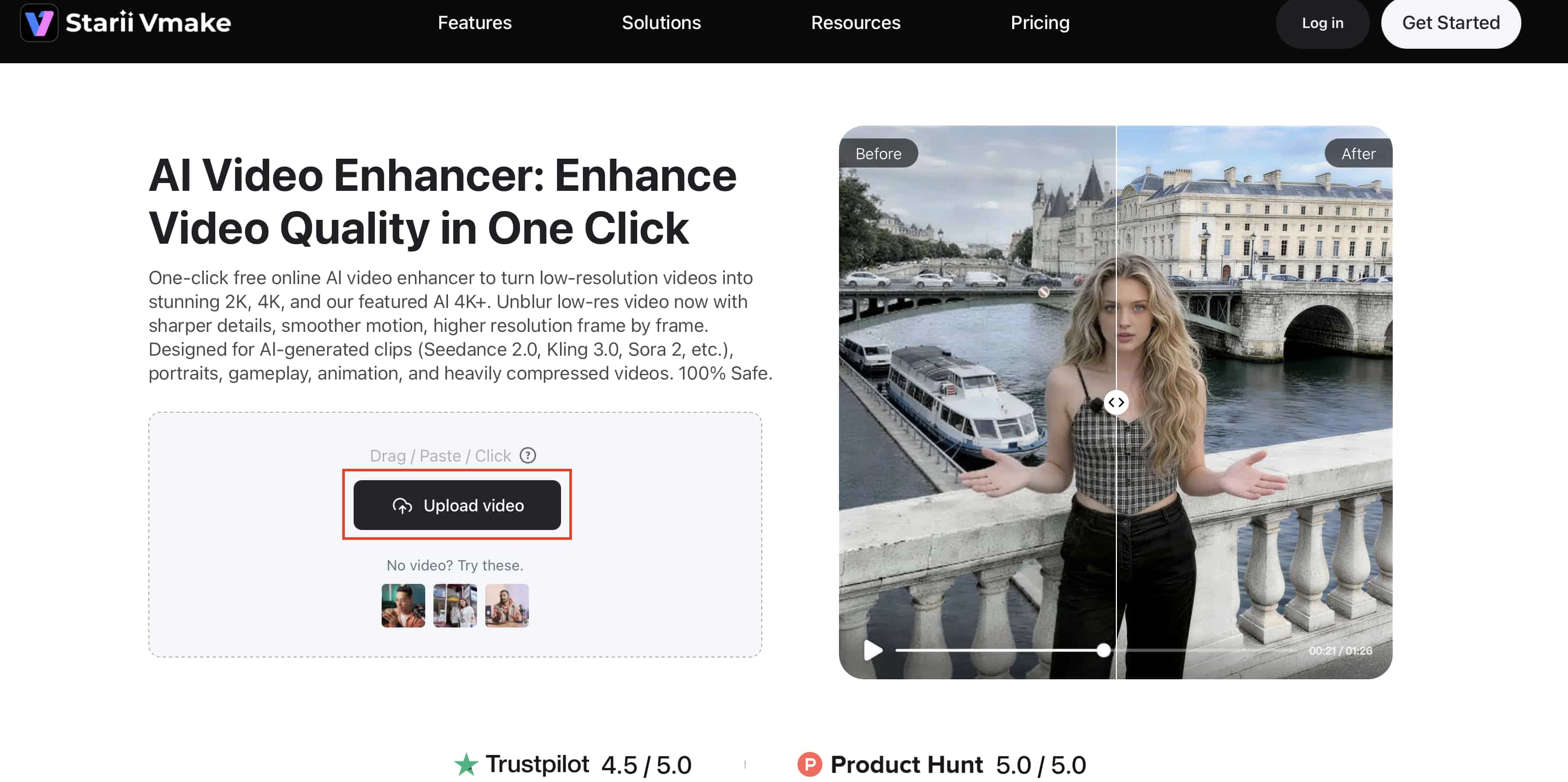
Open Vmake AI Video Enhancer and drop in the Sora clip you want to clean up. Also, you can click "Upload video" to load your video into it.
Step 2: Let the AI enhance the video automatically
Choose the enhancement settings you want to apply, such as AI sharpening, noise reduction, or resolution upscaling to HD, 2K, or 4K. You can also adjust the enhancement strength depending on the scene, especially for close-up shots, motion-heavy clips, or darker lighting. Once selected, the AI processes the footage automatically, so you do not need to manually fix every frame yourself.
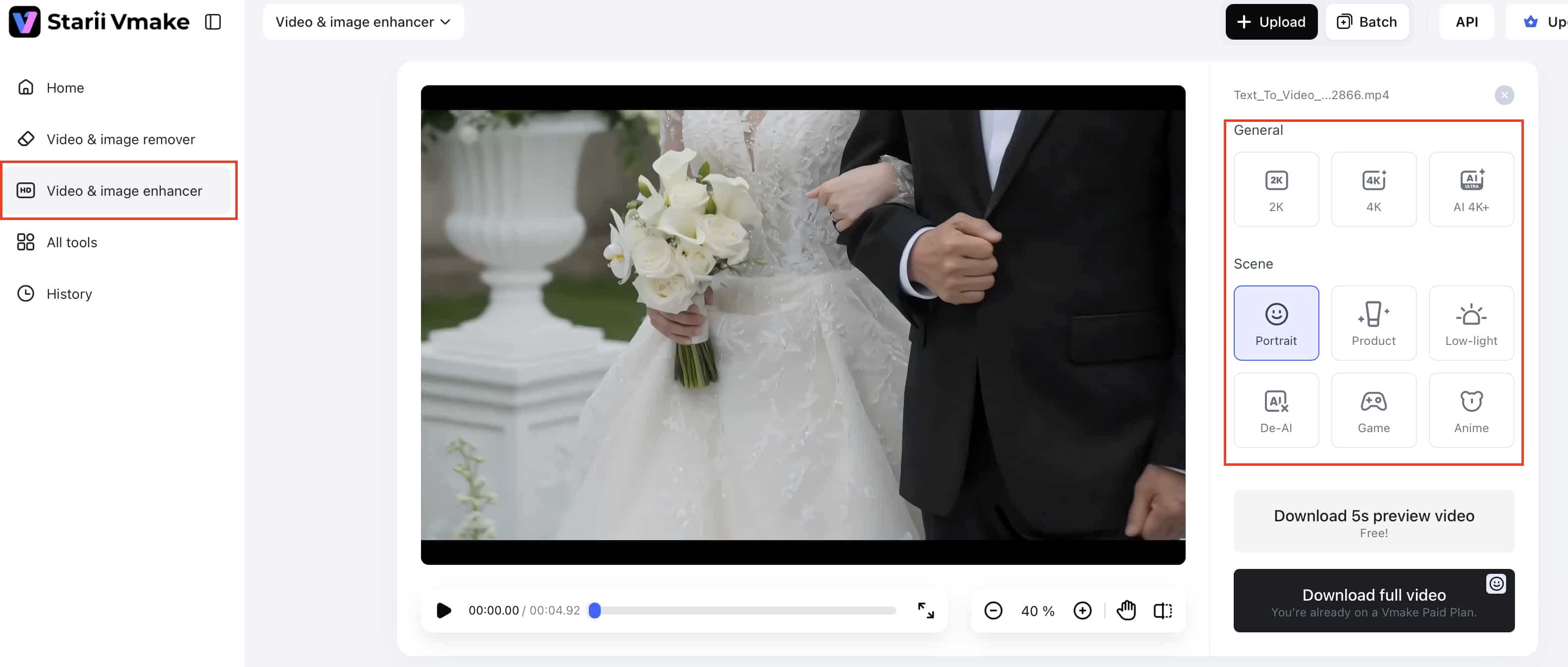
Step 3: Preview the enhanced results
Before exporting, compare the original clip with the updated version side by side. Small things usually stand out first. Facial details look clearer, lighting feels more even, and motion that looked slightly jittery before tends to appear smoother after enhancement.
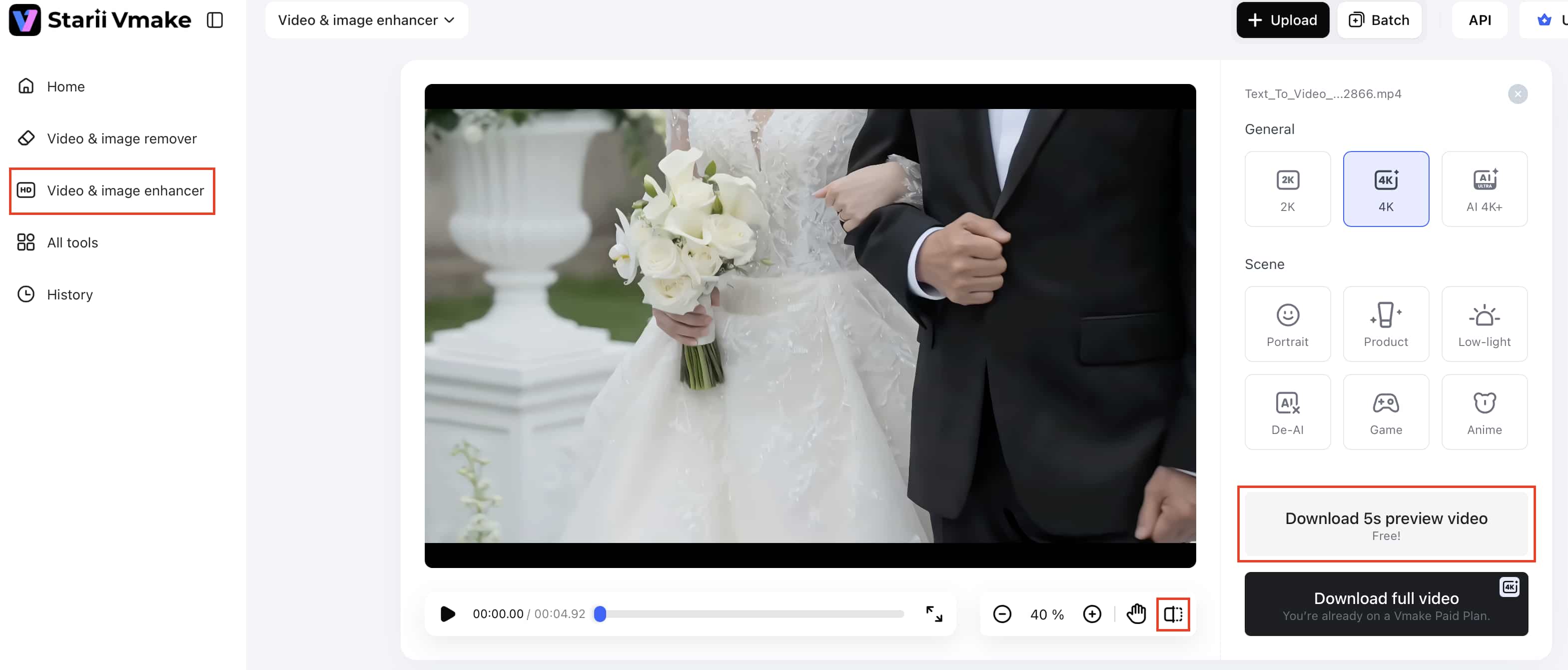
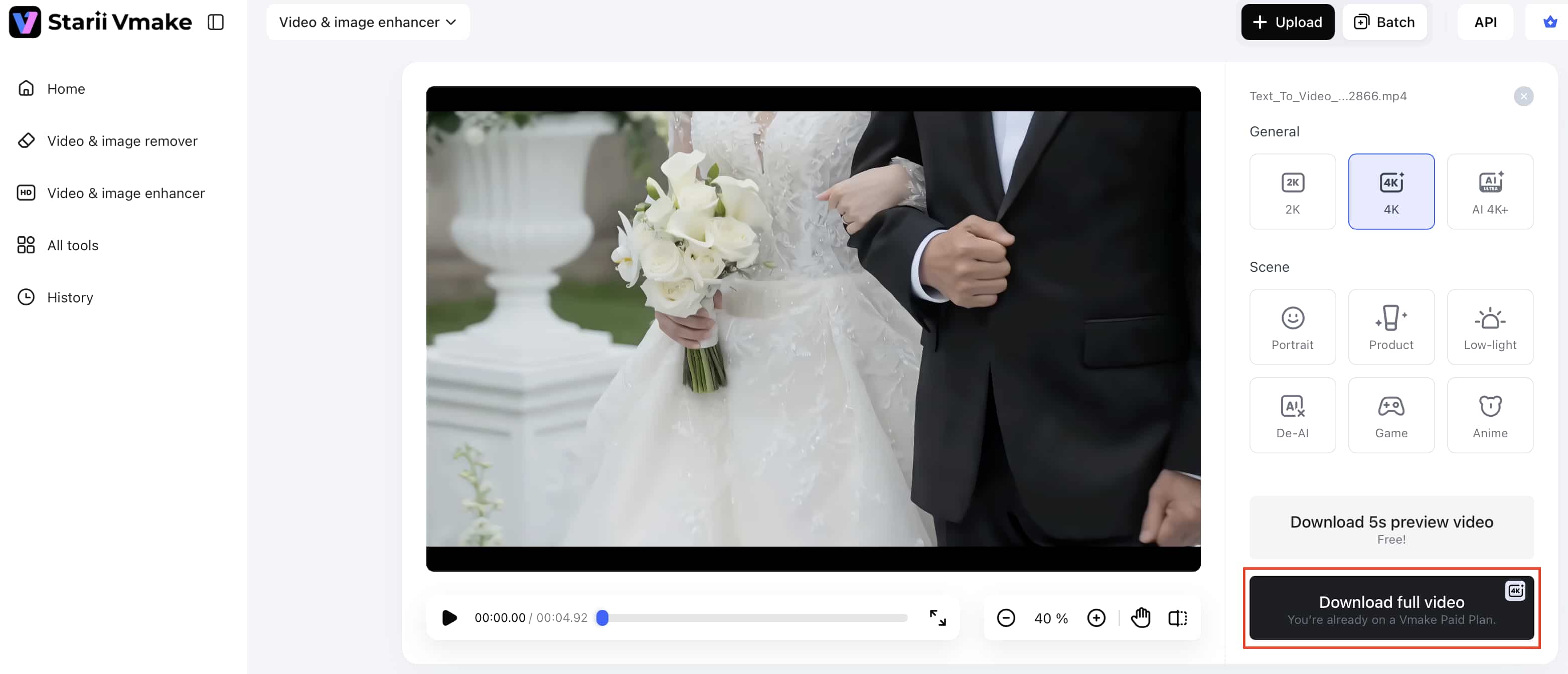
Step 4: Download the enhanced video in high quality
Once everything looks good, export the final version in HD or higher resolution. Higher-quality exports generally hold up much better after uploading to platforms that compress video heavily.
Simple ways to make AI-generated videos look more professional
Even good AI-generated footage can start looking rough after export if the settings are off. A few small adjustments usually make a bigger difference than people expect.
-
Export Sora AI videos at the highest possible resolution and avoid repeatedly compressing the same file. Multiple rounds of compression usually soften textures, reduce clarity, and make lighting inconsistencies more noticeable after uploading.
-
Cleaner source footage almost always produces better enhancement results. Videos with balanced lighting, simpler backgrounds, and shorter scenes tend to render more consistently and look less artificial after processing.
-
HD and 4K exports generally hold detail better across YouTube, TikTok, and other social platforms. Higher-quality exports also help reduce visible blur and texture loss on larger screens.
-
Before publishing, preview the final video on both desktop and mobile devices to catch issues that may not appear immediately. Many creators also use Vmake AI to sharpen softer footage and clean up visual inconsistencies before uploading online.
Most of these fixes are simple, but together they help AI-generated videos feel more polished and less artificially processed once they're online.
Conclusion
A lot of Sora AI videos look impressive at first glance, but exported footage can still lose detail pretty quickly after compression or upload. Soft textures, unstable lighting, and blurry edges become more obvious once videos hit streaming platforms or social feeds.
That's why many creators run their clips through enhancement tools before publishing. Vmake AI helps clean up those rough spots without turning the process into a full editing project. Sharper details, better clarity, cleaner exports. Usually, with far less manual work than traditional editing software.
FAQs
How to enhance Sora AI video quality for free?
You really don't need complicated editing software for this anymore. Most of the time, the biggest difference comes from fixing softness after export, cleaning up messy compression, and recovering some lost detail. That's usually why people use tools like Vmake AI instead of editing everything manually from scratch.
What is the easiest way to learn how to enhance Sora AI video quality?
Most people figure it out by testing a few clips themselves. Comparing the original and enhanced versions side by side usually makes it pretty obvious what improves the footage. Tools like Vmake AI keep the process simple, so there's not much setup involved.
Can AI video enhancers upscale low-resolution videos?
Yes, AI video enhancers can improve low-resolution footage by sharpening softer details, reducing blur, and helping videos look clearer on larger screens. Tools like Vmake AI simplify the process by handling most of the enhancement automatically through AI-powered optimization.
What is the easiest way to improve Sora AI video quality?
Most creators start by exporting videos at higher resolutions and avoiding repeated compression. After that, AI enhancement tools usually help the most. Vmake AI, for example, can sharpen textures and improve softer-looking footage without requiring complicated editing work.
Does Vmake.ai improve AI-generated videos automatically?
Yeah, most of the enhancement happens behind the scenes once the video is uploaded. Vmake AI cleans up softer details, reduces some of the rough compression artifacts, and improves overall clarity without forcing you to manually adjust every little thing yourself. You still choose the final export settings, but the actual cleanup process is mostly automated.
Can beginners learn how to enhance Sora AI video quality for free using Vmake AI?
Definitely. You don't really need prior editing experience to use it. The process stays pretty straightforward. Upload the clip, run the enhancement, preview the result, export the final version. That's about it. There's no complicated editing timeline or technical setup that beginners have to figure out first, which honestly makes the whole thing much less frustrating.

You May Be Interested
2026 Fotor Video Enhancer Review: Features and Top Alternatives
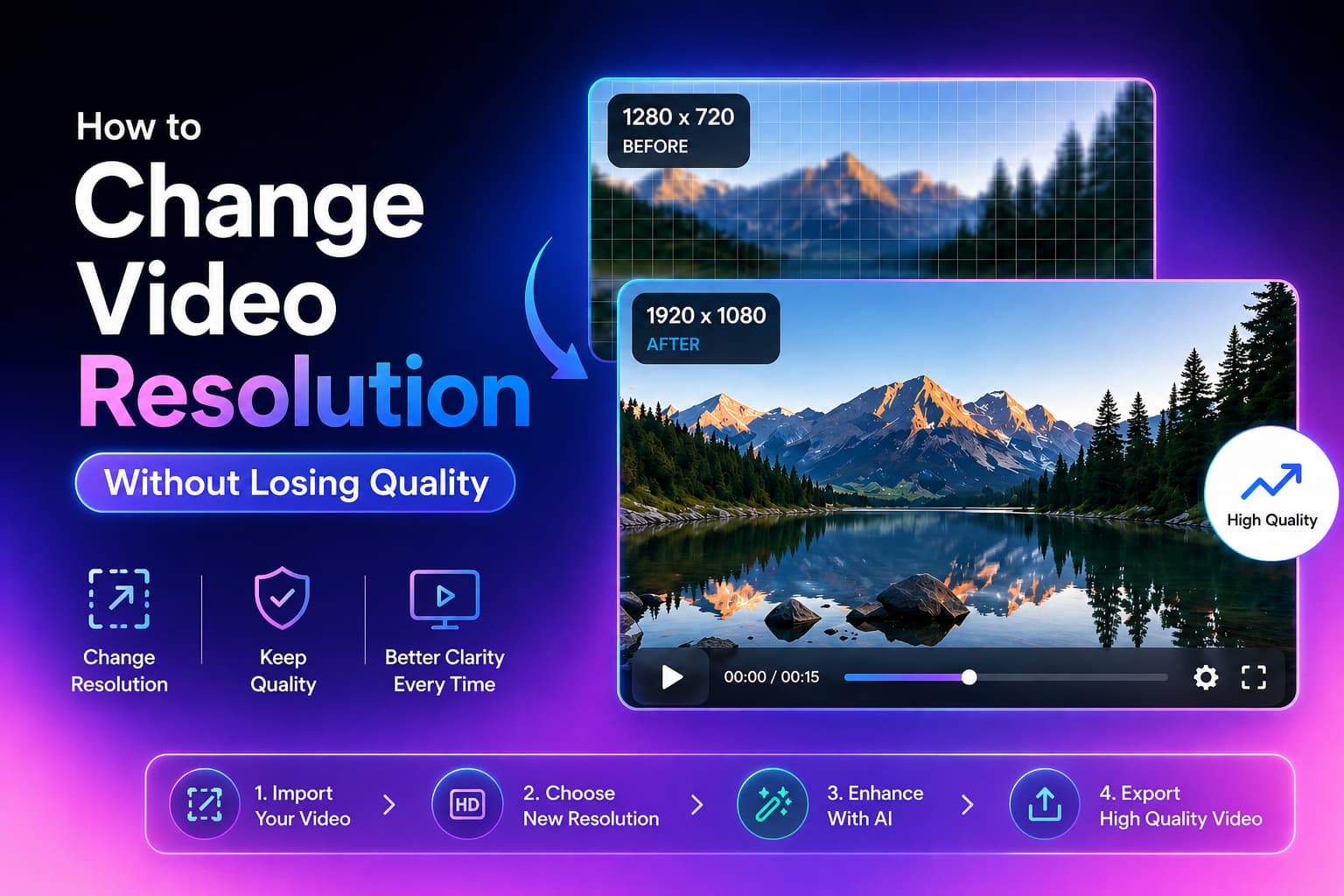
How to Change Video Resolution Without Losing Quality
Seedance 2.0 vs Sora 2: Which AI Video Generator Wins in 2026?