Cutout Pro Review 2026: Is It Worth the Credits? Features & Pricing
 Ken DawsonMay 4, 2026
Struggling with blurry videos, inconsistent photo enhancements, or credit-hungry platforms that drain your budget? You are not alone. In this comprehensive Cutout Pro review, we dive deep into one of the most popular AI visual platforms to see if it truly holds up to the hype.
Launched in 2020, cutout.pro is a credit-based editing suite widely known for its highly accurate background removal and video upscaling up to 4K. In this guide, we provide an honest feature-by-feature test, a transparent pricing breakdown, its real-world limitations, and a high-quality, video-first alternative for professional creators.
Cutout Pro at a Glance: Key Specs
Let's look at the hard technical limits first. Don't hand over your credit card until you know what this thing can actually handle.
-
Platform Type: Available via a web browser interface and a dedicated desktop app (which is highly recommended for handling bulk editing tasks without crashing your browser tabs).
-
Supported Formats: For video workflows, it accepts MP4, MOV, AVI, WebM, and GIF. For static image editing, it supports standard JPG and PNG files.
-
Output Resolution: The Cutout Pro enhancer supports upscaling footage up to 4K resolution at 60 fps, though final clarity heavily depends on the quality of your original file.
-
Credit Model: Operates on a hybrid subscription and pay-as-you-go credit system. The free tier offers 5 credits upon signup, allowing you to test basic tools before entering payment details.
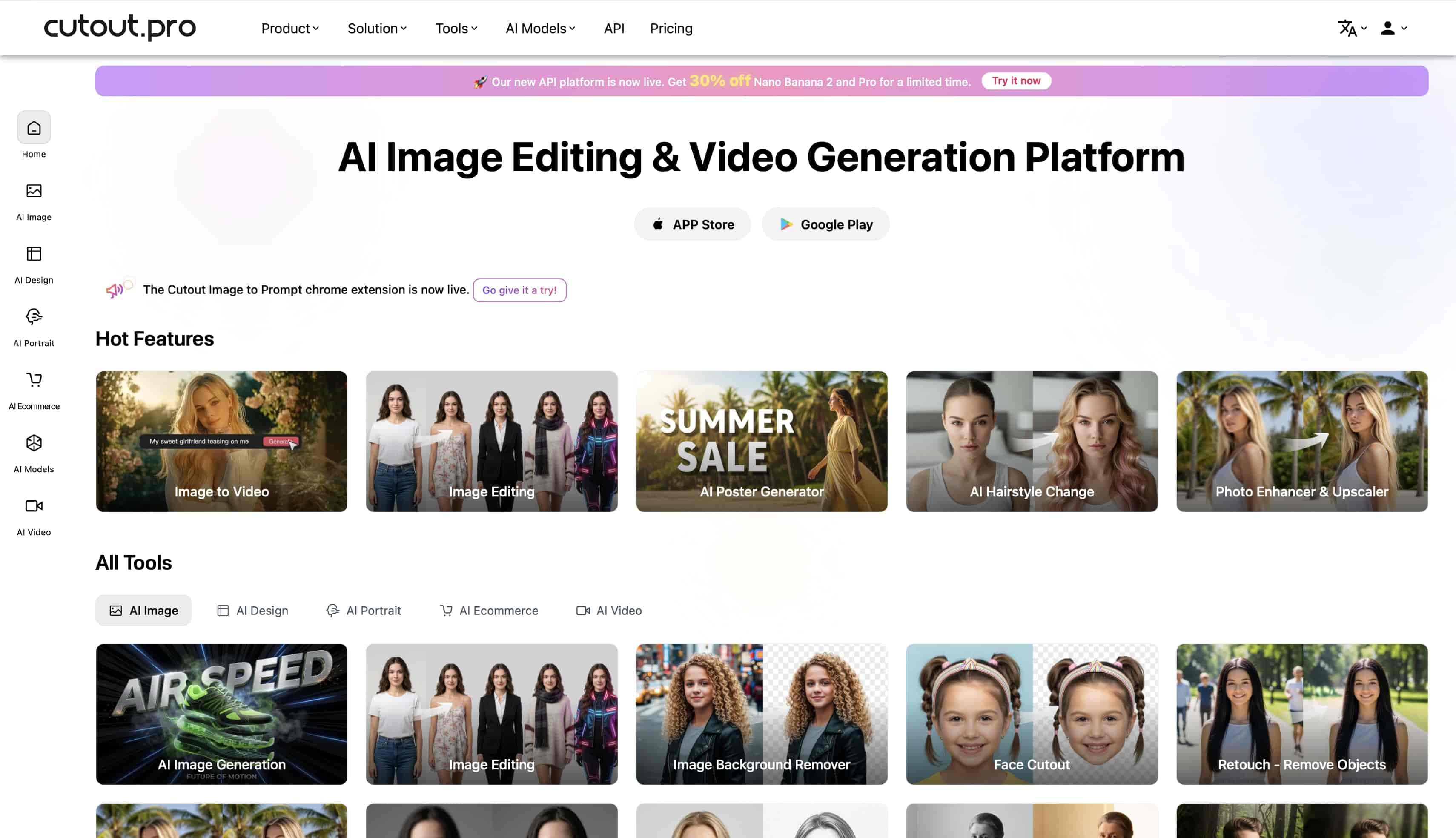
Key Features of Cutout Pro
They cram a massive number of tools into the dashboard. It gets a bit overwhelming at times. Here's what you actually get for your money:
-
AI Image: This toolkit handles the heavy lifting for your static photos. It includes core tools like the Image Background Remover and the Photo Enhancer & Upscaler. Honestly, the Passport Photo Maker works fine, but you'll still catch weird edge blending if the lighting is bad.
-
AI Design: Fast asset creation lives right here. You get access to the AI Poster Generator and niche options like the AI Tattoo Generator. Most people just click around the AI Design Generator for quick social posts and ignore the rest.
-
AI Portrait: Fixing or stylizing faces is the sole focus of this specific menu. You'll find the AI Headshot Generator and Cartoon Selfie packed in together. The Virtual Try-On feature is fun to play with.
-
AI Ecommerce: Product photographers might actually save some serious time using this section. It packs in the AI Virtual Model and AI Product Staging to replace messy backgrounds with clean white drops. Complex transparent objects will absolutely trip up the E-commerce Auto Design tool, though.
-
AI Video: This is the motion media suite where costs can quickly get out of hand. It includes the AI Video Enhancer and the Video Background Remover. Just don't expect extra features like Digital Human Video to rival dedicated software.
Honest Cutout Pro Reviews: What Real Users Are Saying
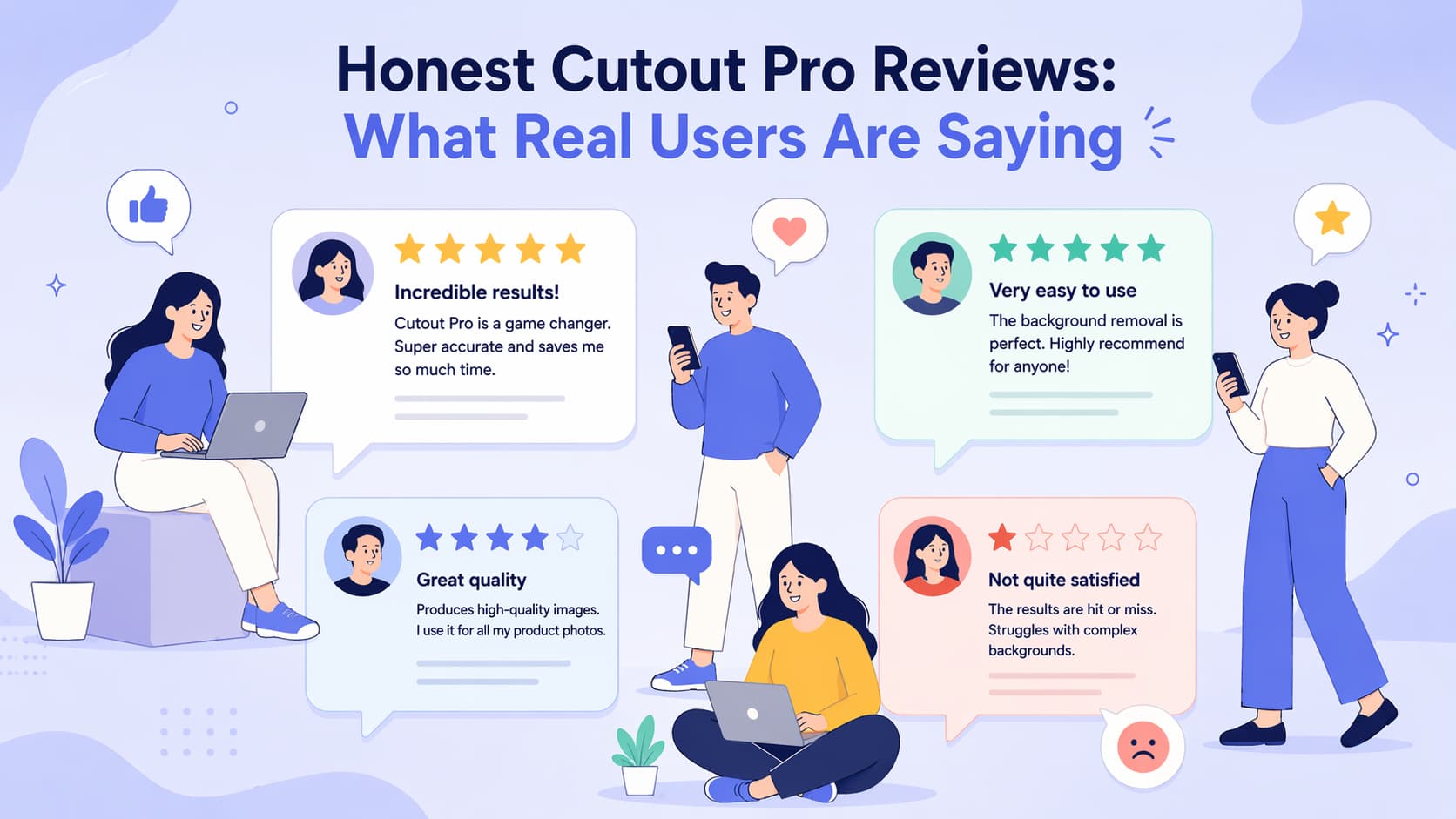
What happens when real people push the software? I dug through trusted review sites. The results are pretty mixed.
The Positive Reviews
1. Eduardo M., Graphic Design Senior (via G2)
"Image Background Remover helps save time by eliminating the need to perform this process manually. They can process multiple images in a matter of seconds, which is particularly useful for projects that require speed.
No prior experience is needed as its interface is very intuitive."
2. Verified IT Professional (via G2)
"very easy to use- high accuracy- works on a variety of images
I am extremely satisfied with this tool. I just needed something which could provide a quick way to remove backgrounds
The other tools make you go through a tiring pipeline of steps.
Here, simply upload and hurray!"
3. Abraham B., Copywriter and Graphic Designer (via Capterra)
"Amazing, easy to use. I have made money with my advertisements and Cutout Pro made it possible for images to have no background or take out extraneous or unwanted images from a picture."
The Negative Reviews
4. vampteethz (via Trustpilot)
"Don't use this app - data leak
As everybody else here is saying, this site is a scam, i also got hacked and i finally found out it was by this shit scam site thanks to MalwareBytes. I'm still getting spam mails and i'm pretty sure my data and idk what else is flying around darkweb. Honestly ridiculous and they really deserve to be sued.🙃"
5. Vincent Rider (via Trustpilot)
"Tried their online site
- uploaded a short video for enhancement: no problem
- tried to upload the result for inspection: asked to login with google
- logged in with google and tried to download the corrected sample: refused because I have no credit.
Complete Scam. Deleted my account right aways"
Pros and Cons of Cutout Pro
Here is the reality check.
Pros:
-
Fast cloud processing.
-
No installation needed for basic web tasks.
-
Strong background removal for photos.
-
Broad toolset covering images and video.
-
Very beginner-friendly UI.
Cons:
-
Severe texture loss on videos (the "wax skin" problem).
-
Backgrounds get overly smoothed out during heavy upscaling.
-
Barely any manual control settings.
-
Video work eats your credits quickly.
-
Occasional processing glitches.
-
Requires a strong internet connection.
How to Use Cutout.Pro Video Enhancer
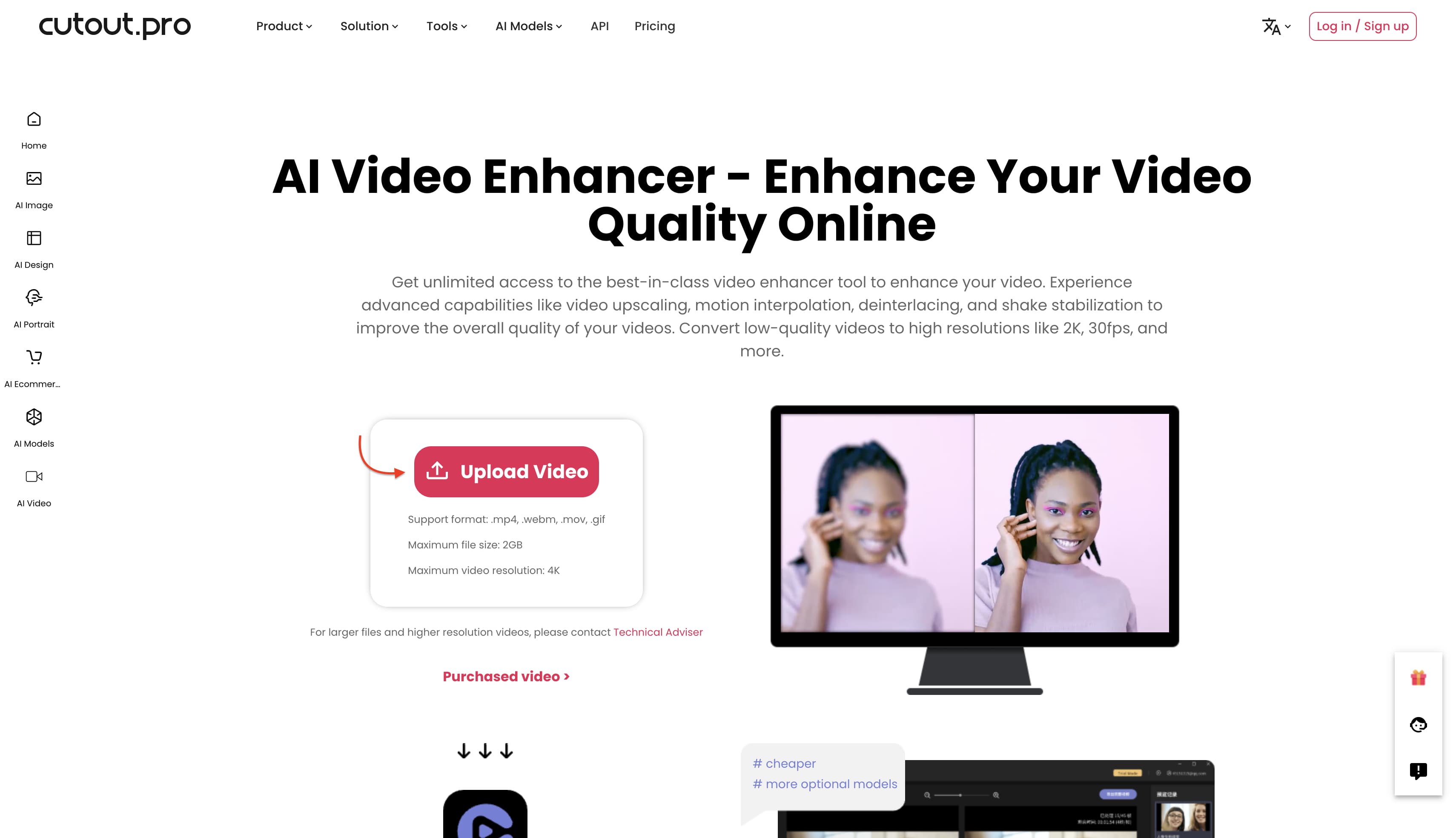
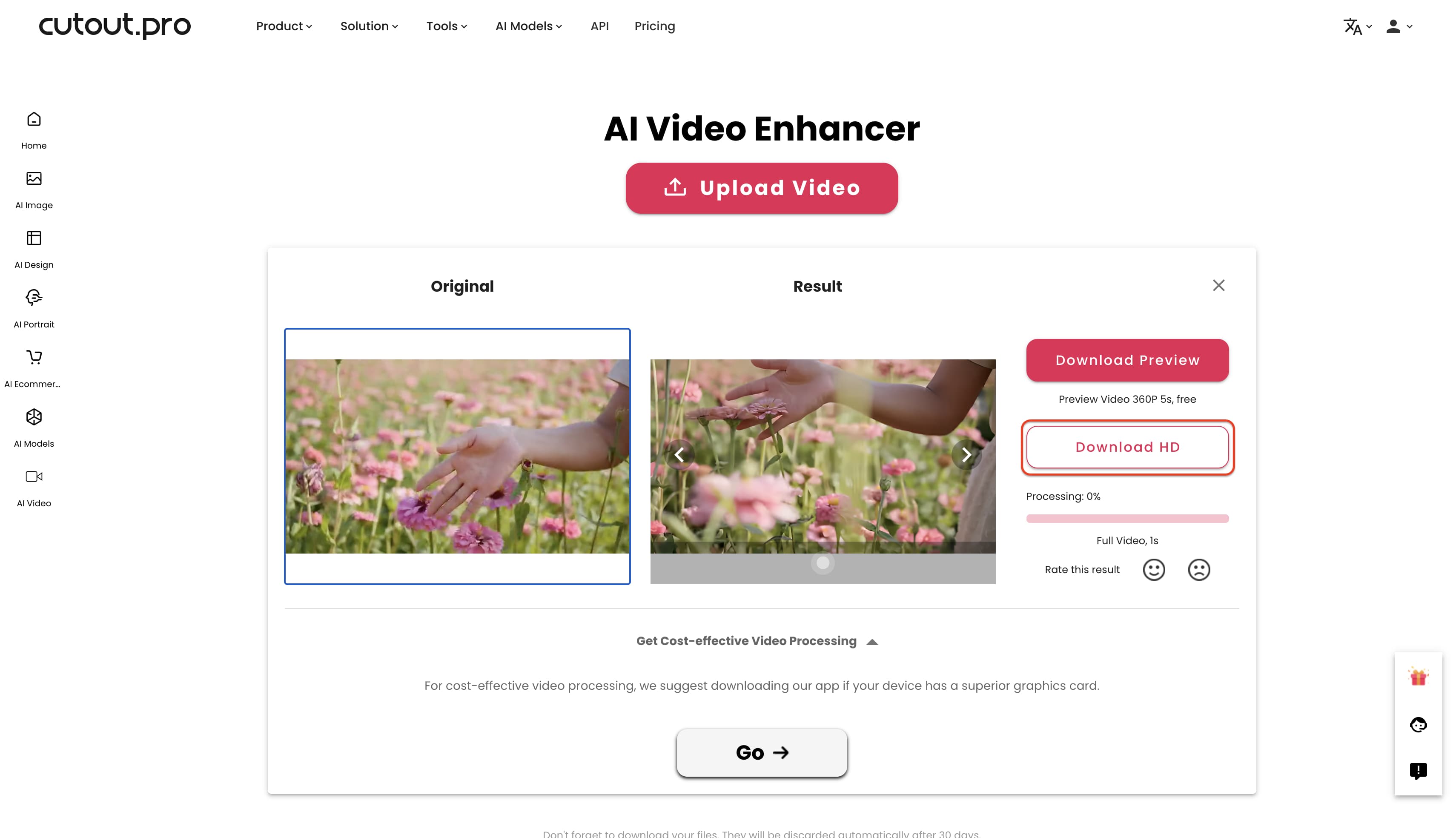
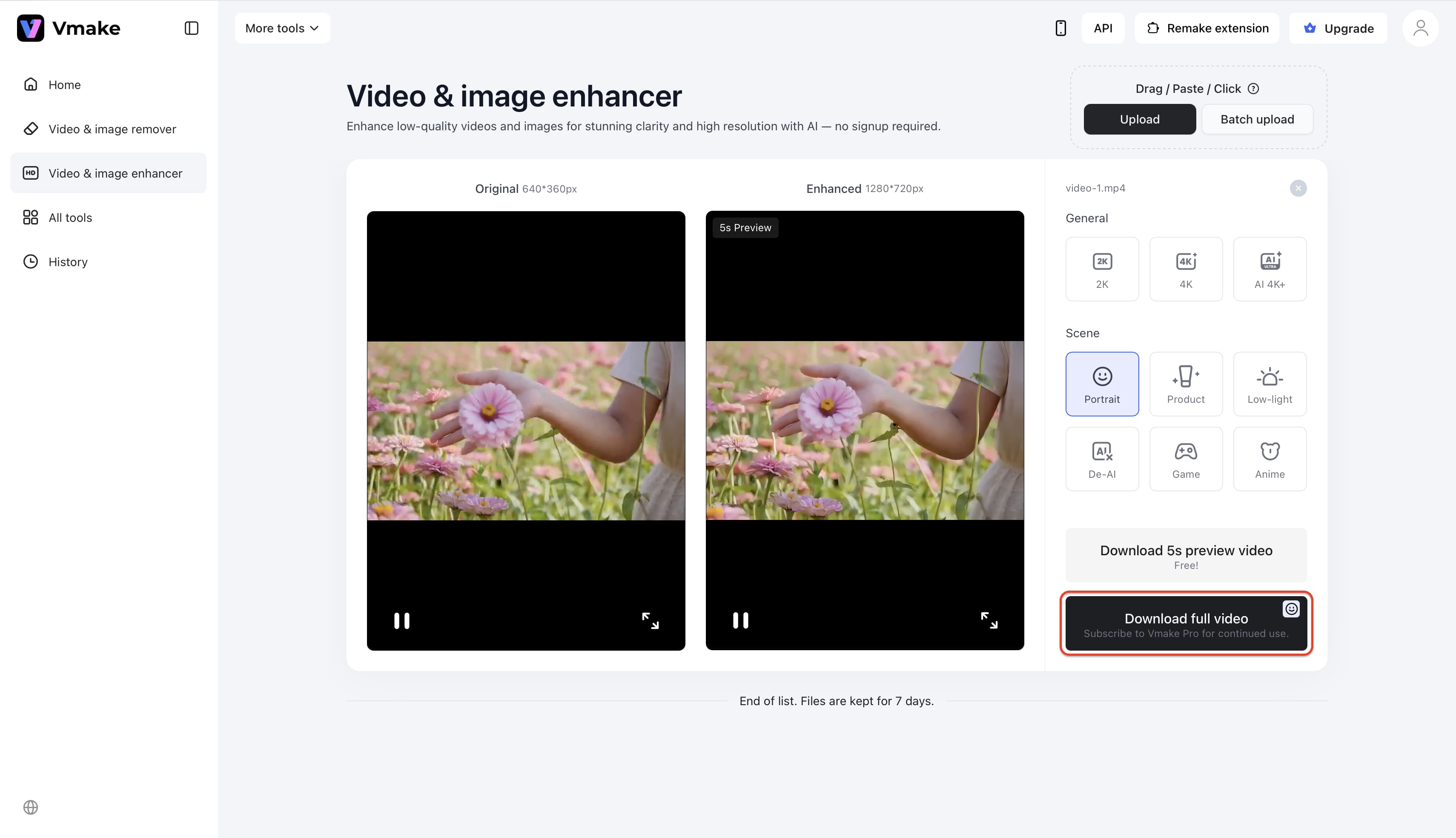
Step 1: Upload Your Video
Hit the "Upload Video" button on the Cutout Pro Enhancer page to add your MP4, WEBM, GIF or MOV file.
Step 2: Wait for Processing
The cloud servers take over. They analyze the footage and apply edits automatically. You just sit there.
Step 3: Preview and Download
Check out the preview. Click "Download HD" to save the file if you actually like the result and have enough credits left. Honestly, the wait times here can drag if your internet is acting up.
Cutout Pro Pricing: How the Credit System Works
Cutout Pro runs on a credit system. That gives you flexibility. You also have to watch your balance like an absolute hawk because credits vanish quickly. Here's what you actually pay:
-
Free Account: You get 5 free credits just for signing up. Unlimited previews come with the tier, so you can test the waters before paying. Just don't expect to download any high-res final files for free.
-
Image Subscriptions: Monthly plans are surprisingly cheap. They start at $5.00 for 80 credits. Unused credits roll over up to 5x your monthly limit. Honestly, most companies cap your rollovers way earlier than that.
-
Image Pay-As-You-Go: Hate subscriptions? Buy lifetime-valid credits instead. Those start at $4.99 for a 30-pack.
-
The Hidden Catch: Keep an eye on your actual usage. Standard background removal eats 1 credit per image. Use advanced tools like the image enhancer, and it costs you 2 credits a pop. They definitely don't make that obvious when you hit the process button.
-
Video Pricing: Motion media is strictly pay-as-you-go. They bill you by the second. Rates start at $9.00 for a 1-minute clip, which breaks down to $0.15 per second. Grab a 5-minute package for $39.00 and watch it disappear in a single afternoon.
The Verdict: It's a highly accessible entry point for casual photo edits. Try processing a heavy batch of videos, though, and that per-second billing will wreck your wallet fast. Makes you wonder if pay-per-second is actually a sustainable model long-term.
Best Cutout Pro Alternative: Vmake AI Video Enhancer
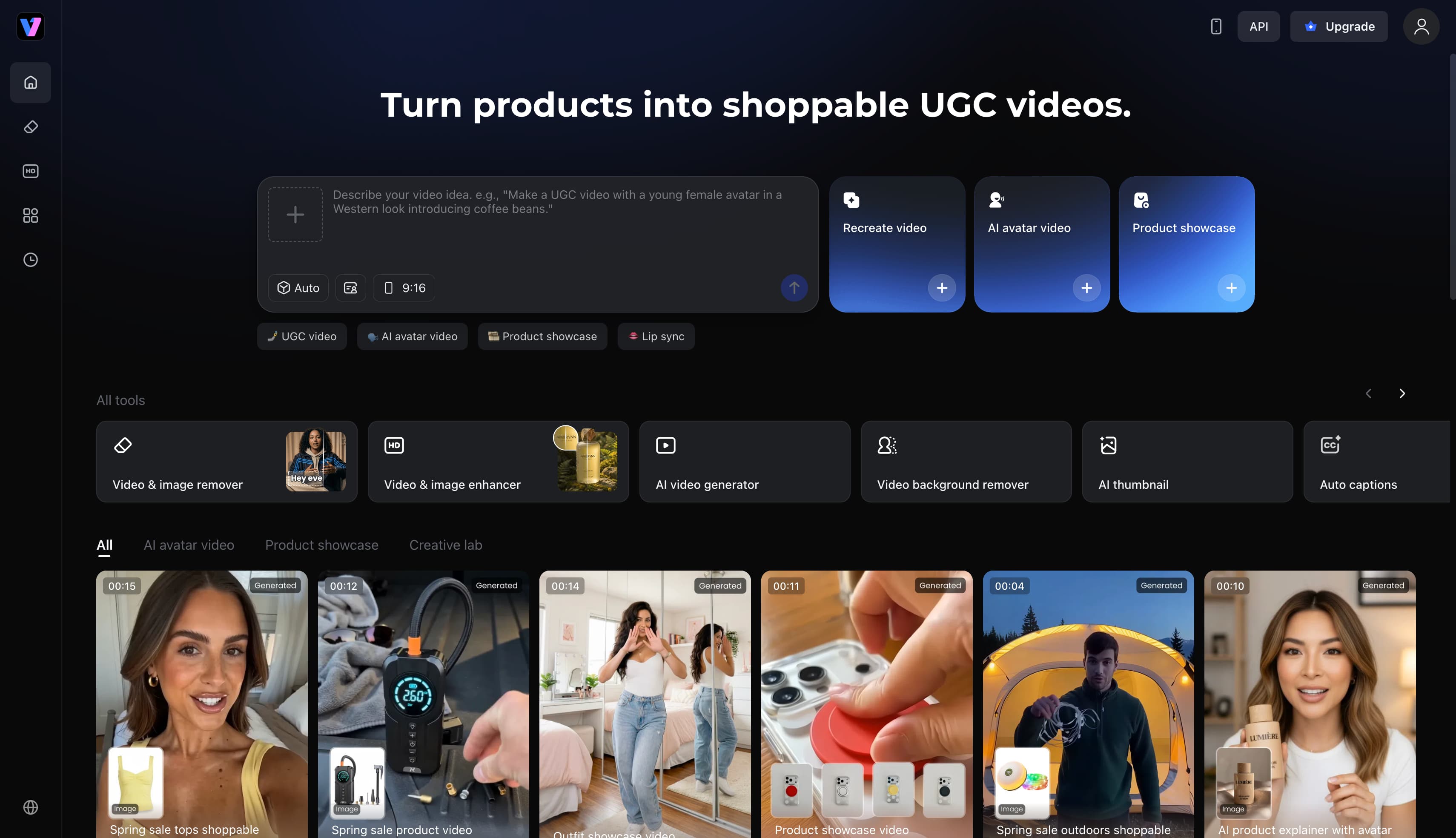
Fixing video quality requires a totally different approach than cutting out photos. Vmake tackles the biggest complaints people have with Cutout Pro directly.
It focuses entirely on video. You keep about 98% of your original detail without creating that creepy "Wax skin" look on people's faces. It even processes AI-generated content from Sora or Kling. Cutout Pro still struggles hard with those formats.
Key Features of Vmake:
Here is what you actually get when you ditch the credit-draining platforms and use a dedicated video enhancer.
-
AI 4K+ Generative Upscaling: Forget about lazy algorithms that just stretch existing pixels. This actually creates precise detail from scratch, giving you true high-resolution output.
-
Specialized Enhancement Models: You can pick from Portrait, Product, Low-Light, Gaming, and Anime. Honestly, not every model works perfectly on every clip. You'll need to run a quick test render first to find the sweet spot.
-
Structure-Stable Upscaling: Reduces the background warping and weird edge drifting that ruins most upscaled clips.
-
Artifact Suppression: Heavy social media compression leaves blocky, ringing, and dirty edges. This fixes them. It's the part most tools get totally wrong.
-
AI-Generated Video Refinement: Targets the over-smoothing and unnatural lighting you get straight out of AI video generators.
-
Natural Facial Features: Faces stay sharp and realistic. Nobody wants to look like a plastic doll. It still messes up extreme side profiles occasionally, but straight-on shots look incredible.
-
Batch Processing: Queue up to 30 files at once. It supports MP4, MOV, M4V, 3GP, and AVI.
-
Frictionless Access: Just run a test without giving up your email address. No malware risks, either.
How to Enhance Videos with Vmake
Fix blurry and grainy videos instantly with Vmake today.
Step 1: Upload your video
Click the "Upload" option, then grab your video file. Vmake supports formats like MP4, MOV, and AVI, making it pretty painless.
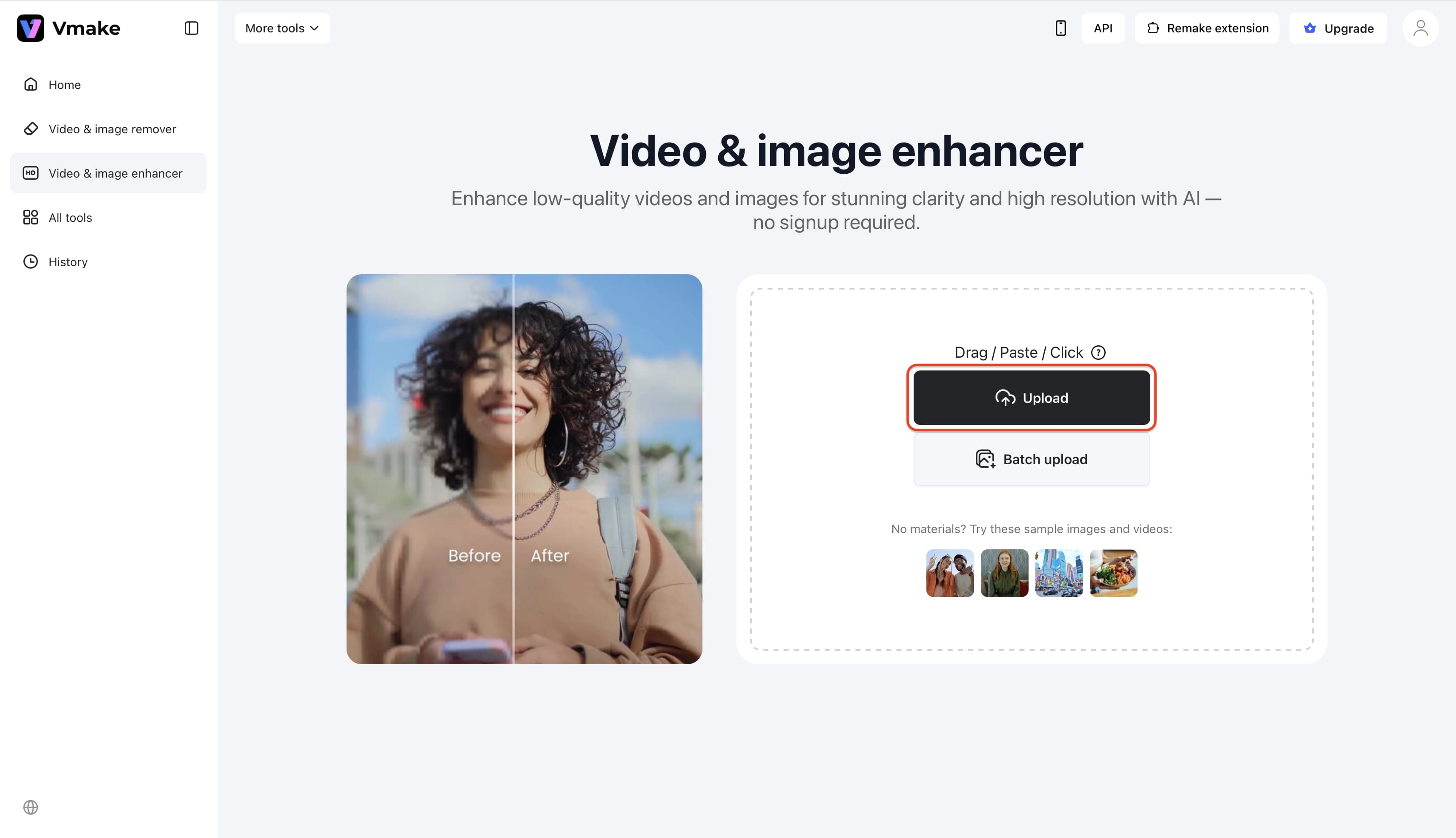
Pro tip: Use "Batch upload" for enhancing multiple videos in one go.
Step 2: Select the enhancement model
Pick the AI model that best fits your footage, then click "Apply". Portrait and De-AI are usually the safest bets. This skips that artificial "Wax skin" effect.
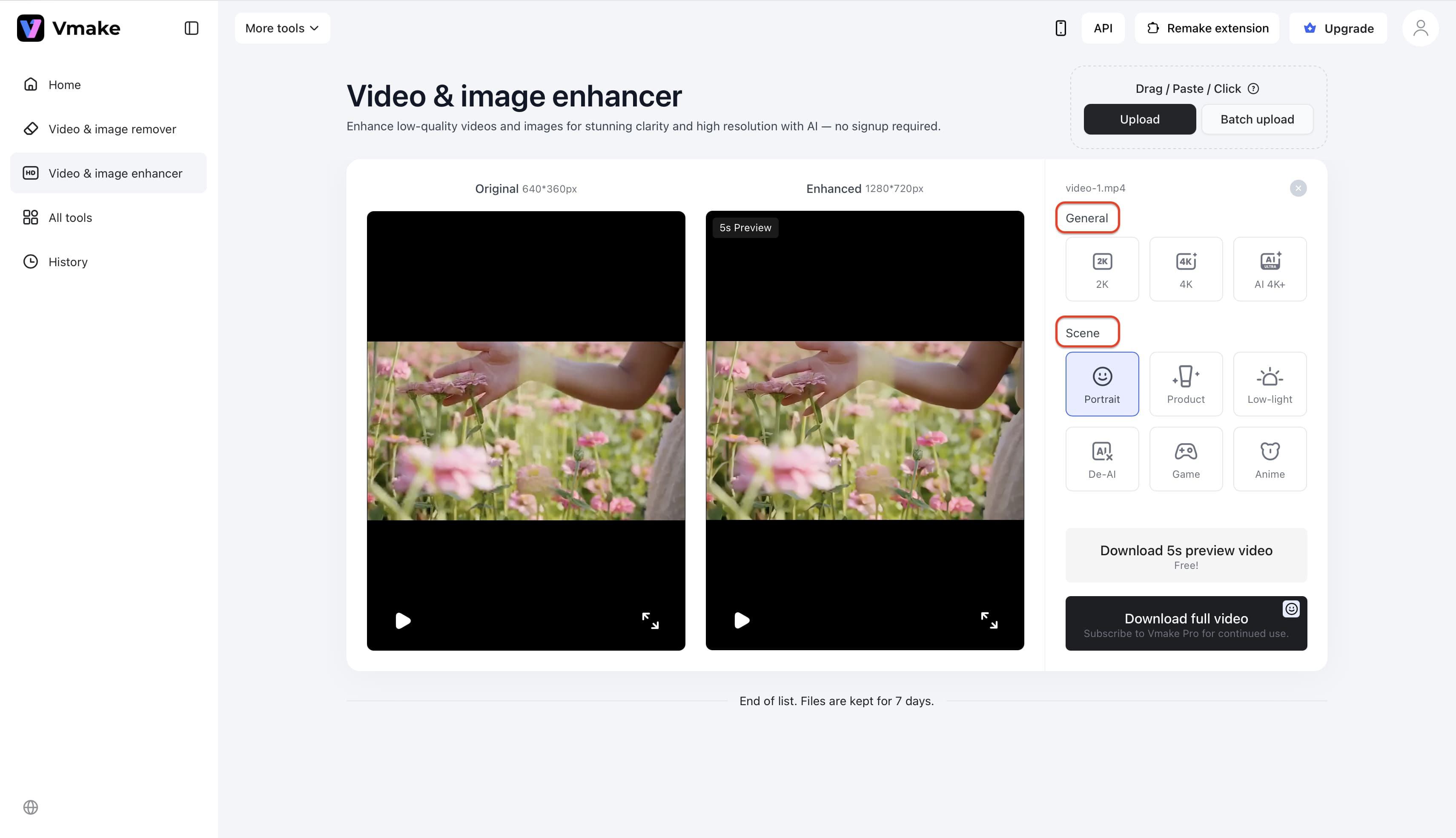
Step 3: Process and download
Check the preview once it finishes, then download your 4K file. Sometimes the generation takes a minute if the servers are busy.
Verdict: Who Should Use Cutout Pro (and Who Shouldn't)?
Use Cutout Pro if: Your main job is stripping image backgrounds or colorizing old photos. It fits perfectly into casual e-commerce and graphic design routines. You can even run an occasional portrait video through the enhancer. Just don't expect it to handle complex moving backgrounds well.
Consider Vmake if: High-end video quality is your actual priority. Dealing with weird AI-generated clips? This platform handles them. You can finally batch process multiple files without burning through a ridiculous credit balance. It uses specialized models for structure-stable upscaling, meaning your footage won't warp randomly.
Cutout Pro gives you a massive creative suite for static photos. Vmake just brings better technical depth for video clarity. Do you really need both?
FAQ
What is Cutout Pro?
Cutout Pro is a cloud-based visual design platform that provides AI tools for image background removal, photo colorization, avatar generation, and video upscaling.
Is Cutout Pro free to use?
It operates on a freemium model. New users receive 5 free credits to test the tools, but downloading high-resolution, unwatermarked results requires purchasing a subscription or pay-as-you-go credits.
Does Cutout Pro support video enhancement?
Yes, it features a video enhancer that attempts to upscale footage to 4K. However, it bills per second of video processed, which can become expensive for longer clips.
What is the best free alternative to Cutout Pro for video?
For video enhancement specifically, Vmake is highly recommended. It offers specialized upscaling models, handles AI-generated video, and allows users to test the enhancement without requiring an immediate account signup.
Is Cutout Pro safe to use?
While thousands of users utilize Cutout Pro daily, some third-party reviews on sites like Trustpilot have raised concerns about data privacy. Always read the privacy policy before uploading sensitive personal media.

You May Be Interested
123APPS Watermark Remover Review (2026): Pros, Cons, and Pricing
OpenClaw 2026: Ultimate Guide to World-Changing Local AI

2026 DeWatermark Watermark Remover Review: Pros, Cons, Pricing
Unwatermark 2026 Review: A Practical Guide