Ultimate Guide of OpenClaw: The Viral Local AI Agent in 2026
 Vmake Labs TeamFebruary 20, 2026
Taking a shift from chatbots to agents, artificial intelligence has become more personalized and accessible. OpenClaw is an emerging AI agent that is changing how developers and software engineers interact with automation. By running on your local device, it transforms chat apps into powerful automation hubs that take real actions. But why is it getting so popular?
In this ultimate guide, you’ll learn everything about OpenClaw, including its powerful features, how to get started, and the security risks associated with it.
What is OpenClaw?
Developed by Peter Steinberger, OpenClaw, also known as Moltbot, is an open-source (MIT-Licensed) AI assistant that runs directly on your system. What makes it stand out is its integration with the messaging apps you already use, like Telegram, Slack, or WhatsApp.
You can text it a request, and it actually executes the task, whether that’s managing your files, running terminal commands, or handling your calendar. Thanks to a heartbeat scheduler feature, which wakes itself up at set times to finish tasks without prompts.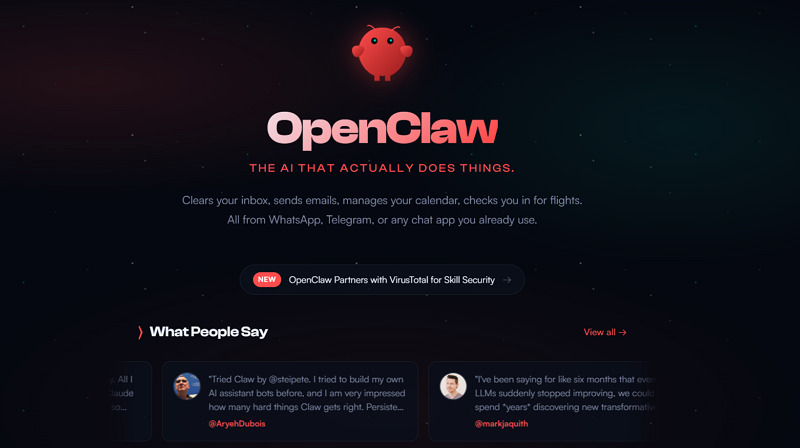
High GitHub Data, High Attention
OpenClaw has been generating significant interest on platforms like GitHub. After its launch in late January 2026, it quickly reached over 100,000 GitHub stars in just seven days. This high level of attention has fueled its growth and adoption, making it one of the fastest-growing repositories in GitHub history.
Three Rebrands (Built-in Traffic, AI Boom)
OpenClaw is not a new player in the field of AI agents. Its evolution began under different names:
-
Clawd: The initial version of the AI agent, focusing on local automation but with limited features.
-
Moltbot: To avoid trademark issues with Anthropic’s Claude, it was rebranded to Moltbot. However, it also expanded its capabilities, introducing better task automation and memory retention.
-
OpenClaw: The latest version, which adds enhanced privacy, multi-platform integration, and a user-friendly interface, making it accessible for both developers and non-technical users.
Core Features/Appeal
OpenClaw offers a range of features to streamline digital automation. Here are the top ones:
-
Local Execution: Working directly on your machine, i.e., macOS, Windows/WSL2, or Linux, gives you control over your data access, credentials, and integrations. It handles your personal files and scripts, without sharing sensitive information online.
-
Task Automation: Beyond just chatting, this agent actually does the work for you. It can automate various tasks, including simple reminders, file management, web scraping, form filling, and data extraction.
-
Persistent Memory & Learning: It remembers your specific preferences, time zones, and patterns across sessions. This means the AI gets smarter over time, improving continuity for multi-step tasks and ongoing automation scenarios.
-
Multi-Platform Integration: You can interact with your AI agent using messaging apps, like WhatsApp, Telegram, iMessage, Discord, or Slack. This provides easy, on-the-go task management from any device via a chat window.
-
Beginner-Friendly: You don’t need to be a software engineer to get this up and running. The setup process is simple; even non-technical users can get started quickly.
Step-by-Step Guide: Deploy & Use Moltbot in 30 Minutes
Ready to get your own AI agent up and running? Here is how to set up OpenClaw in about 30 minutes, from preparing your system to creating your first automated task and connecting it to any app for remote control.
Step 1. Environment Preparation
Before installation, make sure your computer has everything it needs. Here are the software and hardware requirements:
Hardware:
-
Any modern dual-core processor (Intel i3/Ryzen 3 equivalent or better)
-
At least 4GB of RAM
-
20GB of free SSD space
-
A stable internet connection
Software:
-
macOS (Ventura or newer), Windows 10/11 with WSL2 (Windows Subsystem for Linux), or any modern Linux distribution (Ubuntu 20.04+ recommended)
-
Python version 3.8 or higher
-
Node.js (22.12 or higher) for multi-platform integration
-
Docker (20.10+ or Docker Desktop) for deployment
-
Anthropic API Key for LLM interaction
-
Telegram or WhatsApp for remote control
Step 2. Quick Deployment
Start by cloning the repository.
git clone https://github.com/openclaw/openclaw.git
cd openclaw
Inside the directory, you will find an example environment file. Copy this to create your actual configuration.
cp .env.example .env
Now open the .env file in your text editor. You need to configure the LLM Provider.
LLM_PROVIDER=anthropic
ANTHROPIC_API_KEY=sk-ant-api03...
MODEL_VERSION=claude-4-5-sonnet-20260101
Next, we need to secure the Gateway.
GATEWAY_TOKEN=my_secure_token_123
Step 3. Create Your First Automation Task
Let’s set up a simple automation task. We will create a task that sends you a reminder to drink water every hour.
Open tasks.js and add the following code:
task("drinkWater", () => {
console.log("Reminder: Drink water!");
});
Save the file and run the task:
node tasks.js
Step 4. Multi-Platform Integration
It’s time to set up Telegram. Open the app and search for @botfather. Send the command /newbot and follow the instructions to create a new bot. You will receive a Token.
Paste this token into your environment file.
TELEGRAM_BOT_TOKEN=123456:ABC-DEF1234ghIkl-zyx57W2v1u123ew11
There is one more critical step. You must whitelist your own Telegram User ID. If you skip this step, anyone who finds your bot on Telegram can control your agent. Search for @userinfobot to get your ID.
TELEGRAM_ALLOWED_USERS=12345678
With the configuration done, you can start the services.
docker-compose up -d
This command will pull the necessary images and start the containers in the background. It might take a few minutes the first time you run it, especially if it needs to download the browser automation image.
To verify that everything is working, check the logs.
docker-compose logs -f
You should see a log entry stating that the Gateway is connected and Telegram polling has started. Open your Telegram bot and send the message “Hello”. If the bot replies, you are ready to go.
What Are Users Worried About? (And How to Stay Safe)
Although OpenClaw offers remarkable capabilities, users should be aware of the primary concerns:
-
Technology Maturity: OpenClaw is still evolving, and some features may not be as robust as expected. You might run into bugs where a specific messaging app disconnects or a browser automation fails because a website updated its layout.
-
Security Risks: Running local automation has inherent risks, such as unauthorized access or code bugs. Researchers found several “path traversal” bugs that could allow a hacker to peek at files outside of the AI’s allowed folder if the software wasn’t patched.
-
LLM Hallucination Issues: Like many AI tools, OpenClaw’s language models can sometimes produce incorrect or nonsensical outputs, a phenomenon known as “hallucination.”
Here are some safety measures to protect your digital environment:
-
The “Junior Employee” Rule: Treat the AI like a new intern. Trust it to do small things, but always double-check its work before it hits send or delete.
-
Limit the Workspace: Don’t let the AI see your whole hard drive. Create one specific folder (like a “sandbox”) for the AI to work in, and keep your sensitive files elsewhere.
-
Keep a “Human in the Loop”: Use the settings to make the AI ask for your permission before running any major command. It’s better to click Yes five times than to fix a broken computer once.
-
Use Trusted Connections: Only link your AI to private, secure messaging accounts. If you use Telegram or WhatsApp, make sure only your specific phone number can send commands.
FAQs about OpenClaw
1. Is OpenClaw safe to run locally?
Yes, OpenClaw is safe in terms of data privacy, but it poses significant system security risks if not configured properly. You can consider it as safe as your permissions and plugins.
2. Can OpenClaw access my files, emails, and passwords?
If you give it access, yes. OpenClaw can read files, extract browser data, and manage inboxes. Always expect it to touch any sensitive information once you connect your accounts or folders.
3. Do I need programming knowledge to run OpenClaw?
Not necessarily. While it offers advanced features for engineers, the “Quickstart” mode and messaging app interface make it accessible to non-technical users looking to automate their basic daily digital chores.
Extra Tips: Experience Another Agent: Vmake
If OpenClaw is your personal assistant for managing files and system tasks, Vmake Agent is your specialized creative partner. While OpenClaw focuses on technical automation and local system control, the Vmake AI Agent is built specifically to handle the video creation.
It offers a range of AI models to turn simple ideas or photos into professional-quality videos. Whether you need to create product videos, UGC content, or any other visual clips, this chat-based creative studio will help you do it in a few clicks. Instead of spending hours in a video editor, you can use it as your scriptwriter, editor, and designer all at once.
OpenClaw vs. Vmake: What’s the Difference?
|
Feature |
OpenClaw |
Vmake |
|
Primary Goal |
Execute system tasks (files, code, shell) |
Generate visual content (UGC, ads) |
|
Location |
Runs locally on your system |
Runs in the browser |
|
Best for |
Developers and personal productivity |
Creators, marketers, and eCommerce |
|
Access |
Messaging apps like WhatsApp, Telegram, etc. |
Direct user interface |
How to Use Vmake AI Agent:
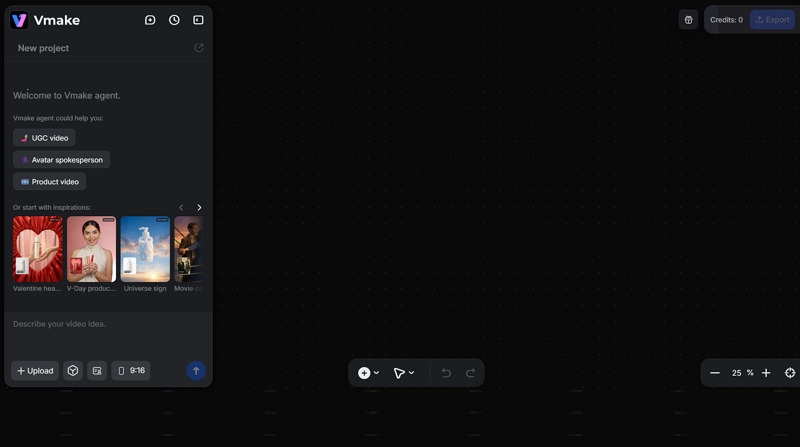
Step 1. Provide the Input
Open the Vmake Agent page in your browser. Now, describe your video idea in the given box. For example, “Create a 30-second TikTok ad for my new fitness watch based on this store link.”
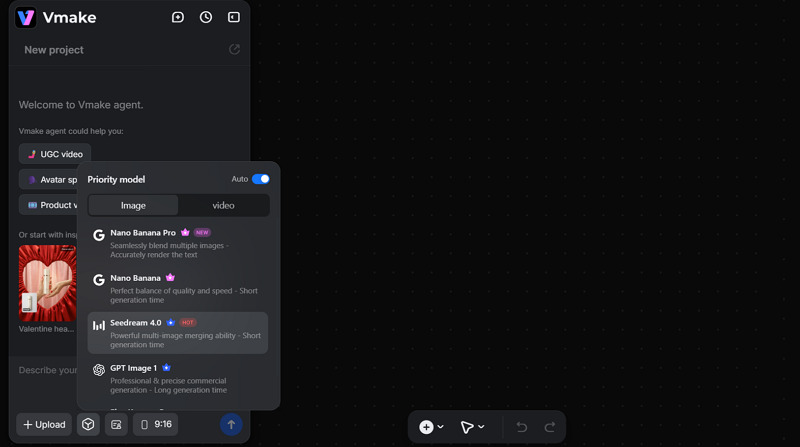
Step 2. Upload Your Assets
Next, you can upload the video clips or images as references. Also, select the AI model, preferences, and the aspect ratio, depending on your requirements. Then, press the upward arrow icon.
Step 3. Preview and Export
The AI Agent will generate a detailed script and a rough cut. You can give prompts to make it better, like adding a voiceover or music. Once you’re happy with the results, download it to your device.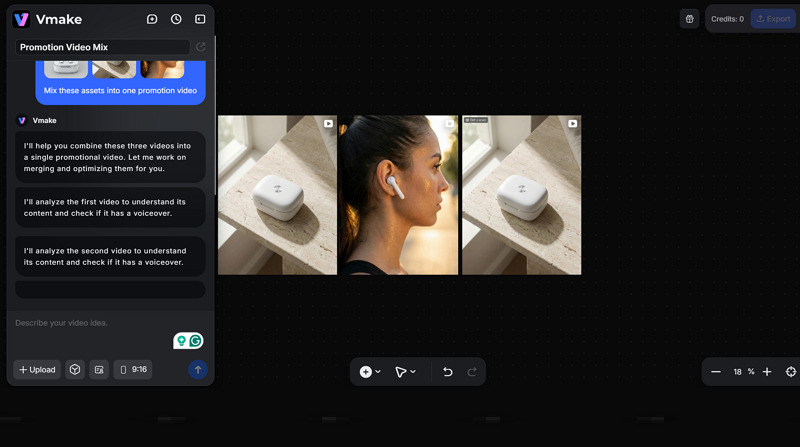
Conclusion
No doubt, OpenClaw is setting a new standard for local AI agents in 2026. Its task automation, persistent memory, and seamless platform integration make it a valuable tool for both developers and non-technical users to enhance their digital lives. Likewise, if you are looking for a creative AI agent to create day-to-day visual content without manual editing, Vmake AI Agent is the perfect solution. Let’s try it today!

You May Be Interested
123APPS Watermark Remover Review (2026): Pros, Cons, and Pricing

Seedance 2.0 vs Sora 2: Which AI Video Generator Wins in 2026?
Top 20 Captions to Make Your YouTube Shorts Go Viral

Google Gemini|Copy Paste This Simple Prompts to Create “Hug my younger self ” Photos