Master Windows Speech to Text: The Ultimate Setup & Usage Guide 2026
Master Windows speech to text on Windows 11: Turn on voice typing instantly, dictate documents and emails hands-free, use helpful voice commands, and effortlessly fix the most common glitches.

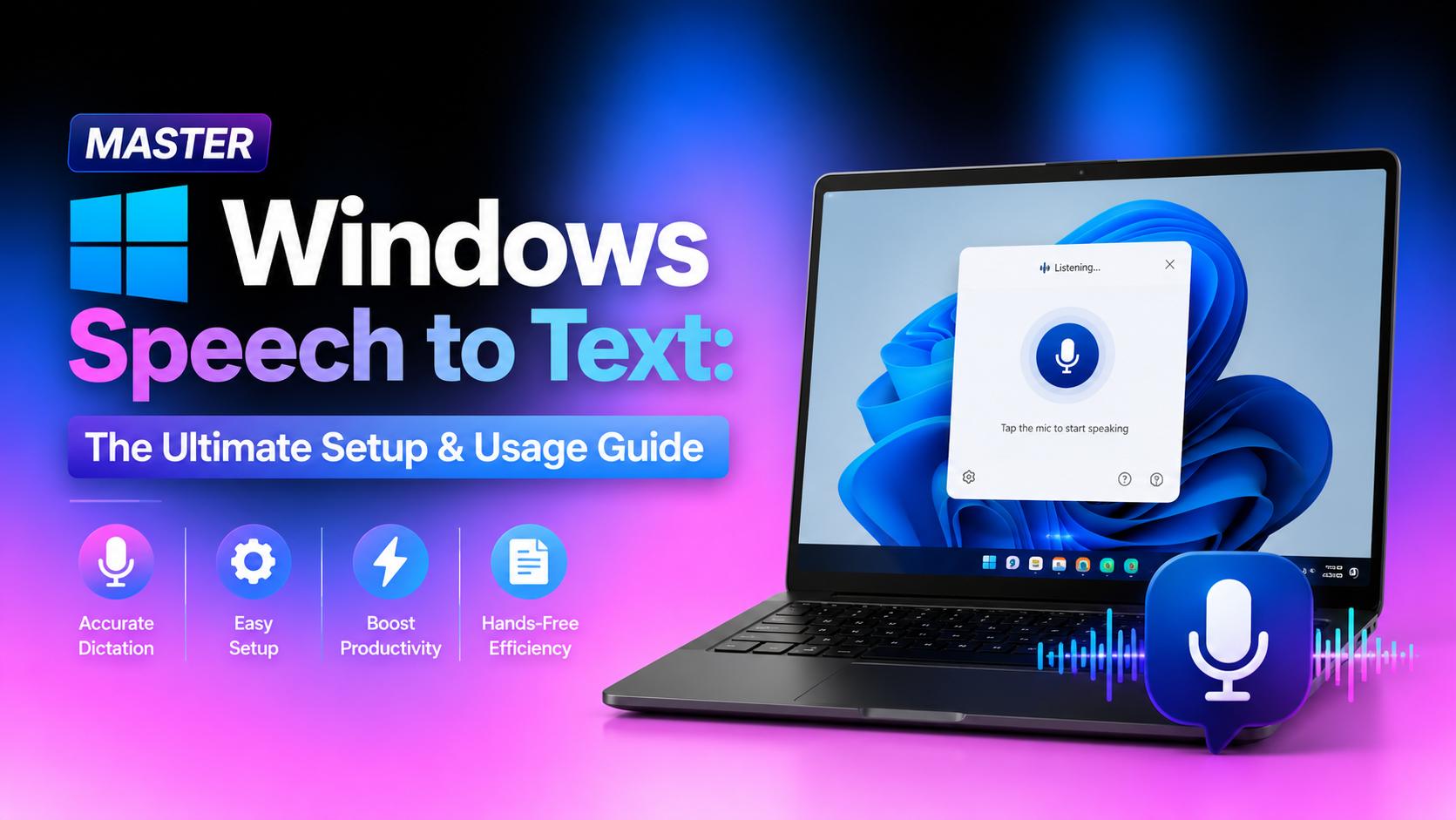
Windows includes built-in speech recognition, making voice typing simple across applications. This guide explains how Windows speech to text works, covers troubleshooting common problems, and highlights when dedicated transcription software offers a better workflow for recorded media files.
What is Windows speech-to-text and how does it work?
Microsoft provides multiple voice-operated features tailored for different workflows. Speech to text for Windows encompasses several built-in accessibility and productivity tools. It allows converting spoken words into written text across different operating system versions:
|
Feature |
Voice Typing |
Voice Access |
Windows Speech Recognition |
|---|---|---|---|
|
Primary purpose |
Dictation |
Full PC control |
Legacy speech recognition |
|
Windows support |
Windows 10/11 |
Windows 11 |
Windows 10/11 |
|
Internet required |
Usually Yes |
Depends on feature |
Mostly No |
|
Best for |
Typing |
Accessibility |
Legacy workflows |
While these features seem similar at first glance, they serve completely different operational needs. Voice Typing is the go-to tool for fast, straightforward text dictation inside documents, emails, or chat windows. On the other hand, Voice Access provides full desktop navigation, allowing individuals to open applications, click buttons, and control the entire operating system hands-free. Finally, Windows Speech Recognition remains as an offline legacy tool, kept primarily to support older configurations and workflows.
How to use speech to text on Windows
Setting up voice dictation requires minimal configuration. Learning how to use speech to text on Windows ensures accurate and seamless voice typing across various applications.
-
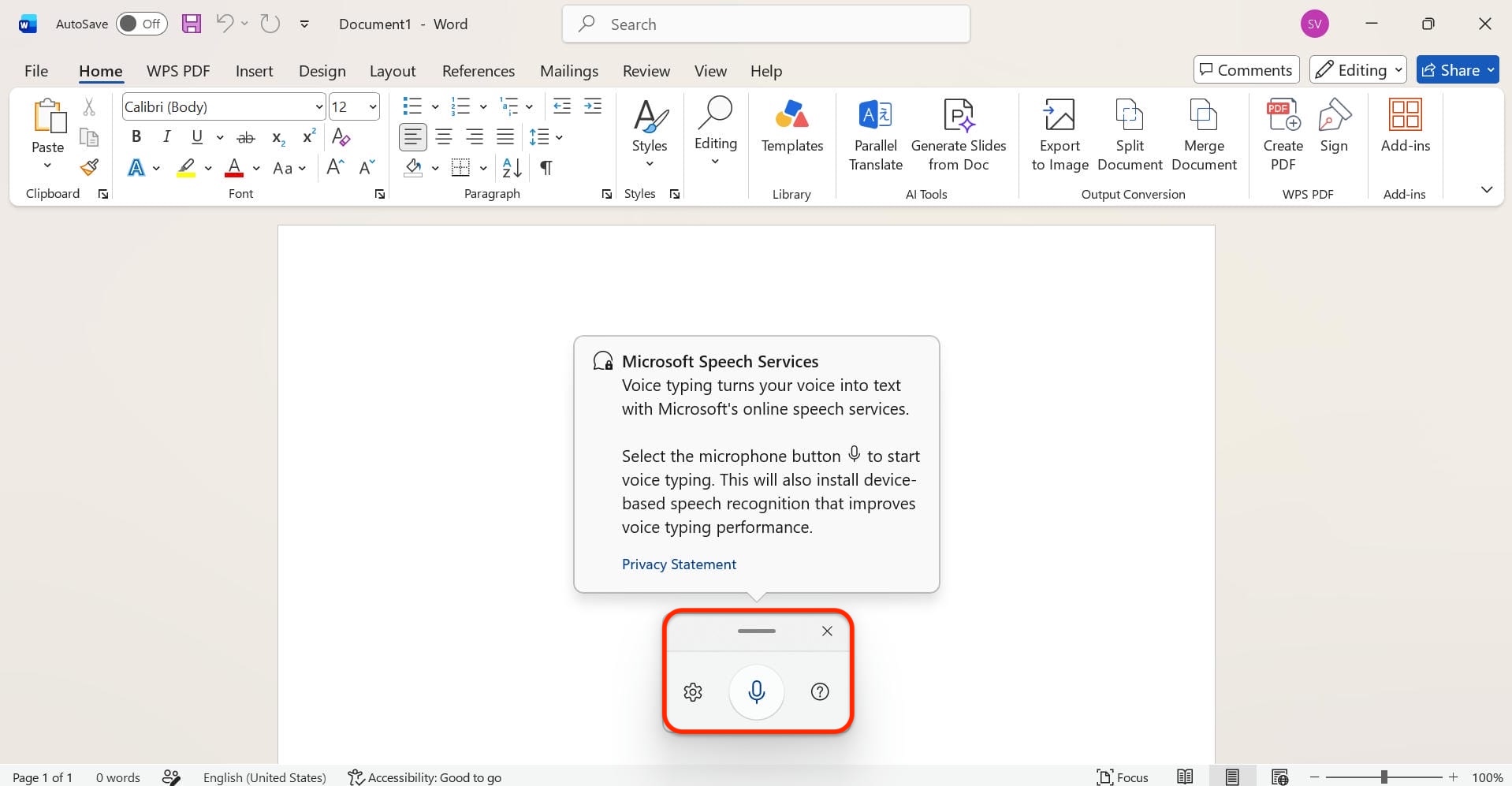
Enable voice typing: Click inside any text field where typing is supported (for instance on MS Word).
-
Launch the tool and adjust settings: Press the Windows + H shortcut on the keyboard to open the voice typing launcher interface. Click the gear icon on the launcher to select the correct microphone and toggle automatic punctuation on or off.
-
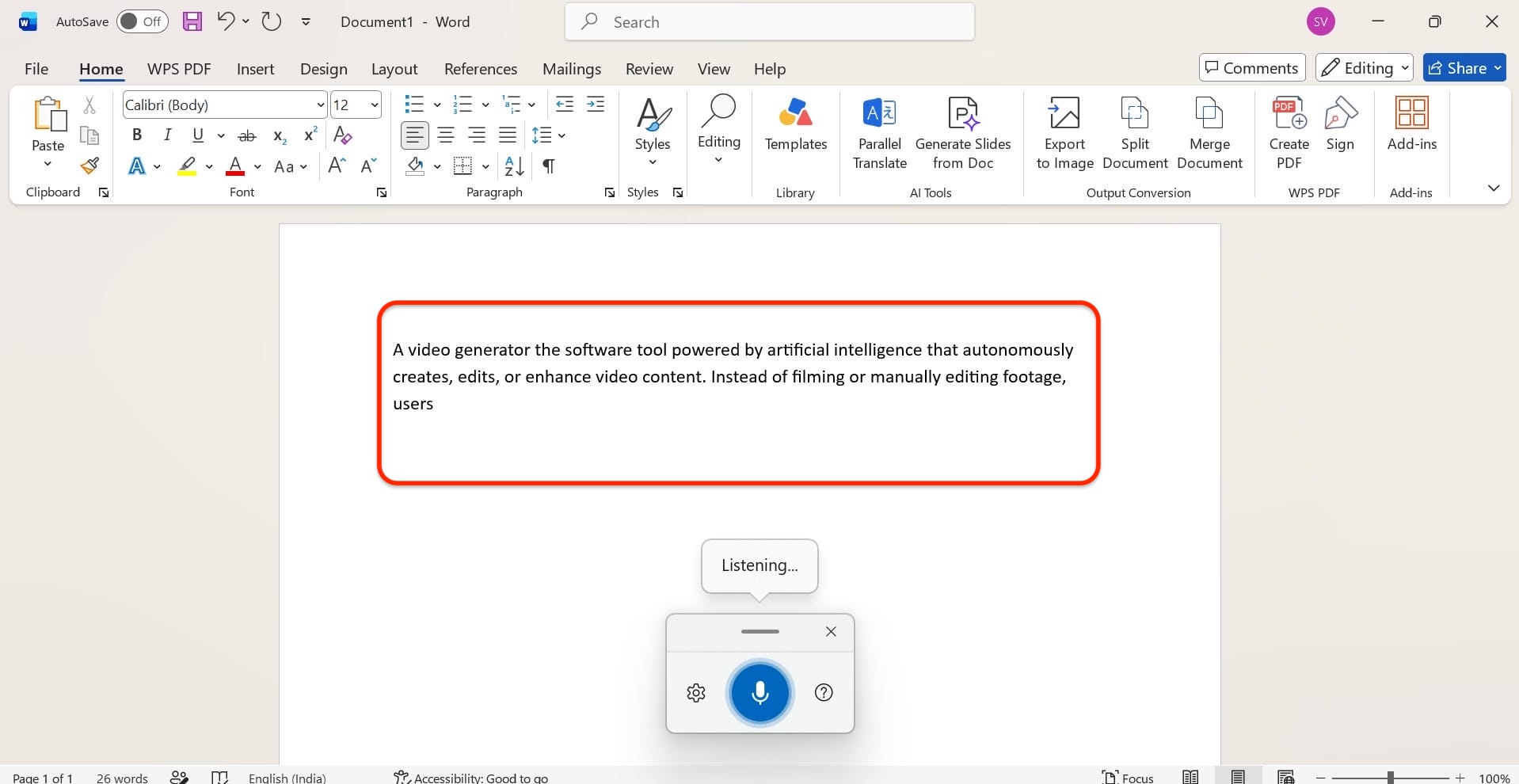
Start dictating: Speak clearly into the microphone using dictation commands like new line or delete that to format and edit the text hands-free.
Essential Windows Voice Typing commands
Knowing the exact voice commands significantly speeds up the dictation process and drastically reduces the need for manual keyboard edits. Here are the most practical phrases used to control formatting and punctuation seamlessly while speaking.
|
Spoken Command |
Resulting Action |
|---|---|
|
New line |
Moves the cursor directly to the next line. |
|
New paragraph |
Starts a fresh paragraph with appropriate spacing. |
|
Period or Full stop |
Inserts a standard period (.) at the end of a sentence. |
|
Comma |
Inserts a comma (,) within the text flow. |
|
Question mark |
Inserts a question mark (?) for inquiries. |
|
Delete that |
Erases the most recently spoken word or phrase instantly. |
|
Stop dictating |
Pauses the active voice typing session entirely. |
Common Windows speech to text problems and how to fix them
Experiencing glitches with native voice tools is common but easily resolvable. Identifying the root cause quickly restores smooth dictation functionality.
|
Problem |
Possible Cause |
Solution |
|---|---|---|
|
Windows + H not working |
Voice typing is disabled or unsupported in the current app. |
Click inside a text field, enable Voice Typing, and restart the feature if needed. |
|
Microphone not detected |
Incorrect input device, muted microphone, or outdated drivers. |
Select the correct microphone, check permissions, and update drivers. |
|
Speech recognition unavailable |
Speech services, language support, or Windows updates are missing. |
Enable speech features, install the required language pack, and update Windows. |
|
Language pack issues |
Missing or mismatched speech language. |
Install the correct language pack and match your speech language settings. |
|
Dictation not starting |
Internet issues or microphone conflicts. |
Check your connection, close conflicting apps, and restart Voice Typing. |
|
Low recognition accuracy |
Background noise, poor microphone, or incorrect language. |
Use a better microphone, reduce noise, and verify the selected language. |
|
Privacy permissions disabled |
Microphone access is blocked. |
Enable microphone permissions in Settings > Privacy & Security > Microphone. |
|
Bluetooth microphone problems |
Connection issues or incorrect input device. |
Reconnect the headset, set it as the default microphone, and update Bluetooth drivers. |
Fixing these microphone and permission glitches usually gets live dictation back on track quickly. However, native Windows tools only handle real-time speech. When dealing with pre-recorded audio or video files, built-in features simply lack the capability to process them. For those specific situations, moving beyond the standard desktop ecosystem to use a dedicated transcription platform becomes the smartest move.
When Windows speech to text isn't enough: Meet Vmake Labs
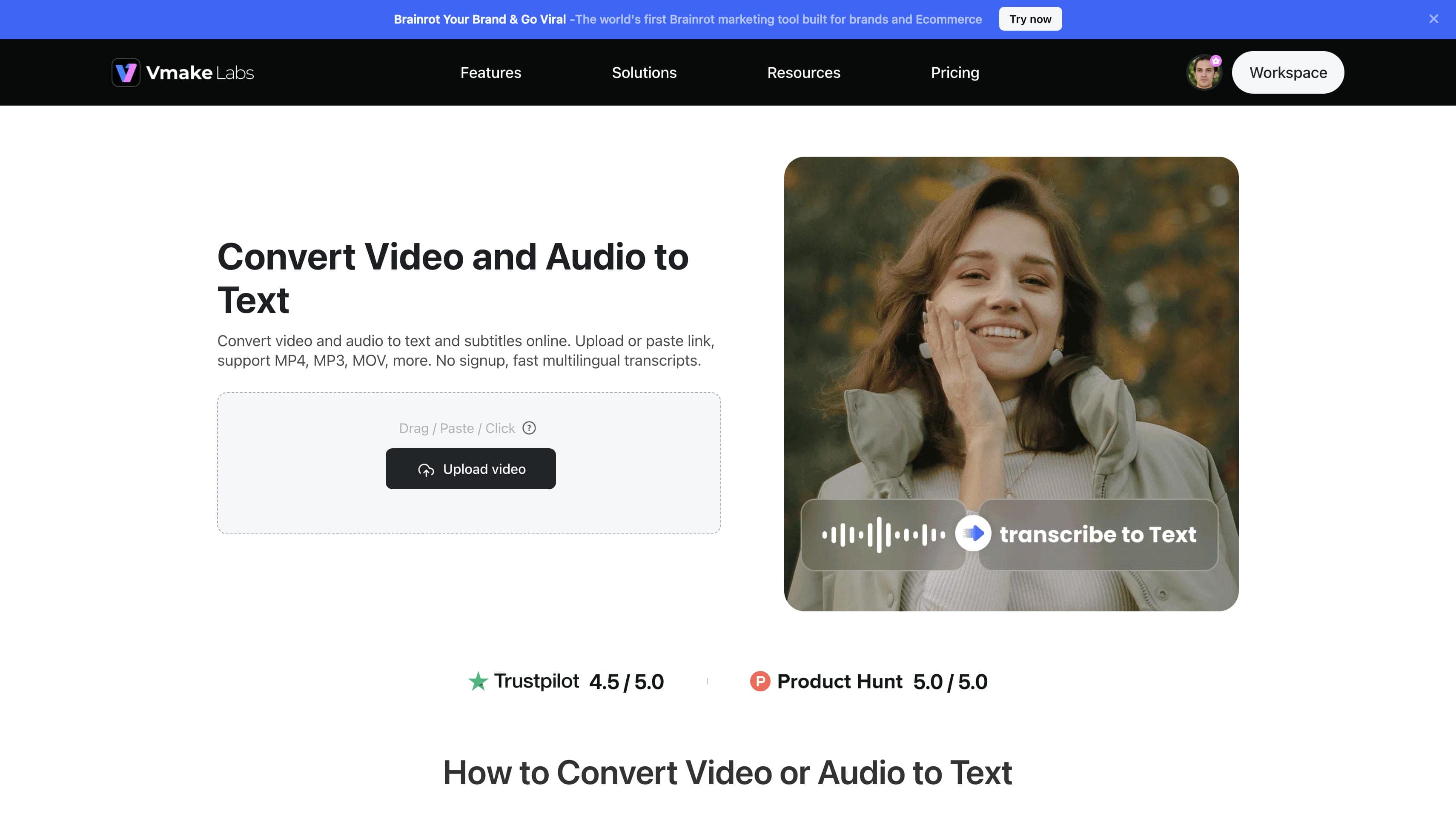
While the native Windows Voice Typing utility is an excellent tool for drafting documents in real time, it falls completely short when trying to process pre-recorded media. Vmake Labs offers a highly efficient web-based alternative specifically designed to bridge this exact gap.
Ideal for transcribing long lectures, corporate meetings, podcast episodes, or creative video projects, this dedicated video and audio to text platform processes uploaded media directly through any desktop browser. It completely eliminates the tedious chore of constantly pausing media playback to type manually, providing a highly accessible workspace that seamlessly handles existing files saved on a PC.
Key features of Vmake Labs Speech-to-text
-
Fast & accurate transcription: Advanced algorithms process files rapidly to deliver highly precise text outputs. This ensures minimal manual editing after the initial file conversion. Users experience a much smoother overall workflow.
-
Wide format and link support: The platform accepts various file formats directly or via URLs from popular platforms. Obtaining a transcript takes just a few clicks without requiring manual file downloads. This functionality saves significant local storage space.
-
Multilingual transcription: The system recognizes and transcribes media in numerous languages, catering to a global audience. This feature easily breaks down language barriers in international meetings or global content. It ensures wider reach for all published videos.
-
SRT subtitle generation: Generating timed subtitle files allows for seamless integration into video editing software. Creators can easily add auto-captions to make visual content more accessible and engaging. This greatly improves viewer retention across social media platforms.
How to Use Vmake Labs for speech to text on Windows recordings
Step 1: Navigate to the "Video & audio to text" tool
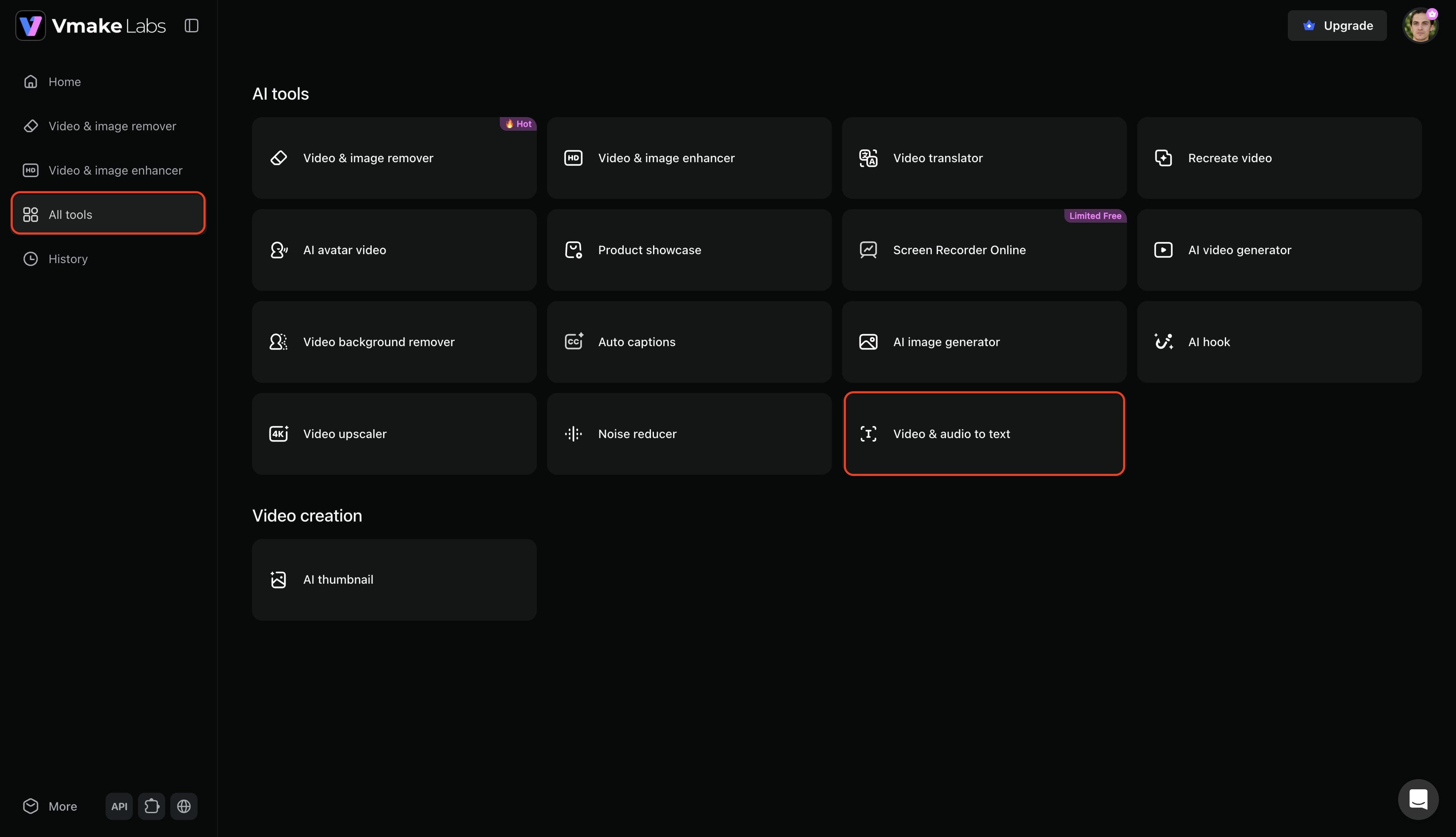
Start by logging into your Vmake Labs account. Look at the left-hand menu and click on the "All tools" option. This brings up the entire list of available features on the platform, just click on the "Video & audio to text" option so you can get started.
Step 2: Upload your media files or paste a web-link
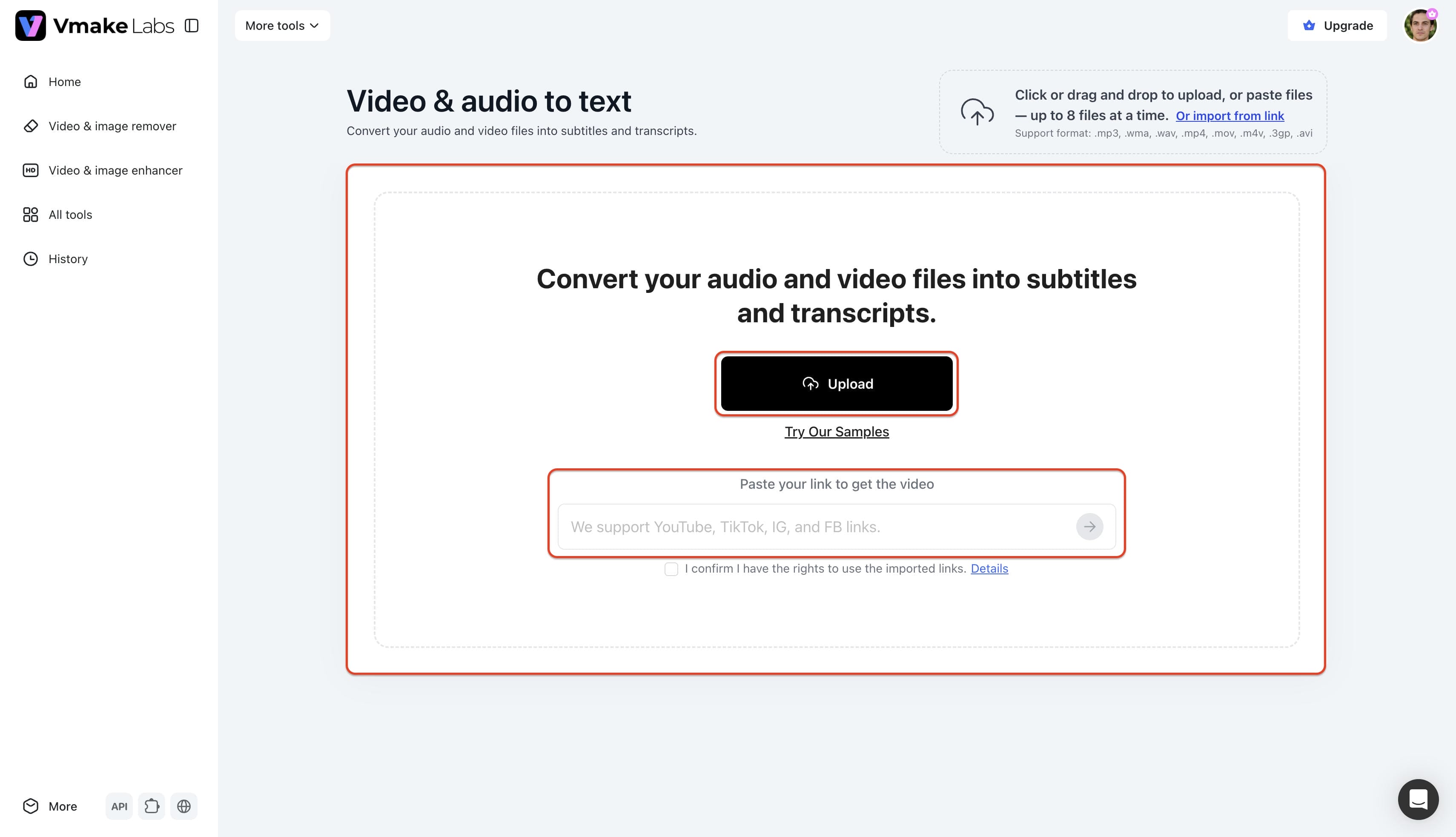
Now it is time to bring in your media. You can either upload an audio or video file straight from your computer or paste a direct web link into the box. If you have a lot of content to get through, you can actually upload up to 3 files or paste up to 3 web links at the exact same time.
Step 3: Configure settings and export your transcription
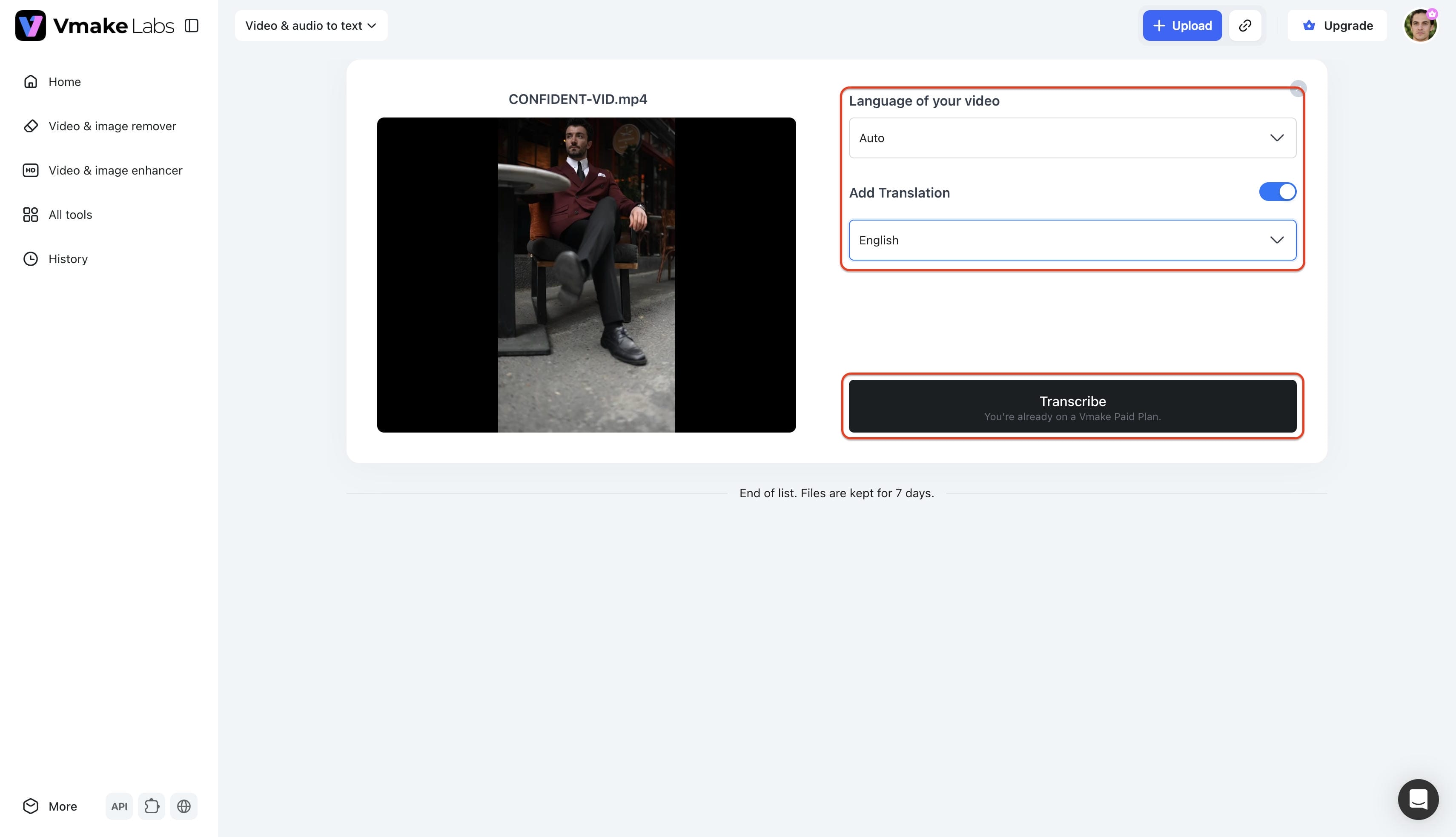
With your files queued up, tell the system the original source language of your recording. If you aren't completely sure, just leave the setting on "Auto". If you want the final text in a completely different language, toggle on the "Add translation" option and grab your target language from the drop-down menu. Hit "Transcribe". The system handles the heavy lifting, and when it finishes, you can download the final text directly to your computer.
Windows speech to text vs dedicated transcription software
Comparing native PC tools against specialized platforms highlights their distinct advantages. Selecting the right solution depends entirely on specific audio processing requirements.
|
Feature |
Windows Speech-to-Text |
Vmake Labs Speech-to-Text |
|---|---|---|
|
Best for |
Live voice dictation while typing |
Transcribing recorded video and audio files |
|
Pricing |
Free (Built-in tool) |
Free version available with premium tiers |
|
Browser-based access |
Desktop app only (OS integrated) |
Fully supported via any web browser |
|
Recorded audio/video support |
Not supported |
Supported for batch files and URLs |
|
Live voice typing |
Supported |
Not designed for live dictation |
|
Audio file transcription |
Not supported |
Supported |
|
Video file transcription |
Not supported |
Supported |
|
Subtitle (SRT) generation |
Not available |
Supported |
|
Multi-language transcription |
Limited language support |
Supports multiple transcription languages |
|
Transcript export |
Basic text output |
Export editable transcripts and SRT subtitles |
|
Ideal use cases |
Emails, documents, notes, and chats |
Meetings, interviews, lectures, podcasts, videos, and subtitle creation |
Choosing Windows speech-to-text tools makes sense for drafting emails, taking quick notes, or chatting. It operates seamlessly in the background for everyday desktop tasks.
Conversely, Vmake Labs is the choice when needing to transcribe a video to text from existing recordings. It handles online classes, lengthy podcast episodes, and social media content creation flawlessly. Creators looking to add captions to YouTube videos will find professional export options incredibly beneficial.
Conclusion
A Windows speech to text software serves as an excellent built-in tool for real-time dictation and everyday productivity. Resolving common glitches typically involves adjusting basic microphone inputs or privacy permissions, taking only moments to fix. However, native features fall short when processing recorded videos and audio files, which is where Vmake Labs delivers a vastly superior experience. The platform provides dedicated multilingual support alongside SRT subtitle generation that goes far beyond standard desktop capabilities. Ultimately, choosing the correct transcription tool ensures maximum overall efficiency for document drafting and media processing.
FAQs
Does Windows speech to text work offline?
Voice Typing generally requires an active internet connection to process speech accurately. However, the legacy Windows Speech Recognition tool can function offline with pre-installed language packs.
Why is my Windows speech to text not working?
This usually stems from disabled microphone permissions, incorrect input device selection, or lack of an internet connection. Checking the Windows Privacy & Security settings usually resolves the issue.
Can I use Windows speech to text in any app?
Yes, the native voice typing feature integrates seamlessly into almost any application that contains a standard text input field. This versatile functionality allows users to easily dictate messages across web browsers, word processors, and instant messaging platforms without requiring special software installations.
Is there a Windows speech to text software better than the built-in tool?
For live dictation, the built-in tool is highly efficient. For transcribing pre-recorded audio or video files, platforms like Vmake Labs provide vastly superior accuracy, formatting, and export options.
How do I change the language for Windows speech to text?
Language settings are adjusted through the Windows Settings menu under Time & Language. Installing the desired language pack and setting it as the primary display language updates the dictation input.

You May Be Interested
Speech to Text App: Best Picks and How to Choose One
Best Speech to Text Software: Top 5 AI Tools Evaluated
Google Docs Speech to Text: Complete Guide for Beginners
How to Transcribe Audio to Text: Efficient Guide
How to Transcribe Audio Recording to Text in Minutes