How to AI Upscale Anime Video to 4K Online for Free
 Vmake Labs TeamFebruary 27, 2026
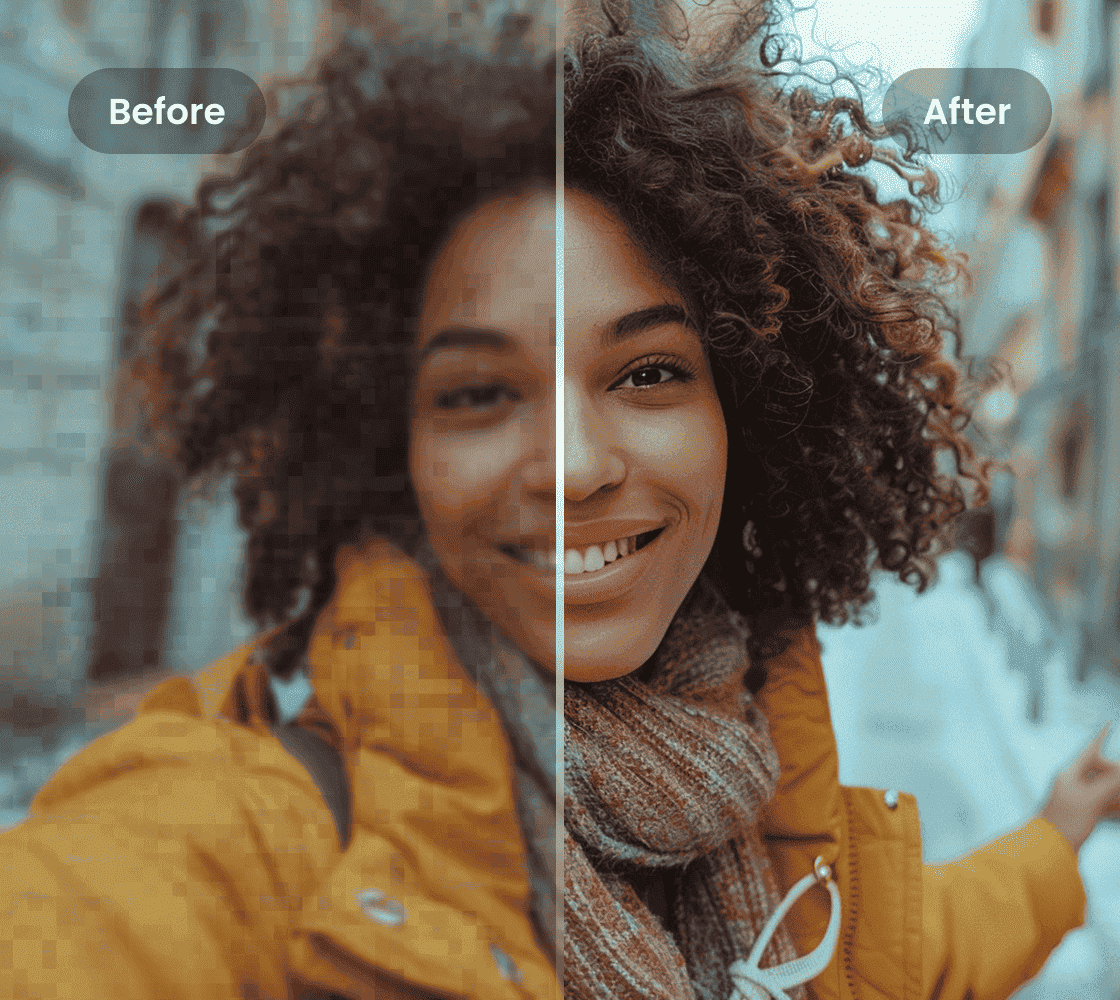
Old anime clips often look blurry on modern screens, but that doesn’t mean they have to stay that way. With the rise of AI tools, anyone can upscale anime video to 4K online in minutes. This guide explains how anime upscaling works, which AI anime video upscaler to use, and how to get the best results without hassle.
What Is an Anime Video Upscaler?
An anime upscaler is a tool that increases the resolution of animated video to 4K while preserving the original style. Anime differs from live-action video as it relies heavily on sharp edges, flat colors, and stylized motion.
Modern AI upscale anime video by analyzing key elements to reconstruct details that weren’t present in the source file, rather than simply stretching pixels.
Whether you want to enhance fan edits for YouTube or watch your favorite anime series in higher clarity on a large screen, using an AI anime video upscaler can dramatically improve sharpness, reduce compression artifacts, and smooth line edges.
Anime Upscaler vs Traditional Video Upscaling
Traditional upscaling relies on interpolation methods like bicubic or nearest-neighbor scaling. These techniques increase resolution but don’t truly improve visual quality. The result often looks soft, noisy, or pixelated.
On the other hand, AI-driven anime upscalers rely on neural networks trained on thousands of anime-specific datasets. Instead of guessing pixel values, they predict how lines and textures should look at higher resolution.
That’s why an anime upscaler video workflow can deliver cleaner lines, vibrant colors, and fewer artifacts than standard scaling.
Best Free AI Anime Video Upscaler Online in 2026 You Cannot Miss
For anime fans seeking to revitalize low-resolution clips, Vmake Video Upscaler stands out as an efficient online solution. With a clean interface, this anime video upscaler free tool helps users upscale grainy footage to 4K resolution without complex software or technical skills. Its AI processing is effective for anime, sharpening character linework, removing compression artifacts, and enhancing color vibrancy without losing the original artistic style. Also, its one-click workflow makes it a perfect tool for creators needing professional-grade results instantly.
Main Features:
Help upscale up to three anime videos simultaneously
Support formats, including MP4, MOV, M4V, 3GP, and AVI
Allow upscaling to 1080P, 2K, and 4K resolution instantly
Remove the uploaded files automatically after 7 days
Let you preview output before exporting to your device
Step-by-Step Guide to Using Anime Video Upscaler Online:
Step 1. Upload Anime Video
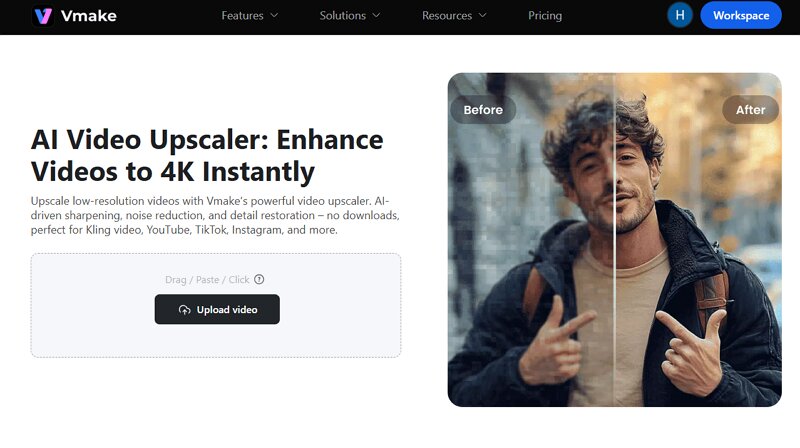
The first step is to open the Vmake Video Upscaler in your browser. Now, drag & drop or click to upload the anime video.
Step 2. Select Resolution
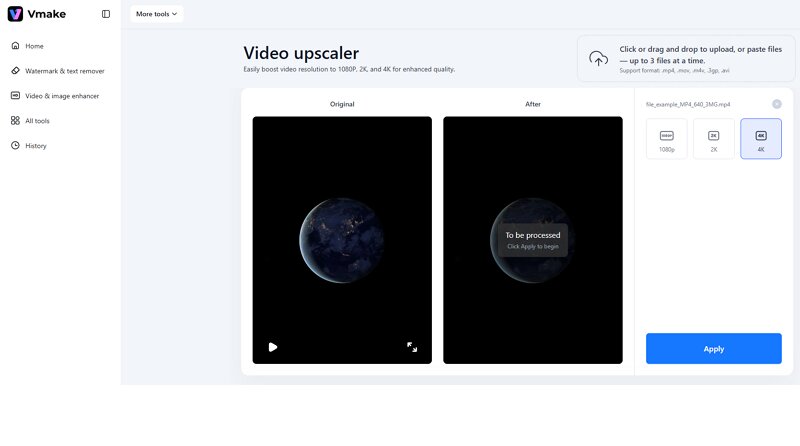
After processing, you can see various resolution options. Select the 4K resolution and press the “Apply” button.
Step 3. Download Upscaled Video
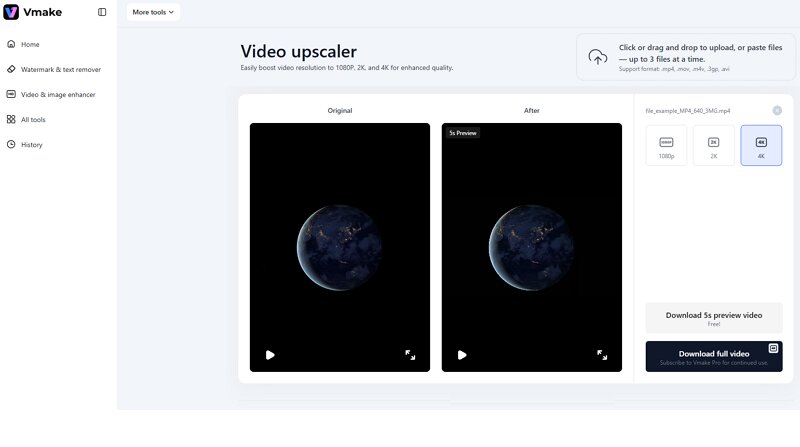
When the AI finishes its magic, hit the “Download 5s preview video” or “Download full video” tab to save the upscaled anime video. That’s all!
Common Issues When Using an Anime Video Upscaler
While modern AI tools can dramatically improve low-resolution animation, the process isn’t always perfect. Even the best anime upscaler video may struggle with certain visual elements because anime uses flat colors, sharp outlines, and stylized motion that differ from real-world footage. Here are the most frequent issues users face and how to handle them:
Unnatural Motion
Anime is purposefully animated at lower frame rates to create a specific rhythm. When software tries to force this into 60fps, it often fills in missing data, making the movement feel too fluid, oily, or unnatural.
To avoid this, stick to upscaling the resolution only. Even if you smooth the motion, use a “frame-step” setting that keeps the original animation timing rather than forcing a high frame rate.
Ghosting and Smearing
During fast-action scenes, the anime upscaler can get confused by rapid movements. This results in ghosting, making the animation look unstable. You may faint, translucent copies or blurry smears trailing behind a character as they move.
Turn off motion compensation features during high-action sequences. It’s better to have a slightly jumpy, sharp scene than one filled with blurry output. Also, try upscaling shorter segments to test how the software handles movement.
Wavering Lines
Animation relies on sharp, consistent lines. Some tools fail to keep these lines stable, causing them to flicker or look wobbly, especially during slow camera pans across a scene.
To overcome this, choose an anime model trained on line art and flat colors. These settings will lock onto edges and keep them static, preventing that distracting shimmering effect.
Over-Smoothened Look
High enhancement can take away hand-drawn textures and film grain. This leaves characters looking like shiny plastic or a blurry watercolor painting rather than a traditional drawing.
Lower the denoise or smoothness settings. Keeping a tiny bit of the original grain actually helps the visuals look more realistic and detailed.
Texture Hallucinations
AI models are trained to reconstruct details, but sometimes they add textures that weren’t present in the original frame. Flat backgrounds may show artificial grain, or clothing might develop fake folds or shading. This is known as texture hallucination.
To minimize this issue, start with the cleanest possible source file. If your original video is heavily compressed, the AI may fill in missing information incorrectly.
Color Banding and Gradient Issues
Many classic anime productions used limited color gradients, especially in skies, shadows, and lighting effects. When the AI upscale anime video, these limited gradients may become more obvious, creating visible color bands.
A simple fix is to enable any built-in noise reduction and a slight amount of smoothing to blend gradients. For editing the video afterward, adding a subtle film grain layer can also effectively mask banding.
Hardware Overload
High-end processing is incredibly heavy on your computer. If your system isn’t powerful enough, you might experience extremely slow progress or even software crashes.
Close all other background apps before starting. If your computer keeps crashing, try processing the video in smaller 5-minute segments rather than trying to do the whole movie at once.
FAQs About AI Anime Video Upscaler
1. Can I upscale anime for free?
Yes, various anime video upscaler free tools are available on the market. You can try Vmake Video Upscaler for simple anime if you prefer working in the browser.
2. How to AI upscale anime video to 4K?
Open the Vmake Video Upscaler, drop your video, set the output resolution to 4K, and then let AI finish processing. Later, you can save the results to your device.
3. Does AI upscaling ruin anime art?
It can if the settings are too harsh. Common issues include glossy textures from over-smoothing and wobbly lines from temporal inconsistency. To avoid this, use a lower de-noise setting.
Conclusion
AI has changed how we preserve and enjoy classic animation. With an AI anime video upscaler, viewers can now transform low-resolution clips into sharp, vibrant visuals suitable for modern screens, content sharing, or archiving. But the key to good results is choosing an efficient upscaler and applying the right settings.
For those who want a straightforward solution, Vmake Video Upscaler is one of the easiest ways to upscale anime video to 4K online. Let’s try it today.

You May Be Interested
Native 4K vs Upscaled 4K: Which One to Choose?
How to Upscale Videos: Guide to Higher Resolution and Sharper Details
Upscale Videos to HD: Free Online Methods and Optimization Tips