Aiarty Review: Is This Video Enhancer Worth Trying?
 Ken DawsonMay 21, 2026
Powered by SOTA-level AI technology, Aiarty video enhancer is one of the industry-leading names that keeps getting mentioned for its superior quality results. It can upscale videos, clean up noise, sharpen soft details, and improve frame quality using AI processing that doesn't take forever to figure out. But, Aiarty sits in that middle zone where it's clearly not cheap software, yet it's also not positioned like a high-end studio tool. So the real question becomes pretty simple: is it actually worth paying for? In this guide, we'll talk about a detailed Aiarty review, how it works, key features, along with outlining a simple, budget-friendly alternative, Vmake.
What is the Aiarty video enhancer
Aiarty Video Enhancer is basically an AI video cleanup tool that tries to rescue footage that looks rough, blurry, noisy, or compressed. You import the file, pick an enhancement mode, and the software handles most of the processing for you. The best thing is that you don't need to spend three hours learning color grading menus just to sharpen an old video from your phone.
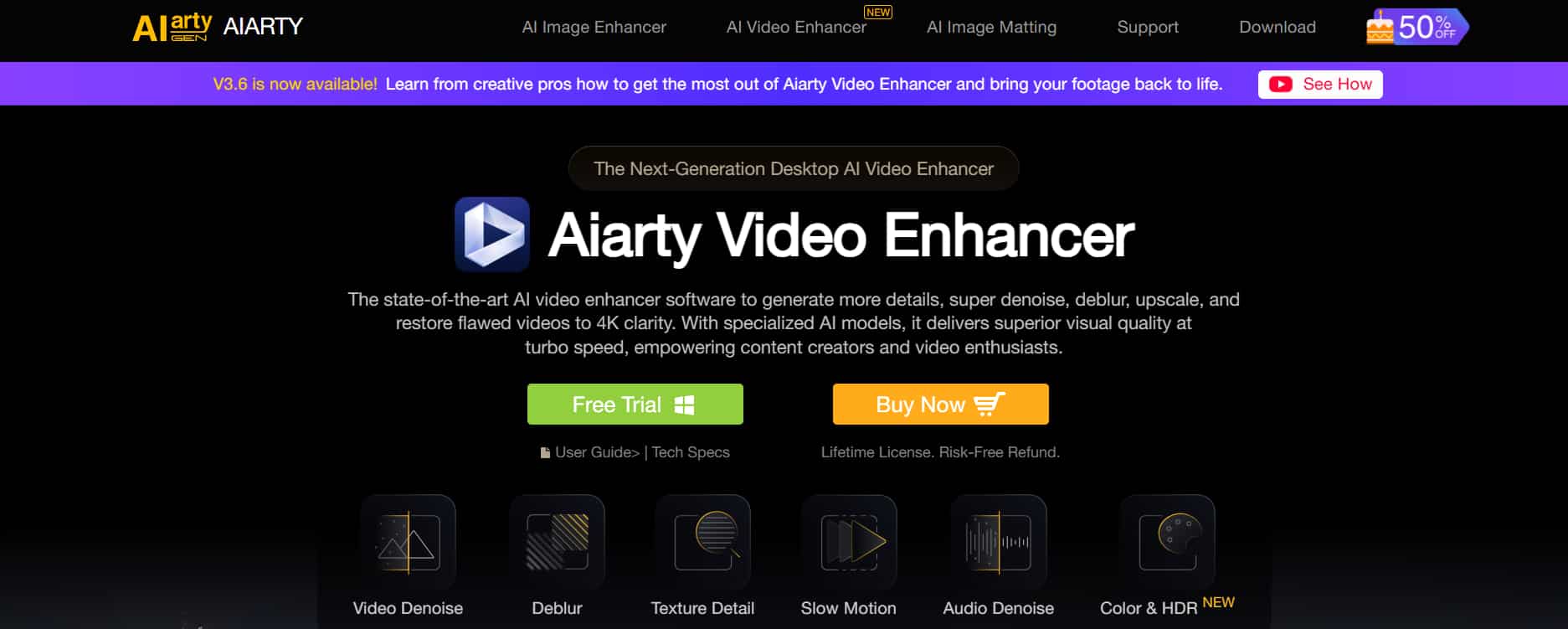
The workflow leans heavily on automation, which is good news if you hate complicated editing software. Aiarty runs as a desktop application on both Windows and macOS. The tool keeps processing locally, which means that your footage stays on your machine, which is reassuring if you're working with client projects, personal recordings, or anything you don't want sitting on somebody else's server.
Your computer does heavy lifting, so weaker systems can slow down fast, especially during 4K upscaling or frame interpolation. At its core, Aiarty works as an AI upscaler and restoration tool. It can take lower-resolution footage and push it toward sharper HD or 4K output while also cleaning up motion blur, compression artifacts, and digital noise.
Key features of Aiarty AI video enhancer
-
AI upscaling to 4K
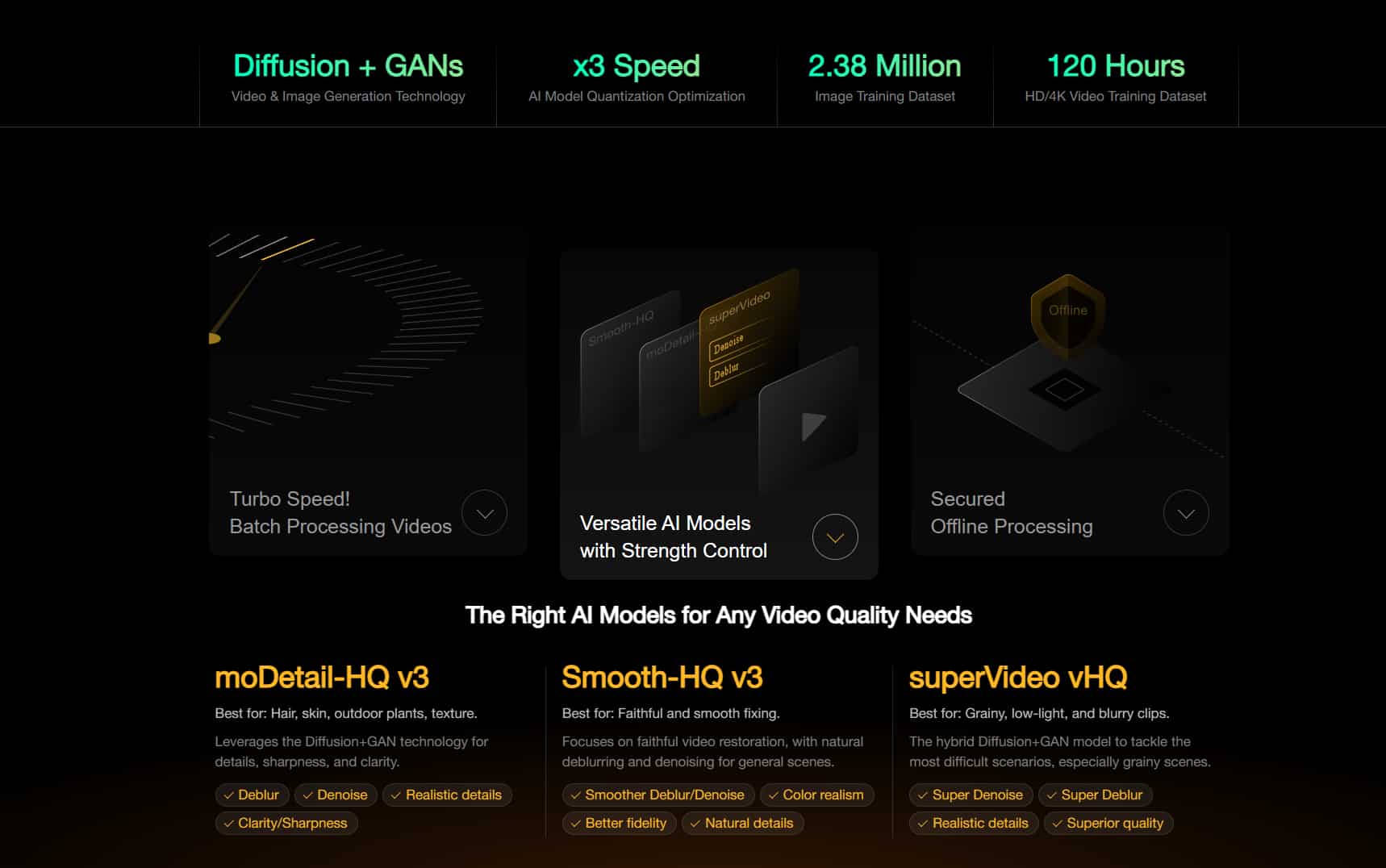
Aiarty's AI upscaling feature focuses on turning low-resolution footage into sharper HD or 4K video without making everything look unnaturally crisp. The tool keeps things more balanced, especially on decent-quality source clips. Older SD footage and compressed videos still improve noticeably. Aiarty tends to keep textures more natural-looking, particularly on faces and landscapes. You still get extra clarity, but without every object looking outlined with a marker.
-
Denoising & deblurring
Aiarty combines denoising and deblurring into a single workflow, which makes cleanup much less annoying than juggling separate plugins or editing tools. You import the clip, choose the enhancement settings, and the AI tries to remove noise from video by reducing grain, compression artifacts, softness, and motion blur all at once. The denoising works especially well on low-light footage where digital grain tends to destroy image quality. Smartphone recordings shot at night usually come out cleaner, and older videos with visible compression artifacts look less harsh after processing.
-
Frame interpolation & slow motion
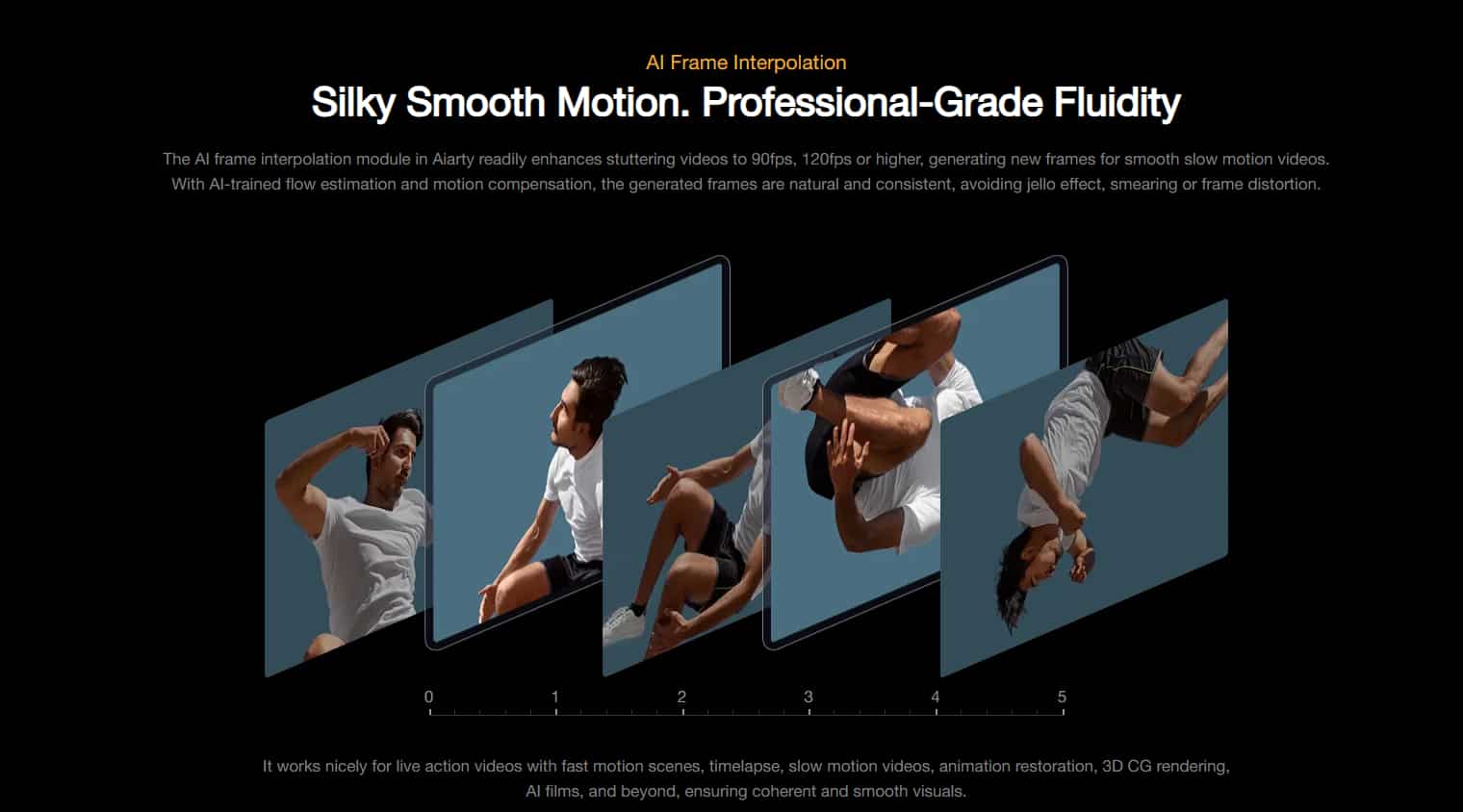
Aiarty uses AI to generate additional frames between existing ones, turning standard 24fps or 30fps footage into smoother 60fps or even 120fps playback. The goal is simple: reduce stutter and create more fluid motion, especially in fast-moving scenes. When it works well, the difference is obvious. Sports clips look smoother. Gaming footage feels cleaner. Action shots gain a more polished look, and slow-motion sequences become far more watchable without the choppy playback.
-
Batch processing & automation
Aiarty lets you queue multiple videos at once, apply the same enhancement settings across large groups of files, and automate repetitive processing tasks through watch folders and preset workflows. For creators handling lots of footage, this saves serious time. You don't have to manually re-import and configure every single clip individually.
-
AI detail reconstruction
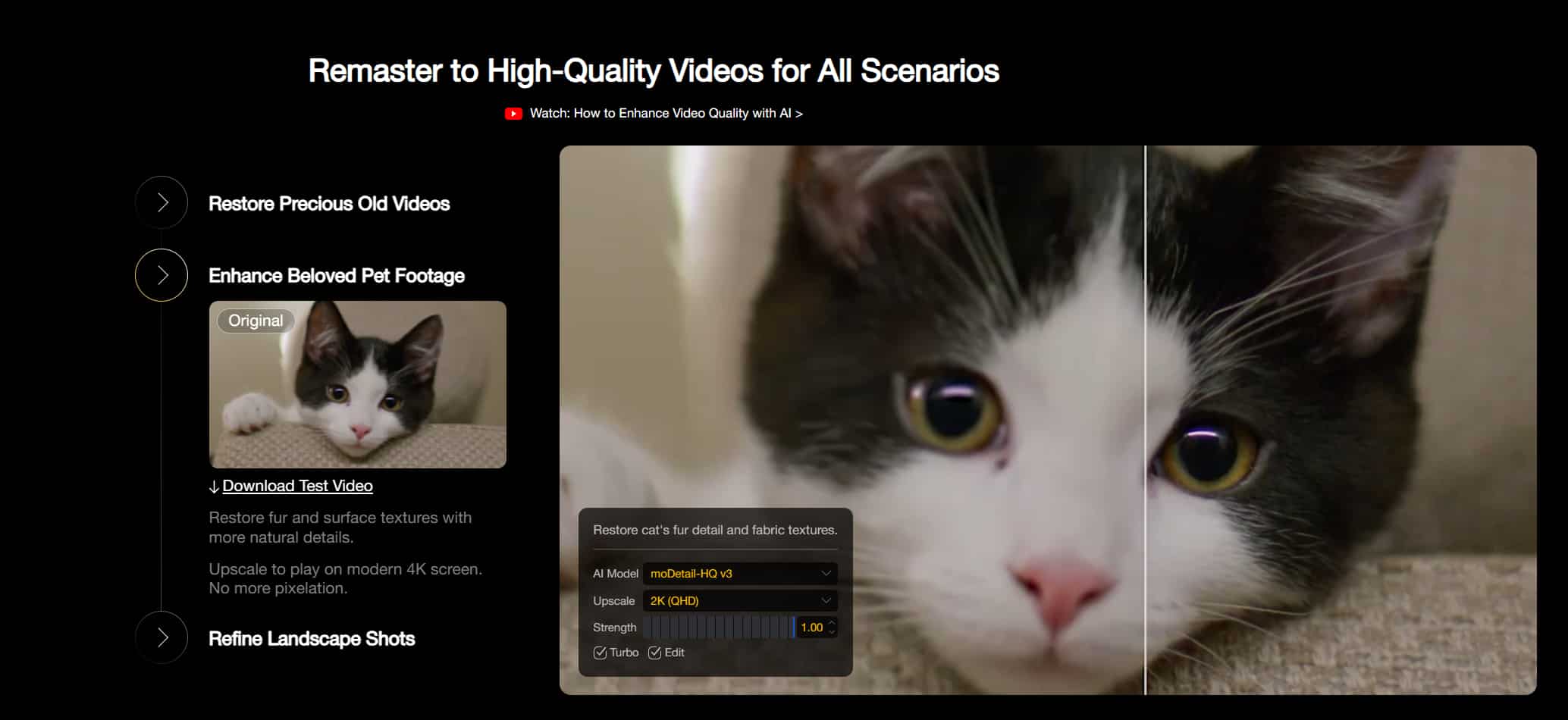
AI detail reconstruction focuses on rebuilding textures and visual information lost through blur, compression, or low resolution. Faces appear clearer, and edges look sharper. Clothing textures, hair strands, skin detail, and background objects often gain extra definition after processing. The good news is that Aiarty usually handles this more naturally than many competing AI enhancers.
How the Aiarty video enhance tool works
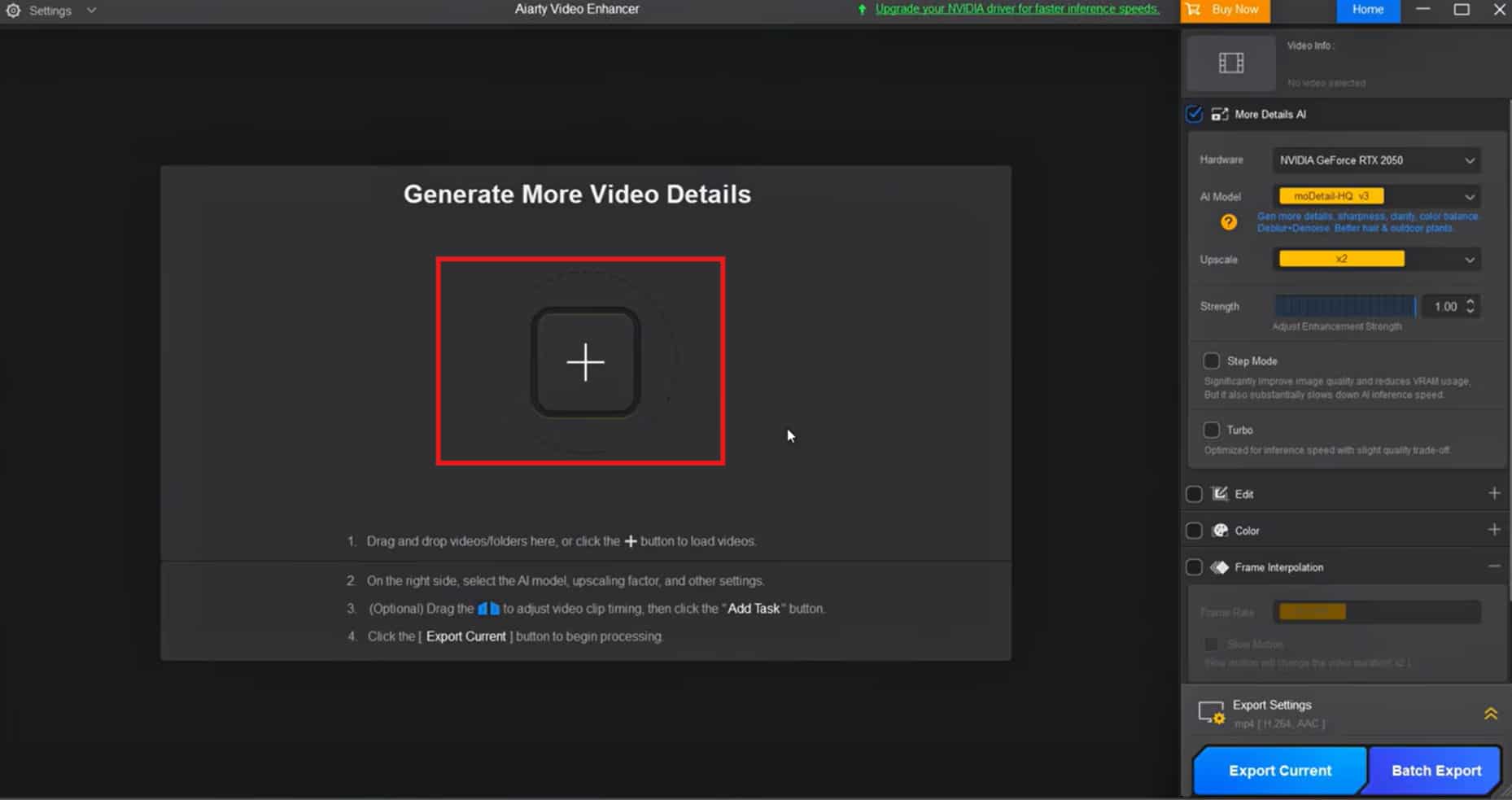
Step 1: Import video
Open the software, drag your video files into the interface, and the program automatically prepares them for analysis. Most common formats are supported, so you usually won't need to waste time converting files before importing them.
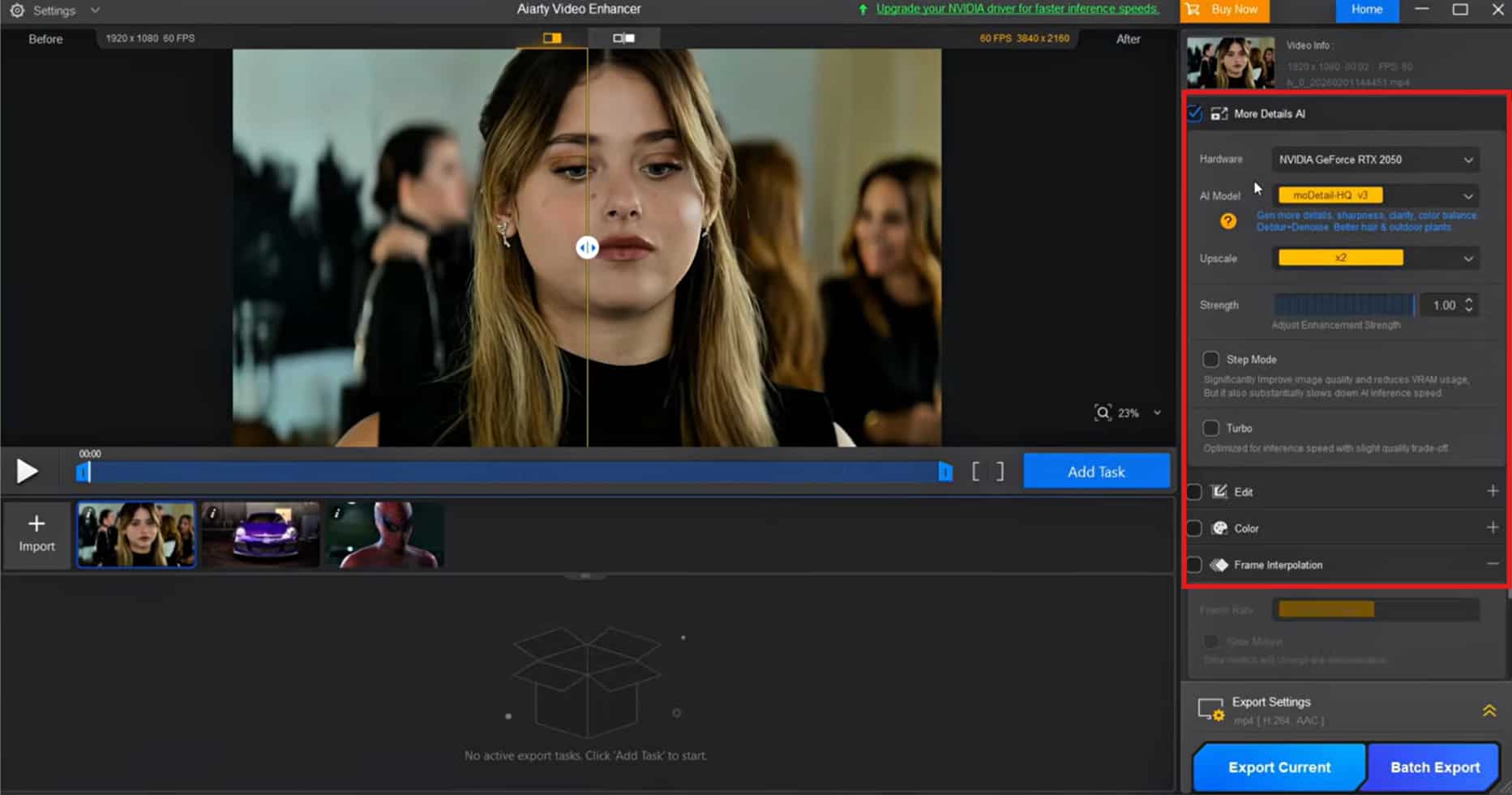
Step 2: AI enhance & preview
This is where actual enhancement happens. After importing your footage, you choose the AI processing options you want to apply, things like 4K upscaling, denoising, deblurring, frame interpolation, or detail reconstruction. Aiarty handles most settings automatically, which keeps things beginner-friendly. The preview system helps quite a bit here. You can compare the original clip against the AI-enhanced version before rendering the full export.
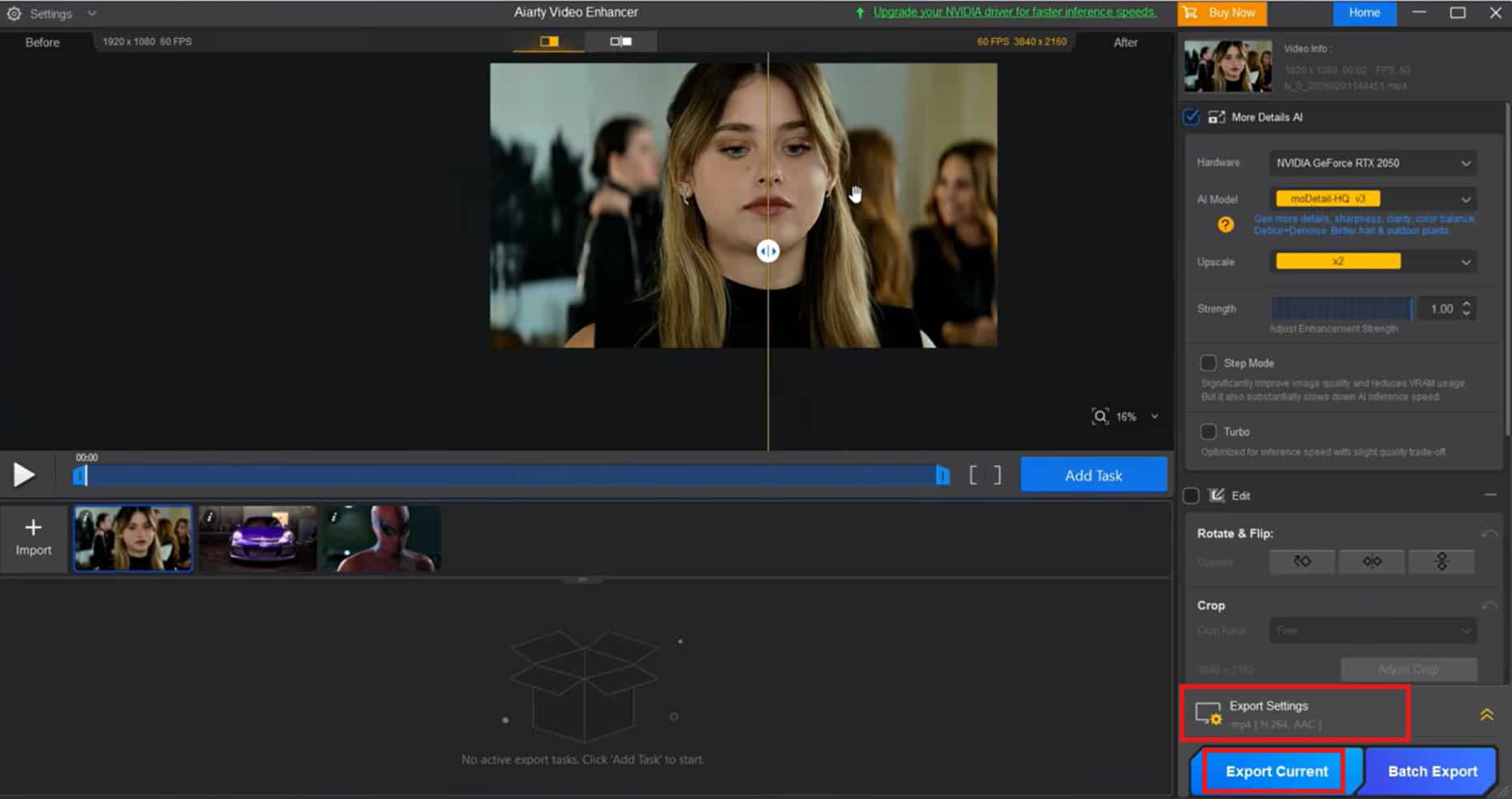
Step 3: Download enhanced video
Once you're satisfied with the preview, Aiarty exports the enhanced footage in your selected format and resolution. You can choose output settings based on your needs.
Aiarty video enhancer price: How much does it cost
|
Standard license |
Lifetime license |
|---|---|
|
$79 |
$165 |
|
|
The company positions it somewhere between casual consumer software and professional AI restoration tools, creating a slightly awkward middle ground where the cost feels reasonable for heavy users but a bit hard to justify if you only enhance videos occasionally.
-
Standard license
The Standard License starts around $79, which immediately puts Aiarty in that "not exactly casual spending" category. You're paying for the core AI features, most people actually care about — 4K upscaling, denoising, detail reconstruction, frame interpolation, all the headline stuff plastered across the homepage. If you edit videos regularly, the price feels easier to justify. Maybe not cheap, but reasonable enough once you're processing footage every week instead of once every few months.
-
Lifetime license
The Lifetime License costs roughly $165, which is clearly aimed at more serious users or people planning to use the software long-term. This version includes lifetime access and future updates, so you won't need to repurchase the software every time the company releases a major upgrade.
Aiarty video enhancer review: Pros & cons recap
|
Pros |
Cons |
|---|---|
|
|
As per the Aiarty review, the software is easy to learn, processing speeds stay fairly solid on decent hardware, and the AI enhancement quality usually looks more natural than overly sharpened. Local processing is another big advantage. Your files stay on your computer instead of being uploaded to a cloud server. However, Aiarty isn't the strongest option for extreme restoration work. You'll also want a fairly capable GPU if you expect fast exports. Additionally, pricing is the major setback.
While it's not outrageous compared to some professional editing software, it's definitely expensive for casual users who only enhance videos occasionally. Which is why a lot of users end up looking for alternatives, and one name that keeps coming up is Vmake. Unlike traditional desktop AI enhancers, Vmake keeps things much simpler. You open the platform in your browser, upload a clip, pick an enhancement option, and let the AI process the video online.
Vmake: A perfect alternative to Aiarty AI video enhancer
Vmake video enhancer works surprisingly well as a budget-friendly alternative to Aiarty, especially if you don't want to spend half your afternoon installing desktop software or figuring out editing controls. Vmake keeps things simple, fast, and much more accessible for casual creators. You open the platform, upload a clip, choose an enhancement option, and let the AI process everything online. No giant software installation. No confusing settings panels either.
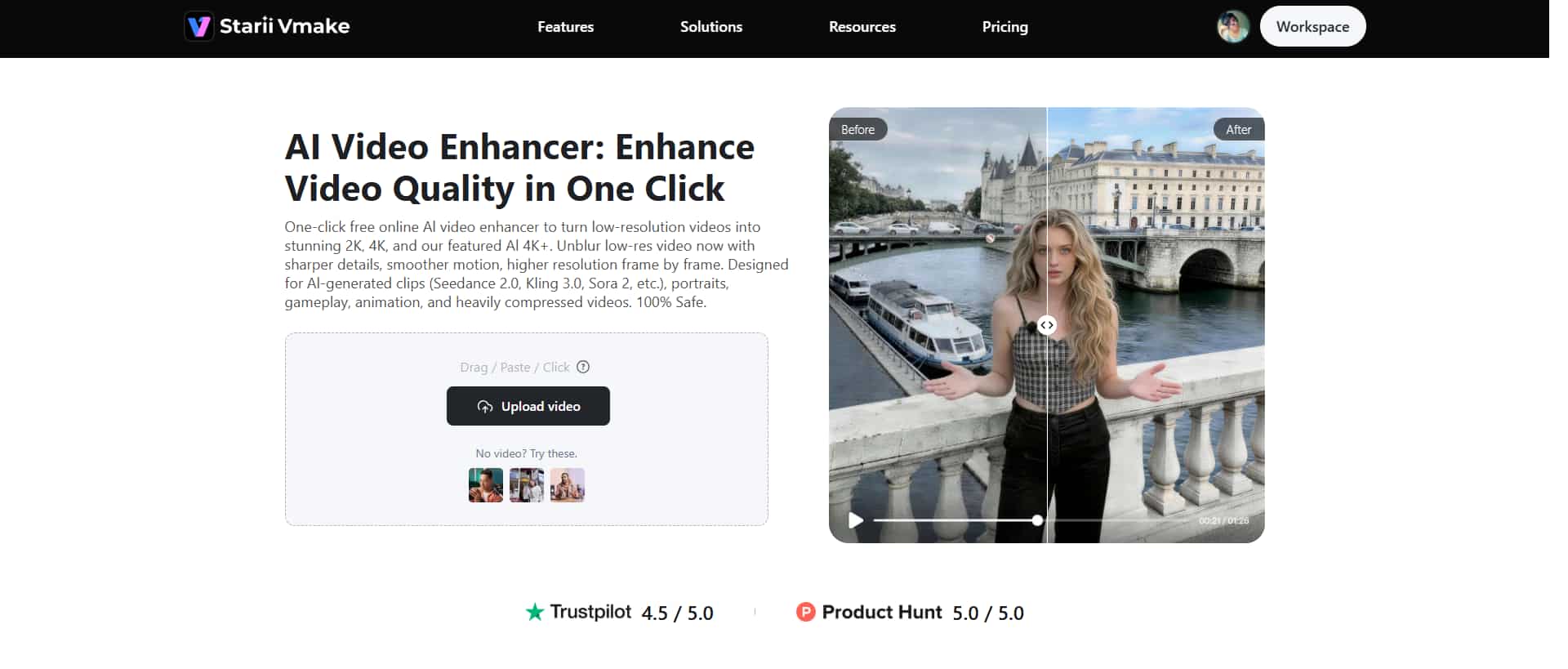
Step-by-step guide to enhance videos with Vmake
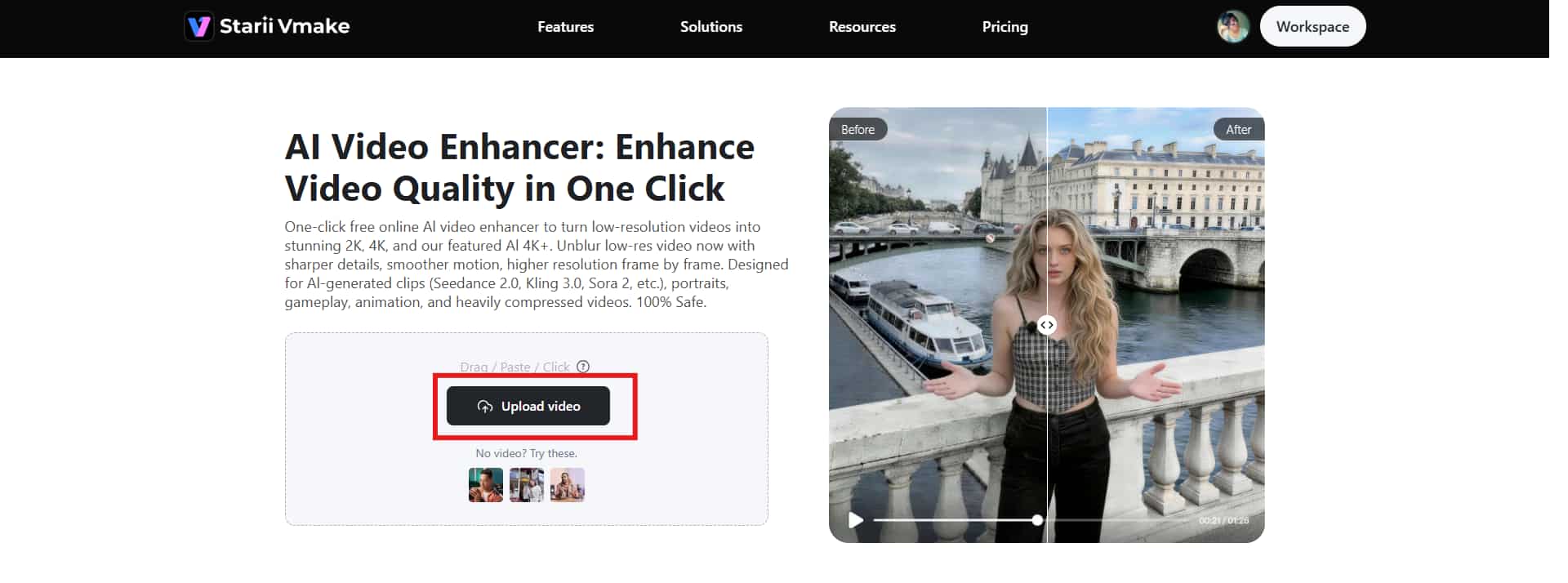
Step 1: Import the video
Launch Vmake in your browser. You can drag your video directly into the browser window, paste it in, or click the "Upload video" button. Most common video formats work immediately, so you usually won't waste time converting files.
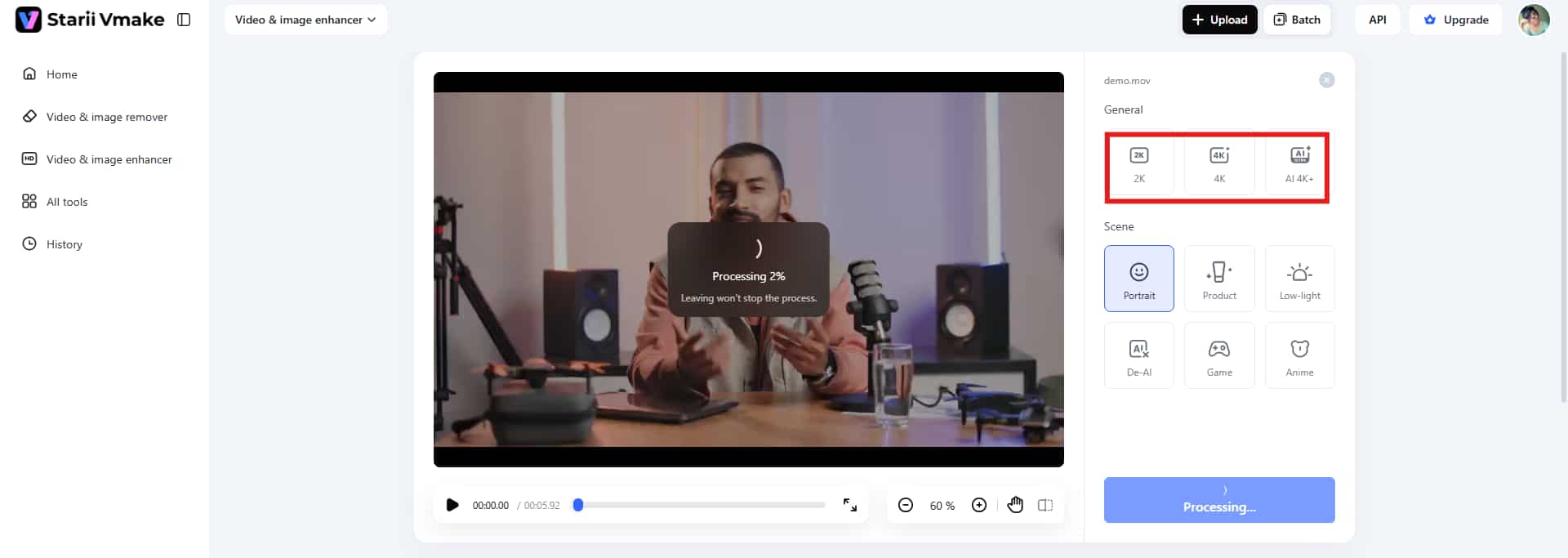
Step 2: Vmake automatically enhances the video
Once your file uploads, Vmake's AI starts analyzing the footage automatically and suggests enhancement settings based on the clip quality. The platform usually picks a resolution preset for you, which keeps things beginner-friendly. If you want more control, you can manually switch between options like 2K, 4K, or AI 4K+ depending on how aggressive you want the enhancement to look.
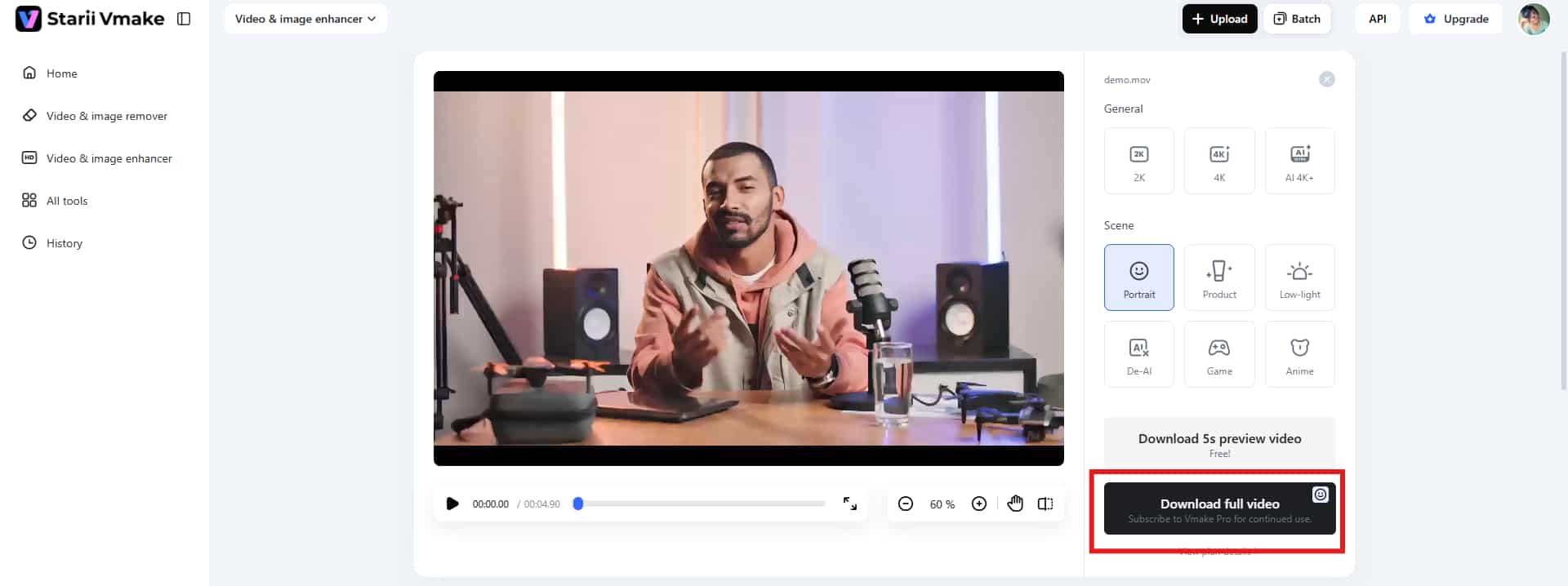
Step 3: Export the final clip
Once the enhancement finishes, you can preview the updated video before downloading it. Some clips look dramatically cleaner after processing, while others only show subtle improvements depending on the source quality. If everything looks good, click the "Download" option and save the final video to your device.
Key features
-
Batch processing: Vmake lets you upload and process multiple clips together instead of repeating the same settings over and over manually.
-
AI video upscaling: Vmake's AI video upscaling focuses on improving lower-resolution footage so it looks sharper and cleaner on modern screens. The tool analyzes the original clip, rebuilds missing details, and cleans video using AI models, and increases resolution.
-
Lowlight and night repair mode: Vmake's Lowlight and Night Repair Mode tries to clean up those darker scenes without destroying the original atmosphere of the footage.
Conclusion
That's all about Aiarty review. This video enhancer does a pretty solid job overall. You get AI upscaling, denoising, frame interpolation, and restoration tools packed into software that doesn't feel intimidating the second you open it. The offline processing is probably one of its biggest strengths. Your videos stay on your computer instead of getting uploaded to some cloud server, which feels a lot safer if you work with client footage, personal clips, or anything sensitive. However, what actually hurts is the pricing. It climbs fast once you move beyond the trial version, and Aiarty definitely runs better on stronger hardware. So, if Aiarty feels too expensive or hardware-heavy, Vmake makes a pretty convincing alternative to remove noise from video. The platform keeps things simpler and offers free entry-level access.
FAQs
Is Aiarty Video Enhancer free?
No, Aiarty Video Enhancer isn't fully free software. The platform mainly works through paid licenses, although trial versions are sometimes available if you want to test the features before spending money. The free trial is useful for checking enhancement quality on your own footage because AI demos online can be a little misleading sometimes.
Does Aiarty process multiple videos in a batch?
Yes, batch processing is actually one of Aiarty's more practical features. You can queue large numbers of clips in a single session, apply the same enhancement settings across multiple videos, and let the software handle everything automatically in the background.
What are the system requirements for Aiarty?
Aiarty runs on both Windows and macOS, but the real requirement is having decent hardware — particularly a capable GPU. The software relies heavily on AI processing, so performance changes dramatically depending on your system specs.
Can Aiarty improve old or damaged videos?
Yes, and this is probably where Aiarty performs best overall. The software does a good job reducing visible noise, sharpening softer footage, cleaning up compression artifacts, and restoring detail in older recordings. Old family videos, low-resolution clips, and smartphone footage usually show noticeable improvement after processing.
What is the best alternative to Aiarty?
Vmake is one of the strongest alternatives right now, especially if you want something simpler or more affordable. Unlike Aiarty's desktop-focused setup, Vmake offers browser-based AI enhancement with free entry-level access, which lowers the barrier quite a bit for casual users. The platform handles tasks like AI upscaling, noise reduction, sharpening, and low-light enhancement without requiring advanced editing experience.

You May Be Interested
Airbrush Video Enhancer Review 2026: Features, Pros, and Cons
Picwand Video Enhancer 2026 Review: Features & Alternatives
Video Color Correction vs. Color Grading: What's the Difference?
Airbrush Video Enhancer Review 2026: Features, Pros, and Cons