PixVerse AI Video Generator Review (2026): Features, Pricing & Best Alternative
 Vmake Labs TeamMay 29, 2026
Ditch the hours of tedious editing. PixVerse AI is taking 2026 by storm, transforming simple text and photos into stunning cinematic videos in minutes. Dive into this guide to unlock its powerhouse features, pricing, and see how it stacks up against Vmake AI to supercharge your content creation.
What is PixVerse AI?
PixVerse AI is an innovative AI movie generator that enables creators to transform basic ideas into dramatic videos with text prompts, pictures, or reference frames. Instead of hours of hand-editing, users can create beautiful, moving clips in minutes, including effects, transitions, lip sync, and dynamic camera movement. It's become huge for TikTok, Instagram Reels, and YouTube Shorts creators who want to make short-form videos faster and easier.
Why PixVerse AI is popular among creators
For cinematic AI movie-making, PixVerse AI has attracted significant interest from producers because of its fast, easy, and beginner-friendly nature. Here are some of the major factors behind its surging popularity:
-
Fast AI video generation:You can either input text prompts or upload an image, and within a few minutes, the platform generates cinematic sequences with motion, effects, and transitions.
-
Powerful image-to-video animation: PixVerse AI has gained popularity for its image-to-video workflow, as it generates smoother, more natural-looking motion than many other AI solutions.
-
Beginner-friendly interface: Simplicity of use, especially for first-time users, is one of the biggest drivers of PixVerse AI development.
-
Perfect for short-form social media content: PixVerse AI is designed around the kinds of material consumers already consume every day on TikTok, Instagram Reels, and YouTube Shorts.
-
Free access and viral AI templates: A lot of creators start with PixVerse AI since it gives out free daily credits, so you can play around with it before you start paying. It also features trendy themes and viral-style effects, enabling users to replicate popular content formats much faster.
Key features of PixVerse AI video generator
PixVerse AI offers a variety of creative tools that enable everyday producers to create AI videos faster, more easily, and more cinematically. Here are some of its most useful and popular features:
-
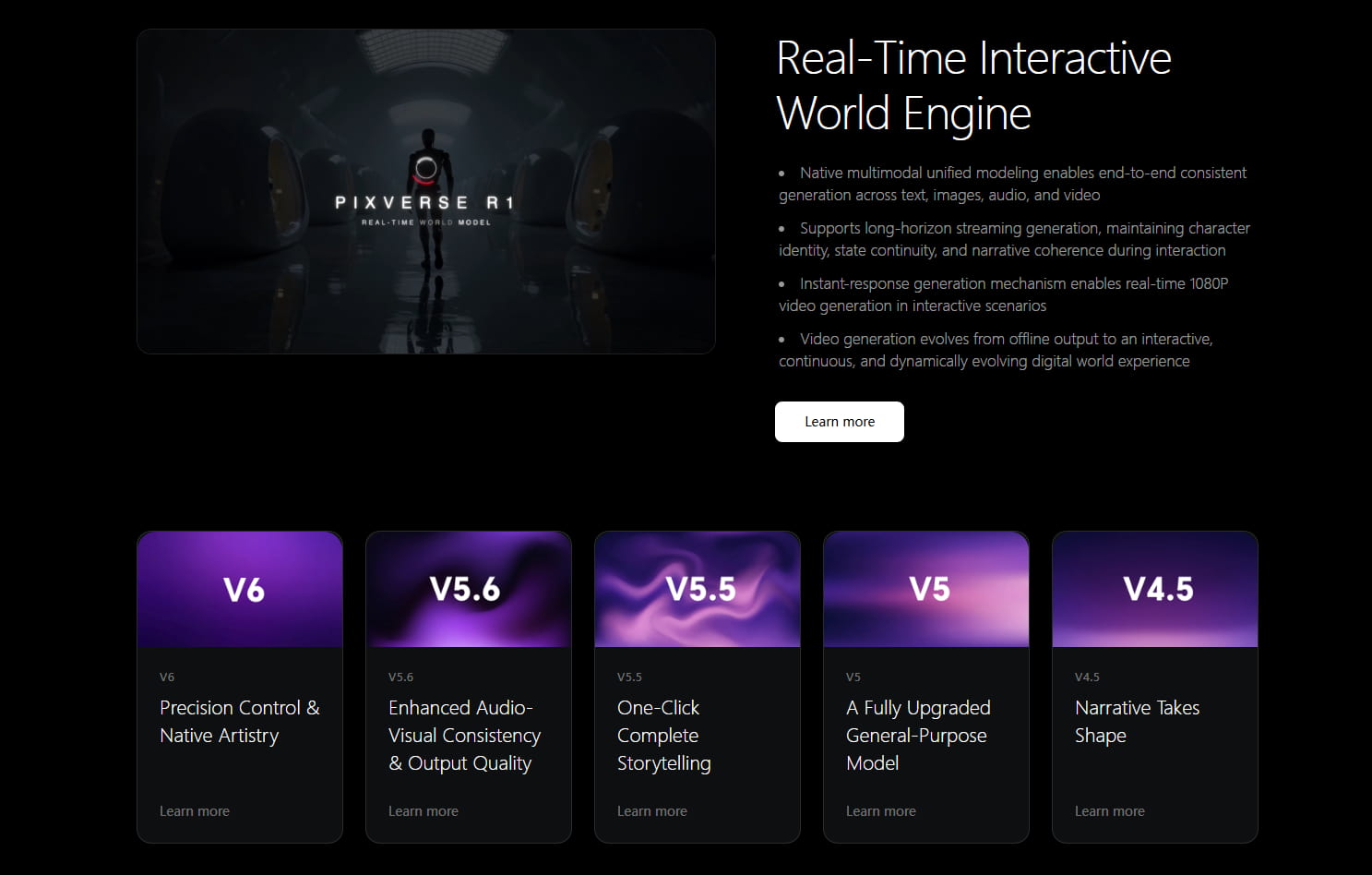
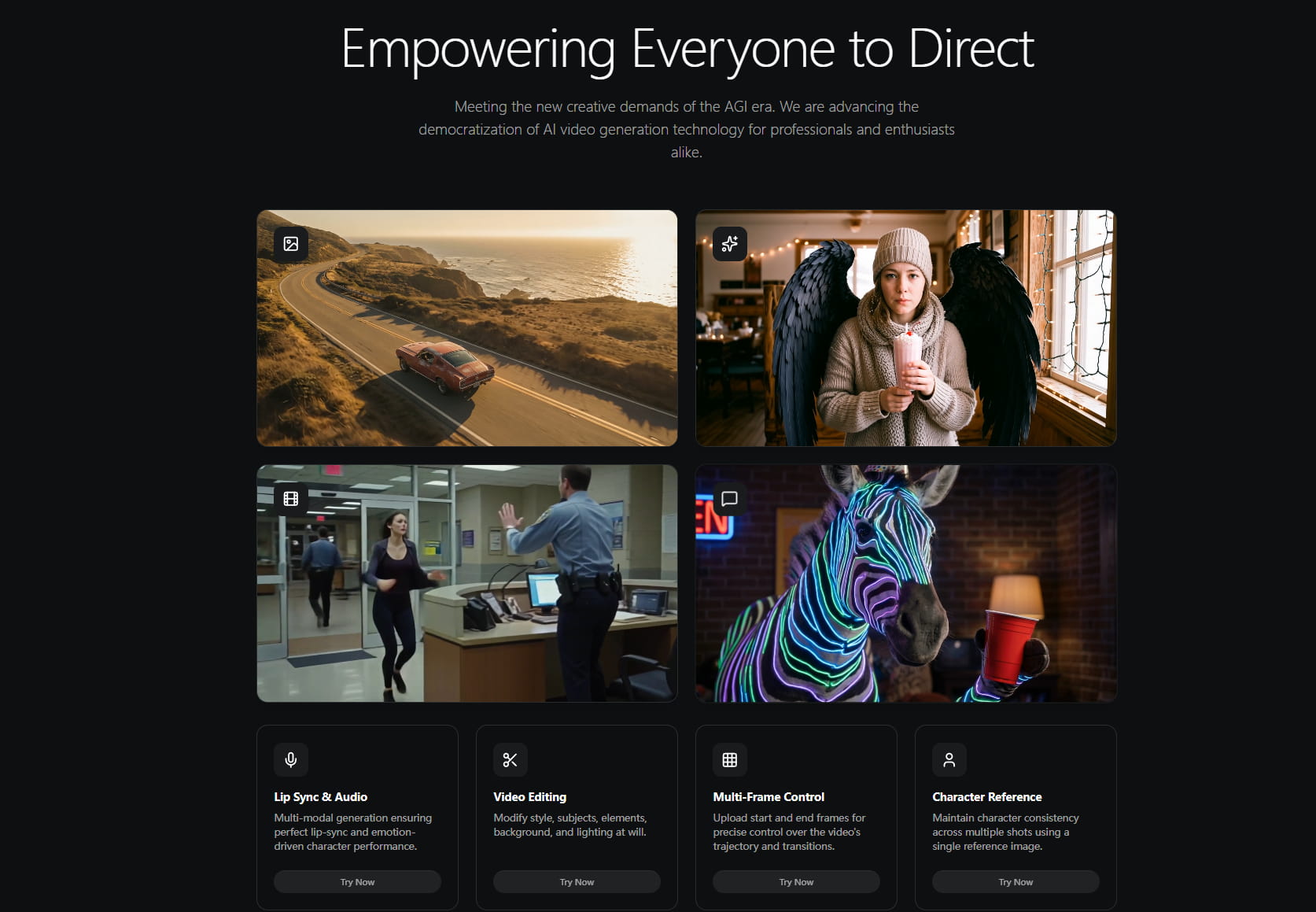
Multi-input modes: With PixVerse AI, you can produce videos in two simple ways: either by typing a text prompt or by uploading an image. So if you start with words, it turns your idea into a short cinematic video with motion and effects. If you use an image, it gives that still image a life with smooth animation and camera movement, making it feel more natural and engaging.
-
Smooth & complex camera motions: PixVerse AI creates smooth, natural camera moves, making every video clip more cinematic and alive. Guiding motion is as simple as using cues such as zooms, pans, or tracking shots. No editing skills required. This helps turn basic events into dramatic, professionally shot storytelling photos.
-
Lip sync and audio: PixVerse AI can lip sync the audio in a natural, expressive manner. It lets characters sync up with voice, emotion, and timing, making the video feel more vibrant and realistic. It also adds voice and sound support for more engaging storytelling and character-driven films, without additional editing labor.
-
Multi-frame control: Provide an initial image and an end image to guide a movie, giving you additional control over scene progressions with PixVerse AI. It seamlessly combines the movements of both frames to produce smooth, natural, and non-jarring transitions. This tool is extremely useful if you want more realistic storytelling and more predictable graphic changes in your video.
-
Character reference: With PixVerse AI, you can maintain the same look for the same character across numerous scenarios using just a single reference image. You upload it, and the AI keeps the face, style, and general look and feel of the video consistent. This makes storytelling considerably easier, especially for building series, stories, or multi-scene content.
How to use PixVerse AI video tool
Step 1: Create your video using the prompt and settings
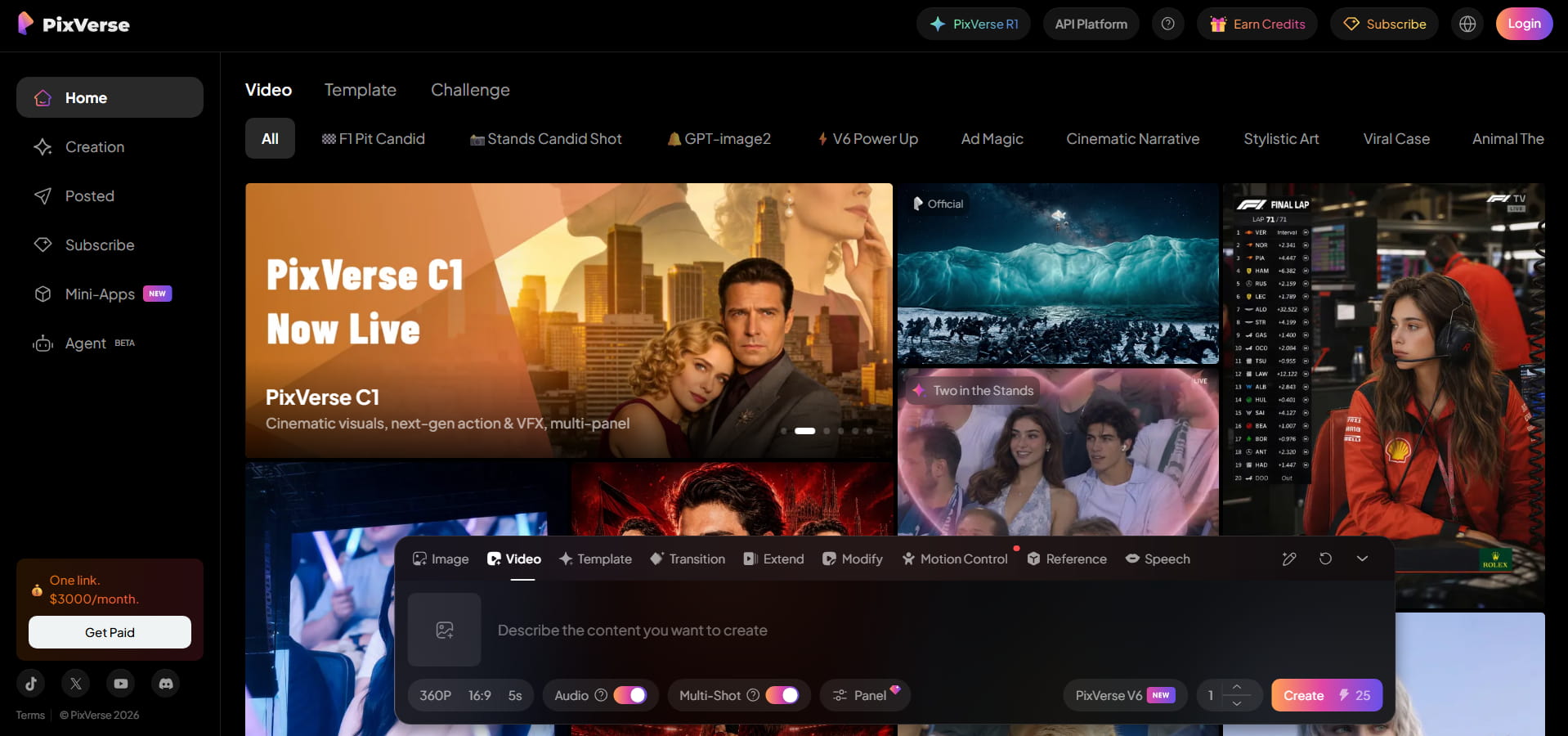
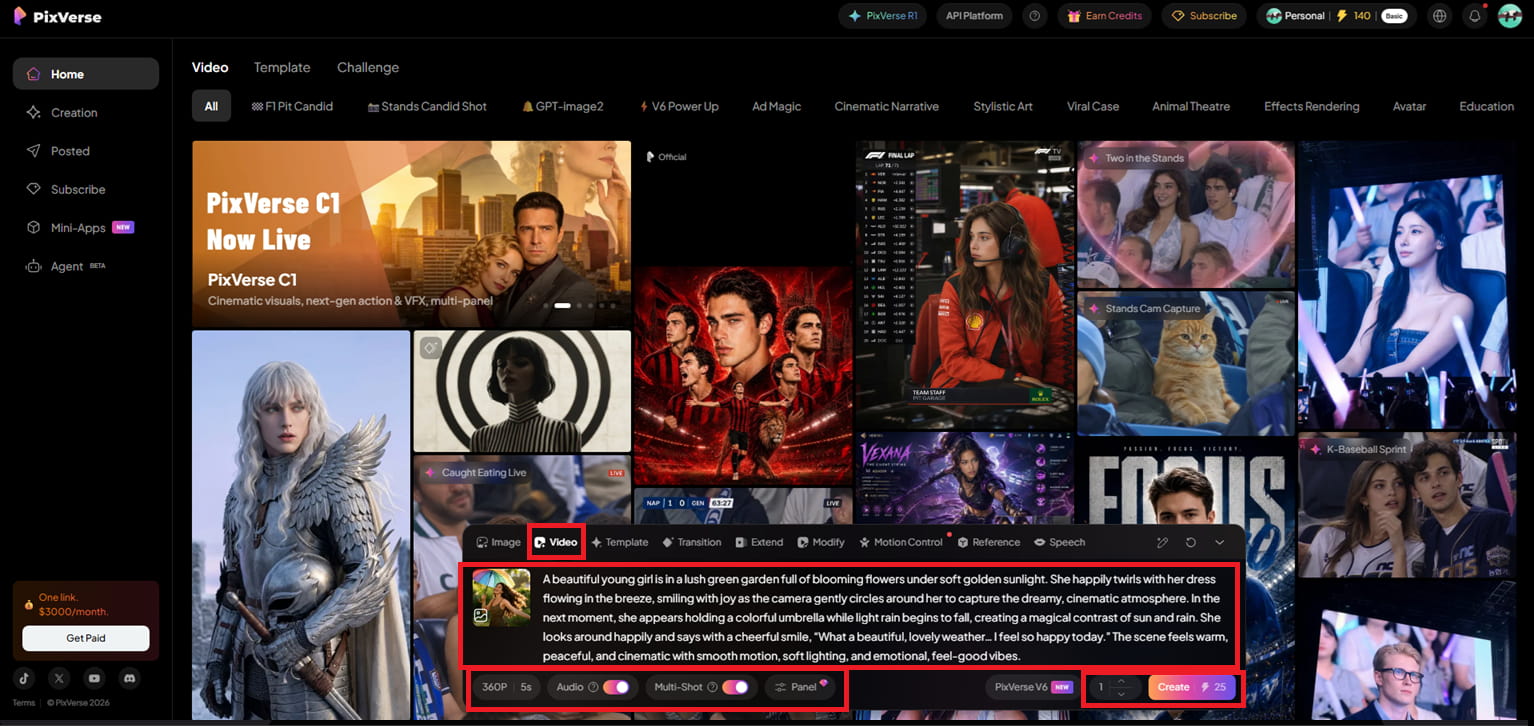
Visit the PixVerse homepage, and scroll down to the prompt box. Choose “Video” and upload your reference image if you want image-to-video generation. Then input your prompt and choose options such as resolution, duration, audio, multi-shot mode, model type, and number of outputs. Once everything is ready, hit “Generate” to begin generating your video.
Step 2: Preview your generated video in the ''Creation'' tab
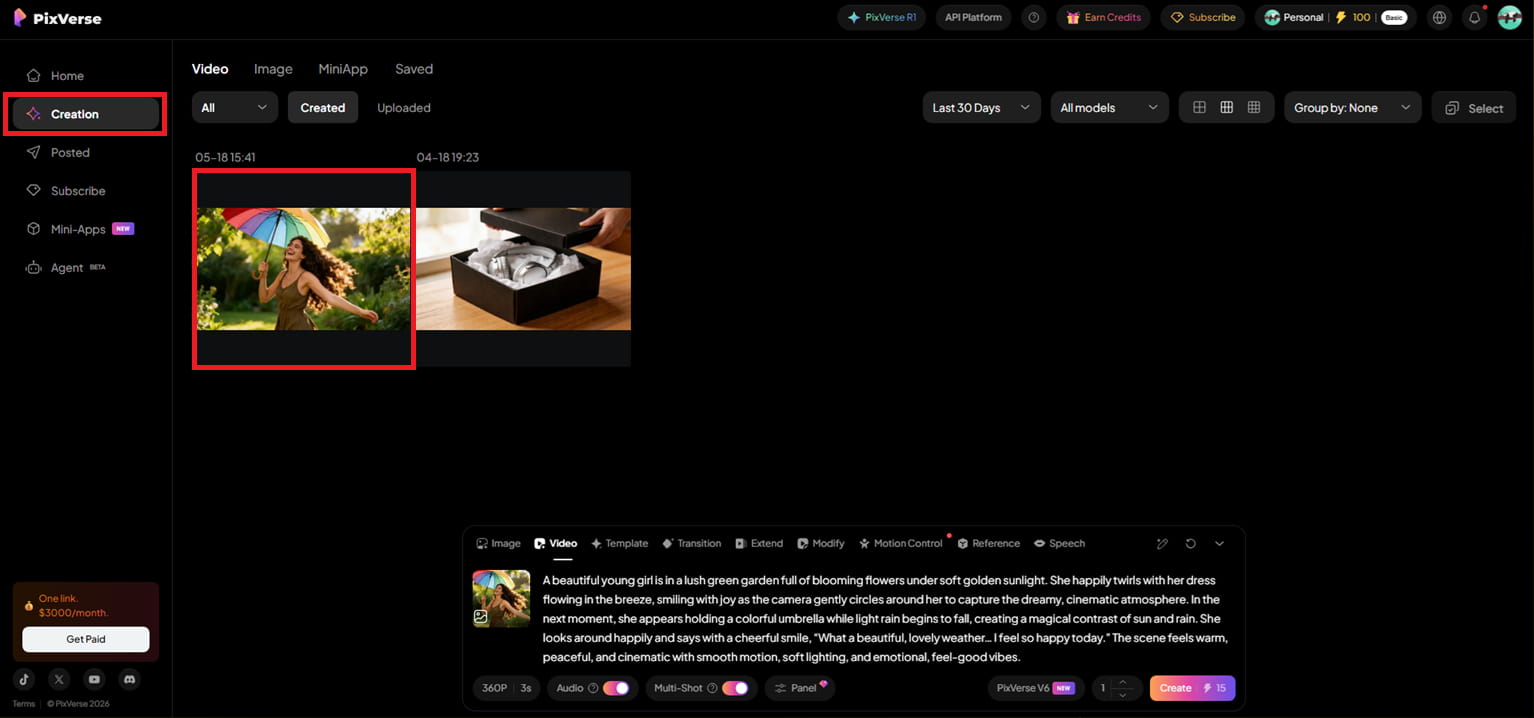
Your video will be created in a few seconds, and you will be redirected to the 'Creation' tab, where all your videos are saved. Then you can click on your video to preview it and see what it looks like.
Step 3: Edit, download, and share your video
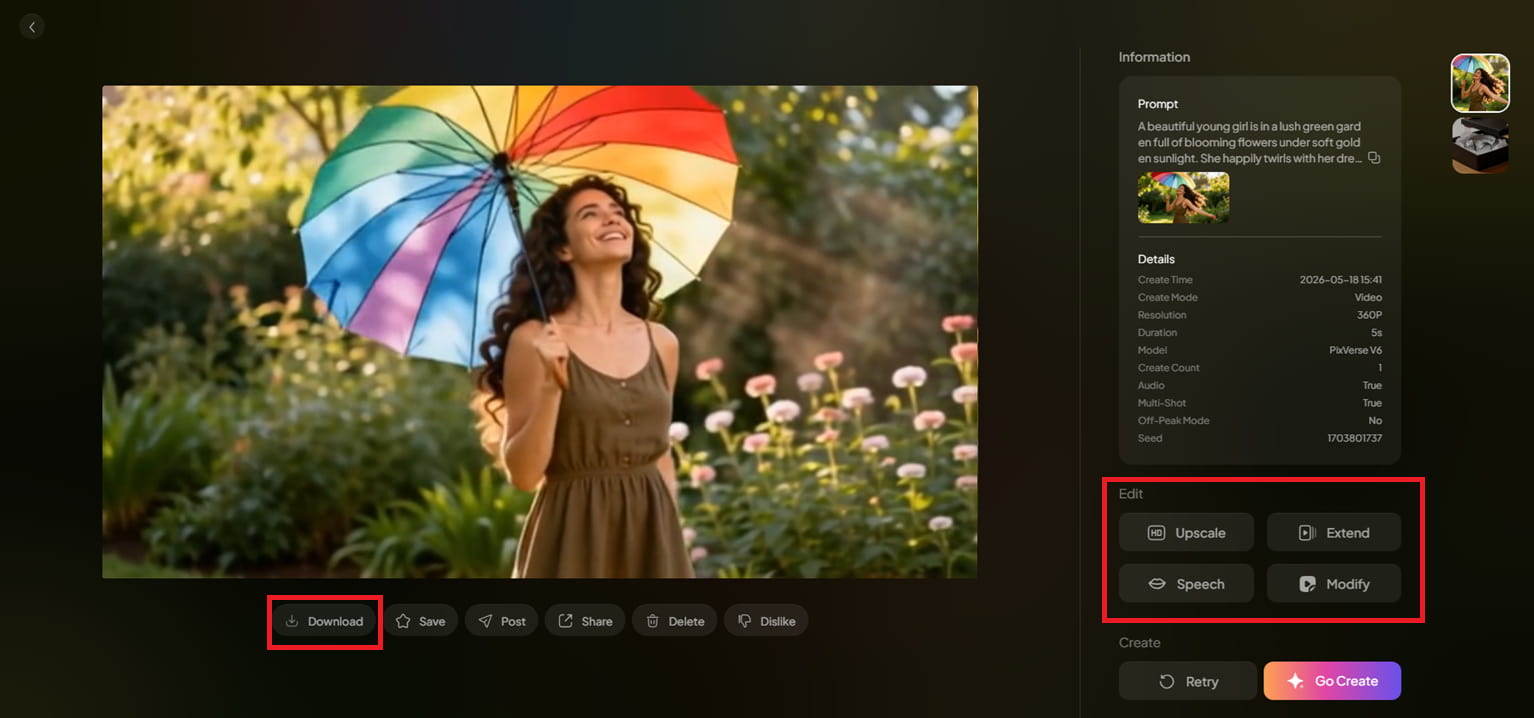
Once you're redirected to a full preview page, you can watch the movie and, if you want, edit it using the tools on the right. If the result makes you happy, just click the 'Download', 'Save', or 'Share' buttons below the video.
PixVerse AI pricing plans
PixVerse AI employs a free + paid credit system, where users receive free credits regularly, while paid plans unlock more features, higher-quality output, and faster generation.
|
Plan |
Monthly Price |
Annual Price |
Monthly Credits |
Key Features & Output Quality |
|---|---|---|---|---|
|
Basic (Free) |
$0 |
$0 |
90 initial + 60 daily |
Lower resolution (540p) Watermarked videos Limited concurrent generation (1 job) |
|
Standard |
$10/mo |
$8/mo |
1,200 |
720p HD output No watermarks 3 concurrent generations Cloud history storage |
|
Pro |
$30 mo |
$24/mo |
6,000 |
Full 1080p output 5 concurrent generations Alpha channel & image sequence export Custom camera keyframes & beta access |
|
Premium |
$60/mo |
$48/mo |
15,000 |
1080p output with priority processing 8 concurrent generations Native multi-character consistency workflows |
|
Ultra/Studio |
$200/mo |
$149 - $150/mo |
25,000+/Unlimited Relax |
Native 4K rendering Highest priority processing & concurrency Unlimited Relax Mode rendering |
Add-ons:
If you run out of your subscription's monthly allocation, PixVerse offers flexible on-demand credit packs:
-
Entry-level Top-up: $10 for 1,000 credits
-
High-volume Top-up: Up to $5,000 for 500,000 credits
PixVerse AI review: Benefits and limitations
|
Benefits |
Limitations |
|---|---|
|
Rapid Cinematic Output: Generates short, high-quality videos in seconds, bypassing lengthy editing workflows for quick social media turnaround. |
Basic Editing Controls: Lacks the advanced, precision editing capabilities found in traditional professional video software. |
|
Beginner-Friendly UI: Intuitive controls, simple prompts, and ready-made templates require zero prior video editing skills. |
Iterative Generation: Longer, complex, or highly specific scenarios often require multiple attempts to achieve the desired result. |
|
Social-Ready Motion: Delivers slick, eye-catching motion that is perfectly optimized for short-form platforms like TikTok and Instagram Reels. |
Credit Constraints: The credit-based system can feel restrictive for high-volume creators or those consistently outputting maximum quality settings. |
|
Flexible Narrative Tools: Features text-to-video, image-to-video, and character reference tools for highly versatile storytelling. |
Style Distortions: Can occasionally experience generation glitches, shaky motions, or unnatural objects. |
PixVerse AI is amazing for quick, imaginative video generation, but it lacks control, consistency, and advanced editing capabilities. Many producers will opt for more polished tools with higher post-production quality. This is where Vmake comes to the rescue as a powerful option for taking AI-generated videos to the next level.
Meet Vmake: A strong alternative to PixVerse for AI video generation
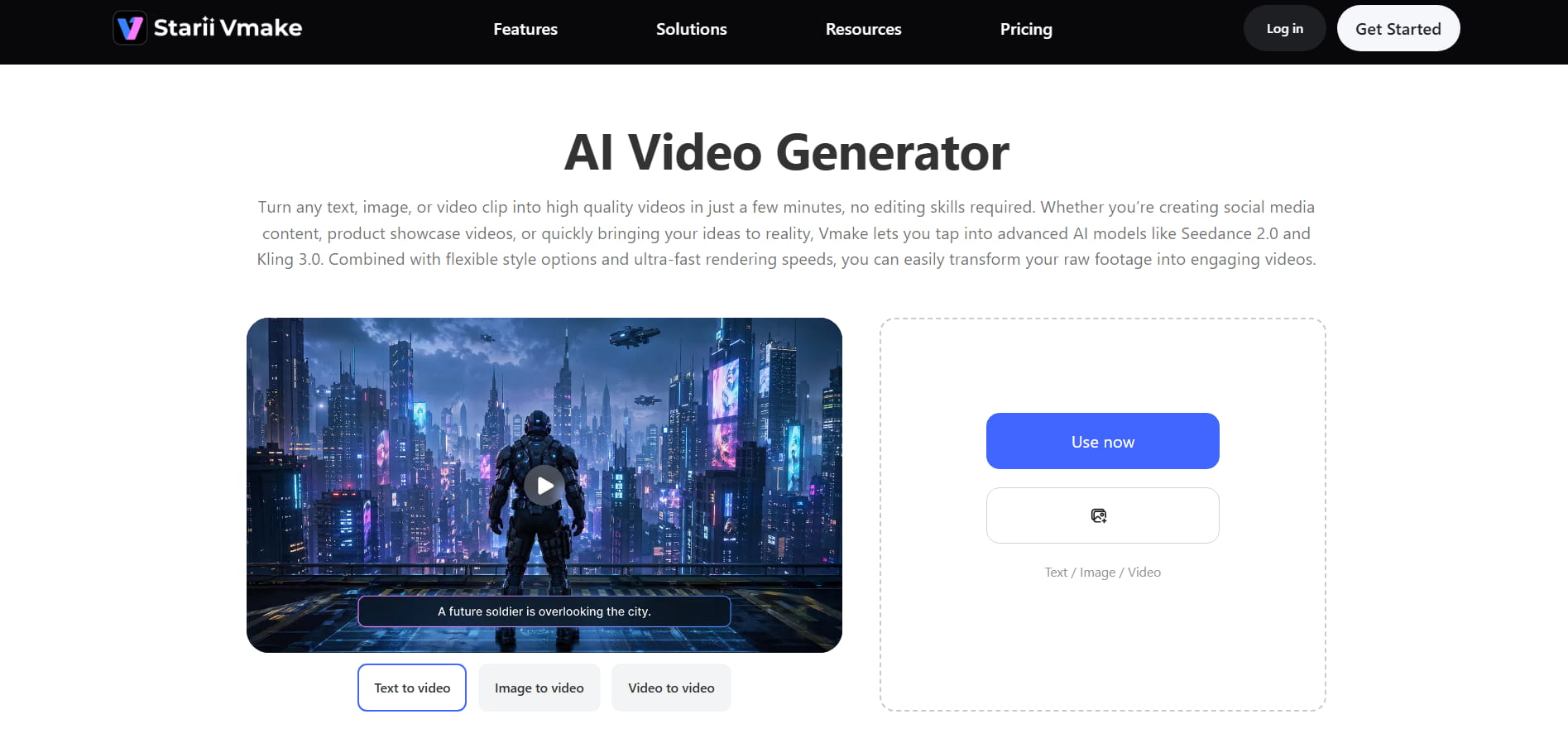
Vmake is an all-in-one AI video production platform for producers seeking greater flexibility, more control, and professional-looking results. In addition to basic text-to-video production, Vmake AI video generator also provides image-to-video and video-to-video transformations, multi-image references, first- and last-frame guidance, and built-in AI effects.
One of its strongest points is that you can swap between different advanced AI models like Kling, Veo, Sora, Seedance, and Vidu, depending on what kind of video you want to make. Vmake also offers 2K and 4K output with adjustable duration from 2 to 15 seconds, useful for cinematic clips, e-commerce videos, social media material, and creative narrative projects.
Key features of the Vmake AI video generator
-
Multiple video inputs: Vmake offers a different approach to making videos, based on what you already have. You can begin with a text prompt, upload photographs, use numerous reference images, specify the first and last frames, or even transform an existing film into a whole new style. This gives the platform a versatile and usable feel for many creative undertakings.
-
Multiple AI video models: Rather than relying on a single AI engine, Vmake allowed users to switch among prominent AI video models such as Kling, Veo, Sora, Seedance, and Vidu. Because each model produces videos differently, artists can experiment and choose the one that best suits their style or idea. It also helps produce more diverse and visually engaging results.
-
4K video export support: Vmake exports of excellent quality up to 4K resolution, which makes the videos look a lot clearer and cleaner. This is especially useful for creators working on professional content, product ads, cinematic clips, or polished social media videos. The higher resolution also improves detail and overall viewing quality.
-
Flexible duration control: With Vmake, you decide how long your video is, instead of being locked into a single duration. The site supports videos ranging from 2 to 15 seconds, giving creators more latitude to create scenarios and deliver stories. This versatility is great for a quick edit or a lengthier cinematic clip.
-
Video enhancement tools: Vmake also features AI improvement capabilities that may enhance fuzzy or low-quality films with only one click. It can up-res videos to higher resolutions like 2K or 4K while making motion smoother and information crisper, using the AI video enhancer tool. This is particularly handy for AI-generated films, old clips, game recordings, and compressed social media content.
How to use the Vmake AI video maker tool
Step 1: Launch Vmake AI video generator
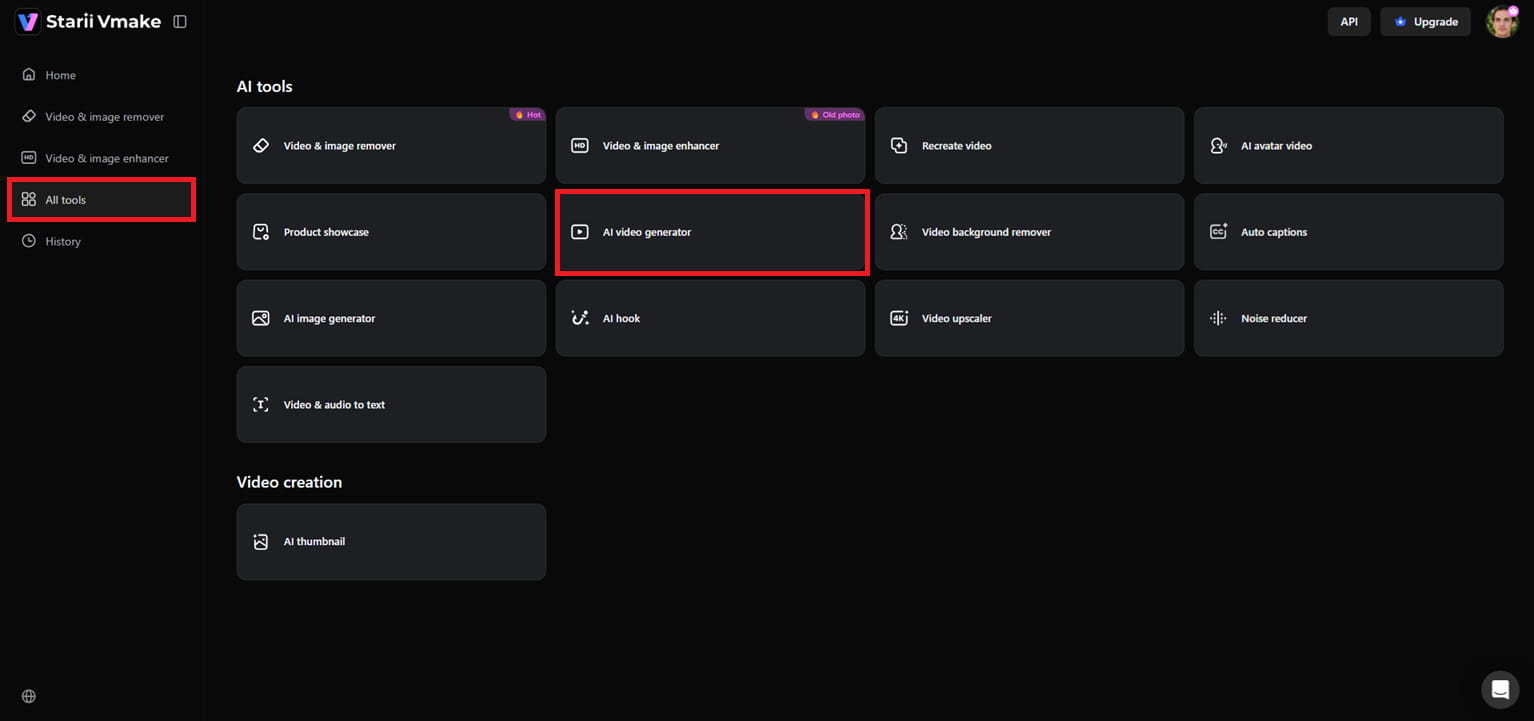
From the left-hand menu, go to the Vmake dashboard and select the "All Tools" segment. Navigate to the list of various AI tools and tap on the "AI video generator" to get to the main workspace to start generating your video project.
Step 2: Choose your generation mode and customize settings
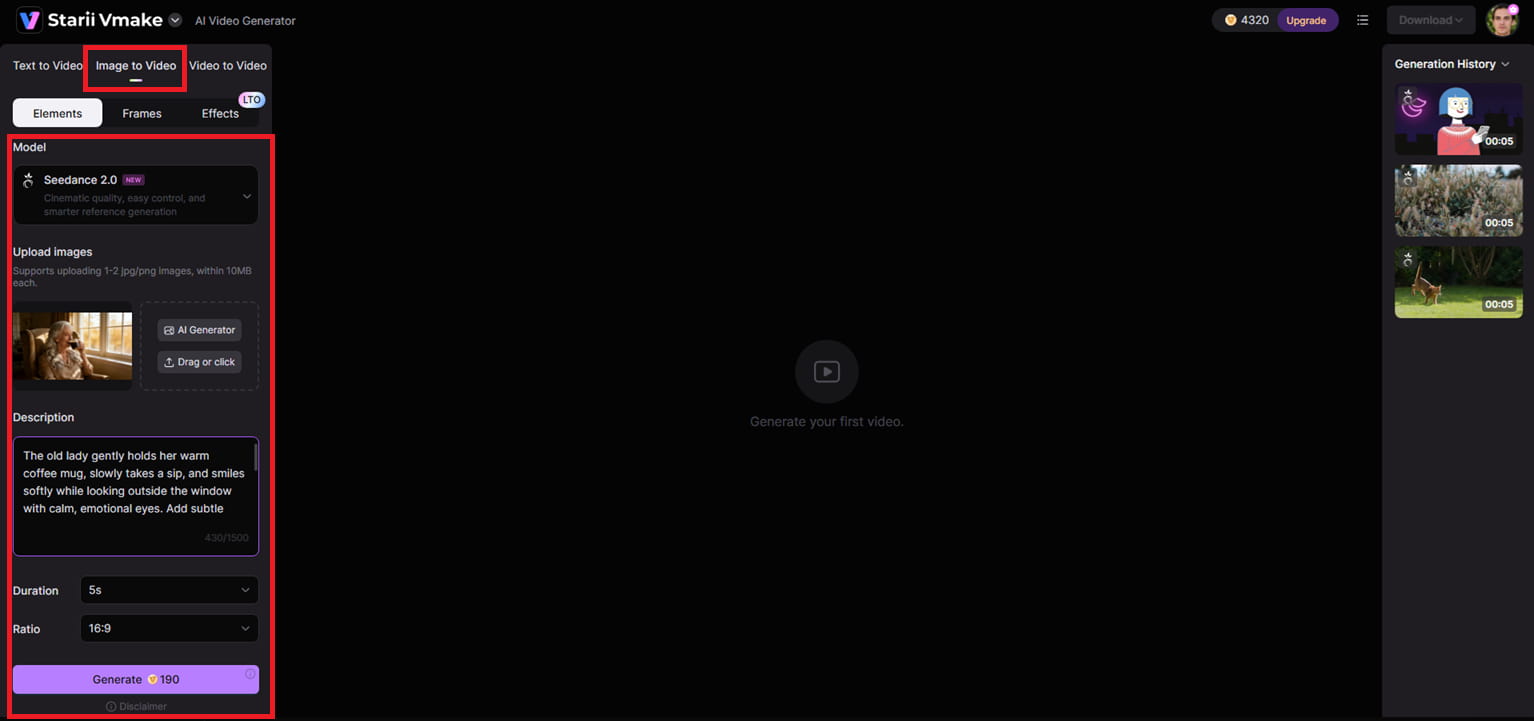
Choose the generation method you want to use in the workspace, such as text-to-video, image-to-video, or video-to-video. Then you pick your favorite AI model, optionally submit one or two reference images, and write a thorough prompt that outlines your movie idea. Then, choose the movie duration, aspect ratio, and other generating settings, and click "Generate."
Step 3: Preview and export your AI video
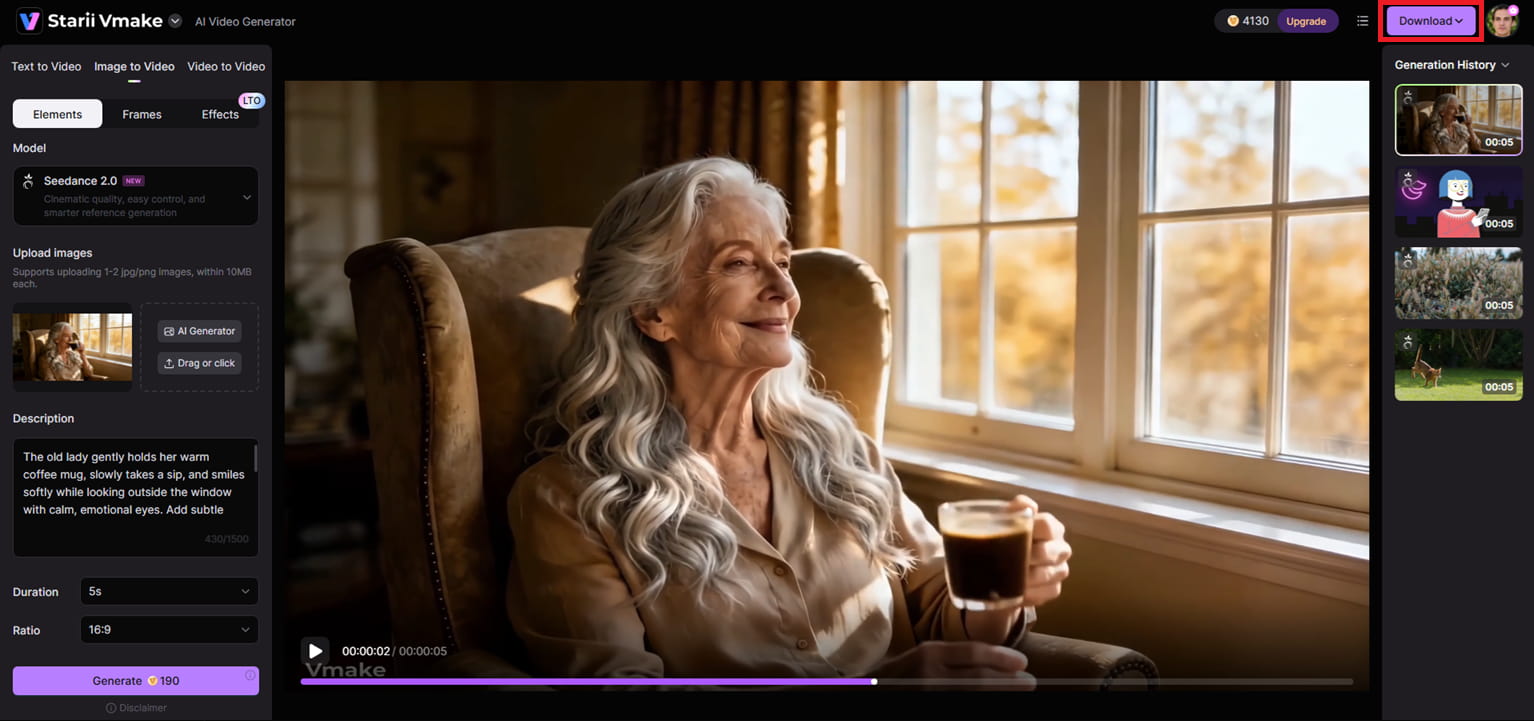
Once the AI has finished creating your film, you can preview the finished result right in the workspace. Check the motion, images, transitions, and overall quality to make sure everything looks good. When you are satisfied with the output, click the "Download" option at the top to save the final video to your device. Later on, you can use the downloaded video to enhance further or remove video watermarks or any unwanted objects or people.
PixVerse AI vs Vmake AI: Key differences
|
Aspects |
PixVerse AI |
Vmake AI |
|---|---|---|
|
Core product focus |
The full-stack generative AI video platform is intended to turn text prompts, doodles, or still images into stylized, cinematic, and character-driven videos. |
A full media automation suite aimed largely at editing, cleaning up, and enhancing low-resolution or raw video and photo assets. |
|
Advanced AI capabilities |
Deep multimodal storytelling controls, including character reference locking, lip-syncing, action imitation, and complicated camera movements. |
Focuses on robotized automated AI editing tools such as one-click object or subtitle erasing, video background replacement, and e-commerce virtual fashion models. |
|
Video enhancement & upscaling |
The main focus is on maintaining visual quality during generation, but it supports native video extension and upscaling. |
It features a dedicated AI video enhancer that can upgrade low-res or compressed footage to sharp 2K, 4K, and AI 4K+ resolution by reducing grain and noise. |
|
Watermark management |
The standard generating model applies a platform watermark to free-tier exports unless the user upgrades to a premium tier. |
It has a powerful automated AI watermark remover that can recognize and remove drifting, static or moving logos in bulk organically. |
|
Target audience & Best use case |
It's perfect for creative storytellers, content creators, and marketers who want to create epic social clips, anime edits, or hyper-realistic brand advertising from scratch. |
Great for small businesses, e-commerce stores, and social media managers who want to polish product videos, create quick UGC-style video ads, and correct low-quality clips. |
In a nutshell, the choice comes down to whether you want to create or refine. PixVerse AI is built for pure imagination, letting storytellers and creators spin raw text or images into stylized, cinematic videos from scratch. Vmake AI, on the other hand, is a powerhouse utility suite designed to upscale, clean up, and polish existing footage, making it the perfect tool for e-commerce brands and businesses looking to elevate their product videos.
Conclusion
In an era of explosive growth in AI video creation, tools like PixVerse AI are making it easy for anybody to turn ideas into engaging videos in only minutes. With its user-friendly workflow, cinematic effects, and robust image-to-video production capabilities, it's an excellent option for social media artists, storytellers, and marketers seeking speedy results. At the same time, Vmake is preferable for users who want greater creative freedom, powerful AI models, and better quality-improvement tools. Each platform has its own qualities, and the best one for you will depend on the type of material you create and your creative aims. Try both tools to see which one works better for your workflow.
FAQ's
Is PixVerse AI free?
Yes, PixVerse AI offers a free plan with daily credits, allowing you to test services such as text-to-video production, image-to-video generation, and more without any upfront payment. It is an excellent alternative for beginners who want to test AI video making before moving to paid plans. Similarly, Vmake offers free credits for new users, so you may test out several AI video models and creative tools before you buy a membership.
How does PixVerse AI image-to-video work?
PixVerse AI allows users to submit a reference image and turn it into a cinematic video with AI-generated motion and effects. The platform adds smooth camera movement, transitions, and animations to make static photos feel more alive and dynamic. Vmake has a similar methodology but adds tools such as multi-image references and video-to-video generation for additional creative flexibility.
What are the limitations of PixVerse AI?
PixVerse AI is a fast and easy program for beginners, but it has several issues with complex scene consistency and advanced editing control. Complex prompts may need to be tried multiple times to achieve the desired result, especially for extended storytelling sequences. Conversely, Vmake emphasizes flexibility, with diverse AI models, 4K capability, and integrated improvement tools for a sleek final product.
Which of the two is better, PixVerse AI or Vmake AI?
They are each built for various creators and varied creative demands. PixVerse AI is optimized for fast cinematic clips, anime edits, and social media clips, whereas Vmake is optimized for users who want greater control, multiple AI engines, and professional-quality enhancement tools. PixVerse is good if speed and simplicity are the most important factors, while Vmake is more suitable for creators who want more complicated workflows.
Does PixVerse AI support anime-style video generation?
PixVerse AI is noted for its anime-style films, dramatic cuts, and stylized social media material. Its fluid motion and dramatic effects make it a popular choice for TikTok edits, AI animations, and fantasy-style images for many designers. Vmake may also perform creative and stylized video generation, particularly because it can access various AI models that produce distinct artistic styles.
Can PixVerse AI automatically create sound effects and dialogue?
PixVerse AI has audio features, including lip-sync and AI-generated sound integration, to make videos more realistic and emotive. It also helps to sync language with character movement, making narrative films more engaging and lifelike. Vmake, on the other hand, emphasizes generation quality, audio features, and enhancement workflows across the available video models, providing producers with cleaner, more refined final video outputs.

You May Be Interested

OpenAI Sora 2 now built into Vmake AI Video Generator
5 Top Shoppable Video Generators for TikTokers in 2026
Nano Banana vs Pixverse AI: Top Alternatives Compared
Vidu AI vs Pixverse AI: Top AI List Breakdown