How to Resize Videos Online Without Blurry or Cropped Results
 Vmake Labs TeamApril 1, 2026
Have you ever posted a video to TikTok or Instagram only to find it stretched, blurry, or awkwardly cropped? Transitioning content between platforms like YouTube (16:9), Instagram (1:1), and TikTok (9:16) often leads to lost quality and disappearing subjects.
The good news is that modern AI-powered resizers have solved this. In this guide, you’ll learn how to resize videos online for free while keeping your quality sharp and your subjects perfectly framed using intelligent automation.
What Is a Video Resizer
A video resizer changes the dimensions or aspect ratio of your video. This is different from cropping, which simply cuts parts of the frame. When you resize a video file properly, the tool adjusts width and height to match platform requirements while keeping your content visible.
The platforms utilize various sizes. Here are some common ones:
Instagram Stories: 1080 × 1920 (9:16)
Instagram Feed: 1080 × 1080 (1:1)
YouTube: 1920 × 1080 (16:9)
TikTok: 1080 × 1920 (9:16)
Facebook Feed: 1280 × 720 (16:9)
A good free video resizer handles these adjustments automatically. You don’t need to worry about technical details. Just upload your video, choose the platform, and let the tool resize it properly.

Common Reasons People Need to Resize a Video
You’ll usually need to resize video when you post content on different platforms or reuse existing footage.
For Social Media Platforms
Every platform uses a different format. When you resize video for TikTok, you’ll need a vertical 9:16 layout. If you upload that same video to YouTube, you’ll need a horizontal 16:9 version instead.
Instagram adds another layer. Reels, Stories, and feed posts all use different sizes. Upload the wrong format, and your video gets cropped or stretched. Sometimes key parts disappear from the frame.
For Reuse or Repurposing
You might also want to reuse content. A TikTok video could work well on Instagram Reels. Vertical phone footage might need to become a horizontal YouTube video.
In these situations, knowing how to resize video for Instagram or other platforms helps you reuse content without losing quality.

Why Video Quality Drops After Resizing
Before fixing quality issues, it helps to understand what causes them. Video quality often drops during resizing due to scaling, compression, and aspect-ratio mismatches.
Common reasons include:
Stretching causes blur
Enlarging a video forces the software to create new pixels, which reduces sharpness.Shrinking removes detail
Compressing large videos into smaller sizes reduces clarity and fine textures.Aspect ratio mismatches distort visuals.
Converting 16:9 to 9:16 without adjustments leads to stretching or black bars.Heavy compression lowers quality
Some resize tools compress files too much to process faster.Artifacts in high-motion scenes
Fast movement and complex textures make quality loss more noticeable.
Traditional Ways to Resize Videos (And Their Limits)
Most people start with basic resizing methods. They seem quick and easy at first. But after using them a few times, the limitations become obvious.
Cropping to Fit Different Platforms
Cropping is the simplest way to resize a video. You take a 16:9 horizontal video and cut the sides to make it 9:16 vertical. This works when your subject stays in the center. But it quickly becomes a problem when important action happens near the edges.
You also lose a big part of your original composition. Wide landscape shots turn into narrow slices. Group videos cut people off. The story you framed carefully no longer looks the same.
Stretching or Padding Videos
Some people stretch videos to fill new dimensions. This distorts everything. Circles turn into ovals. Faces look stretched or squashed. Viewers notice it immediately.
Padding is another option. You add black bars or blurred backgrounds to fill space. This keeps the original footage intact, but it wastes screen space. On mobile devices, that makes your content smaller and harder to watch.
The Smarter Way to Resize Videos in 2026
Modern technology has transformed the entire resizing process with intelligent automation.
Modern AI-powered tools have changed how to resize a video completely. Instead of blindly cropping or stretching, these tools analyze your video content and make intelligent decisions about what to keep in frame. The results look professional rather than rushed.
Vmake Video Watermark Removal - Best for Pre-Resize Cleaning & Quality Prep
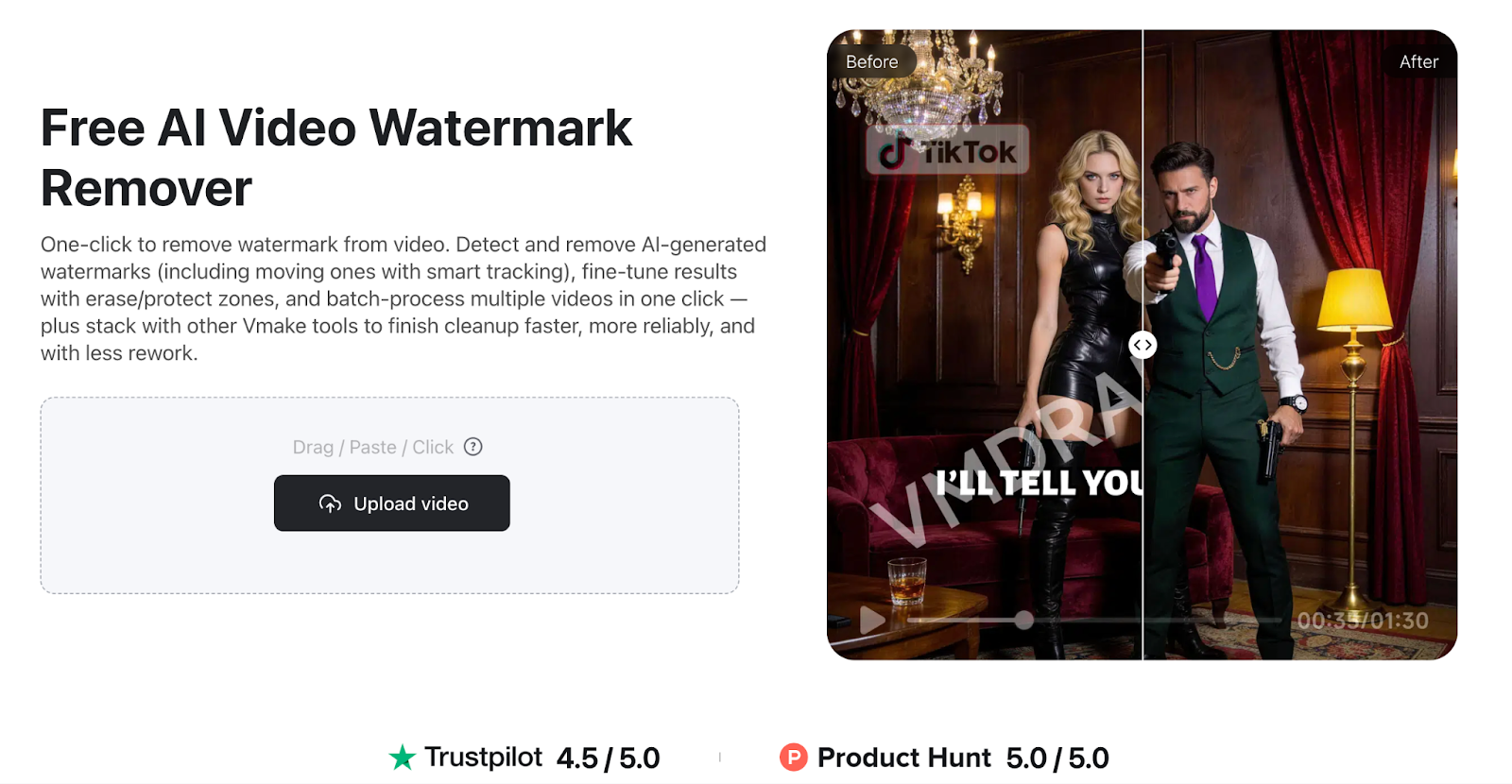
If you are repurposing content from TikTok or Instagram, the most critical step before resizing is clearing away existing watermarks. Since resizing often involves cropping or stretching the frame, a moving watermark can end up in an awkward position or distract from your new composition. Vmake Video Watermark Remover is a specialized AI tool that prepares your footage for a professional-grade resize.
Using generative AI, Vmake doesn't just "blur" the logo; it reconstructs the background pixels to make the removal look natural. This ensures that when you later use a tool to change the aspect ratio, your video remains a clean, high-definition source file.
Automatic Detection: The AI automatically finds and removes moving TikTok or Instagram watermarks without manual masking.
Batch Removal: Clean up to 30 video files simultaneously to save time on multi-platform workflows.
Maintains Original Quality: It removes text and logos without blurry patches, keeping the video sharp for the next editing step.
Format Flexibility: Supports common formats like MP4 and MOV, making it easy to transition from a watermark remover to a resizer tool.
CapCut - Best for Quick Mobile Edits
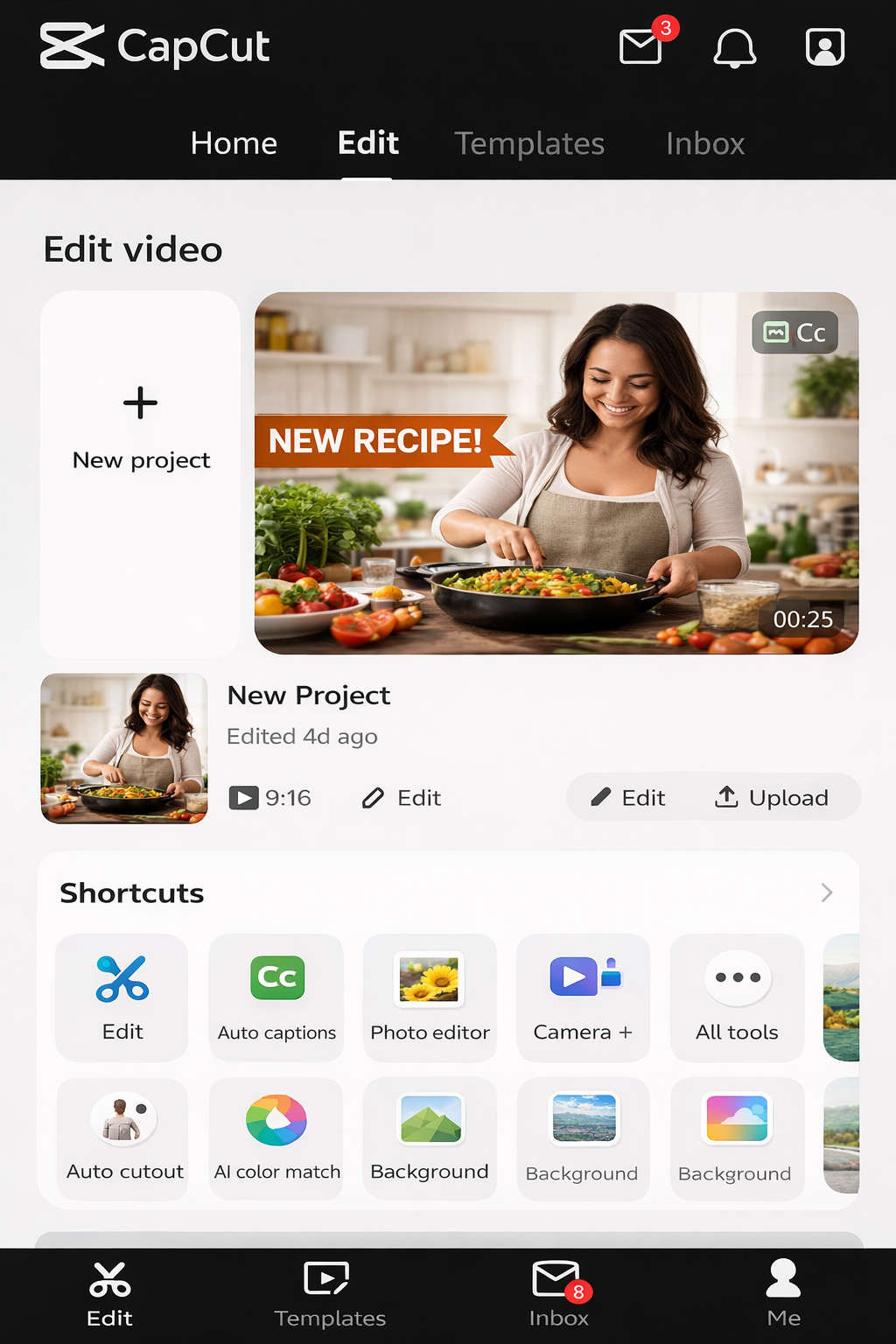
If you prefer editing on your phone, CapCut is a convenient option.
CapCut allows you to resize videos on mobile. The app has templates of the common social media formats, and, therefore, you can easily adapt your content to other formats without sifting through settings.
Automatic resizing doesn’t work out all the time, though. In some cases, you will have to crop by hand so that you do not lose valuable elements in focus. You can also add a watermark to the free version, although it can be switched off in the export settings.
Despite these shortcomings, CapCut is still a favorite since it enables you to edit quickly and easily, even when you are on the move.
Canva Video Resizer - Best for Adding Graphics
Canva can be of use when your workflow involves design and resizing.
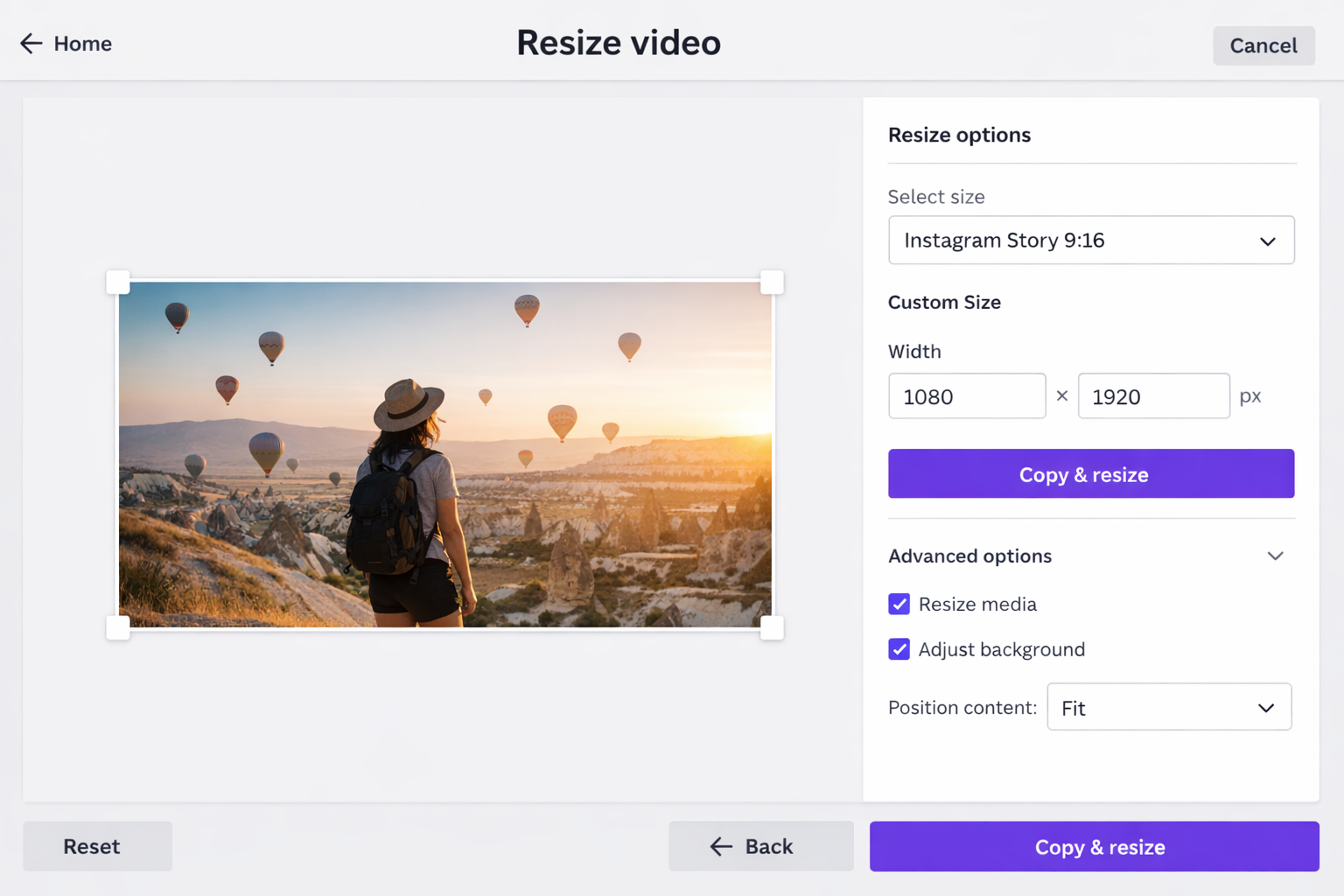
The video resizer of Canva actually operates along with the design tools. You can cut and resize video in addition to adding text, graphics, or a brand in the same location. It also offers ready sizes of the large social sites, and this saves time and eliminates the need to adjust them manually.
Nevertheless, the subject tracking of Canva is not as powerful as video-specific tools. Videos with multiple contents or excessive camera motion might not resize well. However, where simpler content requires fast edits and graphic overlays, Canva makes it easier to have everything in one place and simplifies the process.
How AI Helps Resize Videos Without Losing Quality
The technology behind modern resizing tools represents a significant leap forward from older methods.
AI technology has transformed the ability to resize video online intelligently. Traditional resizing tools follow rigid mathematical rules. They center the frame or apply uniform crops. AI-powered tools analyze the actual content of your video frame by frame, making decisions a human editor would make.
AI Auto-Detects Subjects and Keeps Them Centered
Modern AI can identify people, animals, objects, and actions within your video. When you resize a video for TikTok from a horizontal format, the AI recognizes where the important subjects are and adjusts the frame to keep them visible. If someone walks across the screen, the AI tracking follows them and keeps them centered in the new aspect ratio.
Preserves Visual Balance and Avoids Awkward Crops
Beyond just tracking subjects, AI understands composition principles. It avoids cutting people off at awkward points. It maintains proper headroom and breathing space around subjects. When you resize video online free with AI assistance, the results look intentionally composed for the new format rather than carelessly cropped.
Extra Tip: Remove Watermarks Before Reusing or Resizing Videos
Content repurposing often involves an additional step beyond just resizing.
Many people download videos from platforms like TikTok or Instagram to reuse them. These videos often include platform watermarks, looking unprofessional when reposted elsewhere. While some people use complex editing techniques to remove watermarks, Vmake offers a simpler one-step solution.
Vmake removes watermarks without extra steps. Upload your video, and the tool automatically detects logos or text overlays. You don’t need to mark the area or use advanced editing features. In a few moments, you get a clean video ready to use.
This becomes useful when you want to resize a video for different platforms. You can remove the TikTok watermark first, then resize the clean version for Instagram or YouTube. Your content looks more polished and consistent.
When you remove watermarks before resizing, you avoid distractions and keep your video looking professional across platforms.
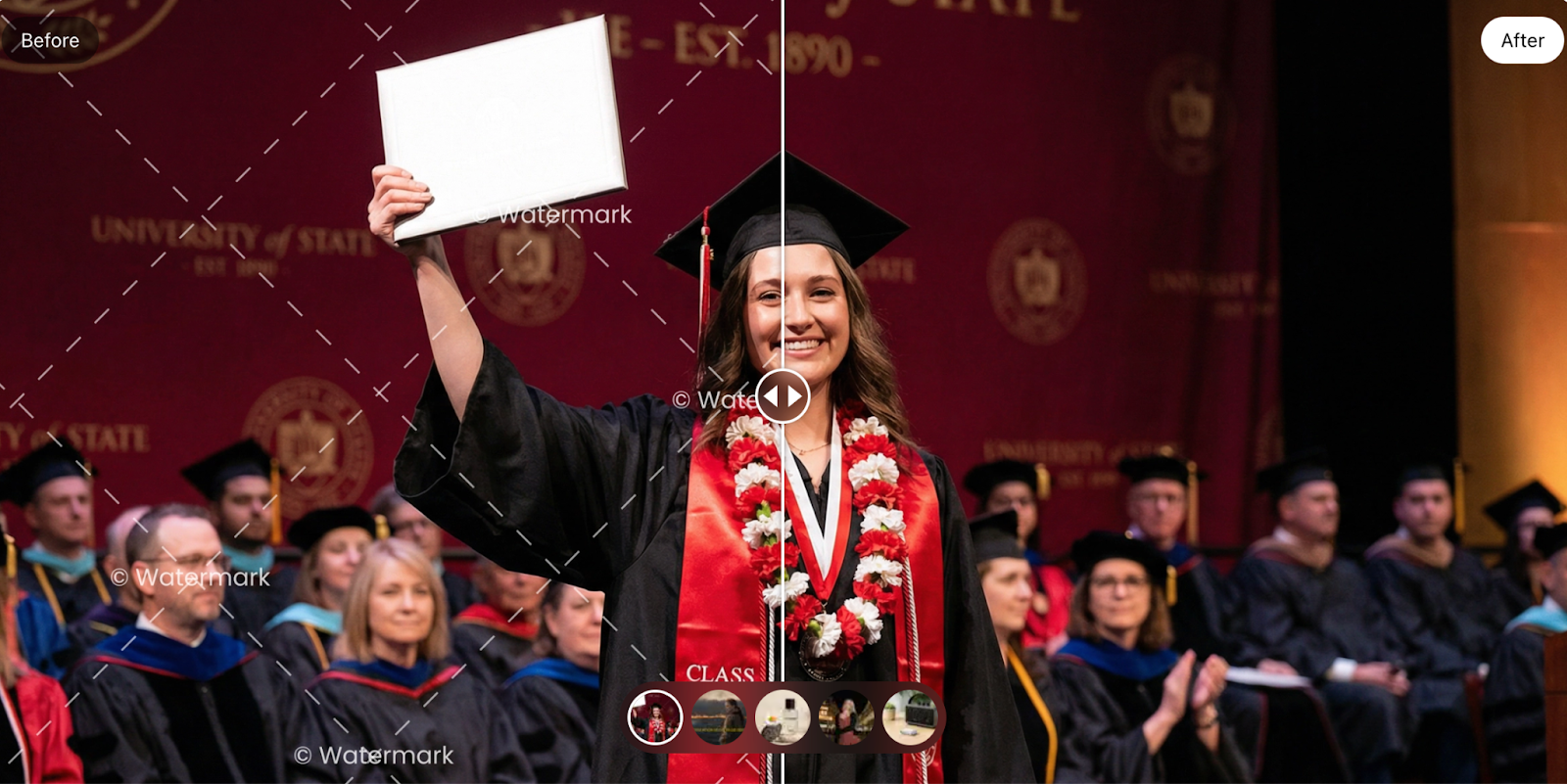
How to Remove Logos and Watermarks from Videos
Here's the exact process for cleaning up your videos before resizing them.
If you need to remove watermarks before resizing, follow these steps using Vmake:
Try Vmake Video Watermark Remover
Step 1: Upload Your Videos
Go to the Vmake Video Watermark Remover page. Upload up to 30 videos at once. Each file appears as its own card for easy review. The tool supports the most common video formats, including MP4, MOV, and AVI.
Step 2: Auto Removal of Watermarks.
All you need to do is to post your video to Vmake. The watermark is searched and automatically removed by the tool. You do not have to choose or develop editing programs. You may preview the result after it is done and then check it to ensure that nothing is messy before downloading.
Step 3: Download HD Videos, Clean.
The removal of the watermark on Vmake is free. The first 5 seconds are free to download as a preview to test the quality. Once all things appear well, then export the complete video in HD. Then your video is good to go on Instagram, TikTok, or any other site without the logos standing in the way.
FAQs About Resizing Videos Online
Can I resize a video online for free without losing quality?
Yes, tools like Vmake use AI technology to resize video online for free while preserving quality. The key is using smart algorithms, avoiding unnecessary compression, and maintaining proper aspect ratios during the conversion.
How do I resize a video for Instagram without cropping important parts?
Use an AI-powered video resizer tracking subjects automatically. Tools like Vmake analyze your video content and keep important elements in frame even when changing from horizontal to vertical formats.
What's the best way to resize video for TikTok from YouTube videos?
Convert your 16:9 YouTube video to a 9:16 vertical format using an AI tool handling subject tracking. This ensures faces and action stay centered. Vmake does this automatically and lets you resize video online for free without a watermark.
Does the reduction of file size occur when resizing a video file?
Resizing will not always work on file size since it might only make it smaller, depending on what you are resizing. This is because file size is not so much determined by resolution as by compression settings. An efficiently optimized resize video file procedure preserves the quality of the file and, at the same time, controls the file size effectively.
Is it possible to resize video and add and delete watermarks simultaneously?
Yes, there are other tools, like Vmake, where you can take out any watermarks and can even resize videos in a single or the same workflow. The watermark remover can be used to delete the watermark, and then resize the clean video to your desired platform.
Final Thoughts: Resize Smarter, Not Harder
Choosing the right way to resize videos depends on your specific workflow. While apps like CapCut and Canva are excellent for manual framing and adding graphics, the quality of your final result starts with a clean source file. Using Vmake Video Watermark Remover is the essential first step to automatically clear away distracting logos and restore clarity before you change the aspect ratio. Ultimately, the best results come from combining these specialized tools to ensure your content stays professional across every platform.

You May Be Interested

5 Tools to Make Best Green Screen Backgrounds for Every Video Style

AI Video Enhancement And Upscaling: Pros, Cons, Alternatives, and Future Trends