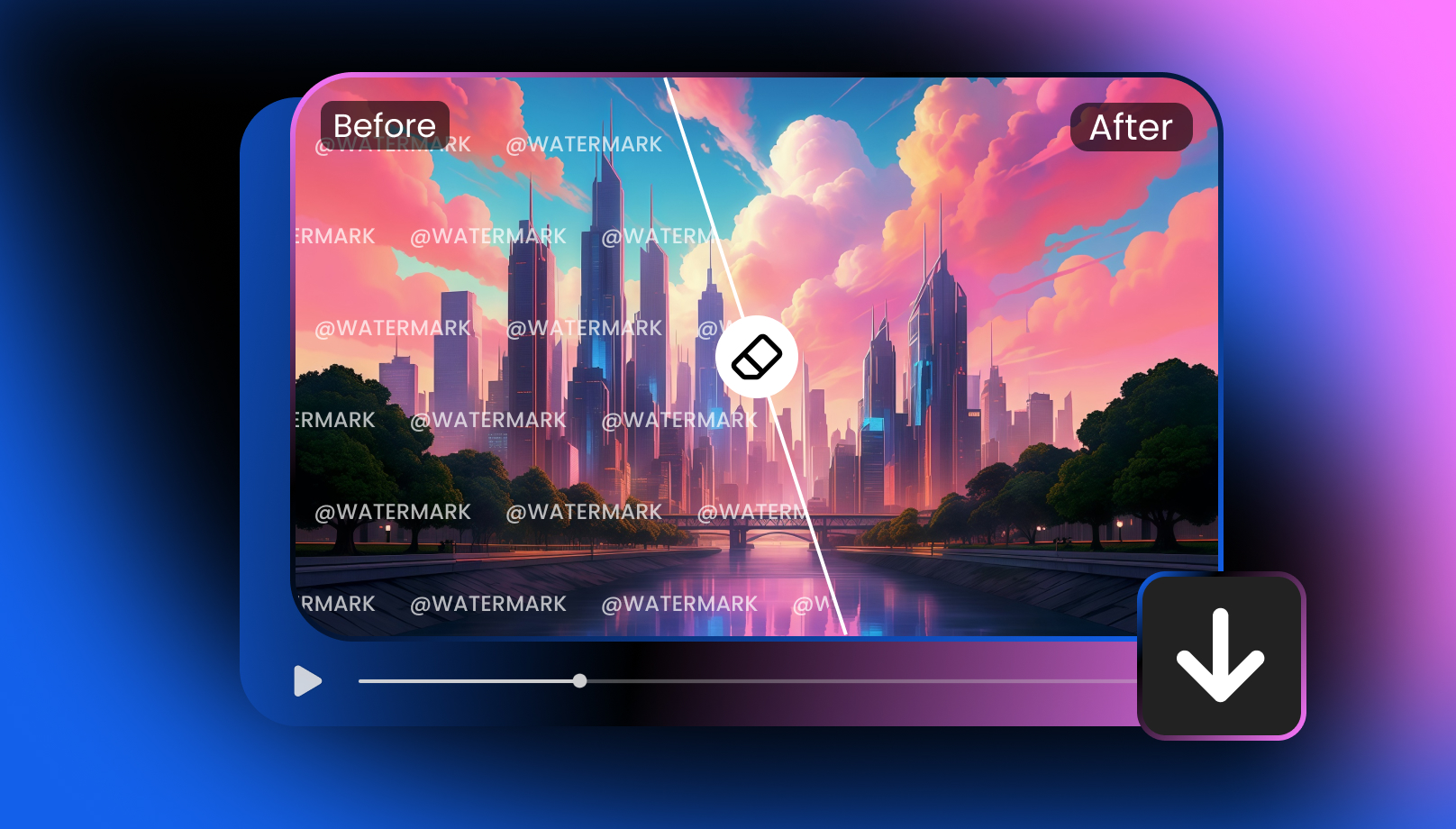
Wink Video Enhancer: The Key to Stunning Visuals
 Ken DawsonJanuary 26, 2026
In today’s world, where video content is the king, making your videos stand out with stunning visuals is a must. So, whether you are looking to upgrade the quality of your videos for personal projects, social media, or professional use, Wink Video Enhancer is a popular enhancement solution. This online tool claims to improve your footage by enhancing colors, clarity, and sharpness with advanced AI.
But does it actually work? Is it worth your time and money? This article aims to show you what Wink Video Enhancer offers, how to use it, and how it performs when compared with its alternatives. Let’s dive in!
What is Wink Video Enhancer and What Does It Offer?
Wink Video Enhancer is a lightweight, AI-powered tool that can help improve video quality by removing unwanted noise and adjusting other parameters. To enhance your videos, the Wink AI platform also offers a range of tools, including Auto Captions, AI Expand, AI Anime, Cutout, and more. Ideal for both beginners and professionals, it works well for all types of videos, i.e., portraits, marketing videos, gaming clips, animations, etc.
Additional Features:
Video Editor: Its built-in editor in the desktop version allows you to trim, cut, or split videos, crop or resize for different platforms, adjust video speed, and merge multiple clips.
Image Tools: It helps you fix blurry images, brighten dark photos, recover fine details, and restore photo clarity. You can also upscale your pictures up to 4K while preserving texture and details.
Live Photo Editor: Whether you need to retouch live portraits, enhance quality, convert videos to live photos, create live wallpapers, or capture screenshots as live photo animations, it can facilitate you on Android and iPhone.
AI Effects: Wink AI offers a range of creative and animation effects to turn any photo into cinematic animation characters, stunning video art, dynamic motion graphics, or live wallpapers.
Batch Support: It allows you to upscale or enhance multiple photos or videos at once, making it easier to handle large tasks.
Key Features & Performance Review of Wink Video Enhancer
As the name implies, this comprehensive enhancement suite can elevate your videos in a wink. Since it is available on desktop, mobile, tablet, and web, each version has its unique list of features. So, based on my experience, let’s explore the performance of each one:
Wink AI Video Enhancer (Web)
Wink AI Video Enhancer is a fantastic browser-based tool that can fix blurry videos, enhance video quality, improve colors, and upscale to 4K resolution effortlessly. You can also retouch your photos with various styles, such as nude, alluring, full makeup, natural, etc. You can also denoise, interpolate, enhance night shots, and more. It provides scenario-based quality restoration, like a concert, animation, game, or text.
Its Eraser tool can automatically or manually detect and remove spots, text, and watermarks. It even provides comprehensive detection and instant restoration for old or blurry footage. It allows uploading various video formats, including MP4, MOV, FLV, M4V, AVI, and 3GP, as well as batch processing.
Wink AI Video Enhancement Suite (Desktop)
For those who need advanced features to restore video sharpness and details, Wink Video Enhancer is available on Windows and Mac. It helps you change frame rates, add captions, and more. You can enjoy high-quality restoration, super-resolution, background & watermark removal, color grading, video defogging, AI translation, object removal, and more.
With multi-layer editing, you can seamlessly integrate it into third-party editing software using its Premiere Pro plug-in. It offers greater processing power, making it well-suited for professionals working with large video files or high-resolution footage.
Wink Video Enhancer & Editor (Mobile)
Wink Video Enhancer & Editor can transform low-quality videos into HD, Ultra HD, or 4K resolution on mobile phones. You can also enhance portraits, stabilize shaky footage, reduce noise & grain, and give your videos a vibrant look.
It also offers a variety of creative transition effects and templates to enhance the final results. You can also fine-tune your portrait videos with its retouch tools, such as face slimming, body shape, stylish makeup, teeth whitening, and a face editor.
How to Use Wink Video Enhancer: A Beginner’s Guide
Wink Video Enhancer works in different ways on the web, desktop, and mobile. So, you can follow the tutorials below, depending on which platform you are using:
Guide 1. Steps to Enhance Videos on the Web
Step 1. Upload Video File
After opening the Wink AI Video Enhancer in your browser, click the “Upload Image/Video” or “Batch Upload” button to import the video. Under the “Quality Restoration” tab, you’ll see the uploaded video.
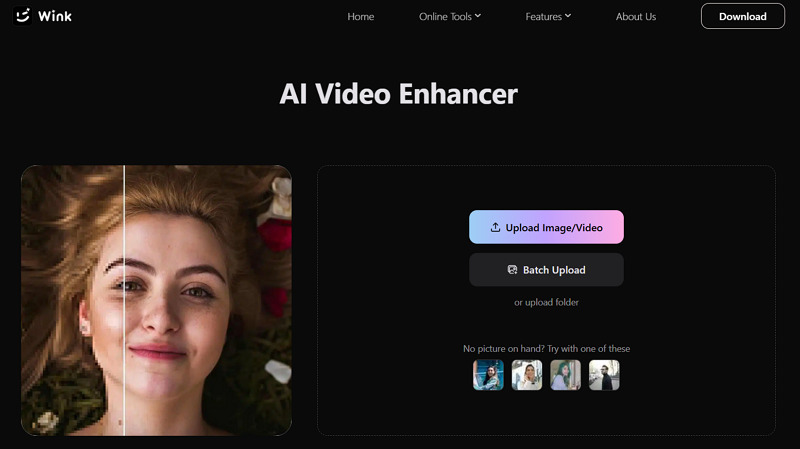
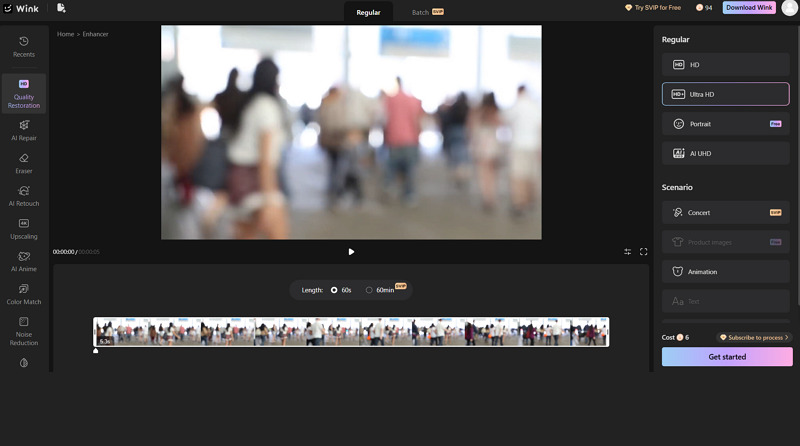
Step 2. Choose Regular or Scenario
Next, choose any option under the “Regular” or the “Scenario” menu. You can also use other tools like “AI Repair,” “AI Retouch,” or any other, depending on the video. Then, press “Get Started.”
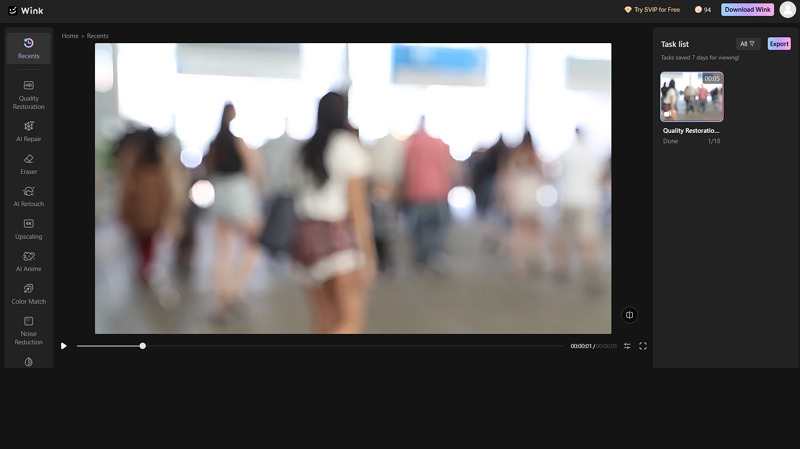
Step 3. Preview and Export
Once processing is complete, preview the output file, and if it’s okay, hit the “Export” tab. You’re all done!
Guide 2. How to Use Wink Video Enhancer on Desktop
Step 1. Import Video
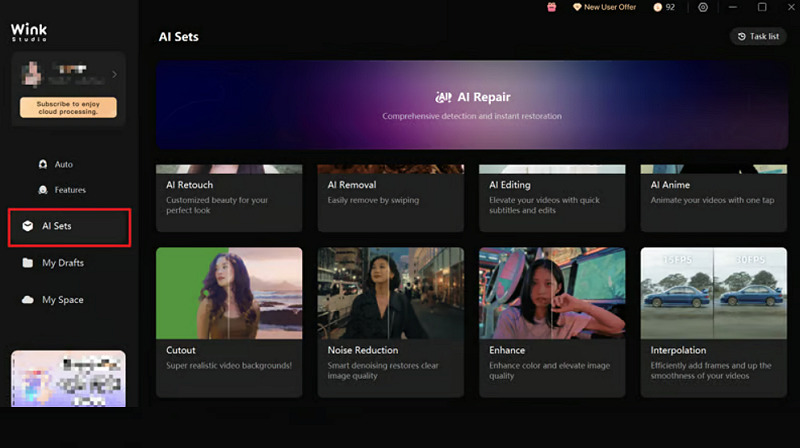
Open the official website of Wink AI, press “Download Now,” complete the installation, and launch it. Now, choose “AI Sets,” pick any tool like “AI Repair,” and import a video.
Step 2. Select the Enhancement Level
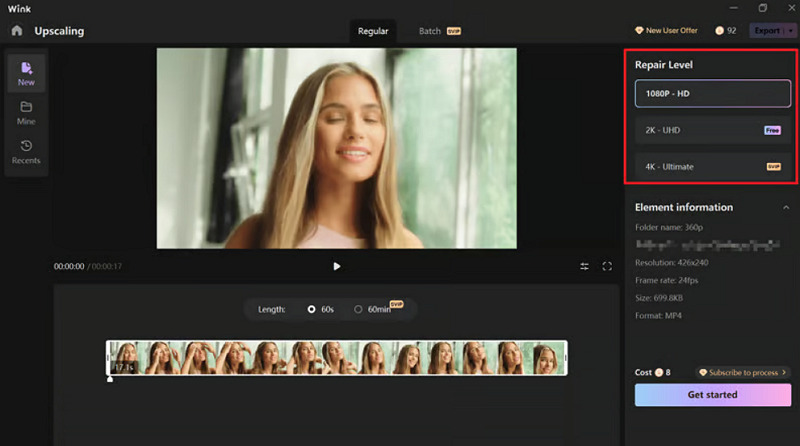
Next, you can trim the video and select the preferred “Repair Level.” Then, press the “Get Started” button.
Step 3. Export the Output
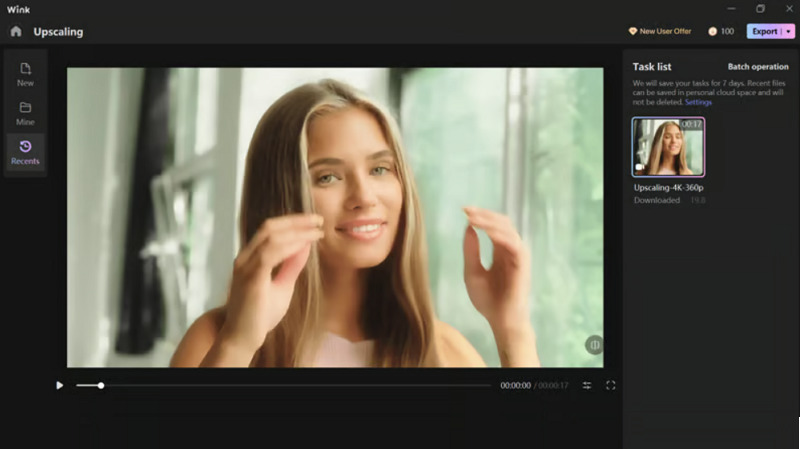
Lastly, hit “Export” to save the video to your device or share it directly on other social platforms. That’s all!
Guide 3. Step-by-Step Tutorial to Enhance Videos on Mobile
Step 1. Launch the App
The first step is to open the Wink Video Enhancer & Editor app in the Play Store or App Store, complete the installation, and launch it.
Step 2. Choose the Enhancement Tool
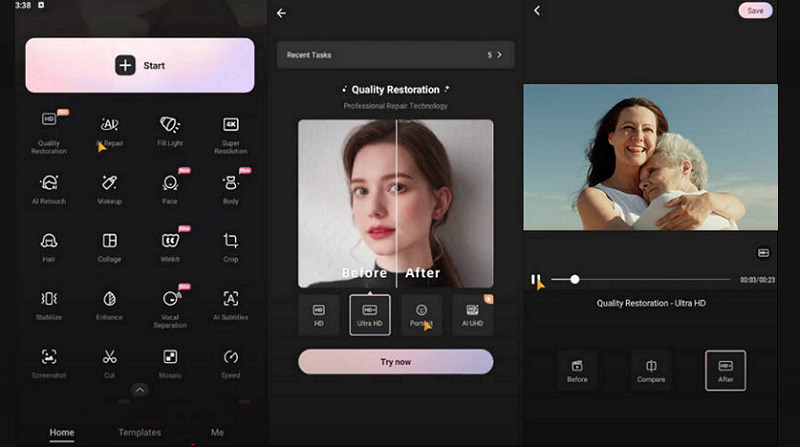
Now, select the preferred enhancement tool, such as “Quality Restoration” or “4K Upscaling.” Import the video and tap the “Start” button.
Step 3. Save the Enhanced Video
Lastly, check the “Before,” “After,” or “Compare” results. And if the output is fine, hit “Save.” All done!
Pricing Review of Wink Video Enhancer
Wink Video Enhancer offers both credits and a subscription system to accommodate different user needs. You can use the premium features however you like. Here is the table to better understand the pricing structure:
Plan | Pricing | What’s included |
Subscription (Monthly) | $19.99 | Advanced features Access to AI tools 300 free credits per month Process 100 images and 60 minutes of video daily |
| Yearly | $99.99 | |
| Top up | $7.99 | 25 (valid for one year) |
| $24.99 | 100 | |
| $39.99 | 200 | |
| $59.99 | 500 | |
| $79.99 | 1000 |
How Wink Video Enhancer Competes with Other Alternatives?
To have a comprehensive review of Wink Video Enhancer, you must compare it with other alternatives across key aspects. Let’s look at the comparison table below, including Vmake, Picwand, and HitPaw:
Tool | Platform | Speed | Output Quality | Ideal for |
Wink Video Enhancer | Web, Desktop (Win & Mac), Mobile (Android & iOS) | Average | Good | Offer scenario-based video enhancement with support for 4K upscaling with sign-up; excels at short video clips |
Web, Mobile (Android & iOS) | Fast | Best | World-leading scenario-specific enhancement and restoration with support for 4K+ upscaling | |
Picwand Video Enhancer | Web, Desktop (Win & Mac), Mobile (Android & iOS) | Average | Best | Professional video quality enhancement with noise reduction and support for up to 4K upscaling |
X-Design Video Enhancer | Web | Average | Good | Quick video quality enhancer and upscaler, with auto color correction and sharpening |
Wink Video Enhancer: Benefits & Drawbacks
Along with the benefits, Wink Video Enhancer also has some limitations that must not be overlooked. Here are some pros and cons:
Pros:
Cross-platform support
Easy to use with an intuitive interface
Enhance both images and videos
Auto adjustment of all video aspects
Offer a range of enhancement tools
Suitable for portrait videos and vlogs
Allow enhancement of multiple videos
Cons:
Require sign-up for processing
The free version has watermarks
Only basic features are available for free
Lack of advanced editing functionalities
It may struggle with low-quality clips
Final Verdict: Is Wink Video Enhancer Worth Using in 2026?
No doubt, Wink Video Enhancer is a fantastic solution for users who want quick, AI-powered enhancement for short videos, with no learning curve. Whether you are fixing old personal footage or creating social media content, Wink AI gives your videos a clean, polished look on any device.

You May Be Interested

Seedance 2.0: What's New & How to Use It
123APPS Watermark Remover Review (2026): Pros, Cons, and Pricing

5 Best Valentine's Day Video Ideas for eCommerce in 2026

How to Create a YouTube Thumbnail? Create YouTube Thumbnails Using AI