How to Make AI Video of Photo Without Looking Strange: Complete Guide
Discover how to make AI video of photo without looking strange. Learn the techniques, tools, and settings that help avoid awkward movements and uncanny animations. Master Vmake and bring life to your photo.
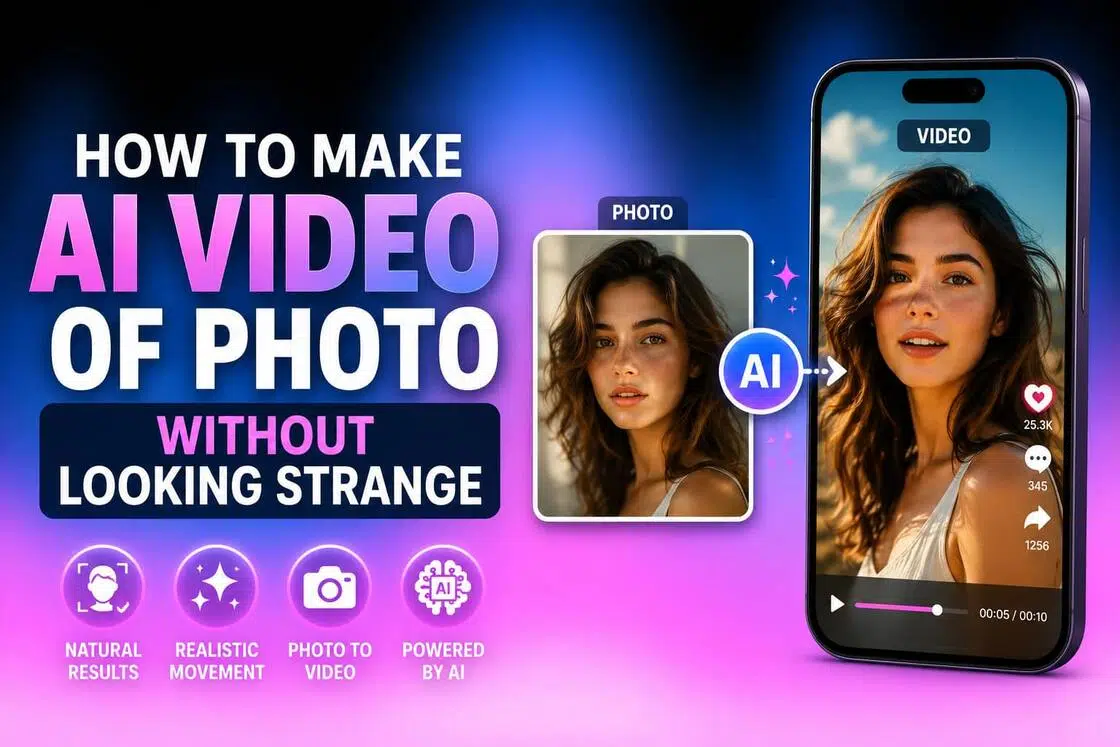
While many AI tools can generate movement from a still image, realism still remains the hurdle. You've probably already seen common problems. A smile stretches a little too far, the eyes don't quite track naturally, or facial features shift between frames. In this guide, you'll learn what causes AI videos to appear unnatural, common mistakes, and how to make AI video of photo without looking strange.
What makes AI videos look unreal
-
Overly exaggerated facial expressions
To make a still photo feel alive, many generators push facial movements much harder than they should. Smiles become too wide. Eyebrows jump around. Mouth movements look strangely theatrical, almost as if the person is overacting for a camera that isn't there. The result rarely feels human.
Real people are subtle. A slight grin or a brief change in expression usually says more than an exaggerated reaction ever could.
-
Unnatural eye movement and blinking
People look at eyes first. That's why small mistakes become big problems. When blinking happens too often, or not often enough, the video starts to feel strange. Sometimes the eyes drift slightly out of sync. Other times, the gaze shifts in a way that no real person would.
Human eye movement follows patterns we've spent our entire lives recognizing. Replicating that turns out to be more difficult for some platforms.
-
Excessive head motion
A little movement helps. Too much of it creates a different problem entirely. Many AI generators compensate for a static image by adding dramatic nods, turns, and tilts. The intention makes sense. The execution often doesn't.
Think about a normal conversation. Most people don't constantly move their heads from side to side. Their expressions carry interaction while head movement plays a supporting role. AI systems tend to reverse that balance, and the result can feel robotic.
-
Warped hands and body parts
For all the progress AI has made, fingers remain surprisingly difficult to generate correctly. You might notice hands changing shape between frames, limbs bending at odd angles, or proportions that look almost right until you take a second glance.
The reason is fairly simple. Human anatomy is complex, and viewers are exceptionally good at spotting mistakes. Even minor distortions can pull attention away from the subject and toward the flaw itself.
-
Background distortions and flickering
Most people focus on the face. The background matters more than they think. When walls appear to shift, furniture changes shape, or objects flicker between frames, the illusion starts to break apart. You may have a perfectly animated subject in the foreground, yet viewers end up staring at a lamp that's mysteriously moving on its own.
How to make an AI video of a photo without looking strange
-
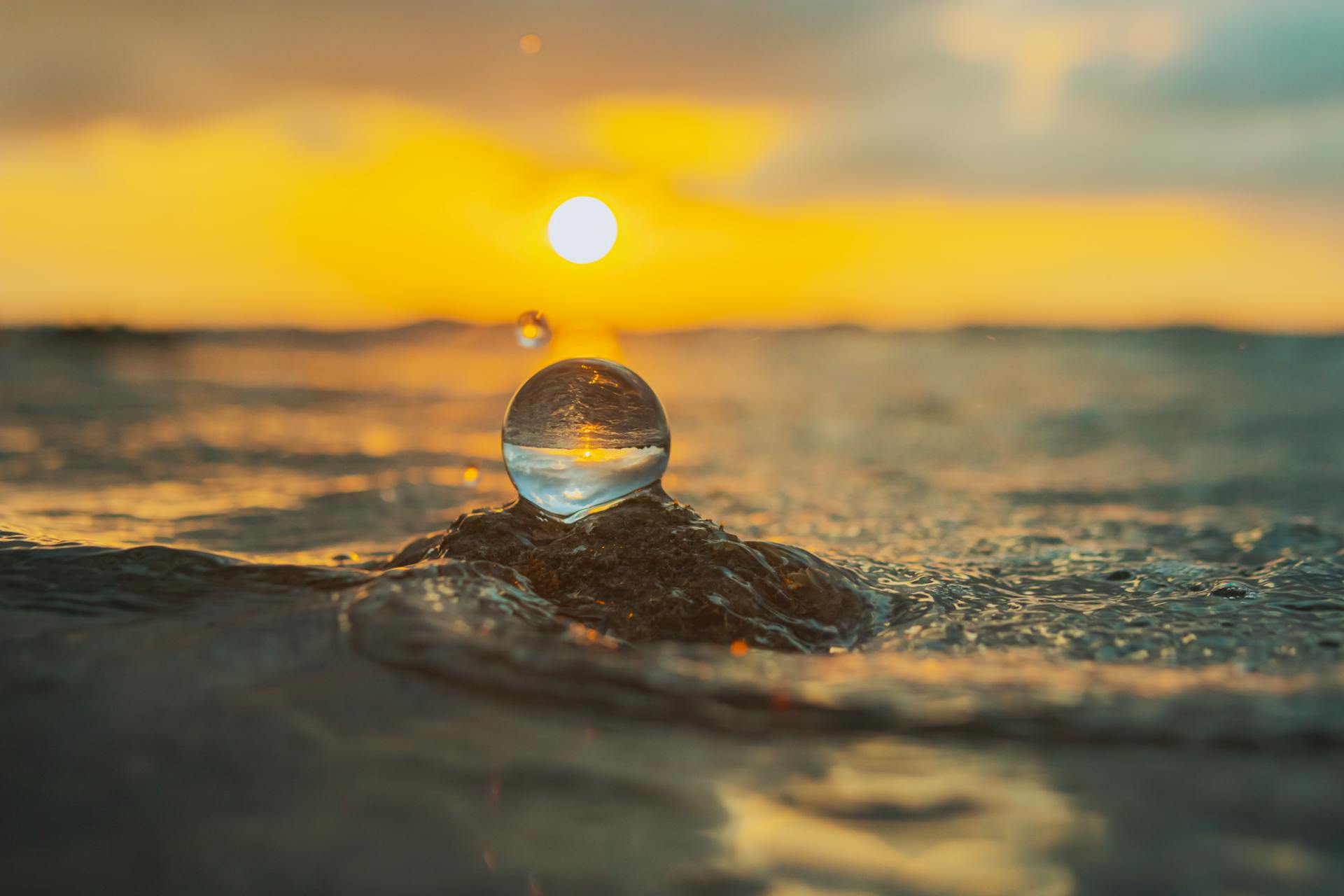
Use sharp, high-resolution photos
Everything starts with the photo. If your source image is blurry, heavily compressed, or lacking detail, the AI has to fill in the gaps on its own. That's usually where problems begin. Facial features can shift, skin textures may look inconsistent, and small details often get invented rather than preserved.
-
Keep motion simple and realistic
Most AI videos look better when less is happening. There's a temptation to add dramatic head turns, exaggerated expressions, and constant movement because it feels more impressive. In practice, that's often what makes the video look artificial.
-
Use detailed prompts for natural results
AI can only work with the instructions you give it. A vague prompt like "animate this photo" leaves far too much room for interpretation. The model fills in the blanks, and sometimes it gets things right. Sometimes it really doesn't.
-
Leverage real-world lenses and lighting
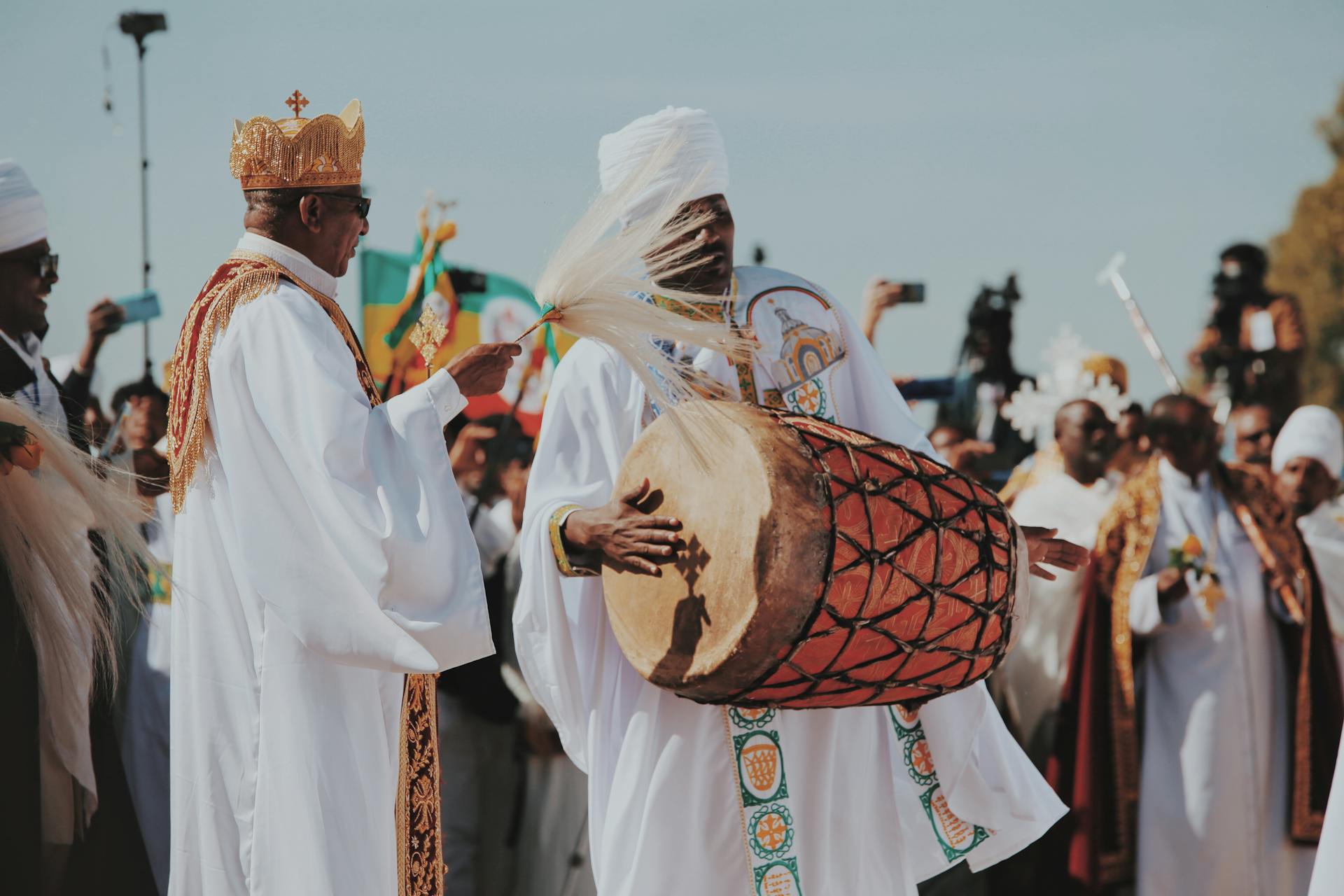
The videos that look the most realistic usually borrow from real photography. Many AI video tools let you choose camera styles, depth-of-field effects, focal lengths, and lighting setups. When those settings mimic how an actual camera behaves, the result often feels far more believable. Soft daylight, natural shadows, and realistic focus falloff tend to work particularly well.
-
Maintain facial consistency throughout the video
Nothing breaks realism faster than a face that keeps changing. You might start with a convincing animation, only to notice the eyes look different halfway through the clip. Facial proportions subtly change. The person still resembles the original subject, but something feels off.
Meet Vmake AI: Make a realistic AI video out of a photo easily
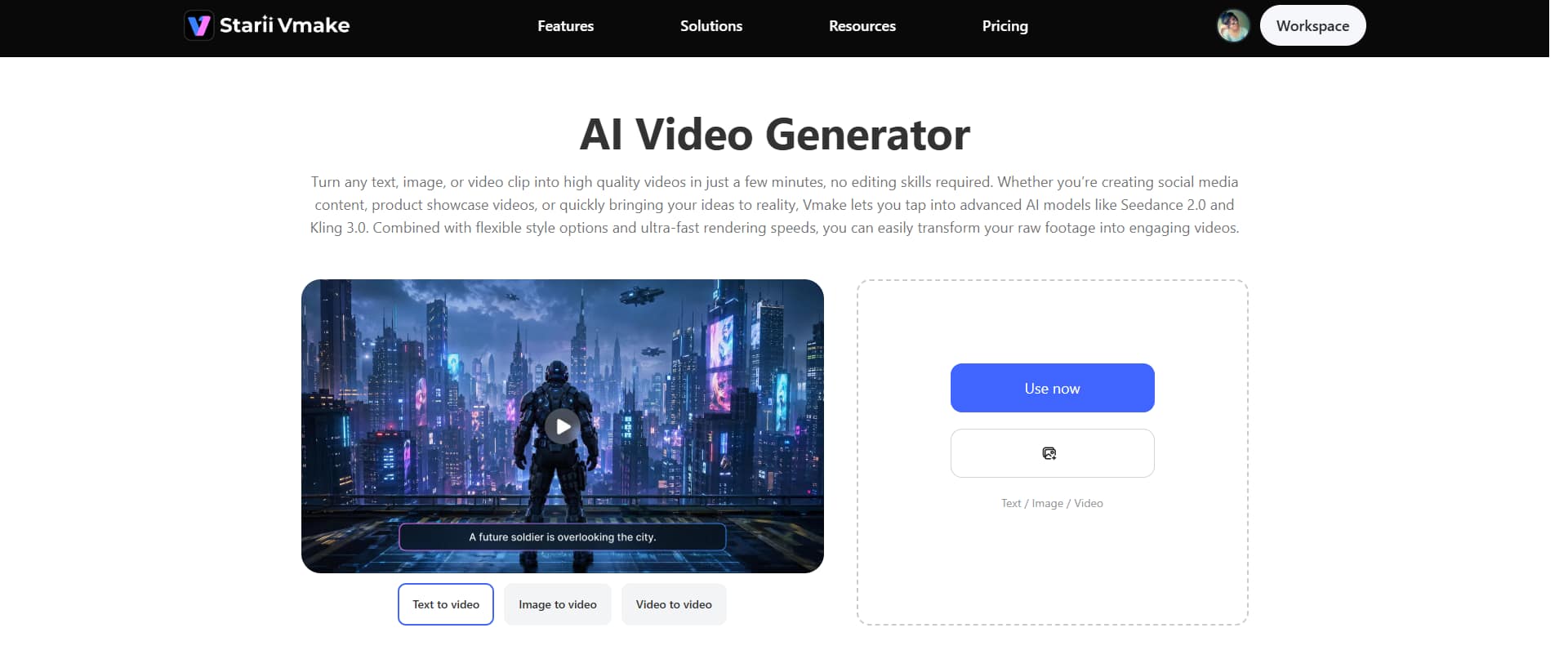
Vmake AI video generator focuses on a simple idea: turning static photos into videos that look more natural and less obviously contrived. The platform brings together image animation, video enhancement, and quality-improvement tools in one place. Instead of juggling multiple apps and workflows, you can handle most of the process from a single dashboard. That's appealing if you're producing content regularly and don't want to spend hours fine-tuning every clip.
Key features
-
AI avatar video
Vmake AI can generate an AI avatar video from one image, complete with lip-syncing, facial expressions, and natural-looking movement. The goal isn't just to make the photo move. It's to make the person still feel like the same person once the animation starts.
-
High-resolution output
Vmake AI produces high-resolution videos that preserve facial features, skin texture, and the smaller visual details that make a person look real rather than AI-generated. If you are not satisfied, then you can use its AI photo enhancement methods and remove noise from video or smooth the blur for a polished output.
-
AI video enhancer (De-AI)
Instead of piling on more effects, the tool concentrates on cleaning things up. Lighting and color inconsistencies are smoothed out, while finer details are rebuilt to make the footage feel more believable.
Step-by-step guide
Step 1: Add your content idea
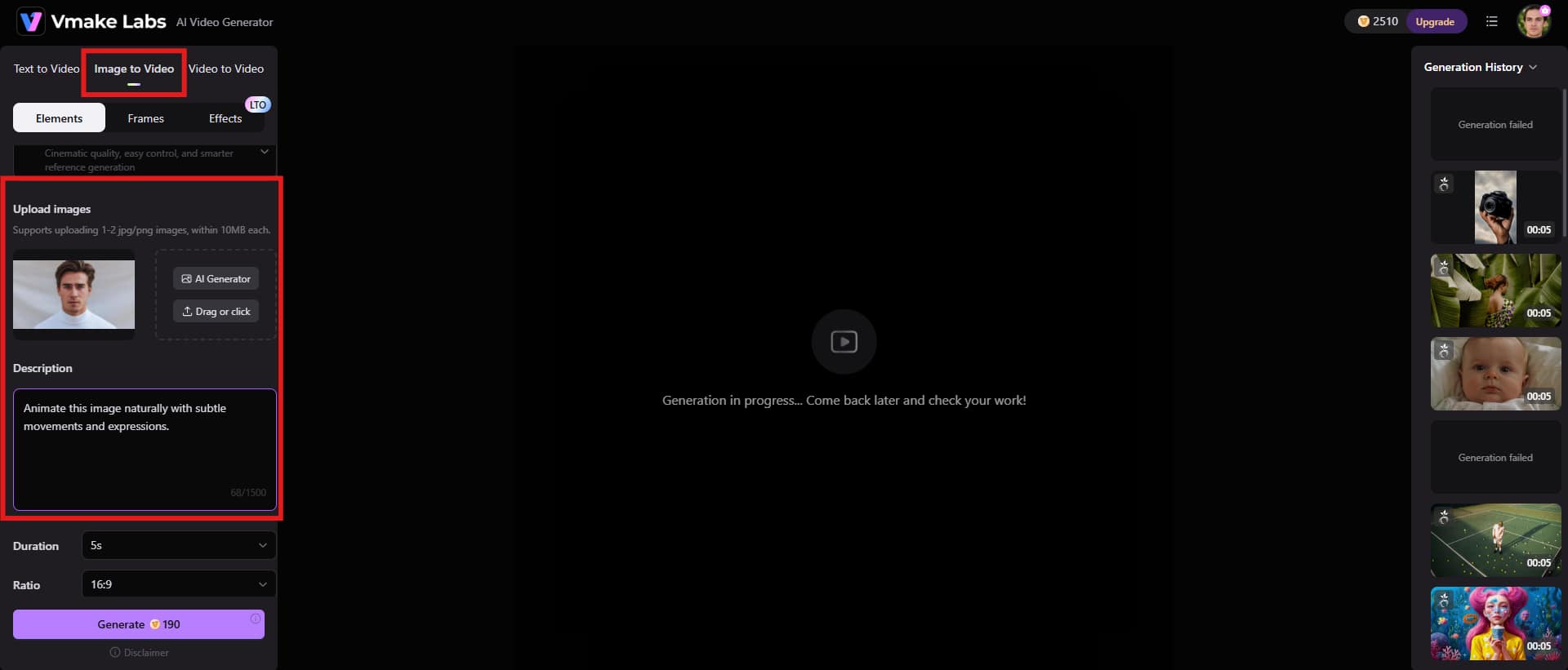
Open Vmake in your browser and start by selecting the Image to Video option. Next, upload the photo you'd like to animate. A clear, well-lit photo usually gives the AI far more to work with. Then comes the prompt. Tell the AI what you want to see. The more specific your instructions, the easier it is for the model to understand the direction you're aiming for.
Step 2: Adjust settings and generate
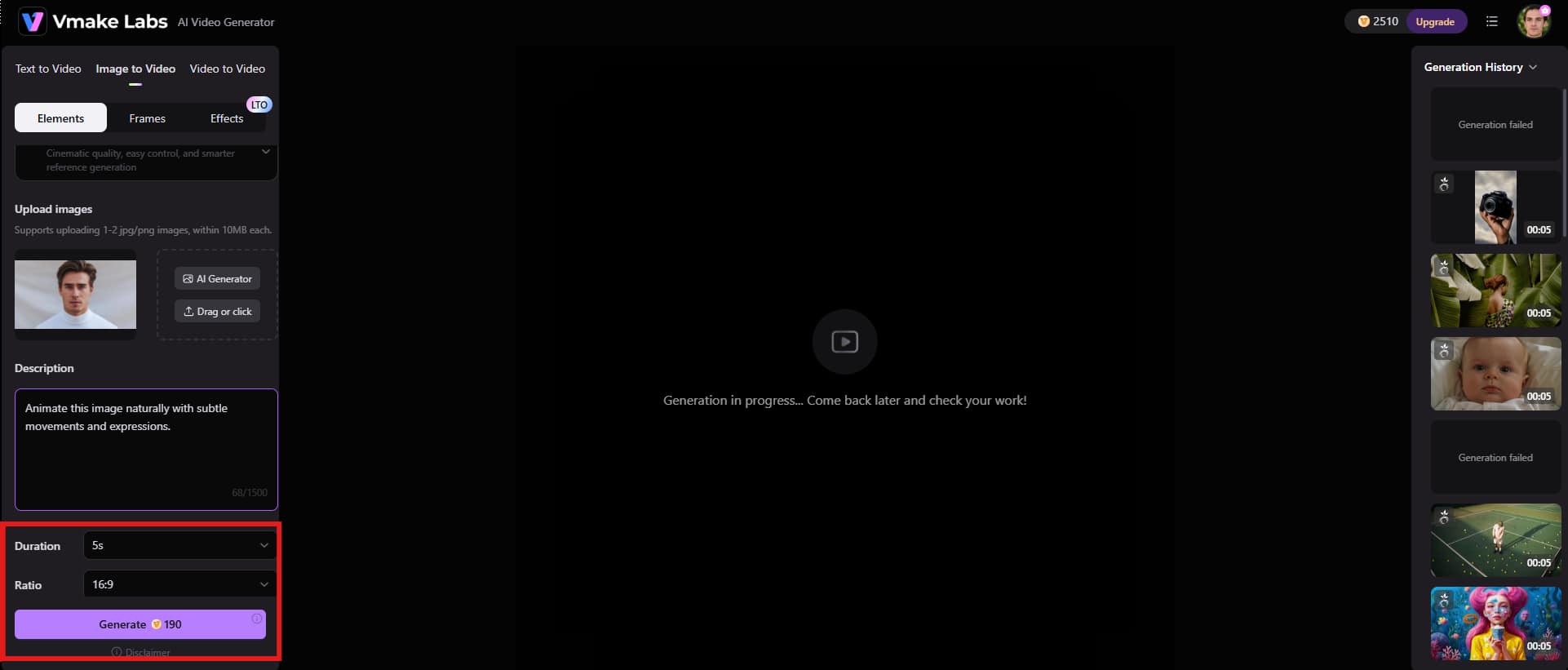
Once you have uploaded an image, start adjusting certain settings. Choose the final video duration and aspect ratio, depending on where your video is going to be uploaded. Finally, click "Generate" to proceed further.
Step 3: Download the final video
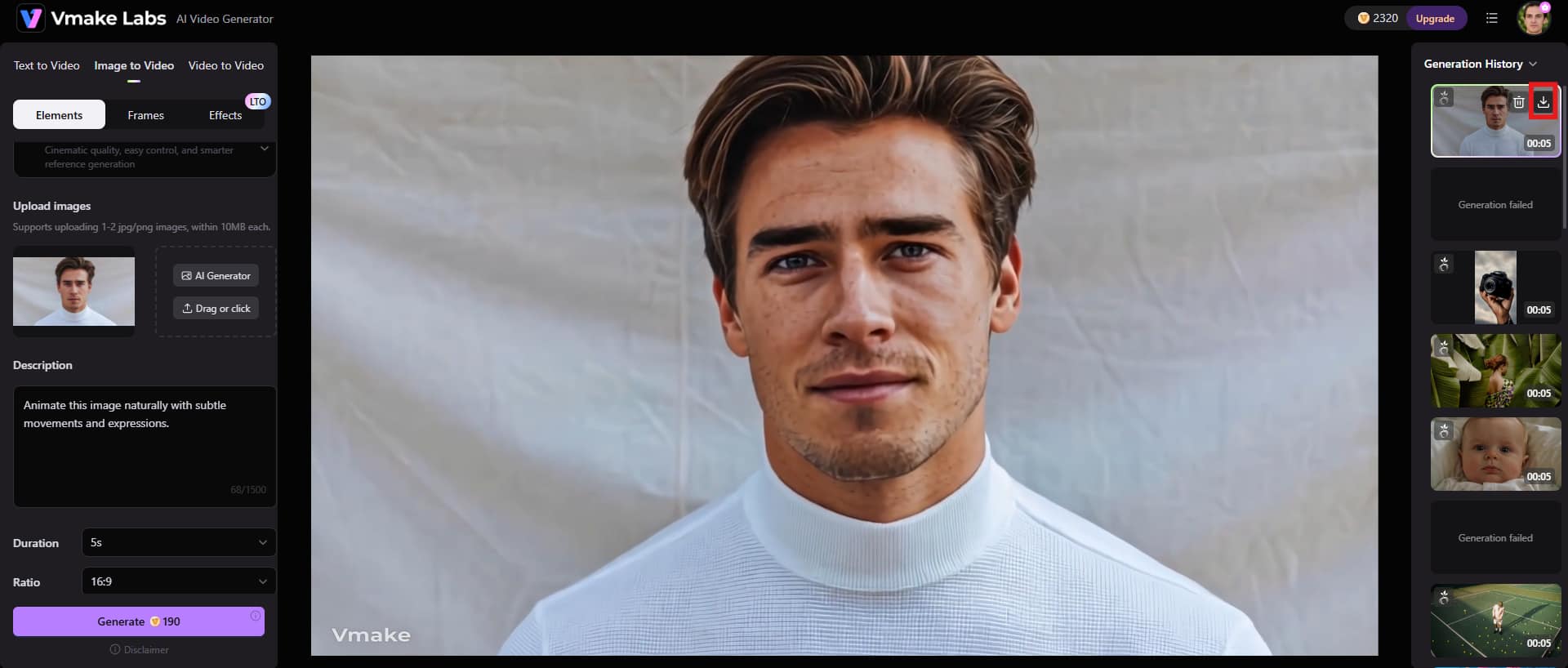
Before you save anything, take a minute to preview the final video. Looks good? Head to the top-right corner and click the "Download" icon. The video will be saved, so you can use it wherever you need.
Common mistakes that make AI photo videos look fake
-
Animating parts of the image that should remain still
Not every part of a photo needs to come to life. One of the things that makes an AI video feel fake is by adding movement where there shouldn't be any. Glasses shift. A picture frame in the background seems to drift for no reason.
-
Ignoring body-language limitations
A photo captures a fraction of a second. Yet many AI tools try to stretch that single frame into dramatic movements; big head turns, shoulder shifts, expressive gestures, and sometimes even full-body actions.
-
Unnatural eye focus and gaze direction
People are incredibly good at reading eyes. You can get away with minor imperfections in lighting or texture. Eye movement is different. If the gaze keeps drifting around the frame, looks in two directions at once, or doesn't match the movement of the head, viewers pick up on it almost instantly.
-
Overusing AI-generated effects
Just because an effect exists doesn't mean you need it. Many creators pile on filters, dramatic camera moves, stylized lighting, and visual enhancements because they look impressive at first glance. The problem is that every extra effect creates another opportunity for something to feel artificial.
-
Skipping manual review before publishing
Don't trust the first render. AI can generate an impressive result and still hide small mistakes in places you weren't looking. A facial feature shifts for a split second. A hand looks unusual in one frame. Something strange happens in the background and disappears before you notice.
What types of photos are best for AI video generation
-
Portrait photos
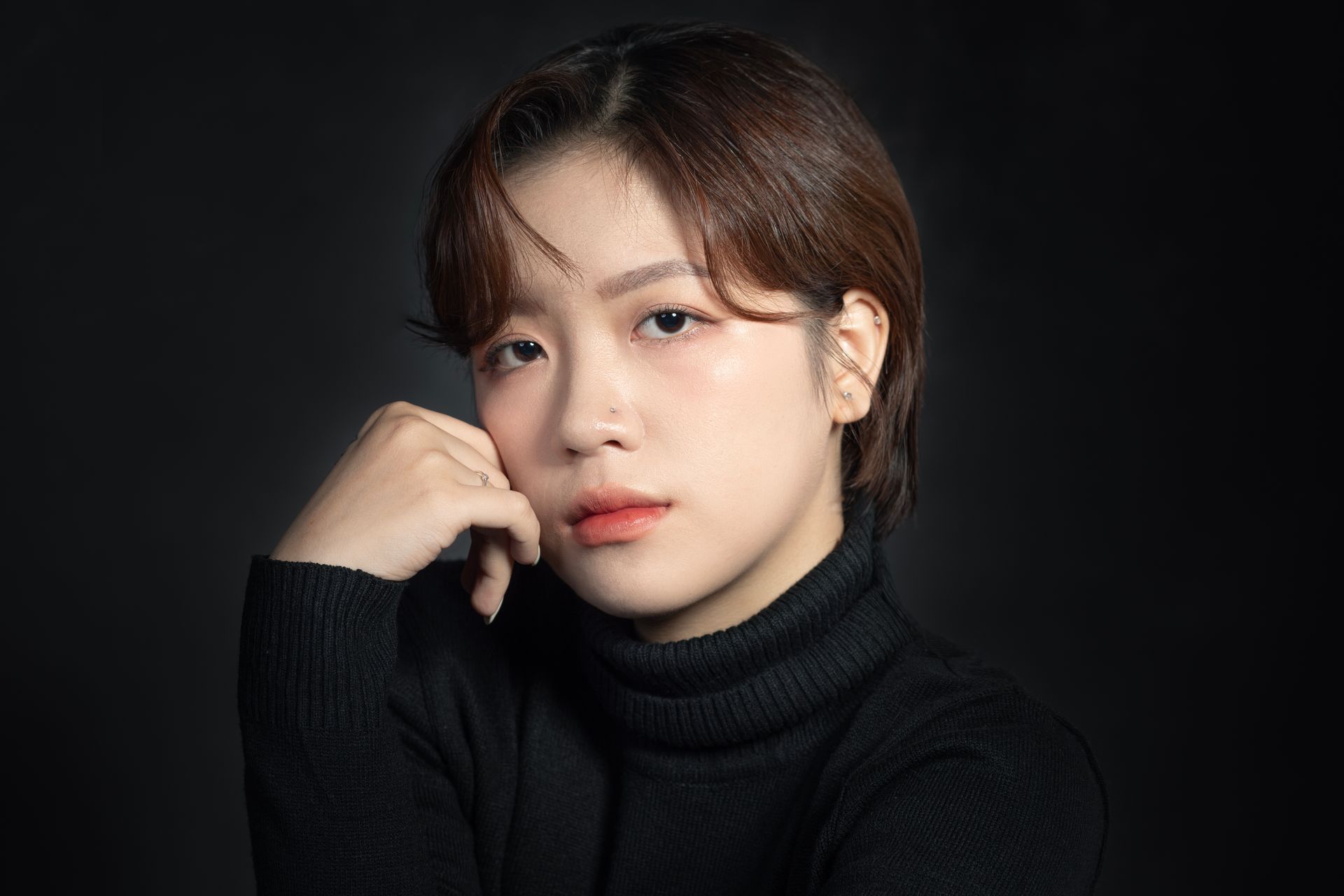
Portraits tend to produce some of the most convincing AI video results. The reason is fairly simple. A good portrait usually gives the AI a clear view of the face, along with useful details about lighting, skin texture, and facial structure. When that information is already present in the image, the model spends less time guessing and more time working on what's actually there.
-
Selfies
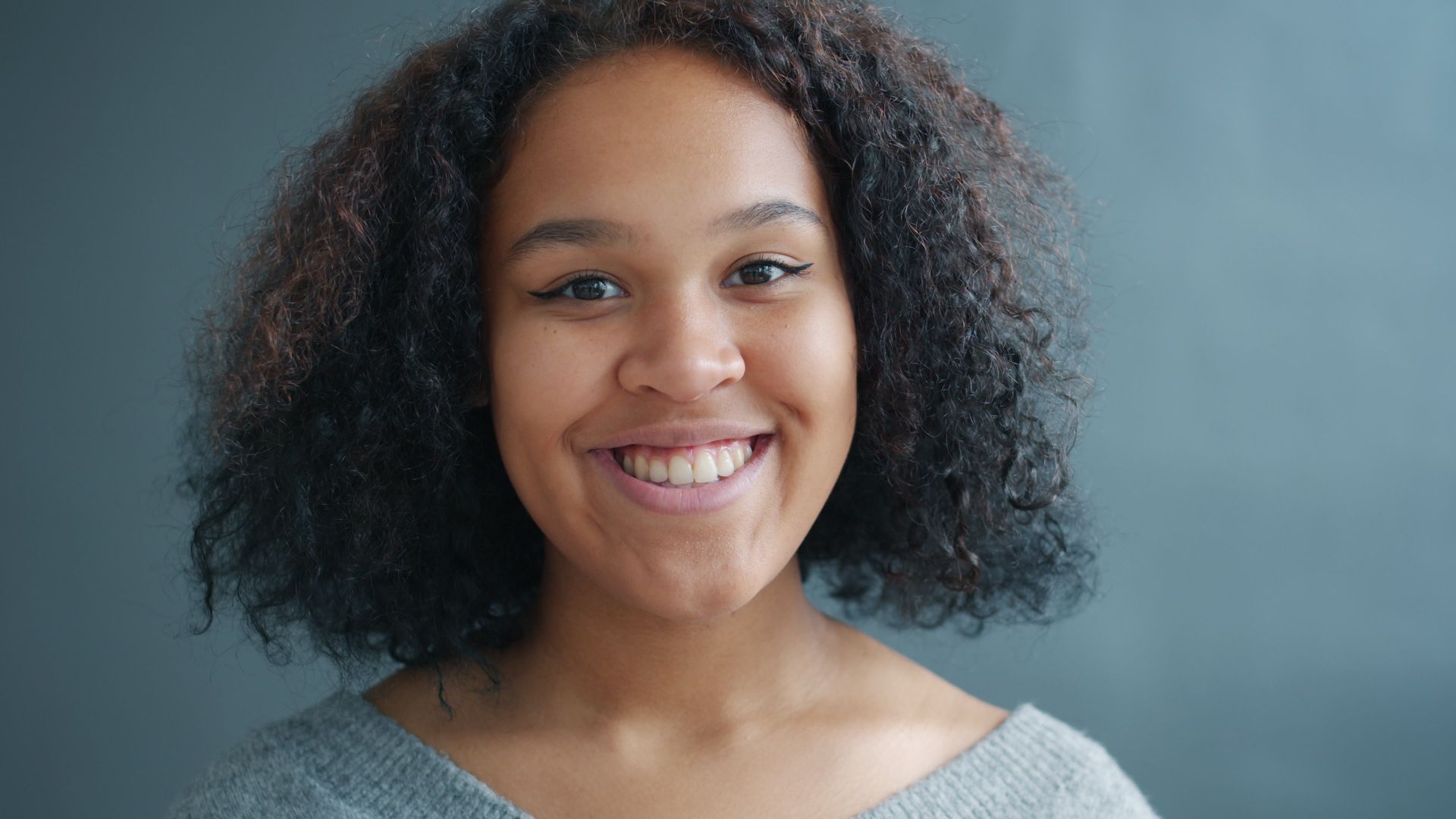
Don't underestimate a good selfie. Most selfies naturally place the face front and center, which is exactly what AI animation tools prefer. Clear eyes matter. Give the model decent lighting and facial features it can actually see, and you're already ahead of the curve. That's often enough to produce natural-looking movement without much extra effort.
-
Professional headshots
If your goal is realism, professional headshots are hard to beat. They're typically well-lit, sharply focused, and carefully composed. Every one of those factors helps the AI generate more consistent results. Facial details are easier to preserve. Even subtle movements often look more convincing because the source image contains so much usable information.
-
Old family photos
AI animation has opened up a surprisingly simple way to bring old photographs back to life. Images that sat untouched for years in albums, storage boxes, or random computer folders can suddenly show a hint of movement again.
Usually, the effect isn't dramatic. That's actually why it works. A slight turn of the head. A blink. Maybe a faint smile. Those small details tend to keep the character of the original photo intact instead of pushing it into that uncanny territory that so many tools stumble into.
Conclusion
That's how to create AI video of photo without looking strange. Everything begins with the photo. If your source image is missing detail, you're already starting with a disadvantage. The AI can only work with what's there. Sharp focus helps. So do clear facial features and decent lighting. When it comes to AI video generation, subtle motion tends to look far more believable than dramatic gestures. A slight head turn can feel natural. An exaggerated wave or sudden movement often introduces strange distortions that pull you right out of the moment.
Tools like Vmake can help create smoother results when you use them carefully. You can get from photo to animation faster, which is nice when you're processing multiple images.
FAQs
Why do AI videos from photos look fake?
Usually, the giveaway is in the details. At first glance, an AI-generated video can look surprisingly convincing. Then something small catches your eye. Maybe a facial expression shifts in a strange way. Eyes move unnaturally. Expressions feel exaggerated. Facial features shift between frames. Sometimes the background starts flickering for no apparent reason.
What is the best photo for AI video generation?
The best results usually start with a clear photo. Start with a photo that gives the AI something useful to work with. Portraits usually produce the best results because the subject is front and center, with features that are easy to identify and animate. That's one reason professional headshots tend to perform so well. High-quality selfies can work just as nicely, assuming they aren't overloaded with filters or softened into a blur.
How can I reduce uncanny facial movements?
Less is often more. Start with a high-quality image. Everything gets easier from there. Small facial expressions tend to feel more natural. A slight glance, a blink, or a gentle head turn can create a surprisingly believable result without drawing attention to the animation itself. Push for dramatic motion, though, and you'll often end up with distortions that break the illusion.
Can AI animate old photos realistically?
Yes, you start with a still photograph that's been frozen in time for decades. Then a blink appears. A faint smile follows. Suddenly, you're not just looking at a picture anymore. Modern AI tools can add movement to historical photographs while keeping much of the original character intact. When it works well, the effect feels natural enough that you almost forget you're watching something generated.
Does video length affect realism?
AI models generally have an easier time with shorter clips. There aren't as many frames to generate, which means it's simpler to keep faces, movement, and overall visual style looking consistent. Longer videos are a different story. As the duration increases, small issues have more opportunities to appear. A face might shift slightly from one scene to the next. Motion can start to feel less natural.
Which tool creates realistic AI videos from a single photo?
There isn't a single answer that works for everyone. What makes sense for you depends on the kind of content you're trying to create, the amount of control you want, and frankly, how much time you're willing to spend learning a new tool. Vmake AI is one platform that's worth a look. You get image animation, AI avatar creation, video enhancement, and high-resolution exports in one place. That can save you from bouncing between multiple tools just to finish a single project.

You May Be Interested
Viggle AI Video Generator Review & Top 2026 Alternatives
Trump AI Video Generator: 3 Best Tools to Create AI Videos
How to Remove Background from a Video: Guide to Professional Edits

Best AI Animation Generators for Creating Images and Videos
How to Touch Up Photos in 2026: Best AI Tools to Retouch Images Easily