
How to Duet on TikTok: The Ultimate Guide to Viral Collaboration
Learn how to duet on TikTok with the official step-by-step guide. Discover layouts, sound tips, privacy settings, and creative ideas. Plus, discover how Vmake can level up your TikTok content creation game.
TikTok Duets have quickly become one of the platform's most popular collaboration features, allowing creators to react, perform, teach, and engage with existing content. If you're wondering how to duet on TikTok, this guide explains everything you need to know: from creating your first Duet to adding sound and troubleshooting common issues.
What is a TikTok Duet?
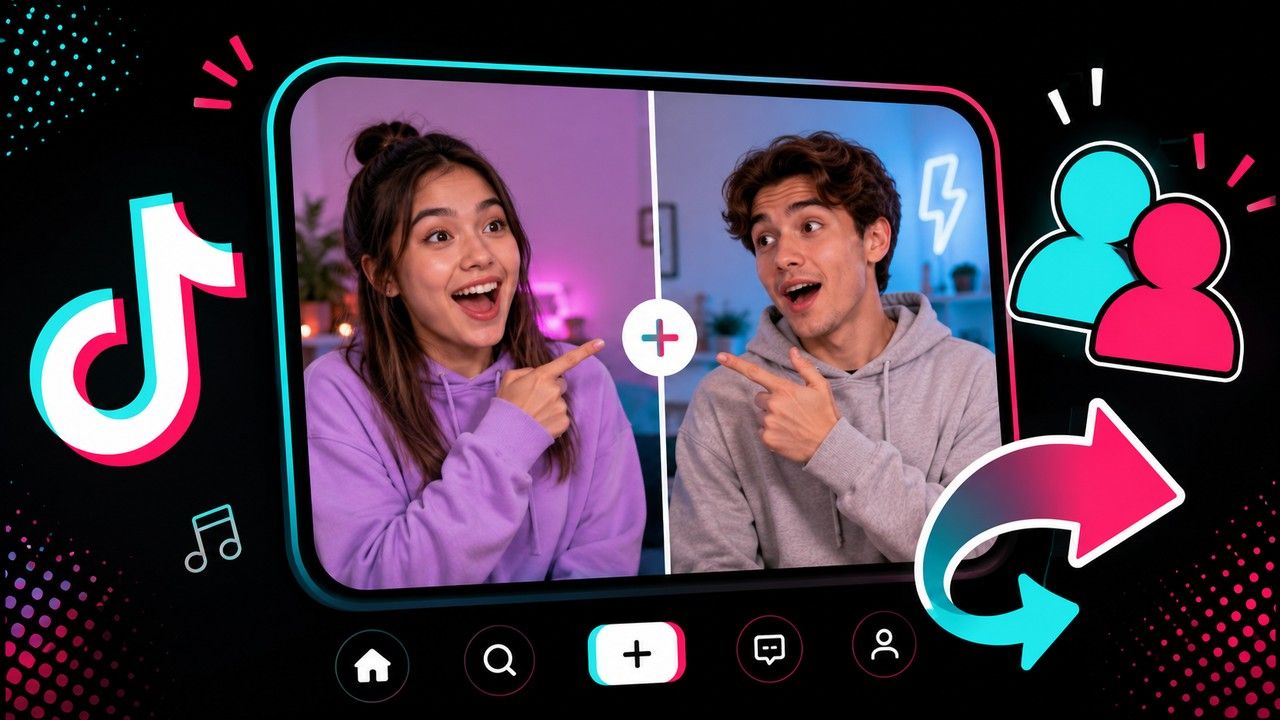
A TikTok Duet is a feature that allows you to upload your video next to a video from another creator. Both videos will play at the same time in a split screen format, allowing you to react, comment, or interact with the original post in real time.
TikTok Duets enable users to improve engagement by interacting with viral content, joining viral trends, extending reach, and increasing engagement through collaboration and real-time communication.
Duet vs. Stitch vs. Repost
|
Feature |
Format |
Original Video Usage |
Best For |
|---|---|---|---|
|
Duet |
Split-screen (side-by-side or other layouts) |
Full original video plays simultaneously |
Reactions, real-time commentary, dances, singing |
|
Stitch |
Sequential (original clip first, then your addition) |
Up to 5-second clip from original |
Adding context, answers, continuations, or expansions |
|
Repost |
Shares the original video unchanged |
Full video as-is |
Simple sharing without adding content |
How to duet on TikTok?
Creating a Duet on TikTok is fast and easy for beginners. Here are some easy steps to duet with someone on TikTok.
Step-by-step guide
Step 1: Locate the video and tap the Share button
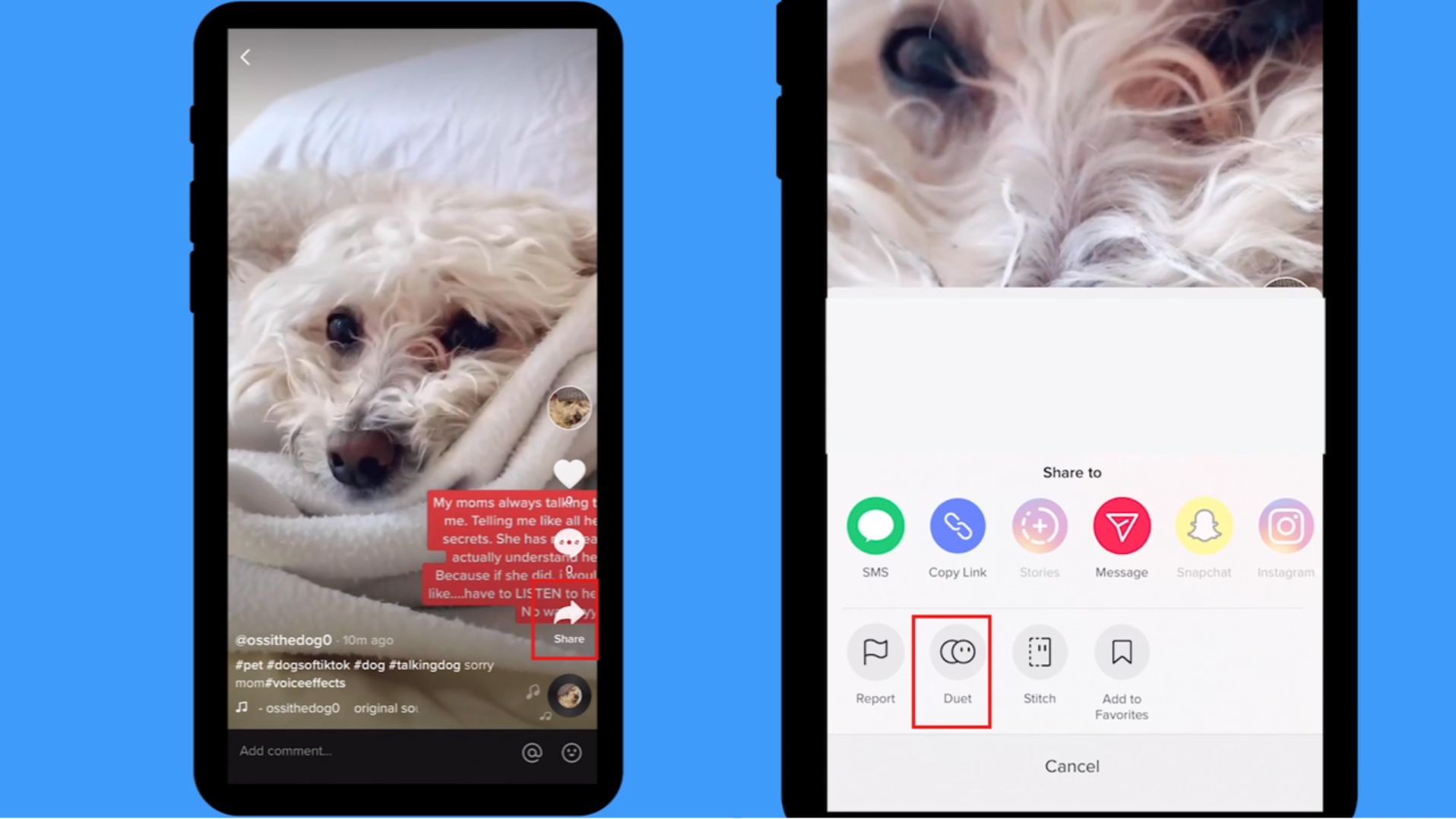
Head over to your For You page, find the desired video by either scrolling or using the search bar to look for a particular creator. On the right side of the video, tap the Share icon (the arrow-shaped button).
Step 2: Select Duet
Tap the Duet button in the bottom menu. If you do not see it, swipe left through the icons. If it is greyed out, the creator has turned off Duets for that video.
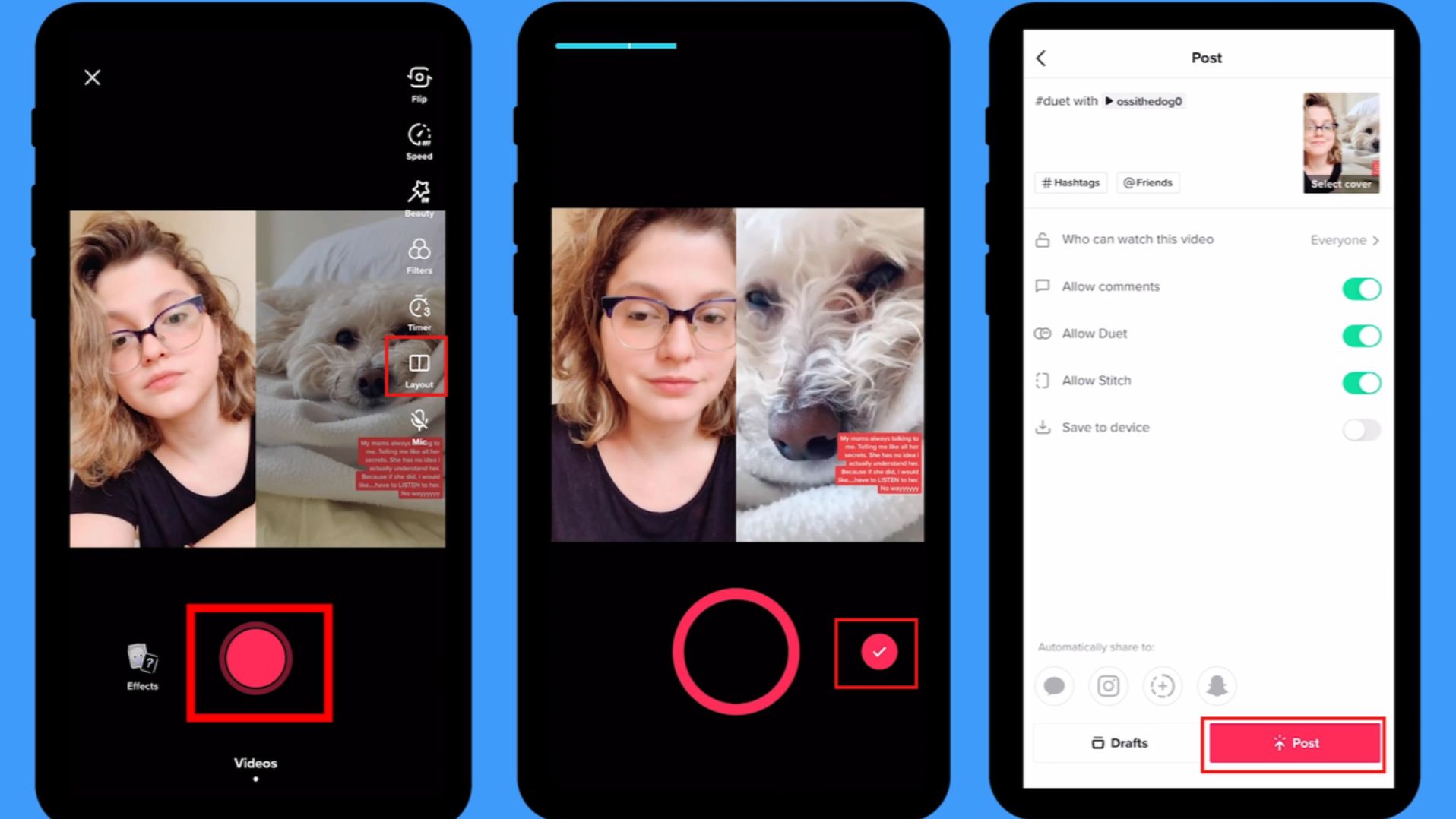
Step 3: Choose a layout
On the right-hand panel, tap Layout to choose how your video appears. Options include side-by-side, top-and-bottom, React (picture-in-picture), or Green Screen.
Step 4: Record and edit
Tap the red Record button to film your part. When finished, tap the checkmark icon ($$\checkmar$$). You can now add filters, text, stickers, or voice effects.
Step 5: Post Duet
Tap Next. Add a description, hashtags, and adjust your privacy settings. Finally, tap Post (or Drafts to save it for later).
Bonus: How to duet on TikTok with sound
When you create a Duet, TikTok automatically includes the original video's audio. However, you can also add your own voice using your microphone or a voiceover.
Option 1: Record with your mic
If you want viewers to hear your reactions or commentary while recording:
-
Open the Duet screen and Tap the Mic button on the right side.
-
Make sure the microphone is turned on before recording.
-
Record your duet as usual. Then, tap Continue (✓) when finished.
-
Select Volume in the editing menu. Adjust the balance between the original video's audio and your microphone audio.
-
Preview the video and tap Next to post.
Option 2: Add a voiceover
-
Record your Duet first, then tap the Continue (✓) button.
-
On the editing screen, tap Voice.
-
Tap the Record button and speak your voiceover. After that, tap Save when done.
-
Tap Volume and lower the Added Sound slider so your voice is clearly heard over the original audio.
Troubleshooting microphone issues
If TikTok cannot access your microphone:
-
Open your phone's Settings app.
-
Tap Apps, and select TikTok.
-
Open Permissions and Enable Microphone access.
After granting permission, restart TikTok and try recording again.
Popular TikTok Duet ideas that get engagement
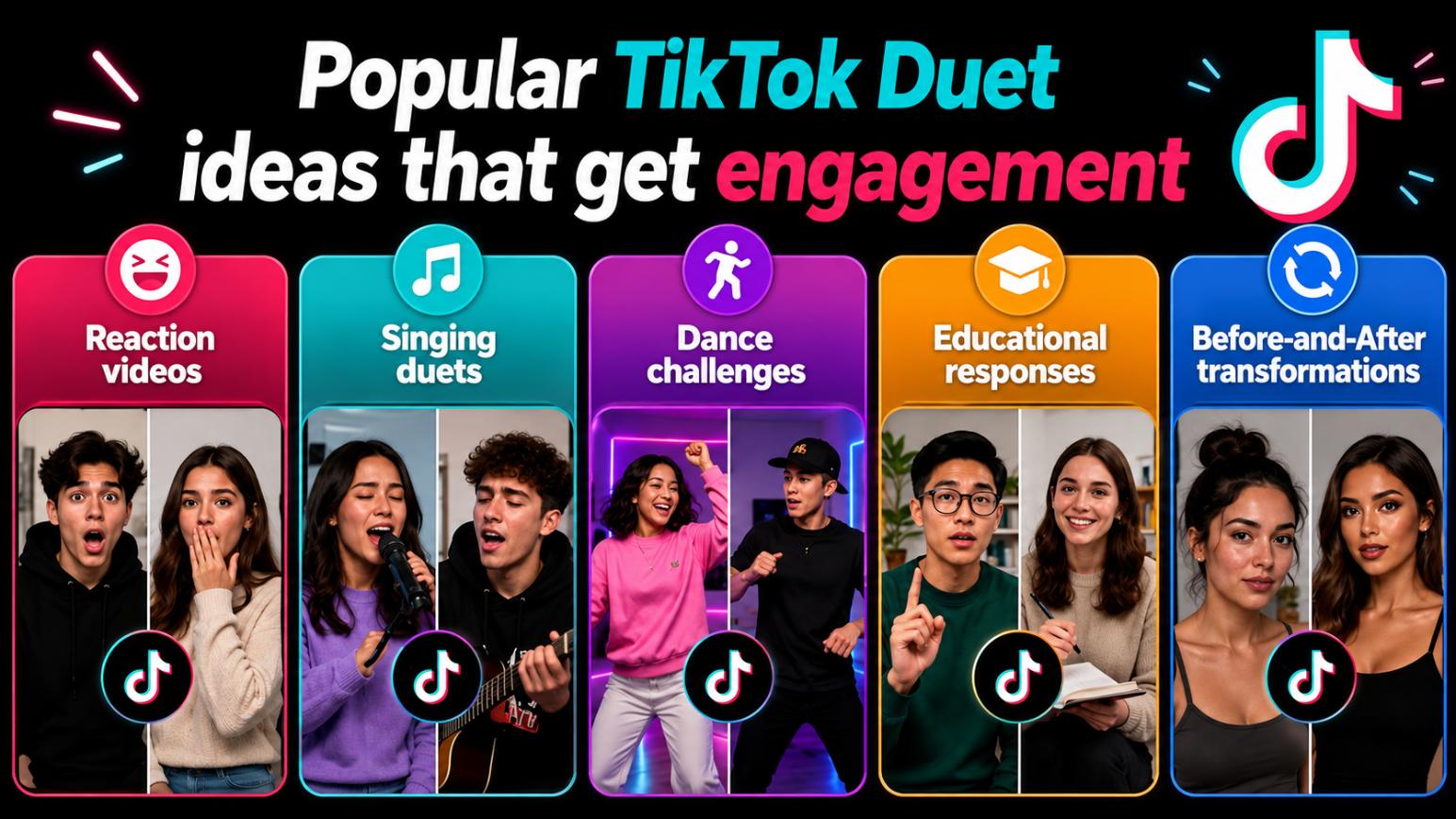
Duets are one of the best ways to spark interaction and grow fast on TikTok. Here are the most engaging duet ideas that consistently perform well.
-
Reaction videos: You can respond to humorous clips, shocking and surprise events, current trends, or emotional stories. Authentic and unique reactions will spark conversations. This will get your comments and likes pouring in.
-
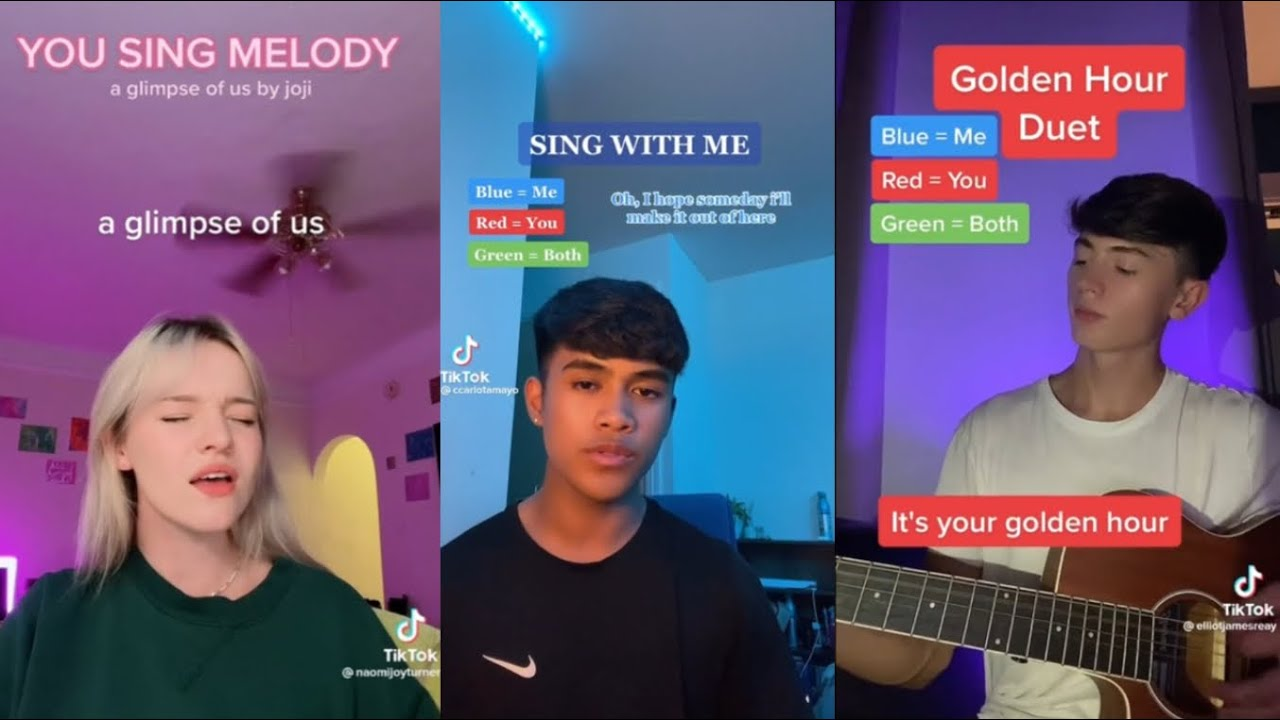
Singing duets: Sing alongside musicians, harmonize with vocalists, or provide instrumental accompaniment. Music-based Duets showcase talent, attract other music fans, and generally do well in niche communities.
-
Educational responses: Duet a video that shares a fact, myth, or hack, then use your screen space to add professional insight, clarify information, or share your own personal experience on the topic.
-
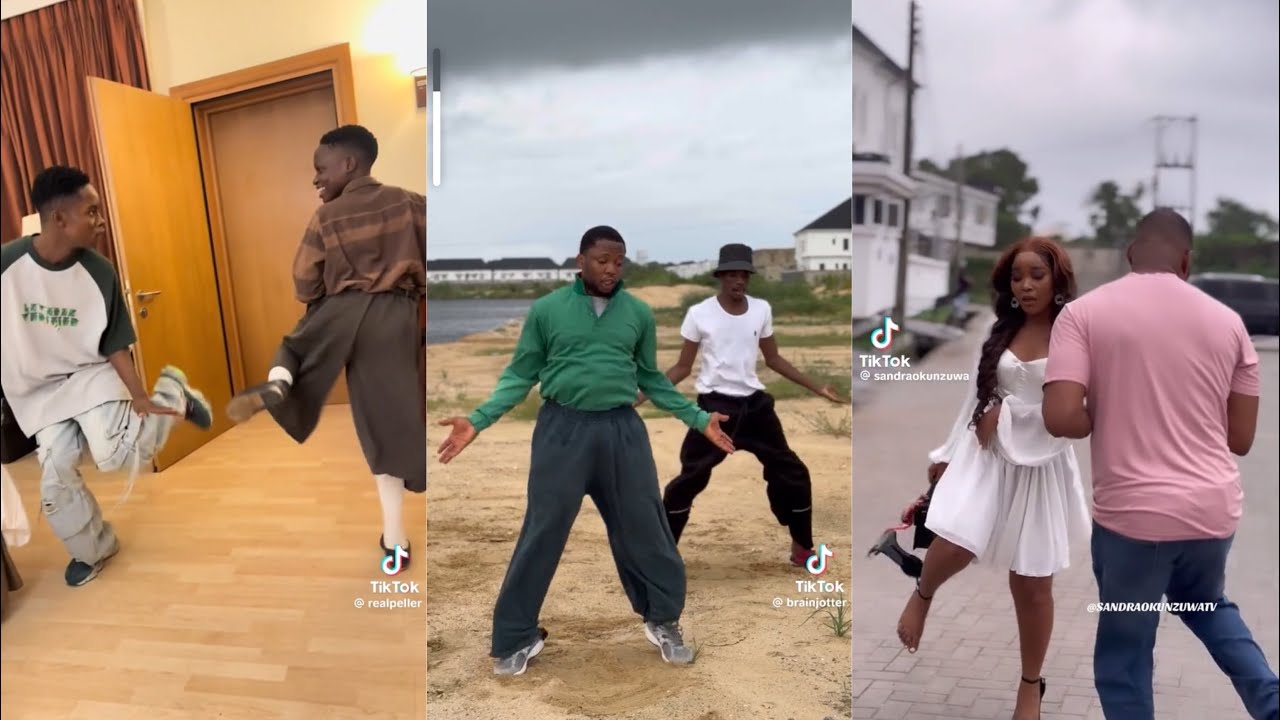
Dance challenges: Join trending dance challenges by recreating popular routines beside the original creator. Dance duets increase discoverability, help you participate in trends, and reach a wider audience.
-
Before-and-After transformations: Showcase transformations such as fitness progress, home makeovers, artwork, or product results. These visually engaging comparisons capture attention quickly and motivate viewers to watch longer.
-
Product reviews and demonstrations: React to product videos by sharing your honest opinion, testing features, or demonstrating real-world results. This format is especially popular among creators, affiliate marketers, and ecommerce brands looking to build trust with their audience.
-
Trend commentary: Join trending conversations by Dueting viral videos with your analysis, opinions, or industry perspective. Adding timely commentary helps position you as an active voice within your niche while increasing the chances of reaching trend-driven audiences.
-
Creator reaction: Respond to videos from fellow creators, customers, or community members by answering questions, acknowledging feedback, or continuing conversations. These Duets help strengthen community engagement and often lead to future collaborations.
Why can't I duet on TikTok? Common problems and fixes
Running into issues while trying to duet on TikTok is very common. Here are the most frequent problems and practical solutions to get you back to creating quickly.
Duet button not showing
The Duet option is missing from the Share menu for several reasons:
-
The original creator has disabled Duets for that specific video or their account.
-
Your TikTok app is outdated.
-
Temporary glitch or cache issue.
Fix:
-
Try a different video to confirm.
-
Update TikTok to the latest version.
-
Clear app cache (Profile → Menu ☰ → Settings and privacy → Free up space → Clear cache).
-
Restart your phone or reinstall the app as a last resort.
No sound in Duet videos
You can record, but there's no audio from your microphone or the original sound is missing.
Fix:
-
Enable the microphone before recording.
-
Open Volume settings and increase voice audio.
-
Check your phone's microphone permissions for TikTok.
Recording errors
Common issues include lag, sync problems, freezing, or failed recordings.
Fix:
-
Record in shorter segments instead of one long take.
-
Update TikTok and restart your device.
-
Clear the app cache.
-
Ensure stable internet connection.
TikTok permissions settings
Missing camera, mic, or storage access prevents Duets from working properly. Fix:
-
Go to your phone's Settings.
-
Find TikTok under Apps.
-
Enable Camera, Microphone, and Storage permissions.
Beyond the Duet: Elevate your content with Vmake AI
TikTok Duets are a great way to engage with other creators, react to trending content, and participate in viral conversations. They're perfect for building community and increasing engagement. However, for brands, affiliate marketers, and creators who need to produce product videos, maintain consistent branding, and publish content at scale, Duets alone aren't a scalable solution.
That's where Vmake AI comes in. It's a powerful UGC video generator that allows you to turn simple product images into shoppable, native-looking videos in minutes with no filming, no models, and no expensive production required. It's ideal for affiliate marketers, ecommerce creators, and busy TikTokers who want to publish more content without burning out.
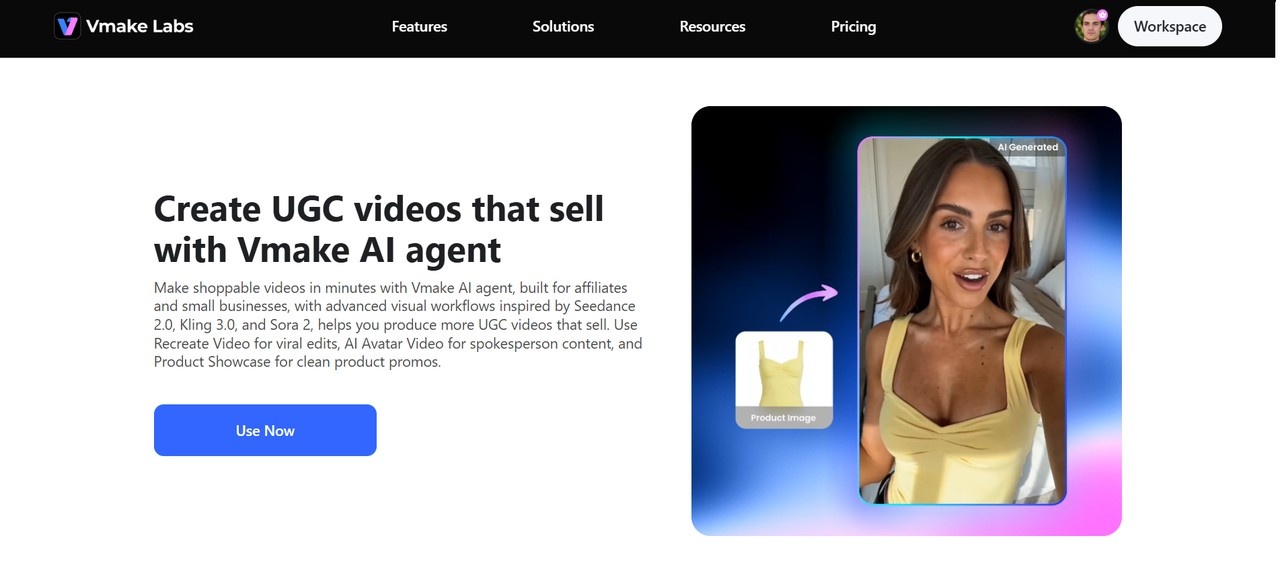
Instead of relying purely on native app features, you can use Vmake AI workflows to level up your feed:
-
AI avatar: Create realistic talking AI avatars to present products, services, or ideas naturally. This workflow is ideal for TikTok promotions and educational content, helping you produce consistent, professional videos without appearing on camera.
-
Product showcase: Upload a product image and let Vmake AI transform it into a shoppable TikTok video. Perfect for affiliate marketers and e-commerce sellers who need fresh, high-quality content on a regular basis.
-
Recreate video: Turn existing content into new versions that maintain a similar style and structure. Recreate videos faster, test new ideas, and scale content production across multiple campaigns.
Steps to generate TikTok-ready UGC videos with Vmake AI
Step 1: Choose your workflow
Start in Vmake by selecting the workflow that fits your TikTok content. Choose from AI avatar video, product showcase, or recreate video based on the type of TikTok you want to post.
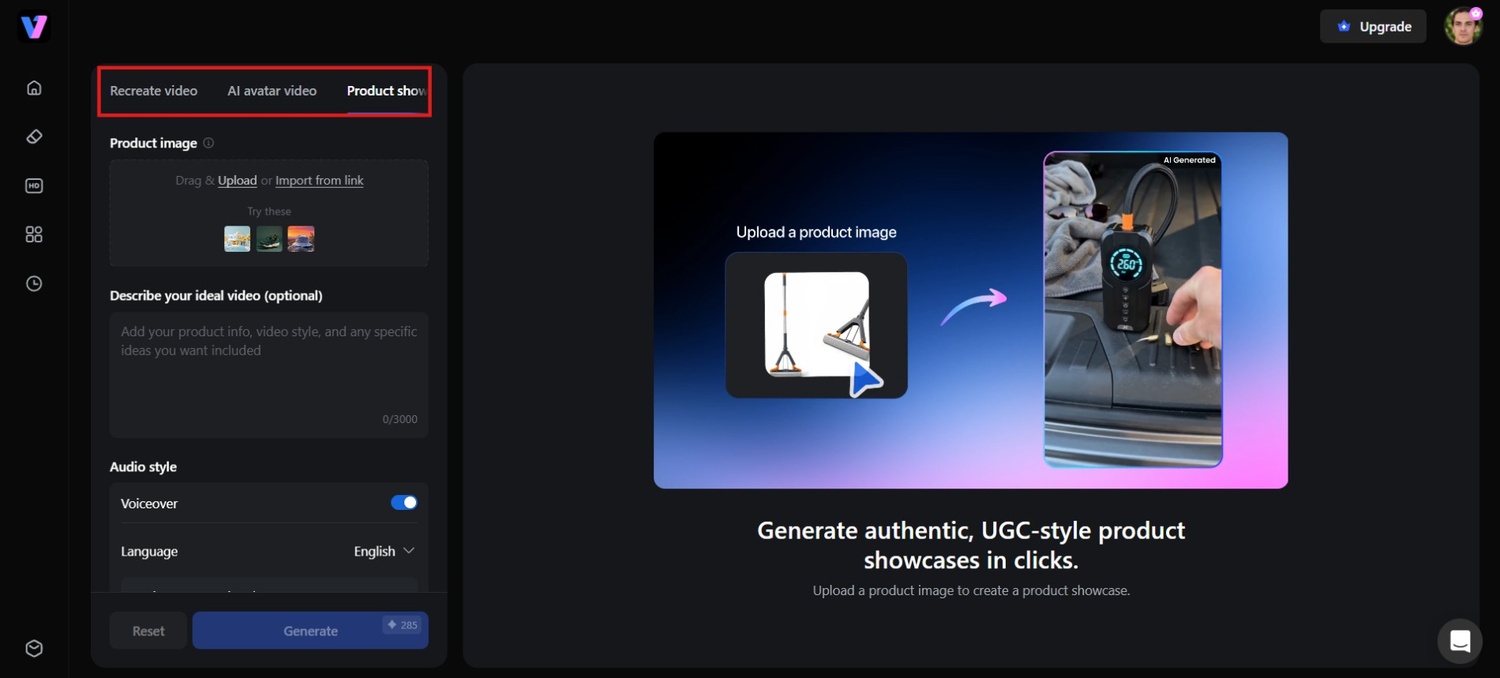
Step 2: Customize details
Upload your product image or paste your product URL into the form. No need to write complicated prompts. Just fill in the details, like voiceover, language, music, and the workflow handles the setup for you.
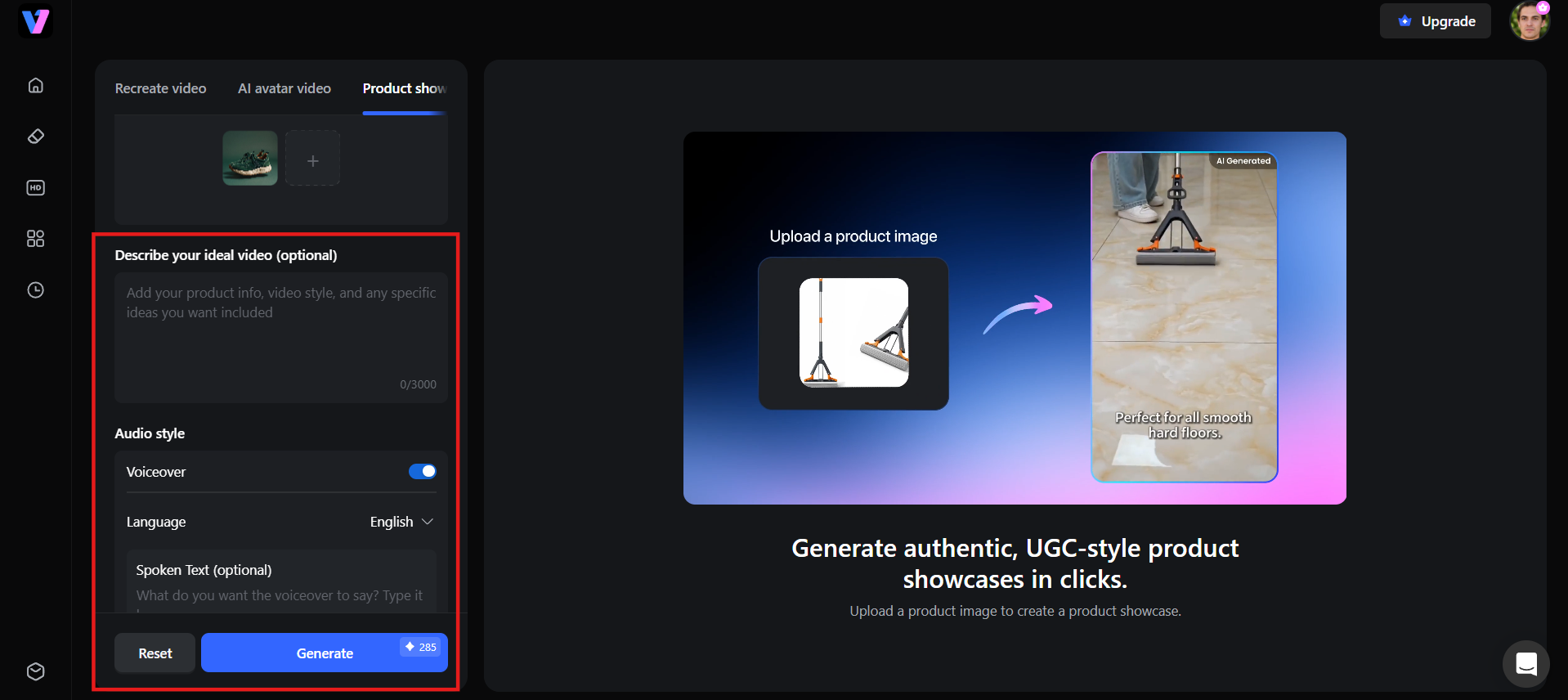
Step 3: Generate in one click
Once everything's ready, generate your video with one click. Vmake turns your inputs into a polished, TikTok-ready video, so you can go from idea to posting in minutes.
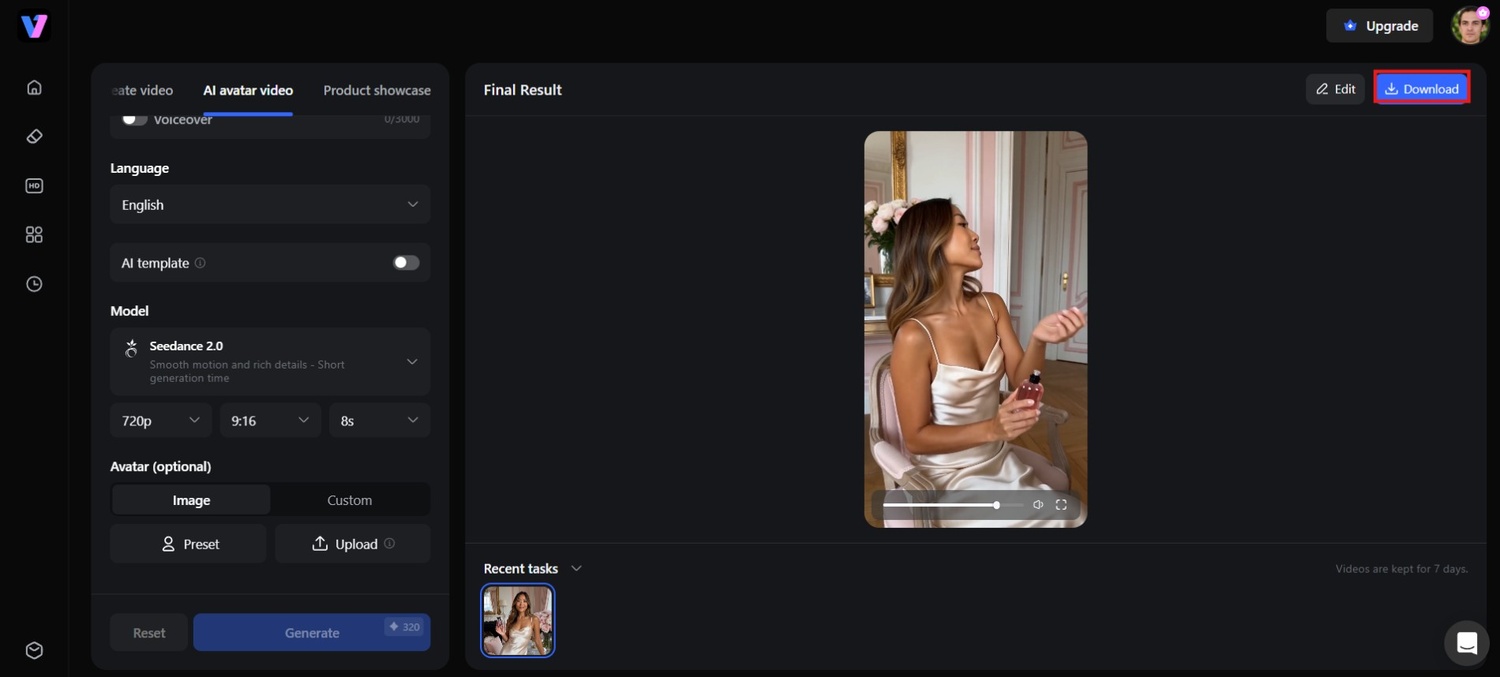
Conclusion
Learning how to duet on TikTok can unlock new opportunities for collaboration, trend participation, and connecting with other creators. Whether you're creating reaction videos, joining dance challenges, sharing educational content, or displaying your talent, Duets make content more interactive and discoverable. By following the steps in this guide, adding sound effectively, and troubleshooting common problems, you can confidently create better Duets. As your content strategy grows, tools like Vmake AI can help simplify video creation and assist you in producing engaging content at scale.
FAQs
Can you duet a Private Video on TikTok?
No, you cannot. You can only duet videos from public accounts. If an account is set to private or if a public creator disables the feature in their settings, the Duet button will be completely greyed out.
Does a duet notify the original creator?
Yes, the original creator is usually notified when someone duets their video, similar to a mention or tag. They can see the duet on their notifications and profile interactions. This helps foster collaborations, but also means your reaction videos are visible to them.
Can I duet my own video on TikTok?
Yes, you can easily duet your own videos. It is a fantastic way to react to your older content, show an updated progress report, or compare a "then versus now" timeline of your growth on the app.
How do you duet on TikTok with a pre-recorded video?
TikTok doesn't natively support pre-recorded Duet footage. Instead, use Vmake AI to create polished, ready-to-post videos from scratch, then publish them as standalone TikToks that complement or respond to trending content.
Do you get paid for duets on TikTok?
You don't get paid directly for Duets, but they can increase views, followers, and engagement. This may help you qualify for creator rewards, brand partnerships, gifts, and monetization opportunities. Use Vmake AI to scale content creation.
