How to Write Transcript for a Video: A Complete Step-by-Step Guide
How to write a transcript for a video quickly with Vmake Labs. Convert videos into accurate transcripts, subtitles, and translated content using AI with easy editing and export.

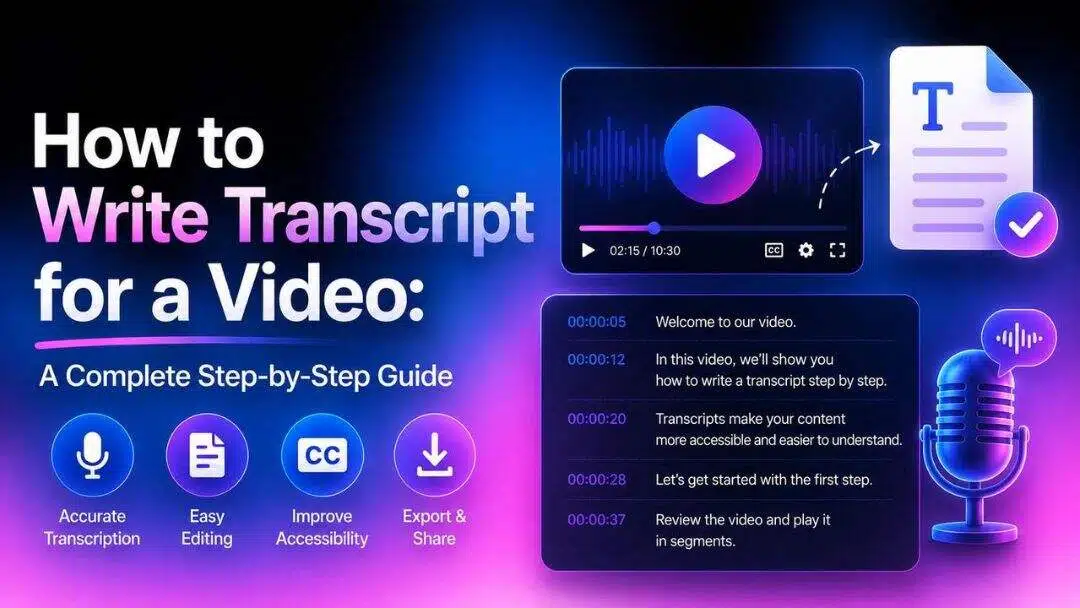
Accurate video transcripts make the content more accessible, more visible in search, and more reusable. Knowing the right workflow will save you time and give you better results if you transcribe videos manually or with AI. This guide will explain how to write a transcript for a video, proper formatting, and practical techniques to efficiently produce clear, readable transcripts.
What is a video transcript and why does it matter?
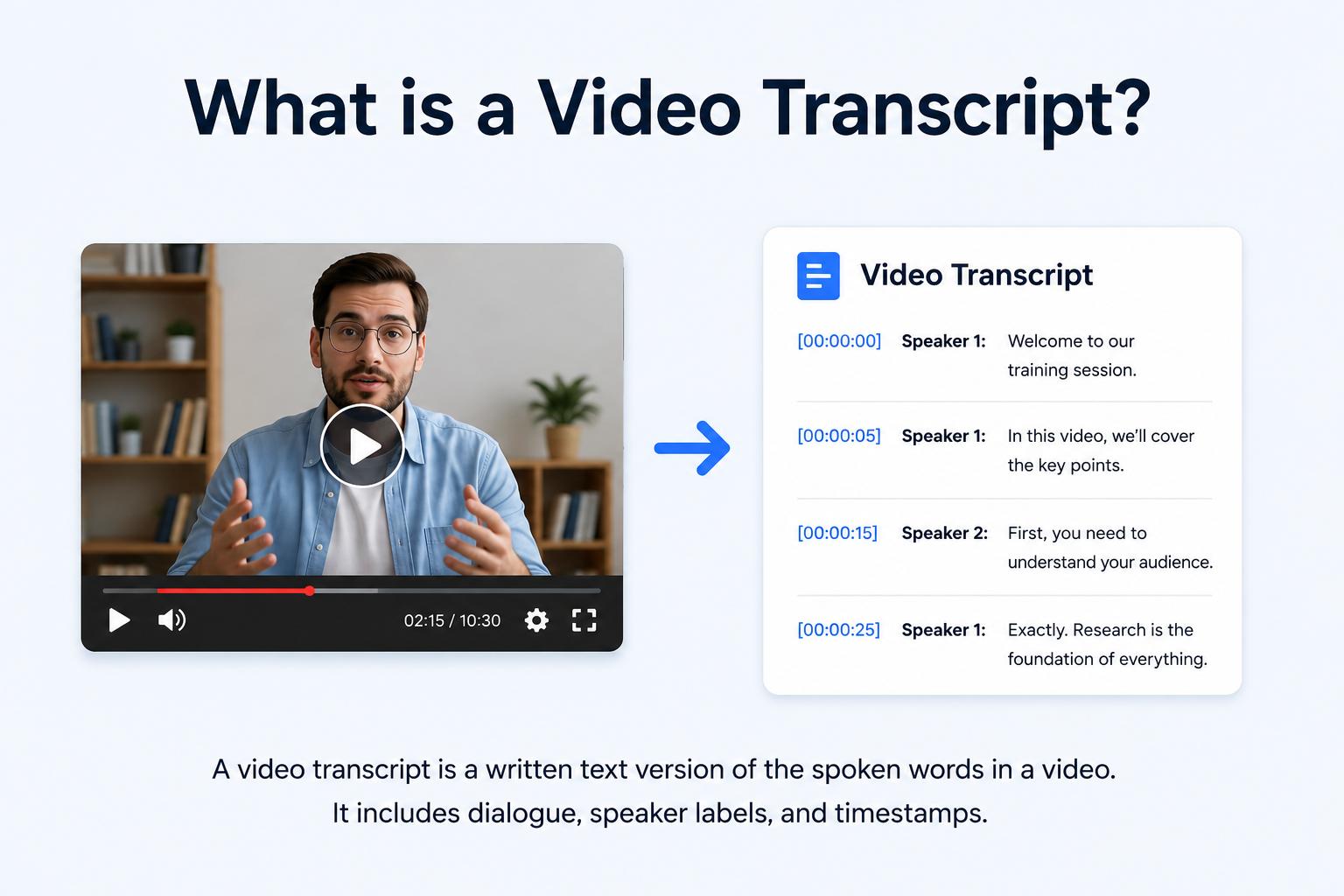
A video transcript is a written record of everything spoken in a video. It captures the dialogue in real time and may include speaker names, timestamps, or important audio cues as required. Unlike subtitles or captions, transcripts are most commonly provided as a separate text document, enabling reading, searching, and editing.
Transcripts are often used for YouTube videos, podcasts, interviews, webinars, business meetings, online courses, and training videos. They facilitate easier referencing, sharing, and reuse of spoken information across diverse platforms.
How to write a transcript manually
Manual transcription is a reliable method to generate accurate transcripts, especially for short videos or recordings in technical language. It takes patience, but a structured process will help to minimise mistakes and create a transcript that is clear and well organised.
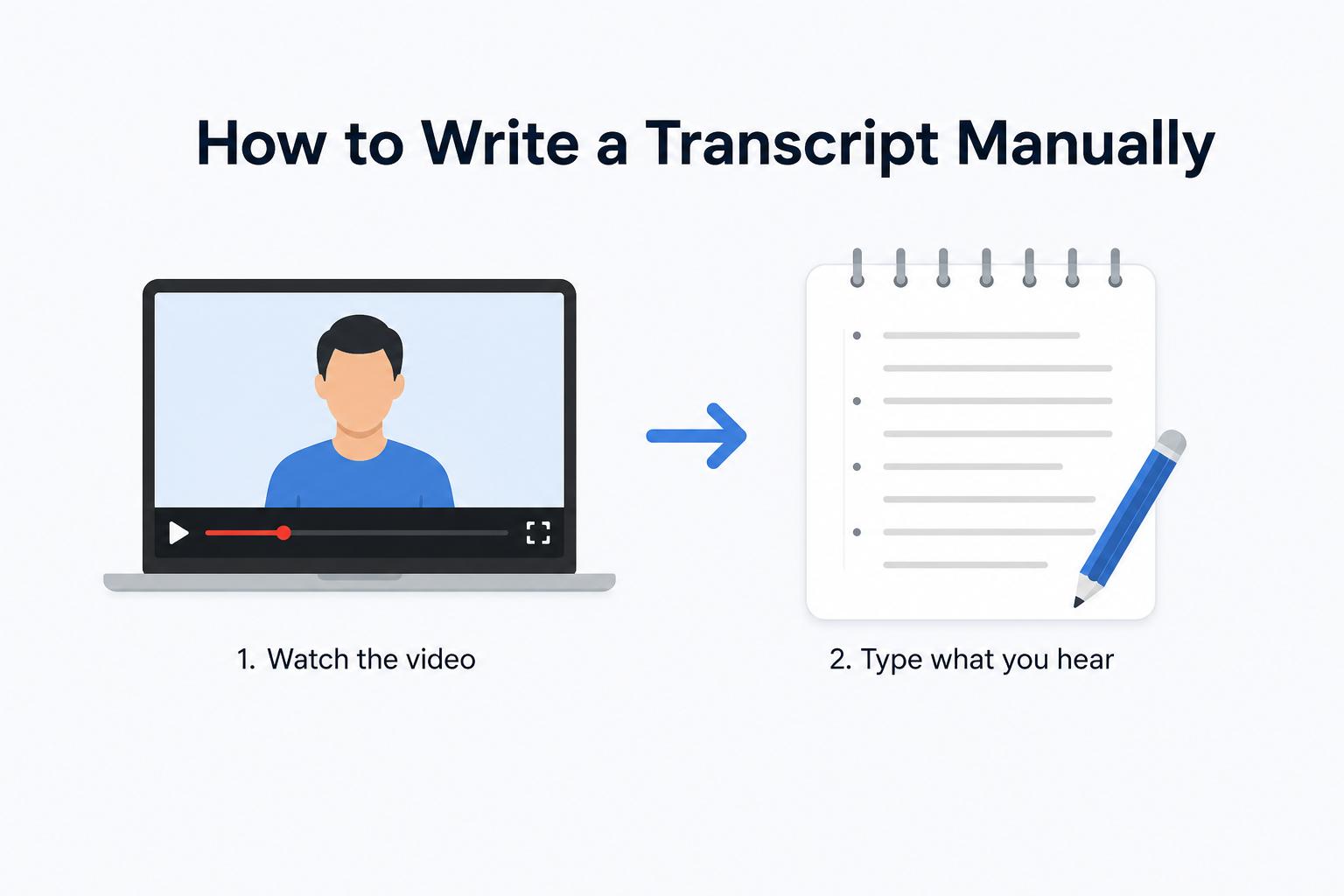
Listen to the video carefully
Begin by watching or listening to the video in full to get a sense of the overall context. Play it again, but with smaller pieces, and rewind and pause as often as you need. This way, you can catch every word that is spoken, and you will be less likely to miss important details.
-
Play the video and listen closely to every spoken word.
-
Pause, rewind, and replay sections to avoid missing important details.
Type the dialogue as you listen
Write the dialogue in the same order it is spoken, keeping the wording as accurate as possible. If more than one person is speaking, identify each speaker clearly to make the transcript easier to follow and reference later.
-
Write down the spoken content in chronological order.
-
Include speaker labels if multiple people are talking.
Review and format the transcript
Once you've finished typing, read the transcript carefully while listening to the video one final time. Fix spelling, grammar, and punctuation errors. Then format the text into readable paragraphs, or add timestamps if your workflow requires them.
-
Proofread for spelling, punctuation, and grammar.
-
Organize the transcript into readable paragraphs or timestamps if needed.
Pro tips for faster manual transcription
To work more efficiently during manual transcription, keep these practical techniques in mind:
-
Slow playback to 0.75x for difficult sections: Most media players and video platforms let you reduce playback speed. Slowing down to 0.75x on fast speakers or heavy accents gives you enough time to type accurately without constant rewinding.
-
Use keyboard shortcuts to pause and rewind: Learn your media player's shortcuts. In most players, the spacebar pauses, and pressing the left arrow rewinds a few seconds. Keeping your hands on the keyboard instead of the mouse saves significant time.
-
Insert timestamps every 30–60 seconds: Even if the final transcript does not require timestamps, adding them as you go makes it much easier to locate and fix errors during the review stage.
-
Mark unclear words with [inaudible]: If a word or phrase is impossible to make out after replaying it, type [inaudible] and move on. This flags it clearly for review rather than leaving a guess that could mislead readers.
Bonus: Standard video transcript format and example
Standard video transcript format
A common video transcript should begin with a clear title identifying the recording and then the dialogue in chronological order. Include speaker names if more than one person is talking. Use proper punctuation and capitalisation throughout; include timestamps if necessary for editing, accessibility, or reference. Use short, well-organised paragraphs for better readability.
Example of a video transcript
|
Timestamp |
Speaker |
Transcript |
|---|---|---|
|
0:00 |
Host |
Welcome to today's video on creating accurate video transcripts. Whether you're a content creator, educator, or business professional, a good transcript makes your content more accessible and searchable. |
|
0:08 |
Host |
In this session, we'll walk through how to write a transcript manually and how AI tools can speed up the process significantly. |
|
0:16 |
Guest |
That's right. Following a consistent format with timestamps, speaker labels, and proper punctuation makes transcripts much easier to read, edit, and repurpose. |
|
0:24 |
Host |
Exactly. And once your transcript is ready, you can use it to generate subtitles, create blog posts, or feed it into a translation workflow. |
|
0:30 |
Guest |
For longer recordings, AI transcription tools save a huge amount of time. They produce an editable draft in minutes, so you can focus on reviewing rather than typing from scratch. |
A structured transcript like this is easy to review, search, and repurpose for subtitles, articles, or documentation. If you regularly transcribe videos, AI-powered tools can significantly reduce the time spent typing while still producing accurate, editable results.
How to write a transcript for a video automatically: Meet Vmake Labs
Manual transcription provides reliable results but can be time-consuming for long videos. The Vmake Labs Video Translator does all this with a single streamlined workflow that automatically generates transcripts, translates spoken content, creates subtitles, and provides AI-powered editing tools.
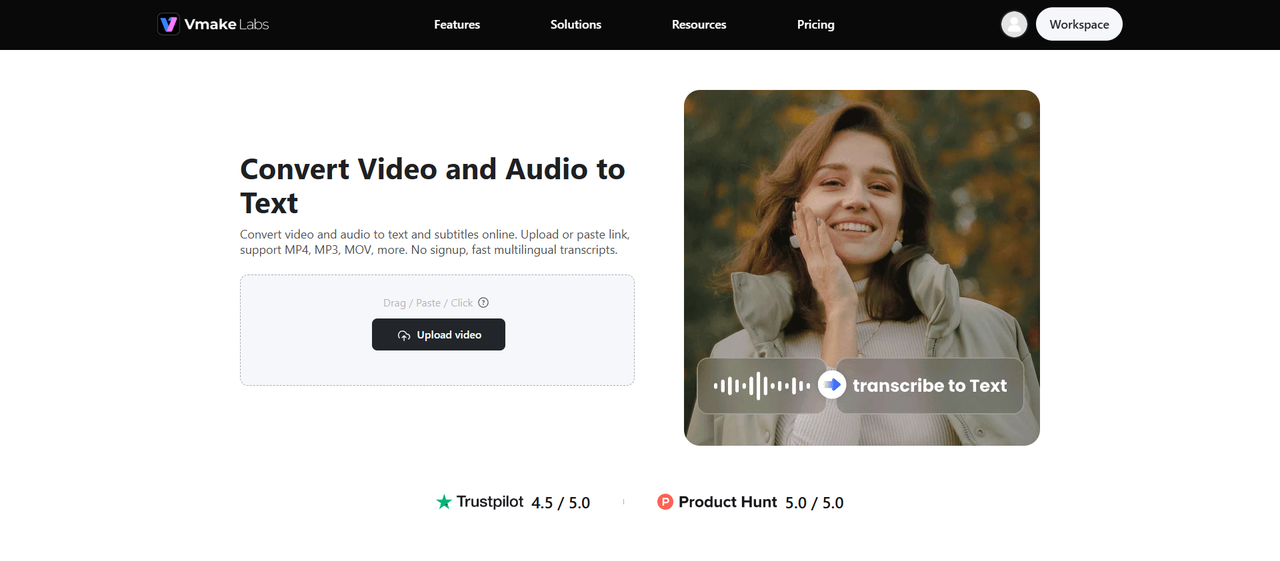
Key features
Vmake Labs combines multiple AI-powered tools to simplify video transcription and translation.
-
AI-powered transcript generation: Upload your video and receive an accurate, editable transcript in minutes. The AI handles speech recognition automatically, so you can focus on reviewing and refining the text rather than typing it from scratch.
-
Flexible subtitle management: Export your transcript as a TXT file with timestamps or as an SRT subtitle file ready for upload to YouTube, Vimeo, or any video platform. You can also add or remove subtitles directly within the editor.
-
All-in-one transcription workflow: Generate transcripts, translate spoken content, create subtitles, and apply AI dubbing in one workflow. This eliminates the need to switch between multiple tools when writing and repurposing video transcripts.
-
AI-powered multilingual transcription: After your transcript is created, translate it into different languages and generate natural-sounding dubbed audio with AI voice cloning. This transforms a single transcript into multilingual video content for global audiences.
-
Intelligent lip synchronization: Keep translated speech synchronised with on-screen lip movements for a more natural viewing experience. Your transcript, translated audio, and video are synchronised automatically; no manual adjustments needed.
How to write a transcript using Vmake Labs
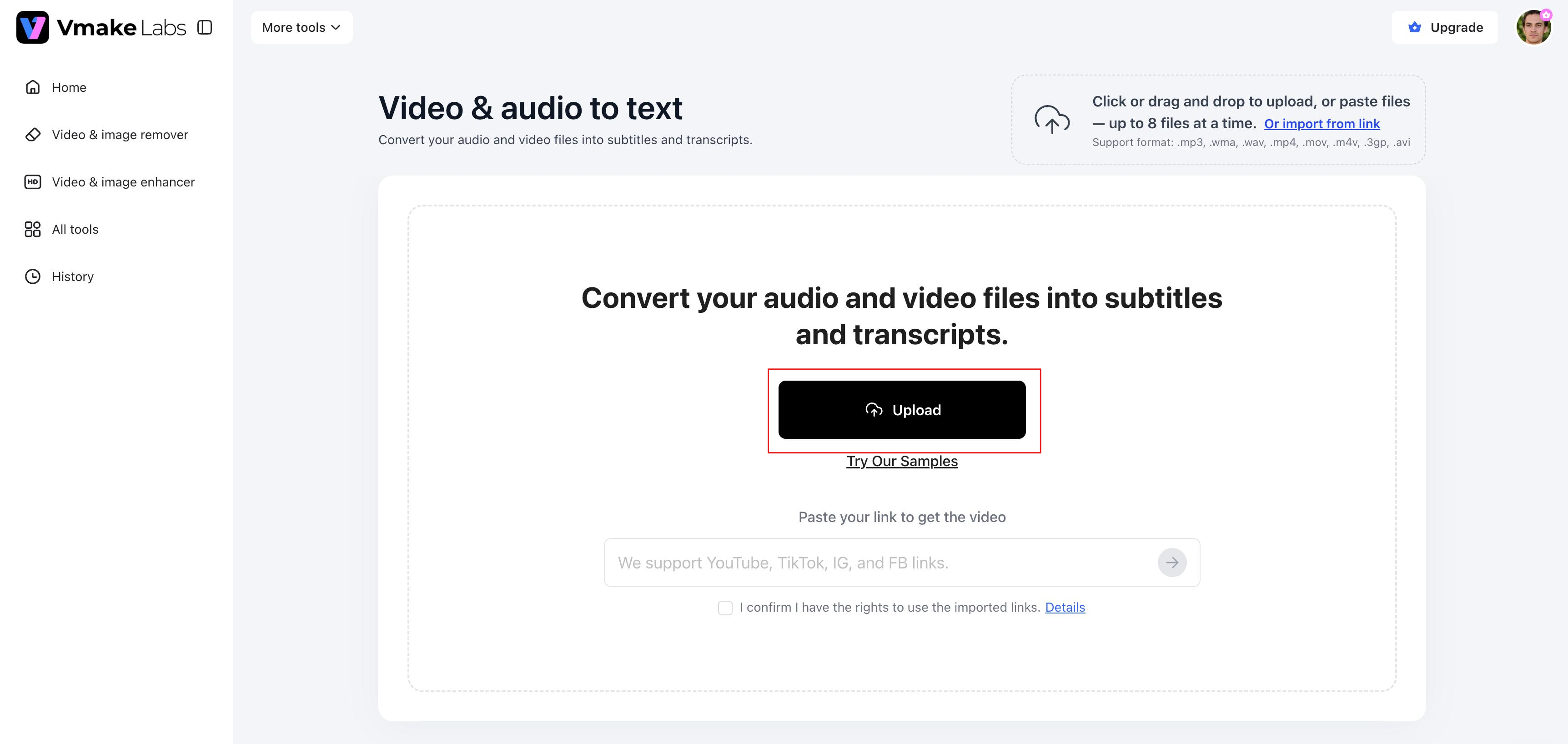
Step 1: Upload your video.
Upload your video file to Vmake Labs. The platform supports common video formats and prepares your file for AI-powered transcription.
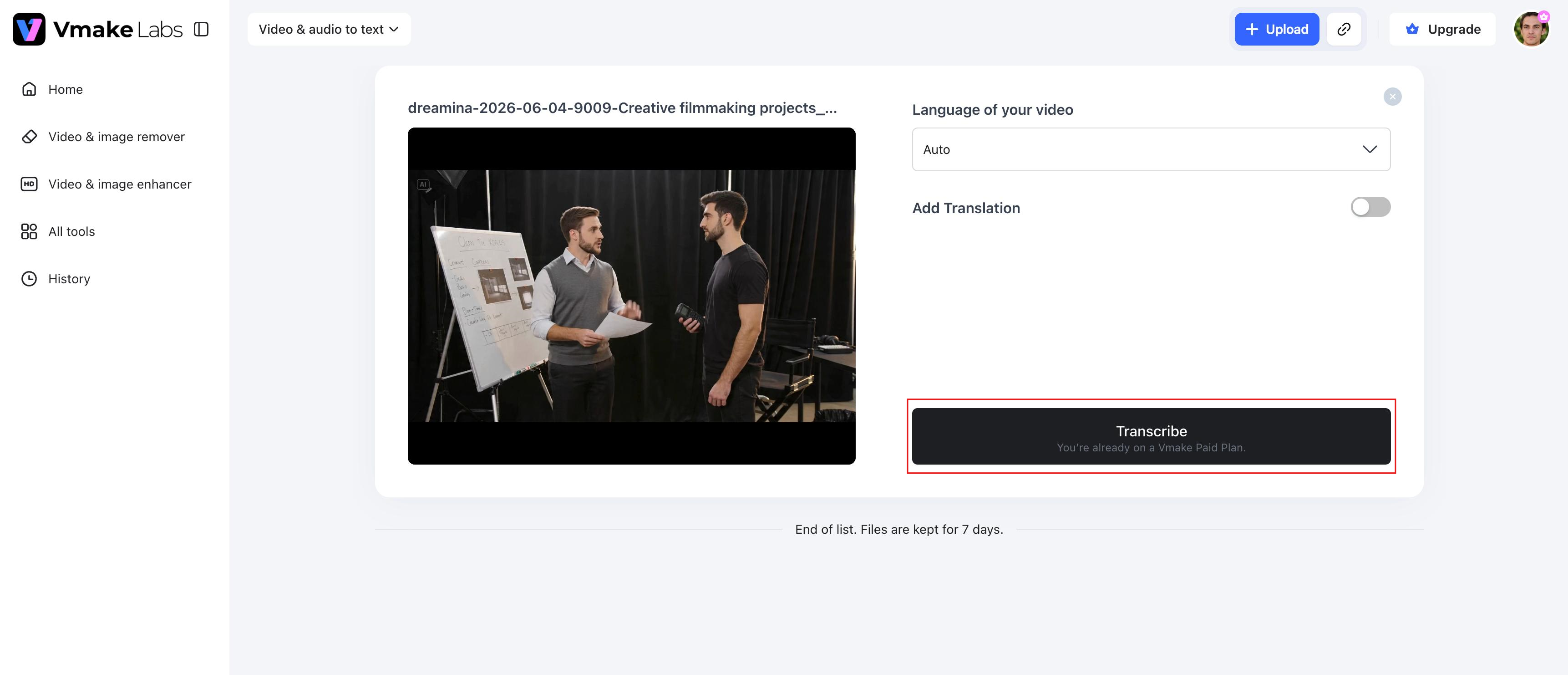
Step 2: Generate and edit the transcript.
Generate the transcript automatically, then review the text and make any necessary edits. You can also translate the transcript, manage subtitles, or add AI dubbing as needed.
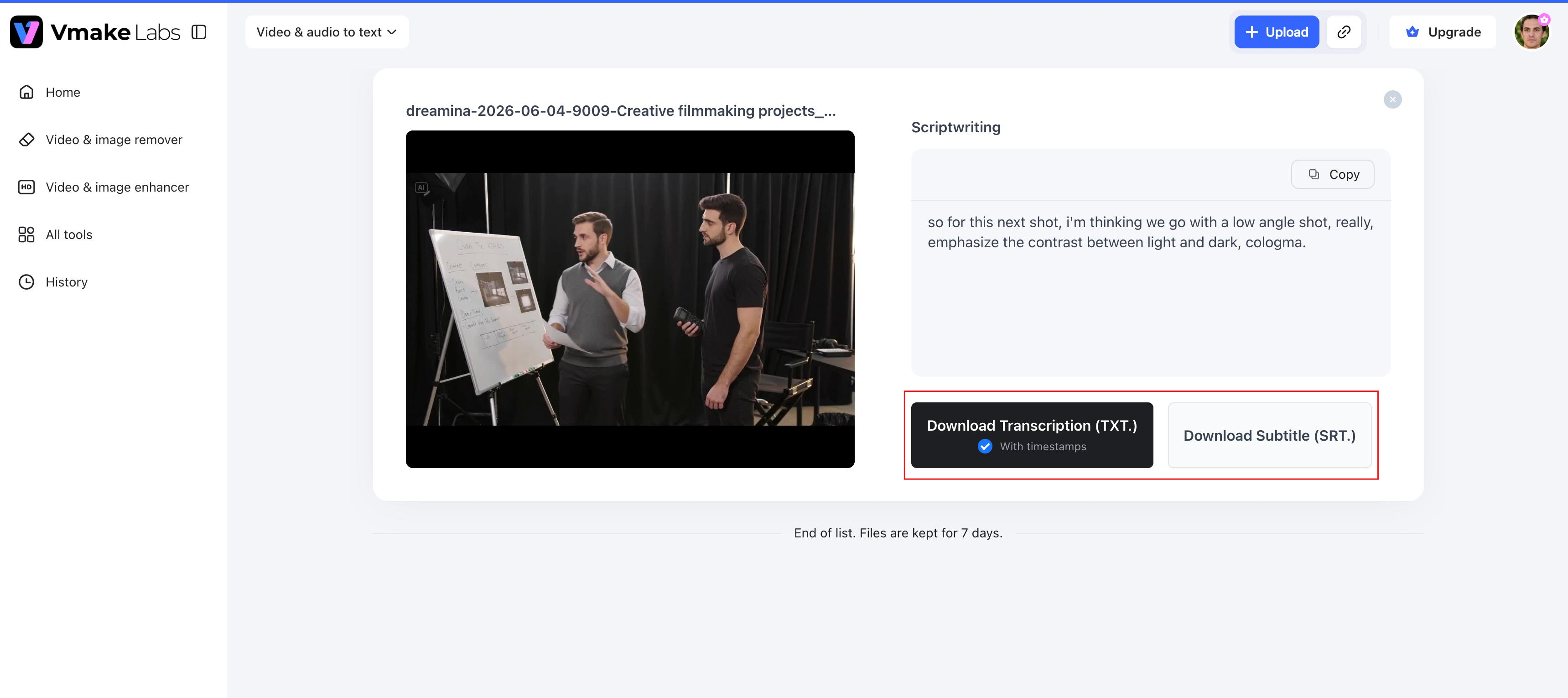
Step 3: Export your transcript or translated video.
Once you're satisfied with the results, export the transcript or download the completed translated video with subtitles and other selected enhancements.
Manual transcription vs Vmake Labs
Both manual and AI transcription have their advantages. Manual transcription gives you complete control over every word, while AI automates repetitive work to produce transcripts much faster. Choosing the right method depends on your video's length, required accuracy, and available time.
Quick comparison
|
Feature |
Manual transcription |
Vmake Vabs |
|---|---|---|
|
Speed |
Slow |
Fast |
|
Accuracy |
Depends on the transcriber |
High, with quick editing |
|
Cost |
Time-intensive |
Often affordable or free |
|
Best for |
Short videos and detailed editing |
Long videos, meetings, podcasts, and lectures |
|
Editing required |
During typing |
After transcript generation |
|
Scalability |
Low |
High |
Which method should you choose?
The right transcription method depends on your needs, budget, and workflow:
-
Manual transcription is a good choice if you need complete control over every word or are working with a short video.
-
AI transcription is ideal for longer recordings because it generates accurate, editable transcripts in minutes.
Regardless of the method you choose, always review the final transcript for names, technical terms, and punctuation before exporting. For most creators and businesses, AI-powered tools like Vmake Labs offer the fastest and most efficient way to create high-quality video transcripts.
Tips for writing accurate video transcripts
An accurate transcript is more than just a speech-to-text transcription. Following these best practices will result in a more readable, error-free, and professional transcript that can be published or repurposed.
-
Use high-quality audio: Clear recordings reduce transcription errors and make it easier to pick up words, accents and background sounds. Record in a quiet place and with a good quality microphone when possible.
-
Identify speakers: Label speakers consistently when multiple people are talking. Clear speaker identification helps readers follow conversations and improves the overall readability of the transcript.
-
Correct names and technical terms: Double-check names, brands, acronyms, and industry-specific terminology. AI tools may occasionally misinterpret uncommon words, so reviewing these details improves accuracy.
-
Keep punctuation consistent: Proper punctuation makes transcripts easier to read and understand. Use commas, periods, and question marks consistently to reflect the speaker's intended meaning.
-
Proofread before publishing: Read through the completed transcript one final time to fix spelling, grammar, formatting, or wording issues before sharing or publishing it.
When using AI transcription tools like Vmake Labs, a few additional steps will improve your results:
-
Select the correct source language: Before processing, confirm the language spoken in your video matches the language selected in the tool. A mismatched language setting is one of the most common causes of poor AI transcription accuracy.
-
Enable automatic timestamps: Turn on timestamp generation before transcribing. Timestamps make it significantly easier to locate specific moments in long recordings and are required if you plan to export an SRT subtitle file.
-
Review technical terminology before exporting: AI tools handle everyday speech reliably but may misinterpret industry jargon, proper nouns, or acronyms. Do a targeted review of technical terms before finalising your transcript.
Conclusion
Creating video transcripts enhances accessibility, boosts search visibility, and facilitates content re-use in other formats. While manual transcription offers greater control, it can be time-consuming for longer recordings. AI-powered tools offer a quicker alternative without sacrificing quality. Vmake Labs makes it simple: just generate editable transcripts, subtitles, and translated content in a few steps. Whether you are creating educational videos, business presentations, interviews or marketing content, the combination of AI and final manual review will help you create professional transcripts that are accurate, readable and ready to share with any audience.
FAQs
-
How do I write a transcript for a video manually?
Listen to the video carefully and write out the dialogue in the order it is spoken. Ability to pause and replay sections as needed, then proofread the transcript for spelling, punctuation, formatting, and speaker labels prior to saving the final version. Vmake Labs can automatically generate a draft transcript for editing if you want to speed up the process.
-
Can AI write a transcript for a video automatically?
Yes. AI transcription tools can automatically turn spoken dialogue into editable text, and they can do it in minutes. For instance, Vmake Labs produces transcripts that you can review, edit, and export, cutting down on manual work without compromising on accuracy.
-
How accurate are AI-generated video transcripts?
The accuracy depends on the clarity of the speaker, the background noise, and the quality of the audio. Modern transcription tools for AI are very accurate when the recording is clear. Vmake Labs also lets you edit the generated transcript before exporting, so you can easily fix names, technical terms or punctuation.
-
Can I edit my transcript after it is generated?
Yes. Most AI transcription platforms allow you to edit transcripts before exporting them. With Vmake Labs, you can refine the transcript, adjust subtitles, and prepare your content for translation or sharing from the same workflow.
-
What video formats does Vmake Labs Video Translator support?
Vmake Labs Video Translator supports the most popular video formats such as MP4, MOV, M4V, 3GP, and AVI. Once you upload your video, you can create transcripts, edit text, translate content, and export your finished project all in one place

You May Be Interested
Transcription vs Translation: What's the Difference?
How to Transcribe a Video to Text: Guide to Accurate Transcriptions
How to Transcribe Audio to Text: Efficient Guide