
What Is Video Bitrate? A Complete Guide to Better Video Quality
 Ken DawsonMay 21, 2026
In this guide, we break down exactly what video bitrate is and how video bitrate settings impact your final output. We will help you avoid common compression mistakes and show you exactly how to optimize your footage for efficient, high-quality playback across any platform.
What is Video Bitrate and Why Does it Matter?
The Core Definition
Let's cut straight through the dense industry jargon. The definition is purely mathematical: Video bitrate represents the exact amount of data processed per second within a video file. Think of it as the digital bandwidth your computer assigns to your footage.

Engineers measure this data flow in Kbps (kilobits per second) for lower-resolution files and audio. For high-definition media, they use Mbps (megabits per second).
Visualizing the Data Pipeline
A simple analogy clarifies the concept. Picture bitrate as a municipal water pipeline. A narrow pipe only allows a tiny trickle of water through. A massive water main, however, lets thousands of gallons rush past simultaneously. Your video file works exactly the same way. A wider data pipe pushes more digital information to the screen every single second, resulting in superior visual quality.
You also have to account for the difference between video bitrate and audio bitrate. They operate entirely independently. Audio data requires significantly less bandwidth to sound perfect. A studio-quality podcast might only use 128 Kbps to 320 Kbps. Meanwhile, standard high-definition video requires between 5,000 and 8,000 Kbps just to look decent.
The Three Critical Impacts of Bitrate
This specific data flow directly impacts three critical areas of media management:

-
Visual Quality: High data allowances preserve fine details. When you shoot a busy forest scene, every single leaf requires data to render sharply. Depriving a file of data forces the encoder to blur those leaves together into a mushy green artifact. Higher bitrates preserve clarity, edge sharpness, and precise color accuracy.
-
File Size and Storage: This represents a direct, unavoidable trade-off. Every megabit added per second permanently increases the total file size. Storing massive ProRes files on local hard drives often forces creators to compromise on maximum data rates just to keep their storage costs manageable.
-
Streaming Performance and Buffering: Playing a massive file from your local hard drive happens instantly. Network streaming presents an entirely different challenge. If your encoded file demands more data per second than a viewer's home internet connection can actively download, the stream stops. The video buffers.
The Ultimate Balance: Resolution vs. Bitrate
While most assume shooting in 4K automatically guarantees a gorgeous final image, the reality is often quite different. Resolution is just the canvas size. Bitrate is the paint. An aggressively compressed 4K file will look significantly worse than a properly encoded 1080p file. Finding the reliable middle ground between striking quality and accessible bandwidth defines professional encoding.
Video Bitrate Types: Which One Should You Use?
Modern encoding software utilizes different mathematical approaches to distribute data across your timeline. Selecting the right processing method depends entirely on where the final video is going.
Review the comparison below to match your workflow with the correct encoding algorithm.
|
Bitrate Type |
Mechanism of Action |
Data Efficiency & Quality |
Ideal Use Case |
|---|---|---|---|
|
CBR (Constant Bitrate) |
Locks the data flow at a rigid target. It assigns the exact same megabits per second regardless of on-screen action or static imagery. |
Provides extreme structural network stability. However, it wastes file space during quiet scenes and risks artifacting during heavy motion. |
Live Streaming. Broadcasting platforms like Twitch mandate CBR to prevent fluctuating data from crashing their live ingest servers. |
|
VBR (Variable Bitrate) |
Acts as a dynamic traffic controller. It spikes the data allowance during intense action (like gaming particle effects) and chokes it back during static moments. |
Maximizes overall recorded fidelity. It completely optimizes local hard drive space, though it requires more processing time to render. |
Pre-recorded Content. The absolute standard for YouTube uploads, polished tutorials, and high-end final client deliverables. |
|
ABR (Average Bitrate) |
Targets a specific mathematical average for the entire file length, permitting only minor, controlled fluctuations based on scene demands. |
Strikes a calculated compromise. You secure highly predictable final file sizes while retaining slight flexibility for complex visual sequences. |
Restricted Web Hosting. Deploy this when facing strict server upload caps but still requiring decent motion clarity. |
Best Video Bitrate Settings for Every Resolution and Platform
Matching your data rate to your specific resolution guarantees optimal playback. Pushing extreme amounts of data into a 720p file accomplishes nothing; it just wastes server space. Conversely, starving a high-resolution file destroys its visual integrity. If you want the pristine look of native 4K video, you have to feed it enough megabits.
Below is the technical breakdown outlining reliable bitrates by resolution for standard frame rates (24fps to 30fps) versus high frame rates (60fps).
|
Resolution |
Standard Frame Rate (24-30fps) |
High Frame Rate (60fps) |
Best Use Case |
|---|---|---|---|
|
480p |
1.5 - 2 Mbps |
2.5 - 4 Mbps |
Small web previews, email attachments |
|
720p |
5 - 7.5 Mbps |
7.5 - 11.5 Mbps |
Budget streaming, mobile-first viewing |
|
1080p |
8 - 10 Mbps |
12 - 15 Mbps |
YouTube standards, corporate media |
|
4K (2160p) |
35 - 45 Mbps |
53 - 68 Mbps |
Cinematic releases, premium broadcasting |
Bitrate for streaming platforms (YouTube, Twitch, etc.)
Live streaming platforms strictly enforce bandwidth limitations to protect their network infrastructure. Twitch currently caps standard affiliates at around 6,000 Kbps (6 Mbps). Because of this hard ceiling, 1080p at 60fps often looks slightly blurry on Twitch during fast motion. YouTube Live operates with much deeper server pockets. They allow massive bandwidth caps, actively accepting up to 51 Mbps for 4K live streams. Always verify the specific ingest limits of your chosen destination before configuring your broadcasting software.
Bitrate for video downloads/exports
Local playback removes the bottleneck of real-time internet delivery. If you are exporting files for a client to download via Dropbox or Google Drive, you can safely double the standard streaming recommendations. High VBR target settings ensure the sharpest possible image quality for archive preservation or massive physical displays.
Improve with Ease: Boost Your Video Quality with Vmake
Even with the correct bitrate dialed into your editing suite, raw footage may still need serious enhancement. Sometimes the damage happened before the file even reached your hard drive. Low lighting conditions, outdated camera sensors, or heavy initial compression from mobile phones degrade the source material. Simply raising the export data rate cannot fix a file that is already ruined.
To rescue severely degraded footage, professionals integrate AI-driven restoration tools. Employing a reliable online video enhancer fundamentally reconstructs the missing pixel data. Vmake's specific toolset leverages advanced neural networks to elevate base video quality automatically, completely bypassing the tedious manual process of timeline sharpening and masking.

Key Features:
-
AI-powered video upscaling: Intelligent algorithms analyze surrounding pixels to mathematically boost lower resolutions, such as converting 480p to 1080p. This happens without introducing the muddy, soft quality loss typically associated with standard 4K digital scaling.
-
Noise reduction: Deep learning models actively target and remove digital grain. They smooth out the ugly compression artifacts generated by low-bitrate source recordings.
-
Color correction & enhancement: The engine evaluates environmental lighting conditions to improve overall vibrancy and balance off-kilter color temperatures effortlessly.
-
Sharpness & clarity boost: The system targets edge contrast, ensuring microscopic details like hair, fabric textures, and background text remain hyper-crisp.
-
Frame interpolation: The software analyzes motion vectors to generate brand-new intermediate frames. This effectively smooths out jittery, low-FPS footage for fluid cinematic playback.
-
Batch processing: Production studios save massive amounts of time by queuing up the system to enhance 30 videos at once, removing the need for manual file-by-file babysitting.
How to use the Vmake video enhancer
-
Step 1:Navigate to the main workspace dashboard and drag your compressed media directly into the secure upload zone.

-
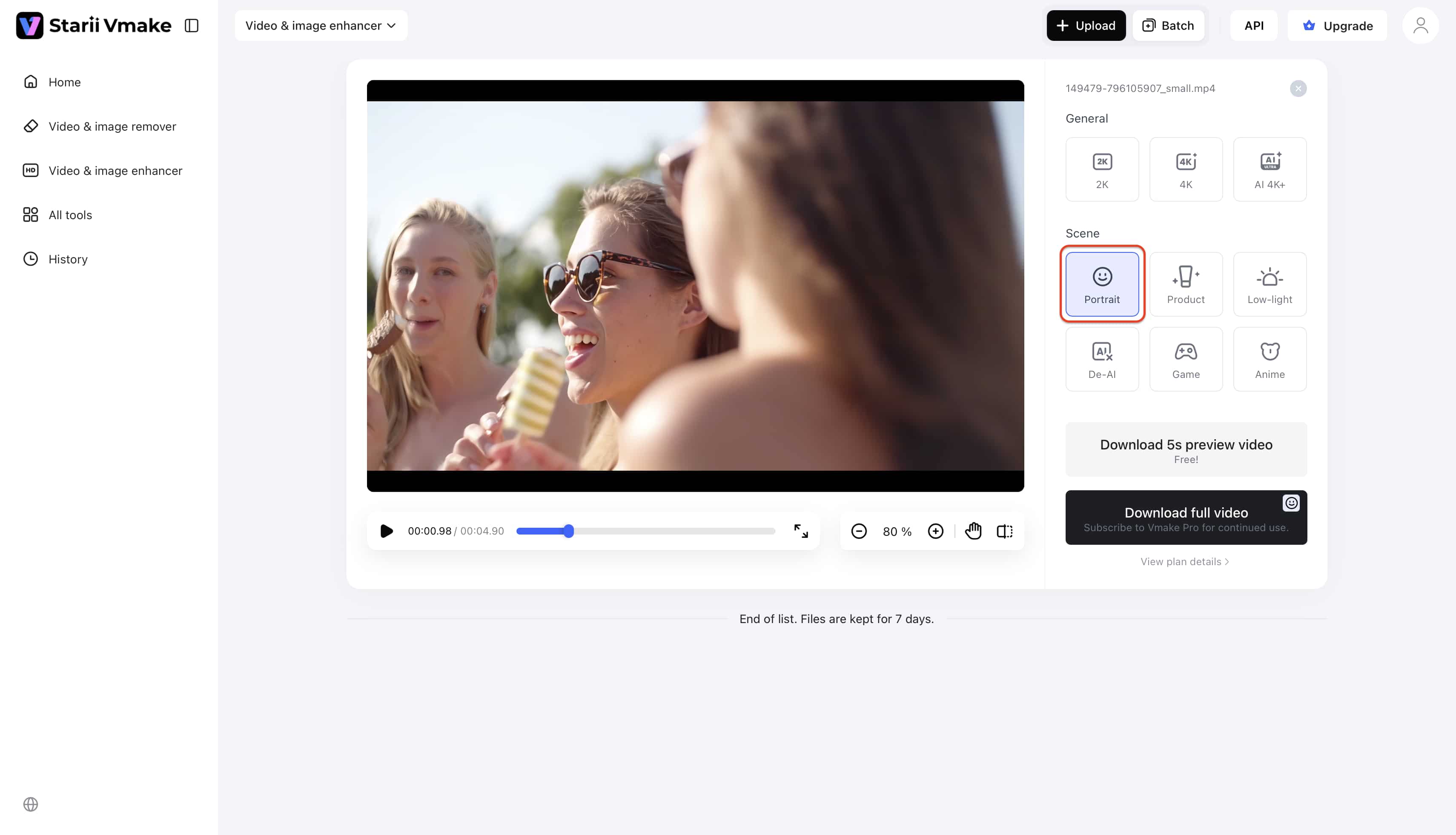
Step 2:Select your target output model from the primary dropdown menu.
-
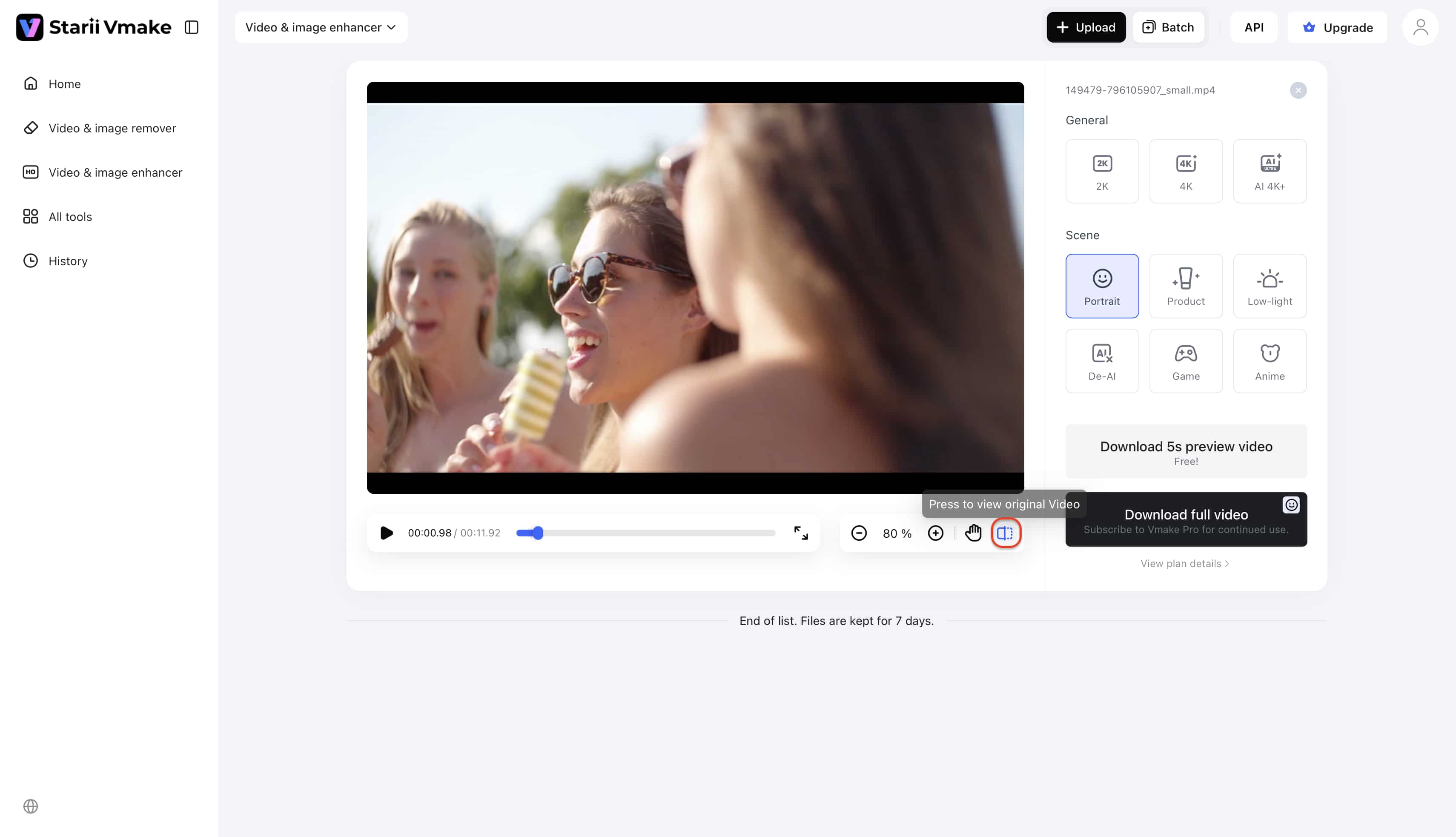
Step 3:Use the interactive preview slider to compare your original source footage against the newly generated output in real-time.
-
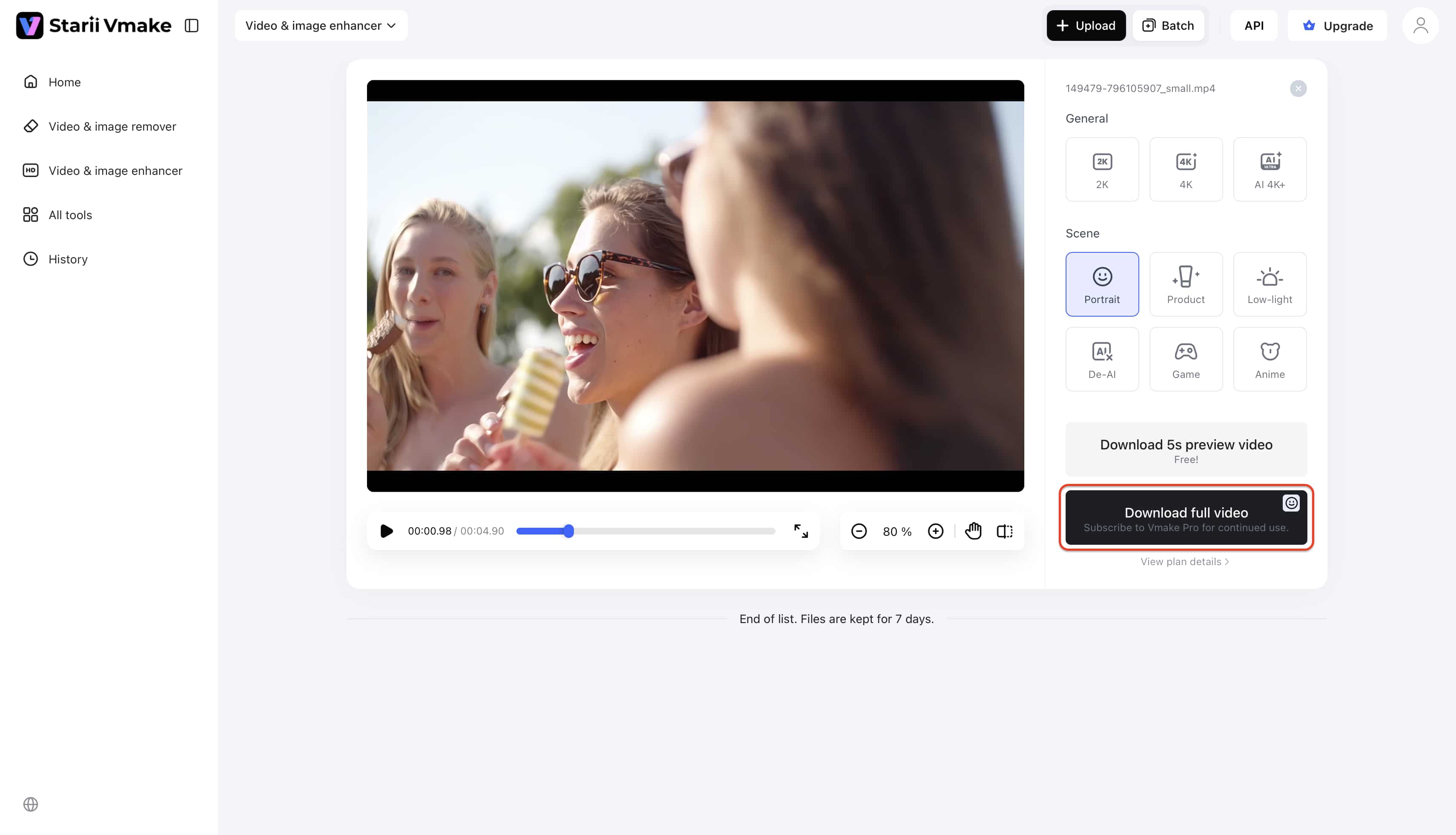
Step 4:Click the final export button. The system automatically provisions the optimal data rate for your new high-resolution file.
Common Video Bitrate Mistakes to Avoid
Technical missteps during the rendering phase ruin hours of meticulous production work. Avoid these frequent encoding errors to ensure your media remains professional.
-
Setting the bitrate too high
More data does not infinitely equal a better image. Once a file hits the maximum visual threshold of its original source format, adding more megabits simply wastes hard drive space. It creates unnecessarily large files that frustrate users attempting to buffer them.
-
Setting the bitrate too low
Aggressive compression destroys content instantly. Dropping the data rate significantly below the recommended baseline for a specific resolution results in immediate pixelation, blurring, and heavy color banding in the dark areas of the footage.
-
Ignoring platform-specific bitrate limits
Uploading a massive 100 Mbps file to a social platform that actively caps ingest at 15 Mbps triggers their internal compression engines. Platform-side compression algorithms operate hastily. They routinely crush your file, leaving you with a worse-looking final video than if you had just compressed it properly yourself.
-
Not matching the bitrate to the resolution
Resolution and data rates operate symbiotically. If you manage an agency workflow utilizing batch processing workflows to export dozens of 4K timelines, do not accidentally apply a 1080p data rate template (like 8 Mbps). Doing so forces the encoder to spread a tiny amount of data over millions of pixels, completely negating the benefit of the 4K canvas.
Conclusion
Understanding video bitrate transforms deeply frustrating export experiences into predictable, high-quality outcomes. It represents the ultimate balancing act between visual fidelity and digital efficiency. By treating bitrate as the data pipeline for your content, you gain total control over hard drive storage, streaming stability, and final image clarity.
Always align your chosen CBR or VBR settings with the exact constraints of your target platform. Remember, bad source footage severely limits your final export options. Stop letting aggressive software compression or weak camera sensors ruin your hard work. Try the Vmake Video Enhancer for an efficient, automated way to upgrade your raw footage and rescue your video quality today.
FAQs
What is a good video bitrate?
A "good" metric depends entirely on the resolution and the final destination. For standard 1080p web delivery on YouTube, 8 Mbps to 12 Mbps provides excellent, reliable quality. For 4K cinematic uploads, you need to target between 35 Mbps and 45 Mbps to preserve the fine detail.
Does higher bitrate video always mean better quality?
No. Quality peaks based on the physical limitations of the source footage. If you record a dark, noisy video on a cheap smartphone, exporting it at an aggressively high data rate simply creates a massive, bloated file of a bad video. If you need to actually fix damaged media, utilize dedicated pixelated video repair software to rebuild the missing data before you export.
What is the best bitrate for 1080p video?
For uploading standard 1080p video (shot at 24 or 30 frames per second) to standard web platforms, a VBR target of 8 to 10 Mbps remains the industry standard. If your 1080p footage utilizes 60 frames per second for gaming or sports, increase that target to 12 to 15 Mbps to properly render the extra motion data.
What is bitrate in video streaming?
In live streaming, this metric defines the continuous speed at which video data travels from the host broadcasting server directly to the viewer's screen. If a streamer's output exceeds the viewer's internet download capacity, the stream immediately stops to buffer.
How does bitrate affect file size?
The relationship between these two metrics is absolute and entirely mathematical. Higher data rates result in exponentially larger files. For example, a 60-second video encoded precisely at 5 Mbps will measure roughly 37 megabytes. That exact same 60-second video exported at 10 Mbps will be exactly twice the physical size, totaling roughly 75 megabytes on your hard drive.

You May Be Interested

Airbrush Video Enhancer Review 2026: Features, Pros, and Cons
Picwand Video Enhancer 2026 Review: Features & Alternatives
Video Color Correction vs. Color Grading: What's the Difference?
6 Best Free AI Tools for Video Color Correction in 2025
6 Best Free AI Tools for Video Color Correction in 2025