How Many Frame Rates Can the Human Eye See? A 2026 Guide
 Ken DawsonMay 5, 2027
The debate over human frame rate perception remains contentious, yet by 2026, neurobiology has confirmed we don't function like mechanical shutters. Instead, our brains process a continuous stream of light via asynchronous photoreceptors. As consumer hardware now standardizes 144Hz to 240Hz, creators must understand this biological baseline to prevent viewer motion sickness.
However, these theories often clash with the messy reality of production constraints like compression and budget. To bridge this gap, we must examine the biological limits and specific thresholds of human visual processing.
What is Video Frame Rate?
Let's define the digital side first: Frame rate, or Frames Per Second (FPS), is simply the speed at which consecutive images flash on a screen. Go fast enough, and your brain hallucinates motion.
We stuck with 24 FPS for decades, mostly because film stock was expensive. Hollywood accountants wanted to shoot as few frames as legally possible. It wasn't born from an artistic vision. Now, 30 and 60 FPS dominate social feeds. The hardware ecosystem evolved fast. A smartphone screen refreshing at 120Hz forces us to rethink basic video delivery. If you upload a 24 FPS video to a 120Hz display, the screen holds each frame for five refresh cycles. That mismatch causes playback judder. We have to ask what your eyes actually notice when hardware outpaces the source file.

Debunking the Myth: What's the Highest Frame Rate the Human Eye Can See?
You've probably heard the old myth that humans can't see past 30 or 60 FPS. That's completely false.
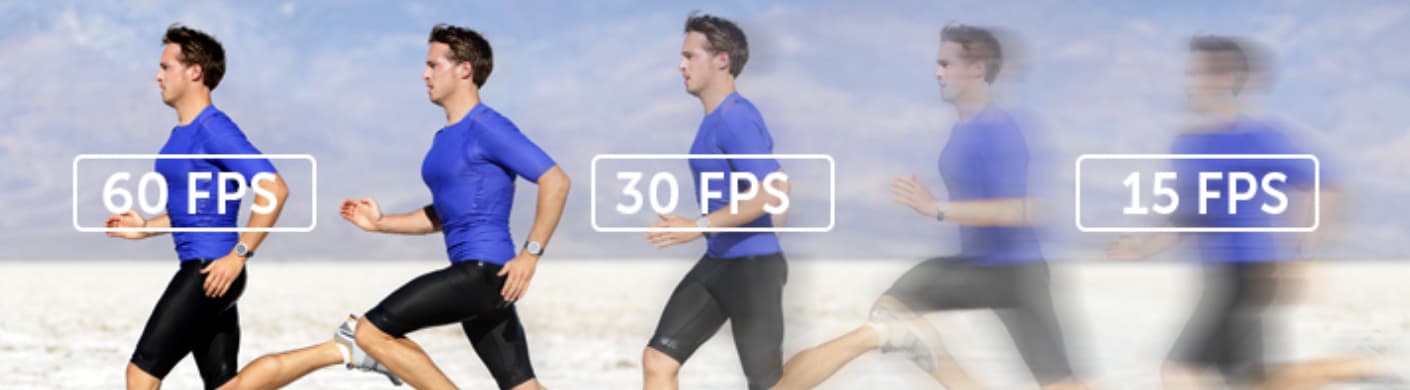
The rumor started because basic screen flicker fades at those speeds. But temporal resolution is an entirely different beast. Your visual system tracks minute changes over time remarkably well. Our eyes are highly capable, continuous sensors.
-
The MIT Discovery: MIT researchers flashed images for just 13 milliseconds. People could still identify the specific picture. That translates to roughly 75 FPS. The test subjects processed the semantic content of the image instantly. This completely shatters the 60 FPS ceiling. Your brain processes visual data significantly faster than most consumer camera sensors can write it.
-
Flicker Fusion Threshold: Then there's the Flicker Fusion Threshold. This marks the exact moment a blinking light looks completely solid. Most people hit this wall between 50 and 60 times a second (Hz). That's why cheap office lights don't drive you crazy.
Still, "solid light" isn't the same as fluid motion. You'll easily spot reduced blur during a fast camera pan at 120 FPS, even if a static 60 FPS image looks perfectly solid.
-
High-Speed Detection:
Let's look at extreme environments. Fighter pilots can identify aircraft in flashes as short as 1/220th of a second. The visual system reacts to stimuli well over 200 FPS. Sure, average viewers won't need that kind of precision for a vlog. It just shows how much headroom human perception actually holds. Lab conditions are perfect, though. Real-world viewing drops those perception numbers fast if the room lighting is poor.
Why Some Videos Look "Wavy" or Laggy?
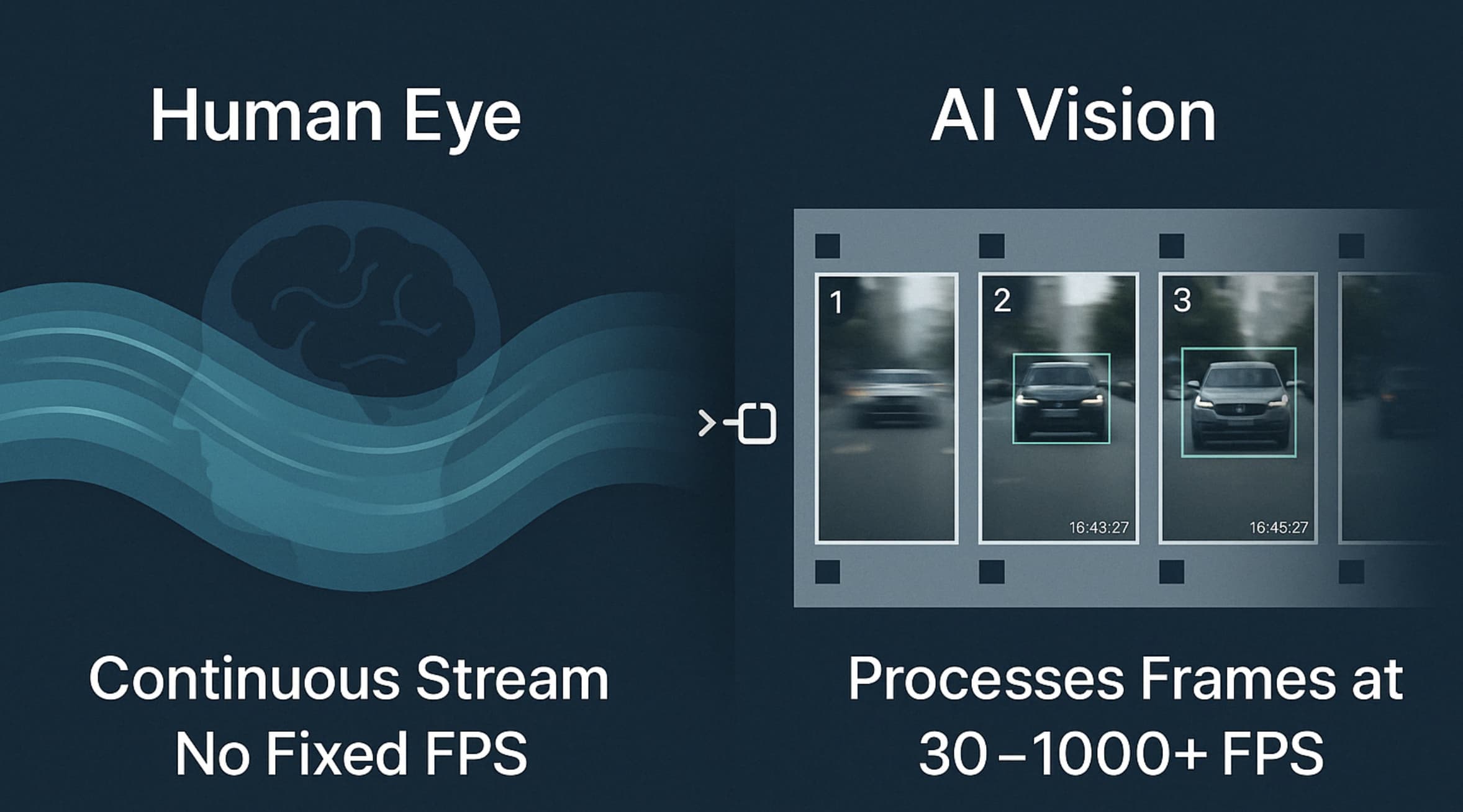
High numbers don't guarantee good visuals. A 60 FPS video can still look awful. The digital signal frequently fights your biology. If your camera settings conflict with the way human eyes sample light, the final file looks objectively broken.
-
Stroboscopic Effect:
This happens when frame rates clash with the actual motion of an object. Think of a car wheel spinning backward in a commercial. The camera's FPS doesn't match the wheel's rotation speed. It's a textbook example of aliasing.
Your camera samples the motion at the exact wrong intervals. The brain gets confused and interprets the jittery mess as cheap production value. You see this constantly with drone footage panning across a landscape. If the panning speed doesn't align mathematically with the frame rate, the entire background stutters aggressively. You can't fix that by just slapping a basic blur filter on it.
-
Phantom Array:
Move your eyes rapidly across a bright screen in a dark room. You'll see a trailing series of discrete ghosts.
That's the phantom array. It proves the video can't keep up with your saccades. Saccades are the rapid, jerky movements your eyes make three to four times a second. During these movements, a high-contrast object on a screen will leave multiple distinct afterimages on your retina. The screen fails to match physical eye movement. This happens frequently, even on expensive 60 FPS OLED displays. It's a hardware limitation you can't always edit away, heavily influenced by the display's pulse-width modulation (PWM) dimming.
-
The "Soap Opera" Effect:
Sometimes higher frame rates ruin the vibe entirely. You've likely cringed at a movie running at 60 FPS. We call this the "Soap Opera Effect." We associate 24 FPS with cinematic prestige, so hyper-smooth video just feels weirdly cheap.
Most modern TVs try to aggressively interpolate standard movies up to 120 frames. They invent fake frames to force the video to match the screen's refresh rate. It makes multimillion-dollar blockbusters look like they were shot on a camcorder in a living room. It's a psychological bias, but you can't ignore it. The uncanny valley of motion is very real.
While your brain tries hard to fill gaps between frames, it cannot compensate for poorly recorded motion or low-resolution temporal data. When traditional filming methods fail to meet the high standards of human perception, digital intervention becomes necessary. Rather than settling for jittery or "wavy" footage that distracts your audience, you can tap advanced neural networks to reconstruct every millisecond of motion. This is where Vmake AI video enhancer excels, transforming technically flawed clips into visually fluid experiences that align perfectly with the brain's expectations for high-definition movement.
Vmake AI: Intelligent Video Quality and Motion Enhancement
Fixing frame pacing manually is a miserable task. Most editors hate doing it. You end up applying optical flow transitions that just warp the image into a weird, melted mess. Vmake AI video enhancer acts as a dedicated engine bridging the gap between bad camera work and human expectations. Generative models study motion vectors to actually draw the missing data.
It works beautifully on most standard footage, though highly chaotic, heavily textured backgrounds still trip it up occasionally. AI can only hallucinate so much before the math breaks down.

Key AI capabilities
-
De-AI Mode: This strips out the artificial jitter caused by poor sensor syncing. It cleans up the "jelly" effect you get from rolling-shutter cameras. You get a natural output. It genuinely saves shots you'd normally throw straight into the trash bin.
-
Generative Completion: Vmake AI doesn't just duplicate frames. It mathematically predicts and draws the actual missing movement based on the object's velocity.
-
Batch Processing: Handling massive amounts of user-generated content takes forever. You can process multiple clips at once here. It standardizes the frame rate across your whole timeline. That saves hours. You won't miss doing this by hand.
-
One-click processing: The UI gets straight to the point. Complex motion smoothing takes a single click.
-
AI 4K+ Upscaling: You get spatial detail on top of temporal smoothness. The 4K resolution pairs with high-frame-rate adjustments. The final video pushes the limits of what you can physically perceive. Frankly, the details border excessively.
Step-by-Step Guide: How to Enhance Video with Vmake AI
High-end motion interpolation historically demanded massive technical manuals. You may not have time for that. Vmake AI completely bypasses the traditional editing bottleneck, trading convoluted parameter menus for a direct, predictable workflow. Here is the exact process to correct your footage.
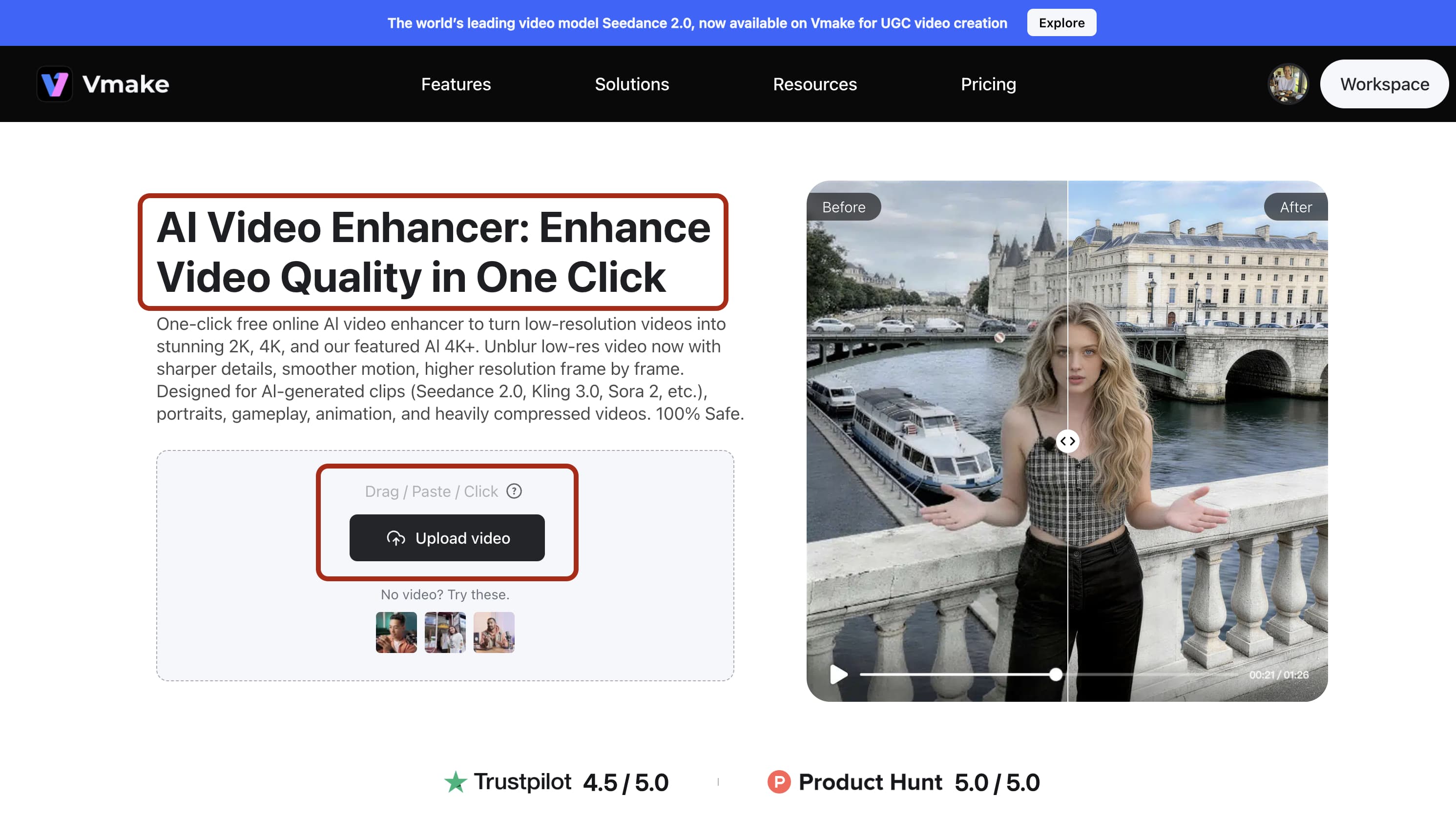
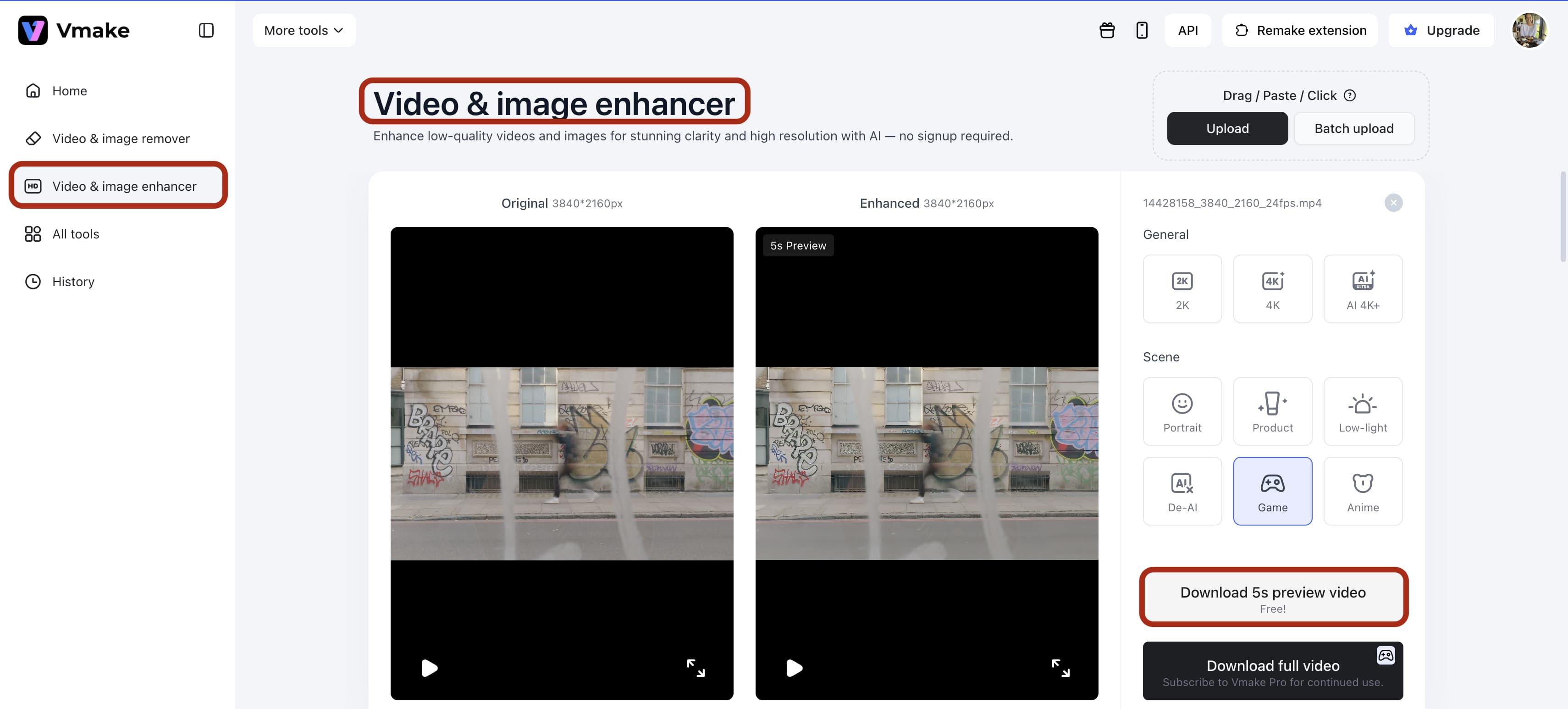
Step 1: Upload your footage to the VmakeVideo Enhancer.
Upload your footage to the Vmake Video Enhancer. Dragging and dropping works fine. The system accepts heavily compressed MP4s from mobile devices or heavier ProRes files from dedicated rigs. Make sure you aren't uploading a file that's already been heavily damaged by another software's optical flow.
Step 2: Select a scene mode (e.g., "Game/Product") to let the AI fix frame.
You have options here. Pick the one that fits your shot. If you select a slow-motion profile for high-action sports footage, the algorithm will guess the motion vectors incorrectly. The AI needs context to draw the missing frames accurately.
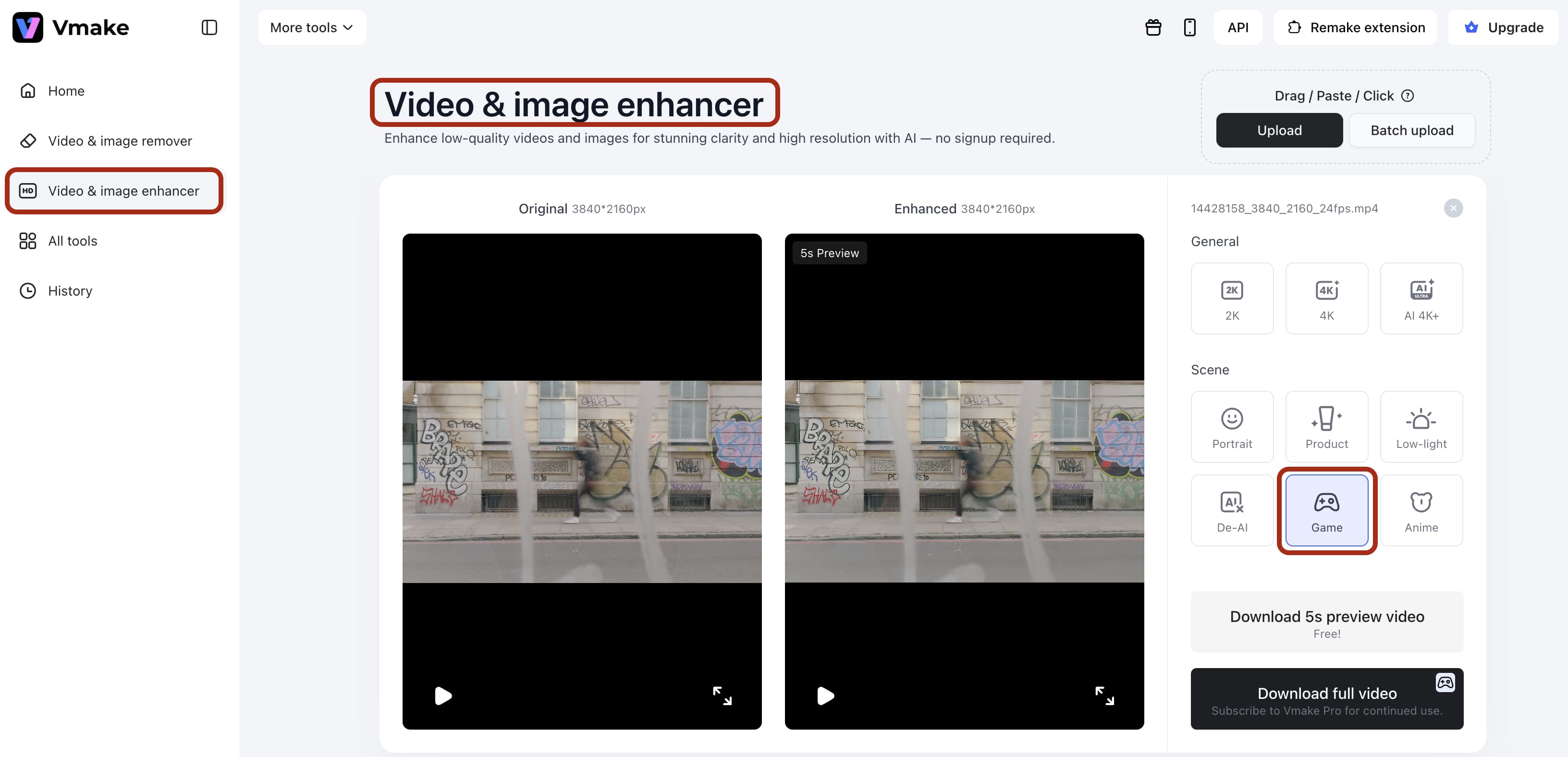
Step 3: Preview the smooth, stabilized footage to ensure it matches human motion expectations.
Always check the preview before committing to a massive render. Look closely at the edges of moving subjects. That's usually where temporal artifacting hides. If the subject looks like they are moving underwater, you selected the wrong intensity level.
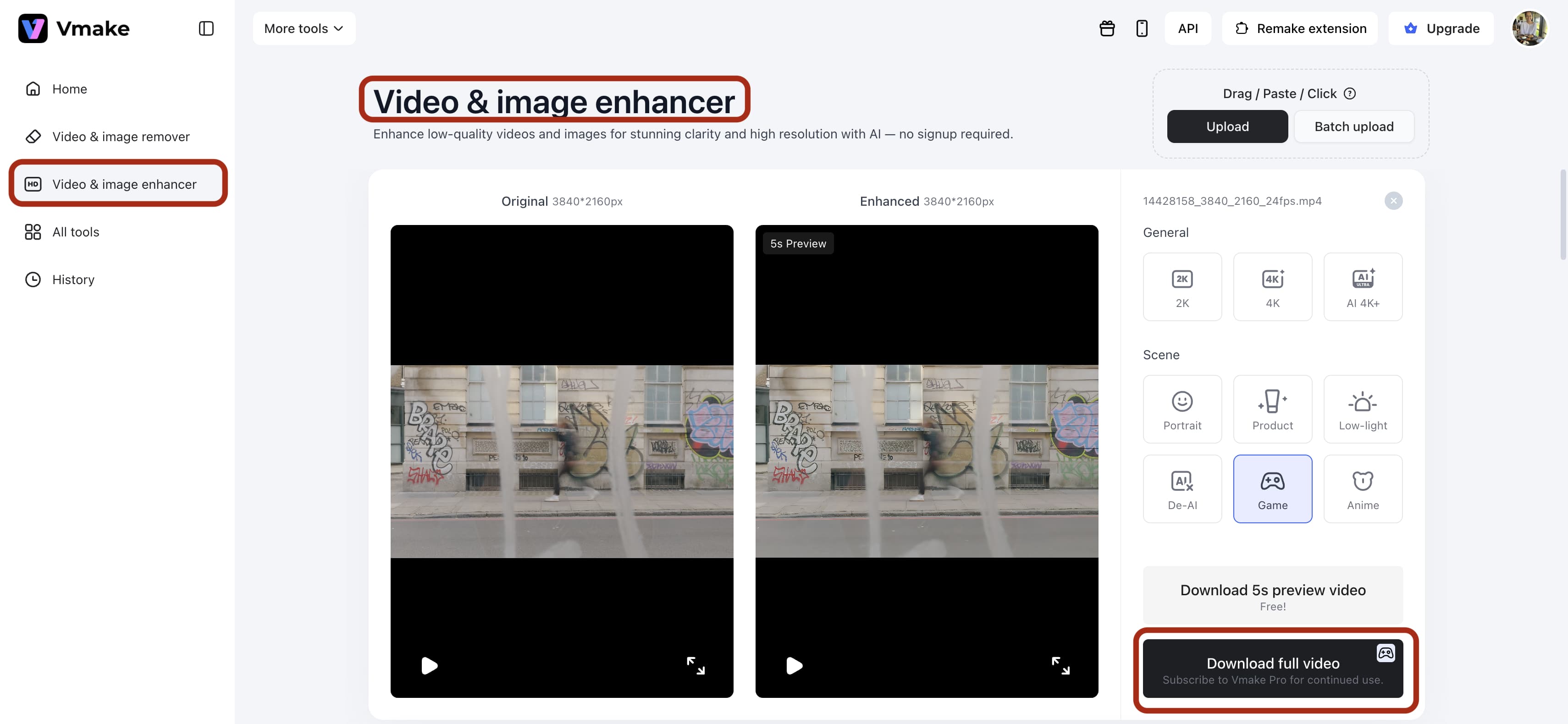
Step 4: Export the finalized high-definition result, optimized for 60 FPS or higher.
Keep an eye on your bitrate during export. Pumping a video up to 60 frames per second literally doubles the amount of data the file needs to display. If you choke the bitrate down too low, the fluid motion gets completely destroyed by ugly compression blocks.
Strategies for Optimizing Visual Fluidity and Motion
Software fixes a lot. Good production habits fix the rest. You need a holistic approach to visual quality.
-
Use High Refresh Displays: You must view your work on proper hardware. Editing 120 FPS video on a 60Hz monitor is a massive waste of time. Professional setups need 144Hz or higher. You'll catch micro-stutters that viewers feel subconsciously. You simply cannot fix temporal errors you physically cannot see on your screen.
-
Optimize for Diminishing Returns: Biology has limits. The jump from 30 to 60 FPS is startling. The leap to 120 FPS is noticeable. Pushing to 500 FPS? Barely anyone cares. Find a sweet spot to balance huge file sizes with visual gains. High frame rates will absolutely shred your hard drive storage space.
-
Reduce Input Lag: Fluidity isn't just visual. Gamers and streamers care deeply about latency. Higher FPS shrinks the gap between a physical click and a screen response.
Conclusion
We finally know that human capacity dwarfs old digital standards. High-refresh-rate displays are everywhere now. Viewers won't tolerate choppy video anymore. By relying on smart tools like Vmake AI, you can meet the biological needs of your audience.
We process the world smoothly. Maybe our digital media is finally catching up.
FAQs
-
Can the human eye see 120 FPS? Yes. Flicker fusion happens at lower speeds, but you easily spot the reduced motion blur at 120 FPS. High-action scenes make this obvious.
-
Is 240 FPS overkill for the human eye? For a normal movie, absolutely. Competitive gamers and athletes definitely detect the added precision, though. Vmake AI helps keep frame delivery consistent at these extreme rates. It's vital for esports.
-
Does Vmake AI support high-frame-rate enhancement? Yes. The Vmake Video Enhancer uses AI interpolation to build new frames, increasing perceived smoothness.
-
What is the maximum FPS a human can perceive? Research involving fighter pilots suggests the brain can identify images flashed for as little as 1/220th of a second. This indicates that our biological capacity for motion detection far exceeds the standard 60 FPS cap often cited.
-
Does higher FPS reduce eye strain? Generally, yes. Higher frame rates create a more "continuous" image, reducing the cognitive load required for the brain to fill in the gaps between frames, which can lead to a more comfortable viewing experience.
-
Can I fix a video shot at a low frame rate? While you cannot change the original shutter speed, Vmake AI’s generative features can add artificial frames to smooth out choppiness, making low-FPS video appear as if it were captured at a higher temporal resolution.