2K vs 1080p Resolution: A Complete Technical Comparison Guide for 2026
 Vmake Labs TeamMay 29, 2026
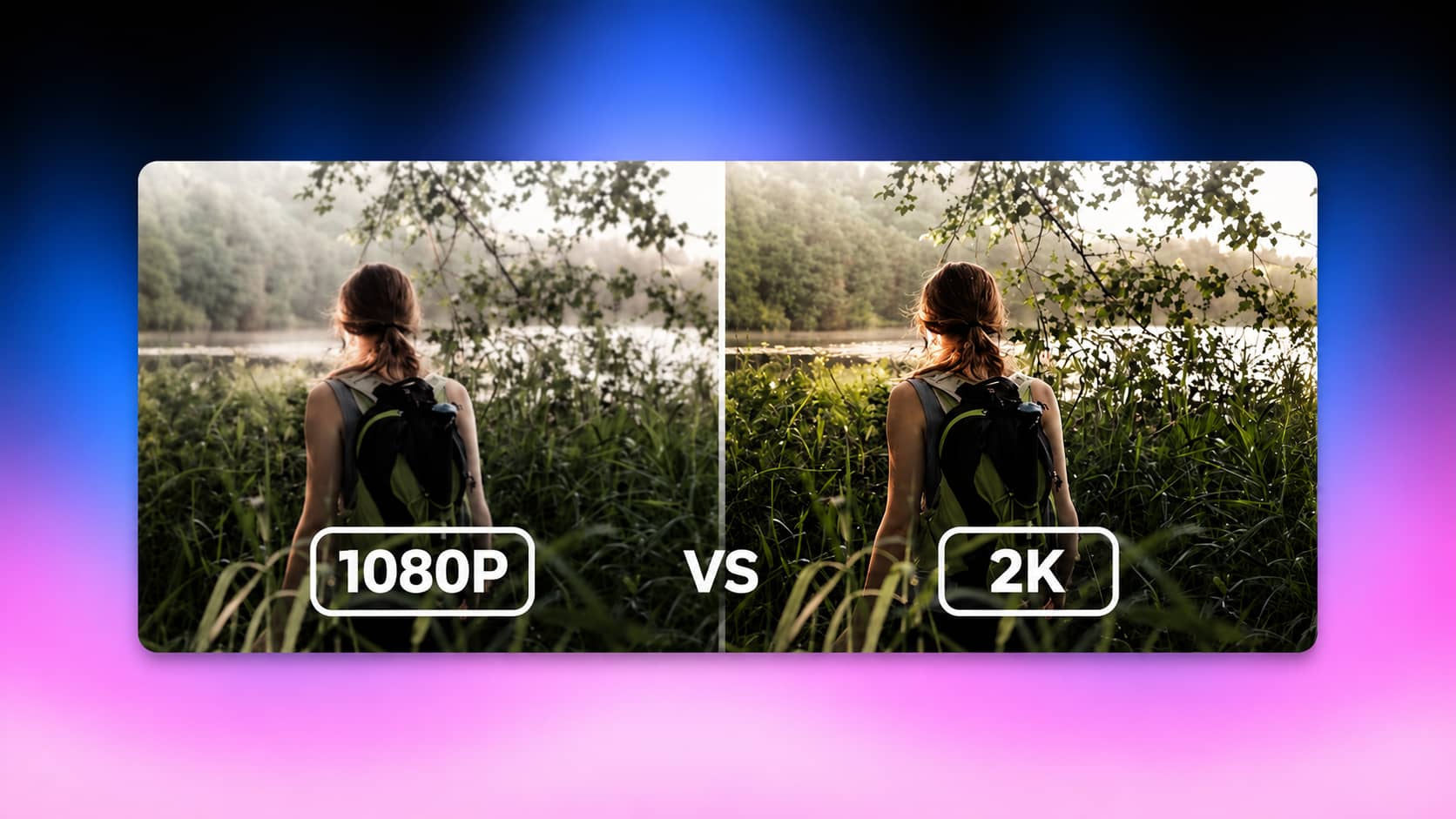
Modern display hardware exposes the limitations of standard media: 1080p outputs roughly two million pixels, but jumping to 2K pushes that past 3.6 million. But how exactly does this massive leap in pixel density impact you and your daily viewing? Let's dive into this guide to see how these differences impact you and the world.
Understanding Video Resolutions: 1080p, 2K, and 4K
The technical gap between the display sitting on your desk and the raw media files you download is widening every single quarter. Hardware manufacturers ship screens with insanely high pixel densities year over year. Fixing this visual disconnect requires you to actually understand what your hardware is trying to render.
What is 1080p (FHD)?
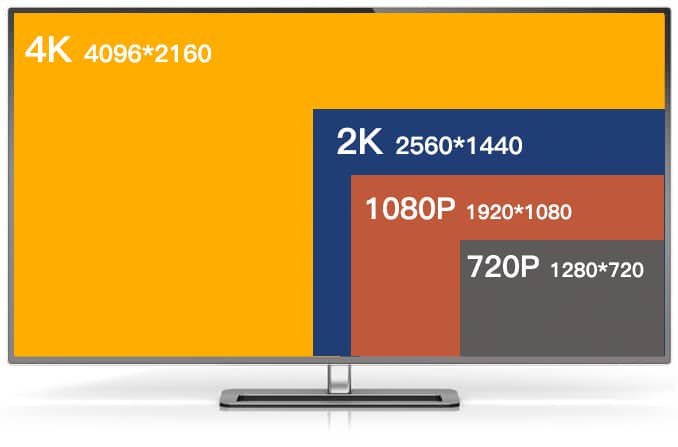
Let's address the baseline. 1080p features a physical resolution of 1920 horizontal pixels by 1080 vertical pixels. Multiply that out. You get roughly 2.07 million individual pixels firing on your screen. It sounds like a massive number on paper. It really isn't. This format remains the stubborn, unkillable standard for basic broadcast television, budget laptop screens, and mobile streaming platforms like YouTube or Twitch.
-
The Bandwidth Cap: Most internet service providers throttle heavy data. 1080p survives because it sneaks under these data caps easily.
-
The Compression Problem: Because 1080p is heavily compressed for streaming, dark scenes often turn into blocky, pixelated messes.
-
Archive Limitations: If you are dealing with massive hard drives full of older broadcast footage, you are stuck with this resolution. You will usually have to run those files through a heavy transcoding process just to modernize the outdated codecs before your editing software will even read them.
There is a glaring physical limitation here. Viewing native 1080p on displays larger than 24 inches stretches the image slightly. It stays perfectly clear for casual viewing. For professional editing, though, you will notice the edge clarity on text and fine details begins to soften.
What is 2K (QHD)?
Now we step up to the modern baseline. 2K resolution typically features 2560 x 1440 pixels. The tech industry loves confusing naming conventions, so you will often hear this referred to as 1440p or Quad HD (QHD).
-
The Pixel Math: This format pushes over 3.6 million pixels onto the panel. You get roughly 78% more screen real estate and raw visual detail compared to a standard Full HD signal.
-
The Visual Upgrade: It pushes image sharpness back up to professional levels. Text looks crisp again on larger contemporary displays. Your timeline panels in editing software actually fit on the screen.
-
The Hardware Trap: Most native 2K monitors possess terrible built-in scaling hardware. If you feed a 1080p signal into a 1440p panel, the monitor physically has to guess how to fill the missing pixels. It usually guesses wrong, smearing the entire image.
1080p vs 2K vs 4K: Finding the Balance
Everyone thinks they need 4K immediately. They usually don't. Jumping straight to ultra-high definition is often a massive workflow trap for independent creators.
-
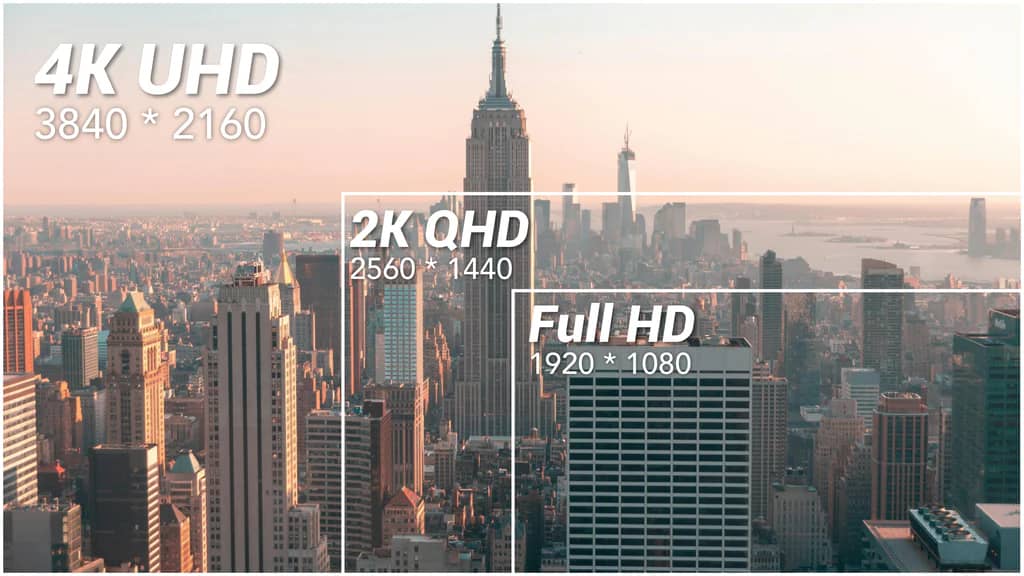
The 4K Bottleneck: 4K specifications demand 3840 x 2160 pixels. That translates to over 8 million pixels per frame. That massive pixel count will completely eat your local storage drives alive. Processing those files chokes mid-range graphics cards. Your rendering times will quadruple overnight.
-
The Proxy Problem: Editing raw 4K usually forces creators to generate low-resolution proxies. You end up doing this just to scrub the timeline without your computer freezing. Why shoot in 4K if you have to edit in 1080p anyway to keep your software from crashing?
-
The Middle Ground: 2K sits perfectly in the middle. It provides an undeniable visual upgrade over standard HD without the extreme computational hardware tax of UHD.
-
Future-Proofing: If a client eventually mandates a strict UHD deliverable, you don't need to panic. You can easily run your finished 2K master file through a dedicated AI upscaling tool later in the pipeline.
2K vs 1080p: Detailed Technical Comparison
When evaluating a 1080p vs 2K comparison, looking at raw pixel counts is only half the job. You have to account for network limitations, local hardware bottlenecks, and what you are actually trying to achieve visually.
|
Feature |
1080p (FHD) |
2K (QHD/1440p) |
|---|---|---|
|
Pixel Count |
1920 x 1080 (approx. 2 million pixels) |
2560 x 1440 (approx. 3.6 million pixels) |
|
Aspect Ratio |
16:9 |
16:9 (standard QHD) |
|
Digital Zoom Capability |
Pixelates quickly upon zooming |
Retains fine detail (e.g., text, facial features) |
|
Network Bandwidth |
Low (approx. 3–6 Mbps for streaming) |
High (approx. 8–15 Mbps for streaming) |
|
Storage Consumption |
Minimal (Easier for local SD/Cloud) |
Significant (Requires larger drives/compression) |
|
Frame Rate / FPS |
High (Easily supports 144Hz–240Hz+) |
Moderate (Taxes GPUs to maintain 144Hz+) |
|
Hardware Demand |
Low (Suitable for entry-level GPUs) |
Medium (Requires mid-range to high-end GPUs) |
|
Ideal Screen Size |
Up to 24 inches |
27 inches and above |
The bandwidth metrics in that table completely dictate your distribution strategy. A standard HD stream only requires a stable 5 Mbps connection to avoid buffering. Pushing a crisp QHD signal forces that requirement well past 10 Mbps.
If your core audience primarily watches your content on cellular data while commuting, feeding them a heavy QHD file is a structural mistake. They will just experience endless buffering and close the app.
Conversely, displaying a highly compressed, low-bitrate FHD file on a large desktop monitor guarantees visual artifacting. The compression blocks become highly visible in darker scenes, making your footage look amateurish.
Practical Use Cases: 2K Video vs 1080p
Different industries demand completely different baseline specifications. Blindly setting your camera to the highest available resolution is a rookie move.
Security Cameras and Surveillance
Surveillance hardware lives and dies by available storage capacity. These cameras record constantly, 24/7.
-
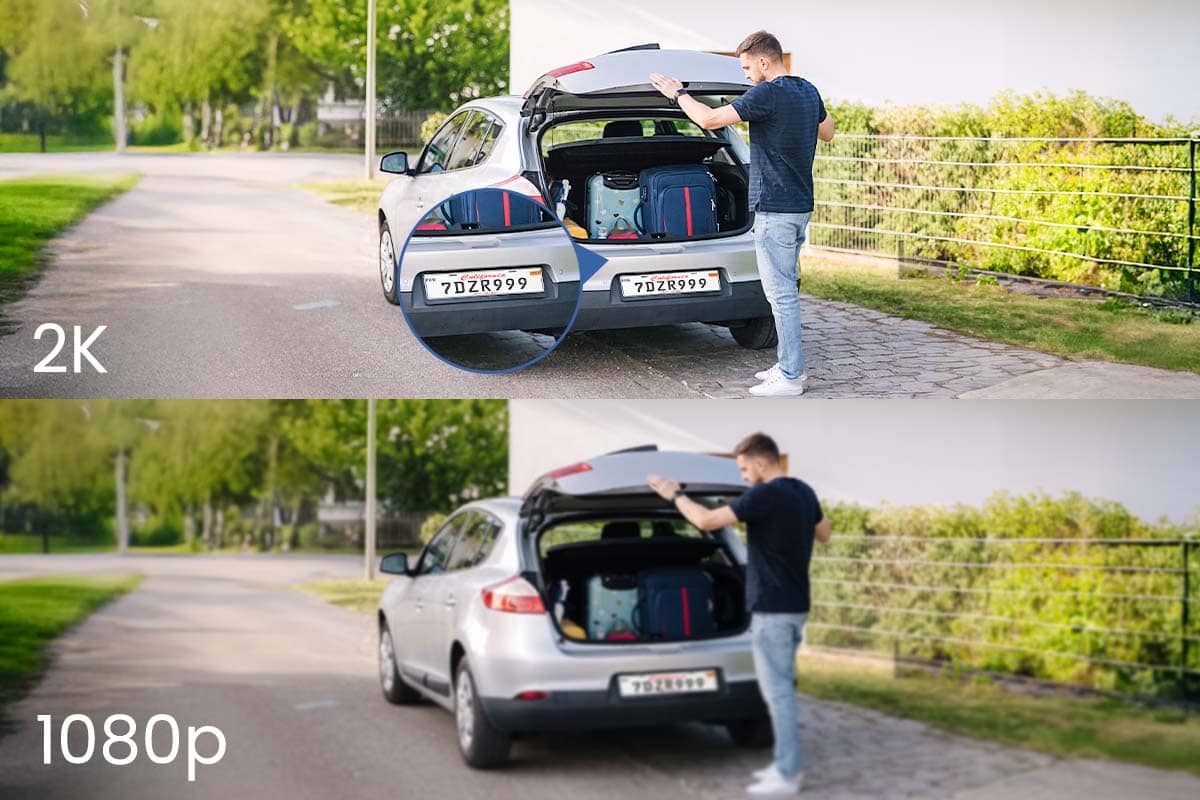
1080p Systems: These are perfectly sufficient for general monitoring in small, confined indoor spaces. Think small offices or tight hallways. Your bandwidth and cloud storage costs remain extremely low. The major limitation is severe pixelation during playback. If you attempt to zoom in on a suspect's face, it turns into a blur.
-
2K Systems: Highly recommended for outdoor monitoring. The extra 1.6 million pixels allow investigators to actually utilize digital zoom effectively. You can read license plates at a distance. You will, however, need to purchase expensive, high-capacity NVR hard drives to store the larger volumes of footage.
Choosing 2K video vs 1080p for security depends strictly on your physical field of view. Do not waste hard drive space on a heavy 2K camera pointing at a blank, static wall.
Gaming and Content Creation
The hardware sector actively debates 2K qhd vs 1080p daily. Rendering 3D environments taxes a GPU heavily.
-
1080p: For competitive esports, this remains king. Professional players prefer maximum frame rates. They want 240Hz or 360Hz refresh rates over visual detail. A lower resolution guarantees the GPU won't stutter or drop frames during heavy action sequences. Input lag matters far more than shadow clarity.
-
1080p HD vs 2K for Creators: This isn't even a contest for professional video editing or single-player RPGs. A 27-inch 1440p monitor provides the exact pixel density needed to read timeline text in Premiere Pro without eye strain. You gain a massive workspace area. You can actually see the interface panels without them cramping the preview window.
Just remember the hardware trap. Forcing a mid-range graphics card to output a 1440p signal while rendering heavy 3D physics will severely drop your frame rates.
The Shift from Hardware to AI Upscaling

We all know that sometimes you just don't control the source file. It's the same challenge director Peter Jackson faced in his WWI documentary, They Shall Not Grow Old. His team had to manually restore century-old, low-res archival footage so it wouldn't become a blurry mess on modern theater screens.
Analyzing 2K resolution vs 1080p on a timeline usually forces a painful realization. Stretching the smaller file to fit the larger sequence timeline creates a blurry disaster. Native upscaling using basic editing software is practically useless.
-
The Problem with Old Software: Traditional editors use bilinear interpolation. They literally just copy an existing pixel and paste it next to itself to make the image bigger. It softens the entire video.
-
Neural Reconstruction: The industry solved this by moving away from local hardware rendering. Advanced neural networks now analyze standard FHD frames and intelligently reconstruct missing edge data. The AI doesn't stretch pixels. It predicts and draws brand new ones.
-
Bypassing Hardware Limits: You no longer need to buy a $2,000 graphics card to fix old footage. Cloud-based AI processing handles the massive computational load for you remotely. You just feed the raw file into a dedicated video enhancer.
There is a distinct limitation to this technology. If the original source file is heavily corrupted with compression blocks or extremely low-light grain, the neural network might hallucinate slightly. It can occasionally mistake digital noise for physical texture. You always have to review your output.
Executing a Resolution Upgrade: Vmake AI Video Upscaler
When standard editing software attempts to scale 1080p vs 2K, it fails. You get a stretched, unprofessional, low-quality image that clients will reject. By integrating Vmake AI Video Upscaler into your post-production workflow, you completely bypass these outdated interpolation limits. It allows you to instantly transform standard-definition clips into high-fidelity 2K or 4K assets. If you are dealing with dozens of client files at once, running them through a batch video upscaling tool eliminates the manual rendering bottleneck entirely.

Step 1: Upload file
Access the Vmake AI dashboard directly via your browser. You don't need to install heavy desktop applications. Simply drag and drop your standard 1080p video file into the upload module. Let the cloud handle the initial file ingest.

Step 2: Parameter Selection
Select your exact target output resolution: Choose either 2K or 4K to match your master sequence timeline and let AI work on your video. (Video will be automatically upscaled into 2K; you can choose 4K and click "Apply" for a higher resolution)

Step 3: AI Processing & Export
Once Vmake finishes upscaling, you can drag the timeline slider to preview the results, or "Press to view original video." Finally, click the "Download full video" button next to the video on the right-hand side of the top panel.

Conclusion
Choosing between a 2K vs 1080p resolution depends entirely on your specific hardware capabilities, storage limits, and physical display sizes.
While the older FHD standard remains a reliable, low-bandwidth baseline for mobile streaming, 2K provides the mandatory upgrade in sharpness required for modern 27-inch monitors. You simply cannot execute detailed video production on low-density screens anymore. The workspace is too small and the image is too soft. If you get stuck adapting older or lower-resolution footage for contemporary displays, rely on AI processing tools to scale the files correctly. Doing it manually with outdated editing software ruins the final product every single time.
FAQs
Is 2K noticeably better than 1080p?
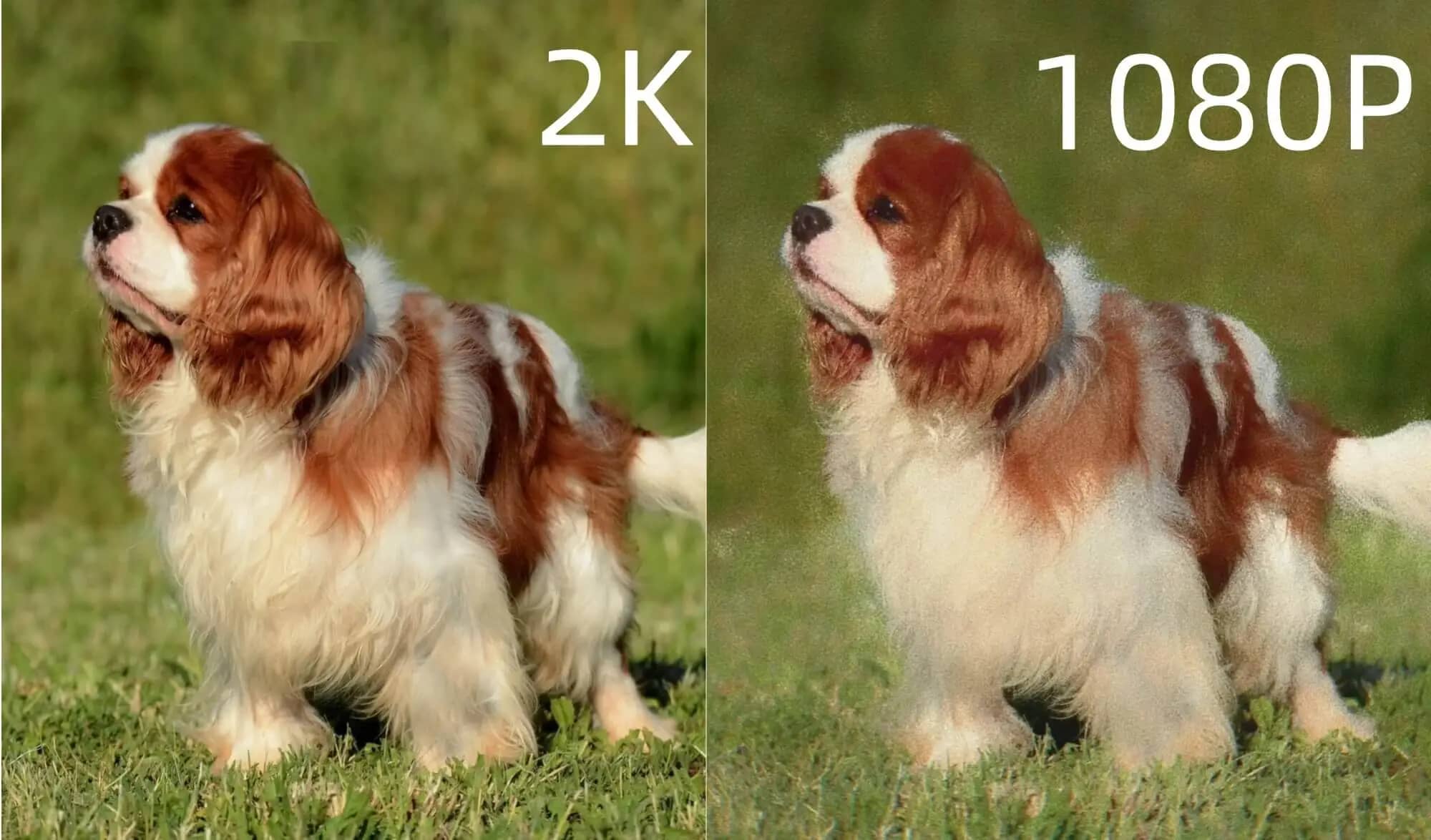
Yes. When evaluating 2K video vs 1080p, the raw math makes it obvious. 2K provides roughly 3.6 million pixels, completely dwarfing the 2 million baseline of standard HD. You get immediate improvements in text rendering and hard-edge clarity. This isn't just a marketing gimmick. Once you review footage on a 27-inch panel, standard HD looks distinctly out of focus.
Does a 1080p video look bad on a 2K monitor?
It generally looks soft. Because physical pixel grids don't scale cleanly to a 4:1 ratio, the monitor hardware has to guess how to fill the empty space. This interpolation process smears fine details. It won't necessarily ruin a casual presentation, but video editors will spot the blurring immediately.
Which is better for gaming: 1080p or 2K QHD?
It depends entirely on the game engine. 1080p remains the standard for competitive multiplayer, where pushing 240 frames per second prevents input lag. For cinematic single-player campaigns, analyzing 1080p HD vs. 2K shows the latter is universally better. It offers a massive jump in texture fidelity without crippling your graphics card the way native 4K processing usually does.
Can I convert 1080p video to 2K?
Yes, you can use AI-based processing tools to upscale standard 1080p files into 2K or 4K resolutions. Platforms like the Vmake video upscaler actively analyze your footage to rebuild the missing pixels, significantly enhancing the final visual clarity of your 1080p vs 2K conversion.
What is the main difference between 1080p HD and 2K?
Pixel density and bandwidth overhead are the core separators. 1080p caps at 1920x1080 pixels, requiring minimal data to stream smoothly over mobile networks. 2K standardly renders at 2560x1440. That heavier format demands significantly more local hard drive space and faster network speeds, but it delivers the professional-grade sharpness required for modern digital distribution.
Is 2K resolution worth it for streaming on mobile devices?
Generally, no. Streaming in 2K on a smartphone screen is a massive waste of bandwidth. You won't physically perceive the extra pixel density on such a small surface area. You're just forcing your viewers to chew through their mobile data plan for zero tangible benefit. Stick to 1080p for mobile-first content to keep playback snappy and data-efficient. Save the higher resolution assets for desktop-viewing experiences where that extra clarity actually makes an impact.

You May Be Interested
2026 Fotor Video Enhancer Review: Features and Top Alternatives
How to Change Video Resolution Without Losing Quality
What is 4K Resolution: A Complete Beginner's Guide
What is 1440p Resolution? A Complete Guide to QHD Displays
1080p vs 4K: Pros, Cons, and Which One to Choose
Demystifying 2K Video Resolution: The Ultimate Guide
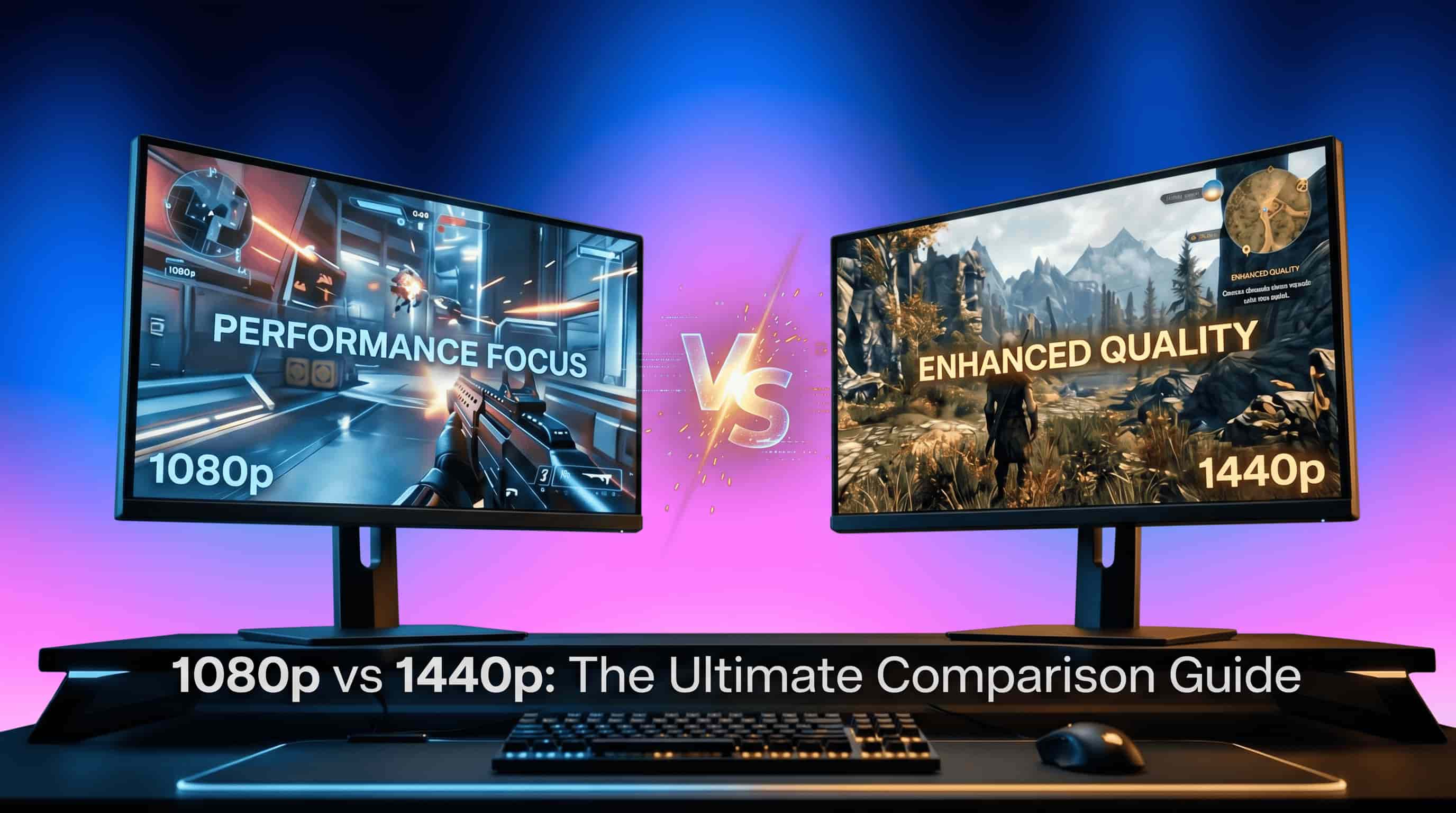
1080p vs 1440p: Which Resolution Is Better for You?