How to Create a Video with Images: Bring Your Pictures to Life
Learn how to create a video with images and transform photos into captivating videos automatically. Use Vmake to generate a video that captures attention and tells your story effectively.

A single image tells part of a story, but motion changes everything. Adding simple movement brings photos to life and deepens the viewer's emotion. Best of all, AI now handles heavy lifting. This guide shows you how to create videos from images effortlessly using advanced tools like Vmake. Here's exactly how to do it.
How to make a natural video with images: ultimate guide
Anyone can dump images into a timeline, but making the final result feel like an actual film requires a strategic approach. To get started on the right foot, make sure you have these key elements ready to go:
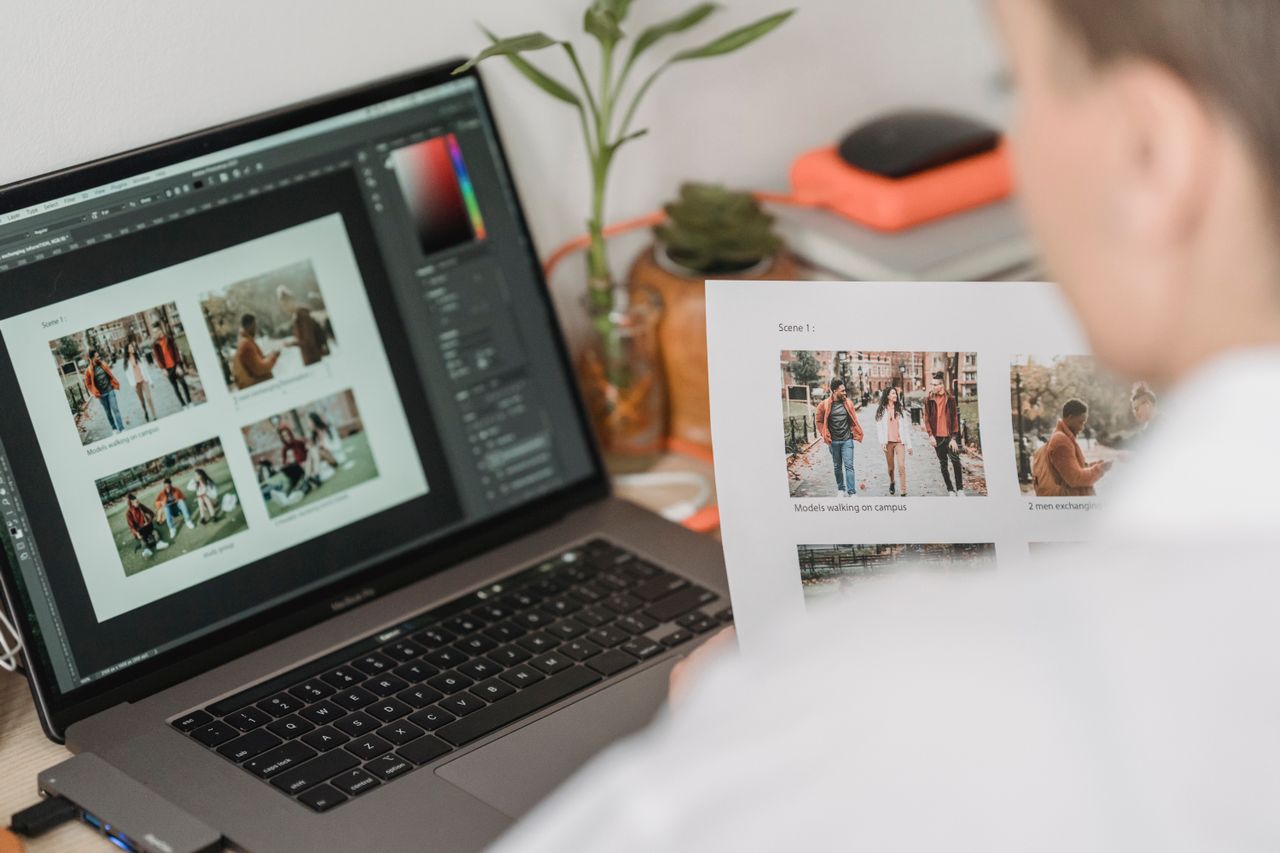
Things to prepare before creation
-
High-Quality Images
The quality of your images directly affects the quality of your video. If your photos look grainy, blurry, or poorly lit, no amount of editing magic will completely fix them. Start with the clearest images you've got.
-
A Storyline or Goal
Before you drag photos onto a timeline, figure out what you're actually trying to say. Some videos celebrate a family trip. Others sell a product, explain an idea, or recap an event. The goal changes everything, from the order of your images to how long each one stays on screen.
-
Music or Voiceovers
The right music can turn an average slideshow into something people actually watch until the end. Photos don't always tell the whole story. Maybe there's a memory attached to the image. Maybe there's a lesson, a joke, or a detail hidden behind the scenes. A voiceover gives you space to share those things.
-
Video Creation Software
Before anything else, you need a tool to build your video. Some tools feel like a professional editing studio. Others feel more like drag-and-drop builders. Neither is automatically better. It depends on how much control you want and how much time you're willing to spend learning the software.
-
AI-powered generators
AI video tools can take a static image and make it feel like it's moving by adding motion, building transitions, and even syncing everything to music without you manually keyframing anything. Most of these tools don't stop at animation. They usually bundle in a few cleanup features too, things like removing people or smoothing out parts of the image that look a bit soft or shaky.
Step-by-step guide to make video with images
Step 1: Use the right photo
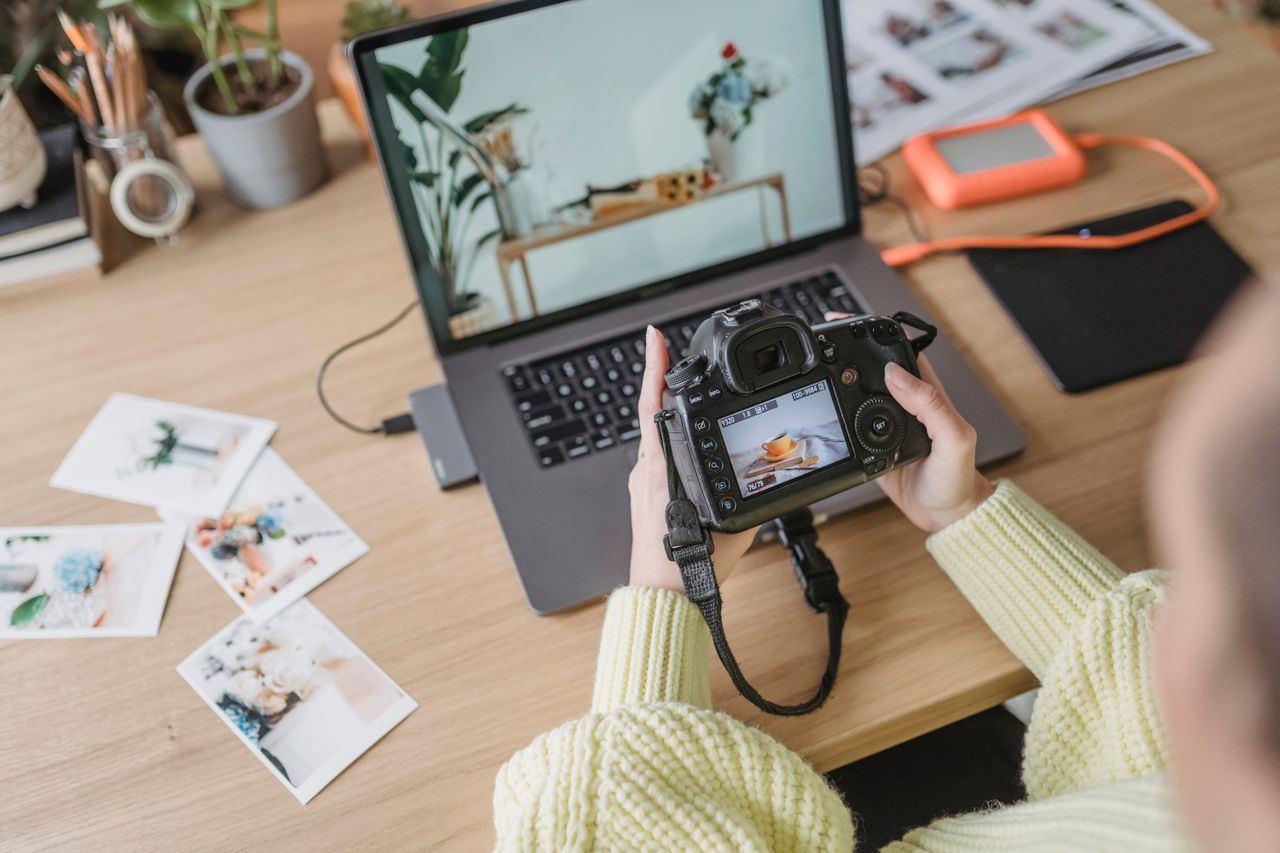
Start with the photos. People often get excited about effects and animations first, but the quality of the final video usually comes down to the images you choose. A blurry photo won't suddenly become compelling because you added motion to it. The same goes for poorly lit shots.
Be selective. Choose images that are clear and actually contribute to the story you're trying to tell. A close-up here, a wider scene there, maybe a detail shot that adds a little context. That variety helps keep viewers engaged.
Step 2: Keep movements subtle
Small movements often look more realistic than dramatic ones. A gentle zoom or slow pan can add life to a still image without drawing attention to the effect itself. Push the motion too far, though, and viewers start noticing the animation instead of the story.
Step 3: Use conversational scripts
If you're adding narration, write the way you speak. People connect with natural language. They don't connect with scripts that sound like they came from a corporate presentation. Keep it simple. Keep it human. Of course, casual doesn't mean unprepared. Rambling can be just as distracting as overly formal narration.
Step 4: Match audio to visuals
Music does a lot of the emotional heavy lifting. You can have great visuals, but if the soundtrack feels out of place, people notice. A nostalgic photo montage paired with a high-energy dance track can feel strangely disconnected. The opposite happens too. When you make video with images and music, fast-moving visuals tend to lose momentum when the music drags.
Step 5: Preview and edit
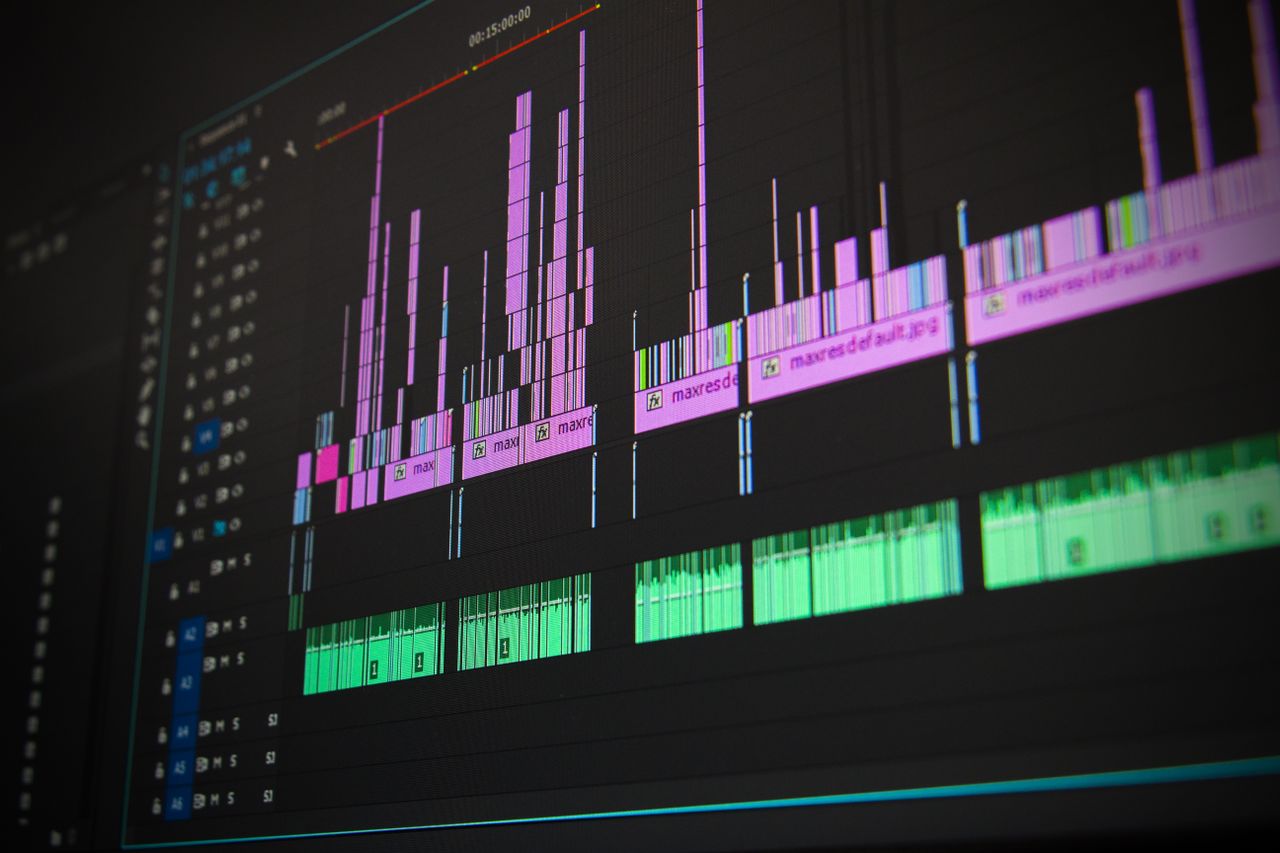
Don't publish the first version. Watch your video from beginning to end and pay attention to the small things. Maybe a photo stays on screen too long. Maybe a transition feels abrupt. Maybe the music peaks at the wrong moment. Most polished videos come from a few rounds of tweaking rather than a single editing session.
Afterthought
In practice, manual animation is incredibly tedious. Tweaking timing, transitions, and motion by hand quickly becomes overwhelming. Fortunately, AI tools rewrite that process. By automating the technical heavy lifting, they free you up to focus entirely on visual storytelling. Vmake embraces this approach, turning static images into fluid video so you can move from concept to finished product much faster.
Introducing Vmake: Making a video out of images with AI
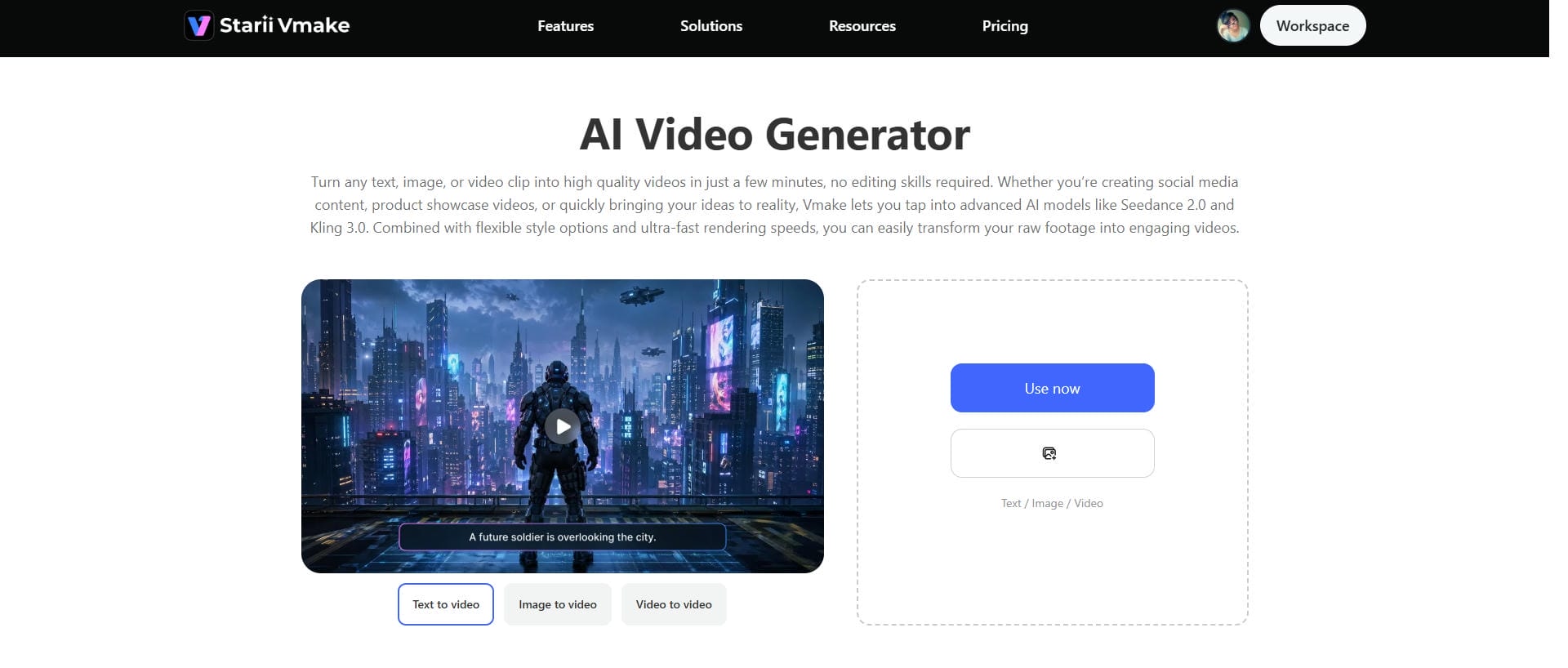
Vmake AI video generator uses AI to help convert still images into videos without requiring you to handle every technical detail yourself. The goal isn't to replace creative decisions. You're still choosing the images, setting the direction, and deciding what story you want to tell. The platform simply takes care of much of the production work that normally slows the process down.
Key features
-
Multimodal approach
Vmake follows a multimodal approach, pulling together different AI systems, such as Seedance 2.0, Kling 3.0, Google Veo 3, Sora 2, Vidu Q2, and Wan 2.2. Some models are better at motion. Others are stronger when it comes to visual structure or maintaining consistency across frames. Vmake combines these strengths instead of forcing a single system to do everything.
-
High-resolution output
Vmake supports high-resolution videos, helping your videos stay sharp across social media platforms, presentations, and professional projects. Besides, it helps remove noise from the video to make the output look more polished.
-
Text-to-video and Image-to-video
Vmake transforms text prompts or static images into dynamic, high-resolution videos in seconds. Whether starting from a creative description or an existing photo, Vmake AI breathes lifelike motion and cinematic style into your concepts.
Step-by-step guide
Step 1: Add your content idea
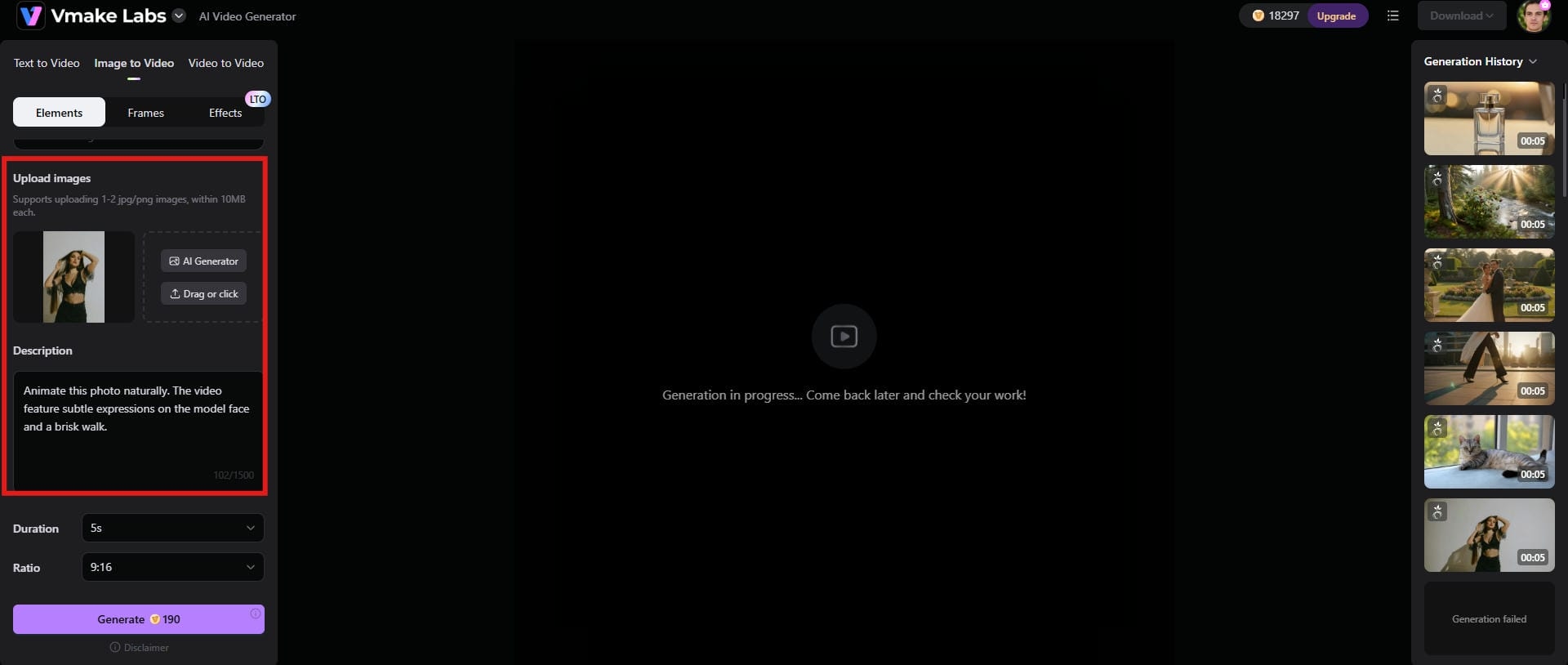
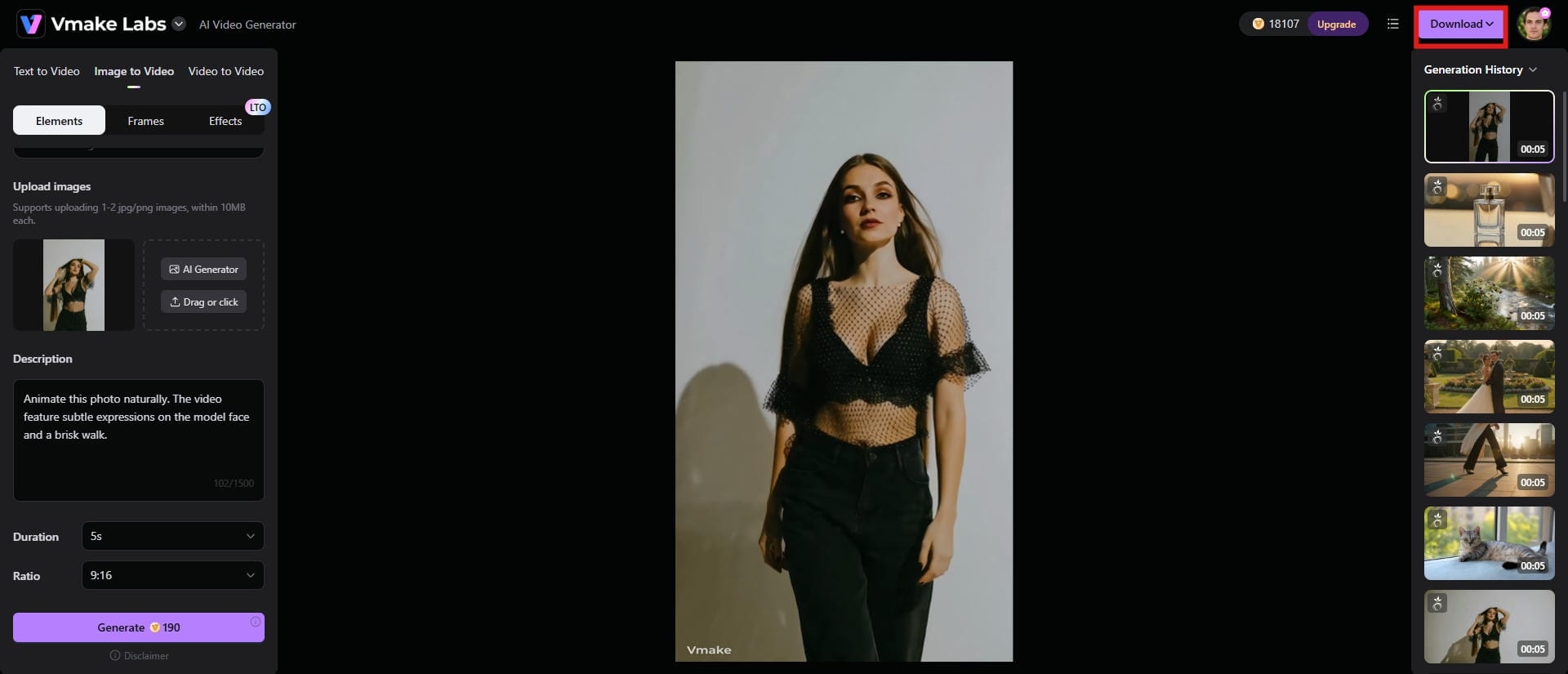
Choose an image-to-video option from the top and upload your images. Arrange the images in the sequence you want viewers to see them. Add a descriptive prompt to guide AI to your expectations.
Step 2: Adjust settings and generate the video
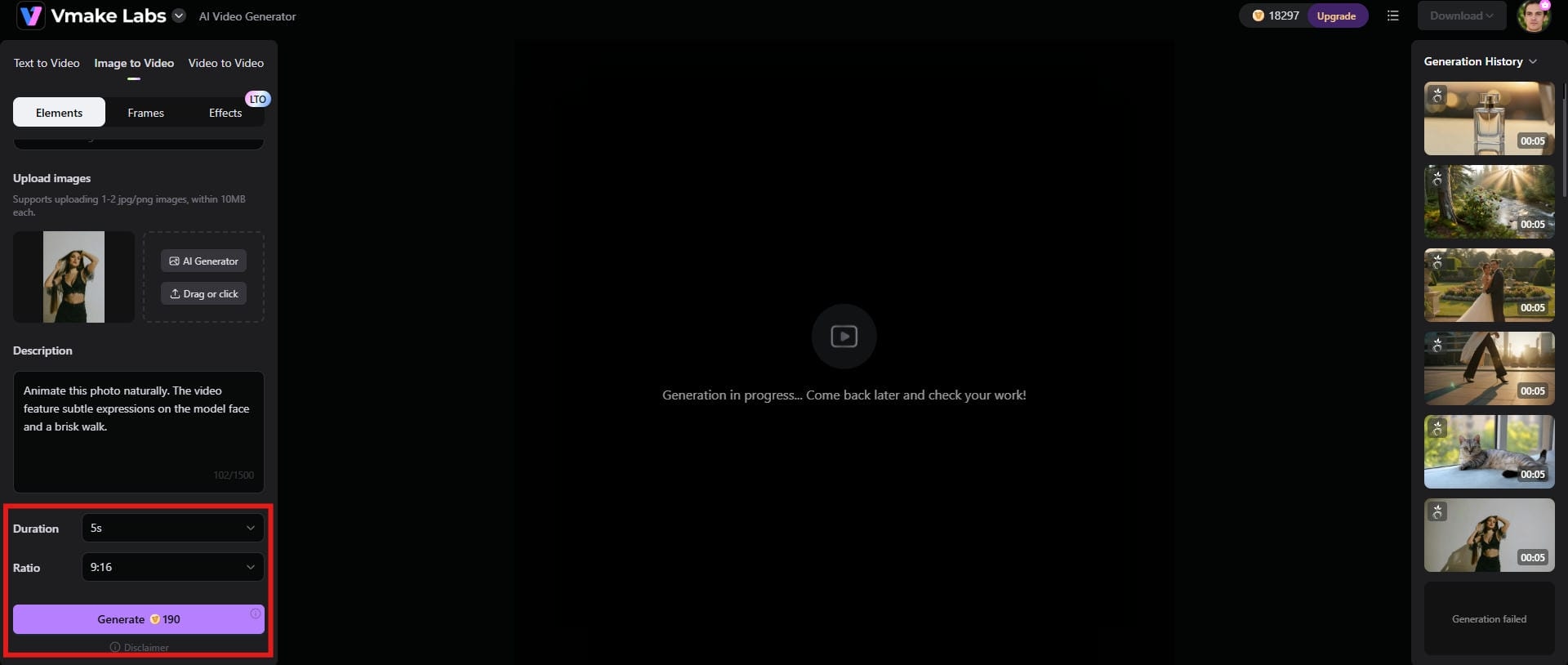
Adjust the final duration and aspect ratio for your video. Make sure both things rely on the platform where you're going to upload the video, so choose accordingly. Click "Generate" to get started.
Step 3: Preview and download
Preview the video and see how everything works together. If everything seems fine, click the "Download" button to save the video to your device. Use the video wherever you feel like. That's how to create a video with images.
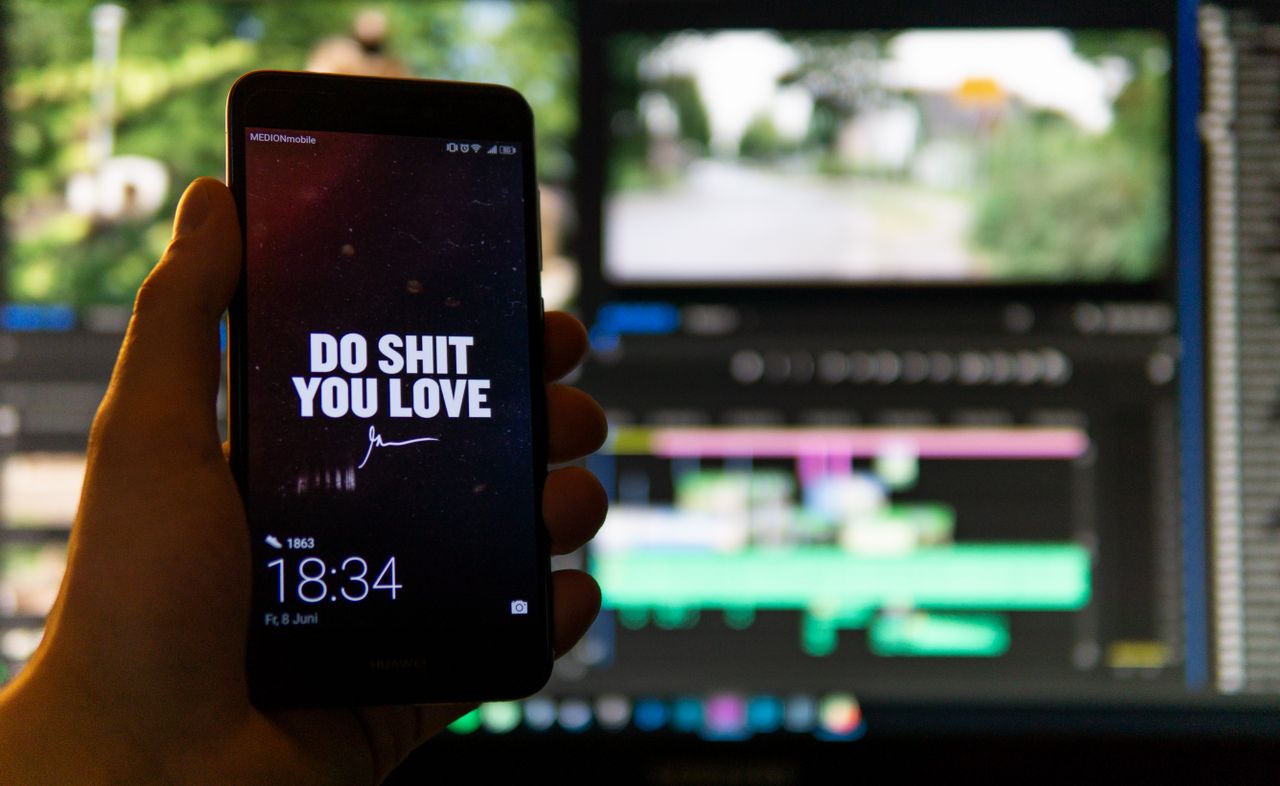
5 best practices for creating videos with images and music
-
Tell a clear story
Don't just line up photos because they look good. You need some kind of direction, even if it's simple. A beginning, a middle, and an end are enough most of the time. Without that, the video starts to feel like a slideshow with music playing over it. Start with a clear opening image or moment, build progression instead of random order, and end with something that feels like closure.
-
Keep it short
Longer doesn't mean better here. People assume more photos equals better storytelling, but attention doesn't really work that way. Once the pacing slows down too much, viewers just start scrolling away. Stick to your strongest images only. Cut anything that doesn't add meaning or context. Avoid repeating similar visuals just to fill time.
-
Use consistent visual style
This one is underrated. If your images look like they came from five different cameras, lighting setups, or editing styles, the video feels slightly off, even if you can't immediately explain why. It's subtle, but it matters. Stick to similar color tones or filters, and avoid mixing heavily edited and raw images.
-
Choose music carefully
Music does more than people expect, and sometimes more than you want it to. A good track can carry weak visuals further than they deserve. A bad one can ruin perfectly fine footage. It's a bit unfair, but that's how viewers react. When creating video with images and music, match energy levels between visuals and audio and avoid tracks that constantly compete with narration or captions.
-
Optimize for mobile viewing
Most people will never see your video on a large screen. Small screens hide detail but exaggerate pacing issues. If your text is too small or your framing is too tight, it just doesn't land. Use vertical 9:16 when possible for social platforms. Keep on-screen text large and readable, and avoid relying on fine visual detail to carry meaning.
Conclusion
Turning images into video is less about adding effects and more about making choices that don't get in the way of the story. When you wonder how to create video with images, a good structure helps. So does restraint. And music matters more than most people expect, even if it feels like an afterthought at first.
AI tools like Vmake take care of a lot of technical weight, which makes the process faster and a bit less frustrating. But they don't replace judgment. You still decide what works and what doesn't. And honestly, that balance between automation and taste is where most of the real work still sits. Start using Vmake and create images and videos with AI.
FAQs
How can I create a video from still images?
Drop your photos into a timeline, shuffle them into the right order, decide how long each one sits on screen, and then start adding transitions, maybe a bit of zoom or pan, so it doesn't feel flat. Tools like Vmake follow the same approach and speed up the process to bring your photos to life.
What is the ideal length for a photo video?
As for length, there's no single "correct" answer, but most social media photo videos land somewhere between 15 and 60 seconds if you actually want people to watch them. Anything shorter than that tends to feel snappy and punchy, especially the 15-30 second range, which is basically the sweet spot for TikTok and Instagram Reels.
What image format works best for video creation?
Image format matters more than people expect. JPEG is the default for a reason; it keeps file sizes reasonable without destroying quality. PNG is more niche, but useful when you need clean edges or transparency. The real thing, though, is resolution. If your images aren't at least 1920×1080 (or higher), you'll start seeing softness or blur once you zoom, pan, or animate them.
How many photos should I use in a video?
Photo count is really about pacing. A rough rule I stick to is 1–2 seconds per image. So a 30-second video might end up with 15–30 photos, while a 60-second one could easily run 30–60. Fewer images slow everything down and make it feel more cinematic. More images push it into something faster and more energetic, almost like a visual rhythm you can feel.
Can AI animate a single photo into a video?
Yes. AI can absolutely animate a single still image into a video now. It's a bit surreal the first time you see it. Tools like Vmake can take a static photo and add motion: a subtle push-in, drifting camera movement, even simulated facial or environmental motion depending on the prompt.
What is the best aspect ratio for social media videos?
The aspect ratio is mostly about where the video is going to live. 9:16 vertical is basically the default for TikTok and Instagram Reels because it fills the whole phone screen. Square (1:1) still hangs on for feed posts, and 16:9 is the old reliable for YouTube, and anything meant for a wider viewing experience.

You May Be Interested
AI TikTok Video Generator | Create High-Quality AI Videos
Best AI Video Generator: Top Tools Tested (2026)
Viggle AI Video Generator Review & Top 2026 Alternatives
Trump AI Video Generator: 3 Best Tools to Create AI Videos
How to Remove CapCut Watermark