H.264 vs. H.265: Understanding the Real Difference Between Video Codecs
Compare H. 264 vs. H. 265 for video quality, compression, streaming, and storage efficiency. Learn which codec works best for YouTube, editing, and modern playback.

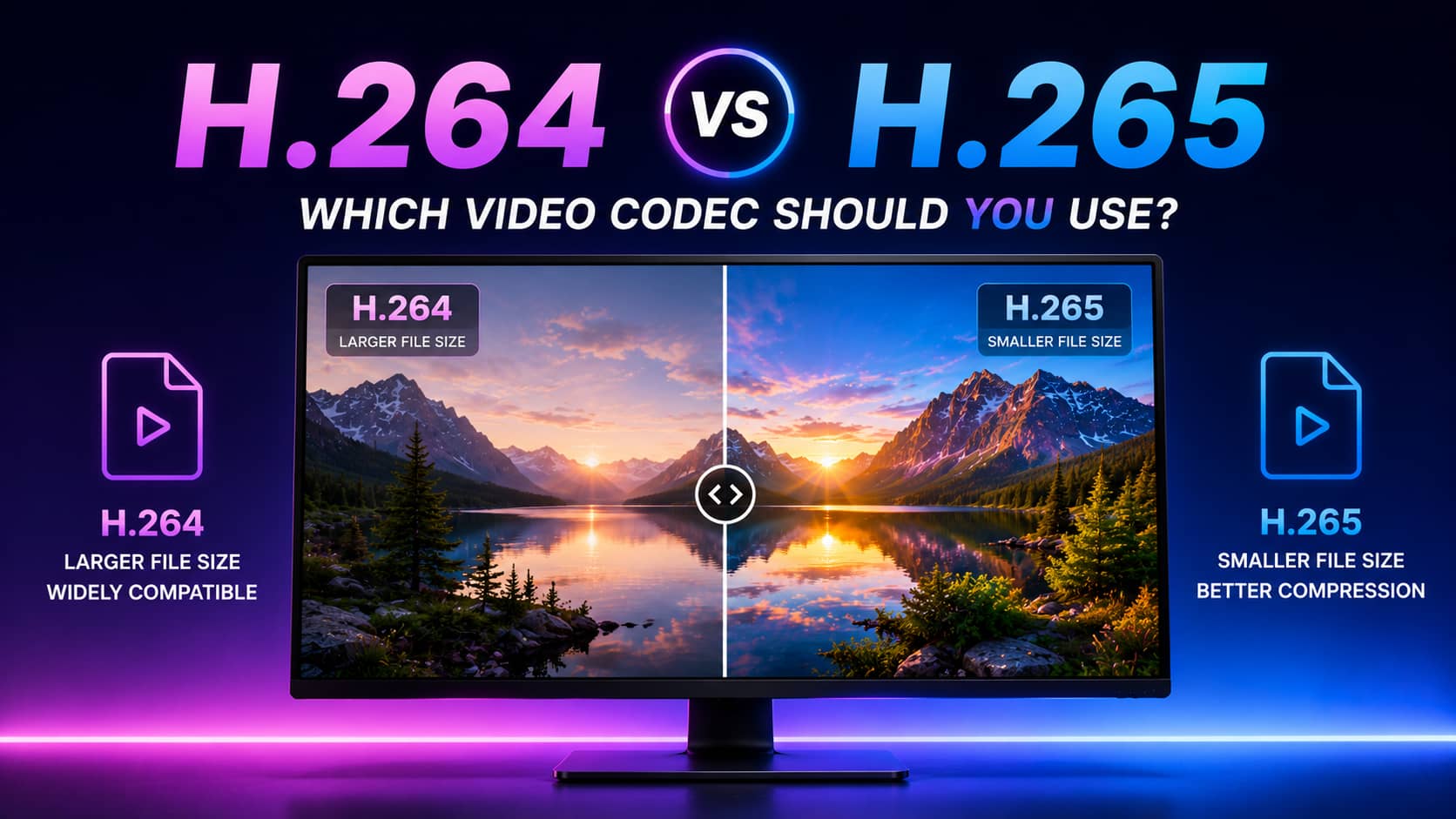
Most people compare H.264 and H.265 in terms of file sizes, but the difference goes beyond that: You usually notice it once the video leaves the editing software. Streaming on a slower internet, editing large projects, exporting 4K footage. That's where the gap starts becoming more obvious. Let's follow our lead and understand where the exact differences are.
What are H.264 and H.265 codecs?
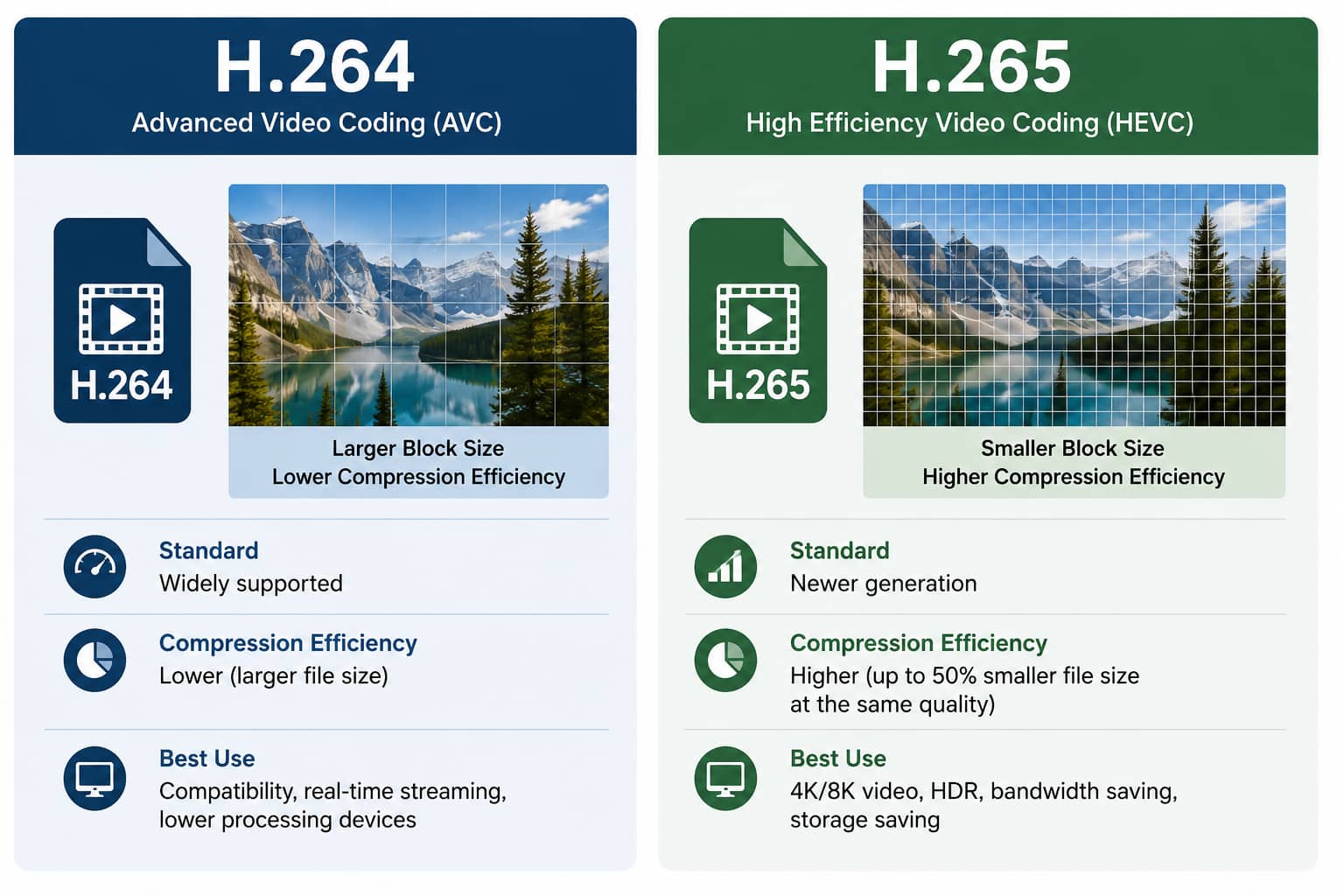
Both H.264 and H.265 do the same basic job: video compression standard. People compress video so it doesn't eat your entire hard drive. A raw, uncompressed clip, even a short one shot on a phone, takes up a shocking amount of space. Codecs solve that.
H.264 became the default years ago and honestly just stayed there. It runs on almost everything without complaint: old laptops, smart TVs, phones from five years ago, browsers that haven't been updated since 2019. YouTube built its whole pipeline around it. For most creators doing standard HD work, it still gets the job done without any compatibility headaches.
H.265 came along with a different priority: do more with less data. Same visual quality, smaller file. That tradeoff matters most when you're working with 4K footage, HDR color grading, or recording for hours at a stretch, where storage genuinely becomes a problem. It's not that H.264 can't handle those things: it can, just clumsily, at much higher bitrates.
H.264 vs. H.265 comparison
|
Feature |
H.264 (AVC) |
H.265 (HEVC) |
|---|---|---|
|
Compression Efficiency |
Standard compression baseline |
More advanced compression (~50% more efficient) |
|
File Size |
Larger files |
Smaller files at similar quality |
|
Video Quality |
Strong HD quality; blocky at lower bitrates |
Better handling of 4K and HDR; cleaner gradients |
|
Streaming Performance |
Reliable for most legacy platforms |
More bandwidth efficient for modern high resolution feeds |
|
Device Compatibility |
Supported almost everywhere universally |
Limited to some older hardware and legacy browsers |
|
Processing Demand |
Lower CPU/GPU rendering overhead |
Higher hardware requirements due to algorithmic math |
|
Editing Performance |
Faster, native timeline editing workflows |
Heavier processing often requires proxy files during editing |
|
Storage Usage |
Consumes significantly more storage space |
Saves up to half your hard drive storage footprint |
|
Best Use Case |
YouTube, legacy livestreams, standard playback |
4K streaming, HDR masters, long term archiving |
H.264 vs. H.265: Where does the difference actually matter?
For casual stuff, watching a 1080p clip on a laptop or office monitor, you won't notice much. Both codecs hold up fine. The real differences creep in once projects get heavier. Bigger timelines, 4K exports, sluggish internet, endless recording sessions. That's when codec choice stops being theory and starts messing with your workflow.
-
Streaming high-resolution content: 4K and HDR streams genuinely favor H.265. Bandwidth holds up better, and the picture stays clean. Put both codecs on a shaky connection, and H.264 starts stuttering while H.265 keeps going.
-
Uploading to YouTube: Stick with H.264 here. It's not glamorous advice, but YouTube handles it well, and playback issues basically don't happen. H.265 looks better at smaller sizes in theory, though real-world support across devices is patchy enough that it's rarely worth the headache.

-
Editing: H.265 in the timeline is painful unless your machine is genuinely powerful. Scrubbing lags, cuts feel sticky, and proxy generation becomes a whole side project. H.264 isn't as efficient with space, but it lets you actually work without babysitting your CPU.
-
Surveillance and long recordings: Storage fills up quickly with continuous recording. H.265 slows that down considerably, which is why security systems moved to HEVC before most creators even cared about it. Practical, unglamorous, effective.

-
Older hardware: Plenty of devices simply can't decode H.265. Not slow; just broken. Black screen, no audio, stuttering that never resolves. Hardware support is the deciding factor, and many older devices lack it.
-
Mobile streaming: Thin bandwidth is unforgiving. H.264 starts producing ugly blocky artifacts under pressure. H.265 degrades more gracefully, which on a crowded network makes a real visible difference.
Is H.265 better than H.264 for video quality?
The answer depends on what you mean by better. People assume a newer codec automatically cleans up footage sharper, smoother, and more detailed. That's not how any of this works. Codecs compress pixels; they don't fix them. Shaky handheld footage, bad low-light grain, soft focus: export that to H.265 and you get the exact same problems wrapped in a smaller file.
The genuine advantage shows up in 4K and in HDR color work:
H.265 is smarter about preserving fine texture and gradients without needing a massive bitrate to do it. Archive files stay manageable. For regular 1080p content, though, H.264 holds up fine. (Your editing software will thank you for not forcing it through HEVC decoding all day.)

Real-world use
-
H.264 still runs the show for general YouTube uploads, live web broadcasts, and quick turnarounds because it completely eliminates device compatibility gambling.
-
H.265 is the practical favorite for mastering ultra high definition projects, processing rich color spaces, or configuring long-term storage arrays where saving gigabytes is top priority.
At the end of the day, matching the two up requires checking your export bitrates. Give an H.264 file enough data overhead, and it will match a newer codec frame-for-frame; you'll just end up with a massive file that is tough to transfer.
-
H.265 holds onto visual textures far better at lower bitrates.
-
H.264 cuts out the need to generate proxy files on most computers.
-
H.265 handles wide color depths and 4K pixels beautifully.
-
H.264 guarantees your video will actually open on any screen, anywhere.
Smart tool you'll need: Improve H.264 and H.265 videos with Vmake AI
Digital compression can mess with your visuals in frustrating ways. Fine surface textures go missing, dark shadows break down into patchy blocks, and social media platforms hit your uploads with harsh compression loops that make things look even softer. If you are stuck with a blurry render or highly compressed mobile clips, trying to reconstruct that missing clarity by hand in an editor is incredibly tedious.
Vmake.ai tackles this problem by using automated machine-learning filters directly inside your pipeline, providing a fast video upscaler and video audio enhancer to clean up ruined details instantly. Without manual editing or technical tweaking, you will get a polished version of your video.

Key AI capabilities
-
AI sharpening for compressed footage: Rebuilds soft edges and refines microdetails, bringing natural definition back to textiles, faces, and design elements.
-
Detail restoration for softer-looking videos: Recovers the subtle surface textures and local contrast lost during harsh, low-bitrate export phases.
-
Noise and artifact reduction: Actively scans shadow zones to remove pixelated noise and smooth out macroblock compression damage.
-
Resolution enhancement for HD and 4K content: Works similarly to a 480p to 1080p upscaler or 1080p to 4k converter by improving visible sharpness and detail.
-
High-quality exports for streaming and social uploads: Optimized exports usually hold up better after YouTube, TikTok, or Instagram compression.
Quick tutorial: Enhancing H.264 and H.265 videos with Vmake AI
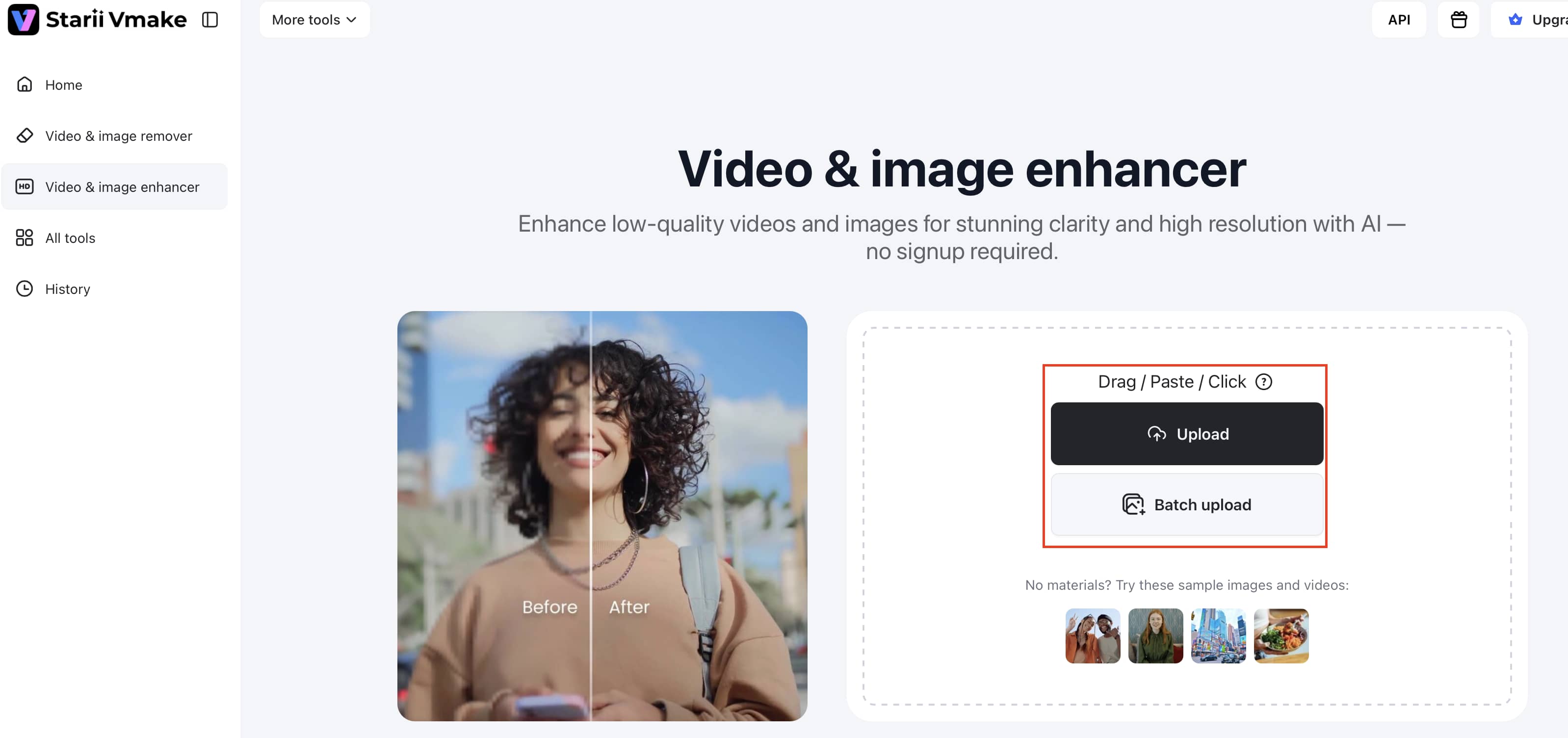
Step 1: Upload
Open the Vmake.ai interface through your browser. Drag your compressed H.264 or H.265 video file and drop it directly into the web workspace.
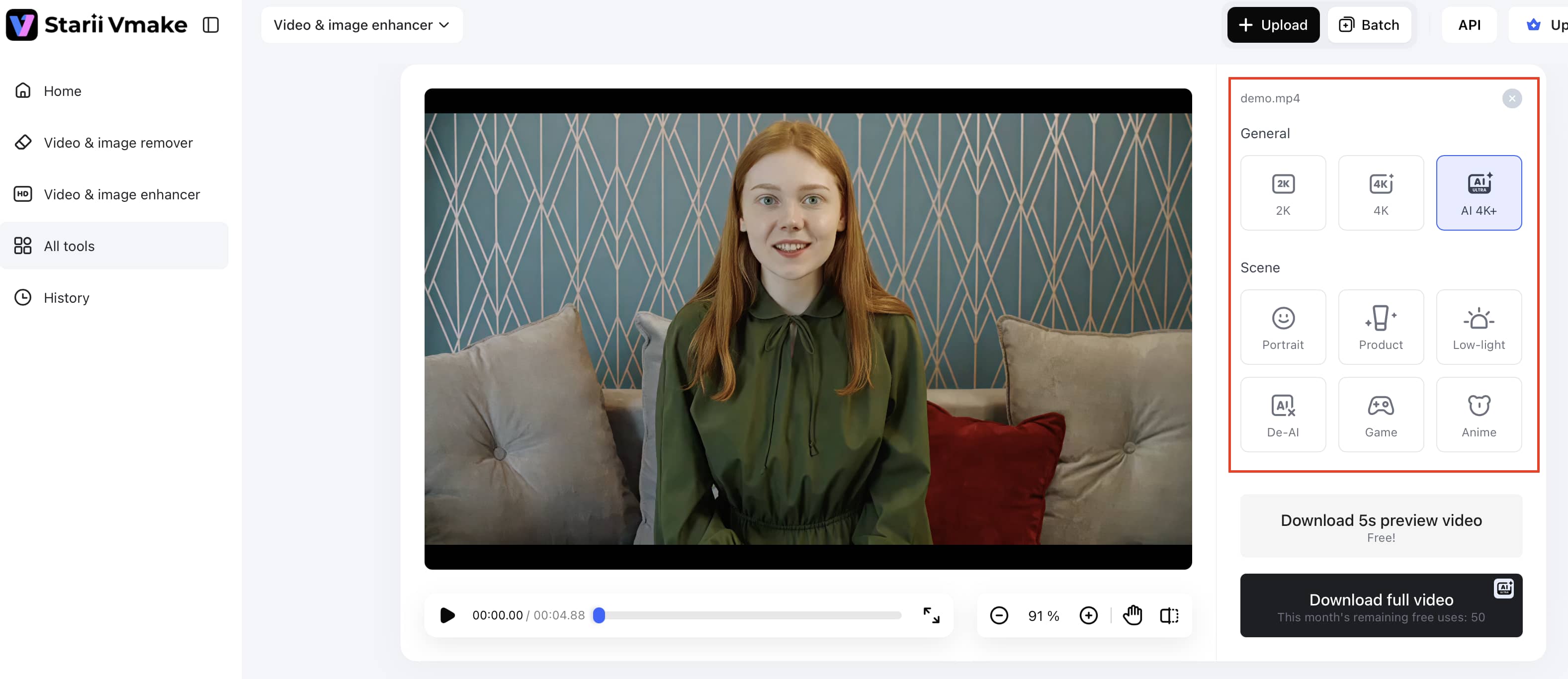
Step 2: Select enhancement settings
Use the right-side enhancement panel to choose your preferred quality mode, such as 2K, 4K, or AI 4K+, then apply Mode, such as Portrait or Anime, based on your footage type.
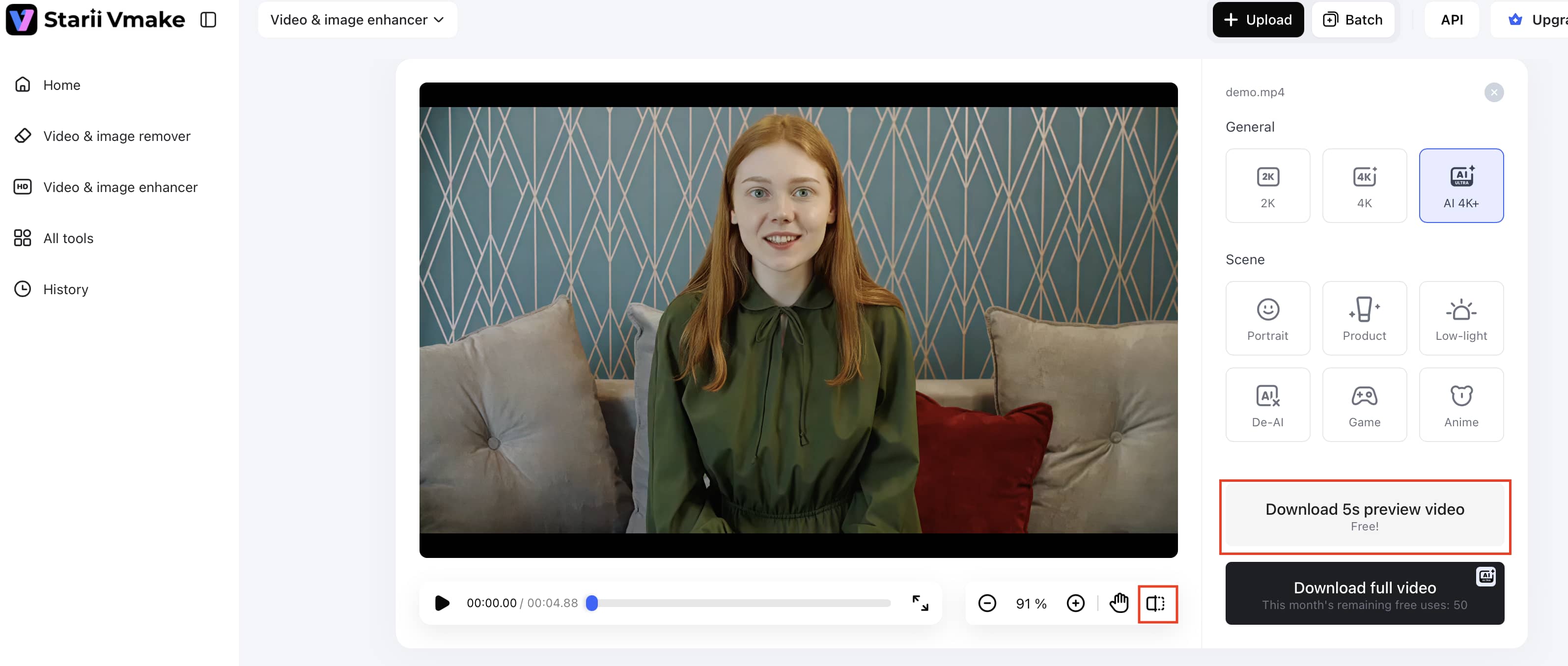
Step 3: Preview
Compare the original footage with the enhanced version to check improvements in texture, sharpness, and overall playback quality.
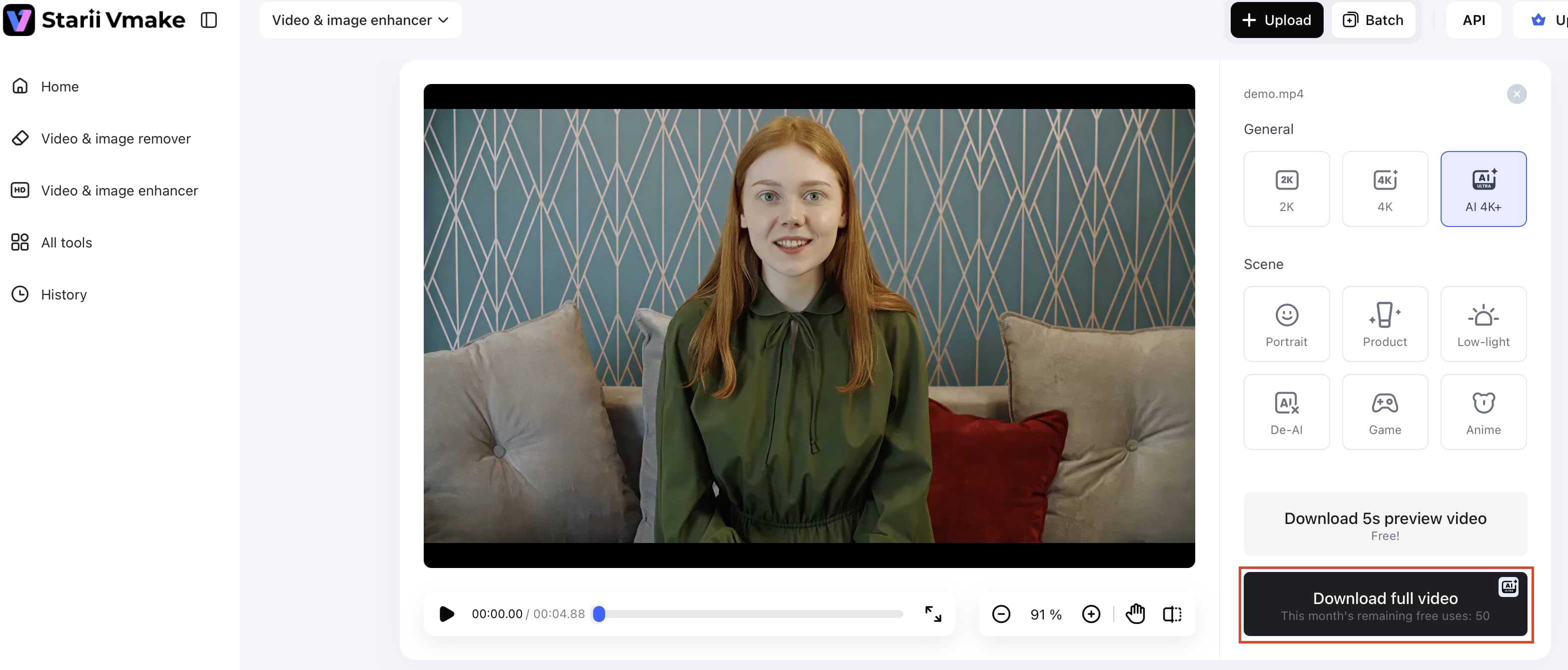
Step 4: Export
Click the download option to save your fully processed, high-definition (HD) video to your local computer.
Conclusion
The format you choose should follow where the video is actually going. For older hardware or straight-to-YouTube uploads, H.264 is the dependable option that just works. Archiving heavy 4K footage or preserving HDR color without burning through storage? H.265 makes more sense there. Simple as that. If compression leaves your footage looking soft or muddy before publishing, Vmake.ai can pull those details back quickly.
FAQs
Which codec is better for streaming: H.265 vs. H.264?
4K and HDR streaming genuinely benefits from H.265. The bandwidth requirement drops significantly, which matters when you're pushing high-resolution content to a wide audience. The problem is that older TVs and budget Android phones don't always play nice with HEVC. Frozen frames, stuttering, dropped audio it happens. If streams are coming out looking smeared or soft, Vmake.ai sharpens the edges back up before anything goes live.
Is H.265 better than H.264 for 4K videos?
Yes. H.264 at 4K needs a lot of bitrate to avoid falling apart visually you end up with files that are large and still not that clean. H.265 handles the same content more tightly. Less space, better detail retention, no softness. Got older 1080p clips that need to hold up on a 4K timeline? Vmake.ai's upscaler does that job well.
What is the difference between H.264 vs H.265 quality?
Give both codecs plenty of bitrate, and they look nearly identical. Restrict the bandwidth, and H.264 starts showing cracks, blocky artifacts, crushed shadows, and textures that fall apart. H.265 holds together longer under the same pressure. Those blocky squares on a bad stream? That's H.264 struggling. Vmake.ai's tools can clean that up after sharpening edges, recovering texture, and removing artifacts without frame-level manual work.
Is H.264 still good for YouTube uploads?
Yes, and probably will be for a while. YouTube's pipeline knows H.264 well, processing is fast, and playback is consistent across every browser and device type. Uploading H.265 masters can preserve more detail through YouTube's recompression, but H.264 isn't going anywhere as a reliable upload format. Running footage through Vmake.ai first keeps textures from degrading after YouTube applies its own compression pass.
Can Vmake.ai automatically improve H.264 and H.265 video quality?
It does. Soft footage gets sharpened, compression artifacts get smoothed out, and overall clarity improves without touching individual frames. Works across both codecs. The output holds up better after the kind of compression social platforms and streaming services throw at uploaded video.
Is H.265 supported on all devices?
Not reliably. Recent phones, current laptops, and modern TVs are supported. Anything a few years older starts getting unpredictable. Black screens, missing audio, choppy playback. If your audience is broad or you can't control what they're watching on, H.264 is safer. Vmake.ai can export into a more compatible format if HEVC is causing issues on the receiving end.

You May Be Interested
2026 Fotor Video Enhancer Review: Features and Top Alternatives
How to Change Video Resolution Without Losing Quality
Seedance 2.0 vs Sora 2: Which AI Video Generator Wins in 2026?

Demystifying 2K Video Resolution: The Ultimate Guide

Best AI Video Generator: Top Tools Tested (2026)