AVCLabs Review 2026: Is the Video Enhancer Actually Worth it?
 Ken DawsonMay 20, 2026
AI video tools are everywhere now, and AVCLabs Video Enhancer AI sits at the top, largely because it offers more than basic upscaling. To give you the big picture, this AVCLabs review breaks down what AVCLabs gets right, where it starts to struggle, and how much it costs. Let's dive in.
What is AVCLabs video upscaler
AVCLabs video enhancer AI is a desktop software designed to provide photo and video editing solutions. It upscales low-resolution videos with modern techniques. You upload blurry clips, compressed footage, old recordings that should probably stay buried in a hard drive somewhere, and the AI tries to rebuild detail that wasn't really there to begin with. Most upscalers just stretch pixels, while AVCLabs goes further by using CNN- and GAN-based AI models to analyze frames individually, inferring textures, edges, facial details, and even background depth. When it works, the footage genuinely looks cleaner instead of artificially sharpened.
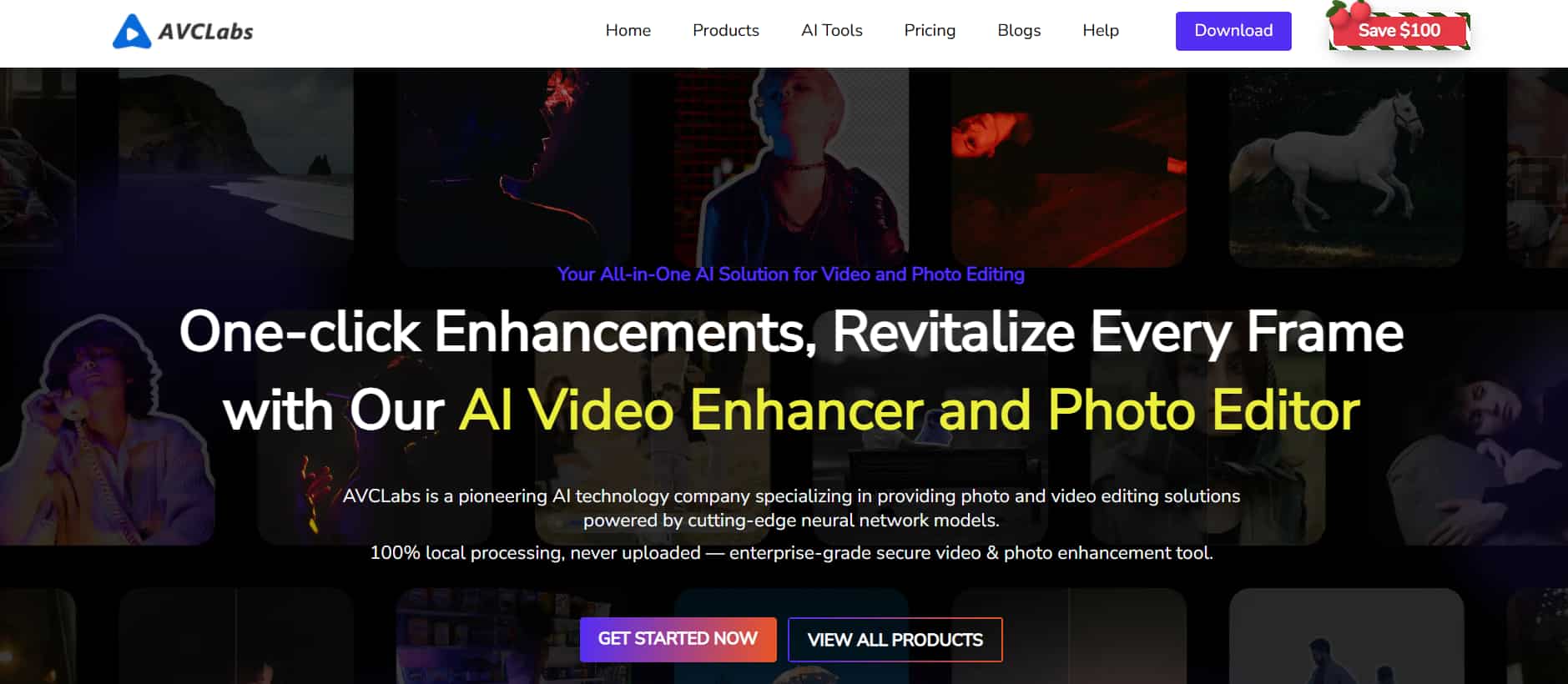
Frame-by-frame processing helps a lot here because the software isn't just applying one blanket filter across the whole video. It studies each frame separately, which usually produces better texture reconstruction and fewer ugly artifacts than traditional editors.
Key video enhancer features of AVCLabs AI
-
AI video upscaling
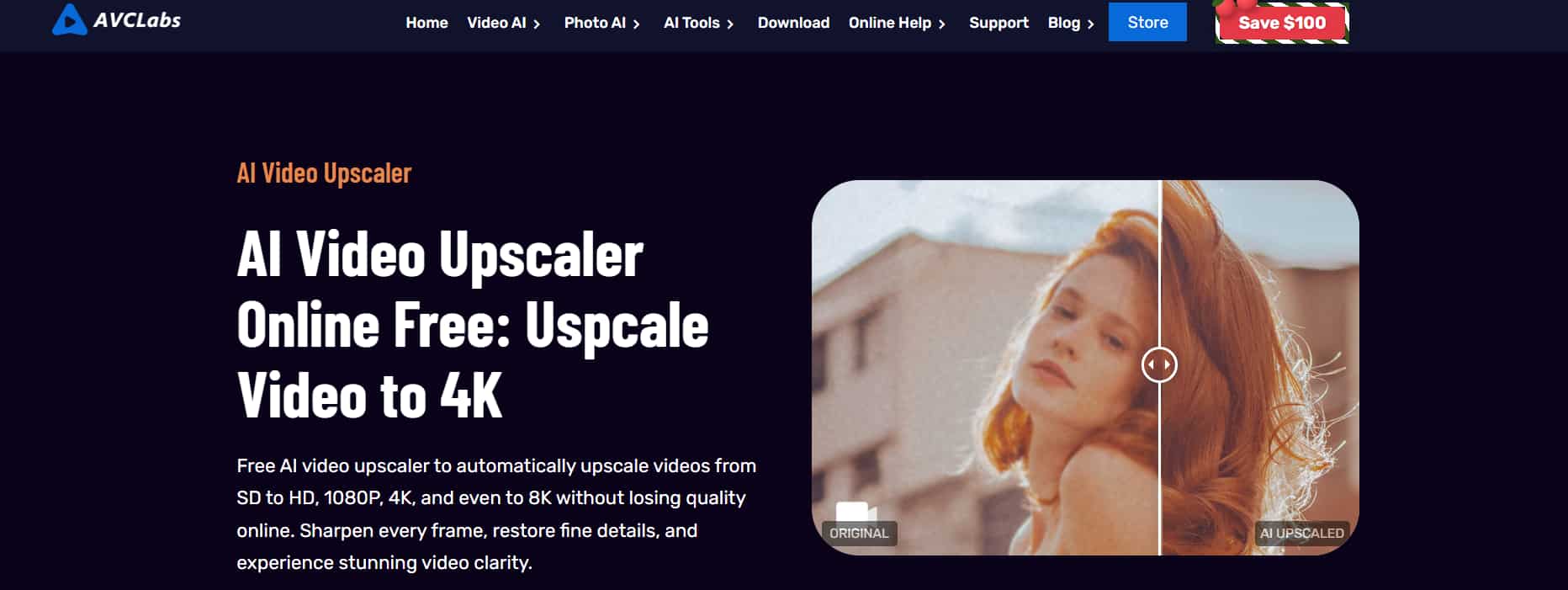
This is the feature most people come for first. You take an old SD or 1080p clip, run it through AVCLabs, and the software attempts to rebuild detail, so the final output looks closer to native HD, 4K, or even 8K footage. The important distinction here is that it's not just enlarging pixels. The AI studies patterns across frames and tries to recreate missing textures, skin pores, fabric detail, edges, hair strands, and background objects.
-
AI denoise and artifact removal
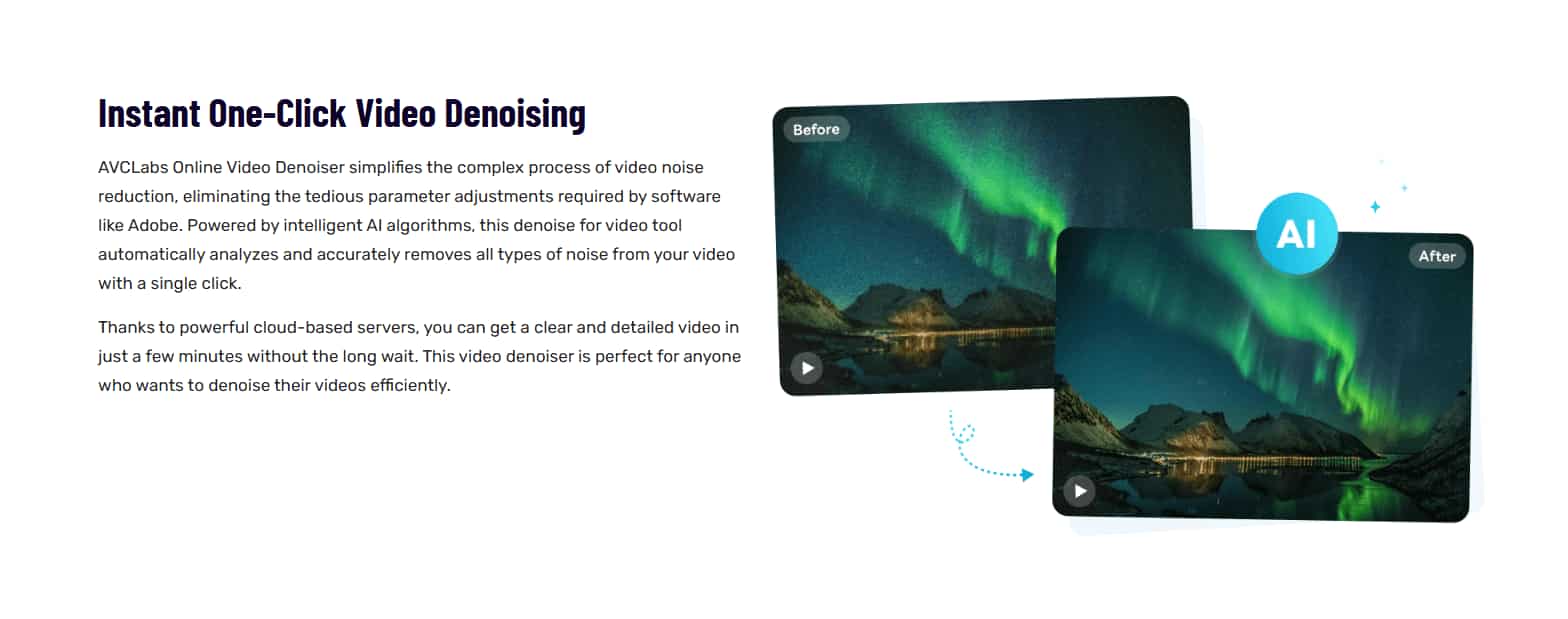
Bad video usually comes with baggage. Grain, compression blocks, ugly low-light noise, weird pixels crawling around dark scenes. AVCLabs tries to clean all of that up without smearing the image into a watercolor painting, which is where many enhancers fall apart fast. The denoise feature works best on older digital footage, smartphone clips, and heavily compressed exports that were uploaded one too many times online.
-
Face enhancement
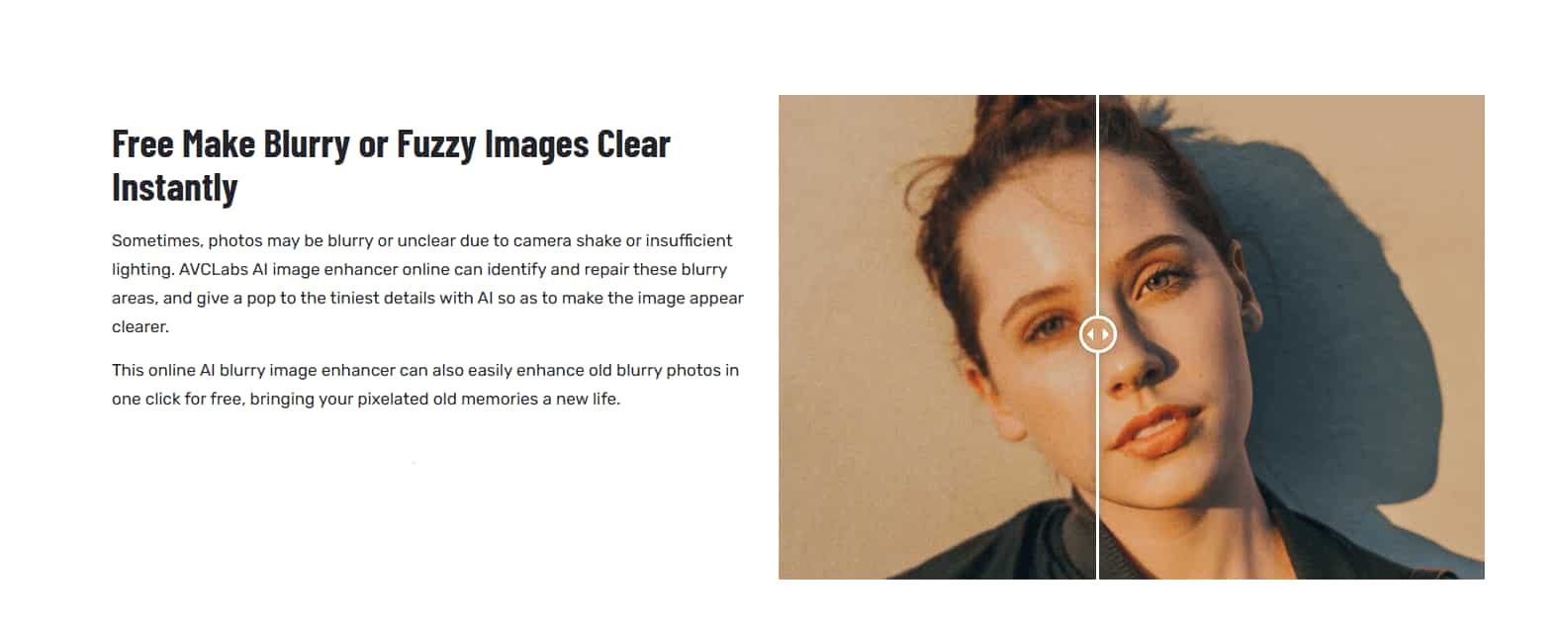
Face enhancement is probably AVCLabs' strongest feature overall. The AI automatically detects faces inside a frame and applies separate restoration logic specifically to eyes, skin texture, facial contours, and small expression details. For interviews, vlogs, documentaries, or family footage, the difference can be noticeable almost immediately. Blurry faces suddenly become recognizable again. Older footage gains clarity that standard sharpening filters simply can't produce.
-
Frame interpolation
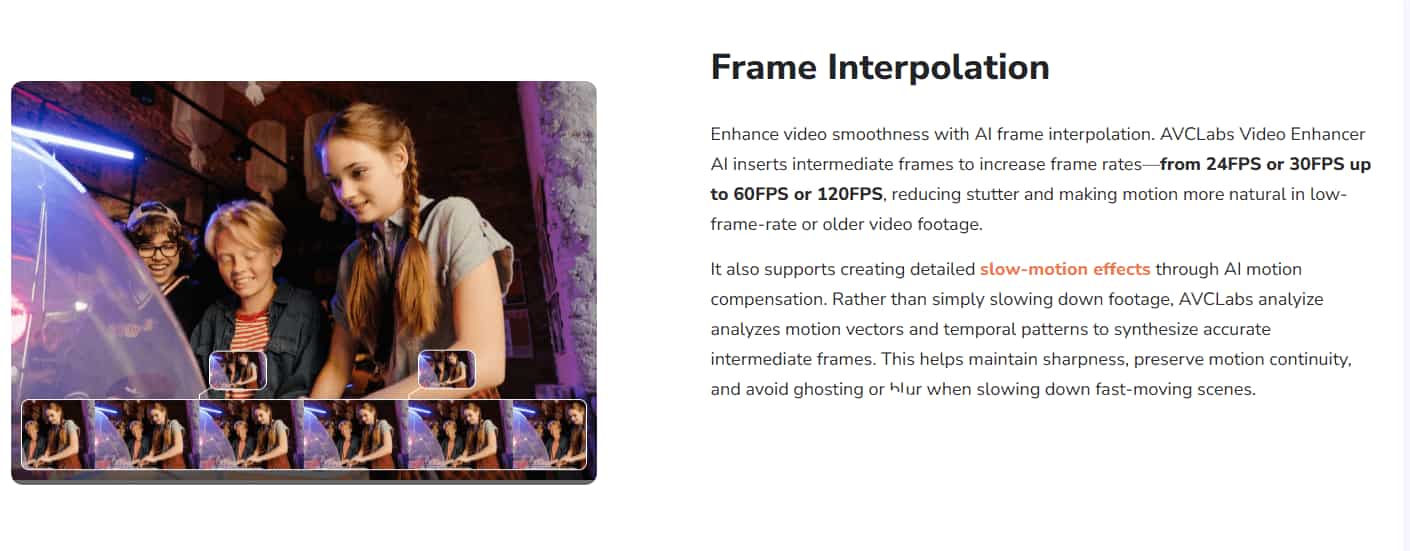
AVCLabs' frame interpolation generates entirely new in-between frames to push the video toward 60fps or higher. The result can look dramatically smoother, especially in fast-moving scenes where regular footage tends to stutter a bit. Sports clips improve a lot, and gaming footage too. Drone shots suddenly feel more fluid once the camera starts gliding instead of jittering across the screen.
-
AI colorization & restoration
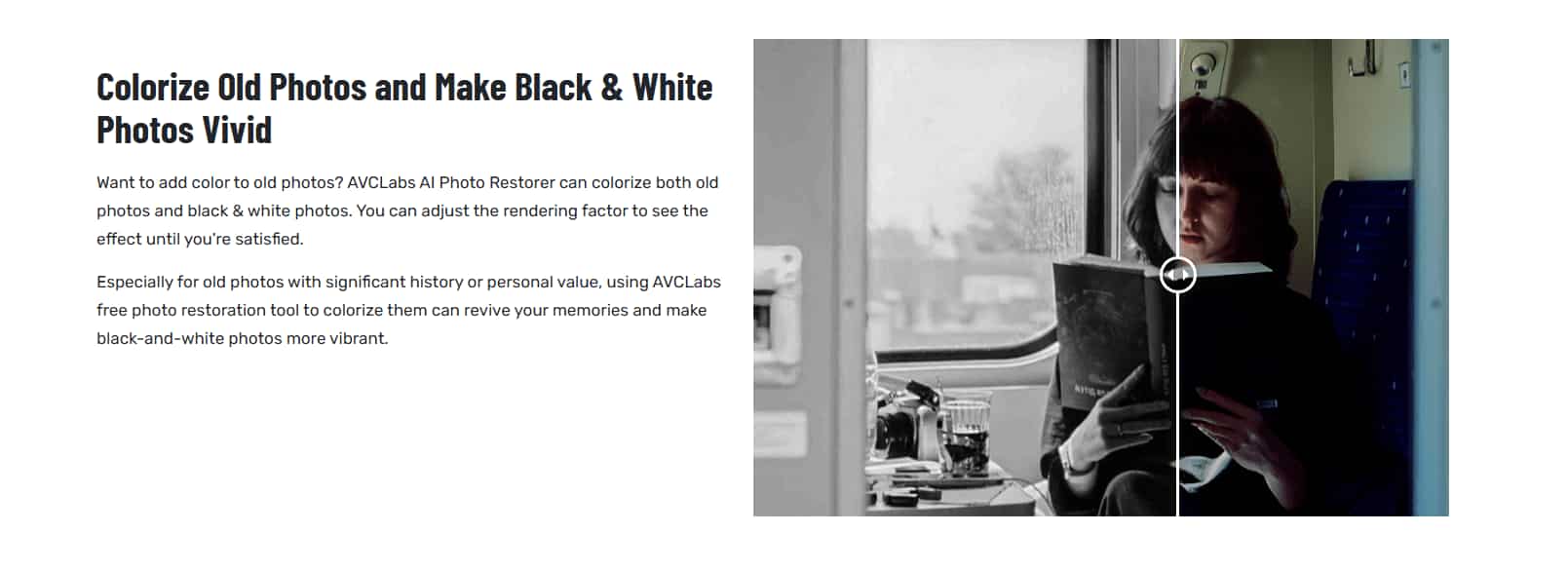
Old footage tends to lose its life over time. AVCLabs uses AI colorization and restoration tools to bring some of that visual depth back. It can add realistic color to monochrome footage and repair washed-out tones in older videos, often with surprisingly natural results. But AI colorization is still partly educated guesswork; you never fully know what the footage is going to look like until the render finishes.
AVCLabs online video upscaler pricing: Is it worth it
|
1-month plan |
1-year plan |
Perpetual plan |
|---|---|---|
|
$39.95 |
$95.96 |
$199.90 |
|
|
|
AVCLabs isn't cheap. You notice that pretty quickly once you compare it to basic video editors or lightweight AI enhancers floating around online. The company positions the software more like a serious restoration tool than a casual filter app, so the pricing reflects that.
-
Monthly plan
The monthly plan is the lowest entry point and works best if you've only got a few projects to finish. Maybe you're restoring family footage, cleaning up a YouTube archive, or testing AI upscaling before committing long-term. You pay less upfront, which is nice, but the subscription starts adding up surprisingly fast if you keep renewing it.
-
Yearly plan
Then there's the yearly plan. This is usually the plan most people settle on after the monthly subscription starts feeling a little wasteful. You pay less over time, keep access to the software year-round, and don't have to think about renewing every few weeks just to finish another project. If you edit videos regularly, the annual pricing simply makes more sense. AVCLabs also tends to include updates and newer AI models under active subscriptions, which matters because AI enhancement software changes constantly.
-
Perpetual plan
The lifetime license sounds attractive on paper because you pay once and keep the software permanently. No recurring billing. No subscription fatigue. For heavy users, archivists, or professional editors working on restoration projects every week, this can actually save money over time.
AVCLabs video upscaler review: Pros & cons
|
Pros |
Cons |
|---|---|
|
|
Overall, the AVCLabs review is good. The tool does a lot right. The upscaling quality is genuinely impressive on the right footage, face restoration works better than most competing tools, and the extra AI models give you more control than basic enhancers usually offer. However, not everything is as perfect as it seems. Rendering can be slow, hardware demands are fairly high, and some scenes still produce visible AI artifacts. Then there's the pricing. AVCLabs sits firmly on the premium list, which makes sense for restoration professionals or serious editors, but casual users may hesitate once subscriptions start stacking up. That's where Vmake AI starts looking really appealing. It gives you a much simpler workflow without overwhelming you with technical settings or long rendering setups.
Vmake AI: A great AVCLabs alternative to consider
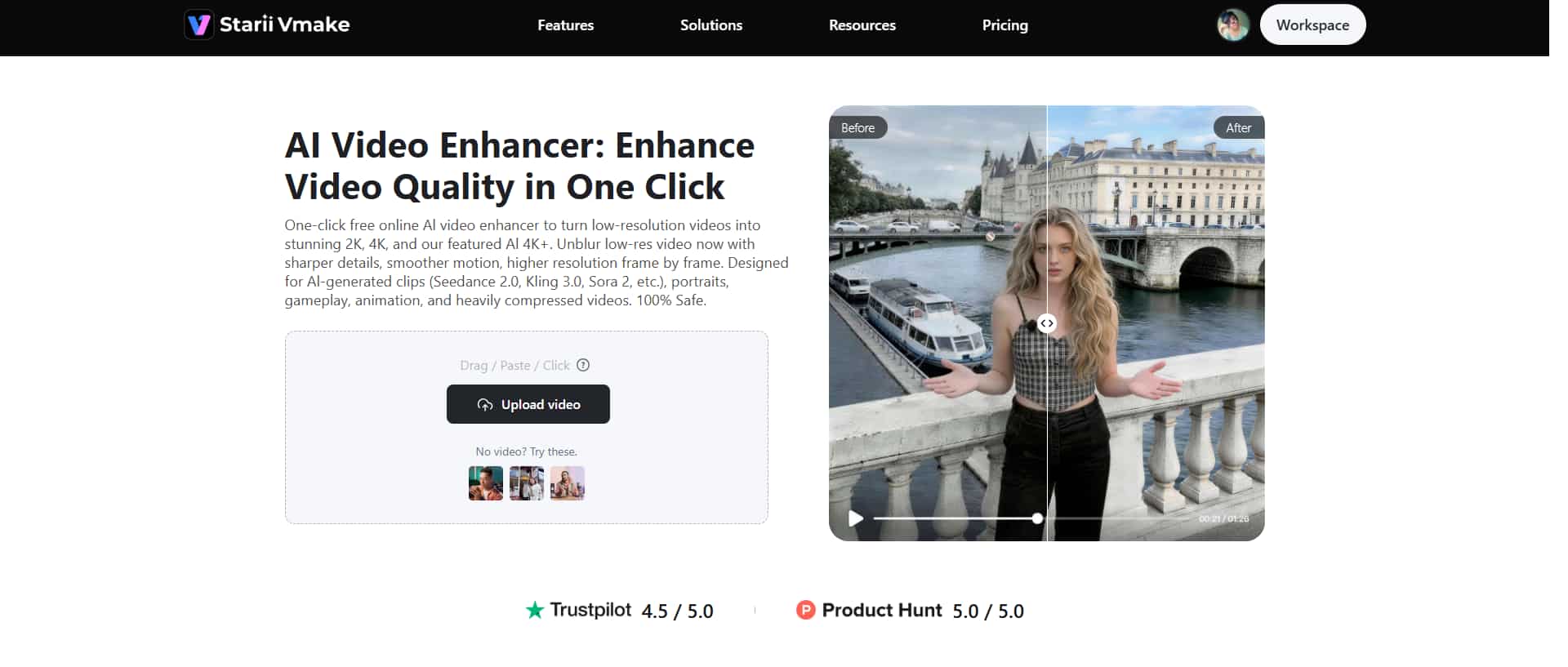
Vmake video enhancer focuses on speed, simplicity, and accessibility. You open the website, upload your video, choose the enhancement type, and let the cloud processing handle the rest. You don't need editing experience to get decent-looking results. The platform keeps the process simple enough that most people can figure it out in a few minutes. It uses intuitive AI technology to upscale your low-res video.
Step-by-step guide
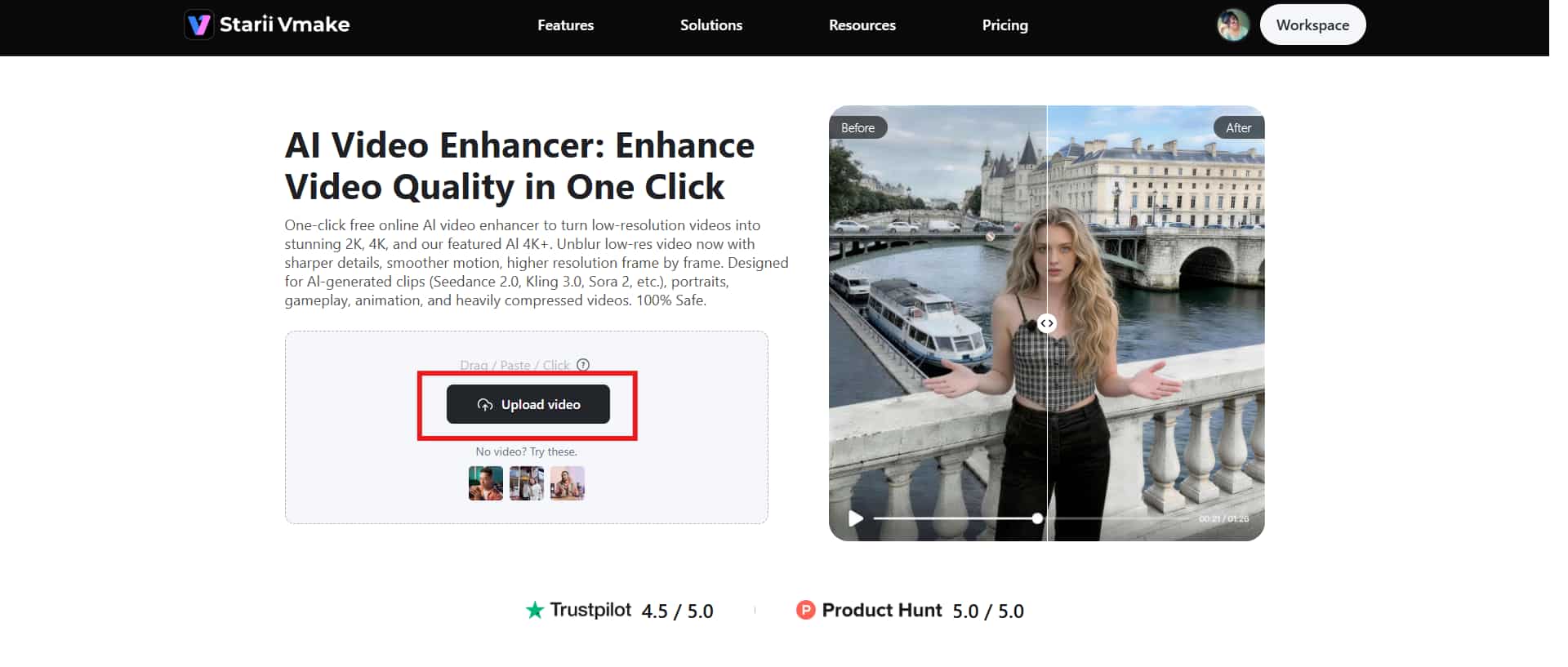
Step 1: Upload your video
Getting started with Vmake AI is pretty straightforward. Launch Vmake in your web browser and click the "Upload video" option to upload your low-res video to the interface. Besides, you can use the drag-and-drop option to paste the video.
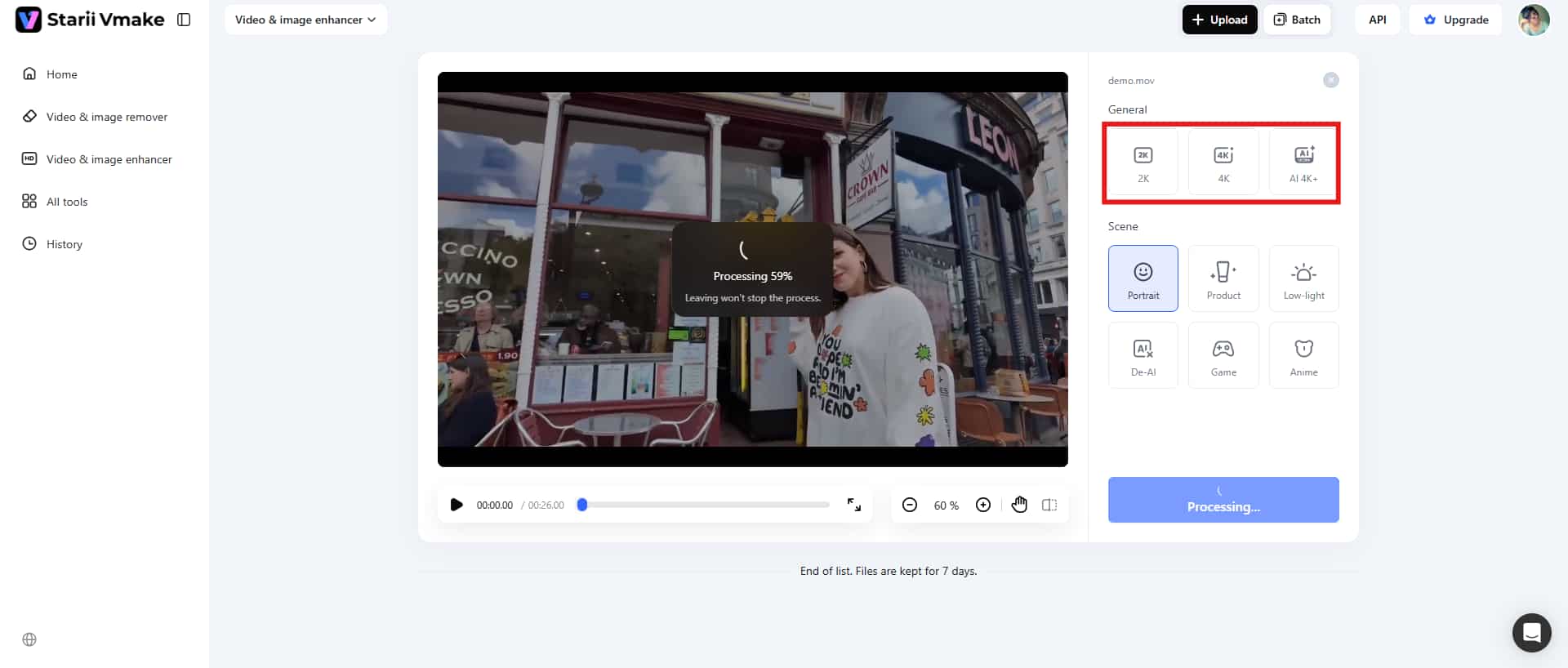
Step 2: Choose the resolution preset
Vmake automatically analyzes the video and starts enhancing it using the best enhancement model. However, you can manually choose the resolution preset, like 2K, 4K, etc. Wait until the enhancement is completed.
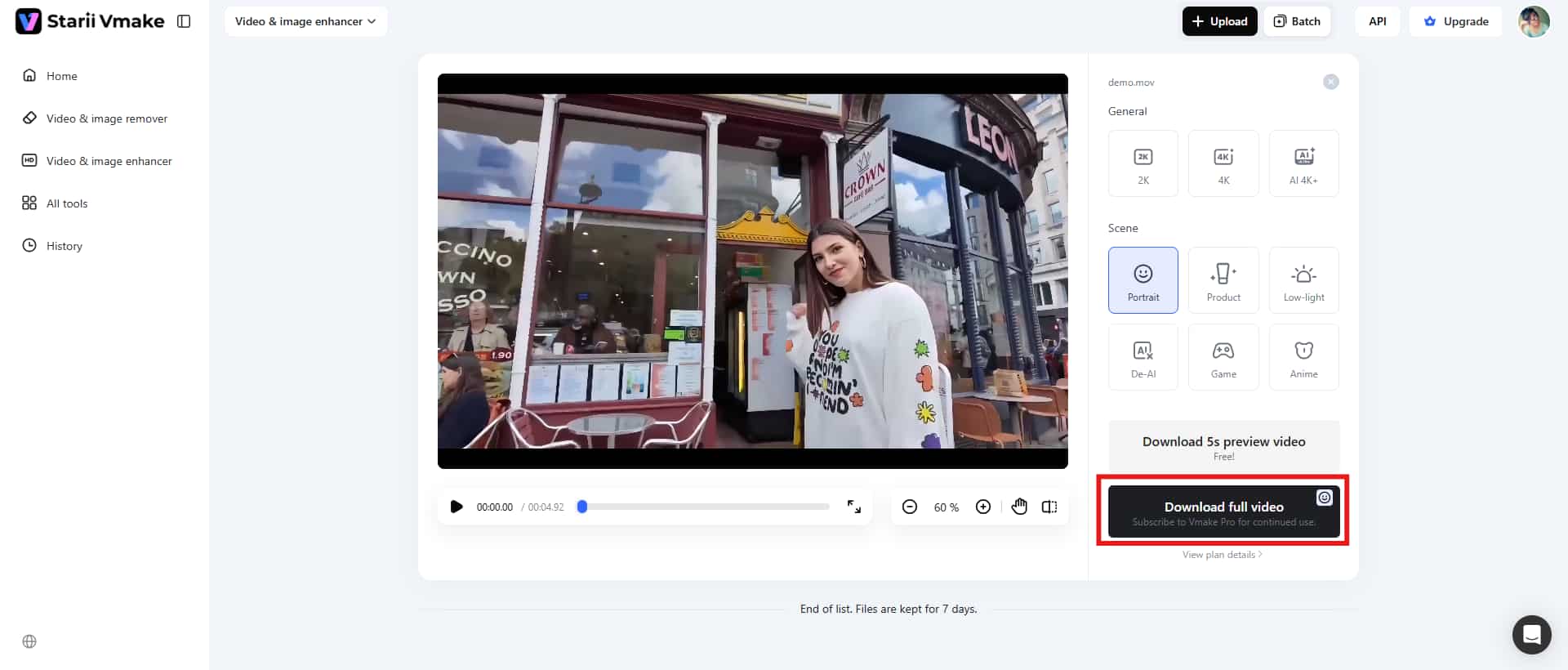
Step 3: Download the final video
Preview the video generated by Vmake. If you are satisfied with the final video, click the "Download" option in the bottom-right corner to save the enhanced video for further use.
Key features
-
AI video upscaling: Vmake AI can upscale lower-resolution footage into sharper HD or higher-quality outputs, unblur video, or remove wind noise from video, using AI enhancement models that focus on improving clarity and texture.
-
Ad-free interface: The platform doesn't constantly interrupt you with ads everywhere, which makes it easier to use, especially if you are in a hurry.
-
Portrait restoration: It focuses specifically on improving facial clarity and subject detail inside videos. Vmake AI sharpens facial features, improves overall portrait visibility, and cleans up softer or blurry face regions.
Vmake AI vs AVCLabs at a glance: A head-to-head comparison
|
Feature |
Vmake AI |
AVCLabs Video Enhancer AI |
|---|---|---|
|
Platform |
Web-based |
Desktop software |
|
Ease of Use |
Very beginner-friendly |
Moderate learning curve |
|
AI Upscaling |
Yes |
Yes |
|
Maximum Resolution |
Up to 4K |
Up to 8K |
|
AI Denoising |
Yes |
Yes |
|
Processing Method |
Cloud-based |
Local GPU processing |
|
Hardware Requirement |
Minimal |
High-end GPU recommended |
|
Speed |
Faster setup |
Slower rendering |
|
Free Trial |
Yes |
Yes |
|
Pricing |
Plus: $9.99 Pro: $29.99 |
Monthly: $39.95 Yearly: $95.96 Perpetual: $199.90 |
|
Installation Needed |
No |
Yes |
Conclusion
That's all about the detailed breakdown of the AVCLabs review. The tool still sits near the top of the AI video restoration space in 2026, and honestly, that's not hard to see once you start testing older footage with it. The software handles upscaling, denoising, face enhancement, frame interpolation, and restoration surprisingly well compared to most competitors. However, AVCLabs definitely demands patience in return. Rendering isn't exactly quick, and if your computer doesn't have a decent GPU. Furthermore, pricing is also a major setback for beginners or someone who's looking for budget-friendly options. That's where Vmake AI stands out as a much easier entry point. The cloud-based workflow feels lighter, quicker, and far less intimidating. So, why wait? Get started with Vmake AI now if you are looking for high-quality results without investing much time and effort.
FAQs
Can AVCLabs really upscale videos to 4K or 8K?
Yes, it can. AVCLabs supports AI upscaling all the way up to 4K and 8K output resolutions. Low-resolution clips from DVDs, older cameras, or compressed online uploads usually benefit the most. Upscaling a blurry 480p clip to 8K doesn't magically turn it into native 8K footage. The AI is still estimating and rebuilding missing details based on patterns it recognizes.
Is AVCLabs video upscaler worth it?
For the right user, yes. If you regularly restore old footage, improve client videos, remaster archives, or work with low-quality recordings, AVCLabs can absolutely justify its price. The face enhancement alone performs better than many competing tools, and the restoration quality is strong enough that you'll notice the difference immediately on certain videos.
Is AVCLabs good for old videos?
This is actually where AVCLabs performs best. Old footage usually suffers from softness, grain, compression damage, faded colors, and low detail, which are exactly the kind of problems AI restoration tools are built to improve. VHS transfers, archived recordings, family videos, and older digital footage often come out noticeably cleaner after processing.
Does AVCLabs require a powerful PC?
Pretty much, yes. AVCLabs relies heavily on GPU acceleration, especially when you're working with higher resolutions like 4K or 8K. If your system has a dedicated graphics card and decent processing power, the software runs much more smoothly and renders faster. Without that hardware, export times can drag on for hours, depending on the project length.
What is the best free alternative to AVCLabs Video Enhancer?
There isn't a perfect free replacement that matches everything AVCLabs can do, especially for professional-grade restoration work. Most free tools either limit export quality, add watermarks, or struggle with consistency once the footage gets difficult. Still, Vmake AI is one of the more accessible alternatives right now. The platform gives you AI video enhancement, portrait restoration, and upscaling through a browser-based workflow that feels much simpler for beginners.

You May Be Interested
How to Remove Watermarks from Videos with Vmake's Watermark Remover Tool

Airbrush Video Enhancer Review 2026: Features, Pros, and Cons
Picwand Video Enhancer 2026 Review: Features & Alternatives
Seedance 2.0 vs Sora 2: Which AI Video Generator Wins in 2026?
Airbrush Video Enhancer Review 2026: Features, Pros, and Cons