What Is Frame Rate? The Comprehensive Guide to Perfecting Video FPS
 Vmake Labs TeamMay 26, 2026
Why do Hollywood films look cinematic while raw smartphone clips feel laggy? It comes down to frame rate: the speed at which consecutive images display. Poor frame rates break immersion and drive viewers away. Let's dive into this guide and deepen your understanding of frame rate.
Frame Rate Meaning Explained in Simple Terms

Frame rate, measured in Frames Per Second (FPS), is the frequency at which consecutive images (frames) appear on a display. Much like a flipbook, video works by flashing static images rapidly enough to trick the brain into perceiving fluid motion.
Common Standards
-
24 fps: The cinematic standard. It provides natural motion blur that mimics how humans perceive movement.
-
60 fps: Offers hyper-realistic, "smooth" motion. While ideal for sports or gaming, it can cause the "Soap Opera Effect" in narrative films, making footage look cheap or artificial.
Key Principles
-
Motion Blur: This is the "visual glue" between frames. Without it, high frame rates can look unnaturally sharp.
-
Capture vs. Export: You cannot "upgrade" motion in post-production. Exporting 24 fps footage at 60 fps won't create new movement; it simply duplicates existing frames, often resulting in digital stuttering.
-
Aesthetic Intent: Higher numbers don't always mean better quality. Choose your FPS based on the desired "feel"—24 fps for drama and 60+ fps for action or slow-motion.
Common Video Frame Rates & How to Choose the Right One

Different video projects demand highly specific motion signatures. Selecting your speed before hitting record defines the entire visual tone of the final deliverable. You cannot simply guess your settings and hope for the best.
|
FPS |
Common Use Cases |
Visual Characteristics |
|---|---|---|
|
24 |
Feature films, documentaries, music videos. |
Features organic motion blur that mimics the way the human eye sees. |
|
30 |
Live TV, news, vlogs, corporate video. |
Provides a crisp, natural flow without heavy stylization. |
|
60+ |
Sports, gaming, action footage, slow-motion. |
Eliminates motion blur; 120fps+ enables smooth slow motion. |
Choosing the right parameter depends entirely on your distribution platform. Desktop viewing environments easily accommodate varied formats, making a dedicated YouTube video upscaler incredibly valuable for optimizing mixed media before publishing. Mobile platforms, however, operate under strict constraints. Instagram Reels and TikTok compress heavy files aggressively to save server space.
Common Frame Rate Problems (And How to Fix Them)
Technical mismatches behind the scenes ruin perfectly framed shots. When playback stutters, understanding exactly what video frame rate is helps editors diagnose the root hardware or software conflict. Throwing random filters at the timeline rarely works.
|
Issue |
Symptom |
Primary Cause |
Solution |
|---|---|---|---|
|
In-Camera Drops |
Choppy playback or micro-freezes. |
SD card write speed is too slow for the FPS. |
Use AI interpolation software to rescue footage; upgrade to faster SD cards. |
|
Export Mismatches |
Aggressive stuttering after rendering. |
Mismatched clip (e.g., 60fps) and timeline (e.g., 24fps) rates. |
Set the project timeline to match your primary camera source before editing. |
|
VFR Drift |
Audio and video slowly lose synchronization. |
Smartphones vary in capture rates to save space. |
Transcode footage to a Constant Frame Rate (CFR) before importing to your editor. |
Enhance Your Video Smoothness with Vmake
Even with careful planning and expensive gear, production errors happen on set. You can improve visual flow even if the original footage isn't perfect. Utilizing a professional-grade video enhancer provides AI-powered enhancement for unmatched clarity and motion consistency. This technology actively rescues clips you previously thought were unusable.
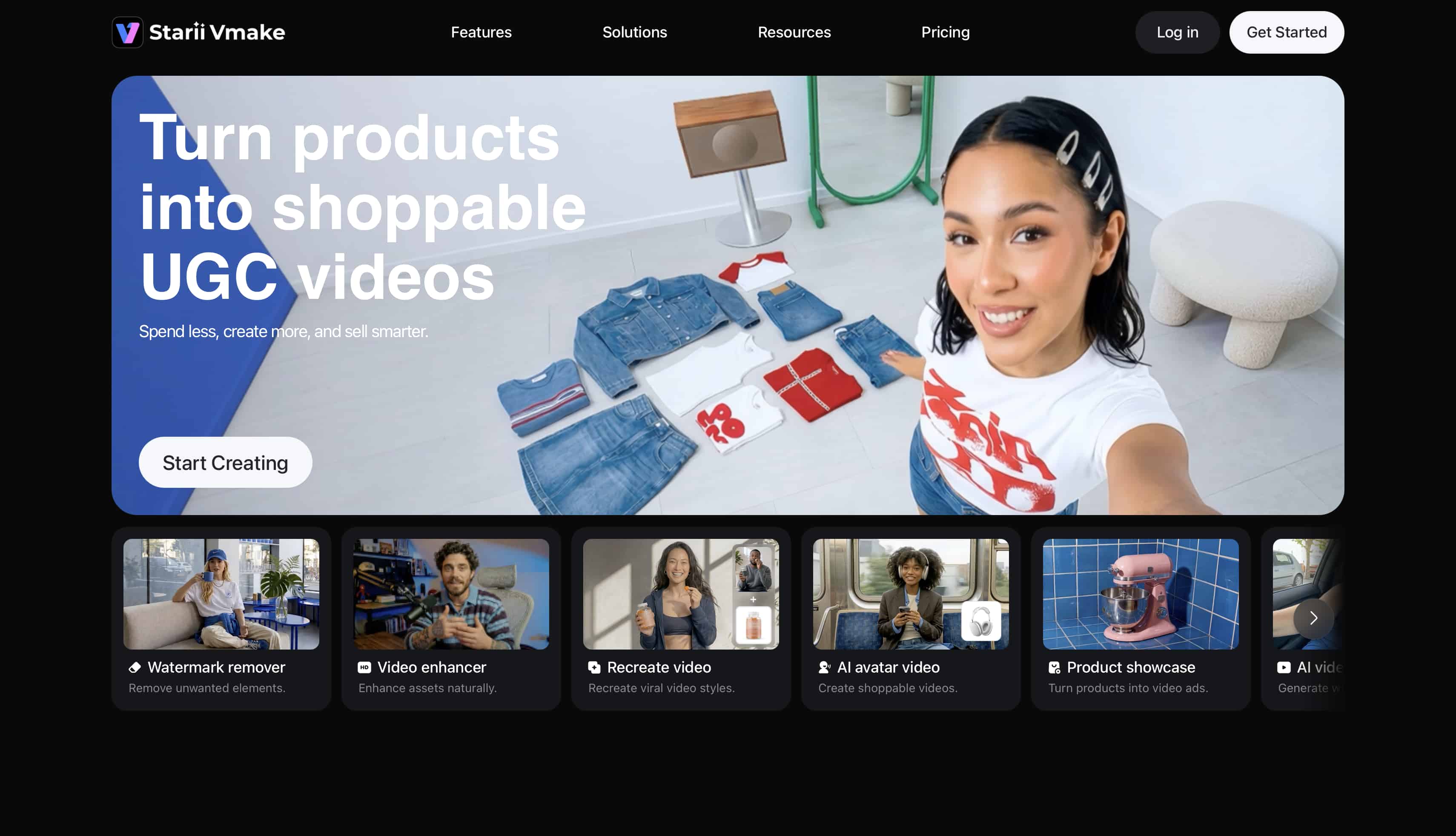
Key Features:
-
AI Frame Interpolation: Generates new frames between existing ones to create smoother motion automatically.
-
Quality Upscaling: Refines videos without complex editing for polished output.
Steps Guide :
-
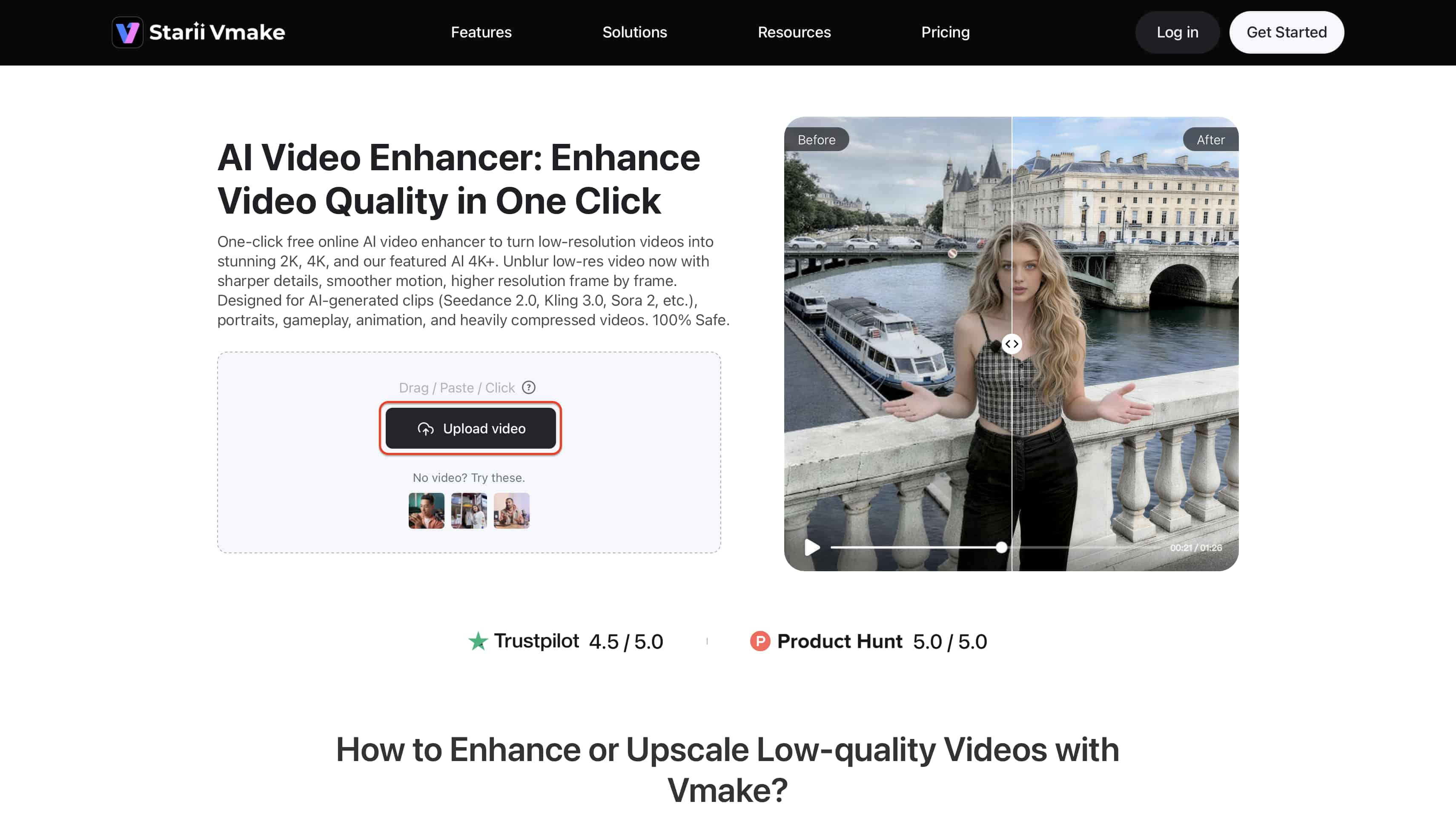
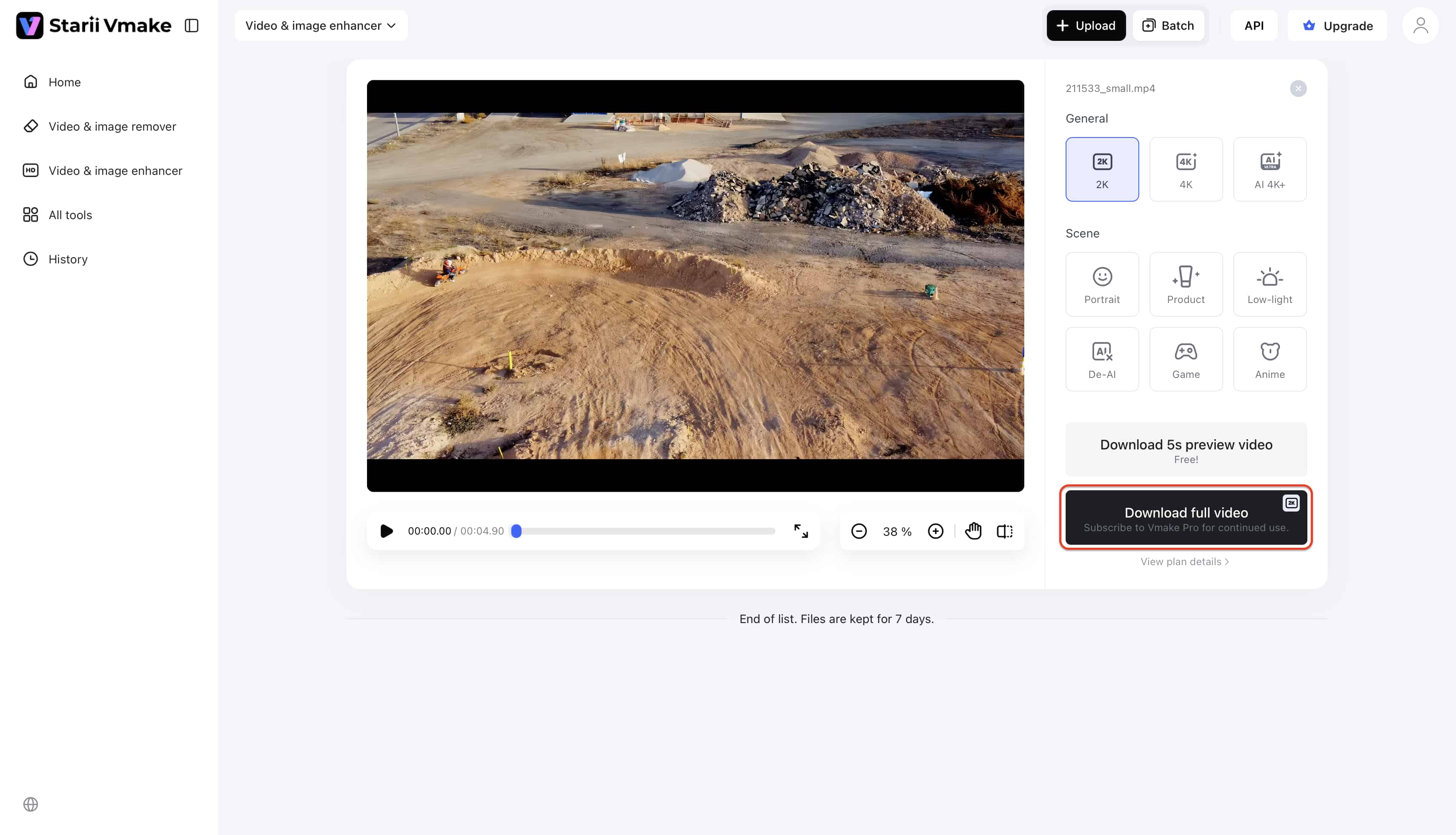
Step 1:Upload
Navigate to the Vmake workspace and upload your choppy or low-FPS video file directly into the browser.
-
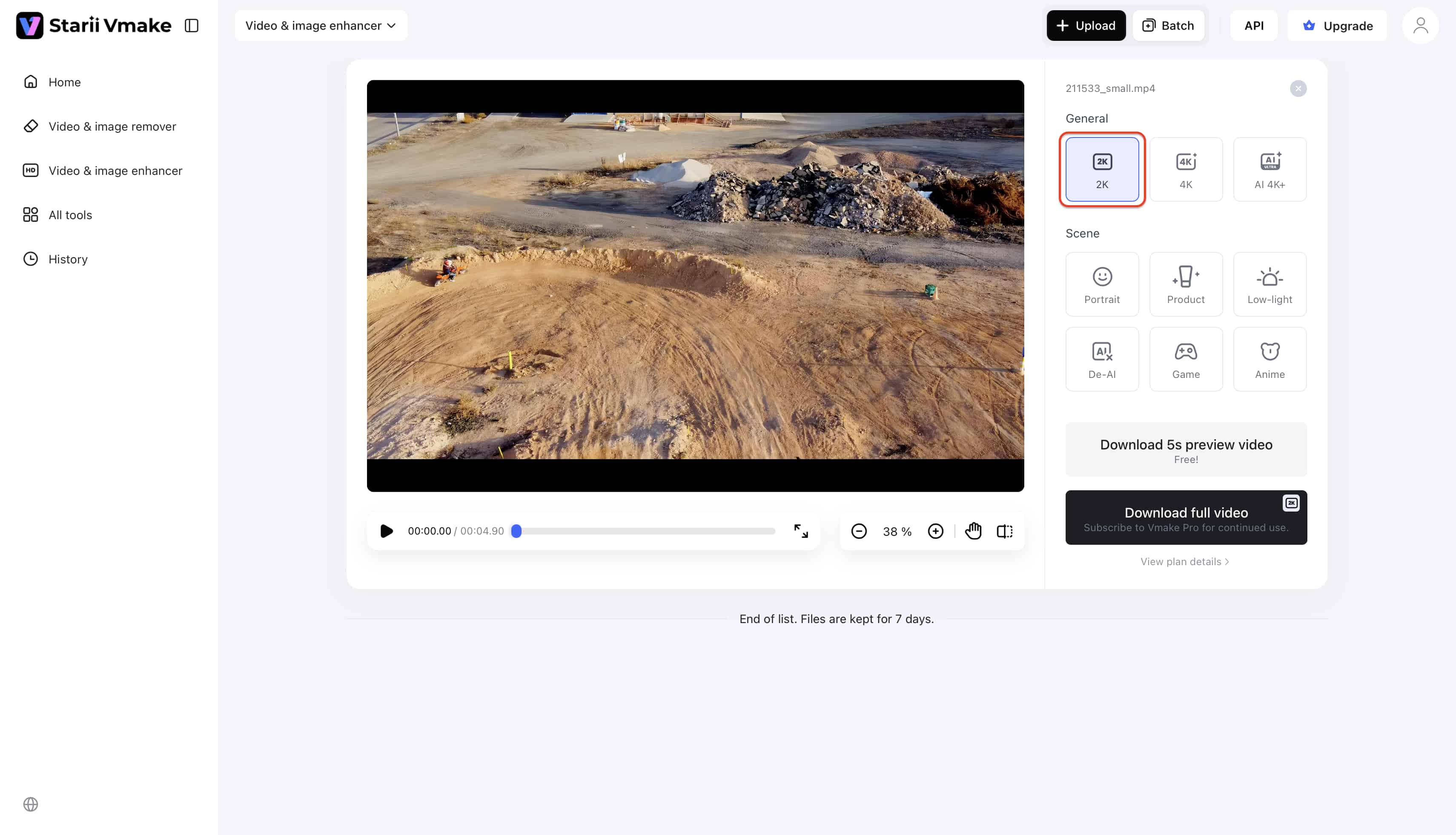
Step 2:Process
Select your desired output parameters. The Intelligent Mode algorithms will analyze the visual data and interpolate the missing frames seamlessly.
-
Step 3:Download
Preview the corrected footage to ensure fluid movement, then download the final asset to your local drive.
Pro Tips to Get the Best Video Frame Rate
-
Apply the 180-Degree Rule: Set your camera's shutter speed to exactly double your frame rate for the most natural motion blur. If you shoot at 24fps, lock your shutter speed to 1/50th of a second.
-
Optimize Your Video Lighting: Use bright, consistent lighting setups to prevent automatic camera sensors from artificially dropping your frame rate.
-
Control Your Pan Speed: Pan your camera across the horizon much more slowly when shooting at 24fps. Fast horizontal pans at low frame rates create a jarring "strobe" effect on vertical lines.
-
Shoot B-Roll at 60fps: Record all your environmental B-roll footage at 60fps to give yourself maximum flexibility. You can slow it down to 50% speed for cinematic slow-motion during the editing process.
-
Plan Storage Capacity Ahead: Anticipate your data storage needs well in advance. Recording in 60fps requires exactly twice as much storage space as 30fps.
Conclusion
Mastering frame rate is about controlling how motion feels to the audience, not just hitting the highest technical numbers on a spec sheet. Choosing the right FPS depends entirely on your project's narrative purpose, not fleeting social media trends. Keep your settings consistent from the camera sensor straight through to the final export. While perfect in-camera capture remains the ultimate goal for any creator, advanced post-production technology ensures minor errors no longer ruin an entire shoot. Even imperfect, jittery footage can be transformed into smooth, high-quality video with the right tools in your editing workflow.
FAQs
What is the best frame rate for video?
Choosing a "perfect" speed depends entirely on your specific creative intent. For narrative storytelling, 24fps remains the industry standard, while 30fps suits standard vlogs or news. If you are shooting high-speed sports, 60fps is mandatory to ensure every movement stays crisp.
Is 60fps always better than 30fps?
While 60fps offers hyper-real clarity, it often destroys the organic motion blur the human eye expects. This results in the "soap opera effect," where high-end cinematic drama feels like a cheap daytime broadcast. High numbers do not always translate to high production value.
What frame rate looks most cinematic?
By matching the way our eyes process real-world movement, 24fps creates a classic, dreamy aesthetic. This specific speed balances clarity with enough blur to feel cinematic. Deviating from this often makes footage feel too clinical or "electronic" for traditional film lovers.
Can you change the frame rate of a video after recording?
Technically, yes, though simply toggling export settings usually yields a stuttering, unwatchable mess. You must use AI-driven interpolation to calculate the missing visual data. This process creates new frames, allowing you to upscale videos to higher resolutions smoothly.
Does frame rate affect file size?
Capturing sixty distinct images every second naturally generates twice the data of a thirty-frame clip. Beyond just storage space, higher frame rates demand significantly more processing power from your GPU and faster read/write speeds from your camera's SD cards or SSDs.
Can I fix a low frame rate video in post-production?
Simply changing export settings in standard editors yields a stuttering mess, as they cannot create visual data that was never captured. To achieve genuine fluidity, you must rely on AI interpolation to calculate and generate the missing motion. Platforms like Vmake automatically bridge these visual gaps, transforming choppy footage into polished, high-fidelity assets.

You May Be Interested

Vmake AI Video Generator Now Powered by Google Veo 3.1

2026 Wink Video Enhancer Review: Pros, Cons, and Alternatives
Resize Videos Online Without Losing Quality: A Smarter Way in 2026
Human Eye FPS: Understanding Visual Limits & Frame Rates

Runway AI vs Vidu AI: Pricing Strategies Uncovered