How to Make a Video Out of Pictures Using AI: Complete Step-by-Step Guide
Want to turn your favorite photos into engaging videos? Learn how to make a video out of pictures in minutes with AI and create content ready for social media sharing.

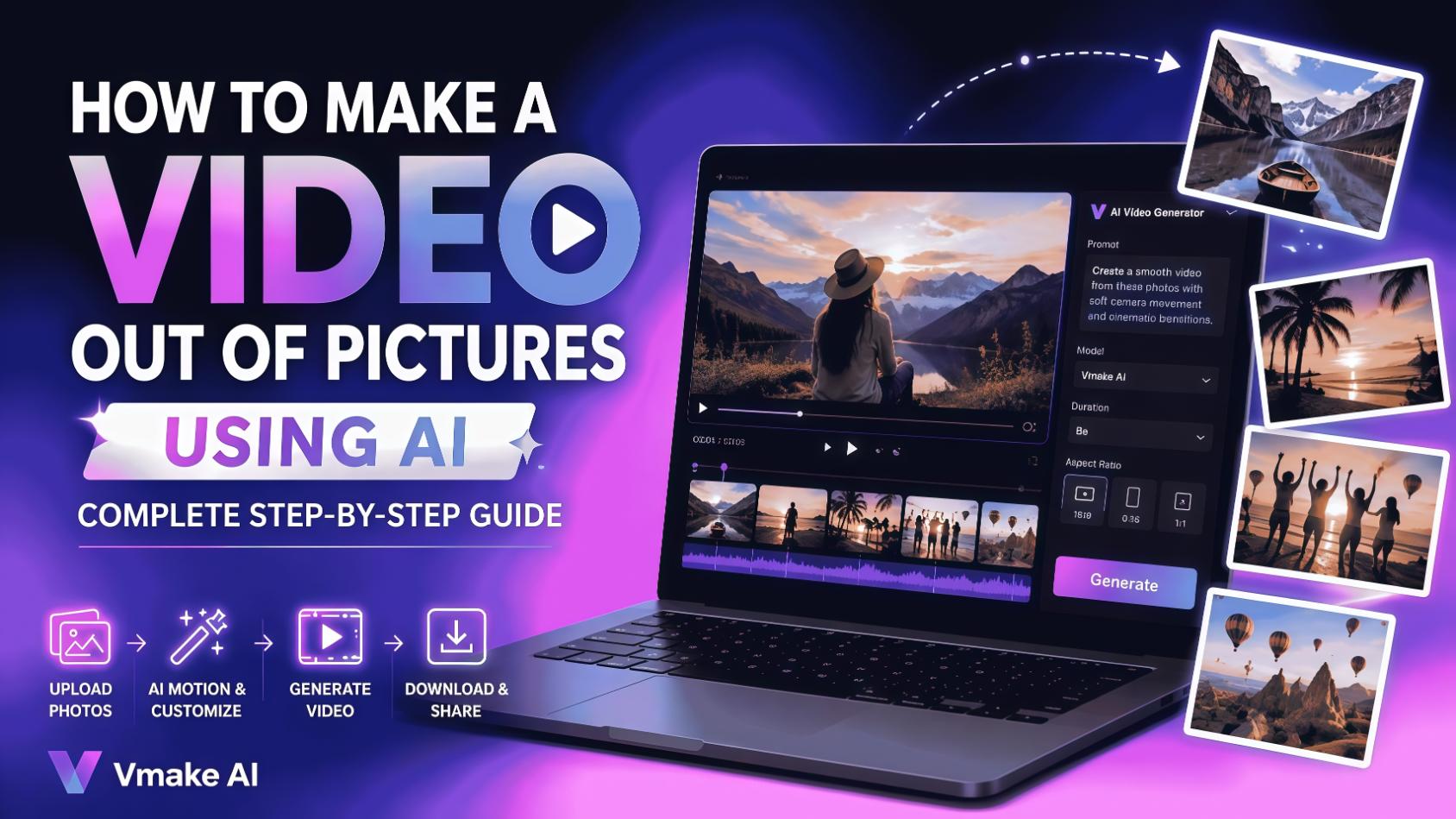
Photos capture memories, moments, and ideas, but videos make them more engaging and memorable. This guide explains how to make a video out of pictures using AI, from understanding different creation methods to generating professional-looking videos with Vmake AI. Follow these steps to transform static images into dynamic visual content.
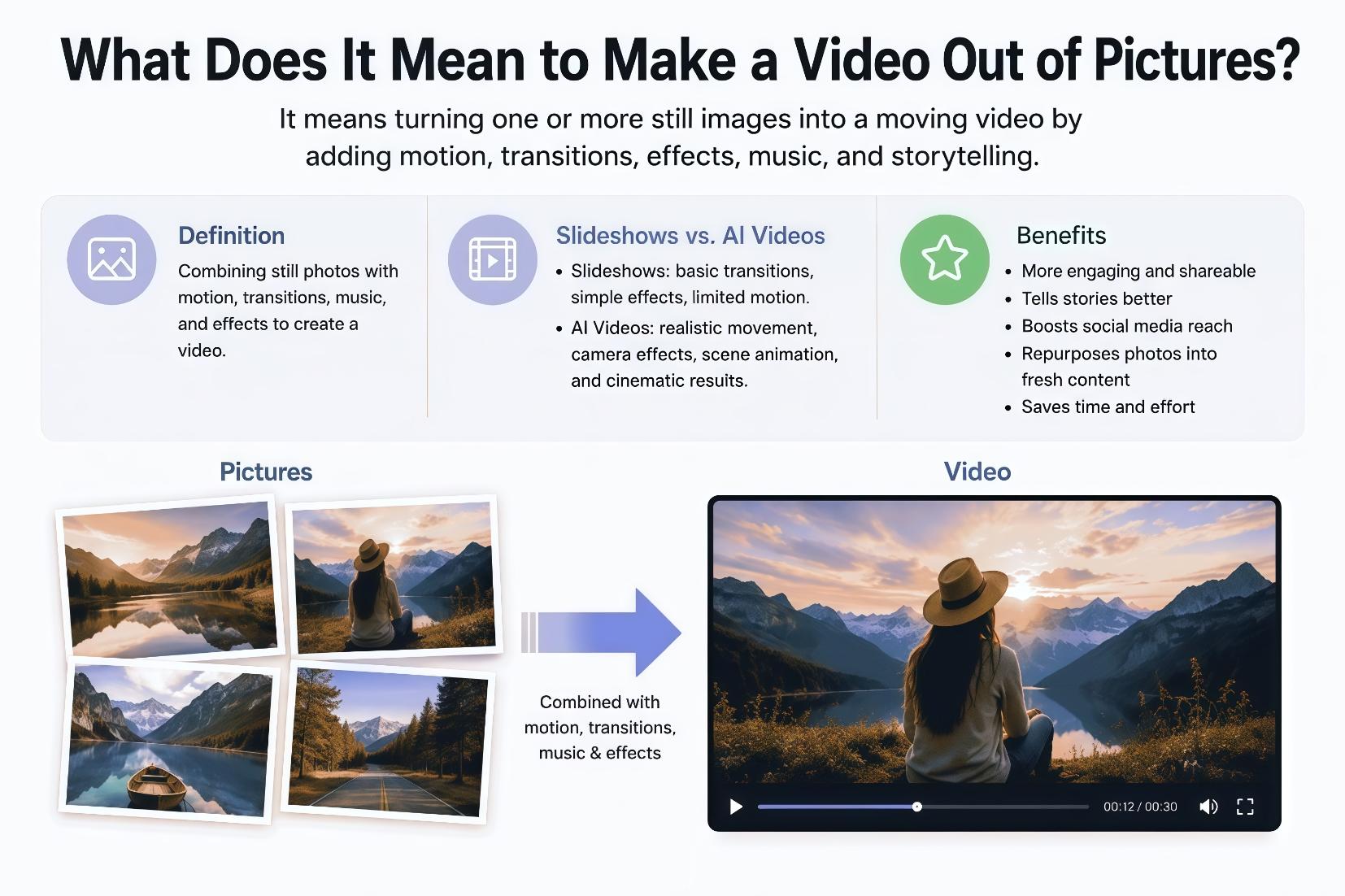
What does it mean to make a video out of pictures?
Turning static photos into a video is a massive upgrade from making someone manually swipe through a gallery. While the old-school method meant just dropping images onto a timeline with basic cross-dissolves, modern AI has completely changed the game. Instead of just stitching pictures together, today's algorithms actually analyze the content of your photos to bring them to life dynamically.
How to make a video out of pictures with Vmake AI
The whole process gets a lot faster when you use an AI-powered platform like Vmake AI. You aren't fighting with complex timelines; you just upload your photos, tell the tool what kind of motion you're looking for, and let the AI generate the final video automatically.
Key features of Vmake AI
-
AI image-to-video generation: This feature handles heavy lifting by transforming your flat, static photos into dynamic videos. It analyzes the scene layout automatically, adding depth and fluid motion to elements that would normally require hours of manual rigging.
-
Advanced AI models: You are never locked into a single aesthetic because the platform lets you choose between different underlying engines. This flexibility is incredibly useful when you need to switch visual styles or adjust the rendering quality to match a project's goals.
-
Prompt-based motion control: Instead of fighting with complex timelines and traditional editing suites, you control the animation through natural language. You just type out the specific camera directions or actions you want to see, and the software translates it into a finished scene.
-
High-Quality exports: Final renders are totally professional, with crisp details and smooth motion throughout. The quality of the output is so good you can confidently drop these files straight into client presentations, marketing campaigns, or main social feeds.
-
Multiple aspect ratios: Instantly optimize your content for different platforms without worrying about awkward cropping later. The tool allows you to toggle between vertical, square, and widescreen formats, so your videos are formatted correctly for Instagram, TikTok, or YouTube.
Steps to create videos out of pictures with Vmake AI
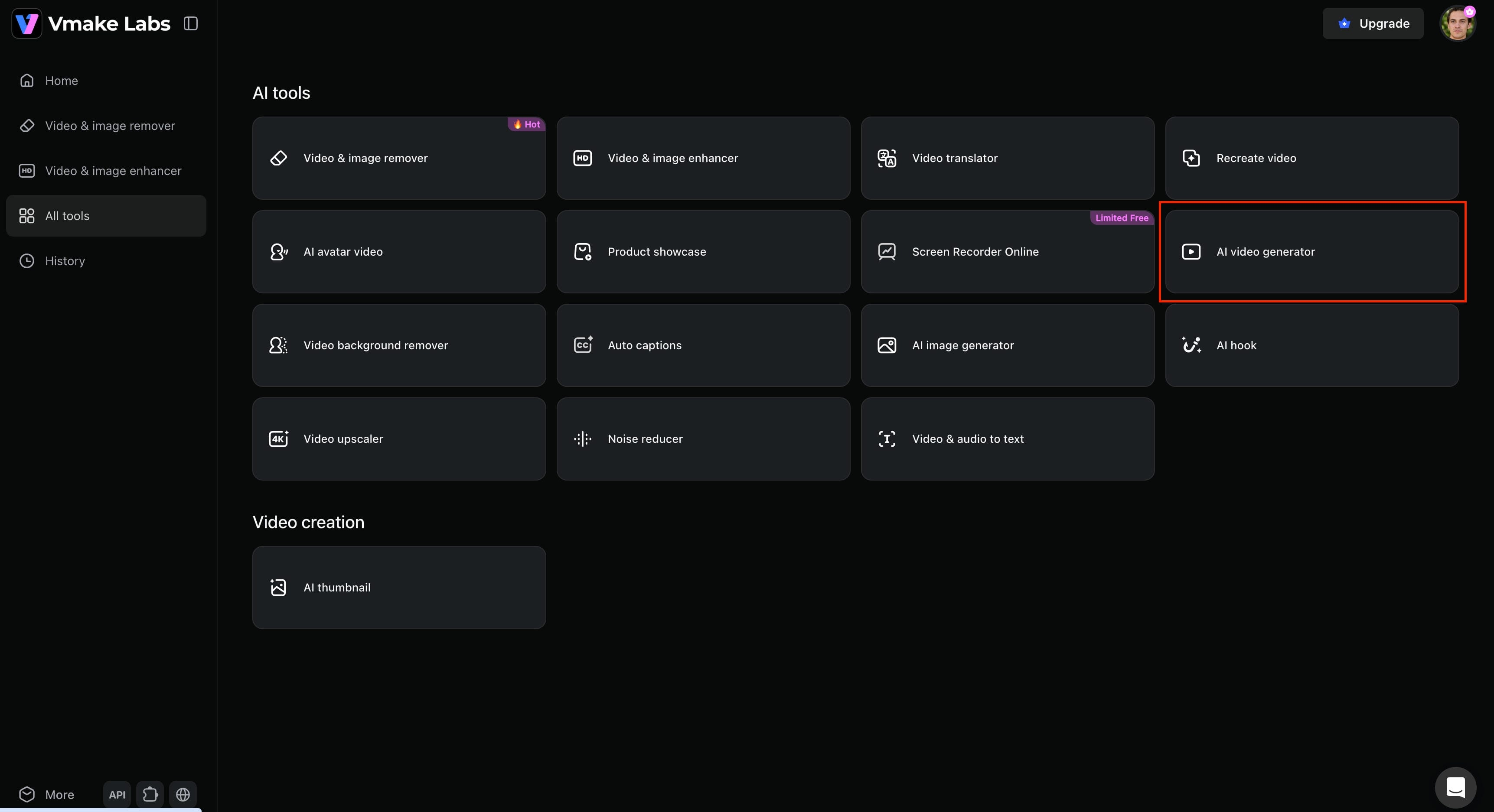
Step 1: Open Vmake AI and go to the AI Video generator
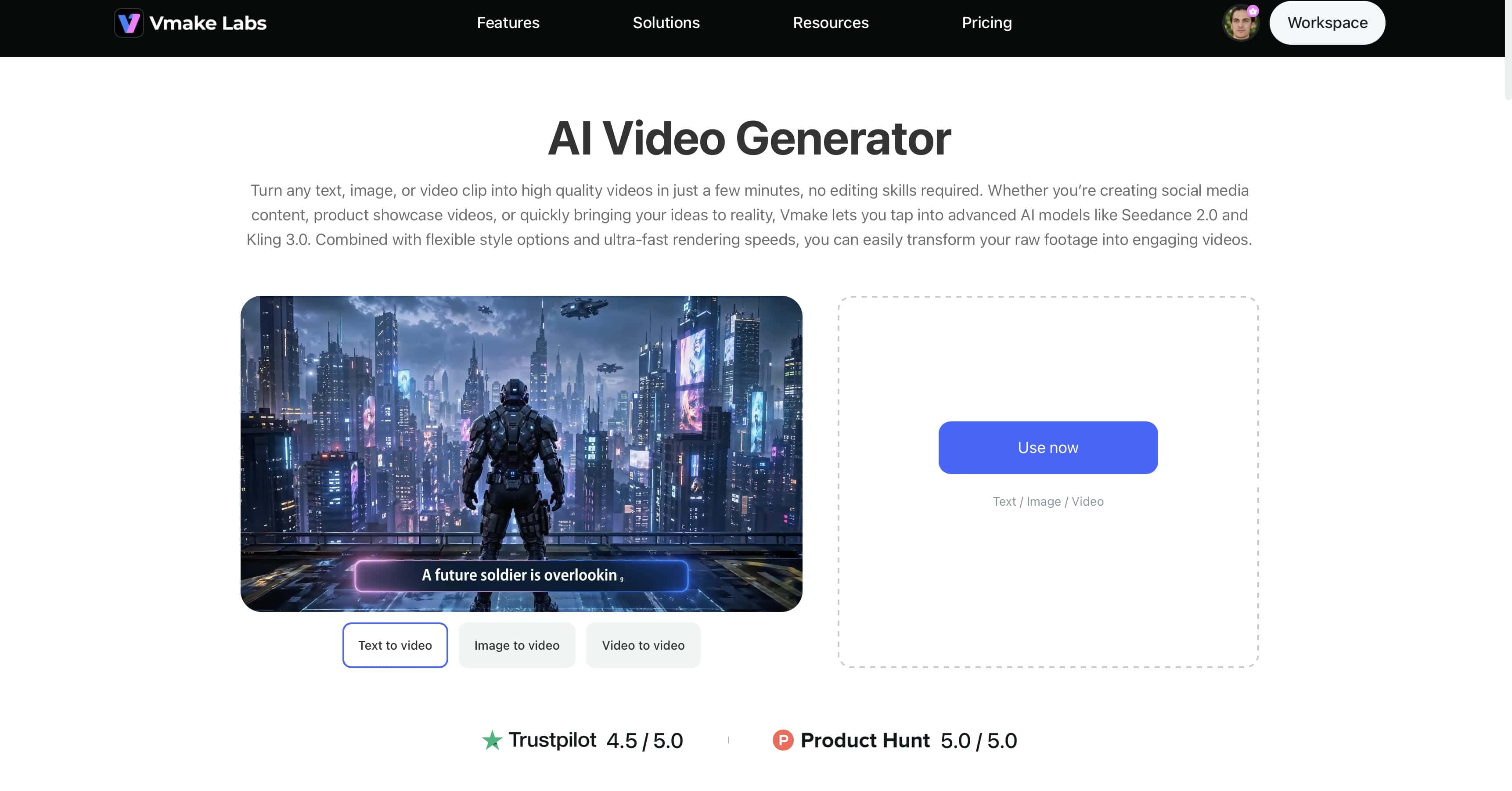
Go over to the Vmake AI Video Generator page and select the Image-to-Video option. This is the exact workspace built for feeding your raw photos into their engine to spin them up into moving video assets.
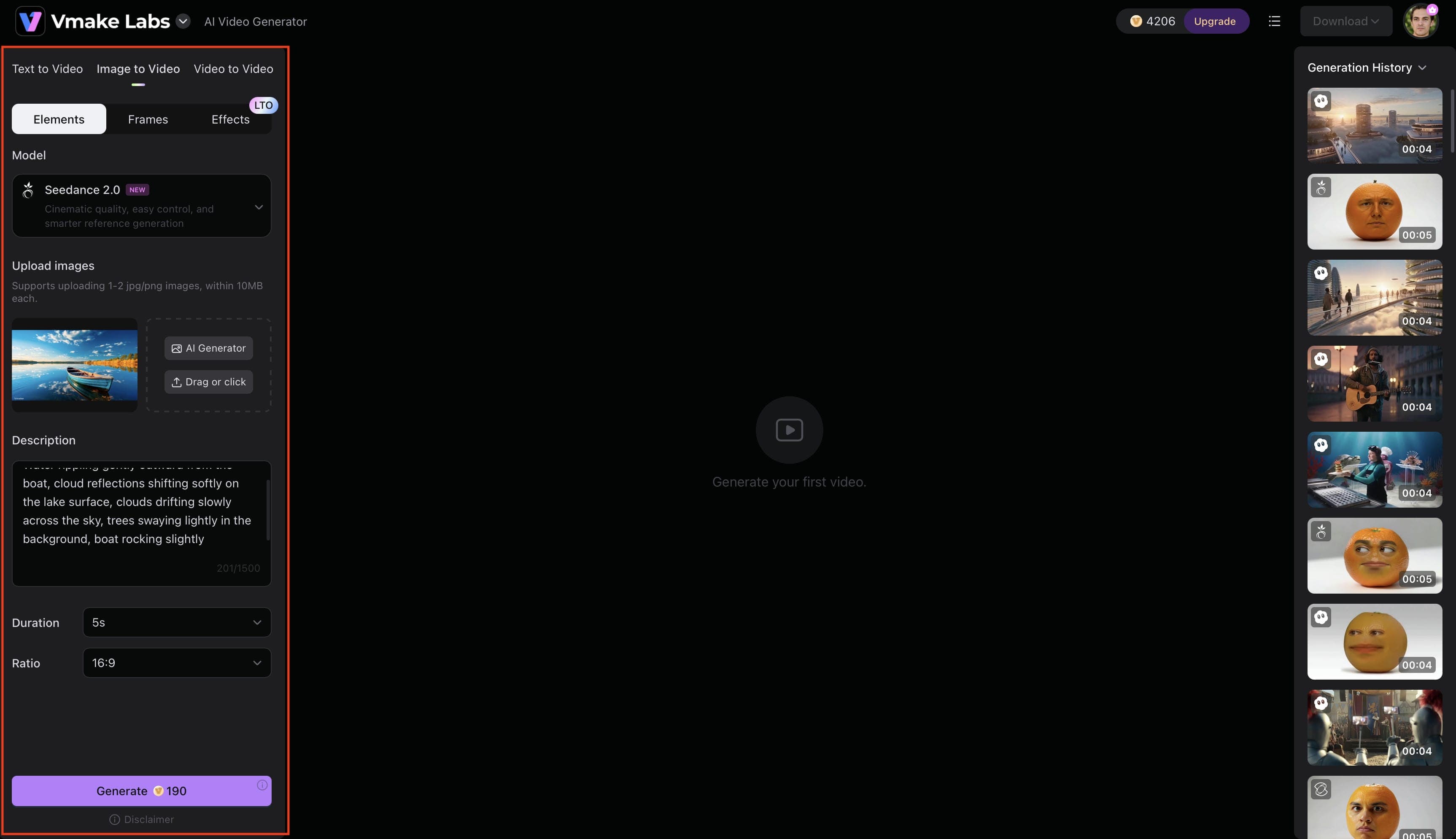
Step 2: Upload your pictures and customize video settings
Pop your image or images into the uploader. Once they're in, you need to write a prompt. Just describe how you want the camera or the subject to move. Keep it direct but descriptive, like a slow cinematic zoom toward the subject, gentle camera movement across a landscape, dynamic product showcase with smooth motion. Make sure to select an aspect ratio and choose an AI model that fits where this video is actually going to live.
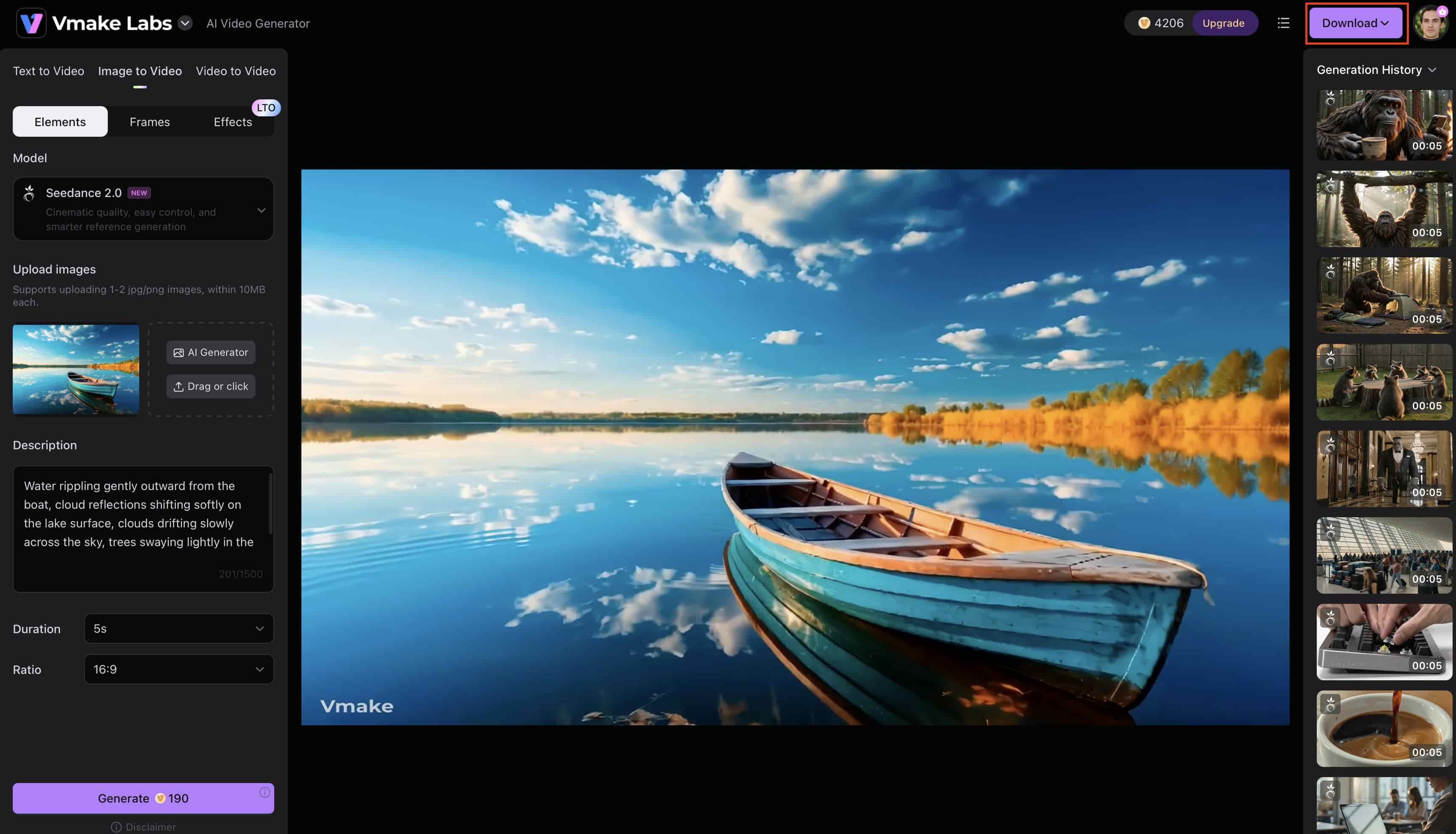
Step 3: Generate and download
When the settings look good, hit Generate. The AI will take over and build out the camera paths, transitions, and motion context based on your text. Watch the preview window. If it looks right, then download the file, and if not, then tweak the prompt slightly and rerun it.
Other Popular ways to make a video out of pictures
AI is great, but depending on what you're actually trying to build, there are other traditional styles that might make sense for your project.
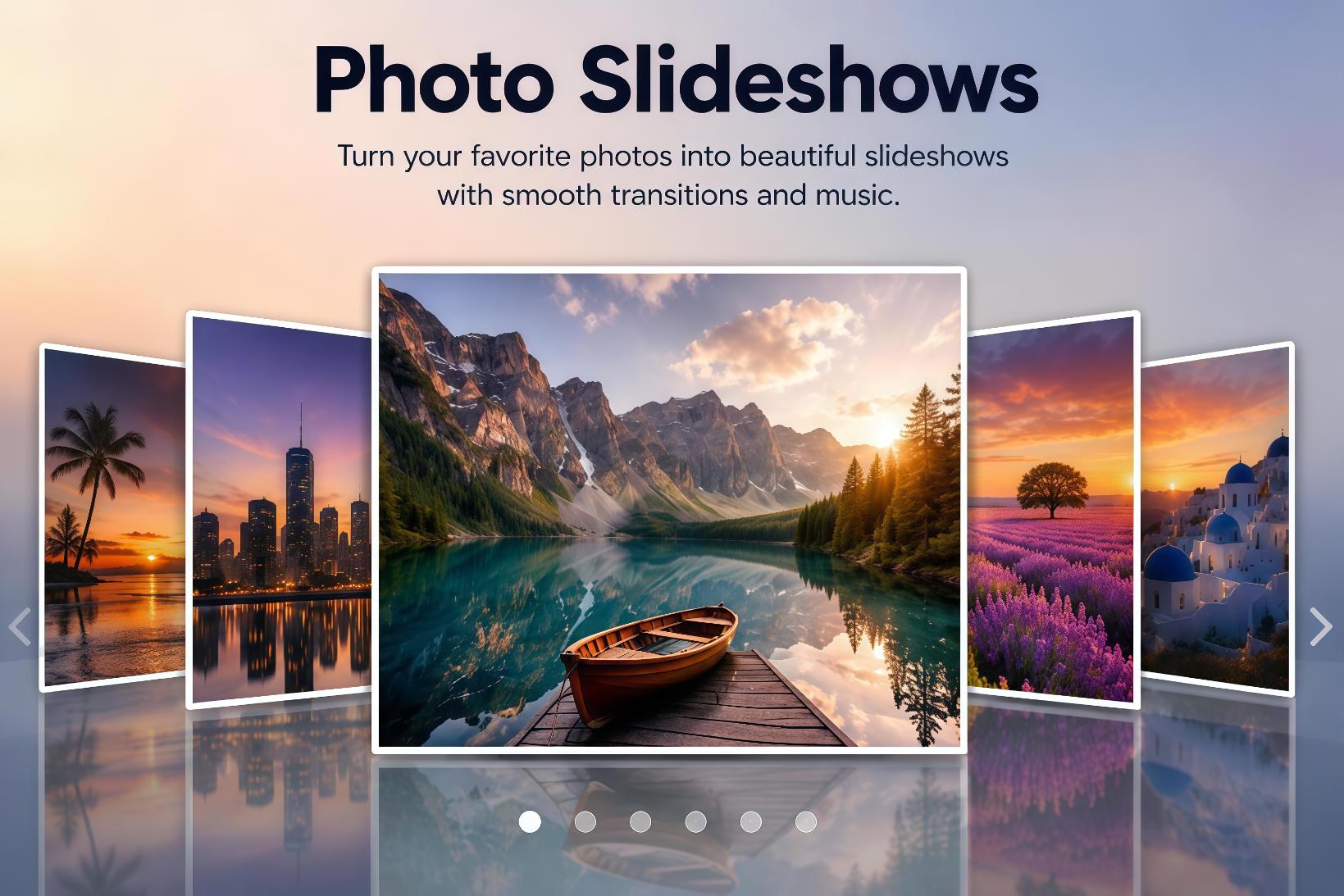
Photo slideshows
The classic photo slideshow is still around because it's dead simple. You just line up images sequentially, add some background music, and put basic transitions between them. It's still the go-to format for family events, quick travel recaps, or basic educational content. The downside? It can feel a bit flat for modern audiences who are used to high-energy video content.
Zoom and pan effects
You've probably seen this a million times in documentaries; it's often called the Ken Burns Effect. You take a still photo and keep it engaging by slowly moving a virtual camera across the frame. A slow zoom can make a shot feel way more dramatic, while a smooth pan across a landscape reveals details over time. It's a subtle way to make static images feel significantly more cinematic.
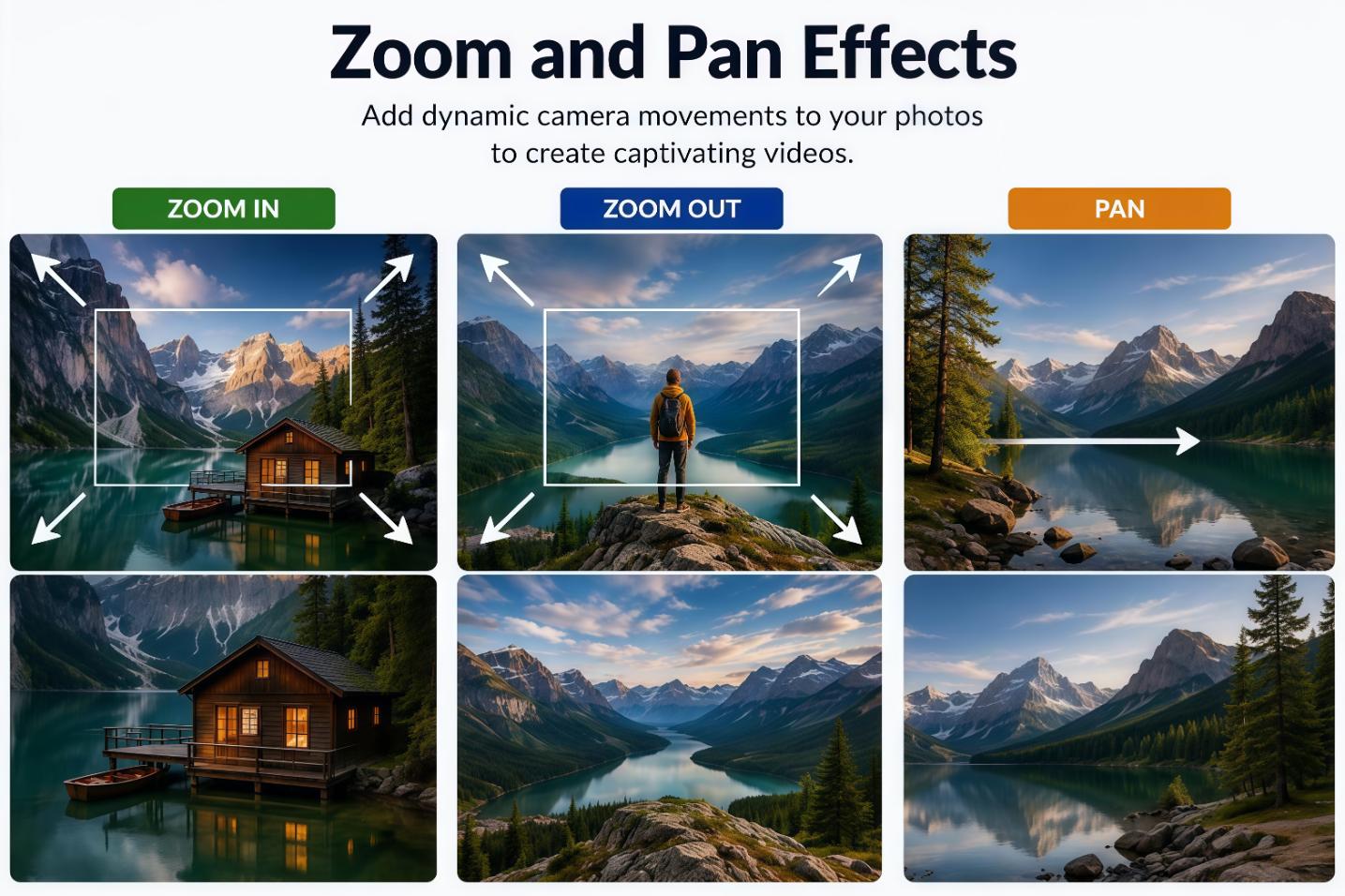
Photo montage videos
Pacing and sequencing are everything when you're putting together a photo montage. If you just let photos sit on the screen, people lose interest immediately. You need fast cuts, creative transitions, text overlays, and a really strong music track to actually build a narrative arc that moves. Companies use them all the time for company milestones, but honestly, they work just as well for more personal stuff like wedding highlights or quick vacation recaps.
Stop-motion style videos
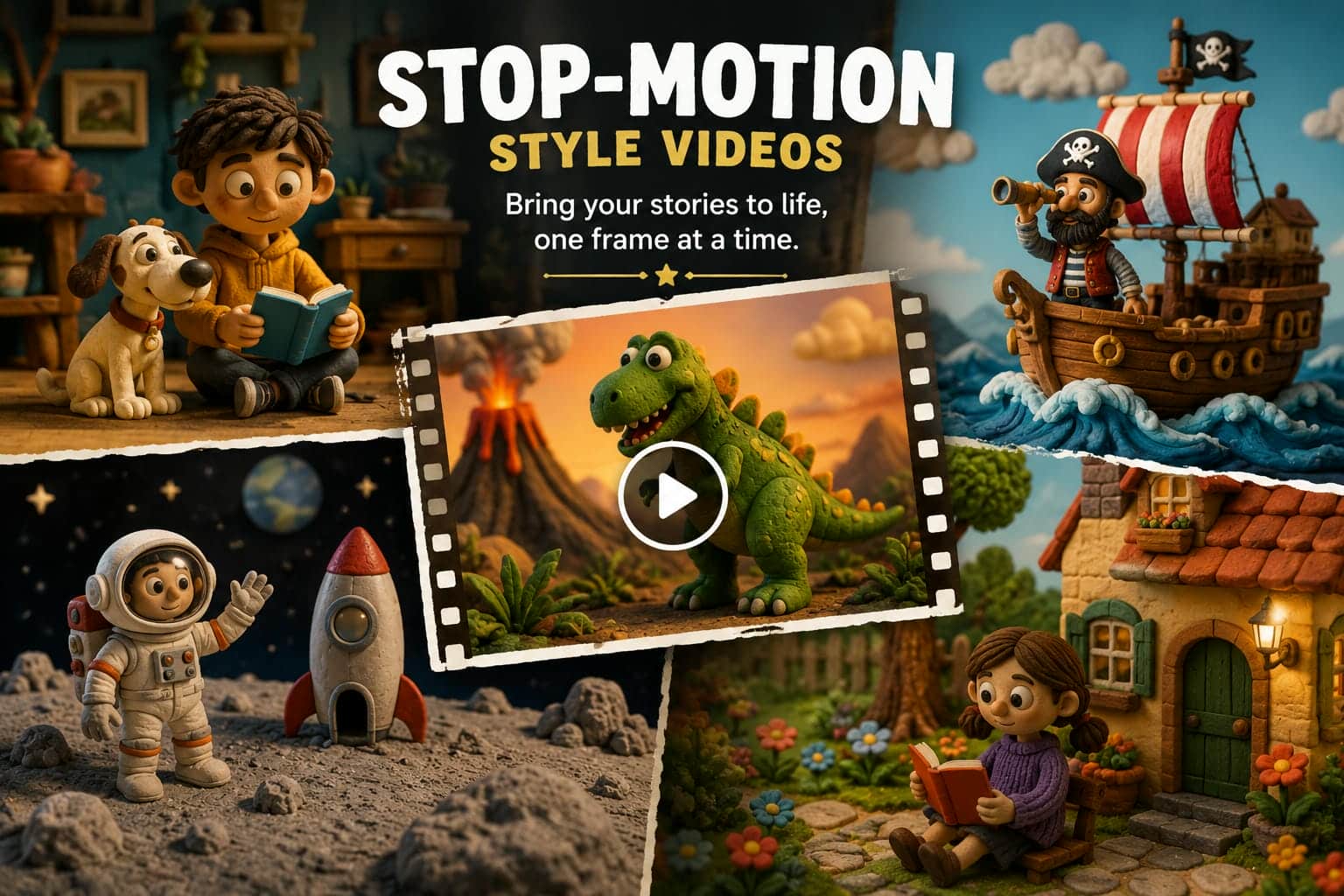
Stop-motion videos are made by taking a sequence of pictures of an object and moving it manually just a tiny bit between each shot. When you play those images back rapidly, it gives the illusion of this quirky, stylized animation. It definitely takes a lot more upfront planning than a basic slideshow, but it is an incredible technique if you want to make a highly engaging product video or just need some unique storytelling to make your brand stand out.
Collage and split-screen videos
If you have too many photos and not enough time, collage and split-screen layouts are your best bet. You show multiple images on screen at the exact same time using creative grids. This is perfect for before-and-after comparisons, rapid product showcases, or packing a ton of travel highlights into a short social media video without making the runtime drag.
Compared with traditional slideshow or manual editing methods, AI image-to-video tools can automatically generate motion effects and reduce editing time, making them more suitable for content creators, marketers, and social media users
5 Tips for creating better videos from pictures
-
Use high-quality images: The quality of your final export is highly dependent on your source files. High-res, sharp photos give the AI plenty of visual data to work with, leading to clean and stable animations. Blurry or dark shots, however, force the generator to guess blindly, and the final render looks incredibly messy.
-
Keep a consistent visual style: A video feels totally disjointed if every photo looks like it came from a different camera or lighting setup. Search for images with a similar color palette and editing style, or edit them quickly at first, so the final project looks cohesive.
-
Write detailed prompts: When dealing with AI video generators, a lazy prompt always gives you an unpredictable video. Instead of typing something generic like "Animate this image," be highly specific with directions like "slow cinematic zoom toward the subject with soft background motion" to get the best output.
-
Use appropriate video durations: Attention spans are short on most online platforms, so it's important to keep your videos concise and engaging. Aim for 15–30 seconds for Instagram Reels and 15–60 seconds for TikTok, depending on the content and pacing. Every scene should serve a purpose and contribute to the story. If a shot doesn't add value, consider removing it to keep viewers engaged from start to finish.
-
Optimize for each platform: You need to format your files specifically for where people are watching. For example, TikTok and Reels require a vertical 9:16 crop, Facebook feeds prefer a square 1:1 layout, and YouTube requires a widescreen 16:9 aspect ratio. Otherwise, your posts will appear awkwardly cropped later on.
Conclusion
At the end of the day, the best way to stop people from scrolling past your content is to turn photos into a video. Classic slideshows still have their place, but AI-powered tools give you a much faster, more dynamic approach to working. The whole process is easy with Vmake AI, so you can turn static images into eye-catching clips with realistic motion without being a master of a complex editing suite. You upload your photos, describe your vision, and let the tool do the technical work. In a matter of minutes, you have pro-quality videos for Instagram, TikTok, or your client pitches.
FAQs
How to make a video out of a picture?
To make a video out of a picture, upload your image to an AI image-to-video tool like Vmake AI, enter a prompt describing the motion you want, and generate the video. The AI can add camera movements, animations, and visual effects to transform a static photo into an engaging video. Once the video is ready, preview it and download it for sharing on social media or other platforms.
How to make a video out of pictures on my iPhone?
You don't need a bulky mobile editing app that will gobble up storage. You can open your iPhone browser, go to the Vmake AI platform, upload pictures straight from your camera roll, play with the settings, and download the animated video back to your device.
Can I create photo videos for Instagram and TikTok?
Yes, and you don't have to worry about resizing manually: Vmake AI and other modern generators will support multiple aspect ratios out of the box. Choose a 9:16 vertical crop, so your final video will be fully optimized for Instagram Reels, TikTok or Stories.
What images work best for AI video generation?
You will always get the best results from high-resolution photos that are well-lit and have a clear subject. By giving Vmake AI clean assets, the engine can easily find edges and details, so portraits, landscapes, and product shots look a lot smoother when animated.
Is Vmake AI free to use?
Yes, you can test the waters free of charge upfront. Vmake AI offers free credits for new users right off the bat, so you can test out image-to-video tools, check out the quality of the output, and determine if it's a good fit for your workflow before moving to a paid option.

You May Be Interested
2026 Wink Video Enhancer Review: Pros, Cons, and Alternatives

How to Make AI Cat Videos: A Complete Step-by-Step Guide
How to Create an AI Avatar: Step-by-Step Guide for Beginners (2026)