
AI Video Extender for Video Canvas Expansion
AI Video Extender expands the space around your footage instead of extending playback time. Choose a new aspect ratio, keep people, products, and key details in frame, and create cleaner fits for social content, ads, and more screens without starting over.
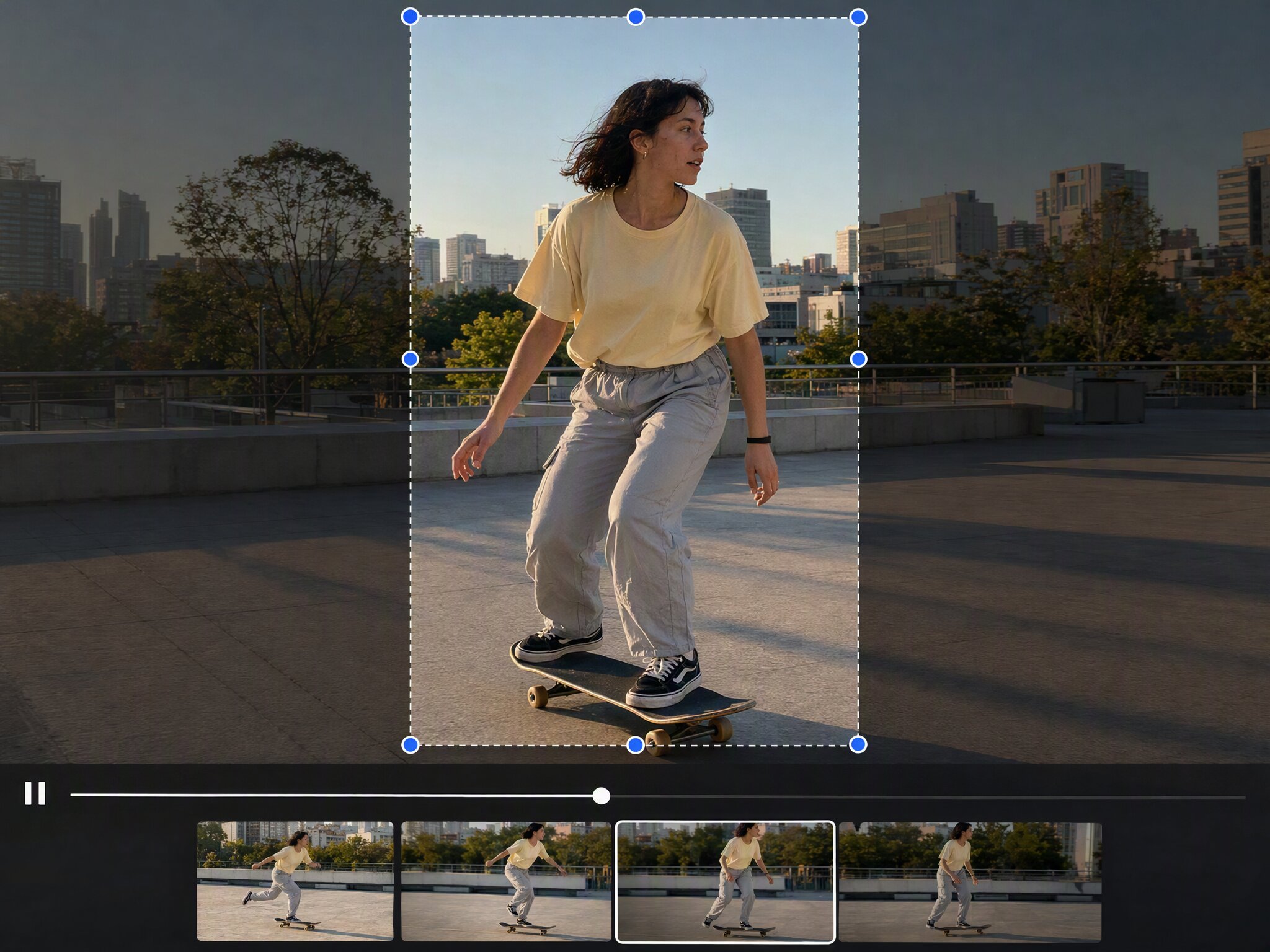


How to Use Vmake Labs AI Video Extender
Step 1. Upload your video
Bring in the footage you want to reframe or expand, and start with the video you already have.
Step 2. Choose a target frame
Select 16:9, 9:16, 1:1, 4:3, or 3:4 to shape the canvas around your next placement.
Step 3. Generate and review
Let AI fill the new canvas, then use the main preview and bottom timeline to browse fixed frames and make simple trims.
AI Video Extender for real content goals
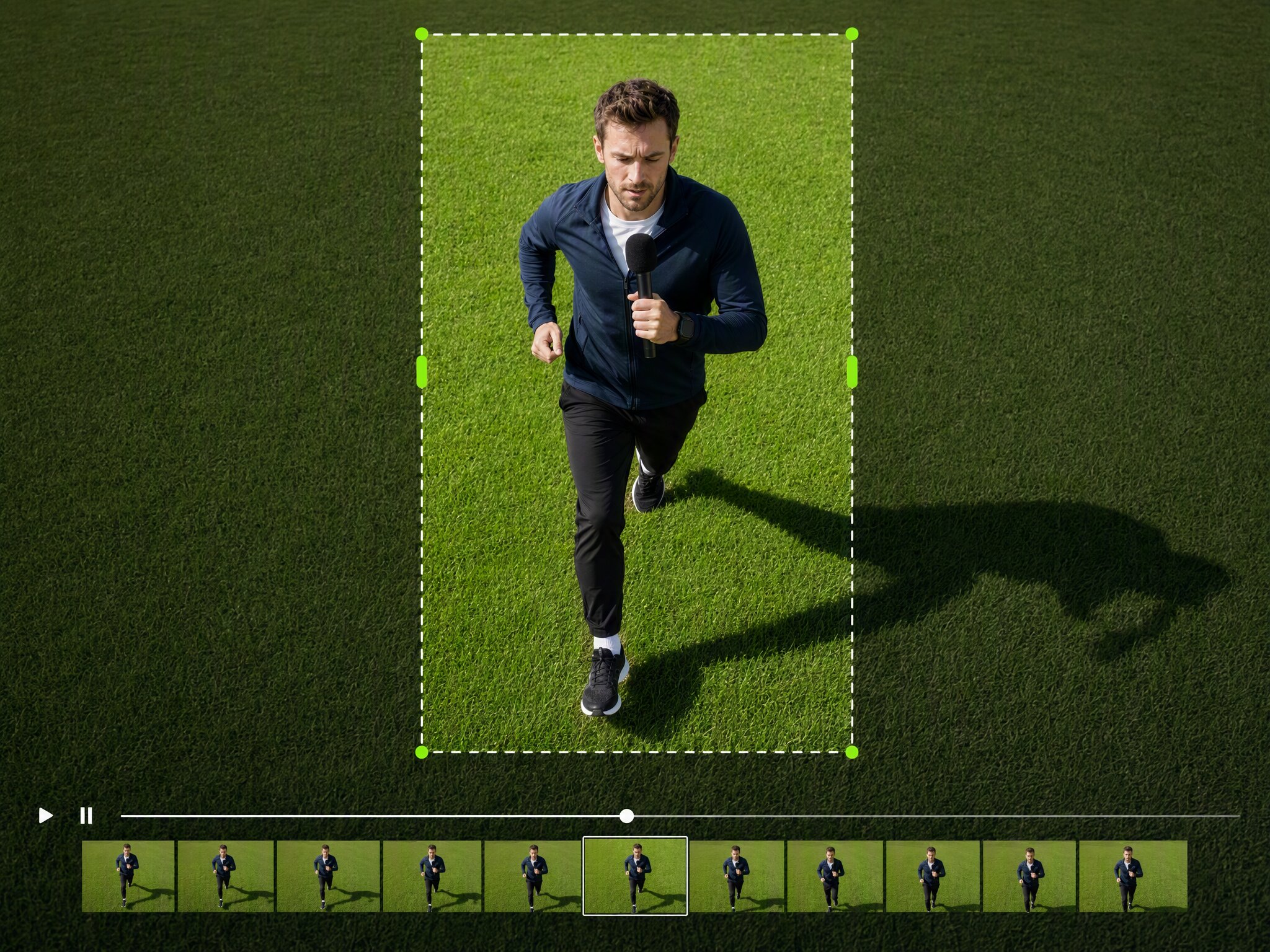
Reframe content for social platforms
Turn a landscape clip into a portrait frame, or adapt a vertical video for a YouTube ready layout. Prepare versions for TikTok, Reels, Shorts, and YouTube from existing footage while keeping the important subject visible.
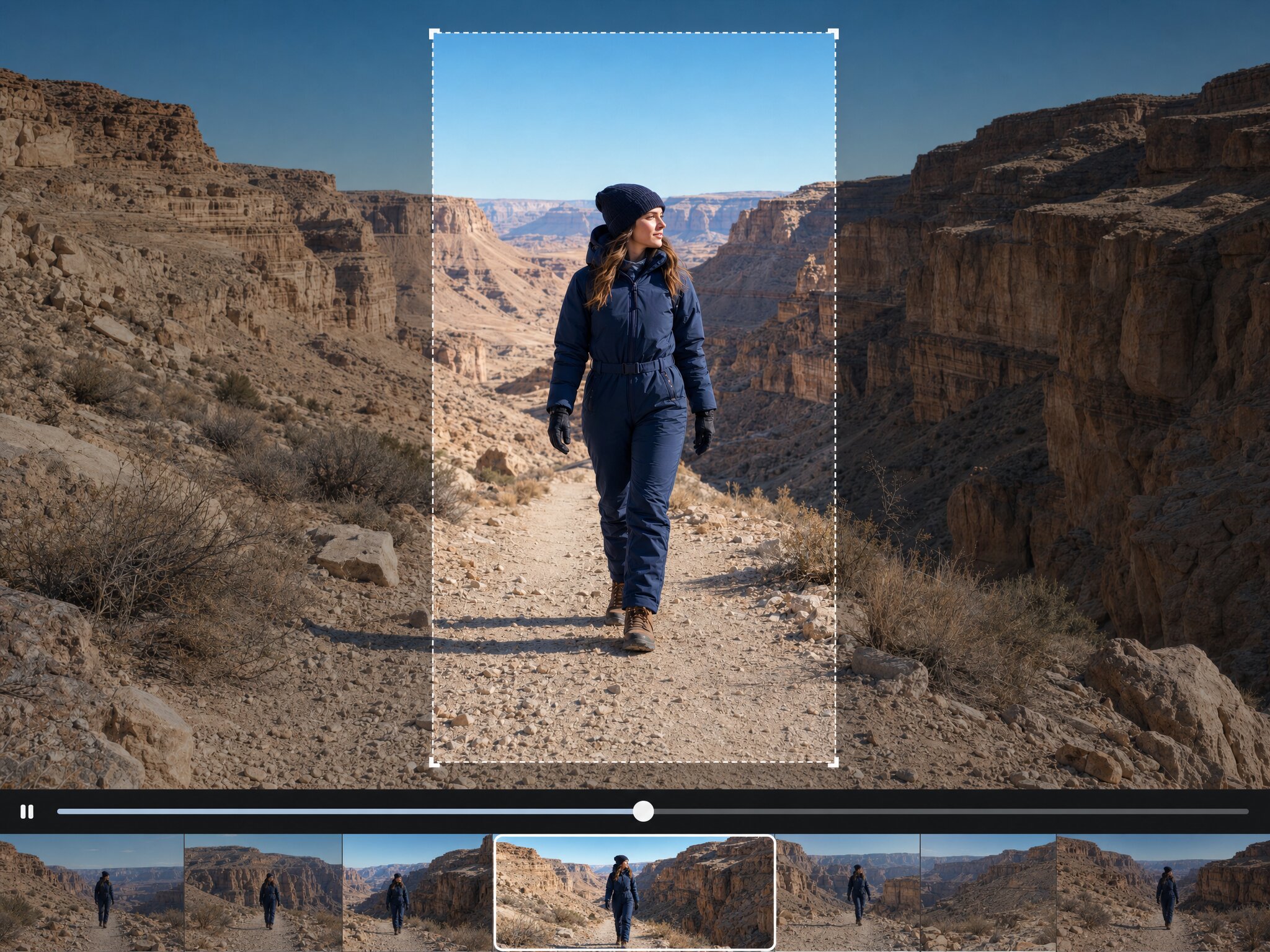
Adapt multi placement ads
Create several frame versions from one approved ad, so you can prepare better compositions for different placements. Reduce repetitive editing while keeping the message, product, and call to action ready for each format.
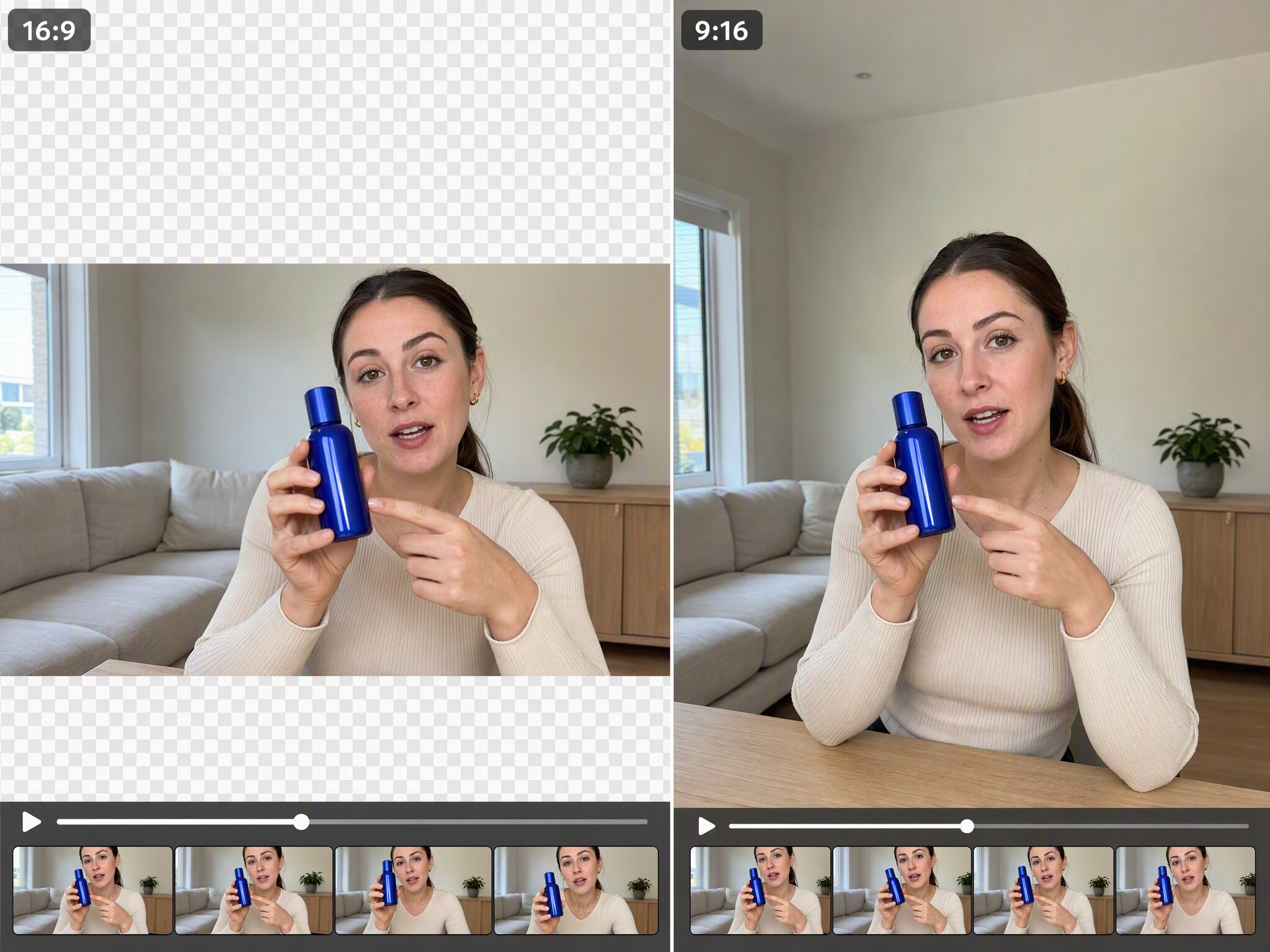
Expand UGC and product videos
Keep creators, people, and products visible while you open space for benefits, logos, pricing, and CTAs. Start with the footage you already have and create a more flexible visual foundation for new placements.
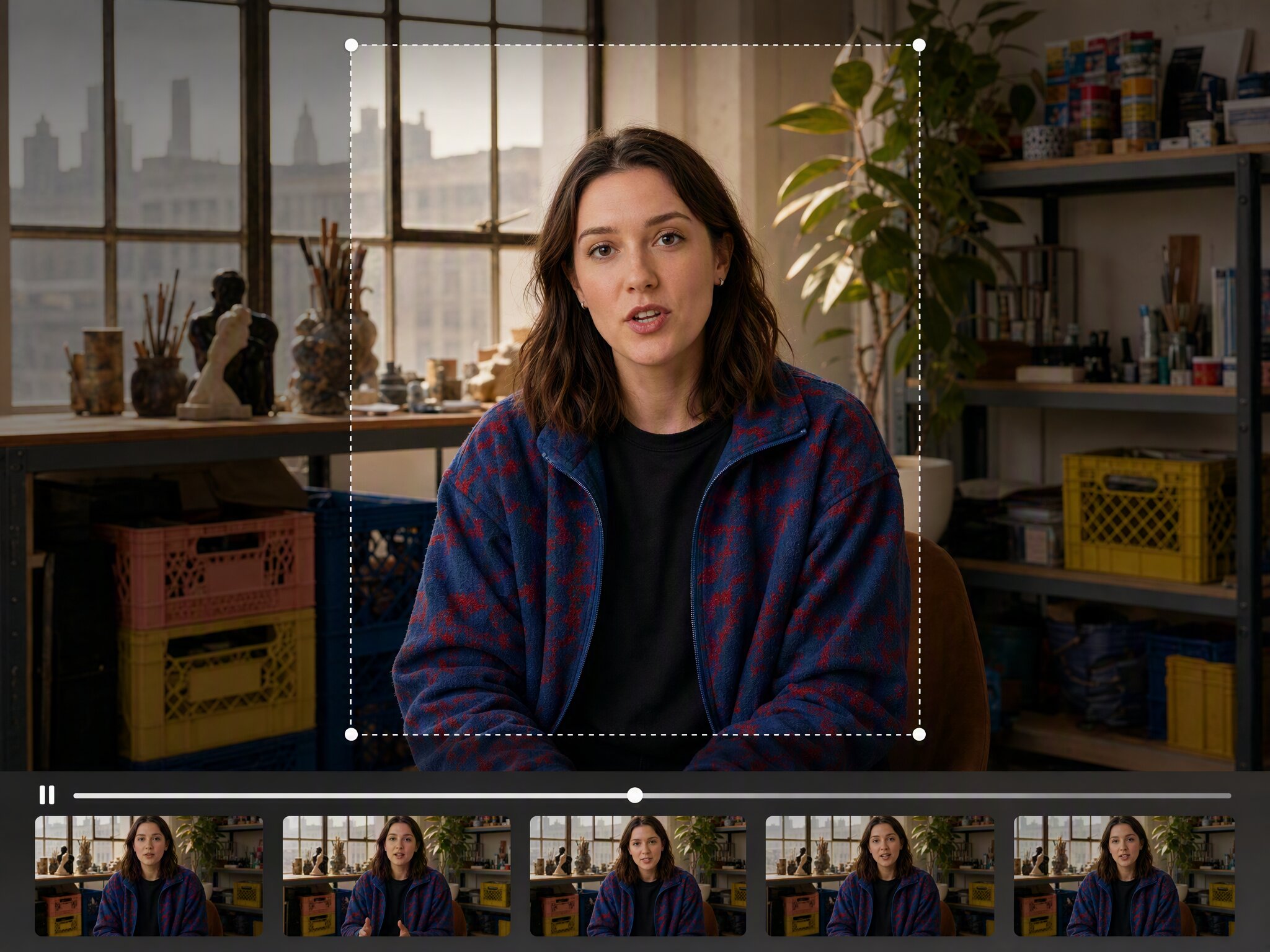
Fix tight framing
Open up a shot when a person sits too close to the edge, a product is cropped, or the composition feels too tight. Expand the surrounding scene so the footage has more room across formats.
Why creators choose this AI Video Extender
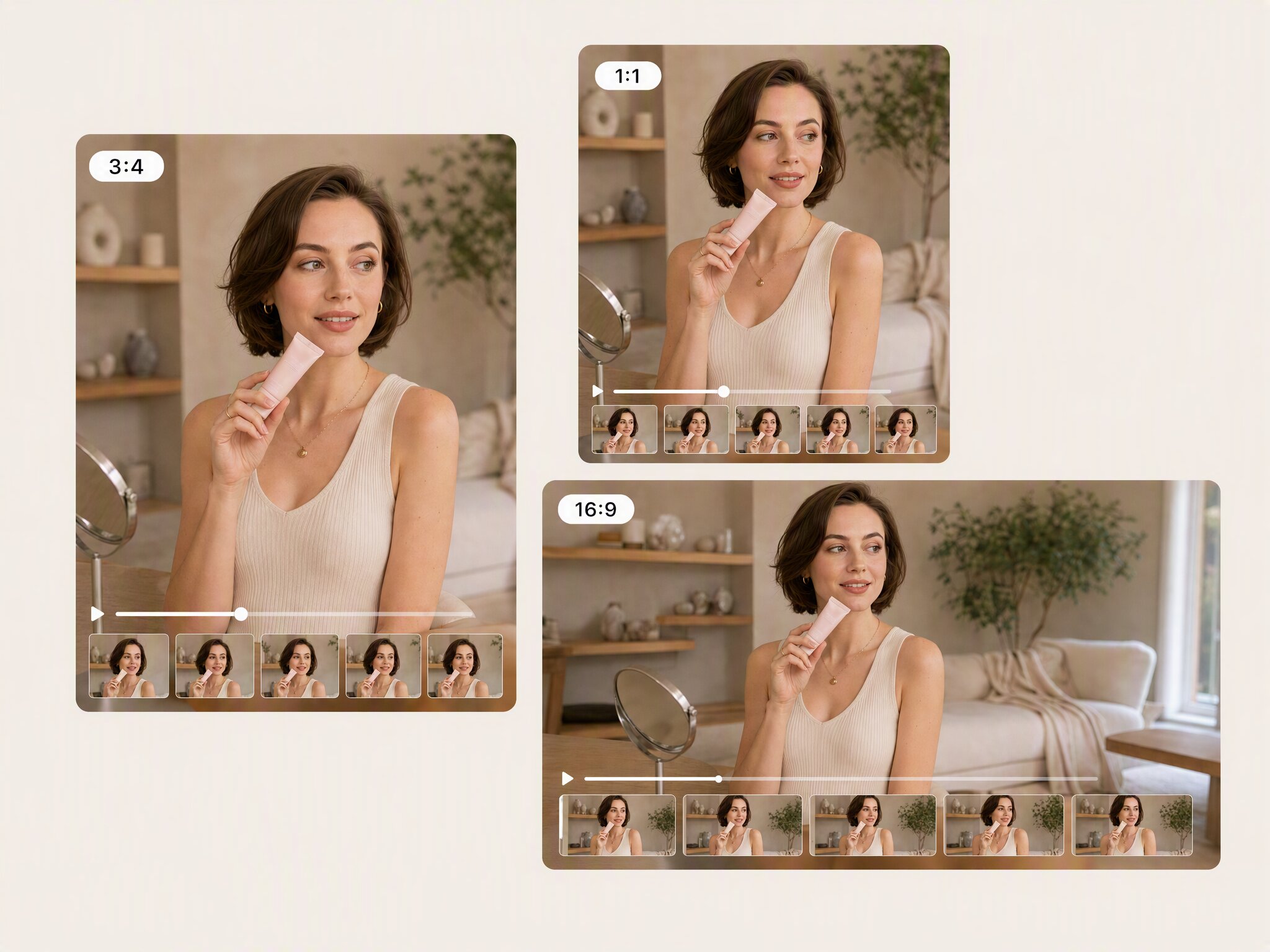
One video, more placements
Move one clip between 16:9, 9:16, 1:1, 4:3, and 3:4 to prepare frames for TikTok, Reels, Shorts, YouTube, and ad placements. Reuse existing footage, adjust the canvas for each destination, and keep content ready for more screens without rebuilding the original edit.
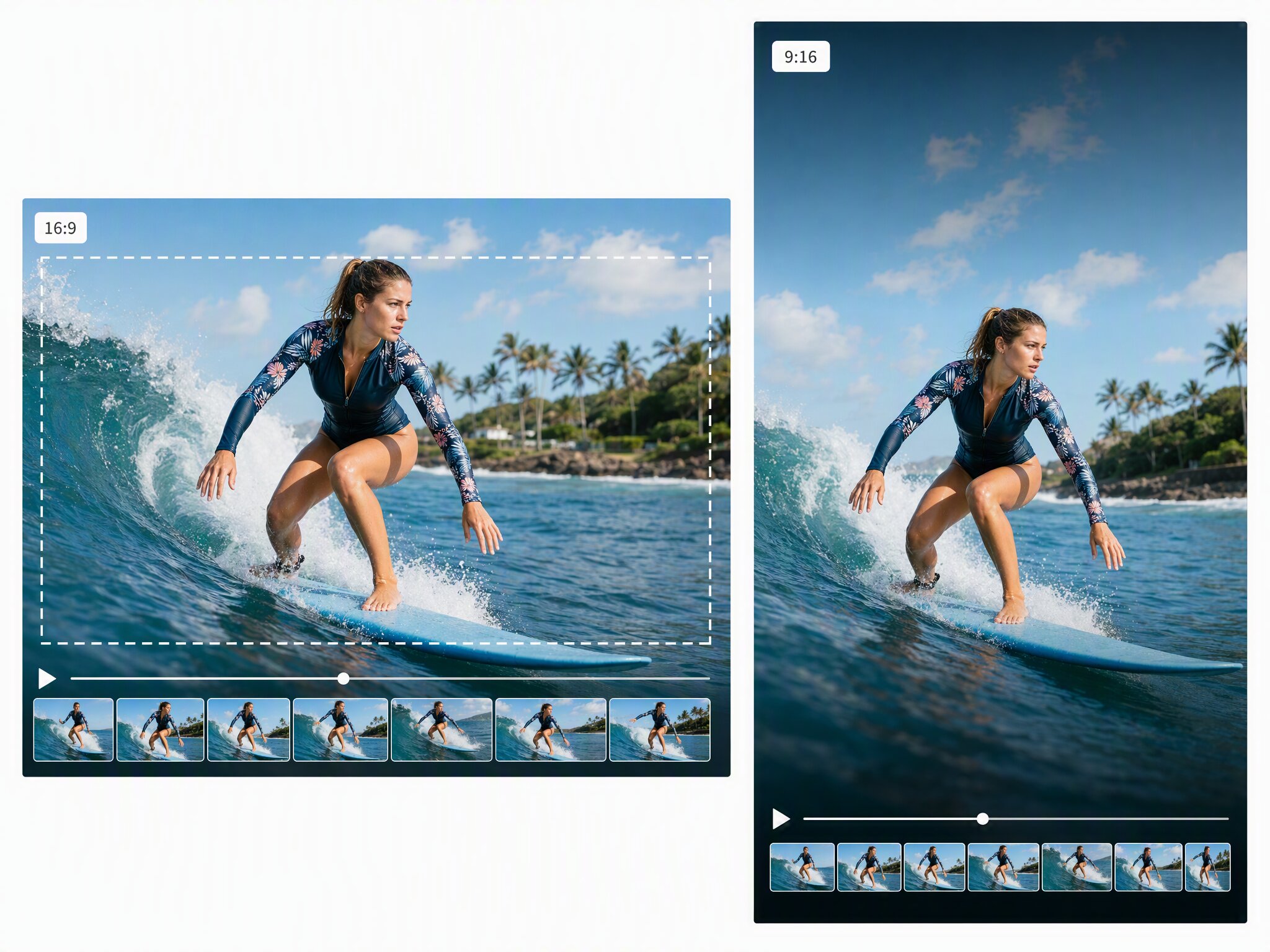
Expand the frame, keep the subject
When the aspect ratio changes, AI generates new canvas areas beyond the original video so people, products, and important details stay in view. Keep the source composition recognizable, create more breathing room around the subject, and adapt the frame without forcing the original footage into a tighter crop.
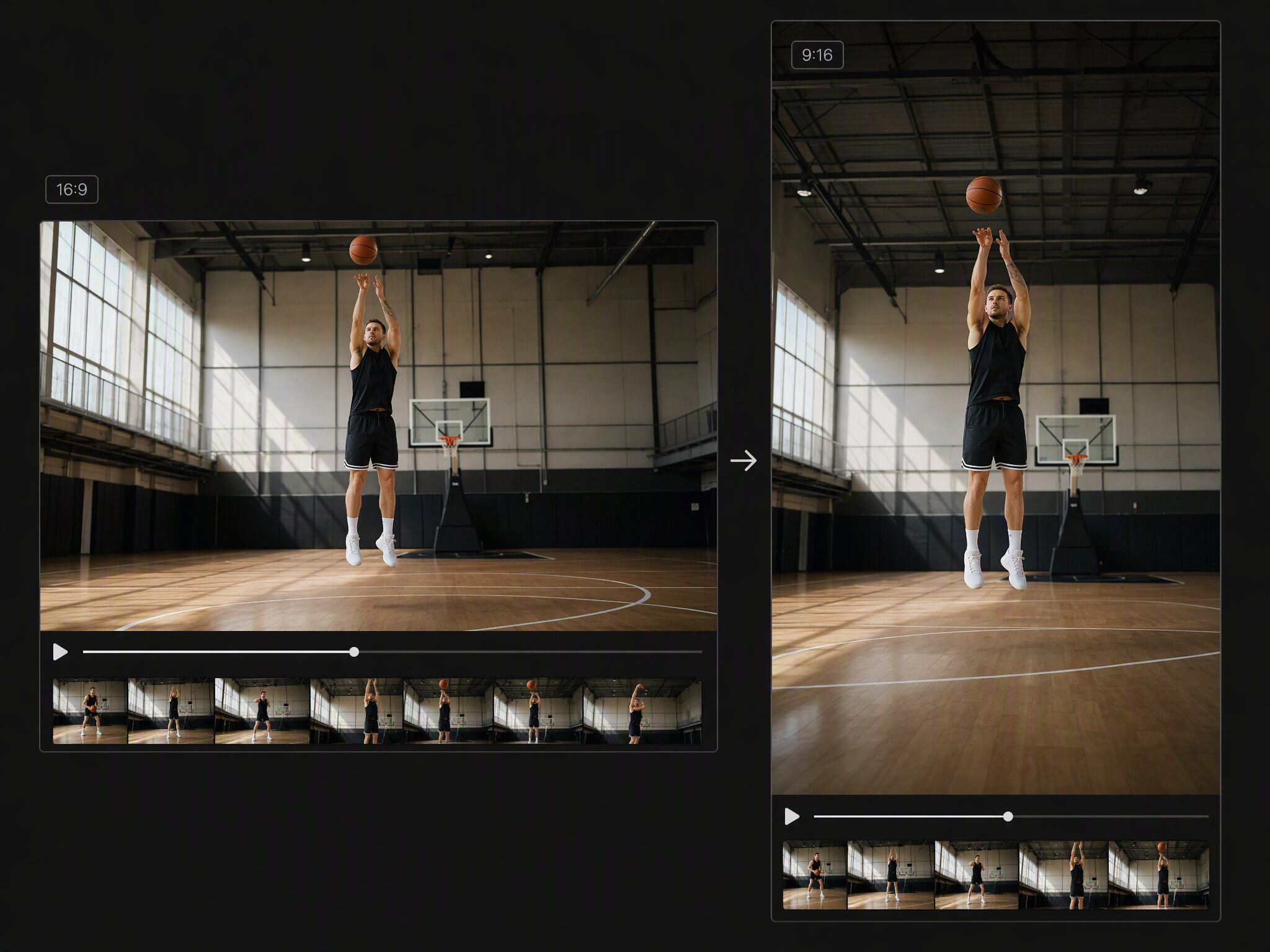
No more black bars or blurred fill
With AI background expansion for video, the tool uses the scene, lighting, color, and texture in your footage to extend the edges more naturally. Create a fuller frame that helps you avoid black bars, blurred backgrounds, and stretched content when the original video needs a new ratio.
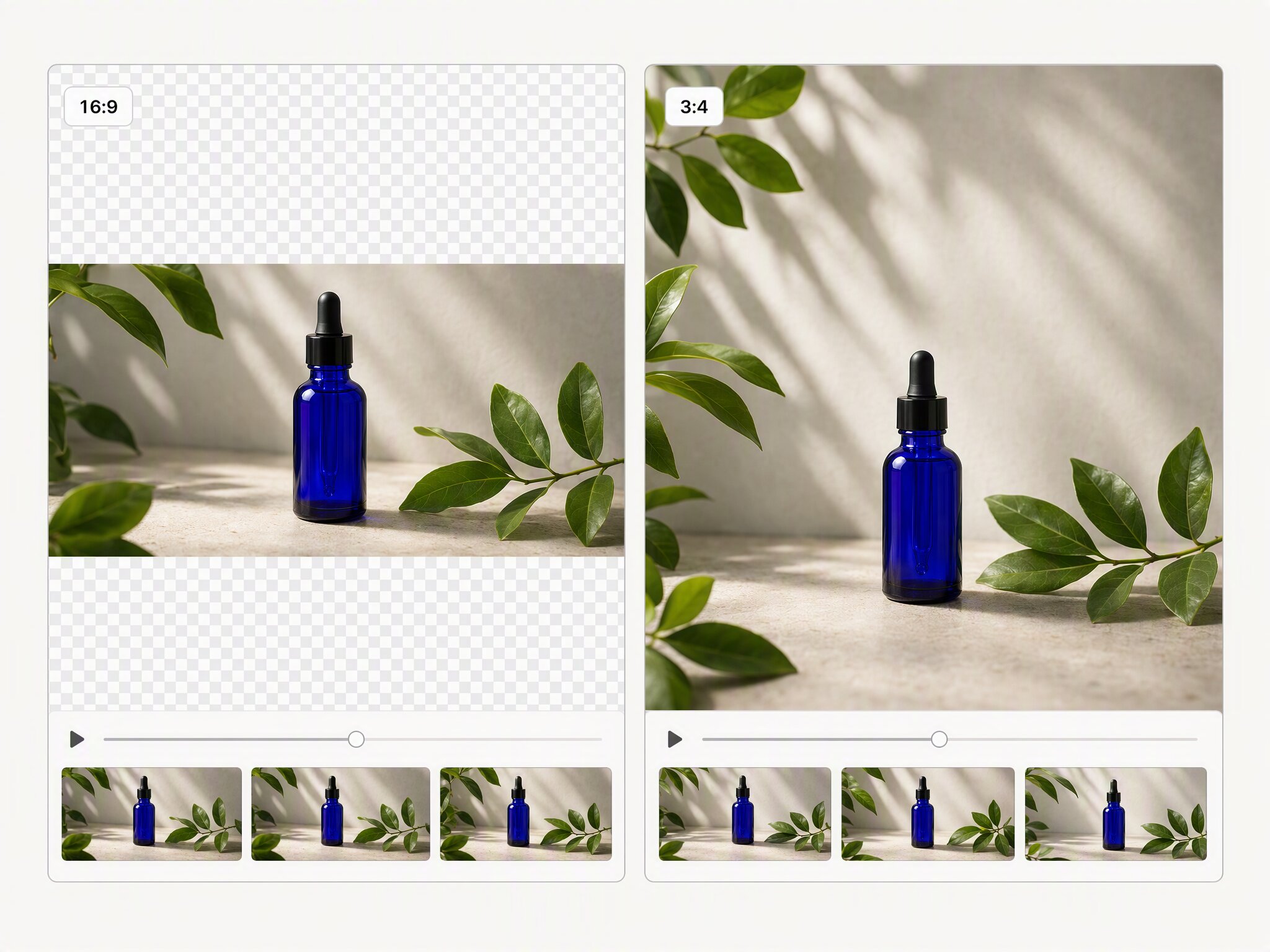
Make room for copy, logos, and CTAs
Expand the surrounding background when a tight crop leaves no room for product benefits, pricing, brand elements, or calls to action. Create a cleaner composition for campaign layouts while keeping the original subject visible and giving your marketing message a more flexible place to land.
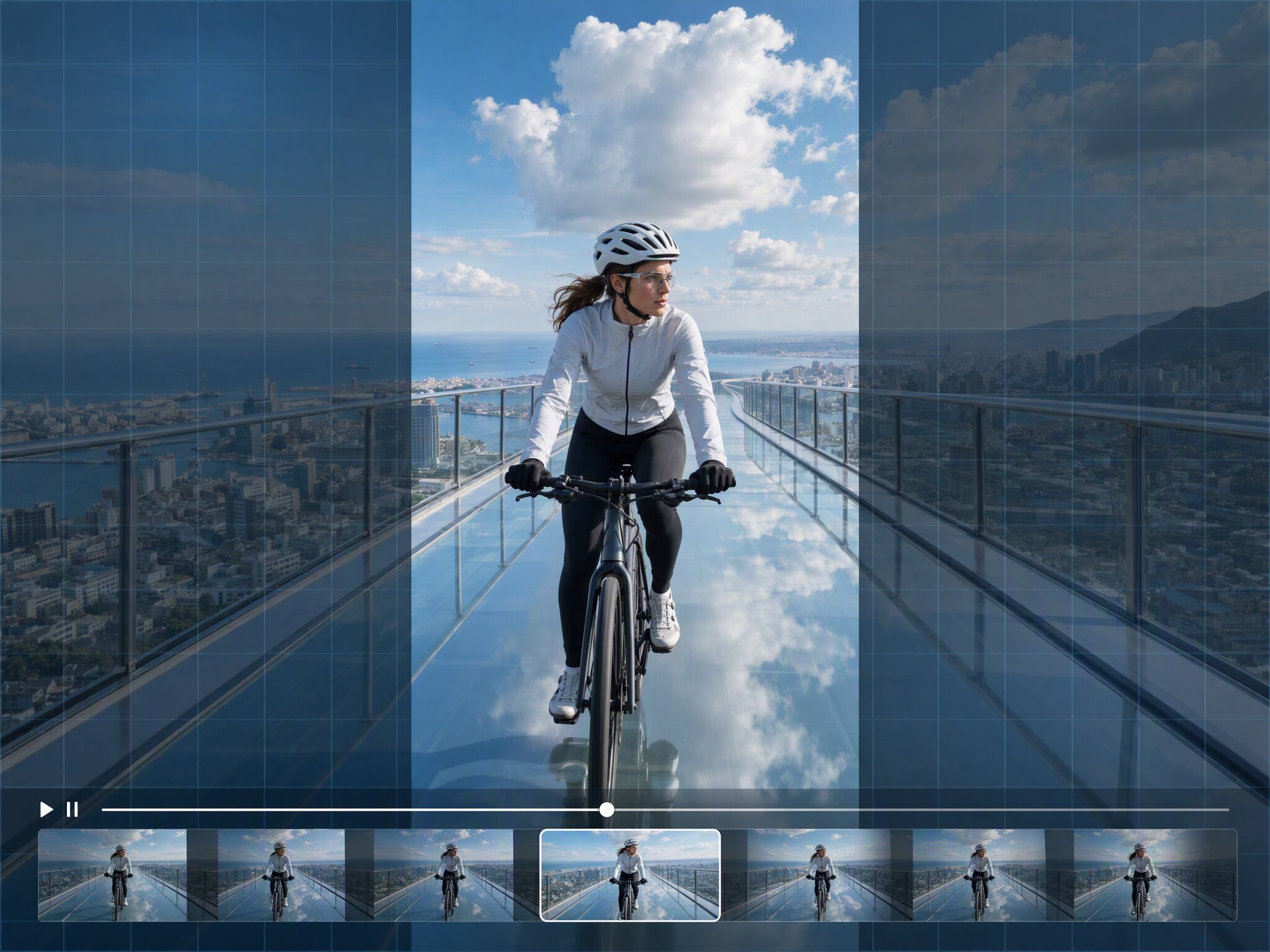
Review the result before you commit
Use the main preview and bottom timeline to browse fixed frames, make simple trims, and check how the expanded space works with the action before you continue. Review the important moments in your clip, then decide whether the new frame is ready for the next placement.
Who gets more from an AI Video Extender
Social media and marketing teams
One approved clip often needs to serve several placements. With AI Video Extender, the team can choose a new frame and expand the surrounding space, reducing the need to rebuild an asset every time the format changes. This keeps social content moving from one channel to the next with less repetitive production work.
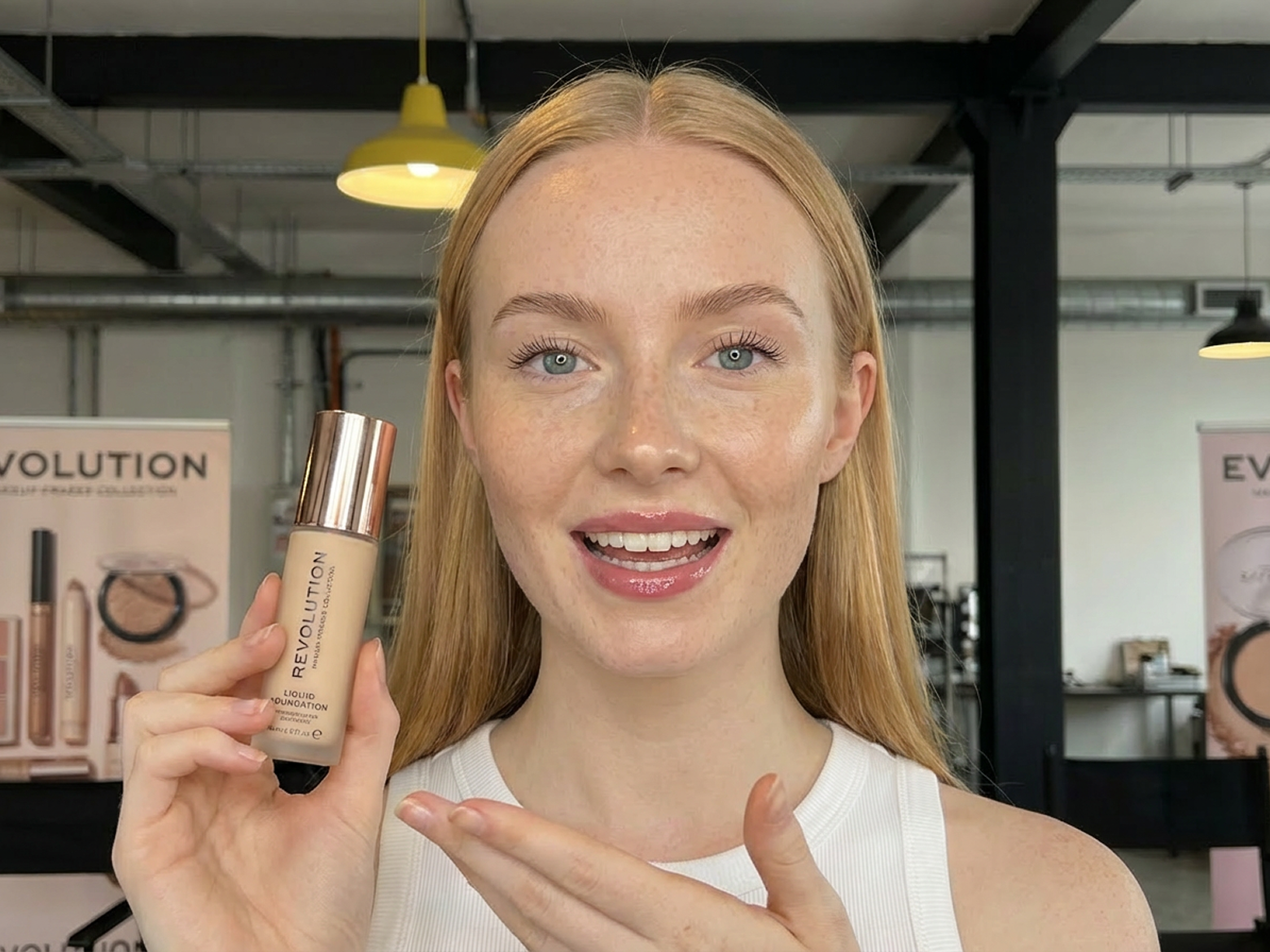
Ecommerce sellers and brands
Product footage needs to stay clear across different placements. Several aspect ratios and a preview workflow let the team check the product frame first and choose the layout that fits the next use. Expanded space can also create more room for pricing, product benefits, and campaign composition.
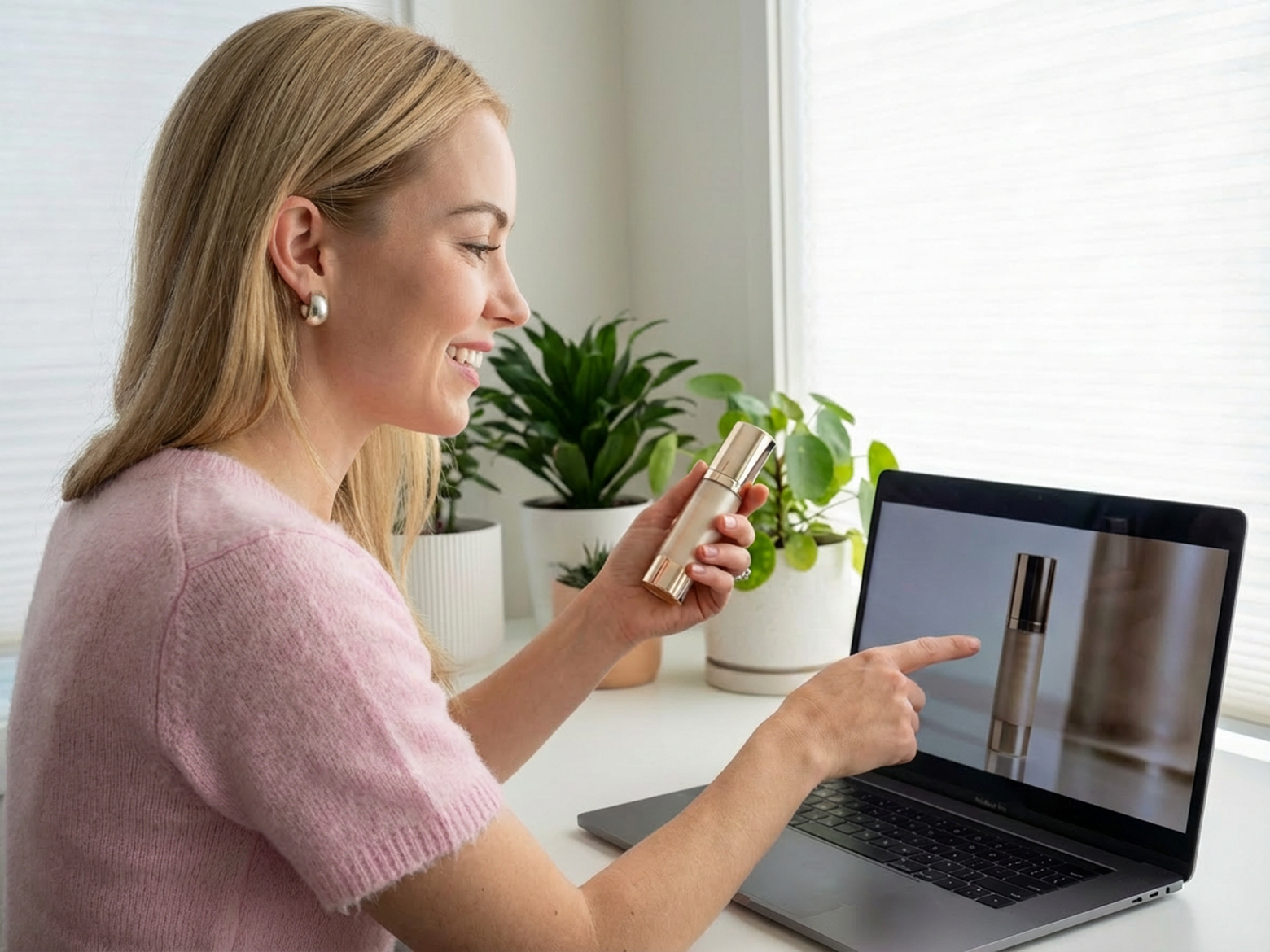
UGC creators and video creators
A strong creator moment can lose its context when a platform changes the frame. AI Video Extender helps preserve expressions and product details while preparing more useful versions from existing footage. The result gives creators more flexibility to repurpose content without rebuilding the original story for every placement.

Editors, designers, and agencies
One approved video may need to ship in several layouts. Expanding the video canvas reduces repetitive reframing and creates flexible space for copy, logos, and CTAs across deliverables. This helps editors, designers, and agencies move from a master asset to platform ready versions with a clearer production path.

Why choose AI Video Extender?

Open the workflow in your browser and start with the footage you already have.

Upload a video, choose a ratio, and review the expanded frame in a clear, focused flow.

Keep your creative work in a focused browser workflow while you prepare new formats.
Frequently Asked Questions
What is an AI Video Extender?
Does AI Video Extender make a video longer?
No. It expands the width or height of the video frame. It does not continue the scene or add playback time.
Can I convert a vertical video to landscape?
Yes. AI generates new visual content around the original video so it can help you uncrop a video and fit a landscape frame without simply adding black bars or cropping the subject.
Will my original video be cropped or stretched?
No. You can change your video aspect ratio by generating new canvas areas instead of stretching or cropping the original footage, helping you keep the subject in view.
Which aspect ratios does Vmake Labs support?
Vmake Labs supports 16:9, 9:16, 1:1, 4:3, and 3:4 for video frame expansion across common social placements.
Which videos work best?
Videos with a clear subject, stable background, consistent lighting, and moderate motion are usually a better fit for frame expansion. You can still review the result through the preview and fixed frames.
Can I preview and trim the video?
Yes. Use the main preview and bottom timeline to browse fixed frames, make simple trims, and check the expanded space before you continue.
Can I extend images as well as videos?
Yes. If you need to expand a photo for a new aspect ratio or create more space around a product, try AI Image Extender to extend images online without cropping the original subject.
Make one video fit every screen
Use Vmake Labs to expand your video frame, choose a new aspect ratio, and prepare a better composition for social content, ads, and more placements.