
AI Image Resizer: Resize Image for Any Scene
Turn one image into 16:9, 9:16, 1:1, 4:3, or 3:4 layouts with AI. Vmake Labs expands the surrounding canvas to keep people, products, and key details visible while opening useful space for headlines, pricing, logos, or calls to action.
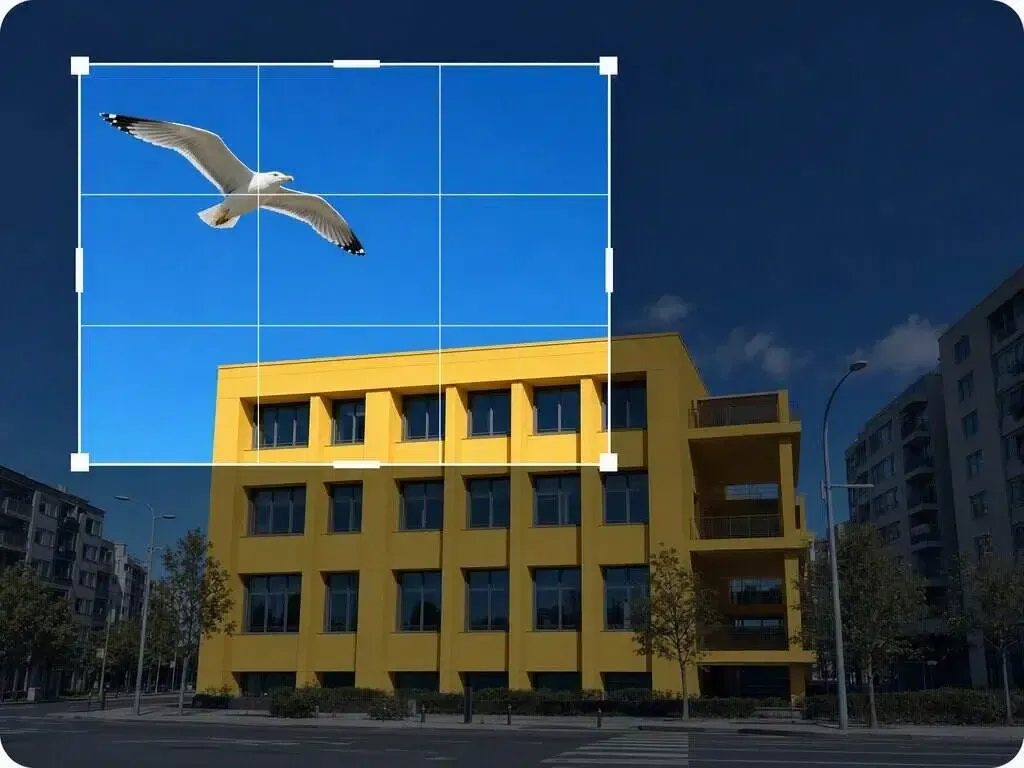


How to Resize an Image with Vmake Labs
Step 1. Upload your image
Add the portrait, product photo, UGC image, or campaign asset you want to resize.
Step 2. Choose a target ratio
Select 16:9, 9:16, 1:1, 4:3, or 3:4 for the placement you need, from landscape and square to vertical formats.
Step 3. Generate and download
Let AI extend the surrounding scene. Check the subject position, generated edges, and available copy space in the preview, then download the new layout.
AI Image Resizer for Real Content Tasks
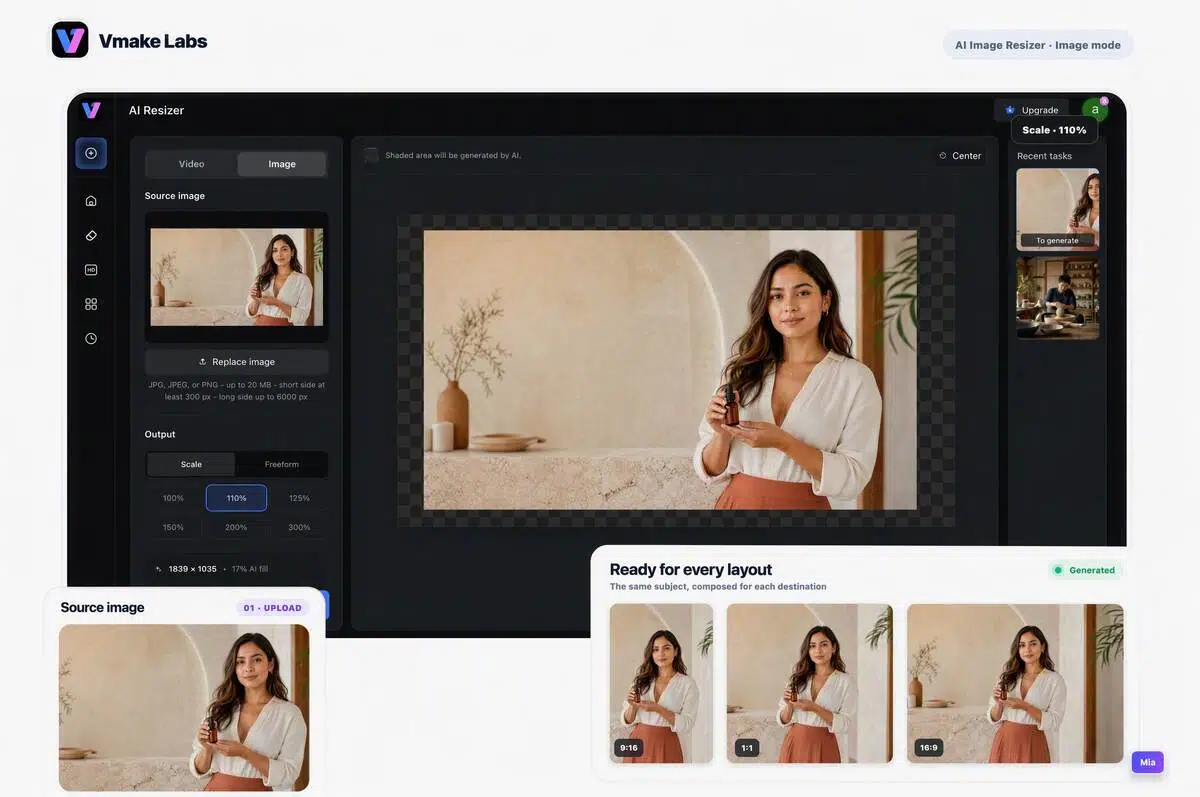
Turn a landscape asset into a vertical post
When a landscape image needs to fit a Reel, Story, or vertical feed, choose 9:16 or 3:4. AI expands the canvas so the person, product, and original message can remain part of a complete composition.
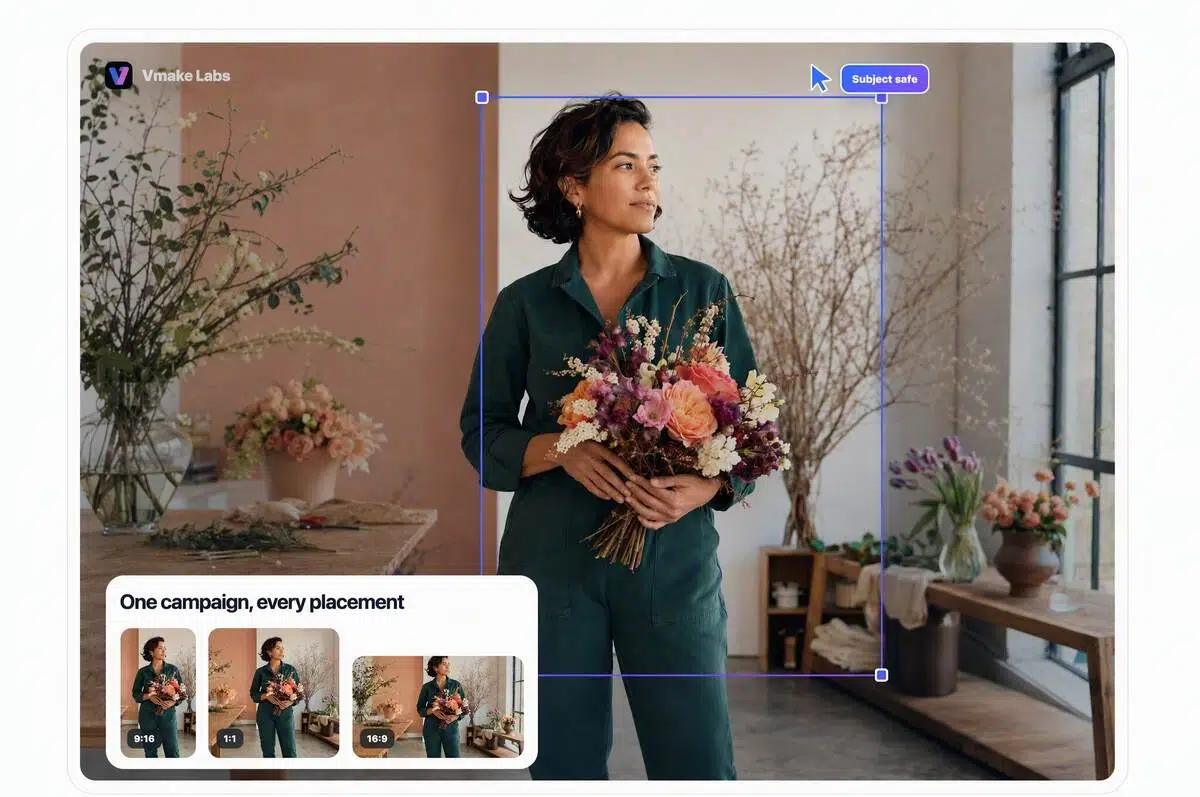
Prepare one campaign for more ad placements
Adapt the same approved key visual into square, portrait, and widescreen versions. Reduce repetitive design work while keeping the relationship between the product, core message, and call to action recognizable.
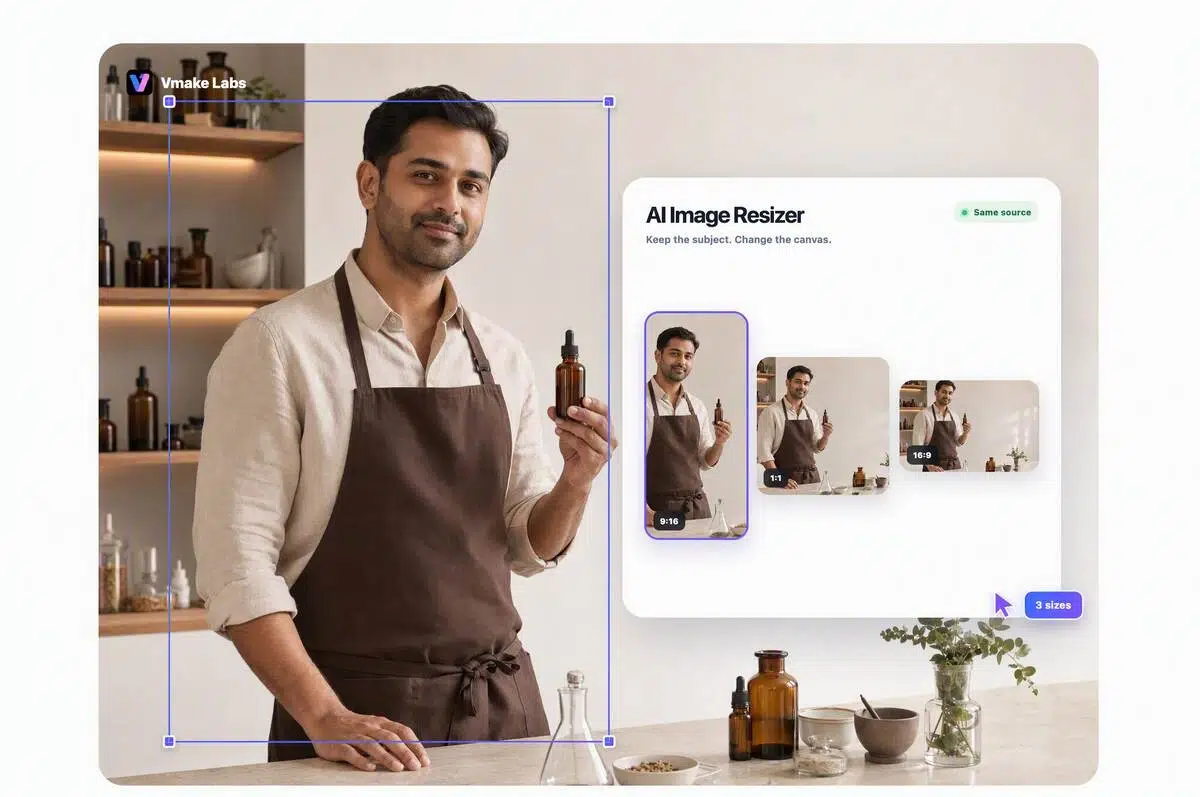
Create room for product details and campaign copy
Expand a tight product or creator image without squeezing the subject. Open practical layout space for pricing, headlines, logos, benefits, or calls to action around the original visual.
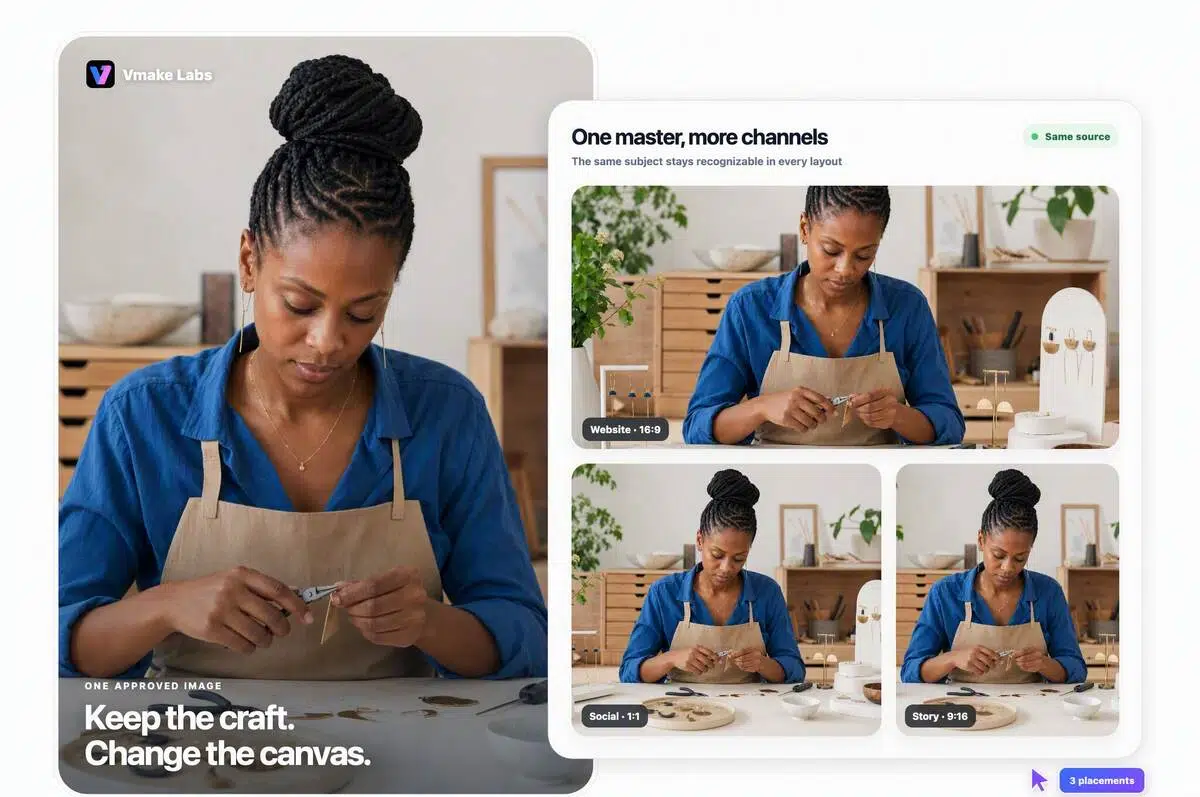
Build web and social versions from one source image
Generate layouts for product pages, banners, social posts, and ads from the same source. Keep the central subject and visual direction more consistent as the image moves across channels.
Resize the Canvas, Not Just the Crop
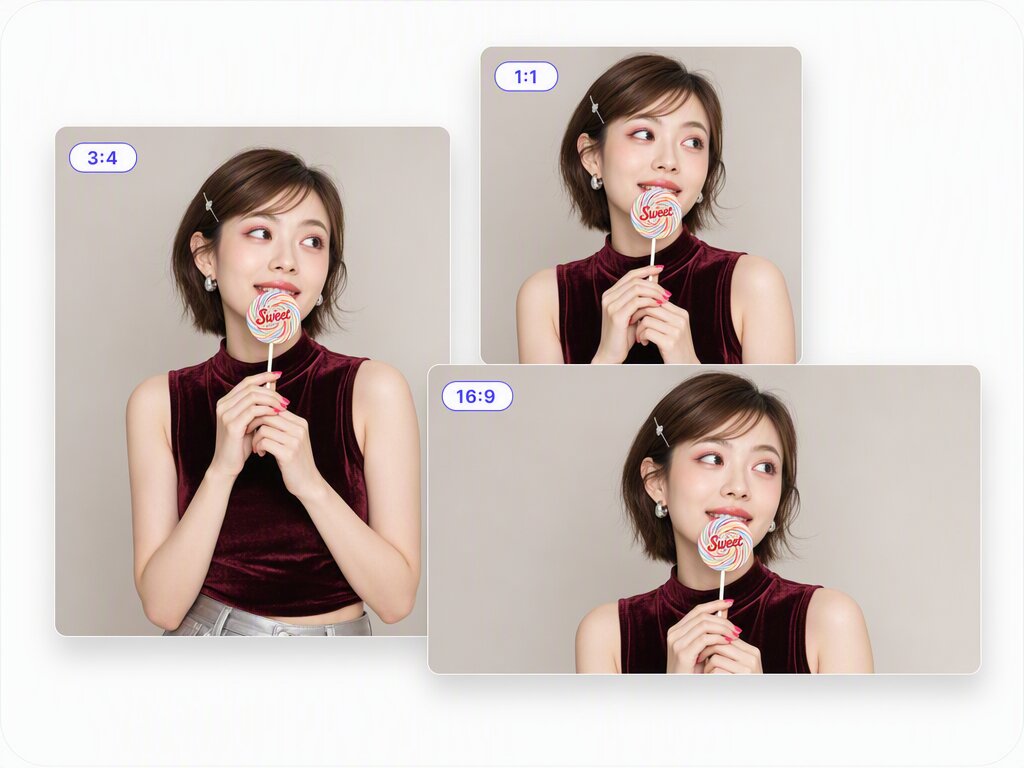
Cover five ratios fast
Choose 16:9, 9:16, 1:1, 4:3, or 3:4 for social feeds, Stories, product pages, banners, and ads. Move one approved image across landscape, square, and portrait placements in a single workflow, without rebuilding the design for every channel or starting from scratch each time.
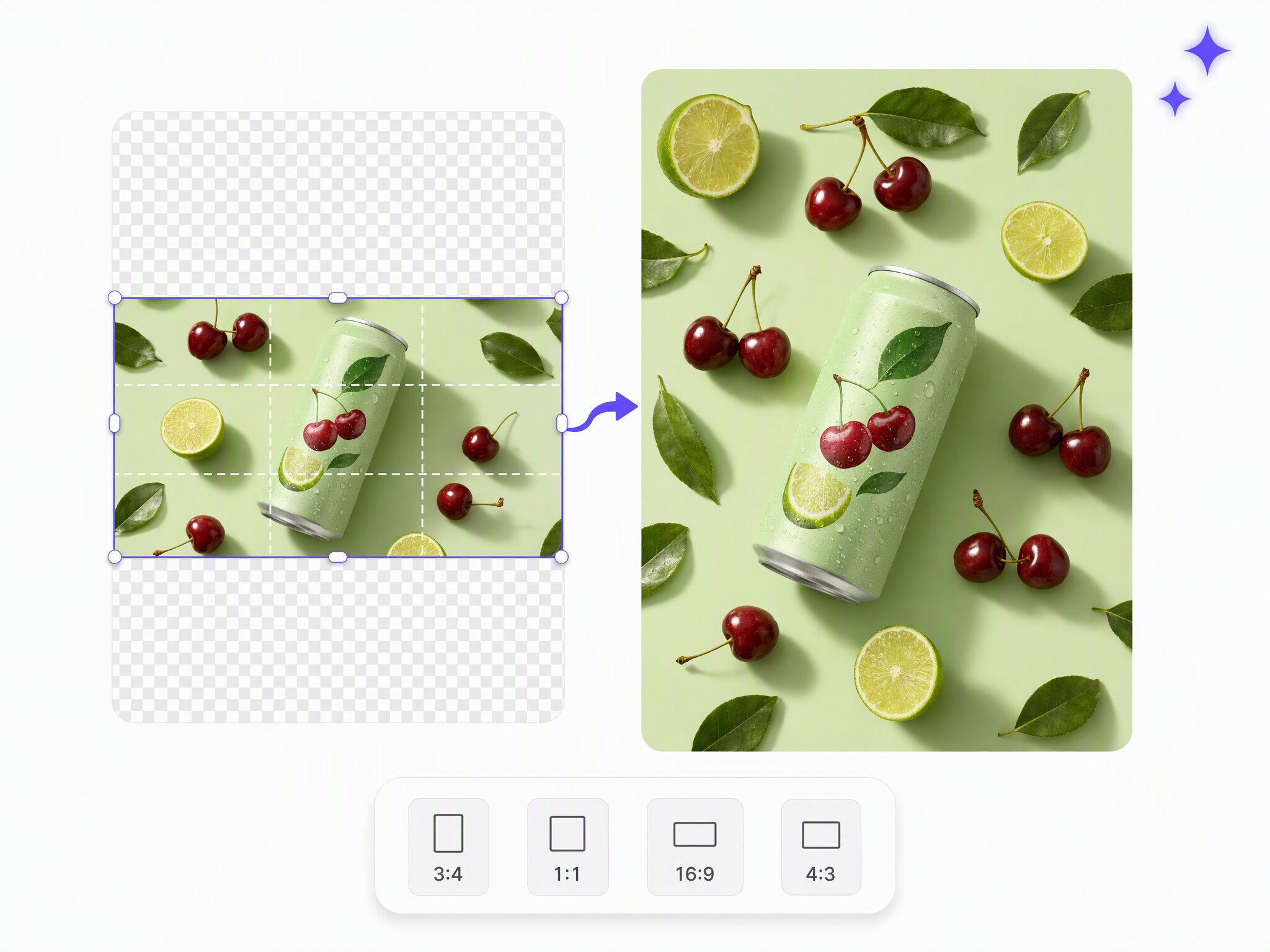
Expand canvas, not subject
When the target ratio needs more room, AI generates new canvas around the source rather than stretching a person or product wider or flatter. The composition stays grounded in the approved image, while the added space gives you the width or height required by the next format.
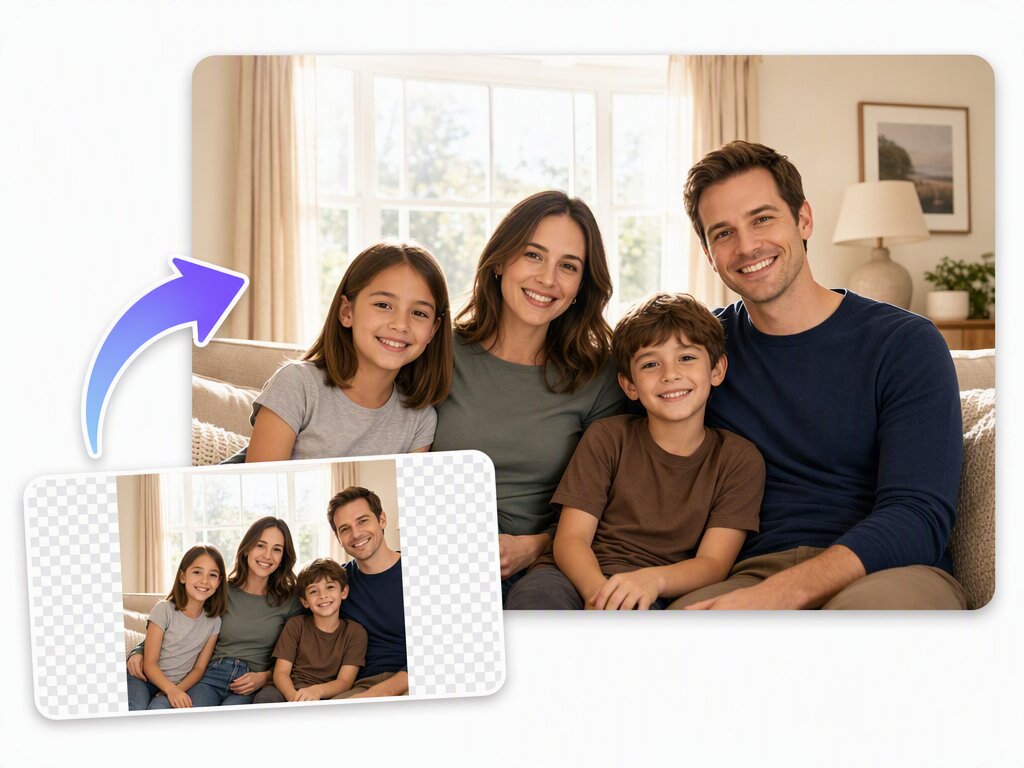
Keep the subject visible
As the aspect ratio changes, AI works to preserve people, products, gestures, and key details instead of cutting them away with a tighter crop. Use the preview to confirm the focal point still works for the intended placement before you export the finished result for publishing.
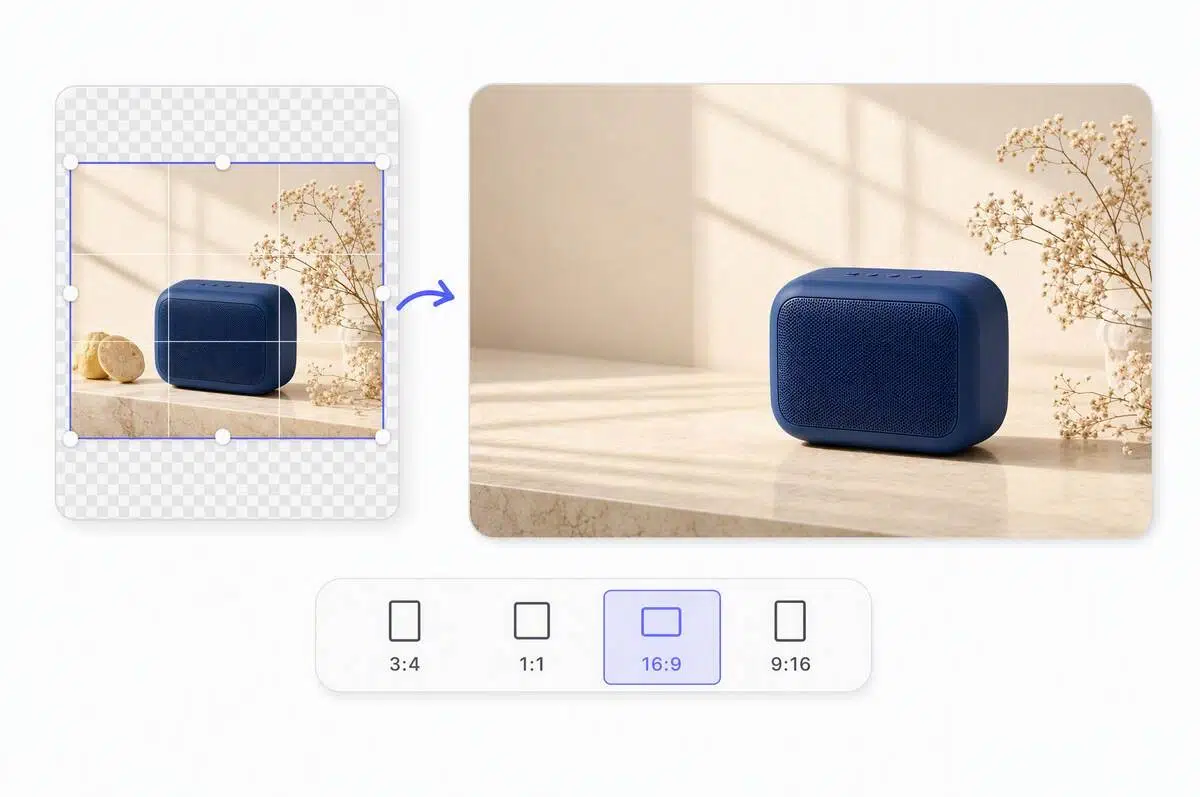
Make room for campaign copy
Open useful space around a tight image so pricing, product benefits, logos, headlines, or calls to action have a clear place in the layout. AI expands the surrounding canvas while the central subject remains visible and recognizable across the finished campaign creative.
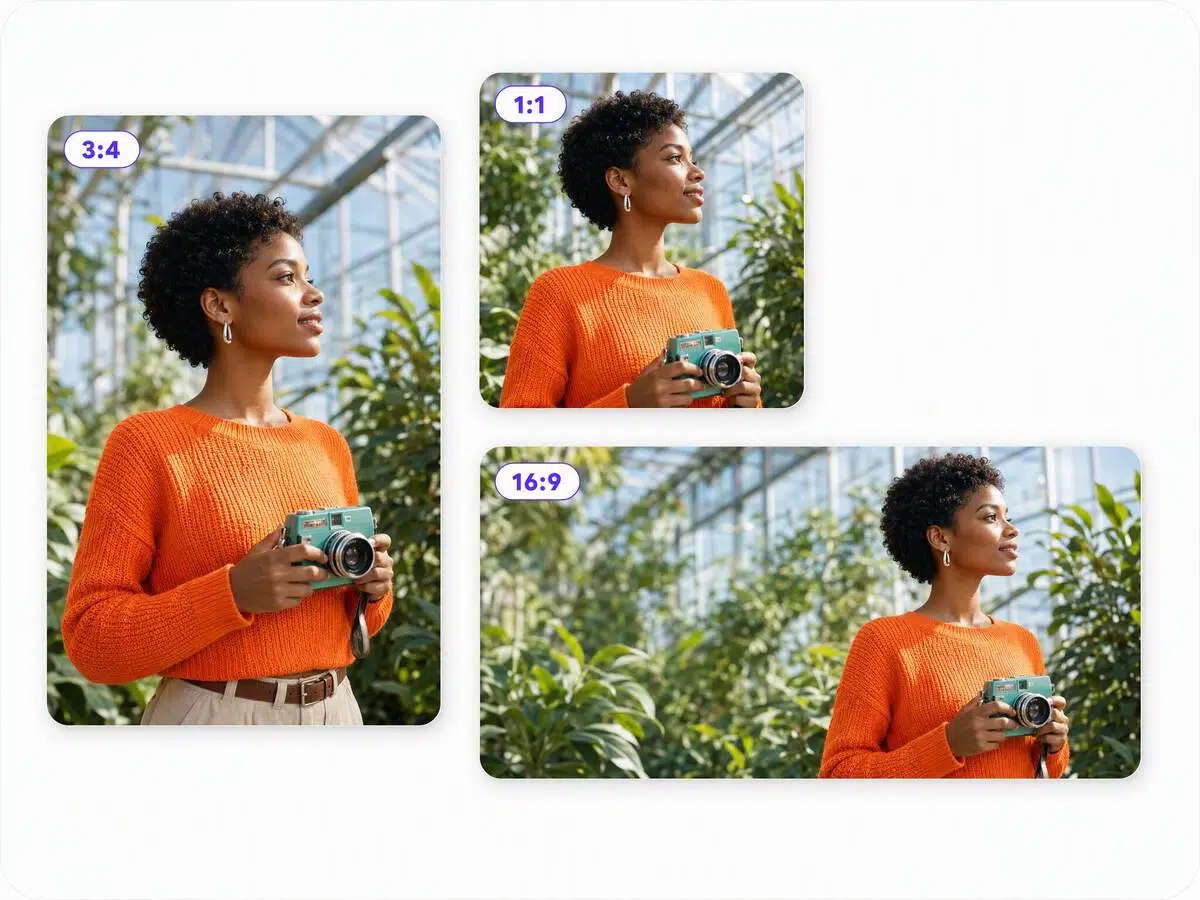
Review the whole composition
Review the subject placement, generated edges, and available copy area in the main preview before using the resized image. This final check helps you confirm that important details remain visible, the new surroundings look coherent, and the composition suits its intended placement.
Who Gets Results from AI Image Resizer
Social media and marketing teams
They need one approved campaign image to work across landscape, square, and vertical placements. Resize the visual for daily posts, Stories, covers, and paid ads while keeping the main person, product, and message consistent.
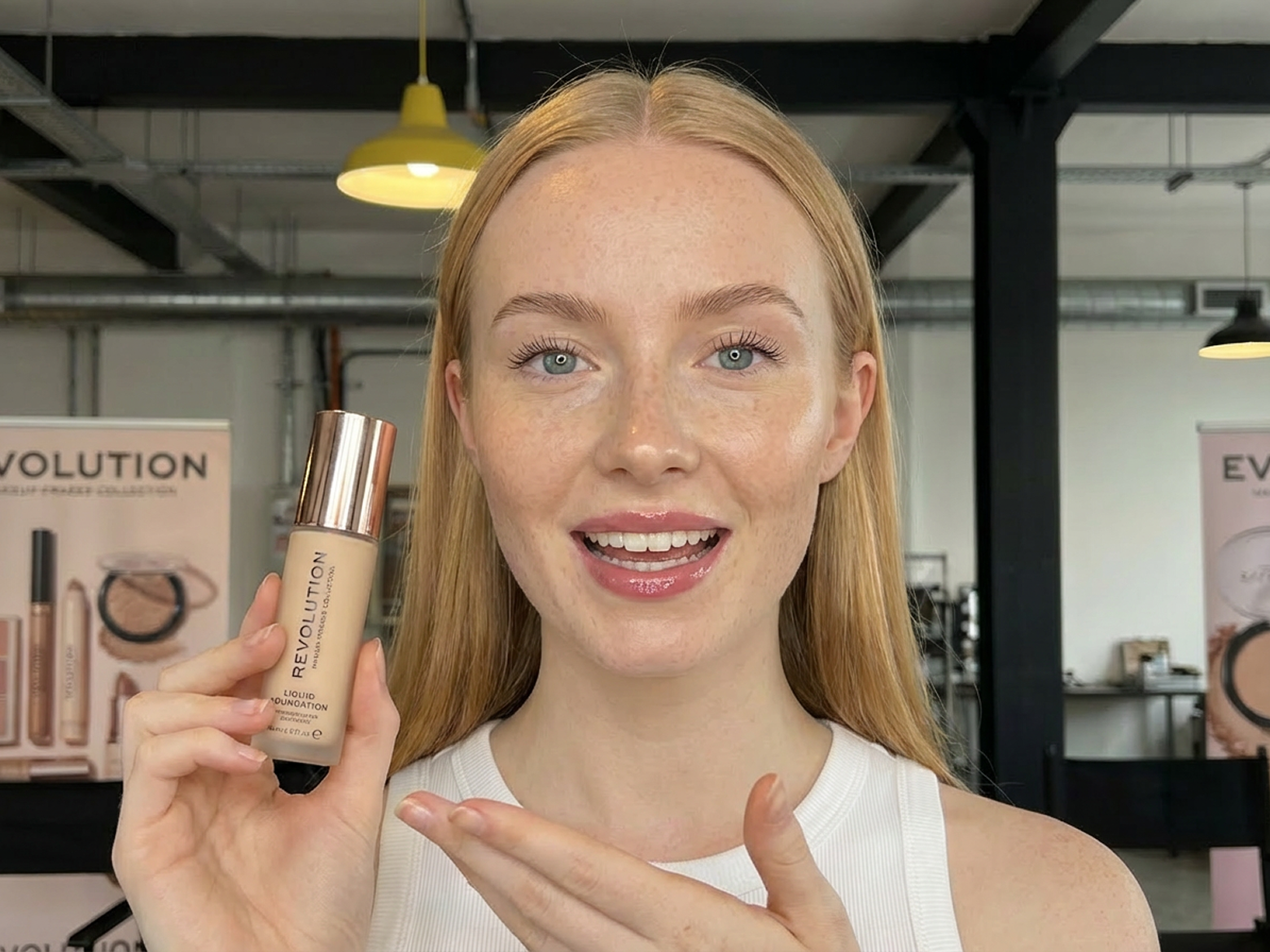
Ecommerce sellers and brand teams
They move product images between storefront banners, product pages, social posts, and advertising layouts. Canvas expansion helps keep the product, presenter, and offer visible while creating room for pricing or a key benefit.
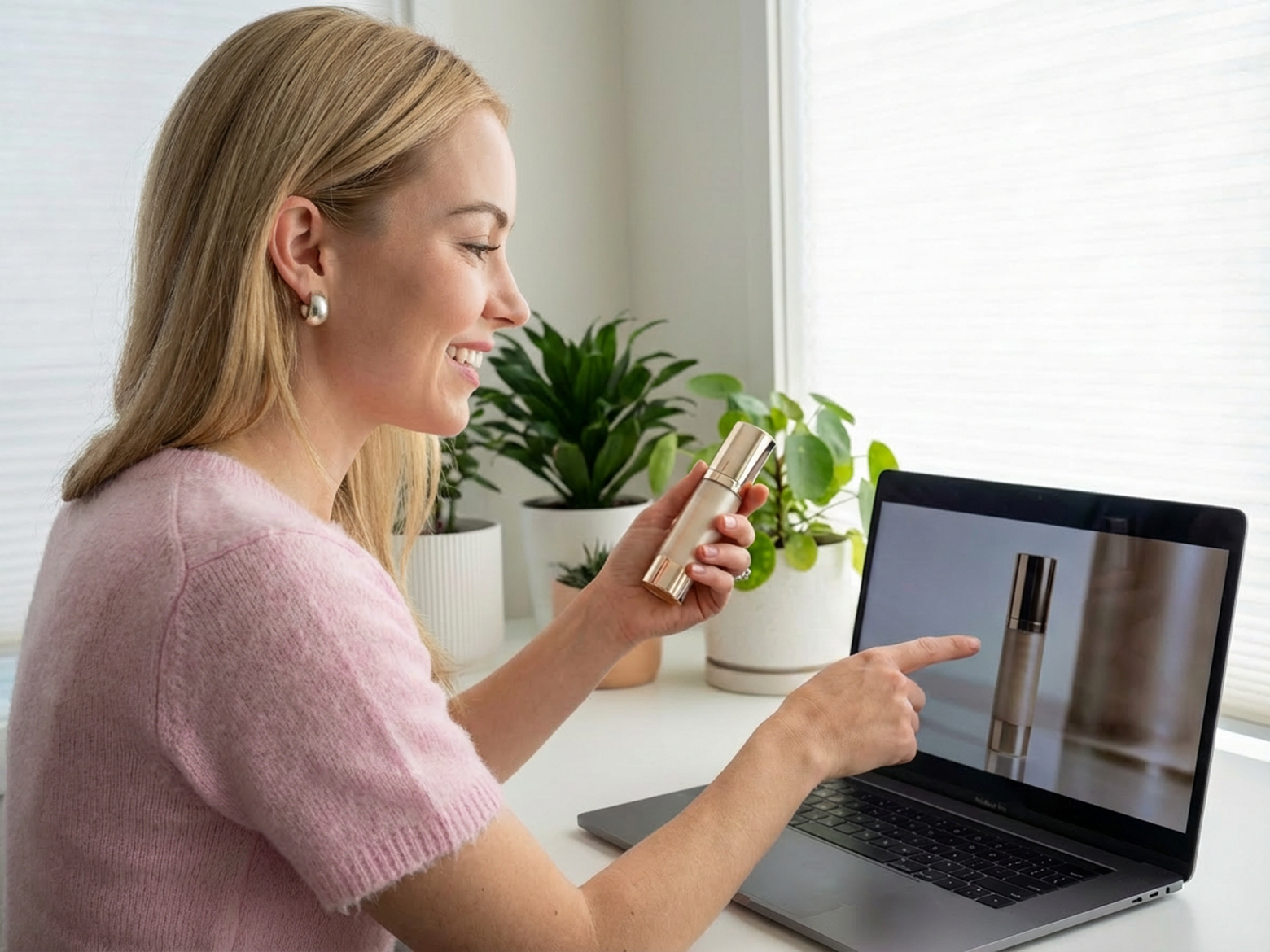
UGC and content creators
They publish across platforms that ask for different frame shapes. Preserve expressions, gestures, and product context, then use the additional canvas for captions, account details, or branding instead of reshooting the same idea for every channel.

Editors, designers, and agencies
They prepare channel-specific deliverables from one source image. Use AI to establish the new ratio and copy space first, then move the selected result into the next design, review, or campaign production step.
Why Choose AI Image Resizer


Frequently asked questions
What is AI Image Resizer?
How is this different from a traditional image resizer?
A traditional tool usually changes pixel dimensions, crops, or adds a simple fill. Vmake Labs AI Image Resizer generates new canvas areas that follow the visual context of the source image.
Does it simply crop or stretch the image?
Its core approach is to generate additional canvas around the source instead of relying only on a tighter crop or stretching. Review the generated edges and key details before using the result.
Can I turn a portrait image into a landscape image?
Yes. Choose 16:9 or 4:3 and let AI generate content around the portrait source so the subject can work within a wider composition.
Which aspect ratios are available?
Choose 16:9, 9:16, 1:1, 4:3, or 3:4 for common landscape, portrait, and square placements.
How can I keep a person or product visible?
Start with a source image where the subject is clear. After selecting the ratio, check the person, product, gestures, and important details in the preview before downloading.
Can I create space for text or branding?
Yes. Expand the canvas around a person or product to create room for headlines, pricing, logos, product benefits, or calls to action.
Can I review the resized image before downloading?
Yes. Check the complete composition in the preview, including the subject placement, generated surroundings, and available copy space, before using the result.
Can I resize video the same way?
Yes. When an approved clip needs portrait, square, or widescreen placements, use Vmake Labs AI Video Resizer to expand or change your video ratio for more social media platforms