
AI Movie Trailer Generator Online
Create movie trailers from a text prompt, reference image or existing footage using multiple AI models. Choose your input, generate and download your stunning movie trailer now!
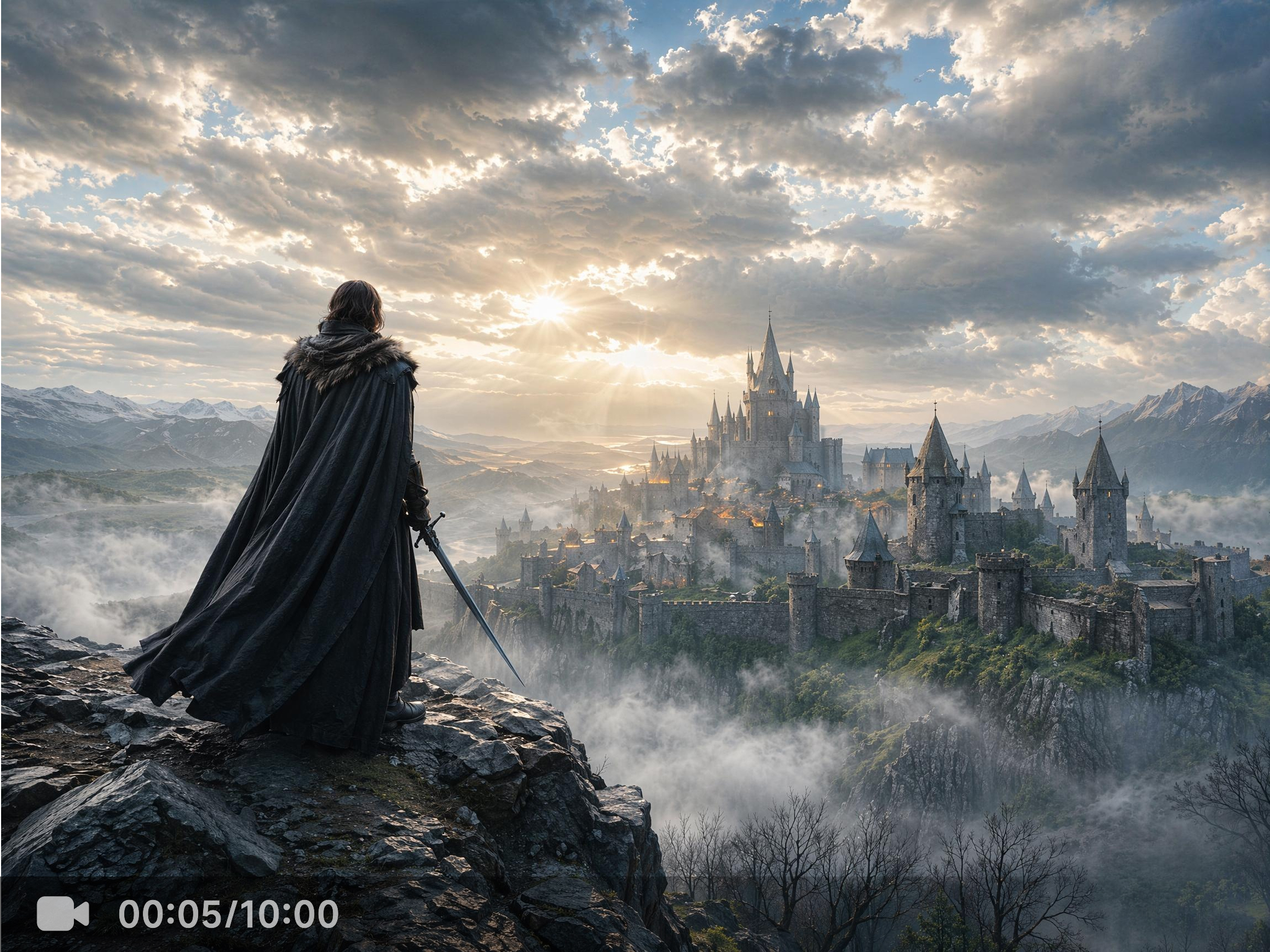


How to create an AI movie trailer with Vmake
Step 1. Choose your input mode
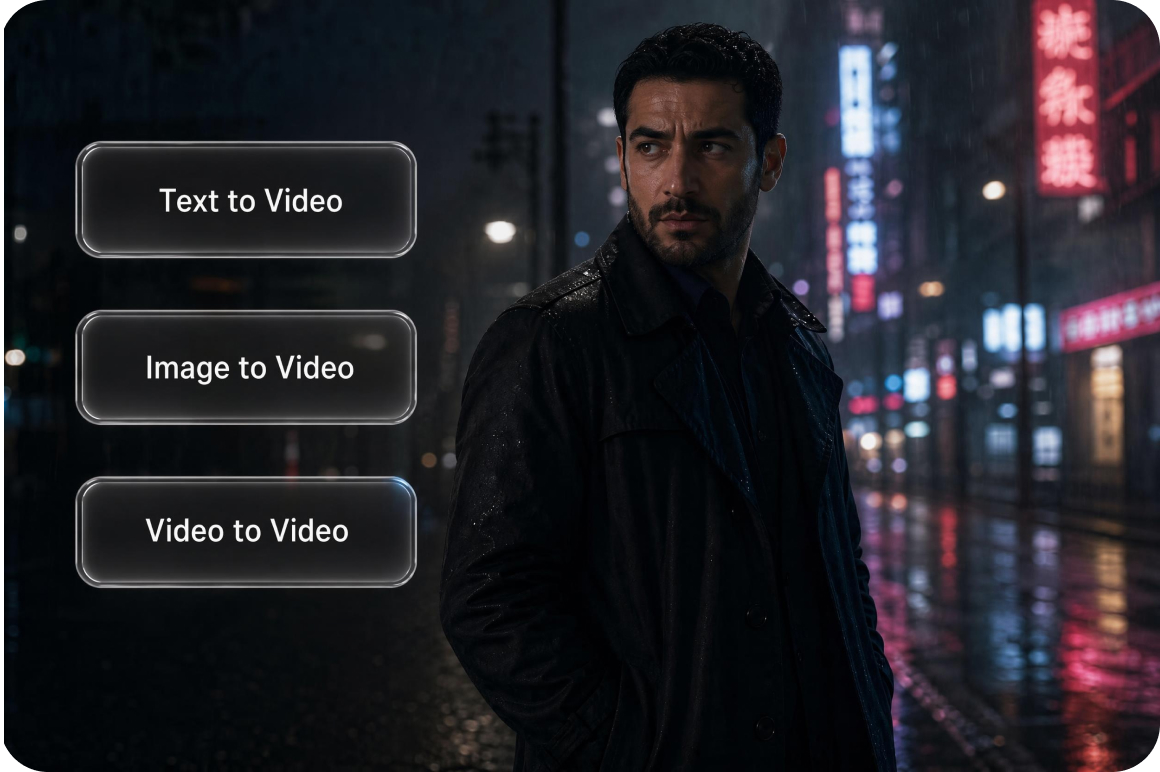
Click Text to Video and type a description of the scene. Click Image to Video and upload reference images under the Elements, Frames or Effects tab. Click Video to Video and upload an existing clip to restyle into a new cinematic style.
Step 2. Select a model and generate
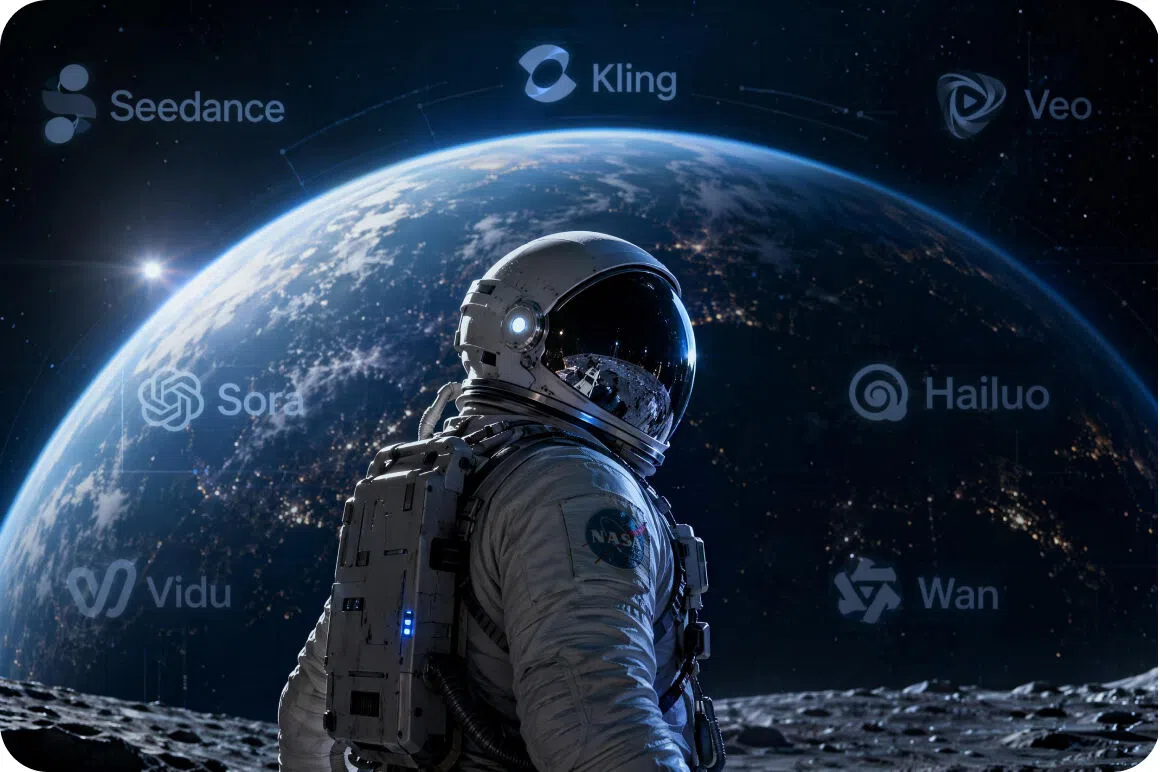
Choose a generation model from the Model selector including Seedance 2.0, Kling 3.0, Veo or Sora 2. Set your clip duration and add a scene description in the Description field. Click Generate.
Step 3. Preview and download
The generated clip appears in the main preview area and is saved to Generation History on the right panel. Review the output and click Download to save in high resolution when satisfied.
Make Cool Backgrounds with AI
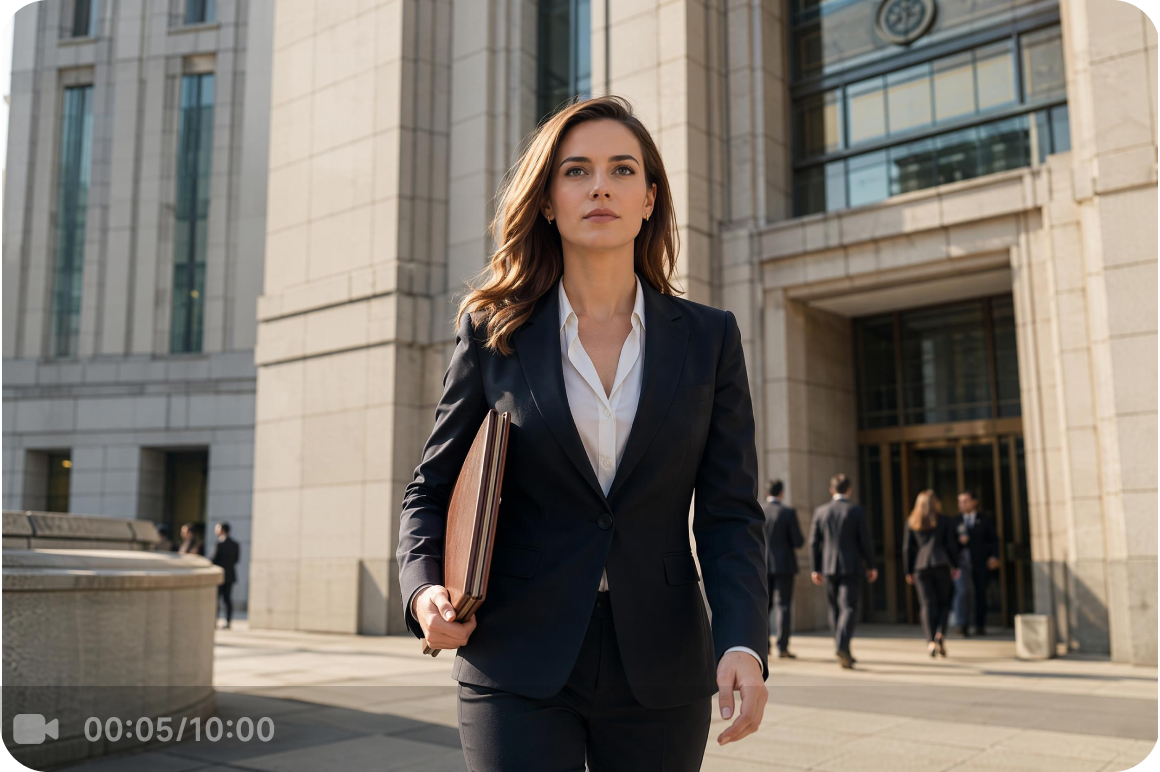
Generate narrative film clips and establishing shots
Describe any scene in the Description field and generate a plot clip, landscape establishing shot or daily life scene. Useful as source material for independent productions.
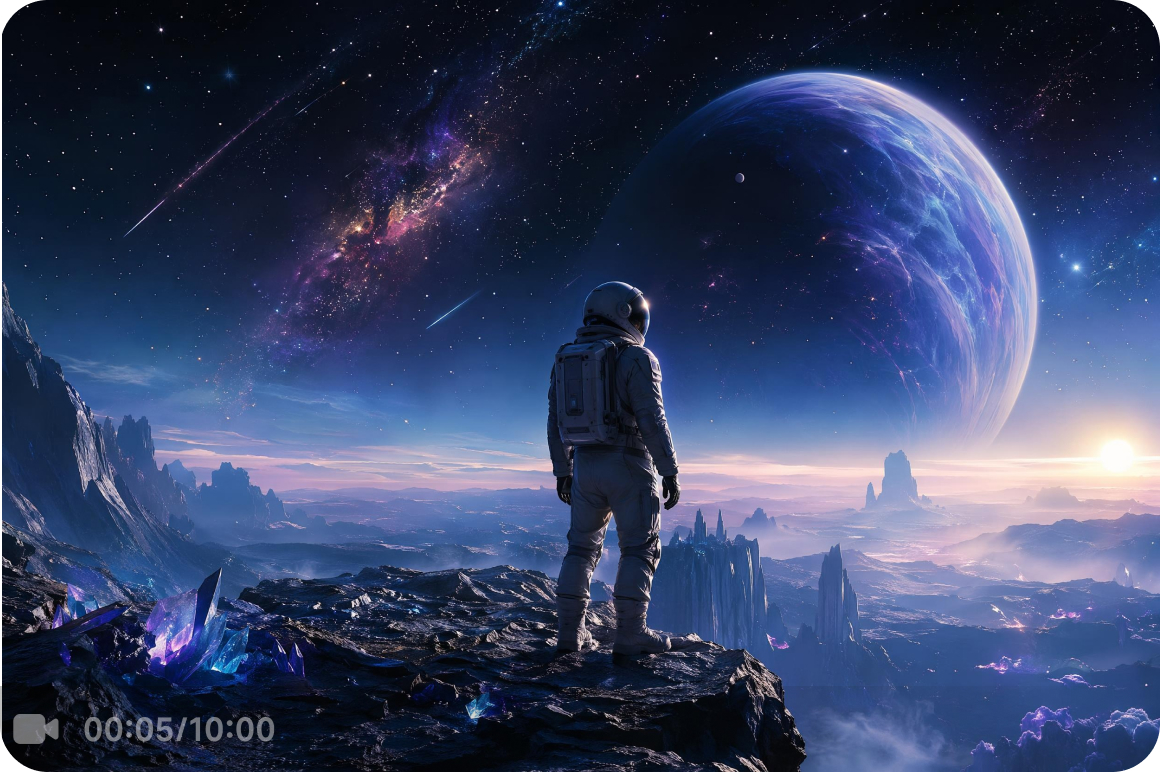
Build sci-fi, animation and non-realist content
Upload a reference image or describe a concept and generate a stylized clip in sci-fi, non-realist or animation-style output. A starting point for developing creative series content without a specialist production setup.
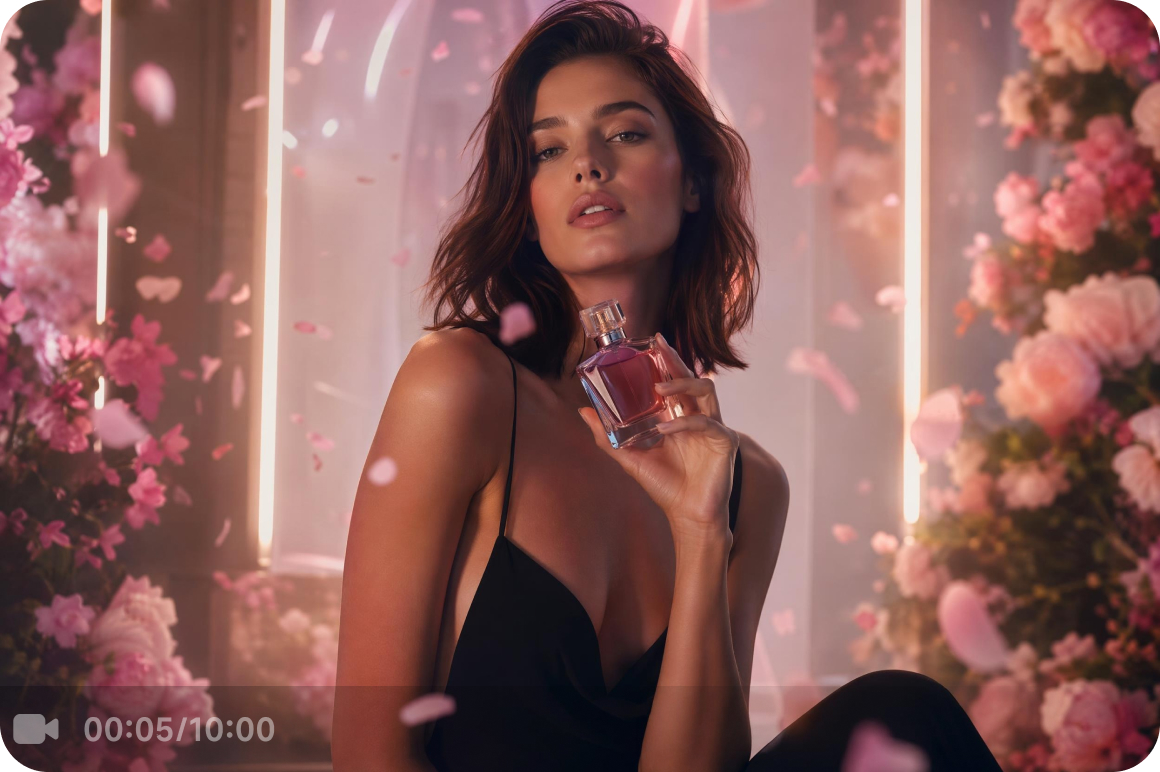
Create beauty, lifestyle and animated content
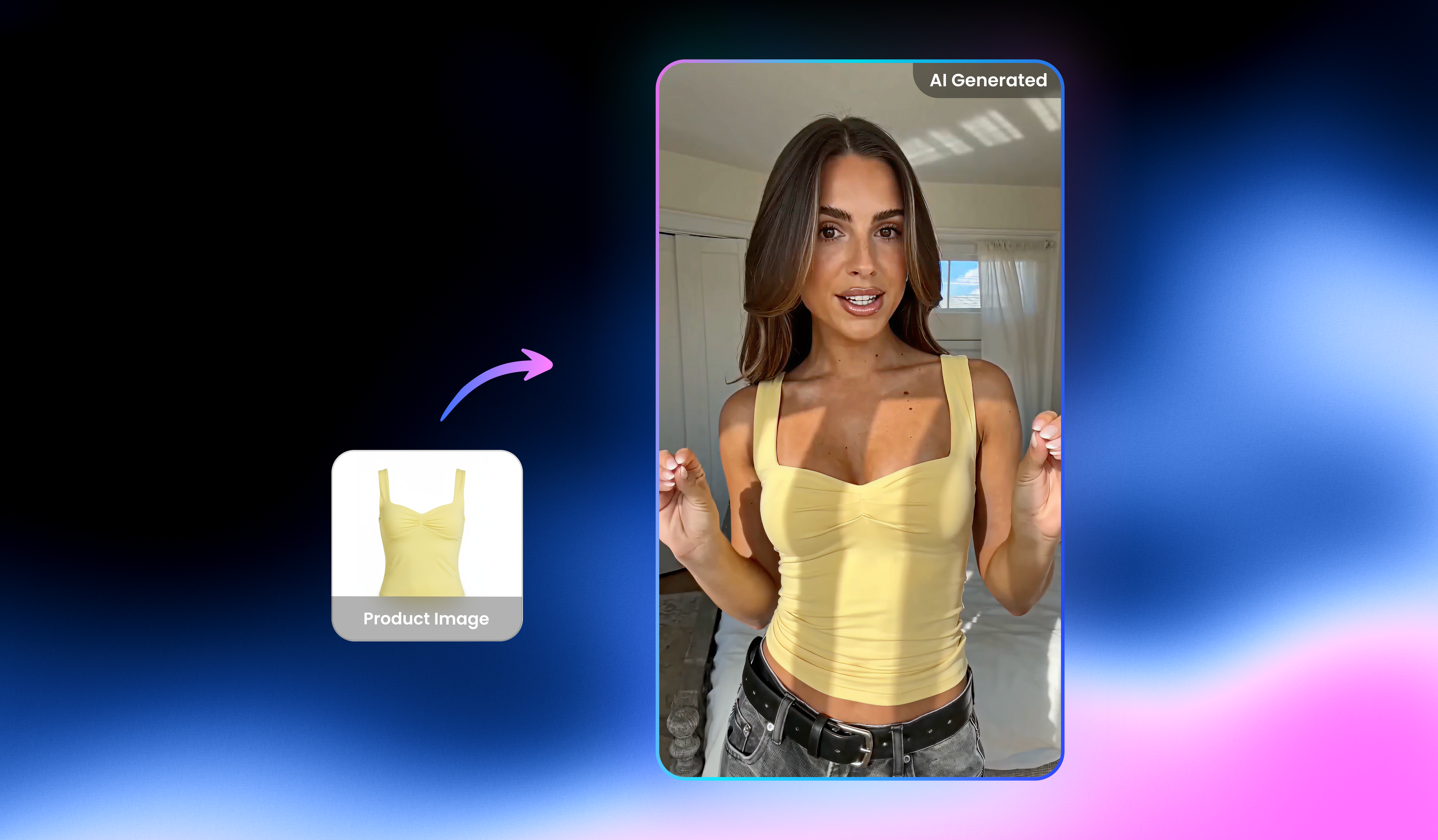
Generate beauty, lifestyle and entertainment scene clips from text descriptions or reference images. Source material for social content schedules that require regular visual output without a filming session for each post.
What makes Vmake Labs a reliable AI movie trailer generator
Three cinematic input modes
Text to Video generates narrative clips from a written scene description. Image to Video animates uploaded reference images using Elements, Frames or Effects sub-tabs. Video to Video restyles existing footage into a new cinematic style. All three modes are available from the same workspace covering every starting point for trailer scene production.
Leading AI models in one place
Choose from models including Seedance 2.0, Kling 3.0, Veo 3.1, Sora 2 and Hailuo 2.3 from the Model selector. Each produces different visual styles and motion quality. Switch between models on the same scene description to find the cinematic direction that fits your project.
First and last frame control
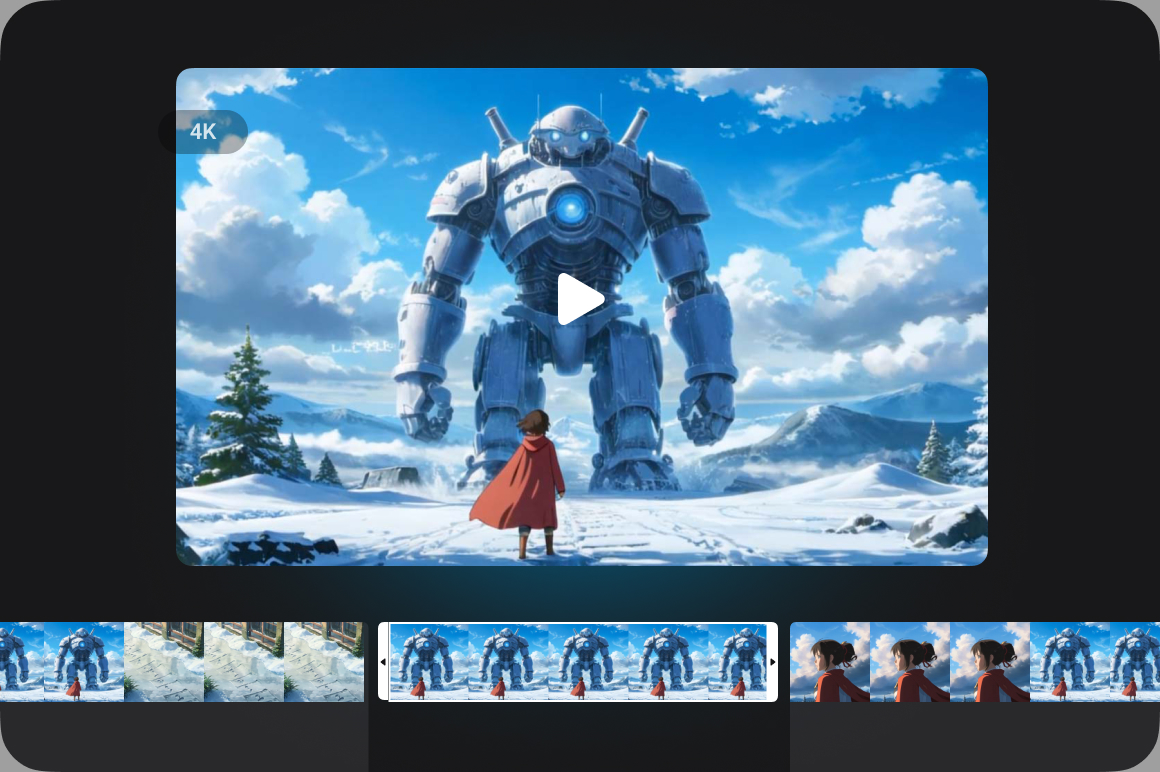
Frames mode under Image to Video generates motion between two images you define. Upload the opening and closing frame and AI fills the motion between them. Useful for controlling exactly how a trailer scene starts and ends without keyframe animation experience.
Built-in visual effects library
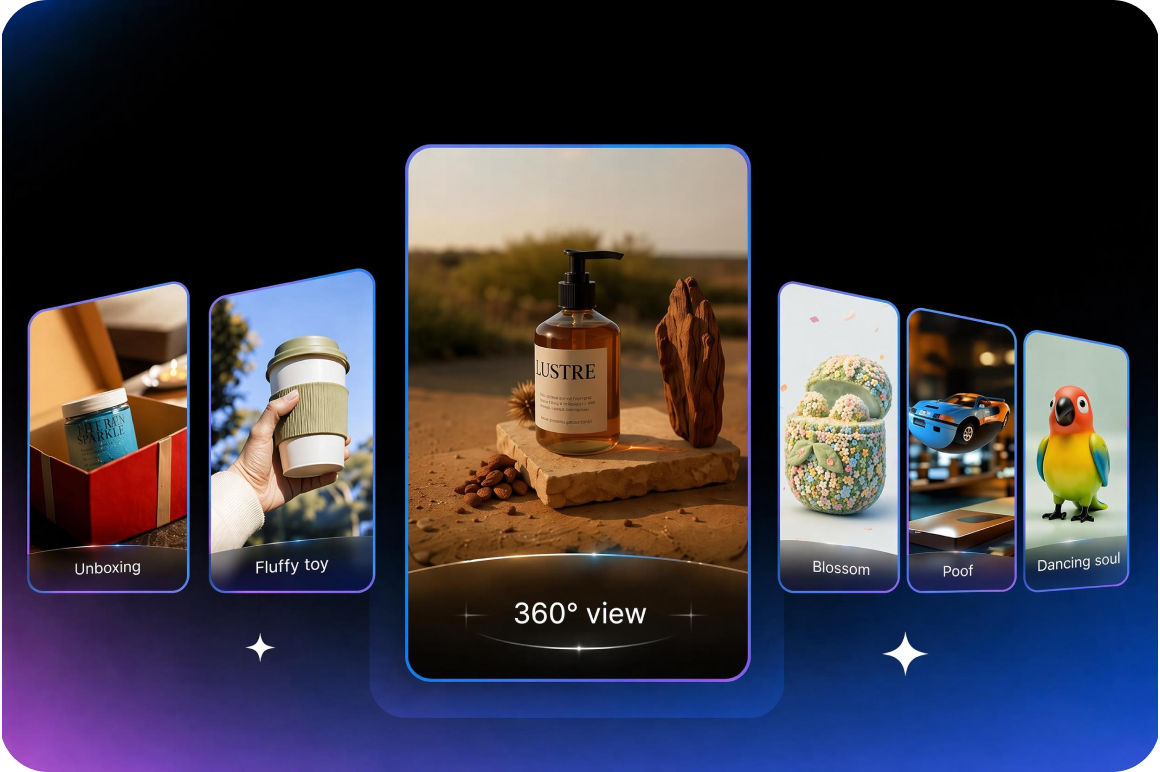
Effects mode under Image to Video applies built-in generation effects to a reference image before generating. Choose a visual effect style at the generation stage rather than adding it in post. Practical for stylized trailer scenes where the effect is part of the intended visual direction.
Who uses Vmake Labs AI movie trailer generator most
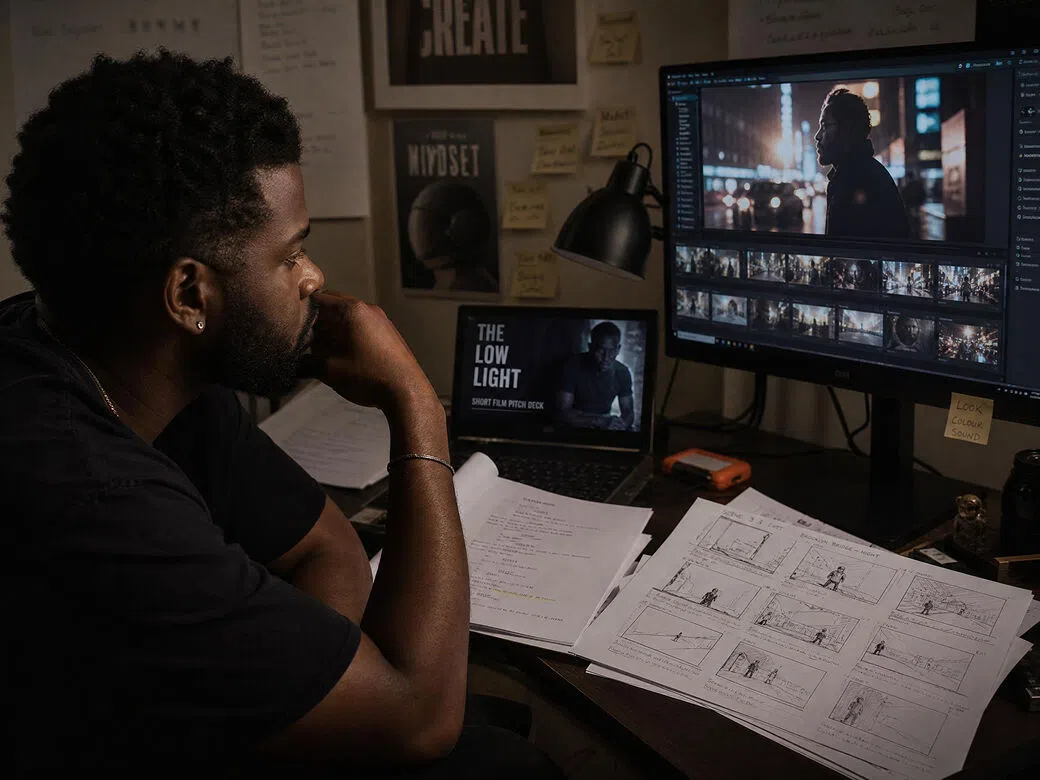
Independent filmmakers and short film creators
Producing cinematic establishing shots, landscape scenes and plot clips requires location access, crew and equipment that independent productions cannot always arrange. Vmake Labs generates narrative film clips from text descriptions or reference images using multiple AI models. Scene content is available for independent productions as clip material without a full location shoot.
Creative content series producers
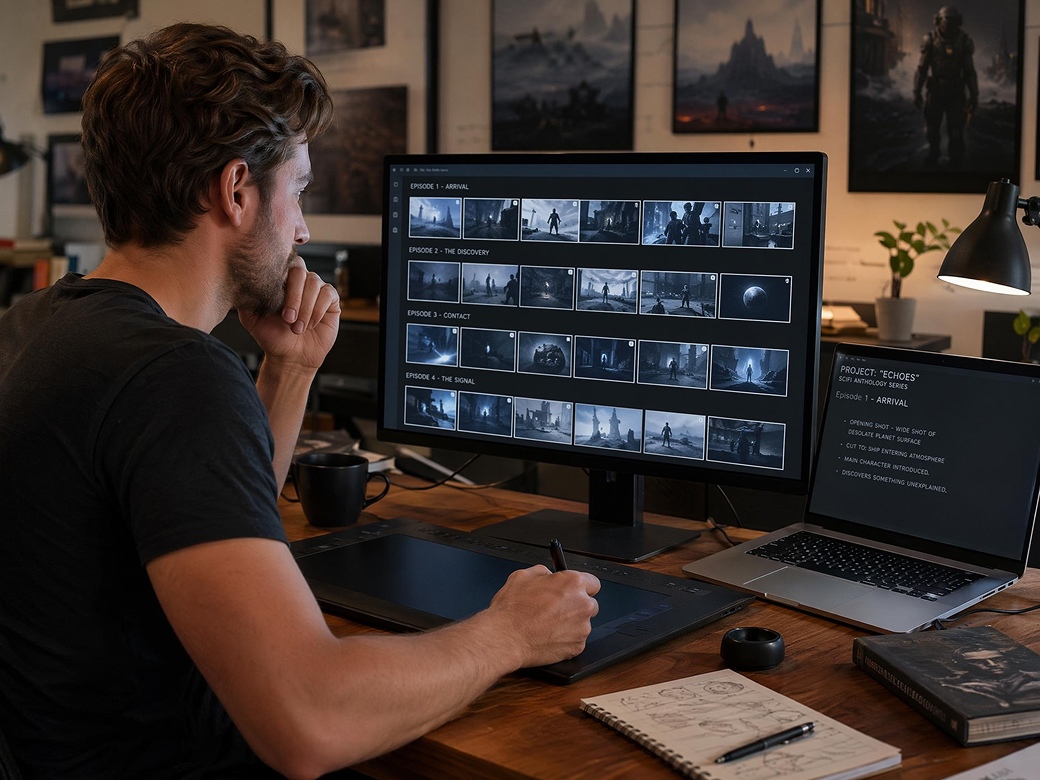
Building a recurring series in sci-fi, animation or non-realist styles requires visual output at a pace that manual production cannot always sustain. Vmake Labs generates stylized clips from text or reference images across Image to Video and Text to Video modes. Creators have scene material to develop from without a production setup for each clip.
Social entertainment creators
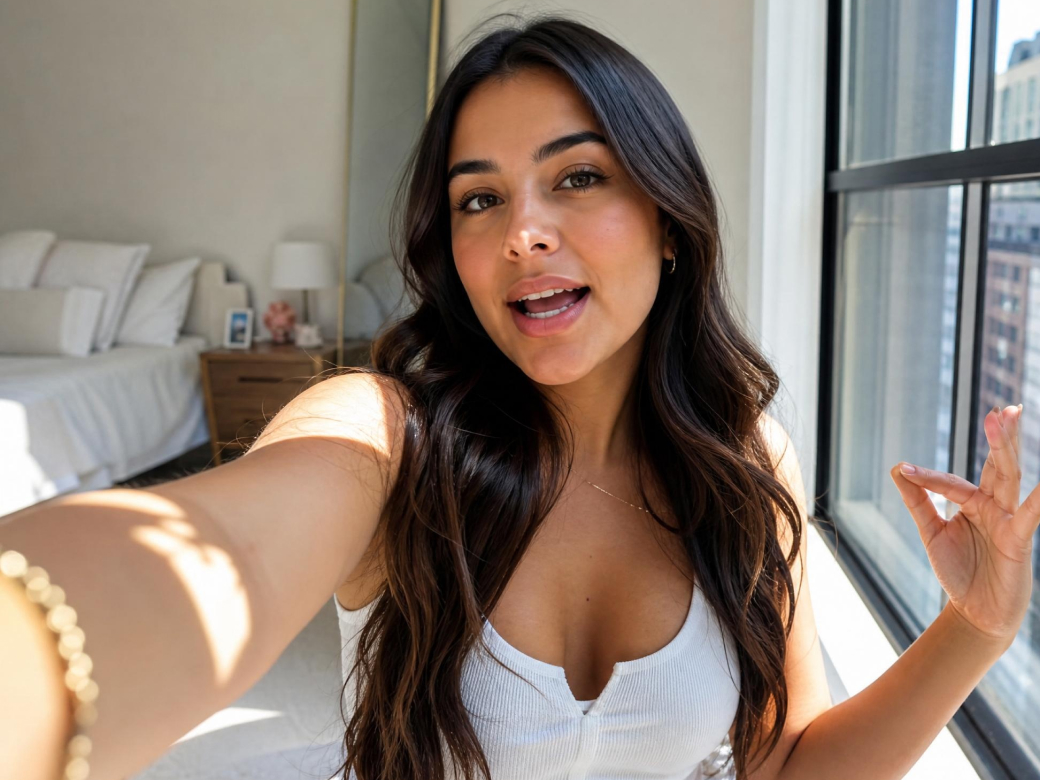
Beauty series, lifestyle entertainment and animated content for social platforms requires regular fresh video material that traditional filming cannot always deliver at publishing pace. Vmake Labs generates entertainment scene clips from text descriptions or reference images with multiple model options. Creators have scene content to work from without a filming session for each post.
Frequently asked questions about AI movie trailer generators
Can I generate a cinematic clip from just a text description?
What is the difference between Elements, Frames and Effects in Image to Video?
How long can my generated movie trailer clips be?
Can I restyle existing footage into a cinematic clip?
What resolution can I export my generated clips in?
How many AI models are available for movie trailer generation?
Why filmmakers and creators choose Vmake Labs for AI movie trailer generation

The full ai artificial intelligence trailer clip generation workflow runs in the browser from any desktop device. No software download, plugin or rendering setup required to generate, preview and download cinematic clips.

Using the same model and description style across multiple generations produces visually similar output. Recurring series content has a consistent starting point without rebuilding the scene brief for each new clip in the series.

Write a detailed scene brief in the Description field covering environment, subject, movement and camera direction. More descriptive prompts give the AI more to work with when generating cinematic trailer scene content.
Explore more Al tools
UGC video
Video & image enhancer
Video upscaler
Video translator
Watermark & text remover
Video noise reducer
Video background remover
Video & audio to text
Start generating your AI movie trailer today
Cinematic trailer clips and scene footage can now start with a text description, a reference image or existing footage. Choose your generation mode and create your first scene.
What creators say about Vmake Labs AI movie trailer generator
I generated a few establishing shots for a short film without having to shoot on location. They worked well as cutaways between dialogue scenes and saved us time during production.
I used text prompts to create sci-fi clips for an ongoing YouTube series. It helped keep the visual style consistent from one episode to the next without having to recreate everything each time.
I used reference images to create beauty and lifestyle clips for social media. The results stayed consistent, and I didn't have to set up a separate photo or video shoot.
I created anthropomorphic animal animations from reference images. It was a simple way to test creative ideas without using traditional animation software.
I generated landscape and nature establishing shots for a brand film instead of using stock footage. The clips matched the cinematic style we wanted and fit into the final edit without much extra work.
We used generated clips for a few scenes in our student short film that weren't possible to film before the deadline. It was a practical way to fill the gaps without changing the story.